Optimising Reports to Improve Efficiency
- sql
- reporting
- Report
- SQL performance
- report speed
- report loading
In this guide we will cover:
- Selective Data Retrieval
- Join Recommendations
- Subquery Alternatives
- Minimising Use of Wildcard Characters
- Use of $-filters
Larger or more complex reports can potentially have slower loading times. This guide outlines a few key points to consider when writing reports to help combat this.
Selective Data Retrieval
Using a SELECT * statement can slow down performance because it returns all columns in a table, including those that are not needed for the query. To optimize SQL queries, it is important to only select the columns that are needed for the query.
Additionally where possible, use indexed columns for filters, e.g. faultid or datecleared.
Join Recommendations
Some joins are more efficient than others. JOIN is more efficient to run than a LEFT JOIN or RIGHT JOIN for example.
JOIN statements can also be used instead of filtering with a WHERE clause. In the example below, the data can be filtered to exclude deleted tickets earlier than if the same was contained in a WHERE clause further on in the query.
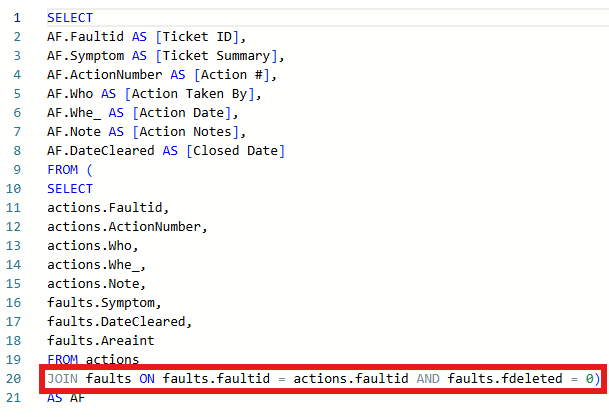
Fig 1. Example report with an efficient JOIN.
Subquery Alternatives
Subqueries can slow down performance, especially when used in WHERE clauses. It is recommended to avoid subqueries whenever possible, and replace with some type of JOIN.
Both these example queries give identical results, but the latter will run more efficiently.
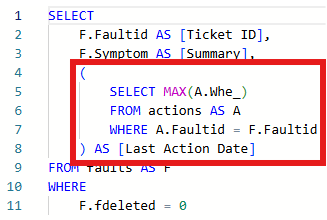
Fig 2. Query for last action date on tickets with a subquery.
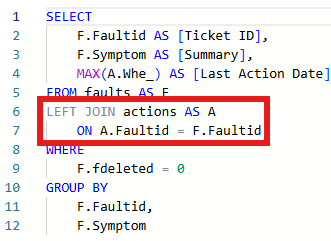
Fig 3. Query for last action date on tickets with a JOIN.
Minimising Use of Wildcard Characters
The use of wildcard characters, such as %, can slow down performance as the database has to scan the entire table to find the relevant data. It is important to minimize the use of wildcard characters and to use them only when absolutely necessary. If possible, replace these with greater/less than or equal comparison operators.
The below example is an inefficient report. Although it only queries the required columns, it has to search each user's name.
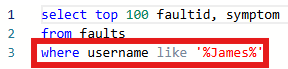
Fig 4. Query for tickets where the end-user has the name "James".
Using a CONTAINS query instead will help the efficiency here. However, if looking for tickets from only one user, it would be better to use their user ID instead of name to further improve this.
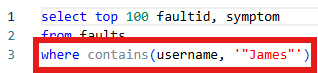
Fig 5. Improved query for tickets where the end-user has the name "James".
Use of $-filters
It is now possible to specifically place where in your query the filters will be applied, both for when filters are applied manually on the report's UI or when filtering on a report during an API call using "Filter_".
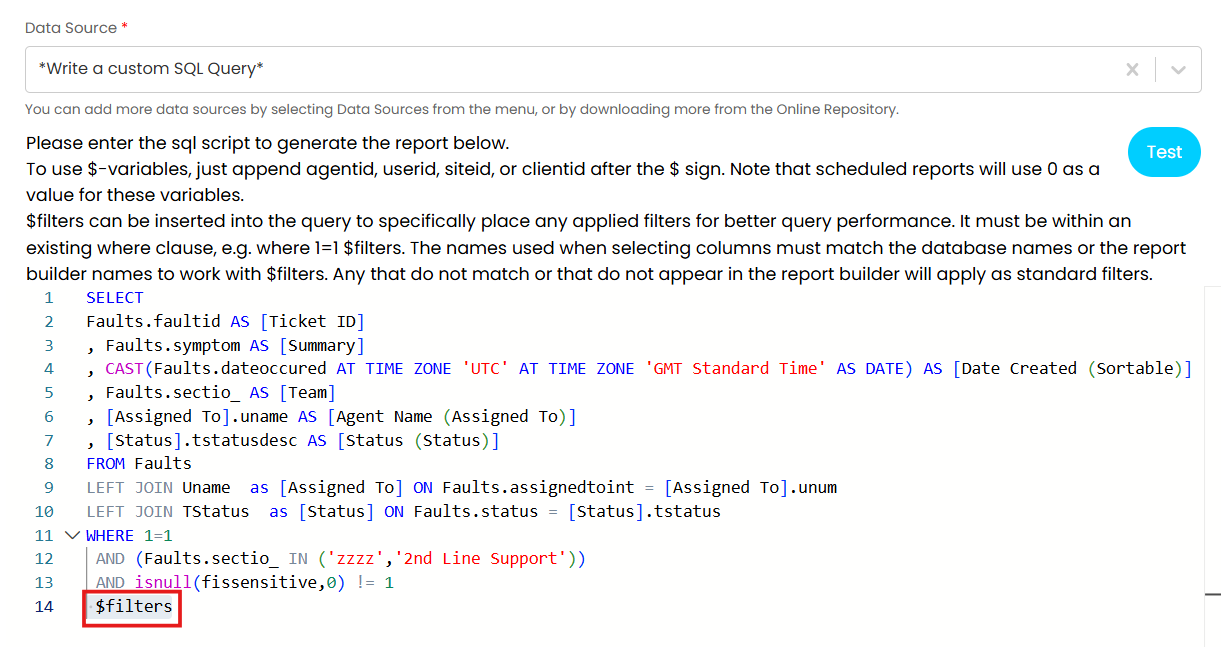
Fig 6. The $-filters variable that allows filters to be inserted directly into a report's SQL
To be able to utilise this functionality, ensure you have enabled the setting in Configuration > Reporting > General Settings to "use improved filters in the report builder".
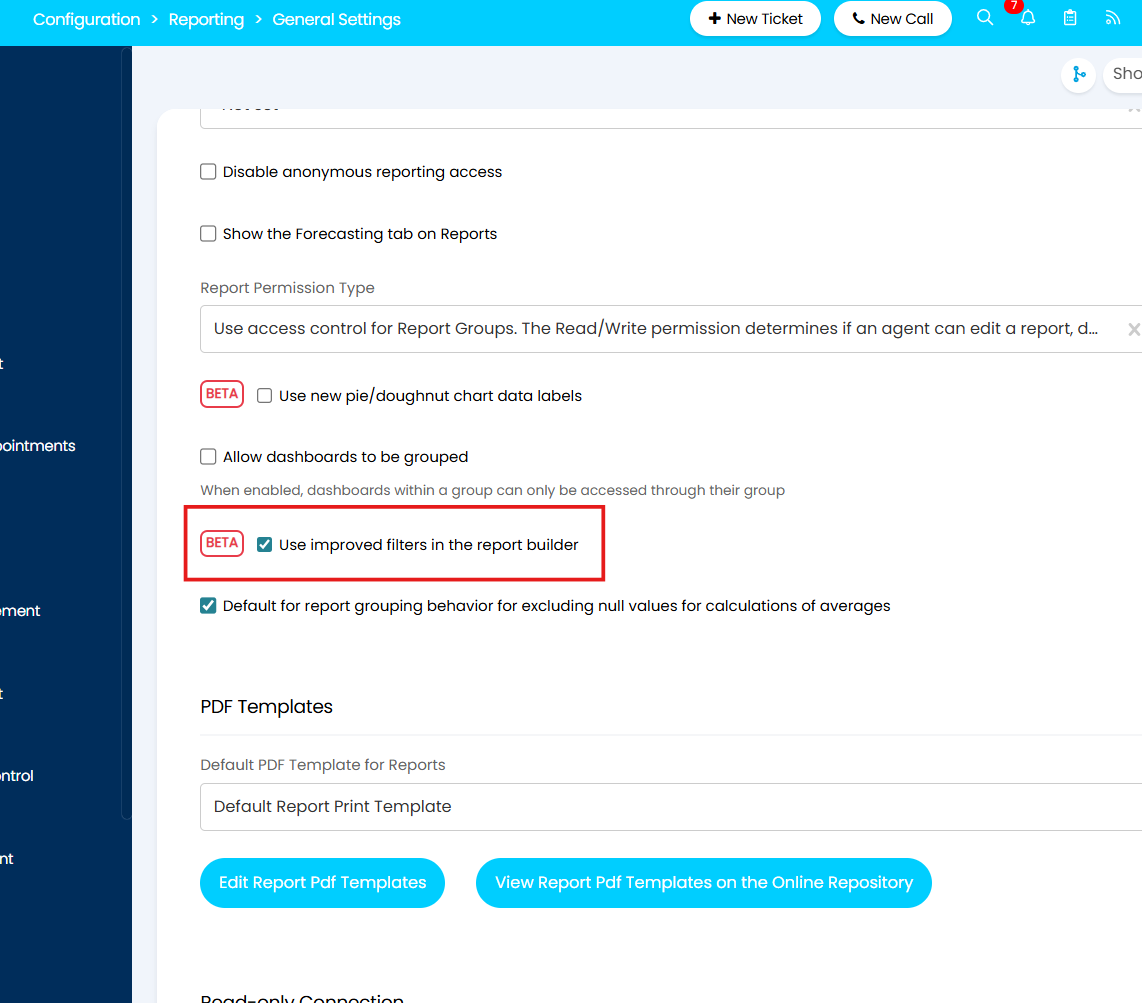
Fig 7. Setting to use new filtering functionality in the reporting suite
Use of this variable greatly improves performance - especially for large reports - as it inserts the UI filters or API parameters directly into the WHERE clause of the report's SQL instead of applying them after the initial report has loaded, causing the report to load twice (and once without filters).
Important: This variable will only work if the names of the columns being selected in your query match the names in the database and/or query builder. If they do not match, the filters will still be applied but not using this method, which could result in performance issues.