SQL Imports - Licences and Subscriptions
In this guide we will cover:
- How to complete a SQL Import to import Licences and Subscriptions into Halo
This guide covers SQL imports specifically for the use of importing licences and subscriptions into Halo. For a general overview of SQL imports we recommend reading our guide SQL Imports.
How to complete a SQL Import to import Licences and Subscriptions into Halo
To setup a SQL import head to configuration integrations > SQL Import > New. Here give the import profile a name and choose Subscriptions/Software Licences as the 'Entity'.
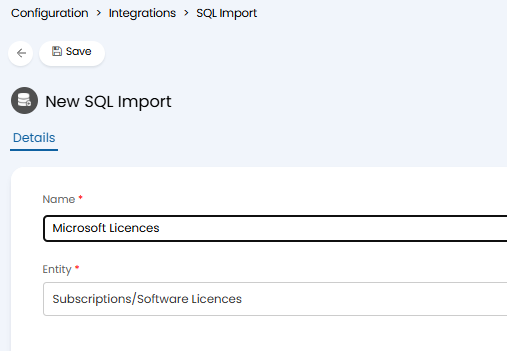
Fig 1. New Import profile
Now enter the connection details for your SQL connection.
Your SQL query must return the following:
- A third-party Software Licence or Subscription reference that is unique per row.
- A column indicating whether the row is importing a Licence or Subscription. The value must be either "Licence" or "Subscription".
- A customer reference, which can be configured to match either the Customer Name or the Halo Customer ID.
- A name for the Software Licence or Subscription.
Now you will need to map the key fields for the import.
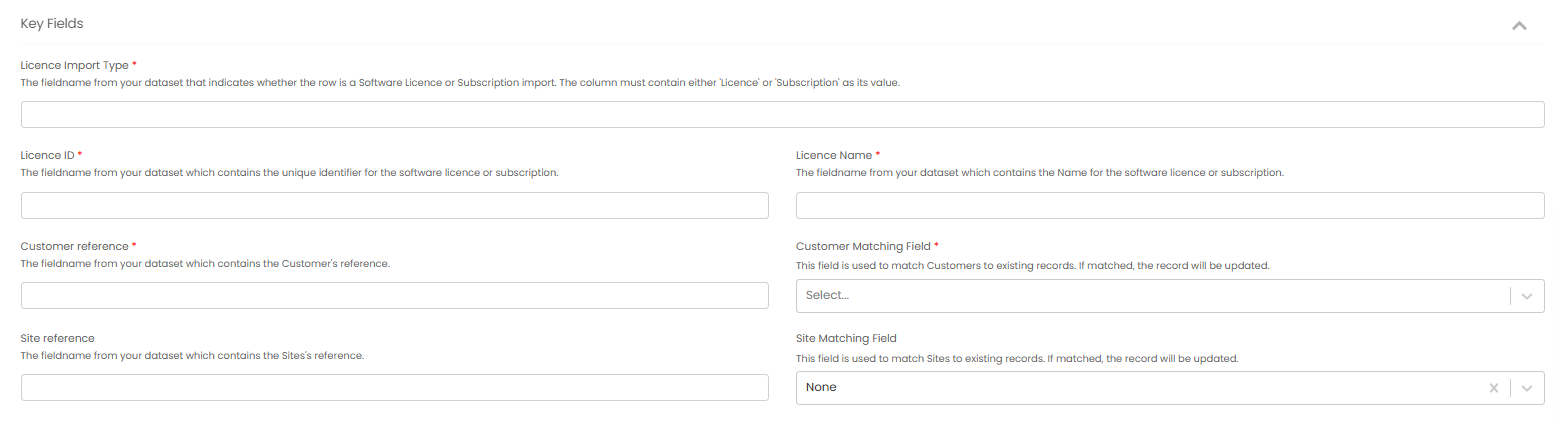
Fig 2. Key fields
Licence Import Type - Here enter the fieldname of the column that indicates if the row is a Software Licence or Subscription. The column must contain either 'Licence' or 'Subscription' as its value.
Licence ID - Here, enter the fieldname of the column that contains the unique identifier for the software licence/subscription.
Licence Name - Here, enter fieldname of the column that contains the Name for the software licence or subscription.
Customer Matching Field - Here, choose if you would like to use the Halo customer ID or customer name to match this subscription/licence to a customer.
Customer reference - Here, enter the fieldname of the column that contains the customer name or ID the licence/subscription is assigned to. Ensure this is in line with the customer matching field chosen.
Site Matching Field - Only needed if you would like licences/subscriptions to be assigned to specific sites. Here, choose if you would like to use the Halo site ID or site name to match this subscription/licence to a site.
Site reference - Only needed if you would like licences/subscriptions to be assigned to specific sites. Here, enter the fieldname of the column that contains the site name or ID the licence/subscription is assigned to. Ensure this is in line with the site matching field chosen.
If your dataset contains additional data you would like to pull into Halo, such as the licence count or end date, you will need to map these in the 'Field Mappings' table. Simply choose the Halo field you would like this data to be imported into. Then enter the fieldname of the column that contains this data for each row.
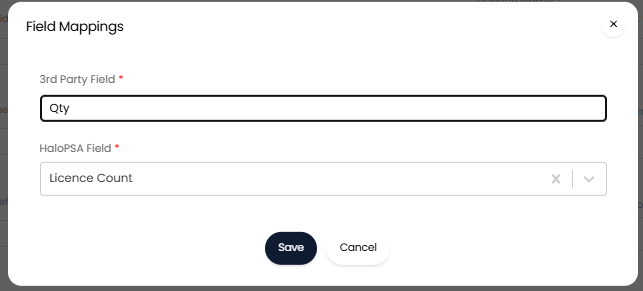
Fig 3. Additional Field mappings
Note: When mapping additional fields, ensure the data in the column is in the same format as the mapped Halo field. For example, when mapping to date fields the data in the column this is mapped to need to be in date format.
- When using the Auto Renew field mapping, the mapped column must contain a value of either 1 or 0 or yes or no (where 1=yes and 0=no).
Now when the import is run, licences/subscriptions will be created in Halo in line with the mappings you have configured.