Raynet Integration
In this guide we will cover:
- What is the Raynet Integration?
- Determine Asset Site
- Asset Imports
- Import Assets automatically on a schedule
What is the Raynet Integration?
The Raynet integration with Halo can be used to import sites and assets from Raynet into Halo. Assets and sites can be set to import automatically on a schedule so that any changes made to assets in Raynet sync over to Halo automatically. This integration is multi-tenanted, allowing you to connect multiple Raynet tenants to your Halo instance.
Connecting to Raynet
First head to Configuration > Integrations and enable the Raynet module.
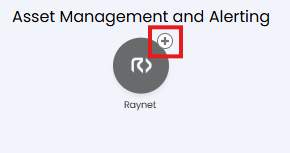
Fig 1. Enable integration module.
Once enabled click into the module to begin configuration. Click new to create a new connection.
Now you will need to enter connection details to connect your Halo instance to Raynet.
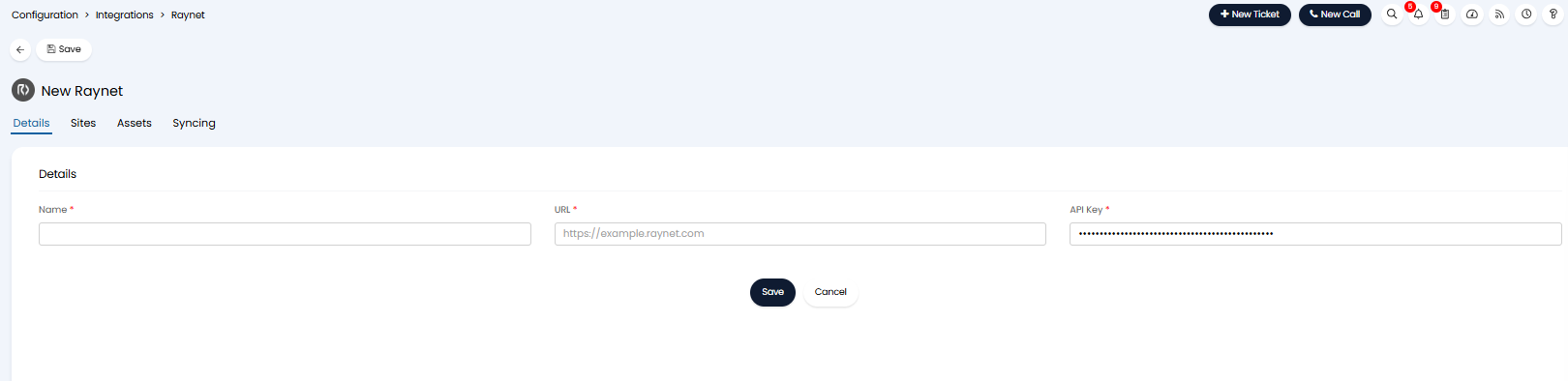
Fig 2. Raynet connection details
Name - Here, give your connection a sensible name.
URL - Here, enter the URL of your Raynet instance.
API Key - Here, enter an API key you have generated in Raynet.
Generate an API Key in Raynet
To create an API key head to your Raynet instance > Profile > manage API keys > add new key.
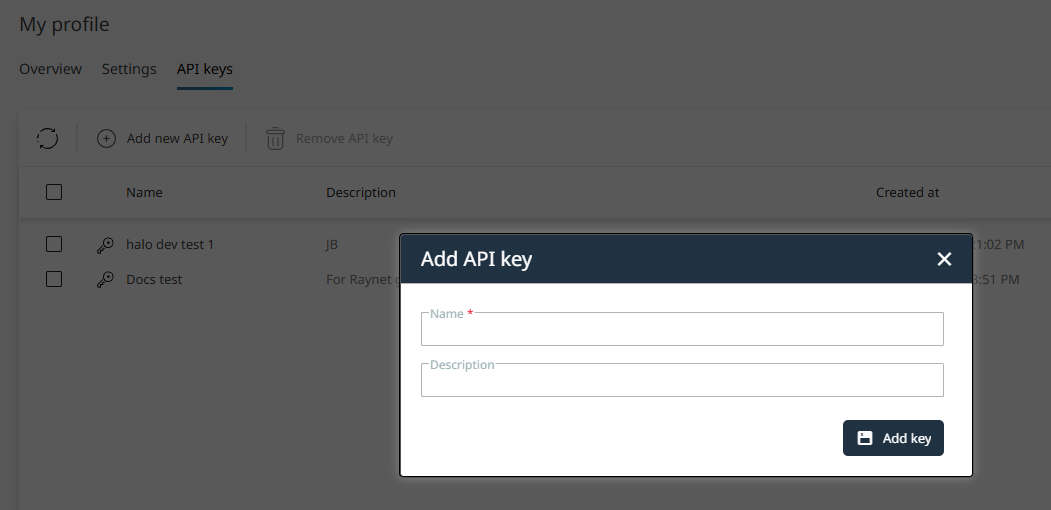
Fig 3. Create API key in Raynet.
The permissions given to the API key will be inherited from the user that generated the API key. Therefore, the user generating the key will need to have an administrator permission.
Determine Asset Site
Now head to the 'Sites' tab. Here, you will need to configure how assets created by Raynet are assigned to sites in Halo.
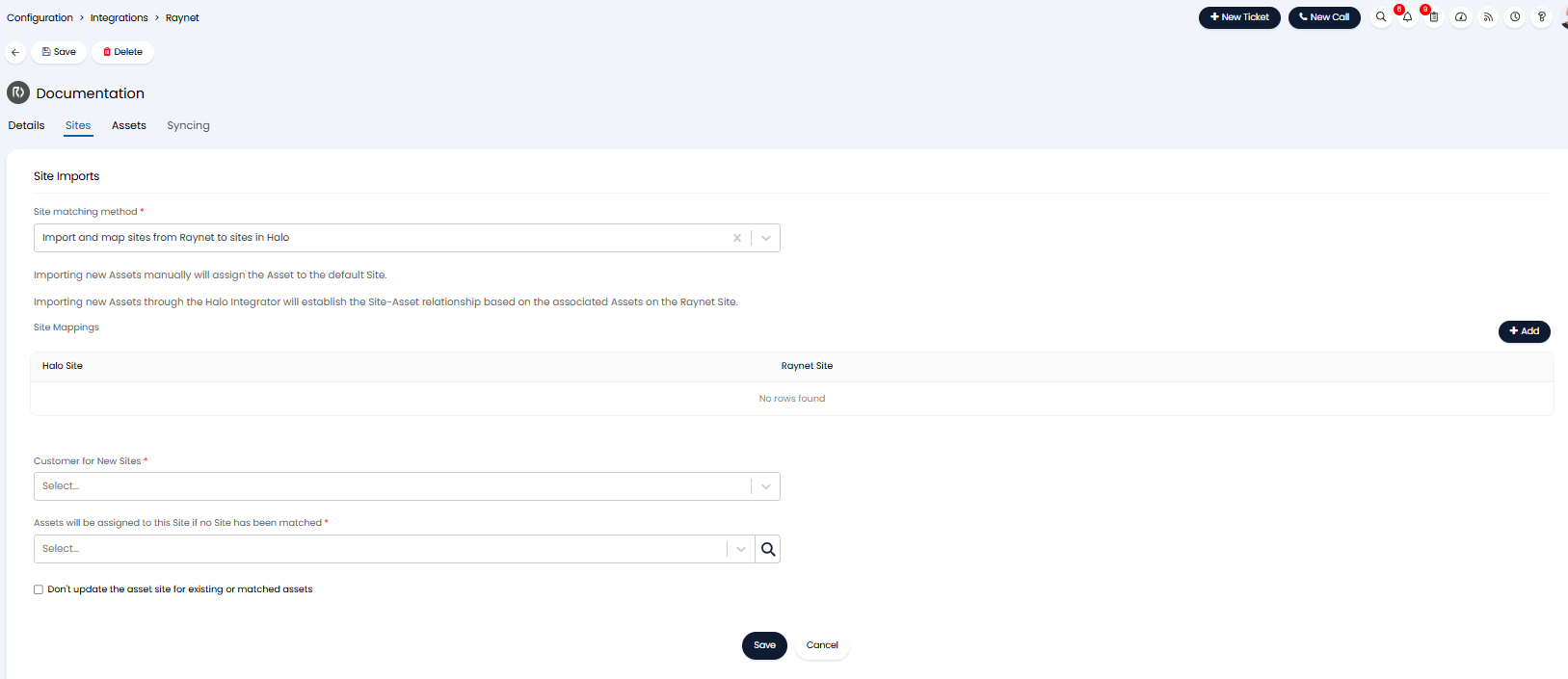
Fig 4. Configure asset imports.
Site matching method - Here, choose how sites are imported and asset site allocation is configured.
- Import and map sites from Raynet to sites in Halo - When selected Raynet sites can be mapped to Halo sites. Assets will be created under the site in Halo that is mapped to the site they are under in Raynet.
- Site Rules - When selected rules can be created, based on asset properties, that determine the Halo site assets are created under.
Determine site by mapping Raynet and Halo sites
Use site mapping when your assets in Raynet are currently organised into sites in line with your sites in Halo.
In the site mappings table map a Halo site to the corresponding site in Raynet.

Fig 5. Site mapping example.
Any sites that are not mapped will create a new site in Halo when imported. This will then be added to the mappings table.
Now you will need to set the customer any new sites will be created under using the 'Customer for New Sites' field. Any new sites created by Raynet will be created under this customer.
Assets will be assigned to this Site if no Site has been matched- Here, choose the site assets imported from Raynet will be created under if they belong to a site (in Raynet) that is not mapped.
Don't update the asset site for existing or matched assets- Enable this setting if you would like existing assets in Halo to not have their site changed when the asset in Raynet is under a different site.
Determine site using Site Rules
Use rules to determine asset's sites when your assets in Raynet are not currently organised into sites, or the sites they are under do not correspond with your sites in Halo.
To create a site rule add to the 'Site Rules' table. Here you can set some criteria based on an asset field, if an asset meets this criteria it will be imported to the selected site. In the figure 6 example any assets that have the 'asset number' field starting with 'Terrys-' will be imported to the customer Terry's Chocolate and the site 'Melbourne'.
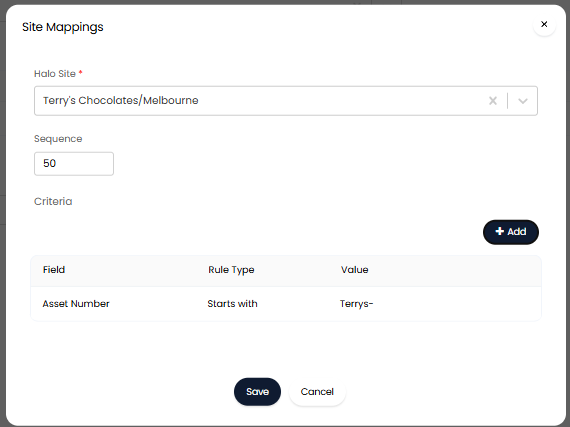
Fig. 6. Example Site rule.
Assets will be assigned to this Site if no Site has been matched - Here, choose the site assets imported from Raynet will be created under if they do not meet any site rule criteria.
Don't update the asset site for existing or matched assets - Enable this setting if you would like existing assets in Halo to not have their site changed when the asset should be under a different site in line with site rules.
Asset Imports
Head to the 'Assets' tab. Here you will need to complete some configuration to control how assets are imported.
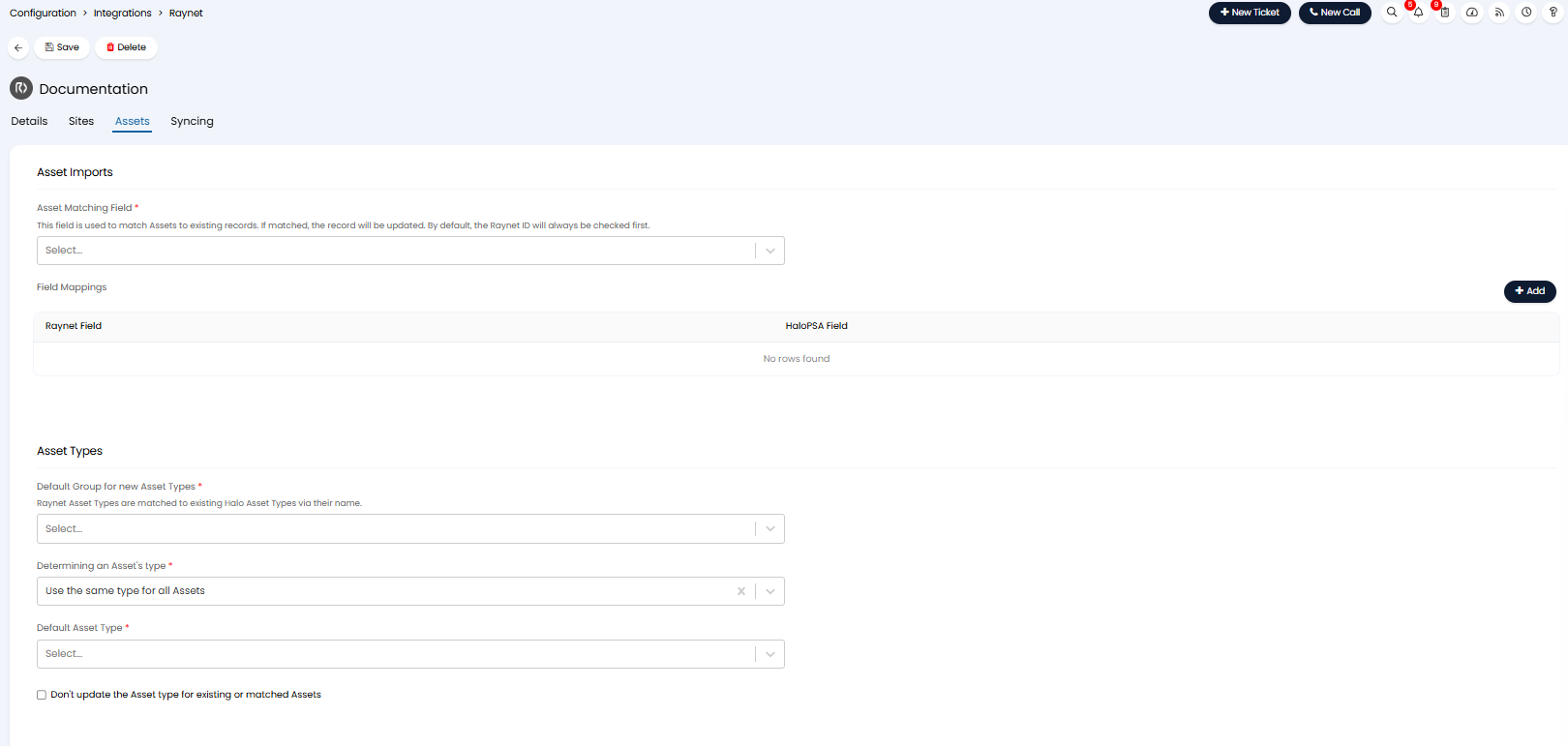
Fig 7. Asset import configuration.
Asset matching Field - Here you can set which field is used to match assets in Raynet to assets in Halo. The asset unique identifier field should be selected here.
Asset Fields
In the field mappings table you can map a Raynet field to a Halo field, this determines which field data from Raynet gets imported into in Halo.
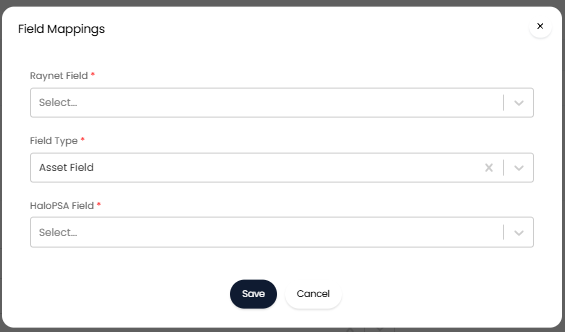
Fig 8. Asset field mappings.
Field Type - This will be the type of Halo field the data will be imported into. See our guide on Asset Fields if you are unsure on the difference between asset fields and custom fields in Halo.
You can also have a Raynet field create a new field against an asset in Halo by selecting '*Create a new Field during the next import*' in the Halo service desk field.
Determine Asset types
All assets in Halo must be assigned an asset type. Raynet does not have a concept of asset types so you will need to configure how asset types are determined for assets imported from Raynet. There are three options in Halo to control how asset types for new assets created from Raynet are determined.
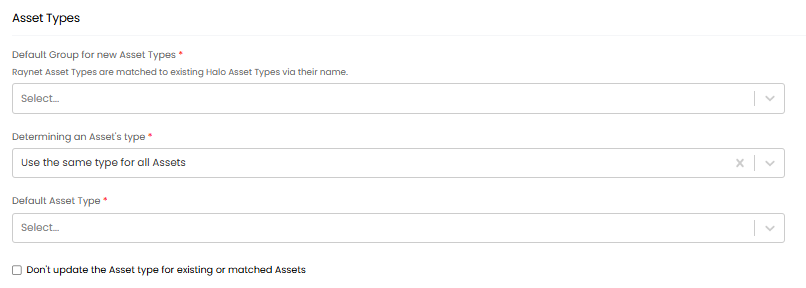
Fig 9. Fields to determine asset types.
First set a default asset group, this will be the group new asset types are created under (each asset type in Halo sits within an asset group).
Use the 'Determining an Asset's type' field to determine how asset types are assigned to imported assets. The asset types of the assets can either use a fixed type for all assets, be determined from a field, or use asset type mappings that are determined using rules based on the values of the mapped asset fields.
Use a Fixed Type
If you would like all imported assets to have the same asset type when imported set the 'Determining an Asset's type' field to be 'use the same type for all Assets' then set the 'Default Asset Type' field to be the asset type you would like assets from Raynet to be. Figure 10 shows how to set this so all assets are imported as the 'Application Server' asset type.
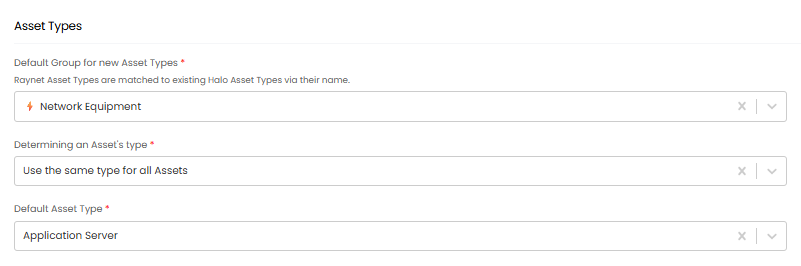
Fig 10. Settings for assets to be imported as the same type
Determine Asset type using a field
If you would like all imported assets' types to be determined by a particular field, set the set the 'Determining an Asset's type' field to be 'Use a field to determine each Asset's type'. Then in 'Field for determining an Asset's type' choose the field you would like the type to depend on. The field you choose must contain the name of the desired asset type, if this name can be matched to an existing asset type in Halo, it will be assigned this asset type. If the name is not the same as an asset type in Halo, a new asset type will be created. Note that the names must be identical in order to match.
This setting is used if you have a field in Raynet that already determines an asset's type and you would like the types to be consistent between Halo and Raynet. You will still need to populate the default asset type field, assets that do not have the selected field populated will be imported as the default asset type. In figure 11 asset types will be determined by the value in the field 'corporateIdentifier'.
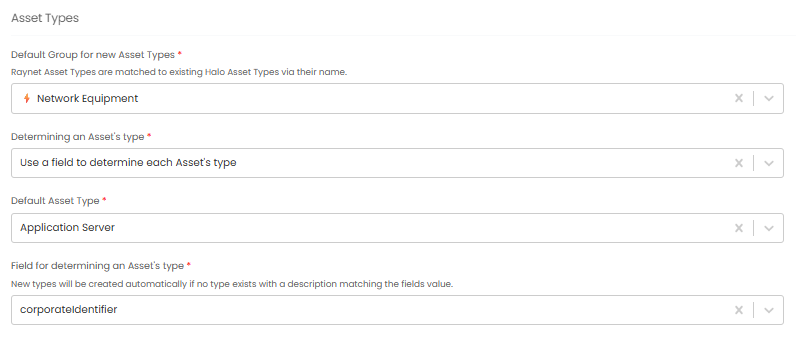
Fig 11. Settings for asset types to be determined by a field.
Determine Asset type using rules
If you would like asset types to be determined by asset rules set the set the 'Determining an Asset's type' field to be 'Determine asset type using rules'. Now you will be able to set asset's types based on rules, These rules are based on field values, and if matched will assign an asset to the chosen asset type. When creating a rule first add criteria for the rule, select the Halo field that you would like to base the criteria on, then set the rule type and the outcome needed in the field to match the rule. If an asset matches this rule it will be imported as this asset type. For example, in figure 12 the rule I have set up will check the name field of an asset, if the name begins with 'LAP' the asset will be imported with the 'Laptop' asset type.
This method is used when you would like to organise the asset types assets are created as but do not already have this information stored in a field in Raynet.
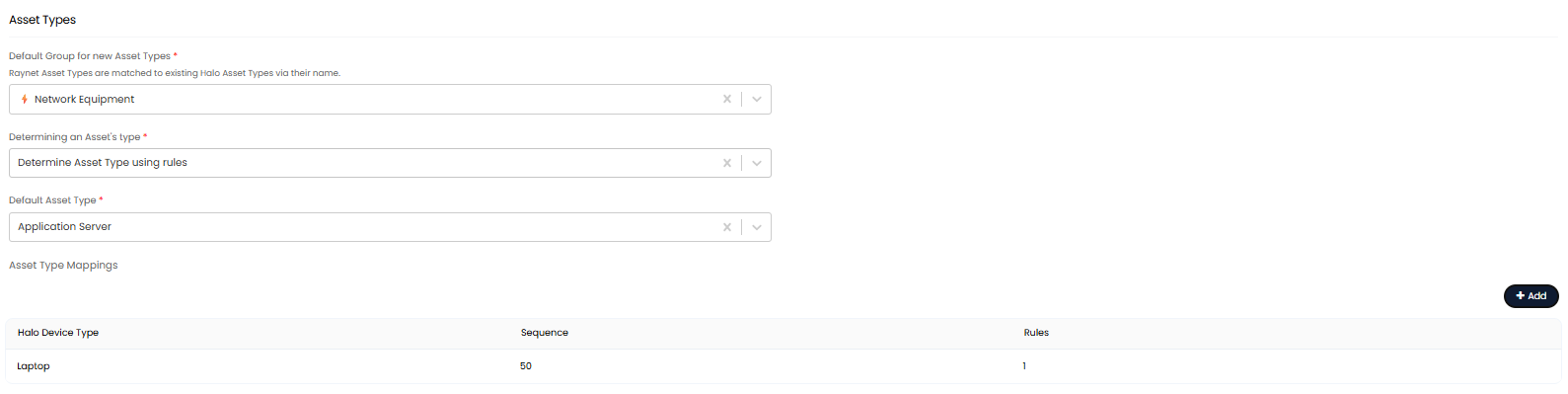
Fig 12. Determining asset type with rule setup.
If an asset is imported that does not match any of these rules, it will be created under the default asset type. Alternatively, if you would like to not import assets that do not match these rules, set the 'Default Asset type' to 'Don't import assets that do not match any rules'.
Don't update the Asset type for existing or matched Assets- Enable this setting if you would like the asset type of existing assets in your Halo instance to remain unchanged. When the sync runs other properties of the asset will be updates, but not the asset type.
Miscellaneous Asset import settings
Don't create new Assets - When enabled the sync/import will only update existing assets, no new assets will be created.
Status of New Assets - Here, choose the status assets will have when created in Halo from Raynet.
Deactivate Assets in Halo when they are deleted from Raynet (Halo Integrator only) - When an asset is deleted from Raynet they are deactivated in Halo. This will only apply when the integrator is enabled.
Import Assets automatically on a schedule
To have assets update on a scheduled basis you will need to enable the Halo integrator for this integration. This can be done under the 'Syncing' tab by checking 'Enable the Halo Integrator for the Raynet integration'. You will then need to select 'Devices' and/or 'Sites' within the 'Entities to import' field. Once enabled the sync will take place daily.
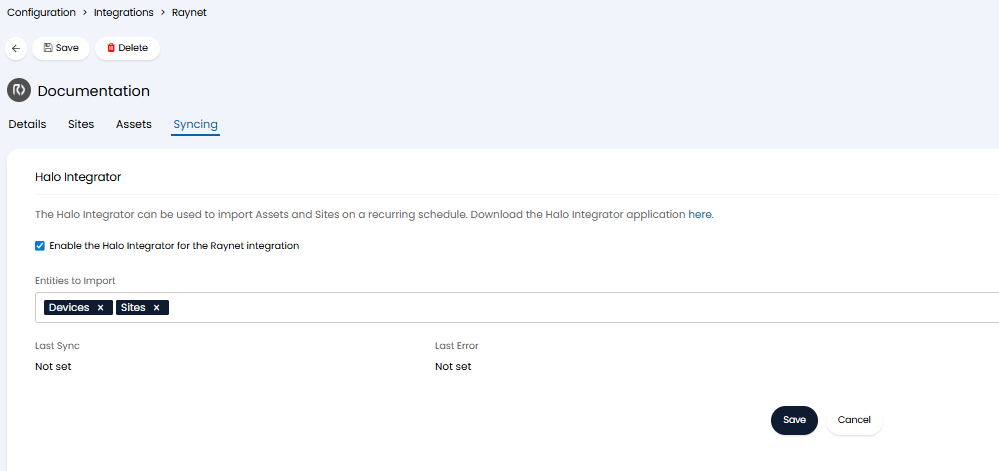
Fig 13. Enable the Halo integrator for the integration.