Halo have removed this guide from their knowledge base. This is our last mirrored copy, kept so existing links keep working — it may now be out of date.
Entity Relationships
- linked entities
- relationship
In this guide we will cover:
- Various entities in HaloCRM and how they relate to each other
Related Guides:
- Creating A Knowledge Base To Reduce Enquires
- Navigating The Customers/Contacts Modules
- Ticket Statuses
- Using SLAs and Priorities On Halo
This guide will cover how different entities within Halo are linked and work together. However, there are a vast number of ways that entities can be related to each, so this will only cover the basis of these. If you have questions on how a specific entity is linked to others, please contact support@halocrm.io.
Customer, Site and Contact
Customers, sites and contacts all work in tandem with each other. Within a customer, you can see the sites and contacts within it. The customer is split into sites, and contacts are split into those sites under the customer.
A site is a location under a customer, and a contact is a user under a site and customer.
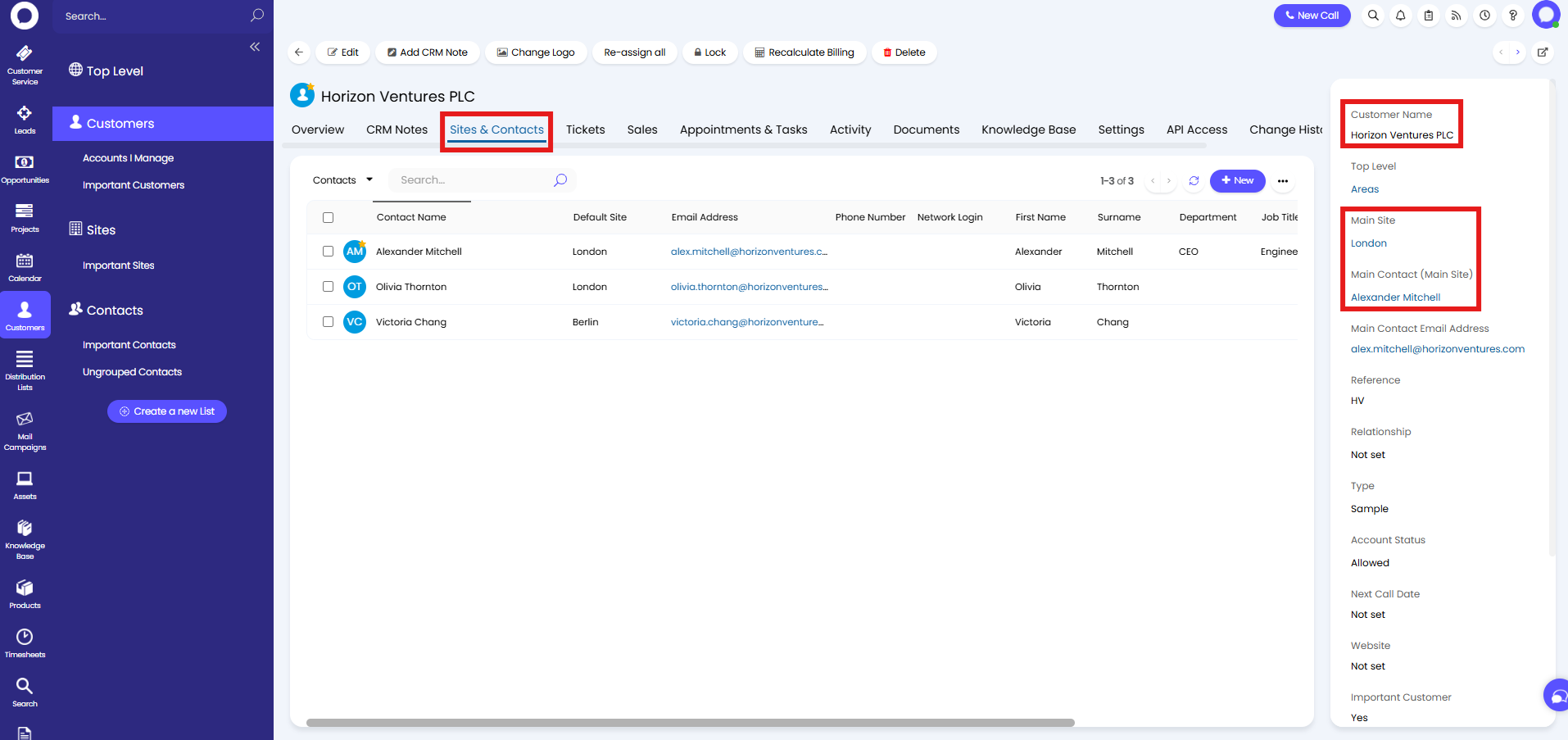
Fig 1. Customer and its linked sites/contacts.
Tickets and Customer/Site/Contact
Tickets are assigned to a contact, and a contact is linked to a customer and site. All three of these entities are shown against the ticket in the "End-User details" section.
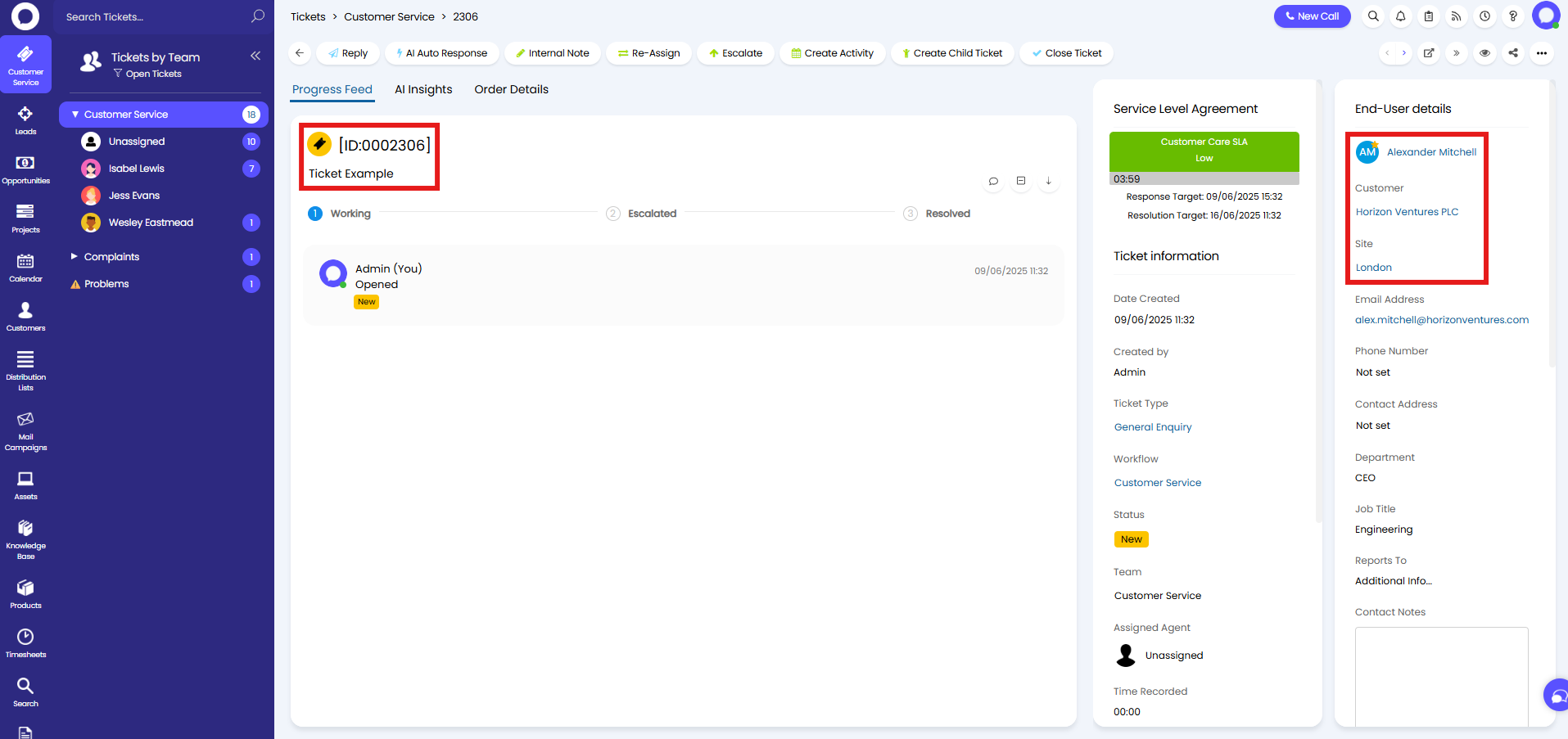
Fig 2. Ticket linked to a contact.
Status and SLA
Ticket statuses are used to pause or resume an SLA countdown. For example, the ticket below is "On Hold" as shown by the blue text underneath the SLA information, and the SLA countdown is therefore paused.
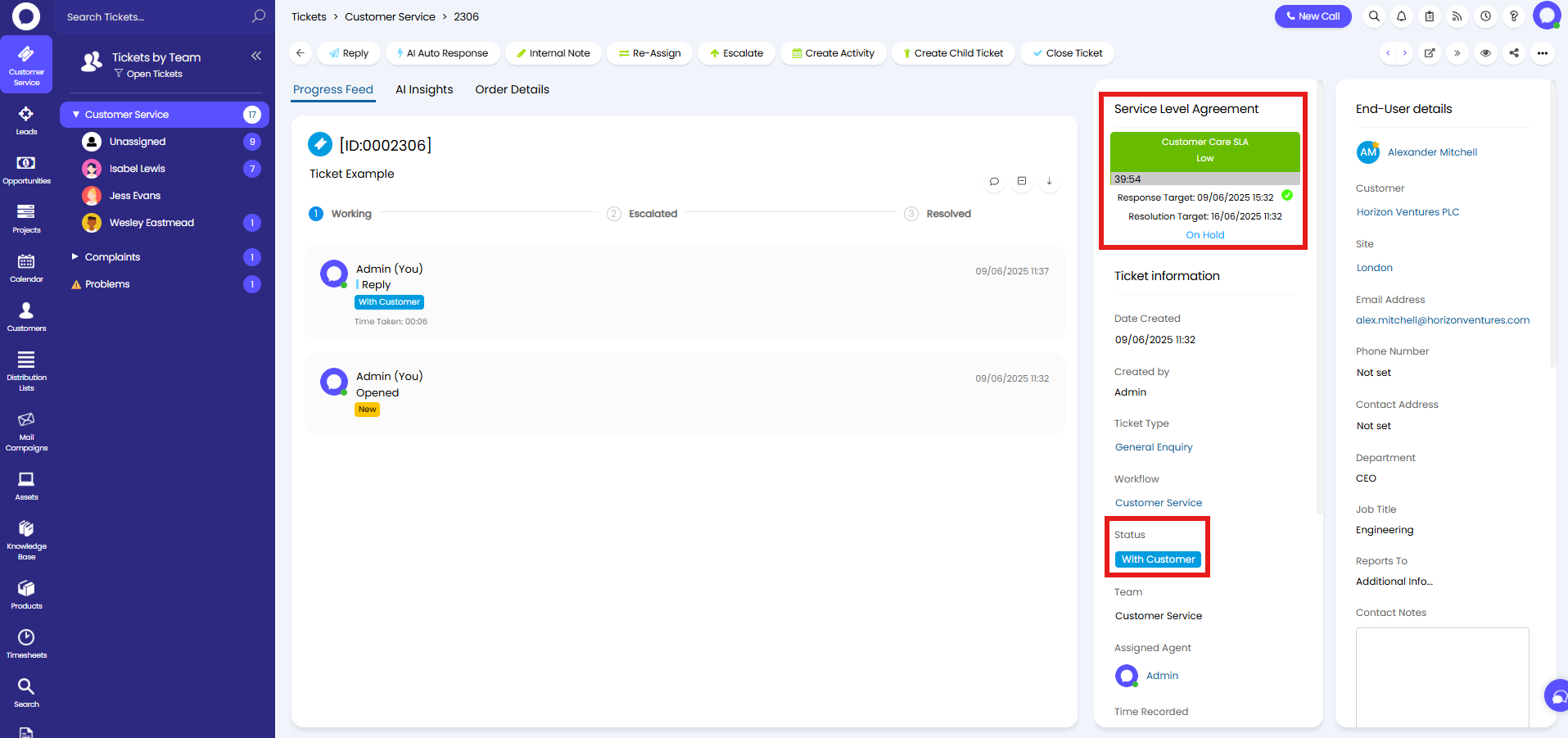
Fig 3. Status putting a ticket on hold.
Looking at the status "With Customer", we can see it is configured to put the ticket on hold if not already. This means for the time the ticket is on this status, the ticket will remain on hold. Switching to another status where this is set to "Remove from hold (if on hold)" will resume the SLA timer and the countdown will continue.
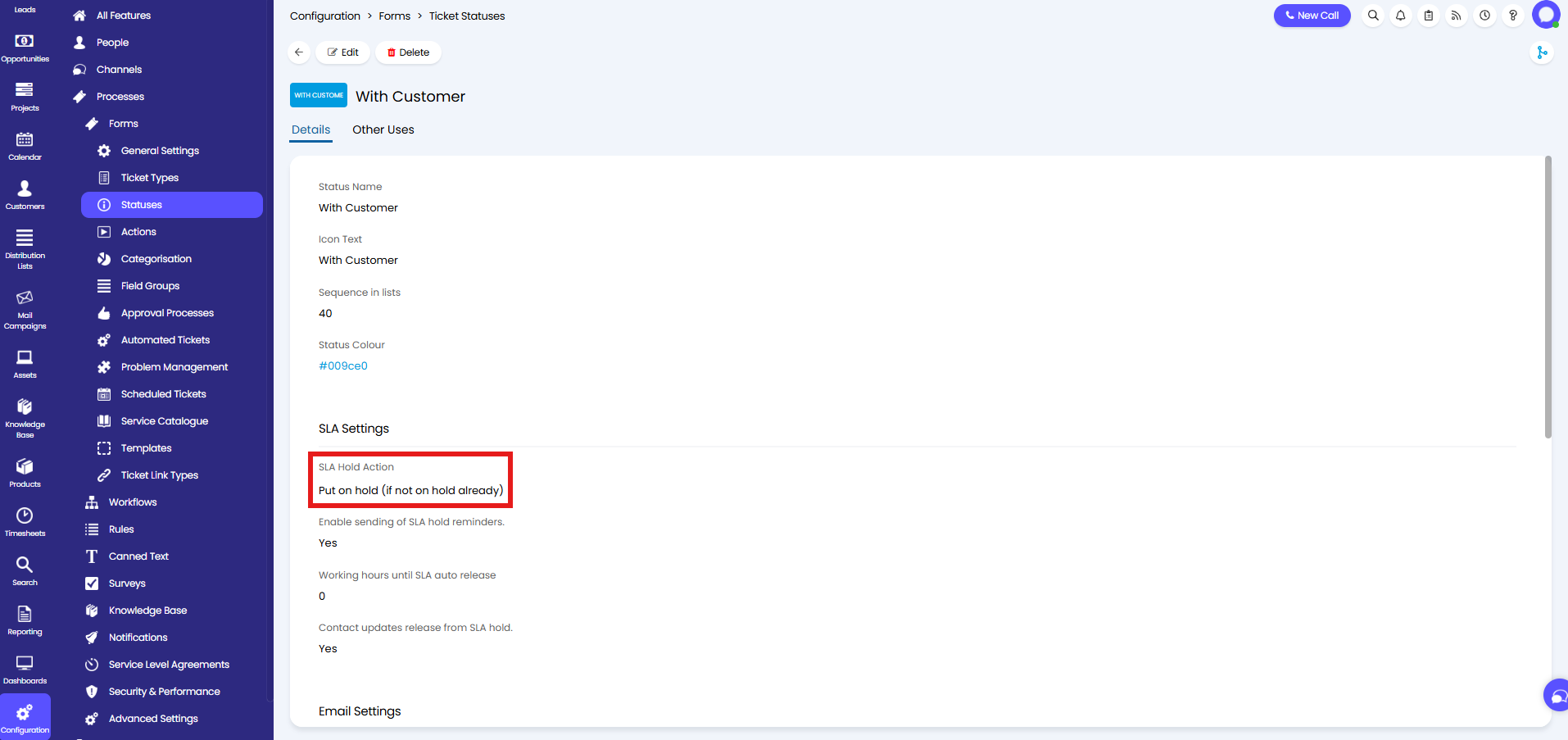
Fig 4. Status configured to put a ticket on hold.
Actions and SLA Response
Actions on tickets are used to dictate if a ticket has been responded to, which will determine if the response target on the SLA is met.
In this example, the "Reply" action has been set as a response, and has therefore met the response target shown on the SLA by a green tick. If the first action configured to act as a response is after this date, it will instead show a red cross.
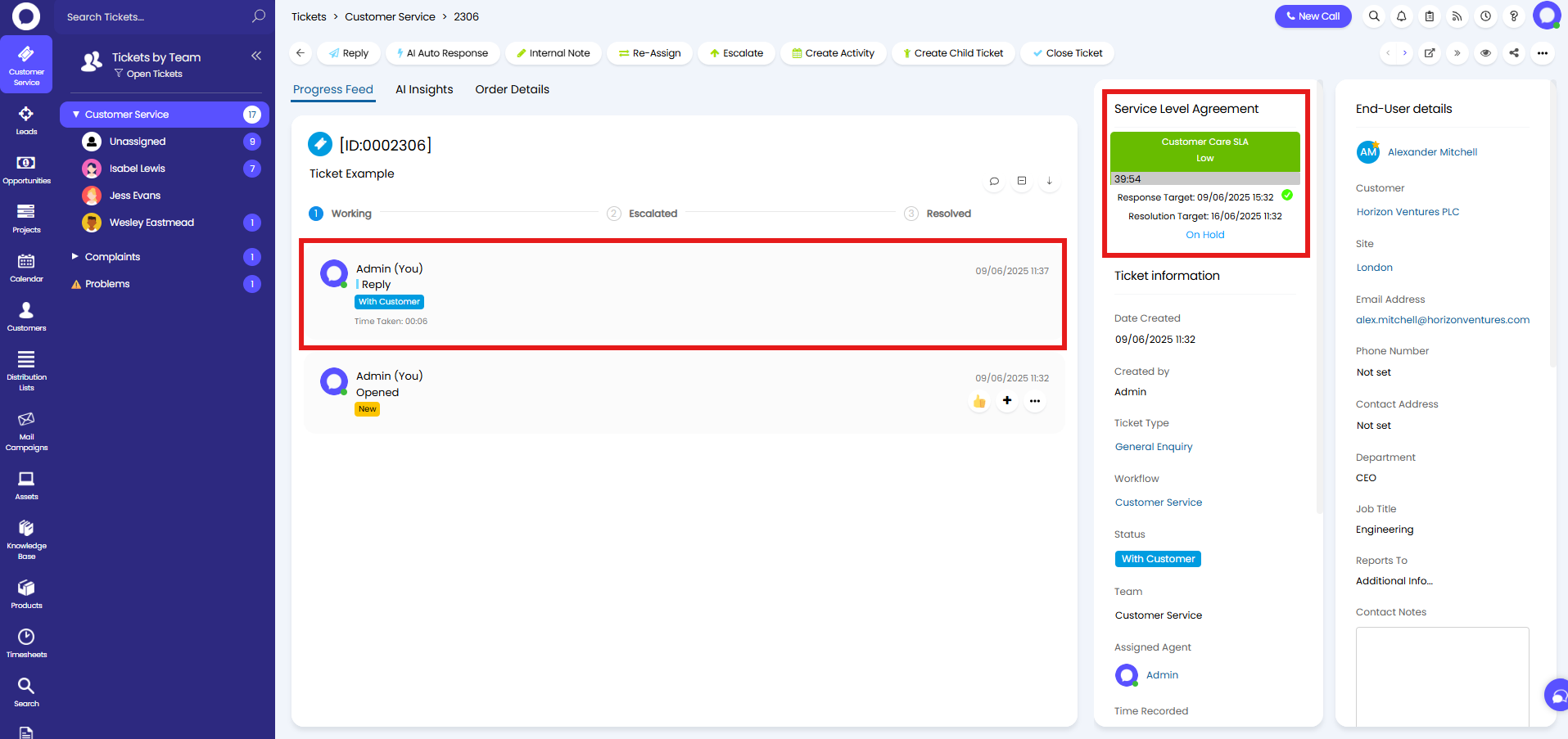
Fig 5. Response target met on a ticket.
An action can be configured to respond via the "Response Behaviour". If this is set to "Default Behaviour", it will follow if "Show the "Response not set" prompt when doing an Action on a Ticket that hasn't been responded to" is enabled in Configuration > Processes > Service Level Agreements > General Settings.
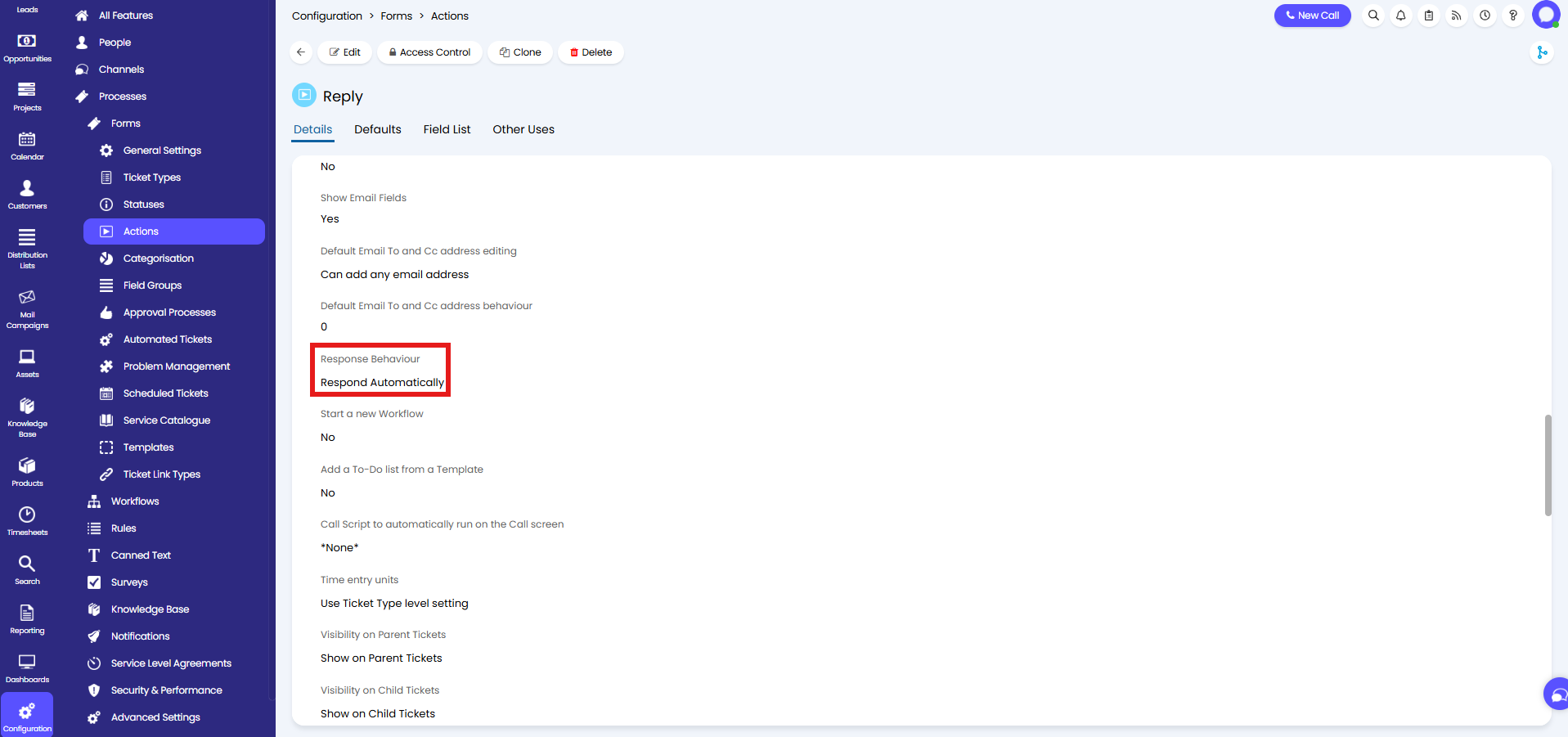
Fig 6. Response behaviour configured on an action.
Tickets and Assets
Assets can be linked to tickets if the "Assets" field is added to the field list on the ticket type. This will add a "Related Assets" section on the ticket to link the asset.
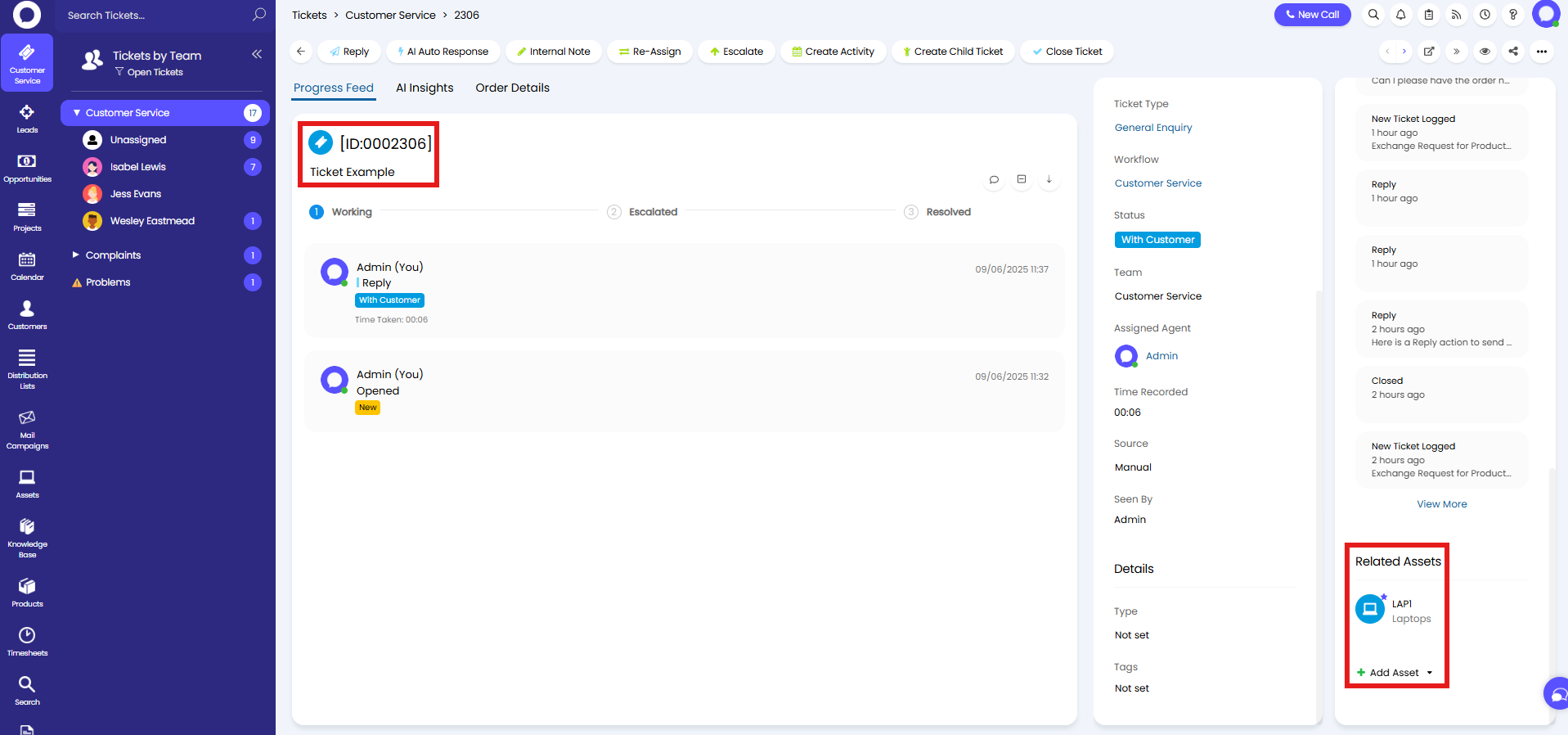
Fig 7. Asset linked to a ticket.
Viewing the asset will then show the linked ticket (if it is open) as well as the related activity to that ticket and any others the asset is also linked to.
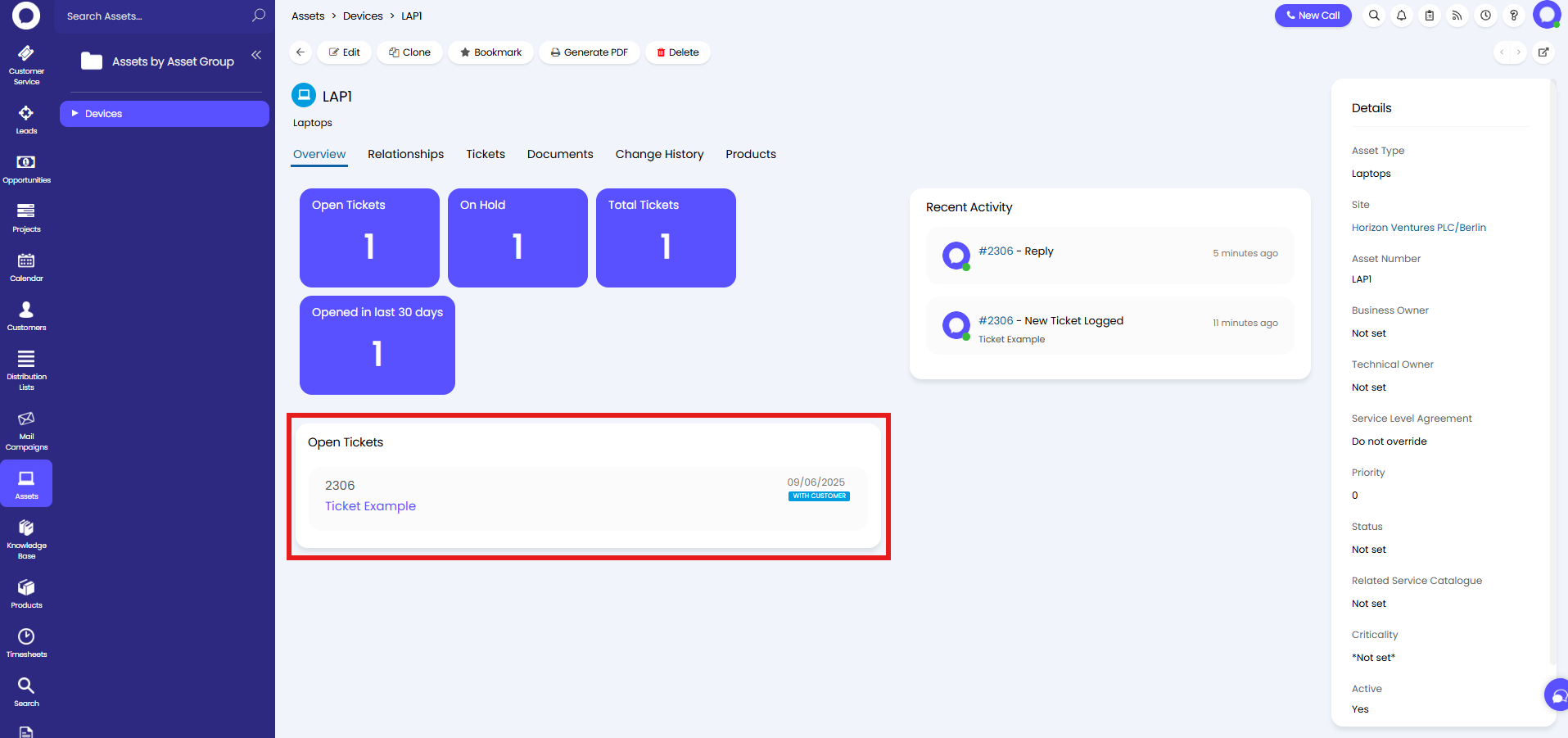
Fig 8. Open tickets linked to an asset.
Assets and Customer/Site/Contacts
Assets can have relationships with contacts - these can be contacts either at the same site, same customer, or any contact.
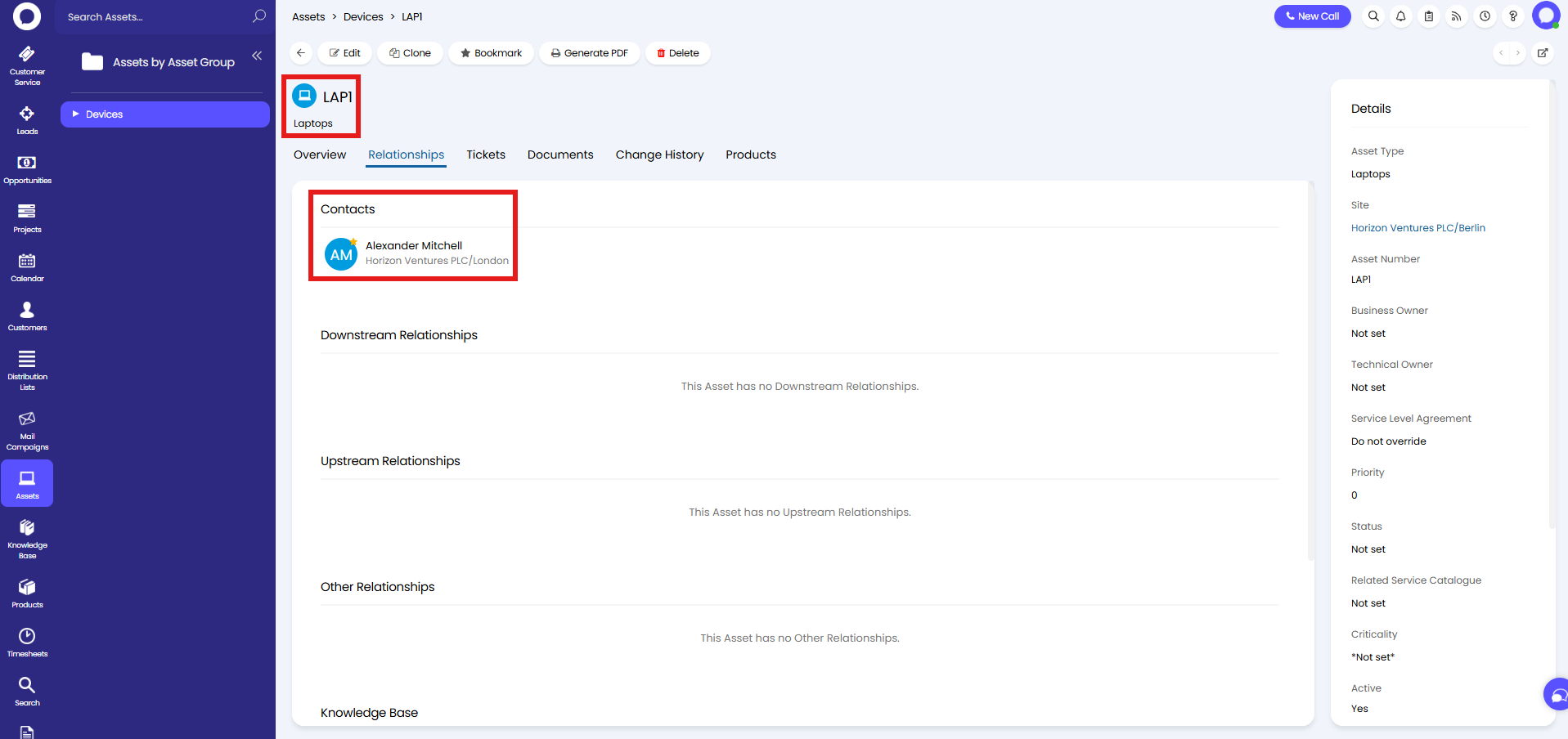
Fig 9. Contact linked to an asset.
The "Assets" tab on that contact will then show the asset linked to them.
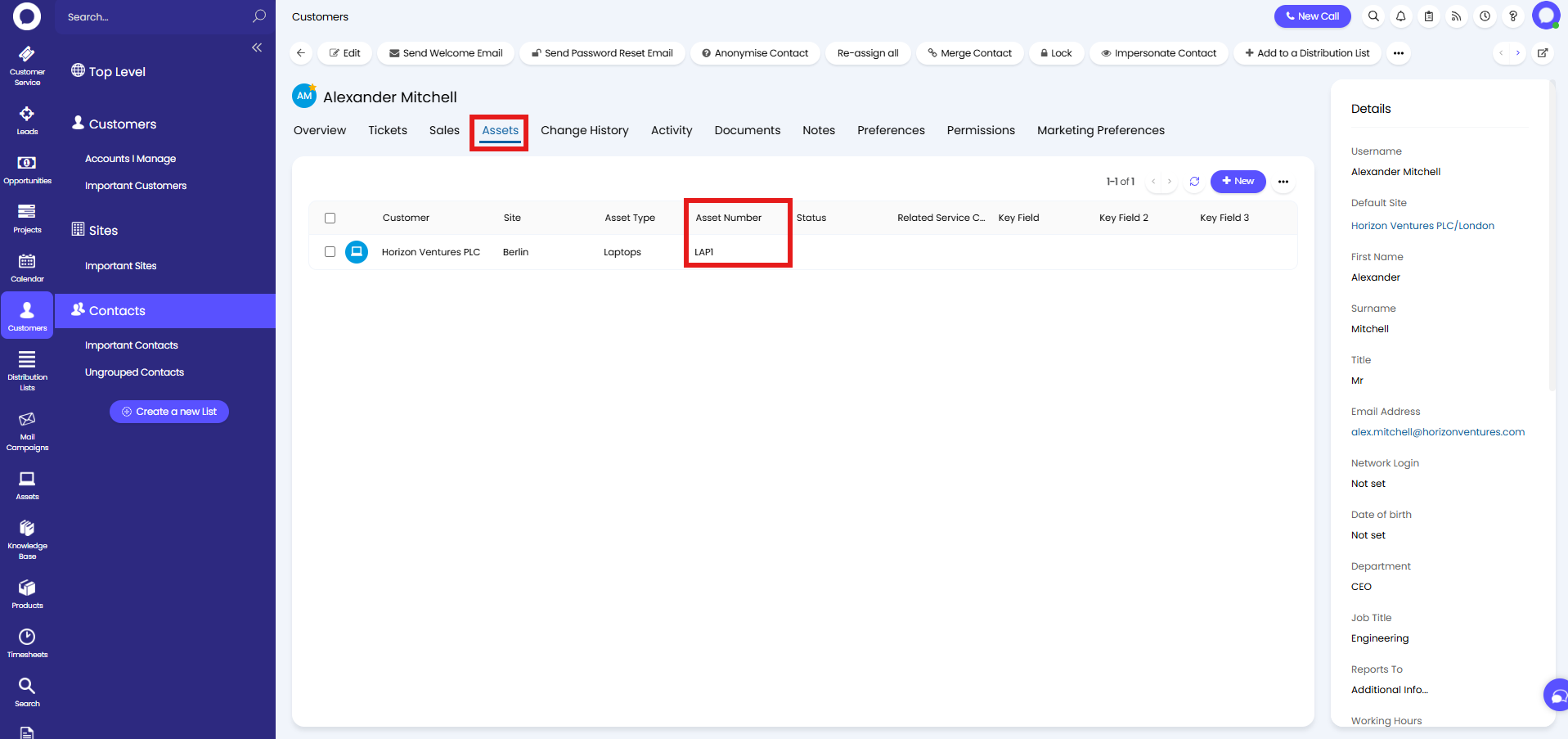
Fig 10. Asset tab on a contact.
Assets and Knowledge Base Articles
Assets can be linked to knowledge base articles within the "Relationships" tab.
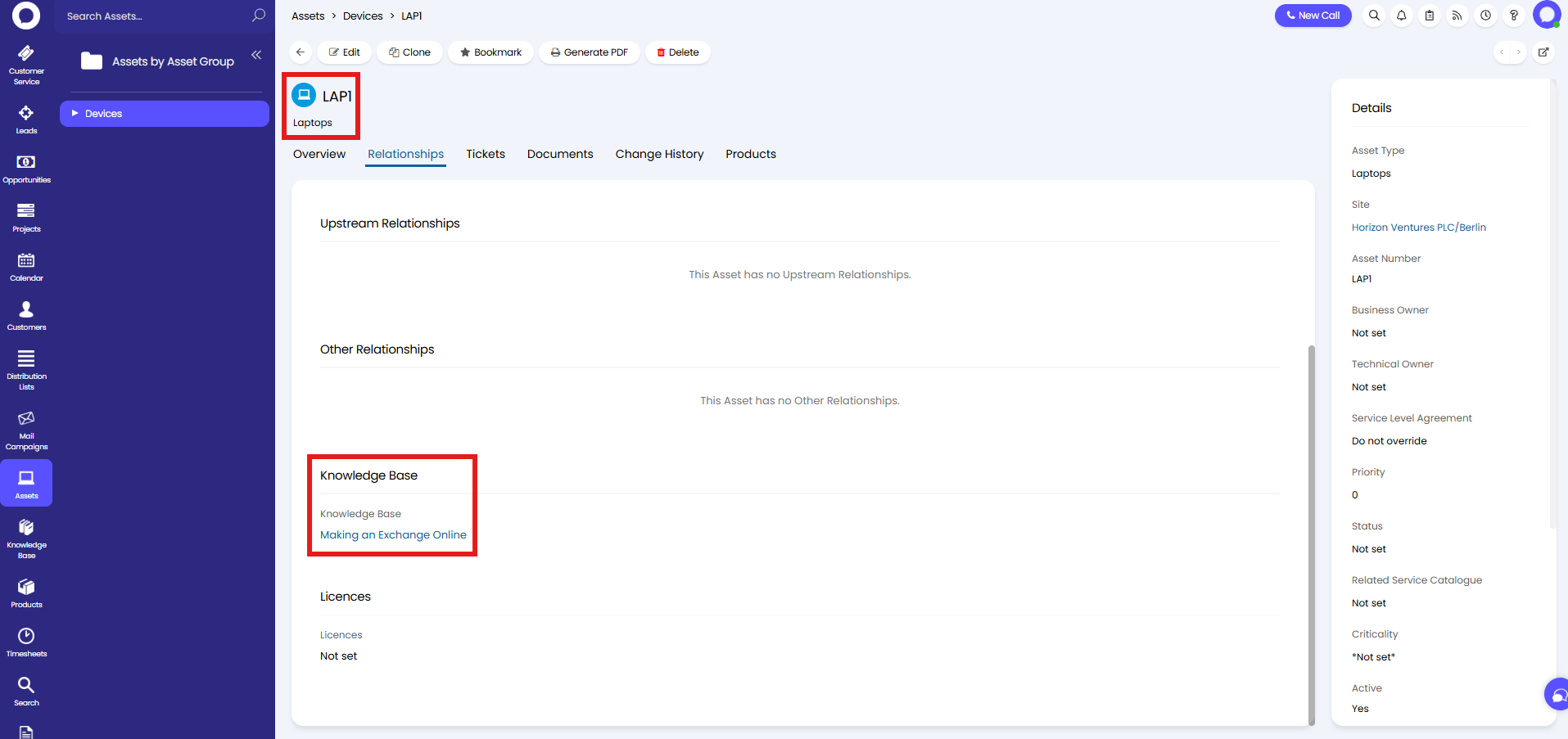
Fig 11. Article linked to an asset.
The linked asset will also then show at the bottom of the article.
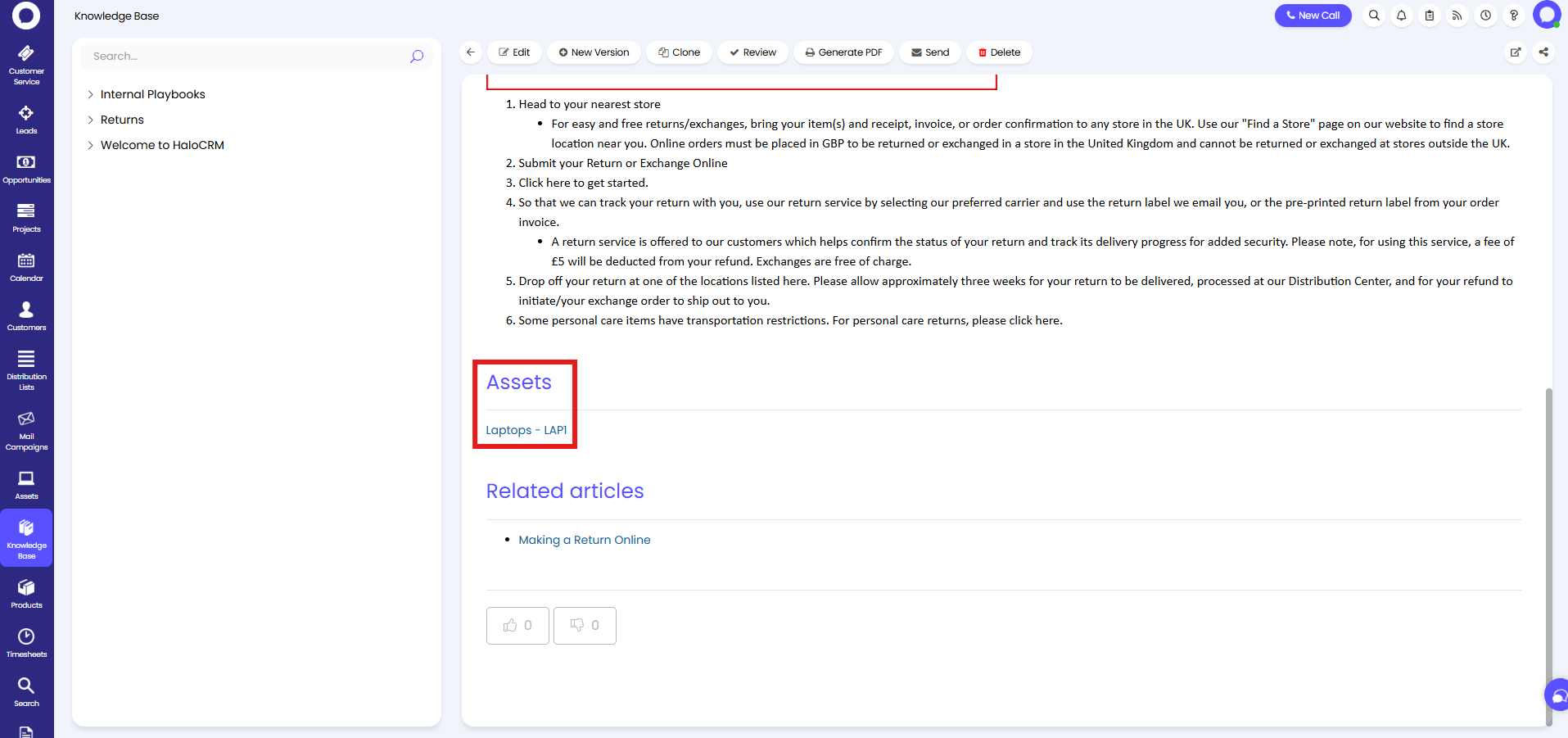
Fig 12. Asset on an article.