Bills
- purchase order
- xero
- bills
- po
In this guide we will cover:
- What are Bills?
- Creating a Bill
- Generating a Bill PDF
Related Guides:
What are Bills?
Bills are essentially a purchase order invoice within Halo. They allow you to create an invoice in relation to a purchase order for any payments you are expecting to need to make and wanting to track inside of Halo , and can also be synced to the "Bills" feature within Xero.
Creating a Bill
Create a Bill from a Purchase Order
Within a purchase order, an action button to "Create Bill" will show within the top bar.
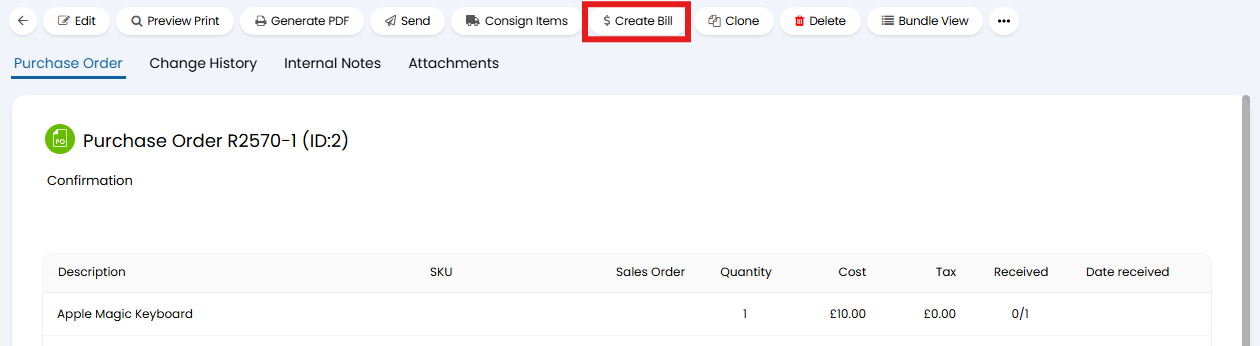
Fig 1. Create Bill button
Clicking this will bring up a popup to create the bill. You can set the date invoiced and method. Additionally, you can set a custom reference. By default, this will take the purchase order reference.
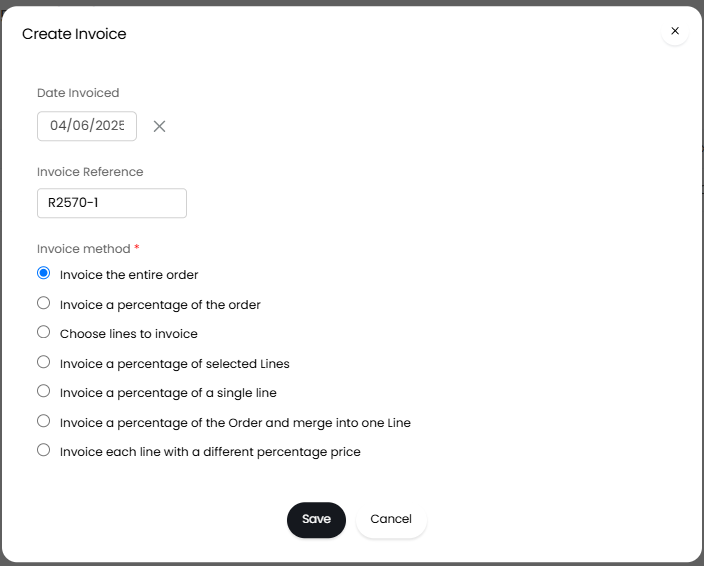
Fig 2. Creating the bill
Click the "Save" button to create the bill.
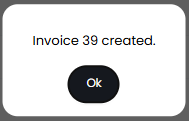
Fig 3. Popup to shown the bill is created
The bill will then show linked against the purchase order in a "Bills" section on the right-hand side.
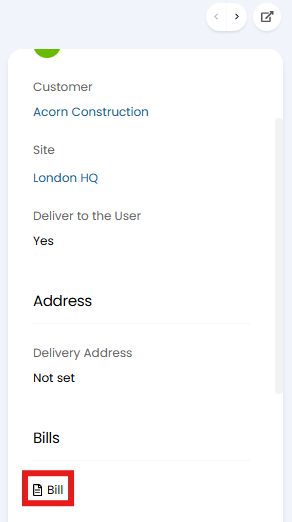
Fig 4. Bill linked on the purchase order
The bill will look similar to the below. Like an invoice, you can generate PDFs or send them via email with the action buttons at the top. The product's SKU will copy from the purchase order onto the associated bill.
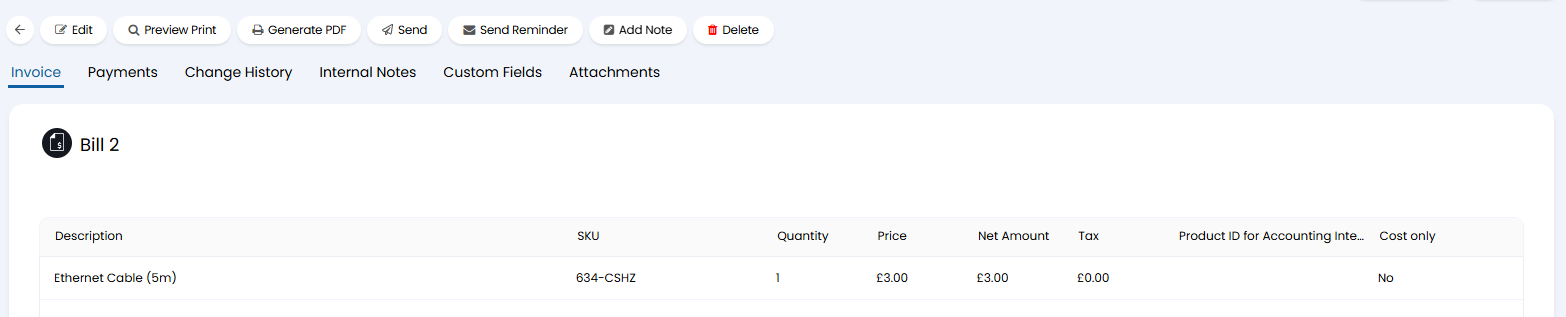
Fig 5. Bill example
It will also show in a "Bills" area of the "Invoices" module where it can be marked as paid. Bills will not show in the "Ready For Invoicing" screen as they are only for tracking expenses, not invoicing the customer.
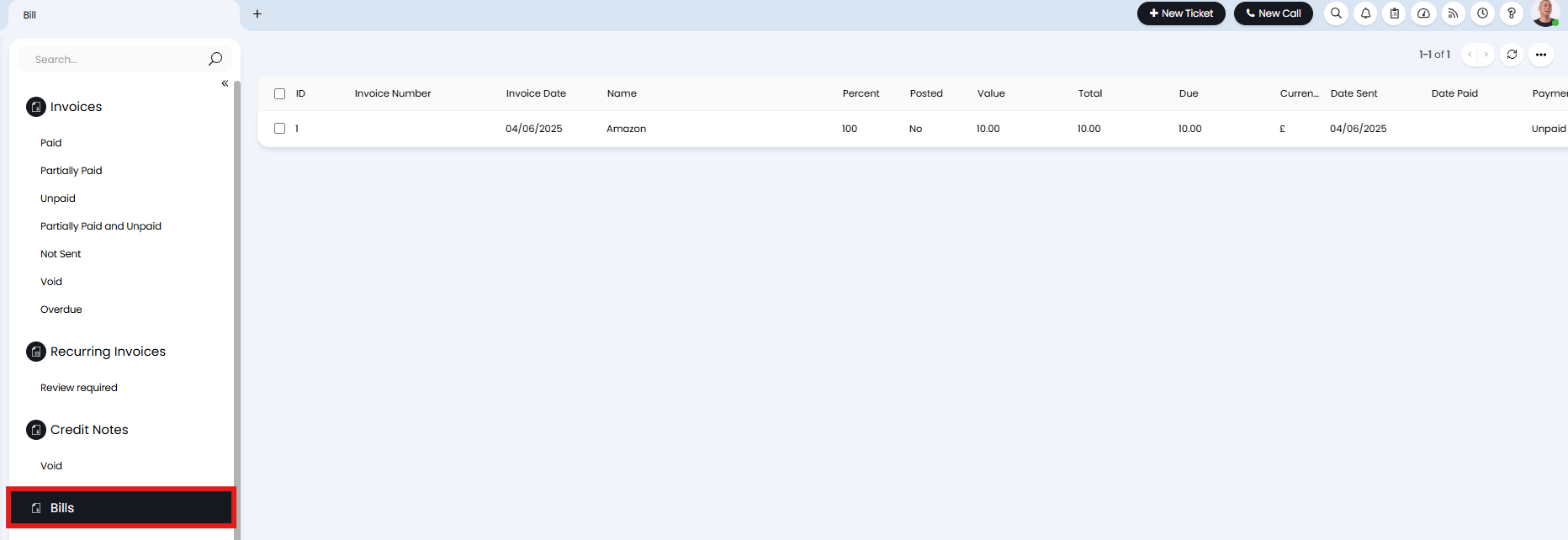
Fig 6. Bills section in the invoicing area
Creating a Standalone Bill
You can create standalone bills, without needing to have the bill associated to a purchase order. Useful when you would like to track outgoing costs that do not have a purchase order in Halo, such as recurring subscription/supplier costs.
To do this, head to the Invoices module > Bills > New.
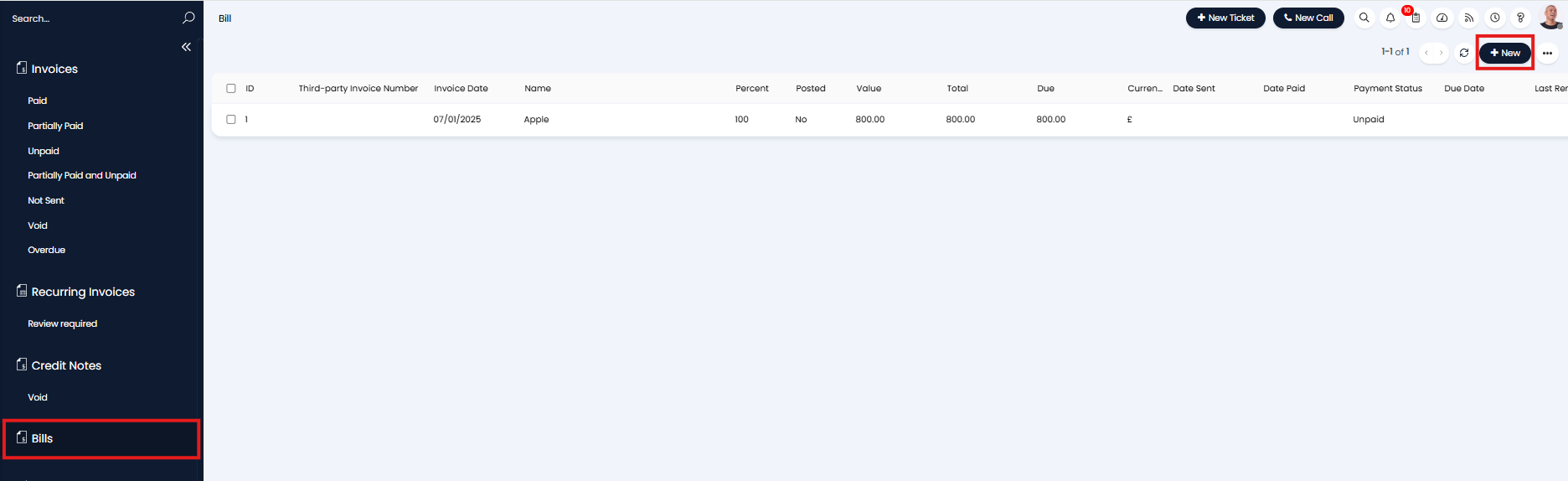
Fig 7. Create new Bill
When creating a standalone Bill you will need to add the products the bill is for, and the associated supplier.
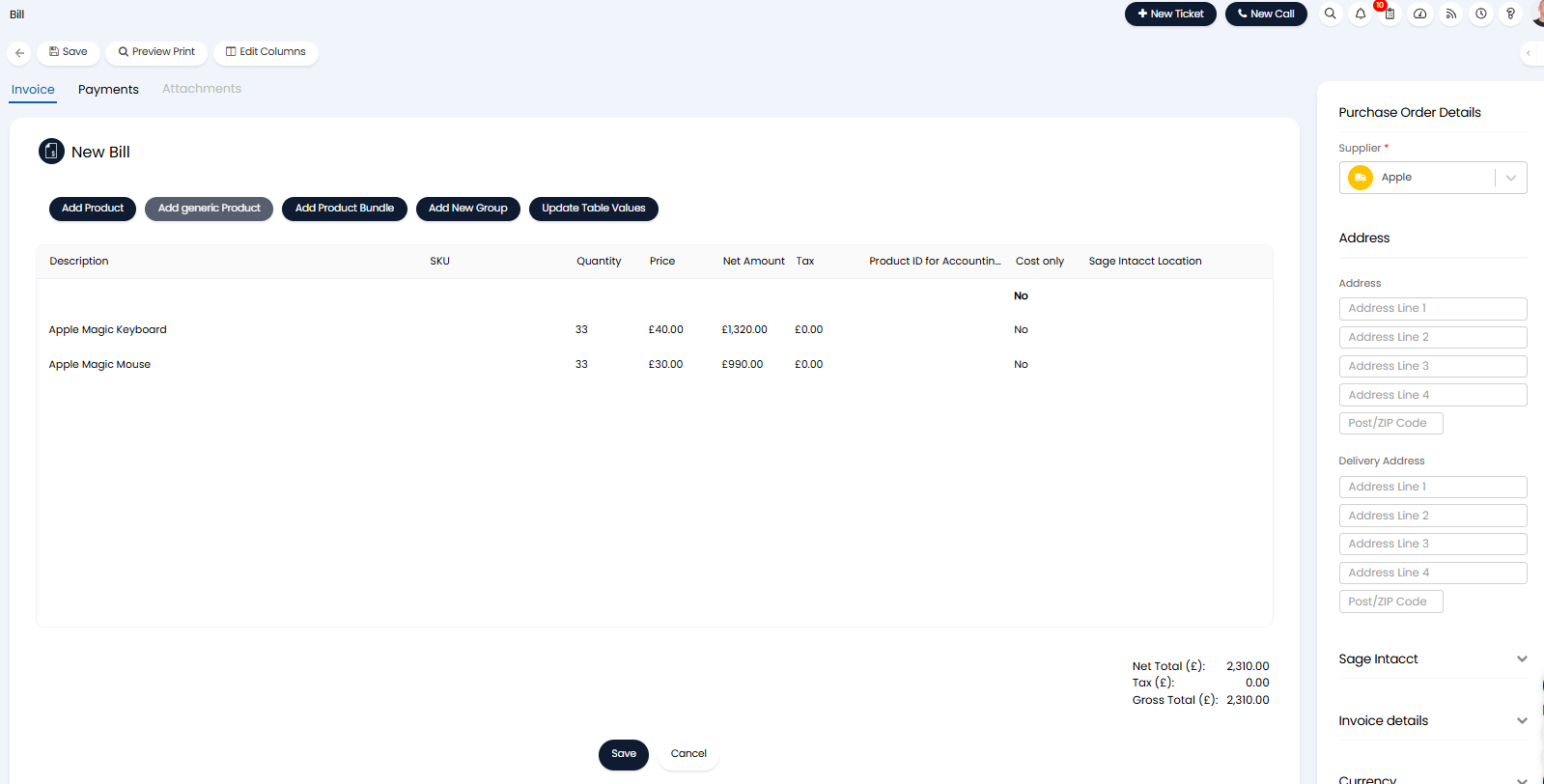
Fig 8. Standalone Bill
There are various other options available when creating a Bill including being able to manually add a PO number reference. Useful when the PO for this bill is outside of Halo.
As of version 2.238, recurring bills will be available in Halo to record recurring charges from Suppliers. For more information on this, please do visit the guide: Recurring Bills.
Generating a Bill PDF
You can generate PDFs of bills to send or keep for your own records. In Configuration > Billing > PDF Templates. Here you can set the default template to use for bills, and this uses PDF templates of the "Invoices" entity type.
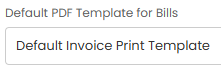
Fig 9. Setting a default PDF template
You can then "Generate PDF" or "Send" on the bill, and this will use this template.
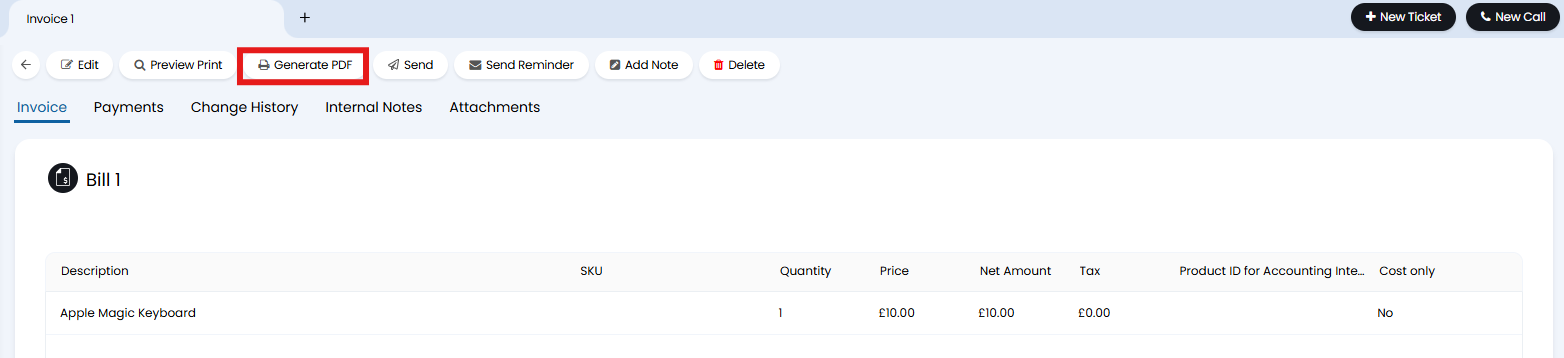
Fig 10. Generate PDF button
You can change the PDF template used on an individual bill by scrolling down the right sidebar to the bottom, and changing the template in the dropdown.
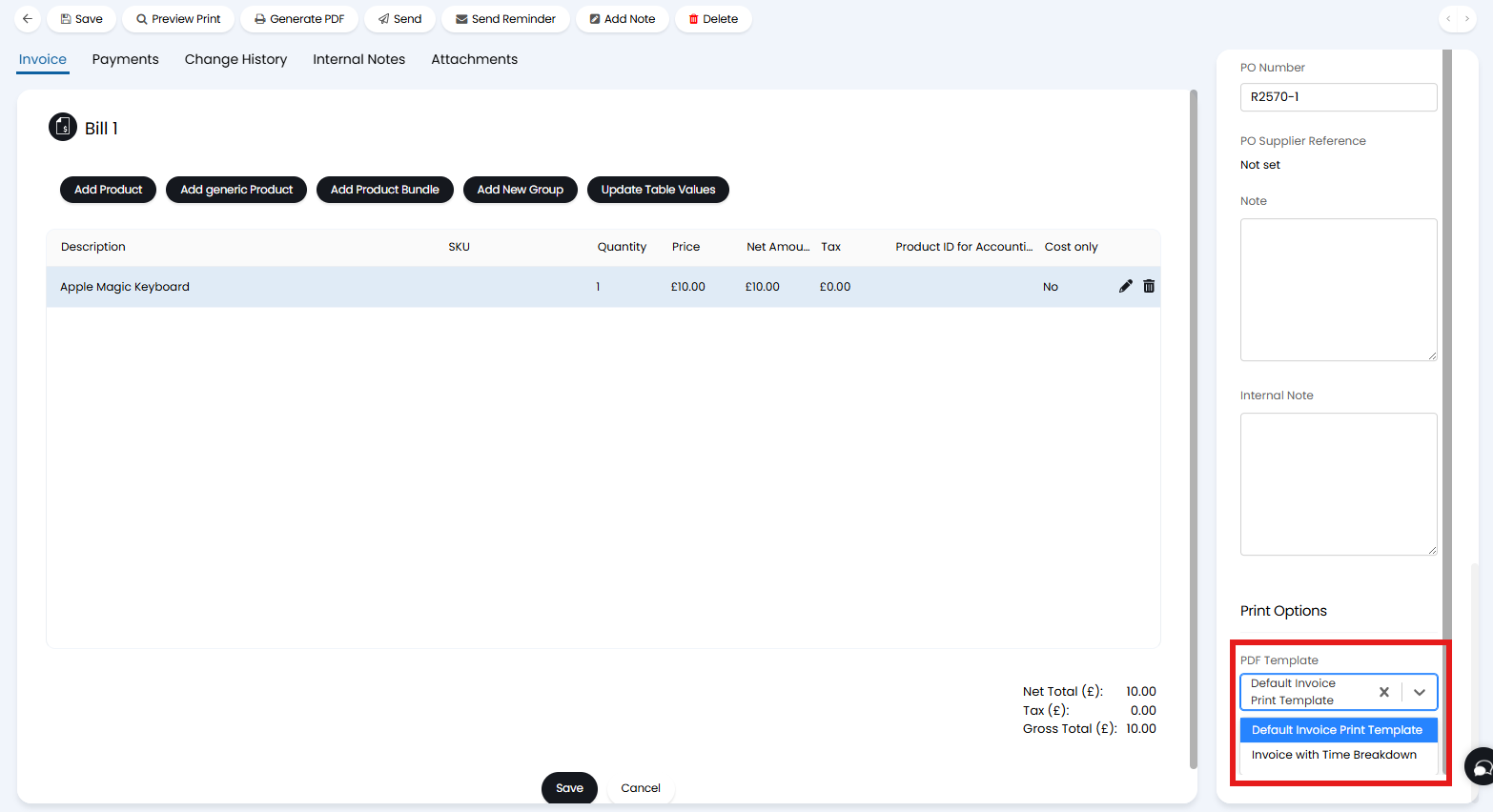
Fig 11. Changing the PDF template used