Troubleshooting API Errors
- 404
- 403
- api error
- HTTP status code
- error codes
- 401
- 405
- 409
- 422
- 429
- 504
In this guide we will cover:
- What are API errors
- How to obtain and interpret API errors in Halo
- HTTP Status Codes
- Error Examples in Halo
In this guide we will cover what each of the HTTP status codes and API error codes means in the context of Halo and how to utilize these to resolve issues. Errors can provide key information on the root cause of an issue, which is required for a swift resolution.
What are API errors?
API errors occur when something goes wrong whilst sending a request to an API, meaning the request cannot be processed successfully. In terms of Halo, nearly every interaction you have with the UI will result in an interaction with the Halo API. Therefore, if you are attempting to do something in your Halo instance, from logging a ticket to loading a report, an interaction will be made with the API. If any of the functions you are doing fail in some way an API error will be returned to indicate what has caused the issue. In Halo API errors cannot be seen in the UI but can be viewed in the console.
How to obtain and interpret API errors and HTTP status codes in Halo
When an issue occurs in your Halo instance there will usually be an indication in the UI that something has gone wrong, such as a pop-up message. To obtain more information on this error (the API error code) open up the console and attempt the action again.
Open up the console using Fn + F12 OR Cntrl + shift + C
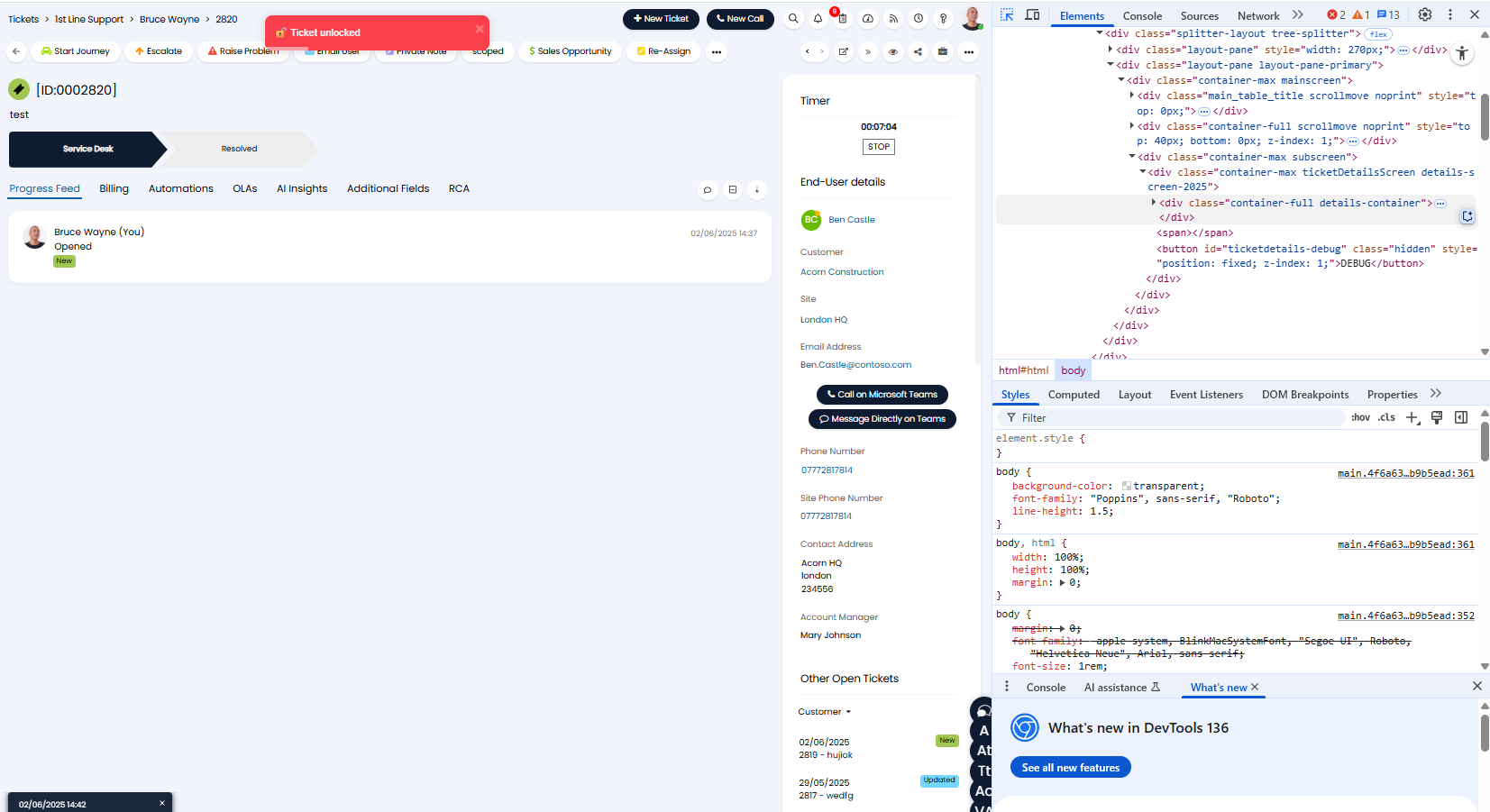
Fig 1. Open Console
Now click anywhere on the page (to prevent element inspection). Navigate to the 'Network' tab in the console.
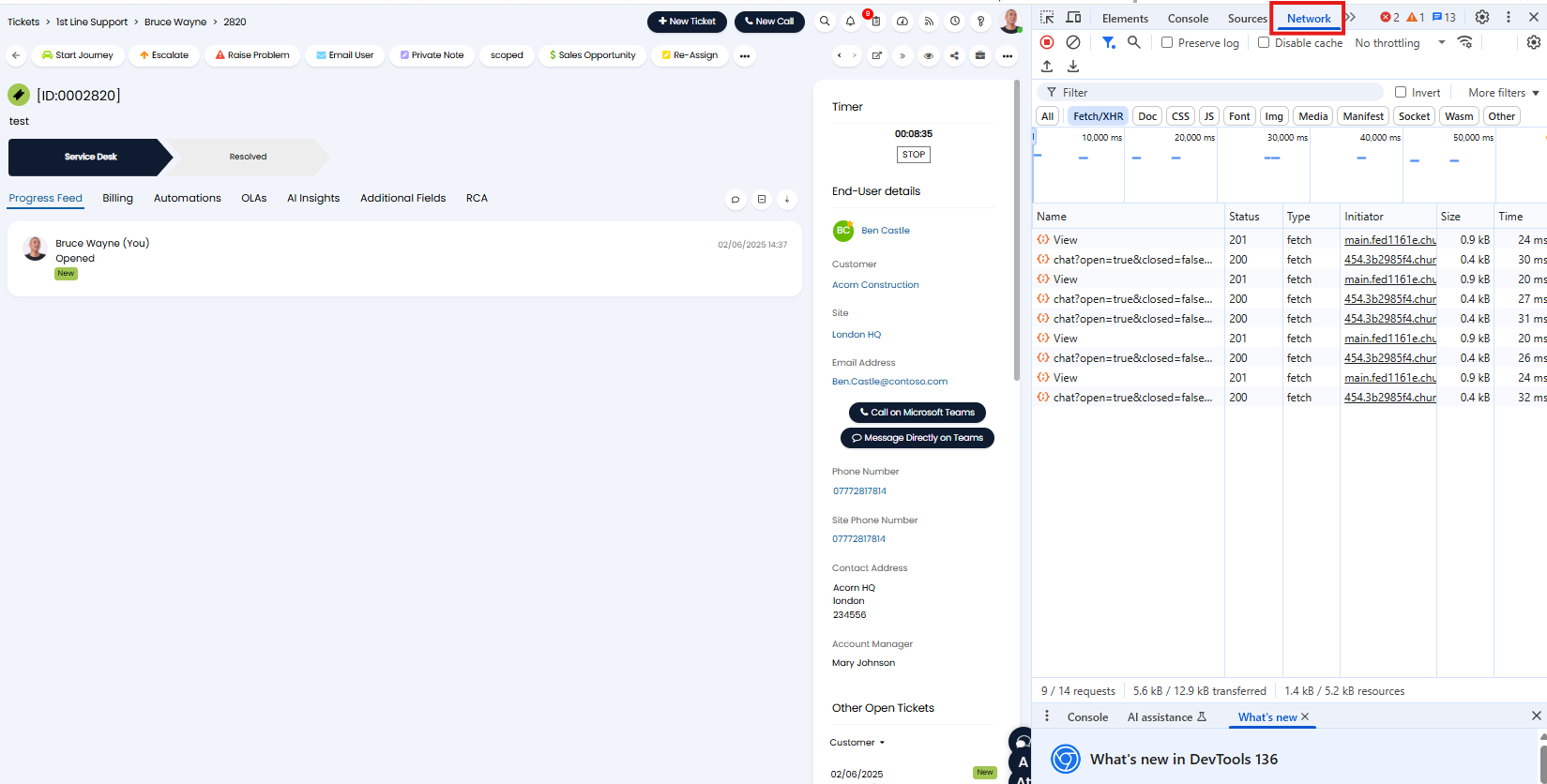
Fig 2. Network Tab
With this open, carry out the action that caused the error again.
Now, in the console we can see which request failed when we did this action.
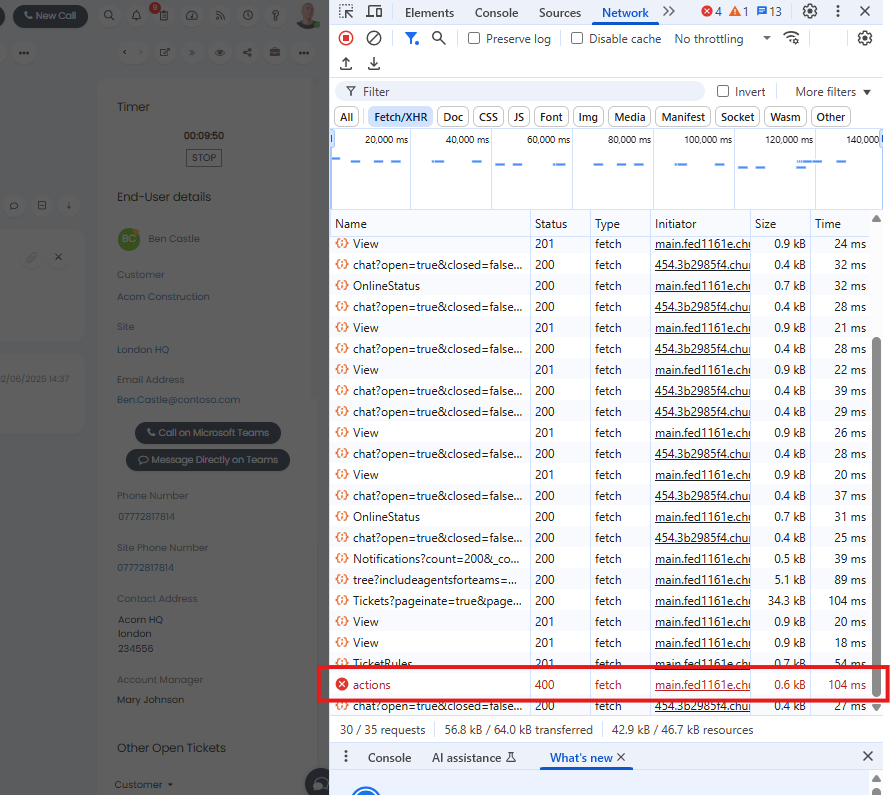
Fig 3. Failed request in console
We can see at a glance the 'status' of the request is 400, this is the HTTPS status code.
Click into this request to see more detail.
In the 'Headers' tab we can see the HTTP status code.
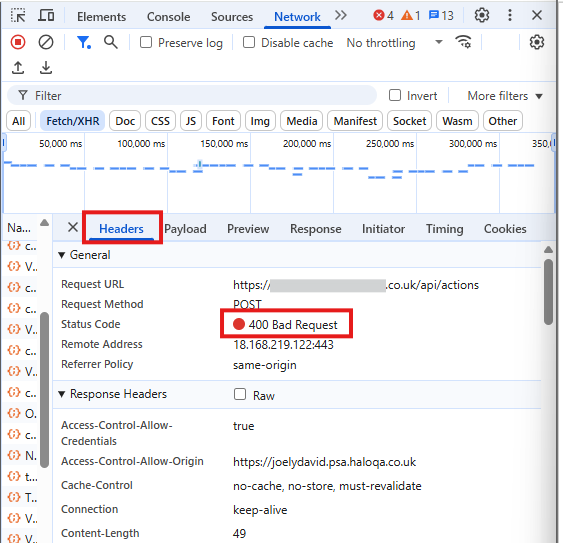
Fig 4. Request header
In the 'Preview' tab we can see the API error message, this gives us more information on what has actually caused the error.
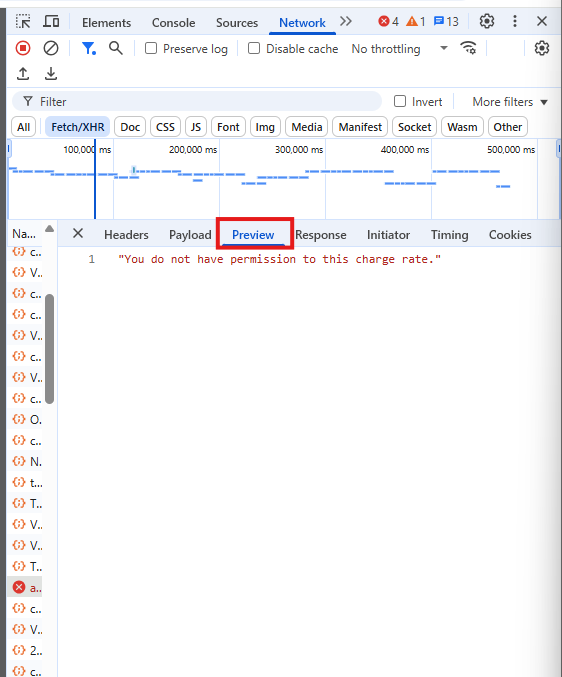
Fig 5. Error message
In this example we can see the error message tells us this request failed as the agent who carried out the action does not have access to the charge rate being used. The agent who is executing an automated action which uses a pre-set charge rate, as the agent does not have permission to use this charge rate the request will fail.
In this example an error message is provided, however, messages will not always be provided for all issues.
Often times only the API error type will be available in the console, although this does not tell us the exact cause of the issue, each code pertains to a different category of issue, therefore is still useful in identify the cause.
The next section outlines each HTTP status code, what category of error they indicate and what this means in the context of Halo. Codes highlighted in blue will only occur when running custom integrations/runbooks to make API calls. Other codes can occur as a result of incorrect configuration or use.
HTTP Status Codes
| HTTP Status Code | Error meaning | Halo Context |
| 401 | Unauthorized | This error indicates the Halo does not have the appropriate authentication credentials to complete the action. Halo is attempting to access data that requires authentication details, but no such details are provided. For example, when integrating Halo with another application, if you attempt to import (complete a GET request) data from this other application, you will receive a 401 error if Halo has not been provided access credentials. |
| 403 | Forbidden | This error indicates Halo is attempting to access data that requires authentication details, but the authentication credentials it is using do not have the correct level of access. This could mean the agent/user completing the action does not have the appropriate permissions needed to access an area of the system or execute an action. Or in the context of integrations, this error indicates the account authorising connection between the applications does not have the appropriate permissions to access the requested data. |
| 404 | The requested resource does not exist | This error occurs when the application (Halo) cannot find the resource you are attempting to access. This can happen when you are attempting to access areas or data in Halo that has been removed/deleted, usually by following a link or amending a URL. For example, if you follow a link that takes you to a ticket that has been deleted in the instance. |
| 405 | Method not allowed | This error occurs when a HTTP method (GET, POST, DELETE) is used on an endpoint that does not support that method. For example, if you attempt to complete a POST to an endpoint that only allows GETs. These errors do not occur in Halo as API calls for UI actions are coded correctly. This error may only occur when you have configured a custom integration to execute a HTTP method on an endpoint that does not support that method. |
| 409 | Conflict with the current state of the resource | This error indicates Halo has understood the request that needs to be made but cannot complete it as the request conflicts with existing data. For example, if you are trying to close a ticket that is already closed, update the same resources at once from two places, populate a field that is a unique identifier with a non-unique value etc. There is logic contradiction, so the action/request cannot be completed. These errors do not occur in Halo as if you will not be able to update the same entity with conflicting information in the UI. This will only occur when a custom API call has been configured. |
| 422 | Un-processable Entity | This error indicates the data being used for the action you are executing is semantically incorrect, that is it is in the wrong format so cannot be processed. For example, if a text field is populated with numbers, the data for this field will be classed as being in the wrong format so unable to be processed. These errors are very rare in Halo as if a something (such as a field) has been completed with the incorrect format a message will appear in the UI to notify you before a request is made to the API. This error will only occur when a custom API call has been configured. |
| 429 | Too many Requests | This error indicates the action cannot be completed as too many requests have been made to the server at one time. The rate limit of the API has been exceeded. This can occur when too many actions are completed in Halo at one time, such as when pushing/pulling data from an integrated application, if too many requests are sent at one time you will receive a 429 code. You will have to re-send requests in batches to lower the number of requests made at one time. |
| 504 | Request Timeout | This error indicates the request took too long to be processed by the server, rather than loading indefinitely the request will timeout after a set time. This can occur when loading a report with an excessively large amount of data or with very inefficient sql, as these requests will be so long they will take too long to process and so will timeout. |
Error Examples in Halo
In this next section we will go through some example of when each error can occur in Halo, and how to resolve this.
401- Unauthorised
Importing assets (or any data) from an integration
In this example the integration Addigy has been set up, when assets are imported into Halo using this integration a 401 error is returned on the asset import screen.
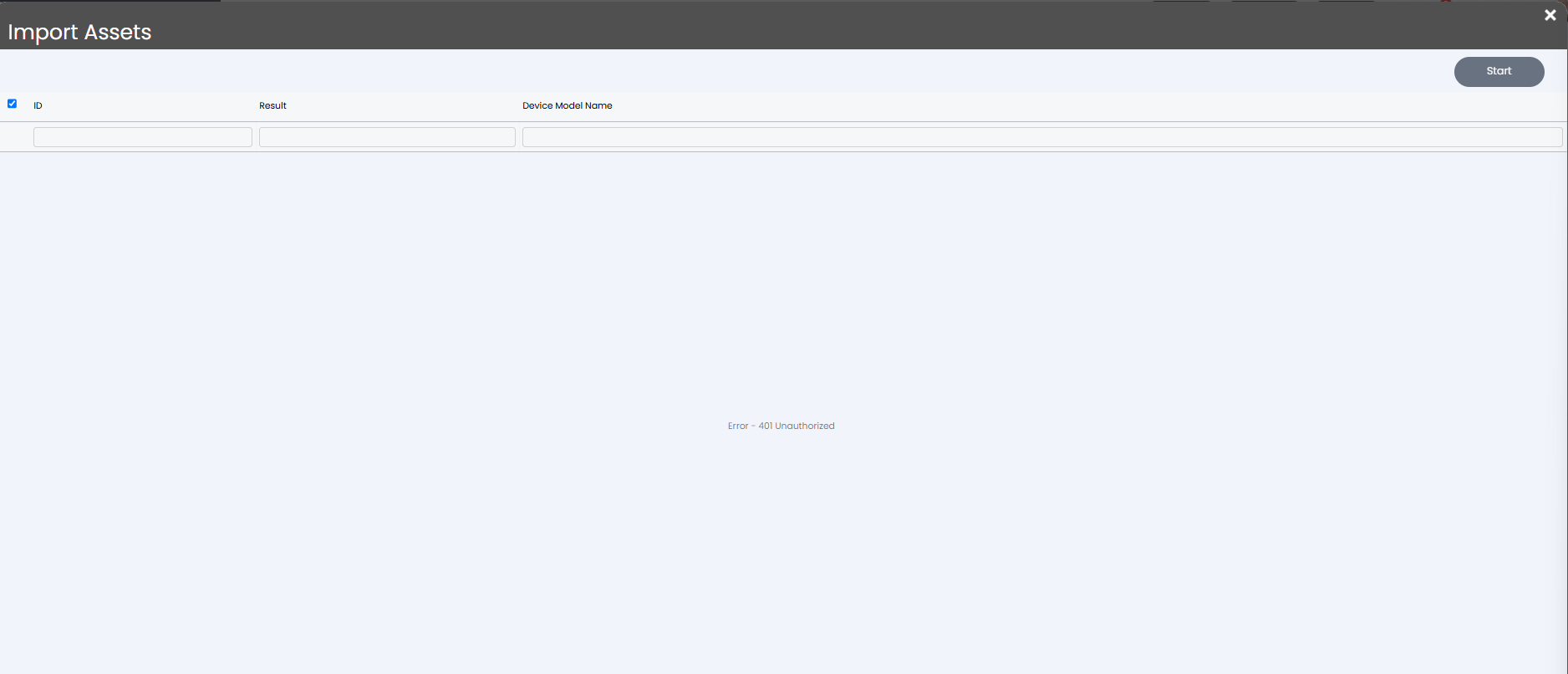
Fig 6. 401 unauthorised when importing assets
This code indicates Halo does not have the appropriate credentials to access data from Addigy. This will occur if you attempt to import assets either with no credentials entered, or credentials that are entered in the incorrect format.
To resolve this you will need to obtain credentials from Addigy and re-enter them in the Halo setup page for the integration.
403- Forbidden
Importing users (or data) from an integration
In this example the integration Entra ID has been set up, when users are imported into Halo using the Halo integrator a 403 error is returned in the Halo integrator logs 'Failed to create/update user (anonymized). Error = 403 Forbidden'.
This error has occurred as although authentication credentials have been provided, the credentials do not contain the correct level of permissions needed to access users in Entra. Although Halo has been given access to Entra, it does not have permission to access users, therefore cannot access this data to import it into Halo.
To resolve this error the permissions assigned to the application that is authorising this connection will need to be adjusted to ensure the application has permission to access users. The way in which permissions are granted to integration access credentials varies, ensure you check the relevant guide for the required permissions.
404- Resource not found
Following an approval link
In this example, a user has followed a link to approve a request, upon following the link they receive a 404- Not Found error in the Halo portal.
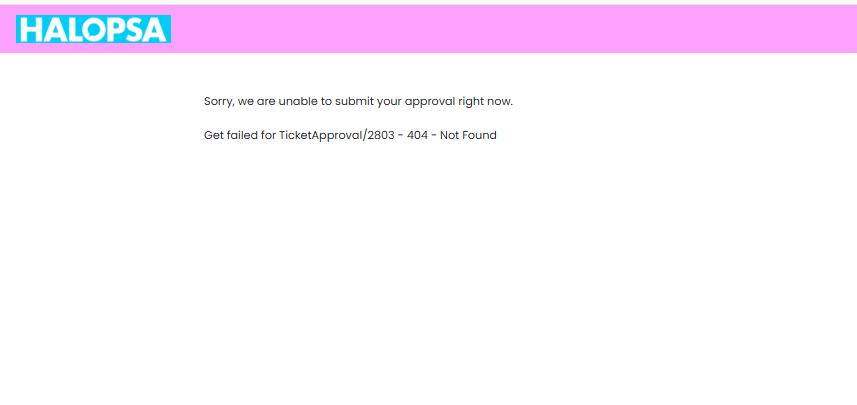
Fig 7. 404 error in portal
This error has occurred as the link is re-directing them to a resource that no longer exists. In this case, the ticket the approval is taking place on has been deleted in the system after the approval was sent out. The approval link attempts to take the user to the ticket in the portal, but as the ticket no longer exists the resource cannot be found.
To resolve this error the deleted ticket will either need to be restored, or the link no longer used.
429- Too Many Requests
Syncing invoices to Xero
In this example a 429 error is returned when attempting to sync invoices from Halo to Xero. Invoices created in Halo will sync to Xero automatically upon creation, however invoices can also be synced manually in bulk using the 'Sync to Xero' bulk action.
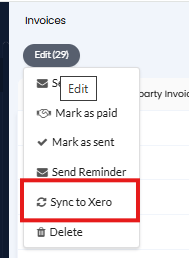
Fig 8. Sync to Xero action
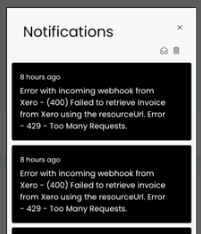
Fig 9. 429 Error too many requests to Xero
This error has occurred as the amount of requests that have been sent to Xero at one time exceed Xero's API rate limit. Too many invoices have been selected at one time to sync to Xero.
To resolve this error fewer invoices will need to be selected when using the 'Sync to Xero' action.
504- Request Timeout
Loading a Report
In this example a 504 error is returned when attempting to load a report in Halo. The error is not returned in the UI, however can be seen when the console is open at the time of loading the report, shown in figure x.
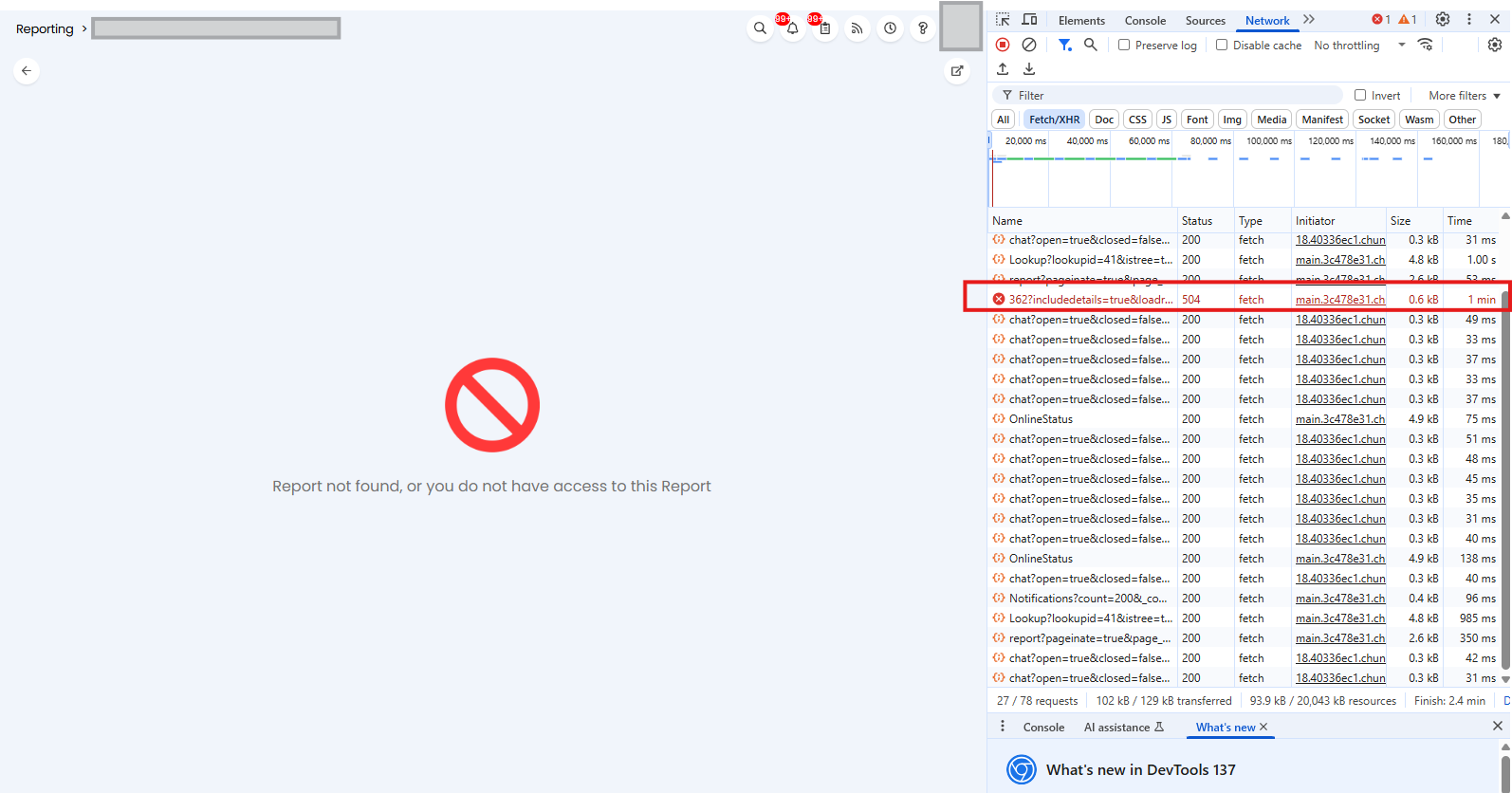
Fig 10. 504 error returned when loading report
This error will have occurred for one of two reasons, either the sql used for the report is very inefficient, causing the request to be overly large and take the server too long to process. Or the report returns so much data the request to the server is overly large, taking the server too long to process.
To resolve this error the sql for the report will need to be adjusted so that less data is returned by the report, or the query is more efficient. If you are unsure if your sql query is inefficient, or how to make it more efficient, you can log a request with our support team (support@haloservicedesk.com) for them to improve/evaluate the query for you.
To open up a report, without loading the data (allowing you to access the sql without the report timing out), append '&loadreport=false' to the report url. This will open the report data source, without loading any data until 'load report' is selected.