Importing Quotation Lines via XLS
- quotation
- quote
In this guide we will cover:
- Creating an XLS Profile
- Enabling Quotation Line Imports
- Importing New Lines
- Updating Existing Lines
Quotation lines can be imported and updated from an XLS file.
Creating an XLS Profile
First, we will need to create an XLS profile, which essentially maps the fields on the XLS spreadsheet to each part of the quotation line within Halo.
In Configuration > Quotations, scroll to the bottom where the "Imports" section is. Click this button to "View/Edit XLS Profiles for Quotation Lines".

Fig 1. Quotation Lines XLS profiles area.
In this area, edit or create a new profile. Give the profile a relevant name.
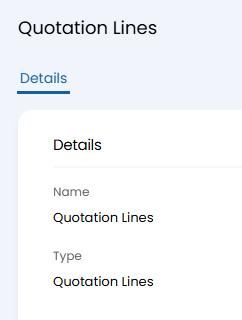
Fig 2. Entering the profile details.
Scroll down to the "Field Mappings" section. Here you can map columns in the XLS spreadsheet to Halo fields.
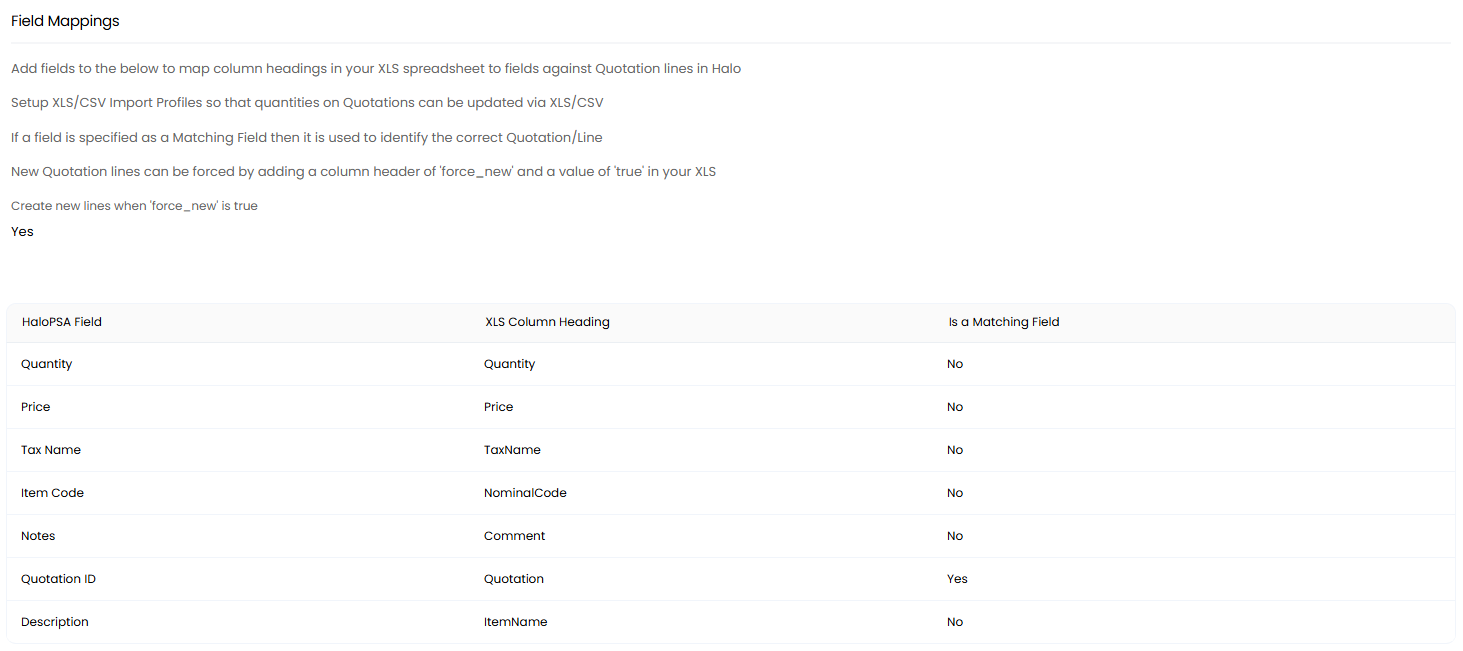
Fig 3. Mappings table.
Upon clicking "Add", you will see the below popup to configure a mapping. Type the exact column name in the first field, and select the corresponding Halo field in the following dropdown.
You can then also select whether that field is a matching field. Matching fields will be used to select the correct quotation/quotation line to update.
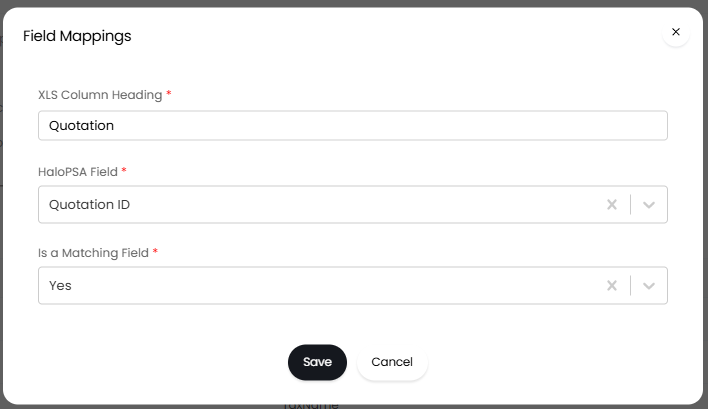
Fig 4. Mappings popup.
You can then create a XLS spreadsheet with the corresponding XLS Column Headings in Fig 4. This is an example of what a spreadsheet may look like for this, and these columns are matched as per Fig 3.
Note: You can add "force_new" as a column with the value "true" to create new lines.

Fig 5. Spreadsheet example.
Enabling Quotation Line Imports
Now that the XLS profile is created, enable the below checkbox to allow quotation line imports. This is found within Configuration > Quotations > Quotation Settings section.

Fig 6. Enabling quotation line imports.
Importing New Lines
Upon enabling the above checkbox, a button labelled "Import Quotation Lines" will show when editing or creating a quotation.
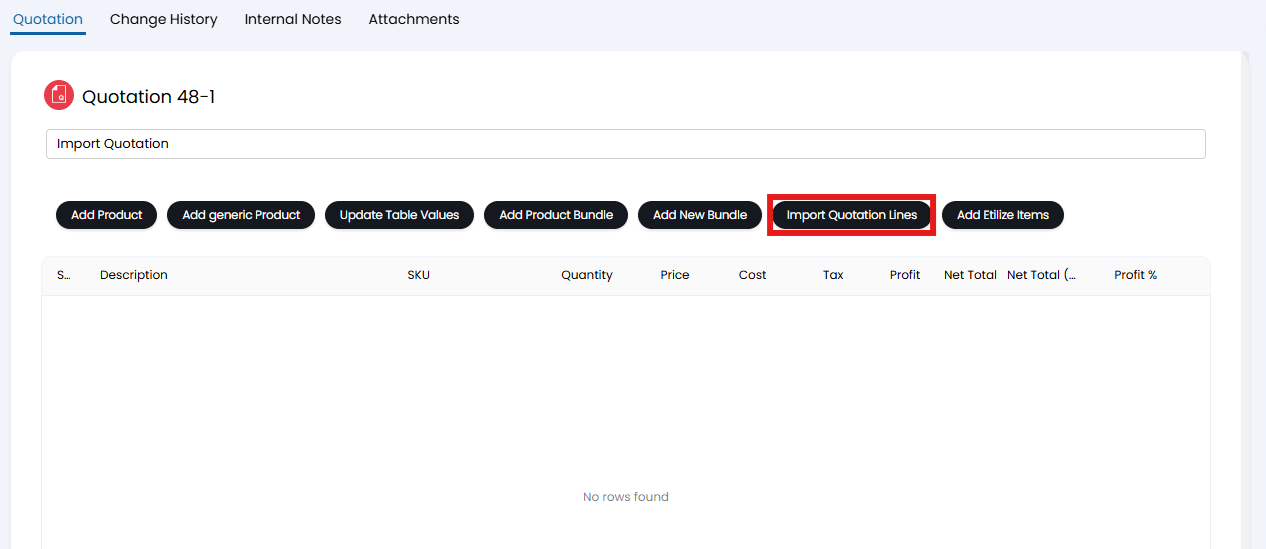
Fig 7. Import button on a quotation.
Upon clicking this button, a popup will show to select the XLS Import Profile. Choose the one that matches your import spreadsheet.
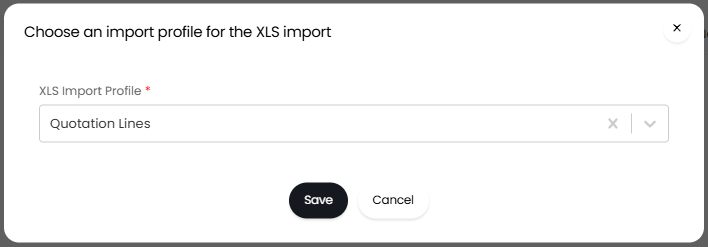
Fig 8. Selecting a XLS profile.
Click "Save", and the import screen will appear. Choose a spreadsheet from your device, and click "Start".

Fig 9. Import screen.
After the import has completed, exit out of the import screen. Click "Save" on your quotation and then refresh the page. The imported products will now show here.
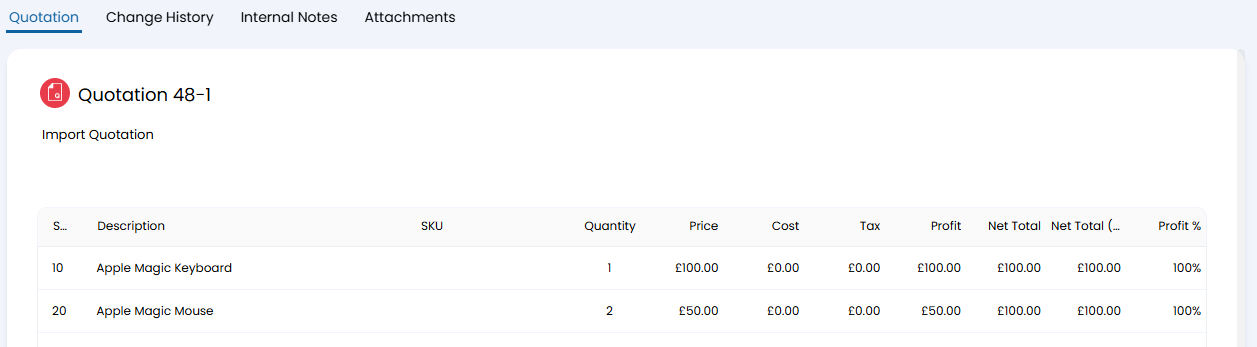
Fig 10. Imported products.
Updating Existing Lines
You can also use the above method to update existing lines on an invoice. To do this, set "Quotation Line ID" as a matching field within the table in Fig 3.
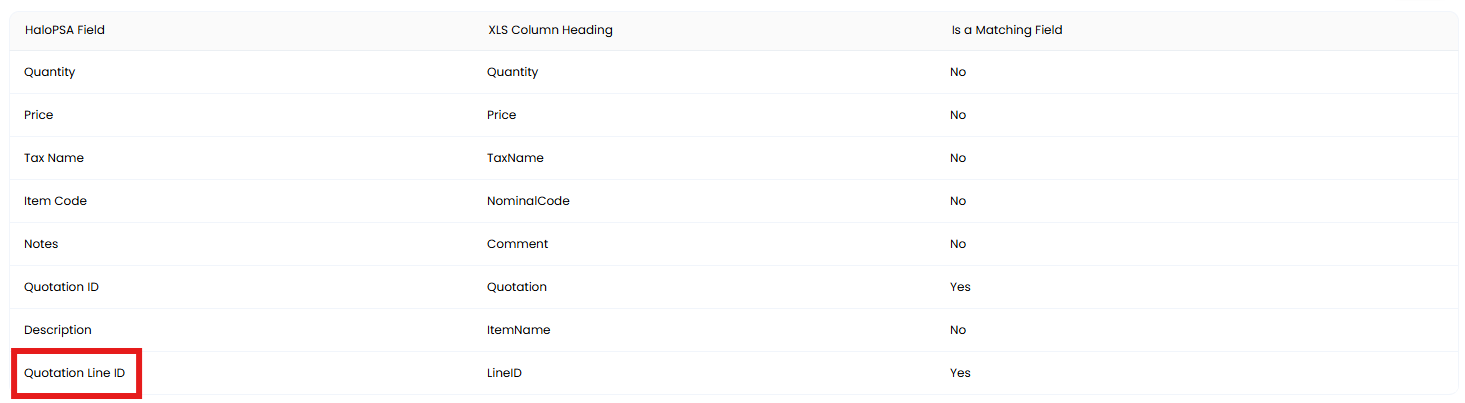
Fig 11. Quotation Line ID set to a matching field.
You can then add a column to the import spreadsheet with the corresponding heading. To find the quotation line ID, you can either view it within Dev Tools (F12) or via a report like the one below.
QD.QDDesc AS [Description]
FROM QUOTATIONDETAIL QD
WHERE QD.QDQHid = QUOTE ID HERE
Then simply add this ID into that column like below, and repeat the import process.

Fig 12. Line ID import example.
Based on the above spreadsheet, the line we previously newly imported can be updated to change the name of the product to "Apple Magic Keyboard 1".

Fig 13. Edited line.