Using HaloDBLookupService to run custom integration methods on internally facing APIs
- database lookup
In version 2.184+ there is a new connection option for Custom Integrations to connect to internally facing APIs:
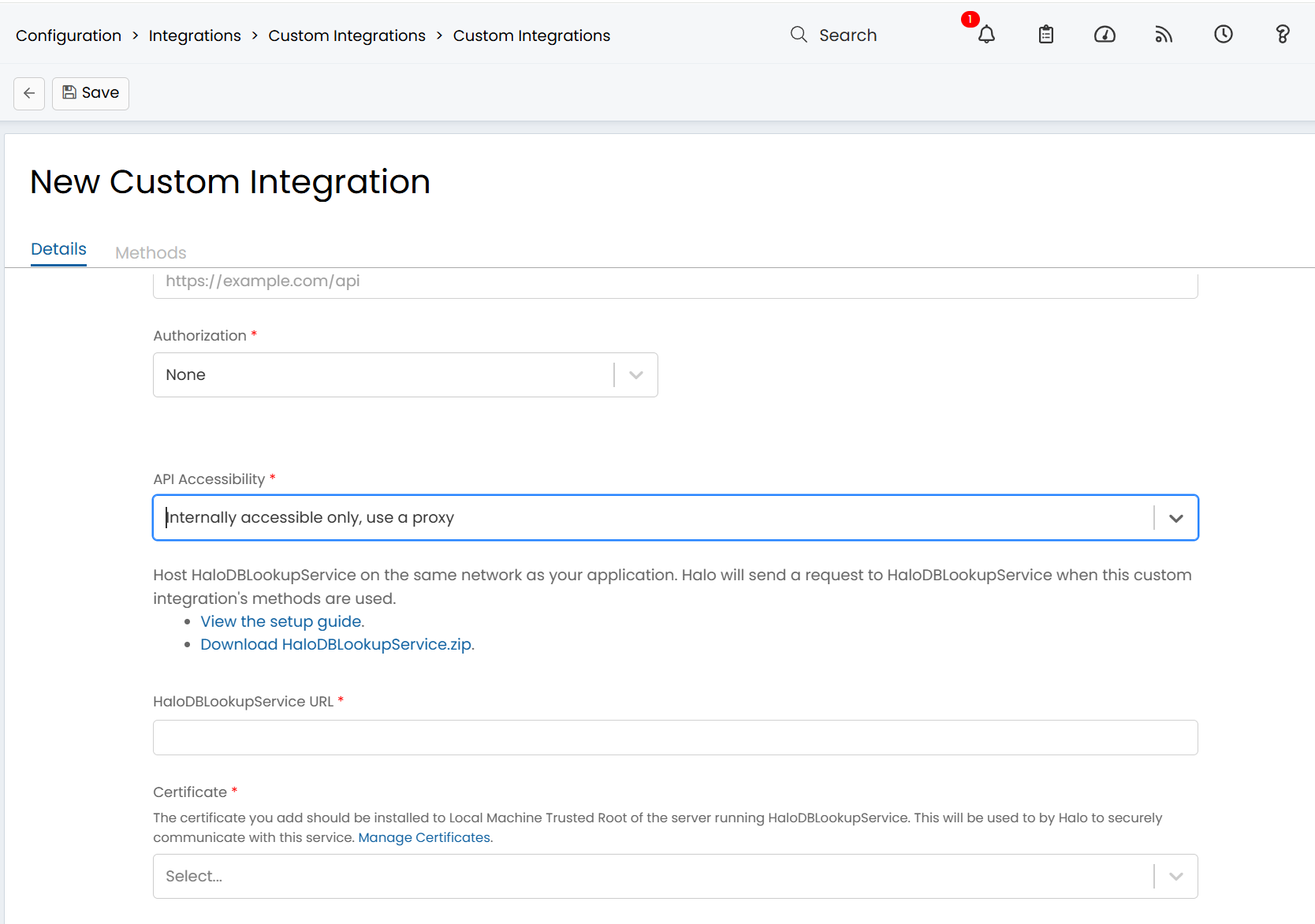
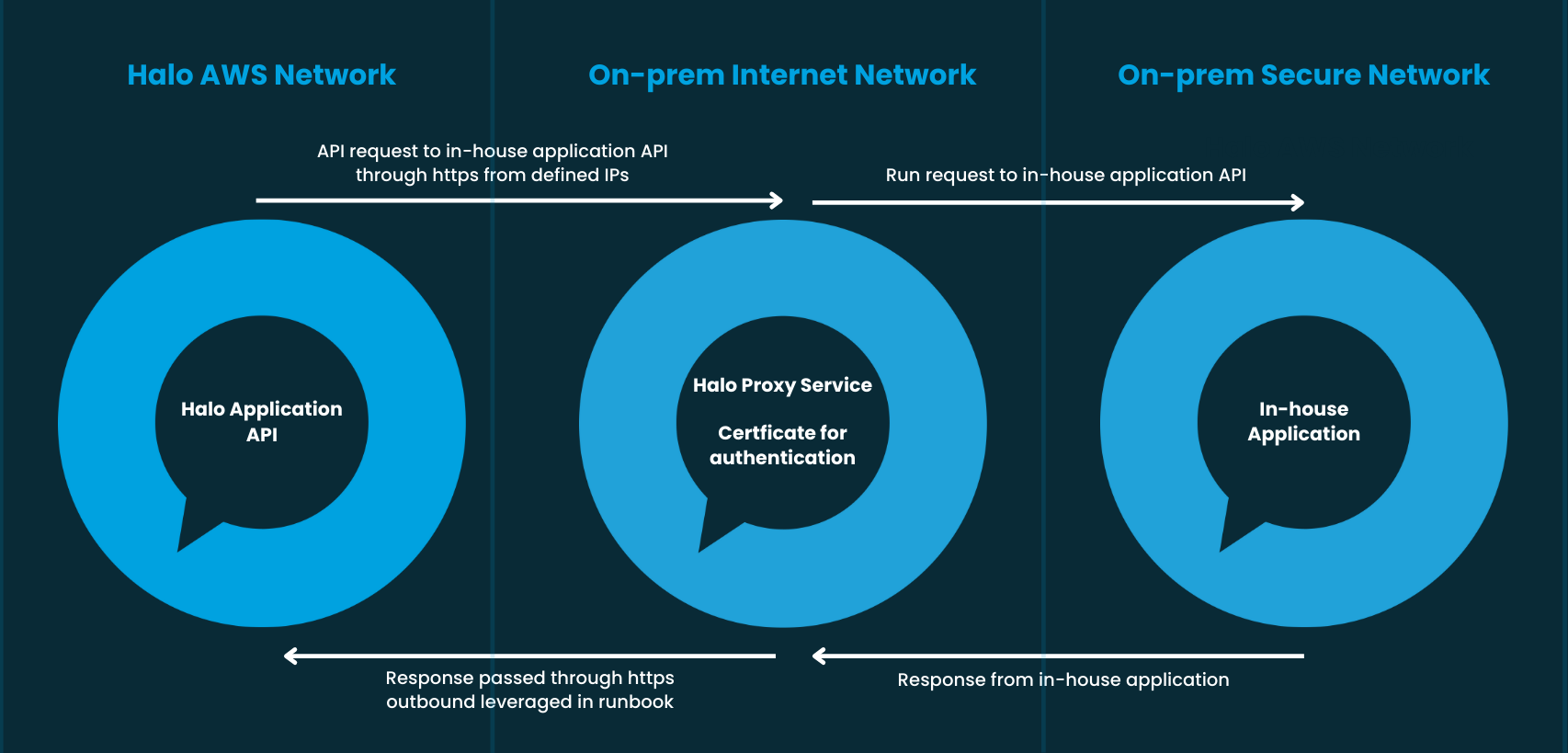
This connection method allows you to host a proxy application called "HaloDBLookupService" on your own network which can access your internally facing APIs. The Halo API then connects to this Service using requests signed by a common certificate to retrieve Database lookup results.
This provides an alternative option for hosted customers to connect to their on-prem applications rather than opening traffic to the internet.
The outcome can be described by the below image, where the HaloDBLookupService is the "Halo Proxy Service" in the image below:
Setup HaloDBLookupService on your server
This is a Web-facing API that should be set up on your network on a server which can access both the internally facing application and that can be accept https traffic from the Halo API.
Certificate
The Halo API and HaloDatabaseLookupService need to share a common self signed certificate. The Halo API signs the request with a certificate, and HaloDatabaseLookupService validates the signature using the same certificate before processing the request.
It's recommended you create a self-signed certificate. You'll be uploading this certificate to your Halo database so don't use a certificate that you use for something else already, or one that you use for SSL. This can be done in configuration > advanced settings > certificates.
This certificate needs to be installed to the Trusted Root of the LocalMachine of the server running HaloDBLookupService.
For additional security you can specify the Issuer in appsettings.json (e.g "CN=MyDomain") and HaloDBLookupService will also validate the Issuer.
Server Specifications
1. Windows Server 2012+ as OS.
2. Within server manager, ensure asp.net 4.5, .net Framework 4.5 and .net Framework 3.5 are installed.
3. Install dependencies:
- DotNet Hosting 6: https://download.visualstudio.microsoft.com/download/pr/b50f2f63-23ed-4c96-9b38-71d319107d1b/26f8c79415eccaef1f2e0614e10cd701/dotnet-hosting-6.0.21-win.exe
- URL rewrite: https://download.microsoft.com/download/1/2/8/128E2E22-C1B9-44A4-BE2A-5859ED1D4592/rewrite_amd64_en-US.msi
- C++ redistributables: https://aka.ms/vs/17/release/vc_redist.x64.exe
Service Installation
1. Download the latest HaloDBLookupService from https://s3.haloitsm.com/ftp/HaloDBLookupService.zip.
2. Extract HaloDBLookupService.zip and place the contents of the "HaloDBLookupService_Version" directory in a directory called "HaloDBLookupService" in the root of the C drive.
3. Open IIS, create a new site with the Physical Path as the path to the WebApp directory you created (C:HaloDBLookupService).
4. Open C:\Windows\System32\inetsrv\Config\applicationHost.config. Check the nodes for “modules” and “handlers” have overrideModeDefault="Allow". If not, change “Deny” to “Allow” and save.
5. Rename appsettings.default.json in C:\HaloDBLookupService to appsettings.json.
6. Start the site and browse to http://your-new-sites-url/health. You should get a json response with some information and application health. If this does not work follow the troubleshooting steps below.
7. Get a public url for your site with an SSL certificate. And do the test in step 6 again.
8. IIS (Internet Information Services) must be enabled on the server.
Setting up the Custom Integration in Halo
1. You can go to Configuration > Integrations > Custom Integrations.
2. Set "API Accessibility" to "Internally accessible only, use a proxy".
3. HaloDBLookupService URL = The base url you configured in step 7 of "Setup HaloDBLookupService on your server". E.g "https://dblookups.mycompany.com". Do not include a trailing slash.
4. Connection Name = leave blank to use DefaultConnection, or populate the name of the connection you want to use if using another connection you created in step 3 of "Database Connection".
5. Certificate = Pick the certificate you added to Halo in the "Certificate" section above.
6. Configure both the authentication and the Custom Integration methods (i.e. API requests) as you would normally.
7. Save the record.
Upgrading HaloDBLookupService
Updating HaloDBLookupService is a matter of obtaining the new files, and overwriting the old ones. Please ensure that you do not delete or overwrite your appsettings.json file.