Snipe-IT Integration
- snipe
- snipe-it
- snipe integration
In this guide we will cover:
- What is the Snipe-IT Integration?
- Enabling the Snipe-IT Module - Connecting to Snipe-IT
- Customer Import
- Asset Import
- Enabling Syncing
What is the Snipe-IT Integration?
Snipe-IT can be integrated with Halo to import and manage assets.
Enabling the Snipe-IT Module
In Configuration > Integrations > Asset Management and Alerting, hover over the Snipe-IT module, and click the "plus" (+) icon to enable it.
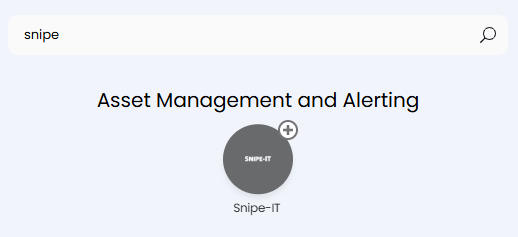
Fig 1. Enabling the module.
Connecting to Snipe-IT
Click into the module, and click "New" in the top right corner to create a new connection. This will open the below screen, where you can enter the URL and API key from Snipe-IT. Also give the connection a suitable name for future reference.
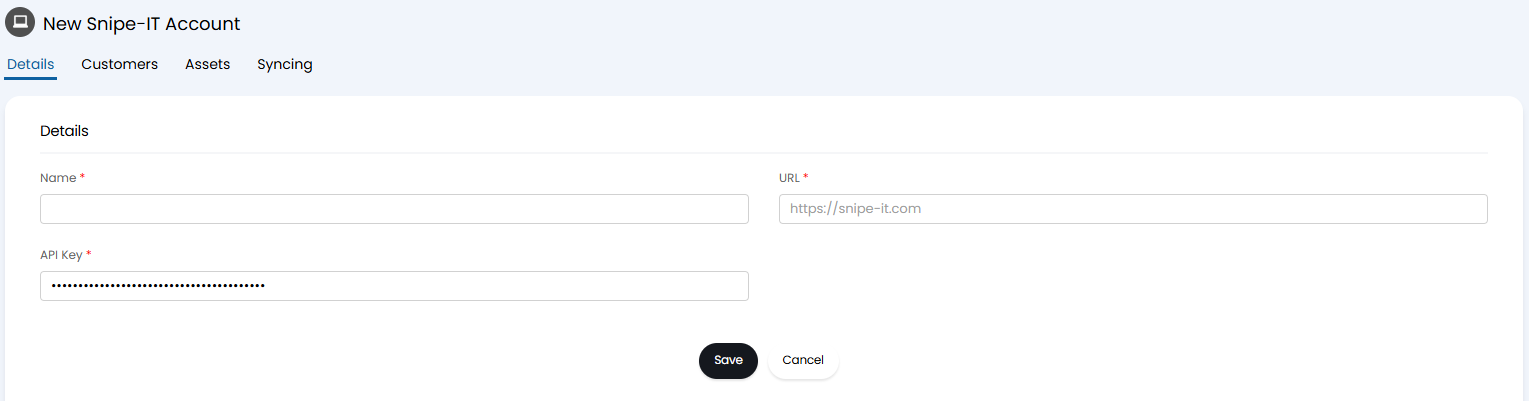
Fig 2. Entering Snipe-IT credentials.
Upon saving, a "Test Configuration" button will appear. Click this to check the connection, and troubleshoot any errors if they appear on the popup.
Customer Import
The next tab along is "Customers. Here you can map your Snipe-IT customers to Halo customers. If the name in both is the same, the Snipe-IT customer will update the Halo customer.
If you have top levels enabled (Configuration > Users > General Settings > "Show an additional level ("Top Level") for grouping Customers"), you can also set the top level for the imported customers here.
At the bottom is the "Import Customers" button. Click this upon configuring the above to manually import your customers from Snipe-IT.
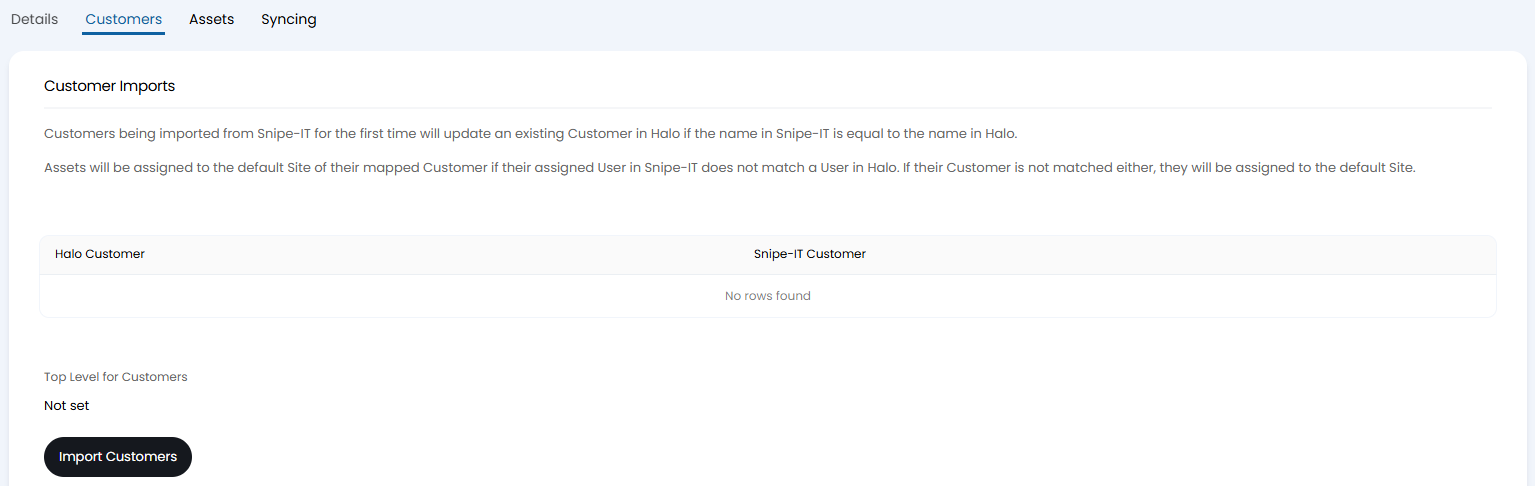
Fig 3. Customer import configuration.
Asset Import
The next tab is for asset import.
First, set a default site in Halo. Assets will be imported to this site if their assigned user in Snipe-IT does not match within a customer in Halo.
Then, choose an asset matching field. This will be the field used to match assets between Snipe-IT and Halo.
By default, the Snipe-IT ID will always be checked first. If matched, the existing records in Halo will be updated from Snipe-IT.
You can also add field mappings here between the two, allowing information from Snipe-IT to be imported and set against a field within Halo. You can map either a asset system field or a custom field of entity type "Asset". Creation of these fields is covered in the "Asset Fields" guide.
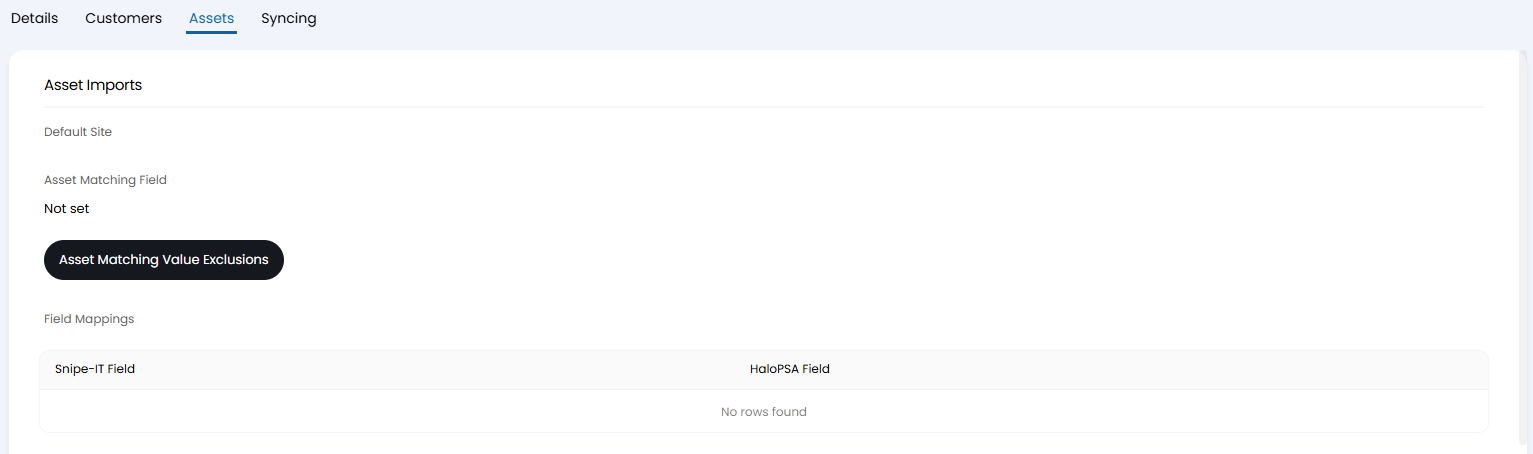
Fig 4. Asset mapping and matching.
Scrolling down, you will then see the configuration for asset types. Here, you can set a default group for new asset types, a default asset type, and how to determine an asset's type. If set to use a field or rules to determine the type, an additional field or table will show to set these.
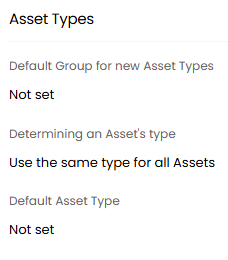
Fig 5. Asset type configuration.
Underneath this, there is finally the miscellaneous configuration. Here, you can configure if you want assets to be created, updated or deactivated in certain events.
Here you will also find the "Import Assets" button. After configuring the above, you can manually import your assets to ensure correct configuration before enabling the integrator syncing.
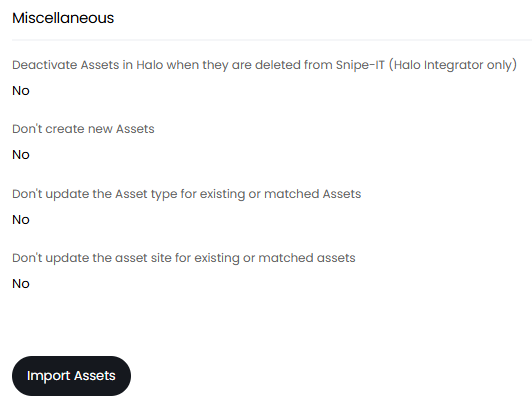
Fig 6. Miscellaneous settings and import button.
Enabling Syncing
If you are happy with your configuration and manual imports, you can enable the Halo integrator to automatically sync the imports for you. Enable the checkbox, and then the "Entities to Import" field will appear. You can set this to import customers, devices, or both.
Below will also show the last sync and the last error from a sync if applicable.
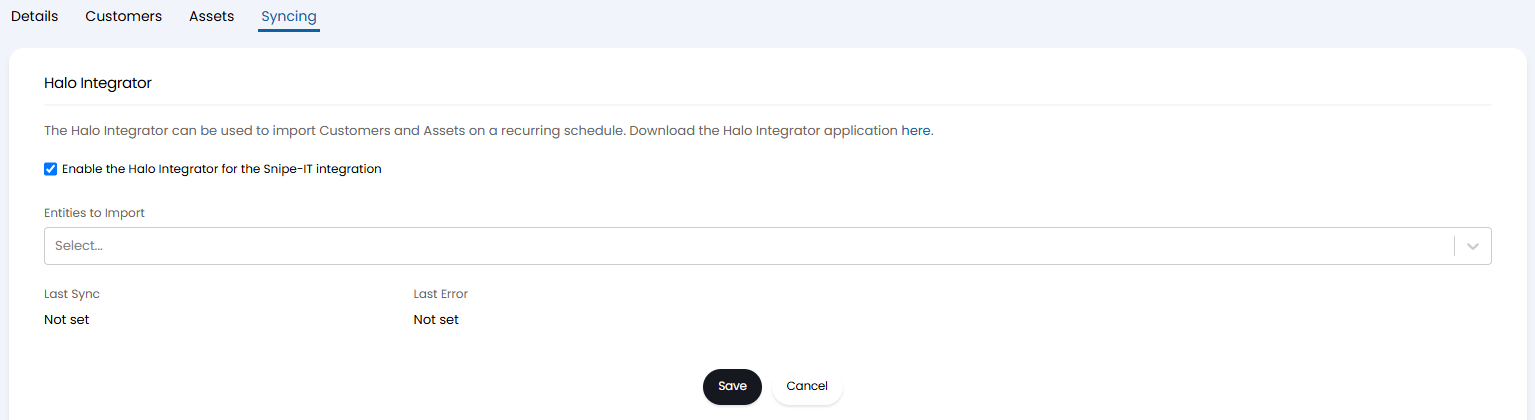
Fig 7. Integrator configuration.