Automated New Starter Requests into Microsoft Entra
- azure
- Automated user creation
- Create users in Entra
- Create users from Portal
In this guide we will cover:
- Configuring Automated Creation of New starters
- The End-User Portal Experience
This guide outlines how to configure automated onboarding for new users into Entra. New users can be created in Entra automatically from Halo, using the user details logged on a new starter request form in the Halo portal. This guide will include setting up the Microsoft CSP integration, syncing user data, and enabling onboarding through the self-service portal.
This functionality relies on runbooks and other pre-built elements that are only available in instances deployed/trials started from April 2025 onwards. Instances deployed after this date will have this functionality available out of the box. Instances deployed before this date will not have this functionality available out of the box, they will however be able to download this functionality in future.
Who Can use this Functionality?
- You are using Microsoft CSP and have GDAP over your customer's tenants.
- You have a single Microsoft Entra tenant.
If you would like to use this functionality across multiple Entra tenants, but you do not use CSP to mange them, you will not be able to use this functionality.
Configuring Automated Creation of New starters
Step 1: Set Up the CSP Integration in Halo
To begin, you’ll need to integrate your Microsoft CSP with Halo. A guide on how to set up this integration can be found here: CSP Integration Guide.
Note: If you would like licenses to be assigned to users during onboarding, ensure that the ‘Allow licences to be managed from within Halo’ checkbox is enabled during setup.
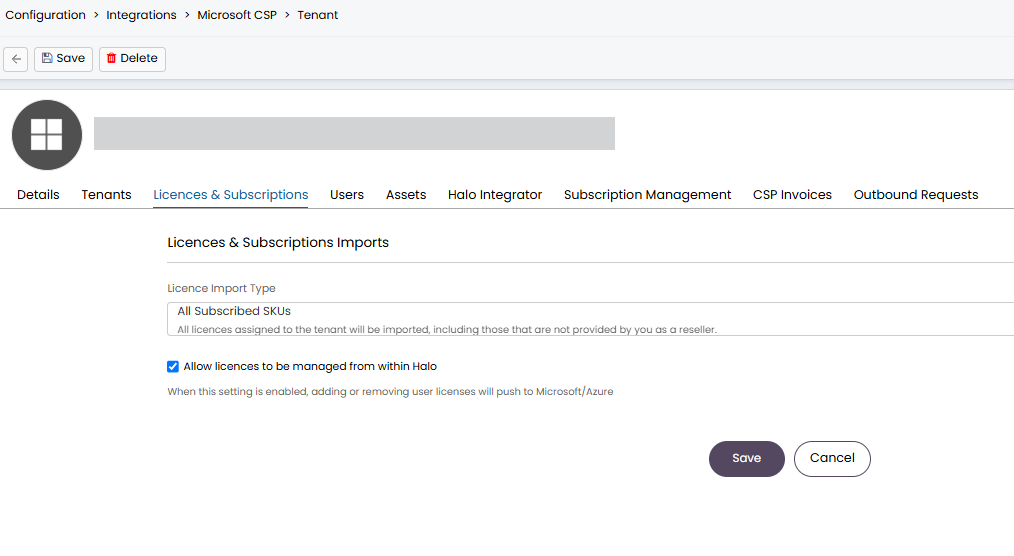
Fig 1. Allow licences to be managed from within Halo
Step 2: Run an Initial Import of Tenants, Licenses, and Users. (Note, this step can be skipped if CSP has already been set-up and has been running imports via the Halo Integrator)
Once the CSP integration is configured:
- Navigate to Configuration > Integrations > Microsoft CSP.
- Navigate to the ‘Tenants’ tab and use the ‘Import Tenants’ button to run an initial import of Tenants and available licenses
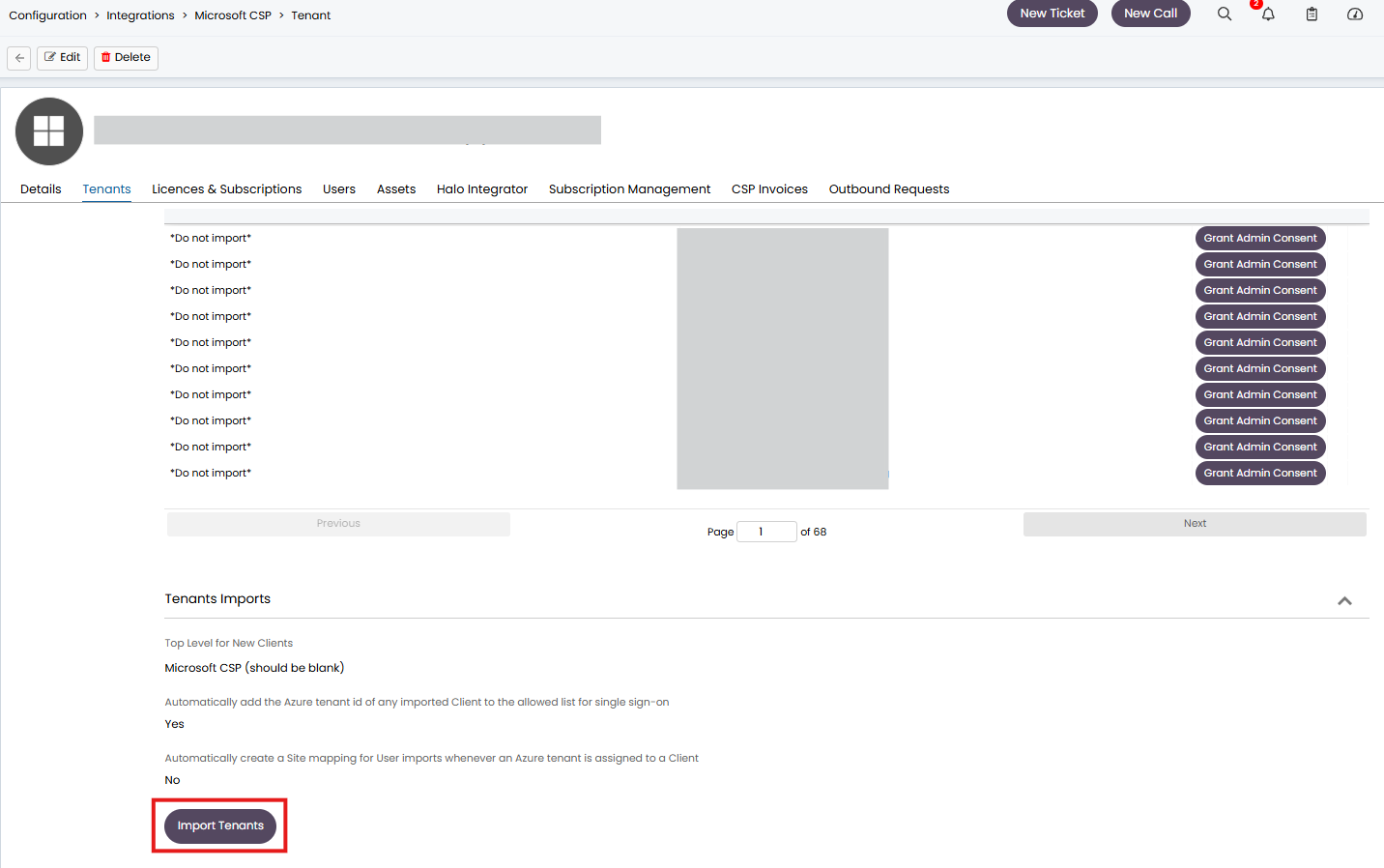
Fig 2. Import tenants
- Navigate to the ‘Users’ tab and use the ‘Import Users’ button to run an initial import of Users
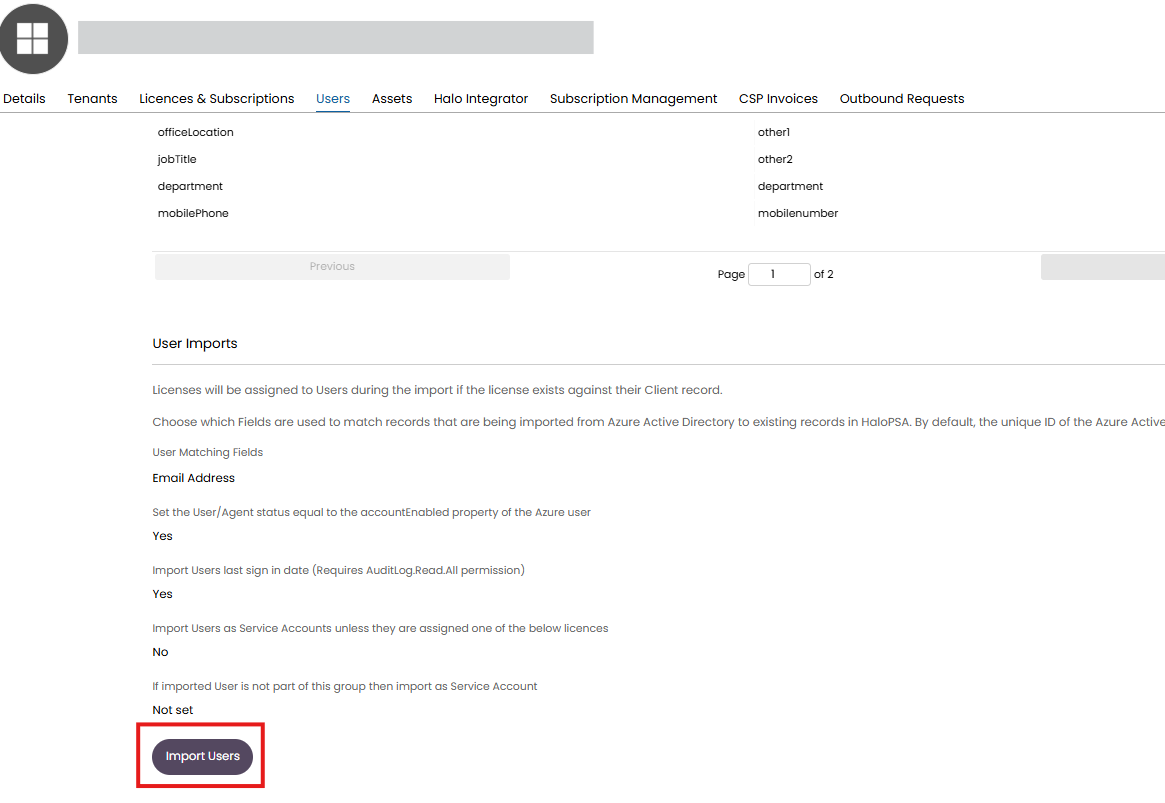
Fig 3. Import Users
Step 3: Configure Azure Groups for Each Client
For each client:
- Open the client record.
- Go to the ‘Azure’ tab.
- Add the relevant Azure AD group names.
- (Only the group names are required — these will be shown as selectable options on the self-service portal.)
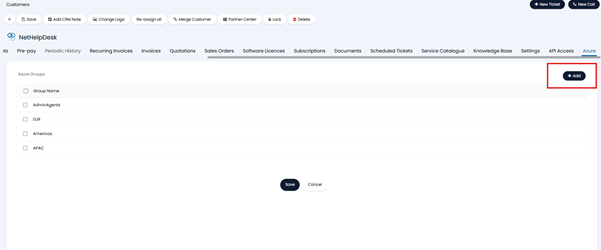
Fig 4. Add Azure AD group names
End-User Portal Experience
Submit a New Starter Request
End-users can initiate an onboarding request by navigating to the 'New Starter Request' on the self-service portal (Services and Products > Users and Services > New Starter)
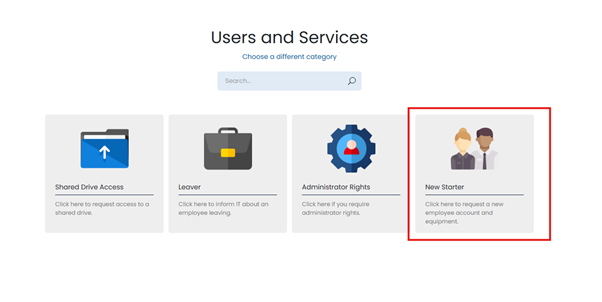
Fig 5. Submit new starter request in portal
From this form, users can select:
- The email format for the new starter (firstname.lastname, firstinitial.lastname, etc.)
- Azure AD groups to assign the new user to.
- Licenses to allocate from the available pool against that customer, imported from the CSP integration.
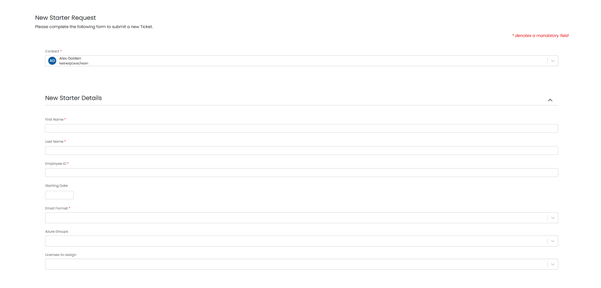
Fig 6. New starter request form
Once the request is submitted:
- A ticket is created in the Halo agent portal.
- All the onboarding details including groups, licenses, user principal name, and temporary password will be available under the ‘Additional fields’ tab of the request.
Approve and Trigger Onboarding
- Once logged, the ticket will launch an approval process. For more on configuring approval processes please see the guide Approval Processes Overview.
- After clicking ‘Approve’ there will be an option to ‘Trigger Azure Onboarding Automation’
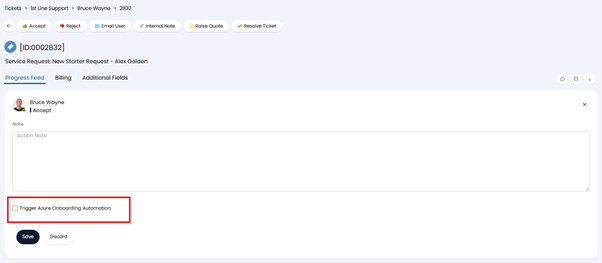
Fig 7. Trigger Azure Onboarding Automation
With this option enabled, once approved, the automation will:
- Create the user in Azure
- Assign them to the selected groups
- Apply the selected licenses
Onboarding only proceeds after approval, ensuring administrative control before provisioning.