Sage Business Cloud Integration
- sage
- integration
- accounting
- sage business cloud
In this guide we will cover:
- What is the Sage Business Cloud Integration?
- Enabling Sage Business Cloud
- Connecting to Sage Business Cloud
- Tax Rates
- Accounts
- Customers
- Products
- Syncing to Sage Business Cloud
What is the Sage Business Cloud Integration?
The Sage Business Cloud integration can be used to import tax rates, accounts, customers and products into Halo, and sync customers, products and invoices to Sage when updated in Halo.
Enabling Sage Business Cloud
In Configuration > Integrations > Accounts and Payments, hover over the module to enable the integration by clicking the "plus" (+) icon that appears.
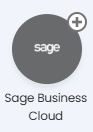
Fig 1. Enabling the integration.
Connecting to Sage Business Cloud
Clicking into the module will take you to this screen. Click into "Sage Business Cloud Tenants" to create your tenant. This is a multi-tenancy integration, so multiple can be made and shown in a list view format. Create a new tenant using the 'new' button in the top right.
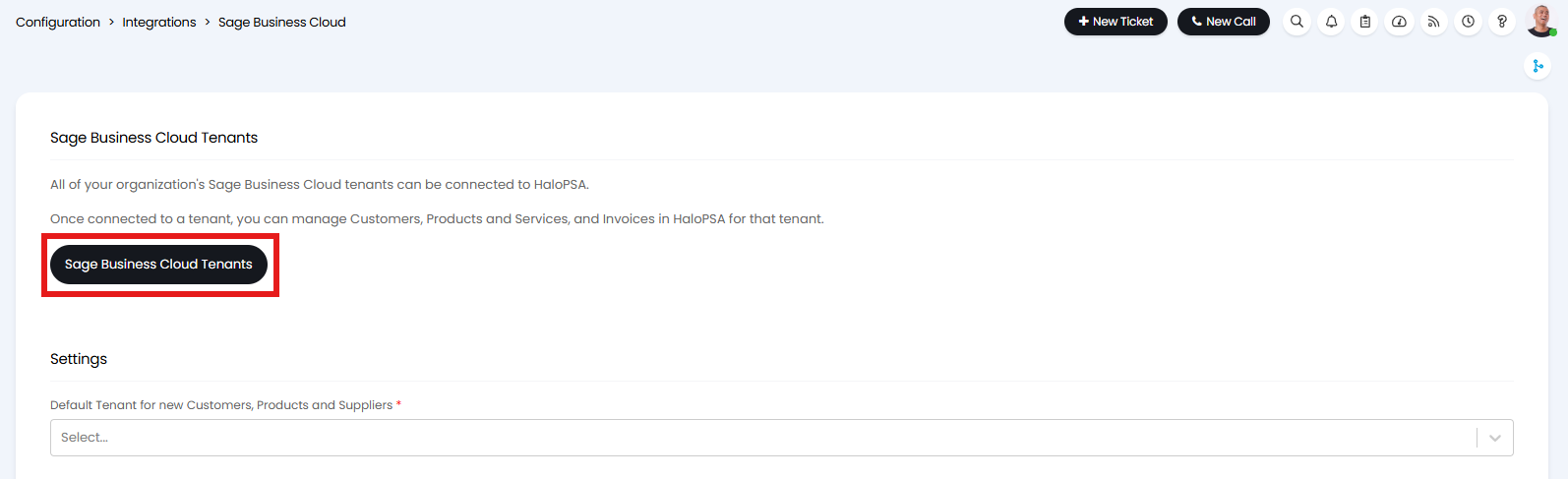
Fig 2. Entering the tenancy area.
Choosing an Authentication Type
You will have an option to choose an authentication type for the integration.
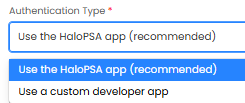
Fig 3. Authentication Type
Use the Halo app (recommended) - This is the recommended option and should be selected by all hosted customers. When this option is selected you will need to authenticate the integration by logging into your Sage account.
Use a custom developer app - This option should only be selected if you are unable to authenticate successfully using the Halo app method. As this option does not support webhooks. On-Prem customers that do not allow their Halo instance to communicate with our API will need to use this authentication method. When this option is selected you will need to authenticate the integration using a client ID and secret.
Note: The 'Halo app' method will be selected by default.
At this point, only the "Details" tab is available until you have connected. Here you can name your tenant and save. Edit again to connect to Sage Business Cloud by clicking the "Connect Now" button underneath.
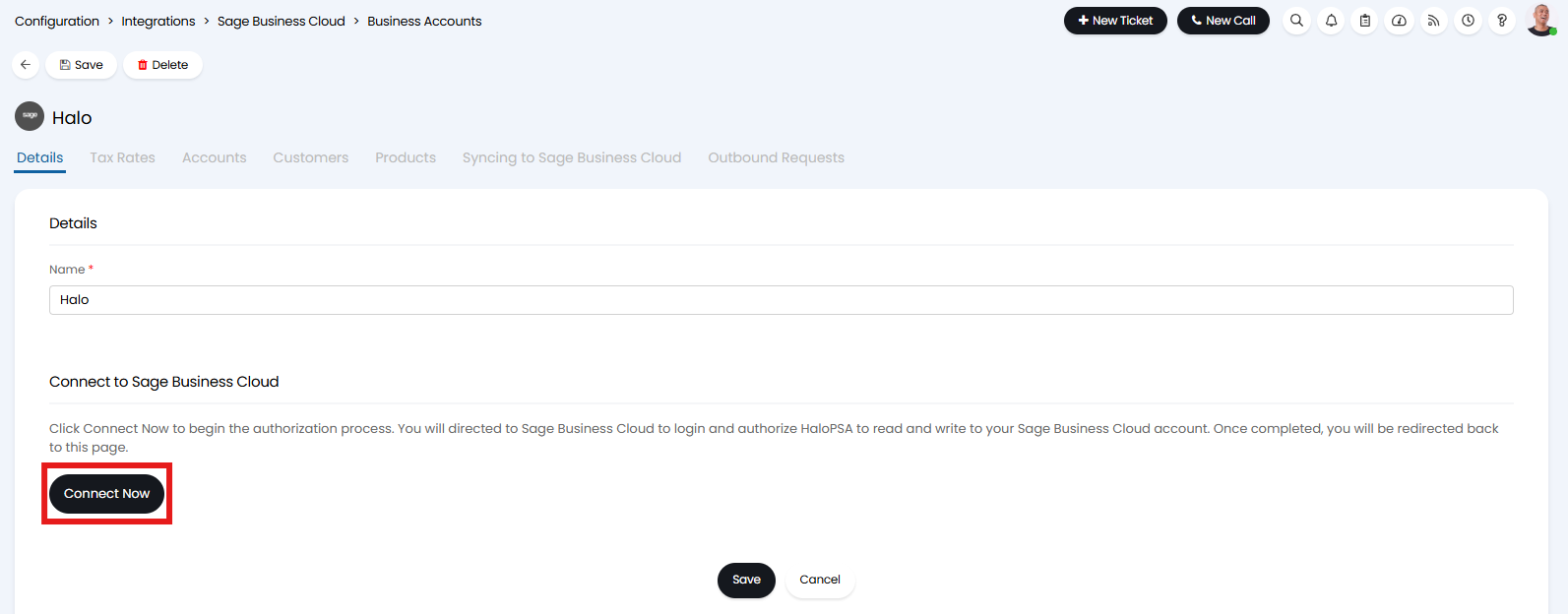
Fig 4. Connect Now button on a Sage Business Cloud tenant.
You will then be redirected to the Sage login screen and upon logging in, you will be redirected back to Halo. The button will then disappear and instead show a message that the connection was successful. The remaining tabs on the screen can now be clicked on and configured.
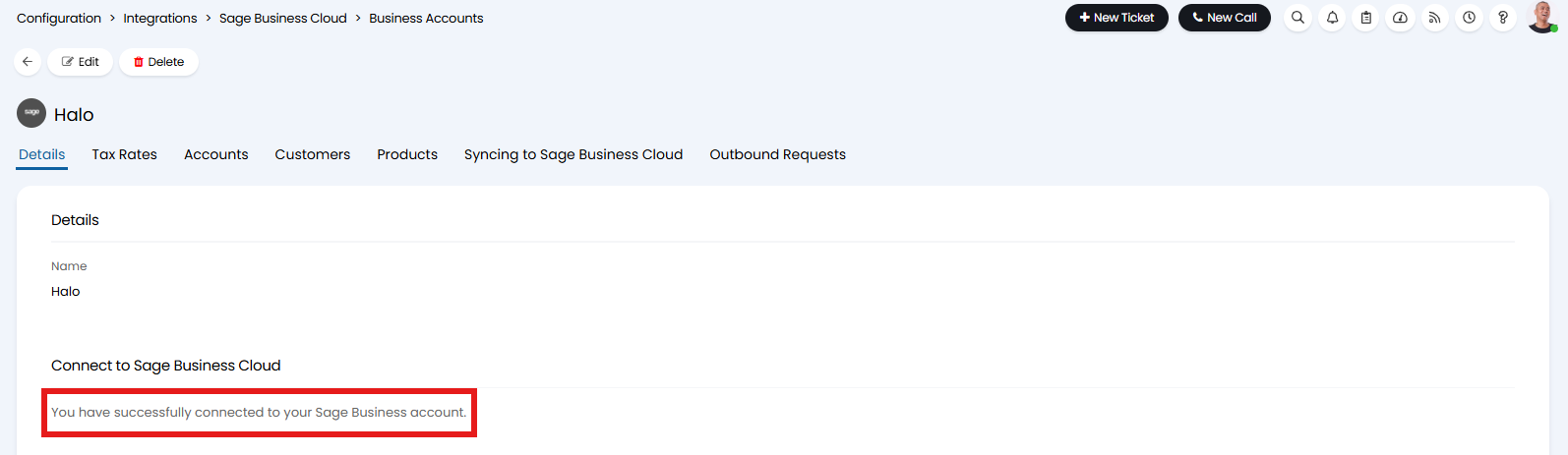 Fig 5. Successful connection message.
Tax Rates
The first configurable tab is "Tax Rates". This is where you can import your tax rates from Sage into Halo, and map them to your existing ones. Any tax rate that is not mapped to a Sage tax rate will be removed upon import.
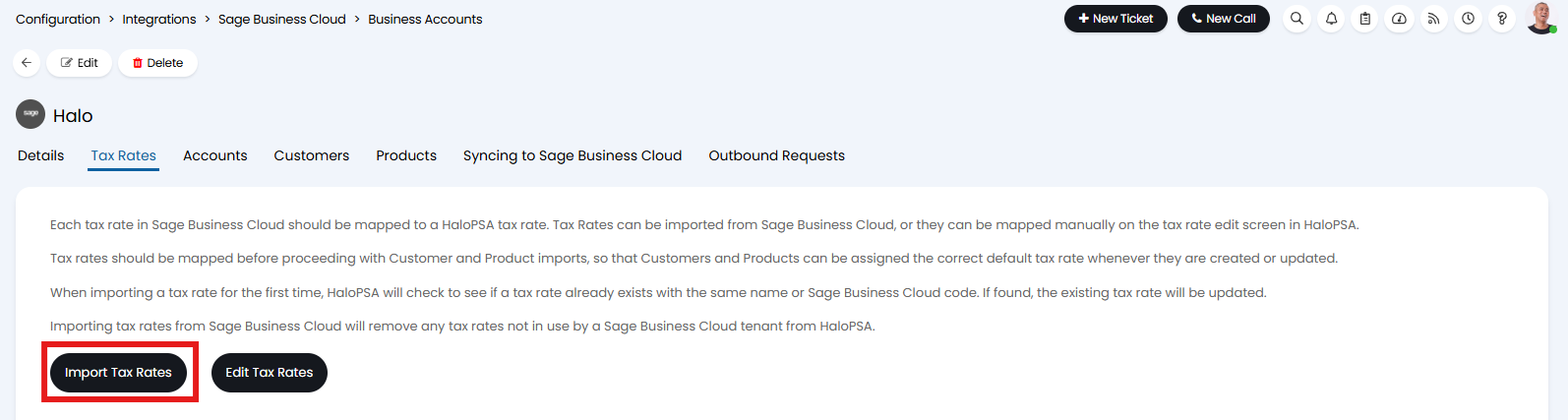
Fig 6. Tax Rates tab.
Upon clicking the "Import Tax Rates" button, the following popup will show after completion.
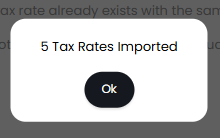
Fig 7. Popup showing that tax rates have imported.
Clicking into the "Edit Tax Rates" button will bring up the list of tax rates.
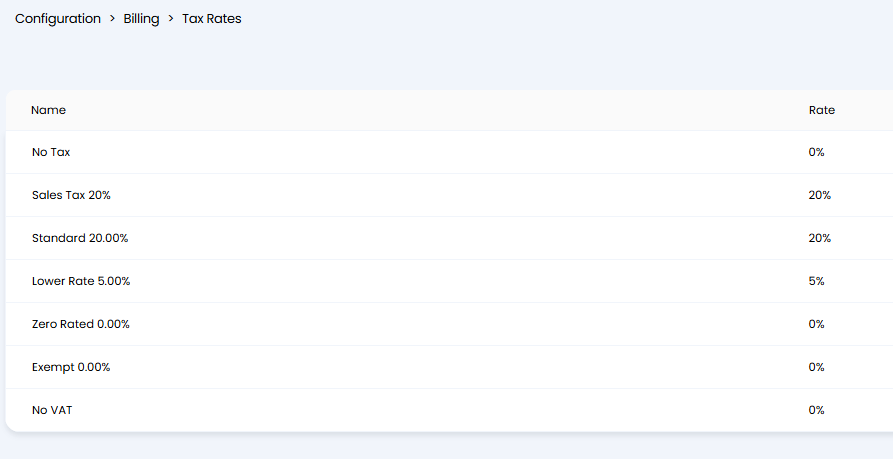
Fig 8. List of imported tax rates.
Clicking into one will now show the "Sage Business Cloud Tax Rate" and "Sage Business Account" fields showing which tenant and tax rate it is linked to.
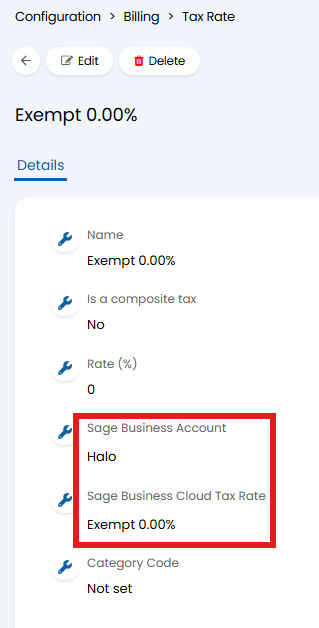
Fig 9. Sage Business Cloud fields on an imported tax rate.
You can import tax rates from Sage Business Cloud automatically on a daily basis, this will update any existing rates and create new rates. This is enabled using the setting "Import tax rates daily" under the "Tax Rates" tab. When enabled, the latest tax rates will be automatically imported during the daily task scheduler run. This helps to keep your tax rates up to date without having to re-import manually.
Accounts
In the "Accounts" tab, you can then import accounts codes.
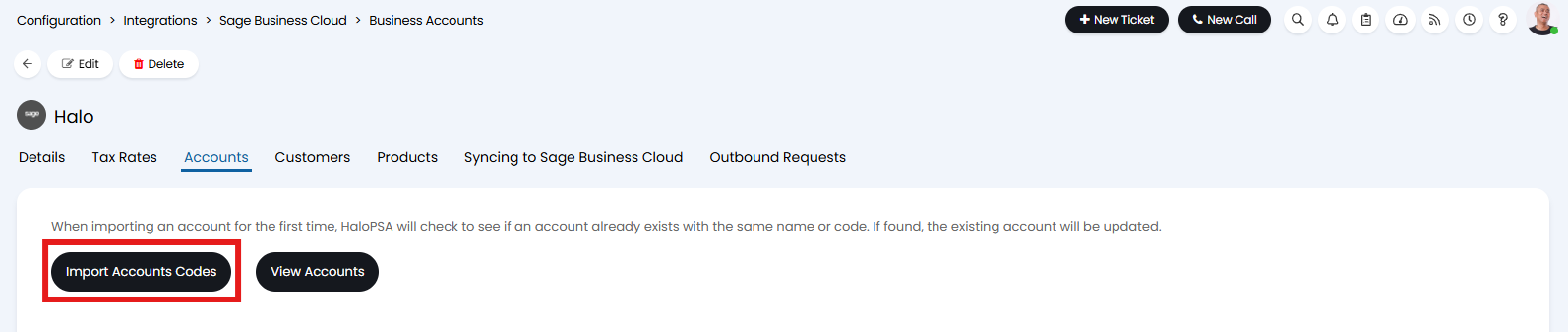
Fig 10. Accounts tab.
Clicking the "Import Accounts Codes" button will import and show the popup, and the codes can be then viewed by clicking the "View Accounts" button.
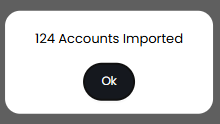
Fig 11. Imported accounts popup.
Customers
The "Customers" tab can be used to map and import customers. After mapping, click the "Import Customers" button to bring up the import screen. If customers have the exact same name, the matching can be done automatically as well.
Customer's "Invoice Address" in Sage will be imported as the site address.
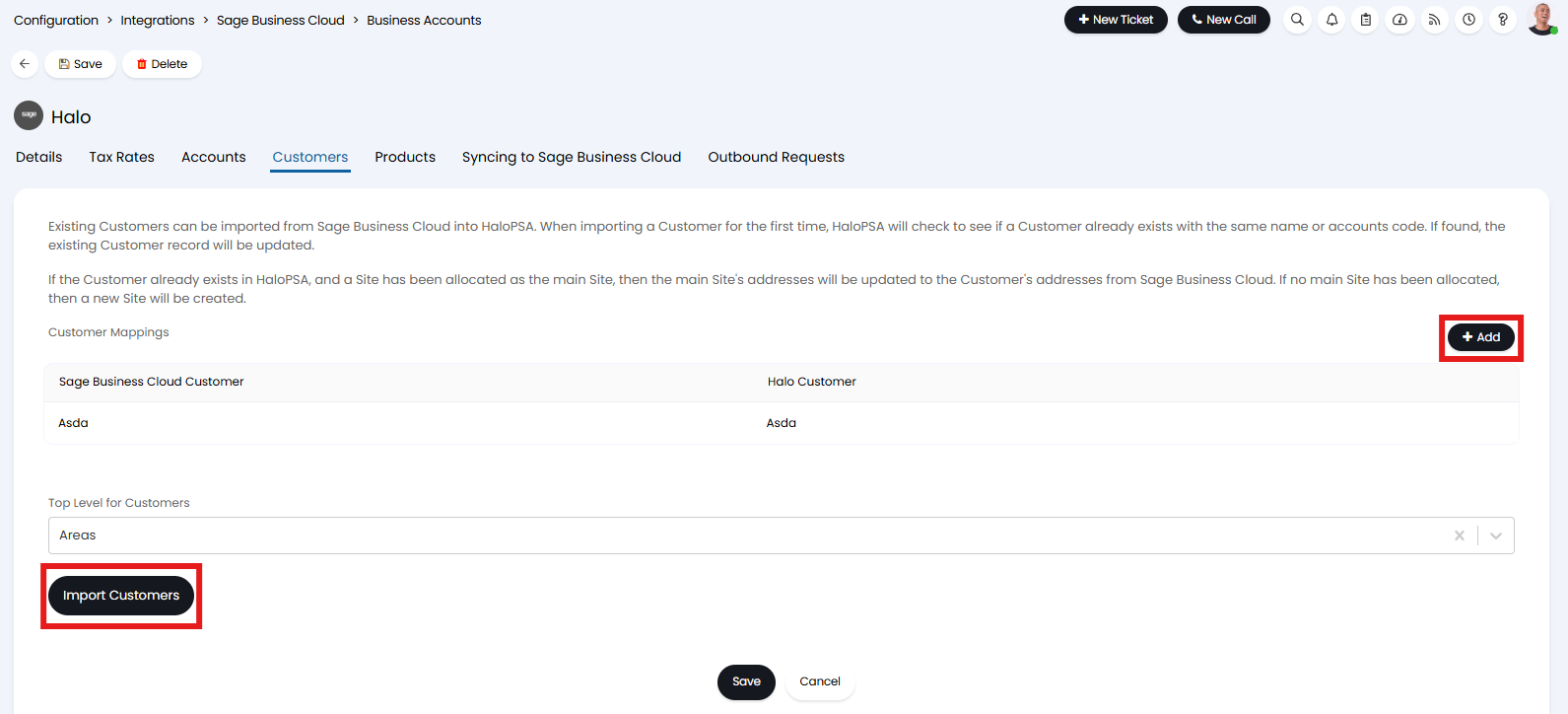
Fig 12. Customers tab.
Mappings can be added by clicking the "Add" button, and the following popup will show to map customers.
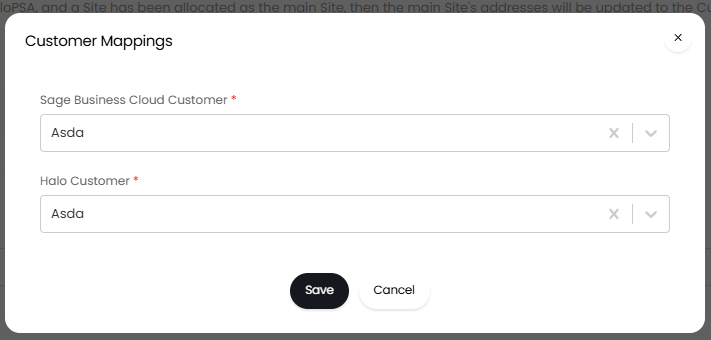
Fig 13. Customer Mappings popup.
Products
The "Products" tab maps Sage product categories to Halo product groups, and sets the default product group if none is mapped. After mapping the groups, you can use the "Import Products" and "Import Services" buttons at the bottom to bring up their relative import screens.
These mappings are needed to ensure products are created in Halo correctly, and both products and services are imported into Halo as products/items.
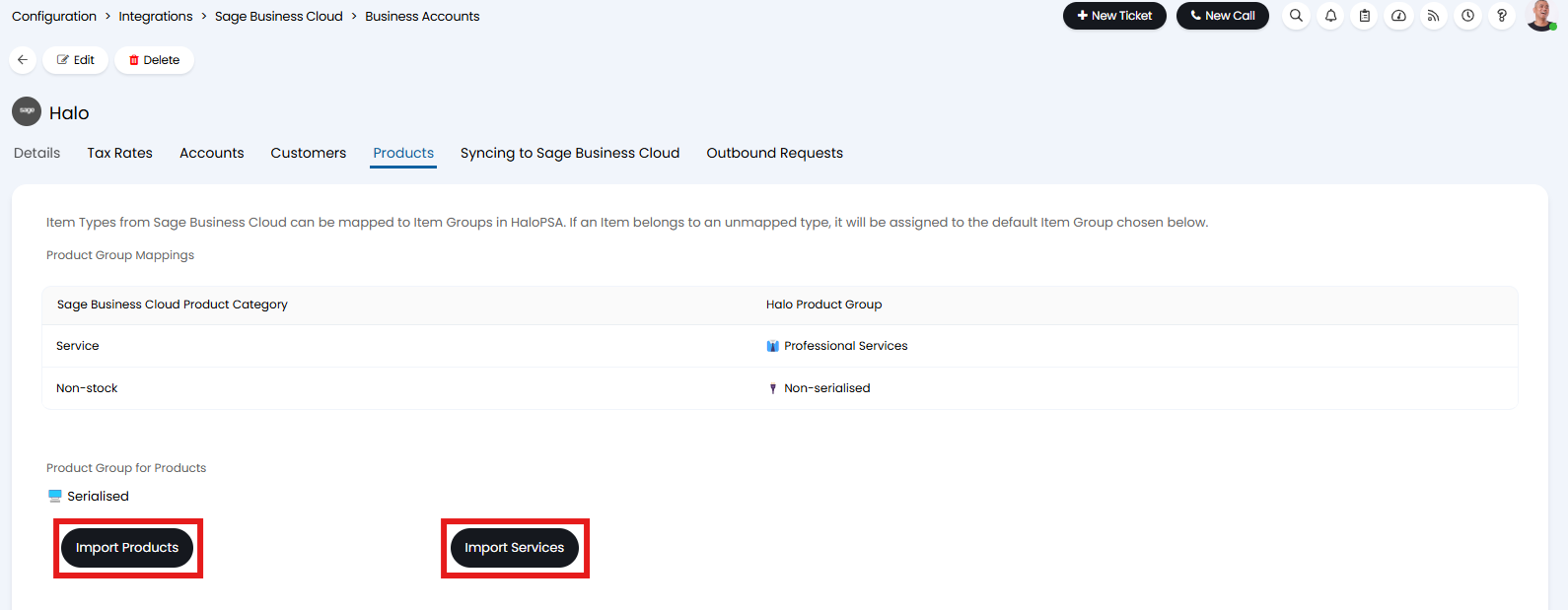
Fig 14. Products tab.
Syncing to Sage Business Cloud
This tab is how syncing is configured from Halo to Sage.
Note: Ensure the module is enabled as per the start of this guide.
Here the entities to sync are selected from a multi-select field containing Customers, Invoices, and/or Products, and these will be synced when created or updated in Halo. You can then select the default Sage Business Cloud Item Code for if an invoice line does not have a code associated with it.
Note: Updates to customers or products in Sage will not sync back to Halo. Updates to entities can only be imported manually.
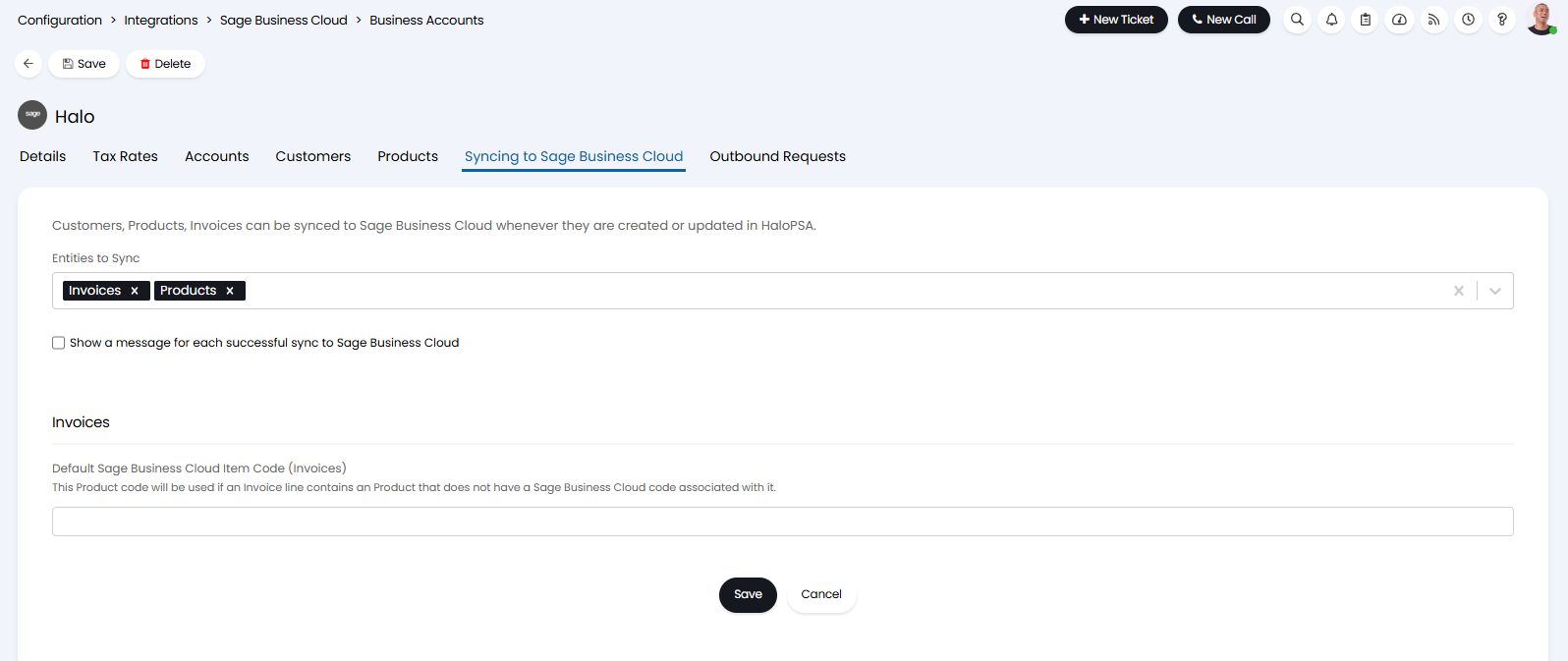
Fig 15. Syncing to Sage Business Cloud tab.
Note: Syncing entities to Sage Business Cloud uses webhooks therefore this functionality will not be supported if you are using the 'custom developer app' authentication method.
Once this is configured, you can also now set a default tenant back on the main module page.
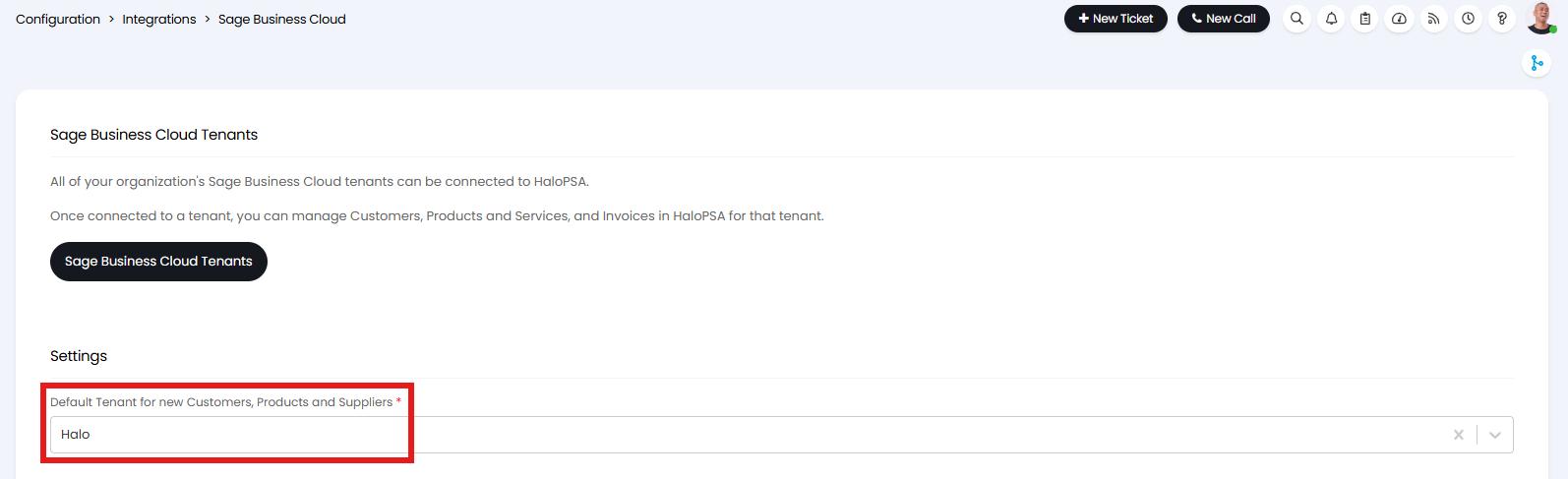
Fig 16. Setting a Default Tenant for new Customers, Products and Suppliers.