Backing Up invoices with Data
- PDF template
- add report to invoice
- data on invoice
- Justify invoice
- backup invoice
- invoice data
- labour data
- add report to pdf template
In this guide we will cover:
- How to add a Report to a PDF Template
- Filtering reports for a specific entity
- Example
When supplying various services to your customers such as security management, data backups, device management, remote support etc, the charge for these services may vary each month based on activity/usage that month. When it comes to invoicing your customers for these services it can help to back these invoices up with data from Halo. This can be useful if a customer's invoice is substantially more/less than usual or fluctuates often, as the data justifies the charge. To do this you can add report data from reports to your PDF (invoice), then when the invoice PDF is generated the report is re-run and the most up to date report data will be added to this PDF automatically.
Report data can be added to the PDF template for the following entities, but in this guide we will focus on invoice PDF templates:
- Tickets
- Quotations
- Sales Orders
- Purchase Orders
- Invoices
- Agreements
- Assets
How to add a Report to a PDF Template
First you will need to choose the report you would like to appear on your chosen template. To do this head to Configuration > Reporting > PDF Templates, here you can change the entity you are viewing templates for on the top left.
To change the entity you are viewing select the drop down and choose another entity.
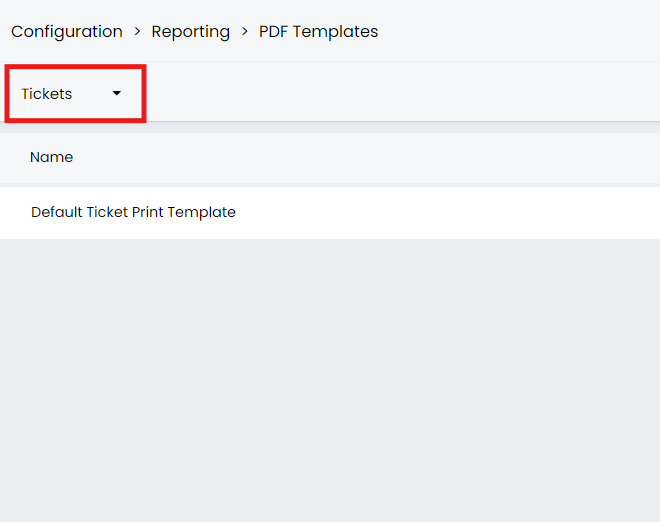
Fig 1. Template Entity Selection
Now select the template you would like to edit, once inside the template, under the details tab, you will need to set which report you would like to be visible on the template. Setting the report here will provide you a variable to use on the PDF template. Select 'Add' on the table to add a new report.
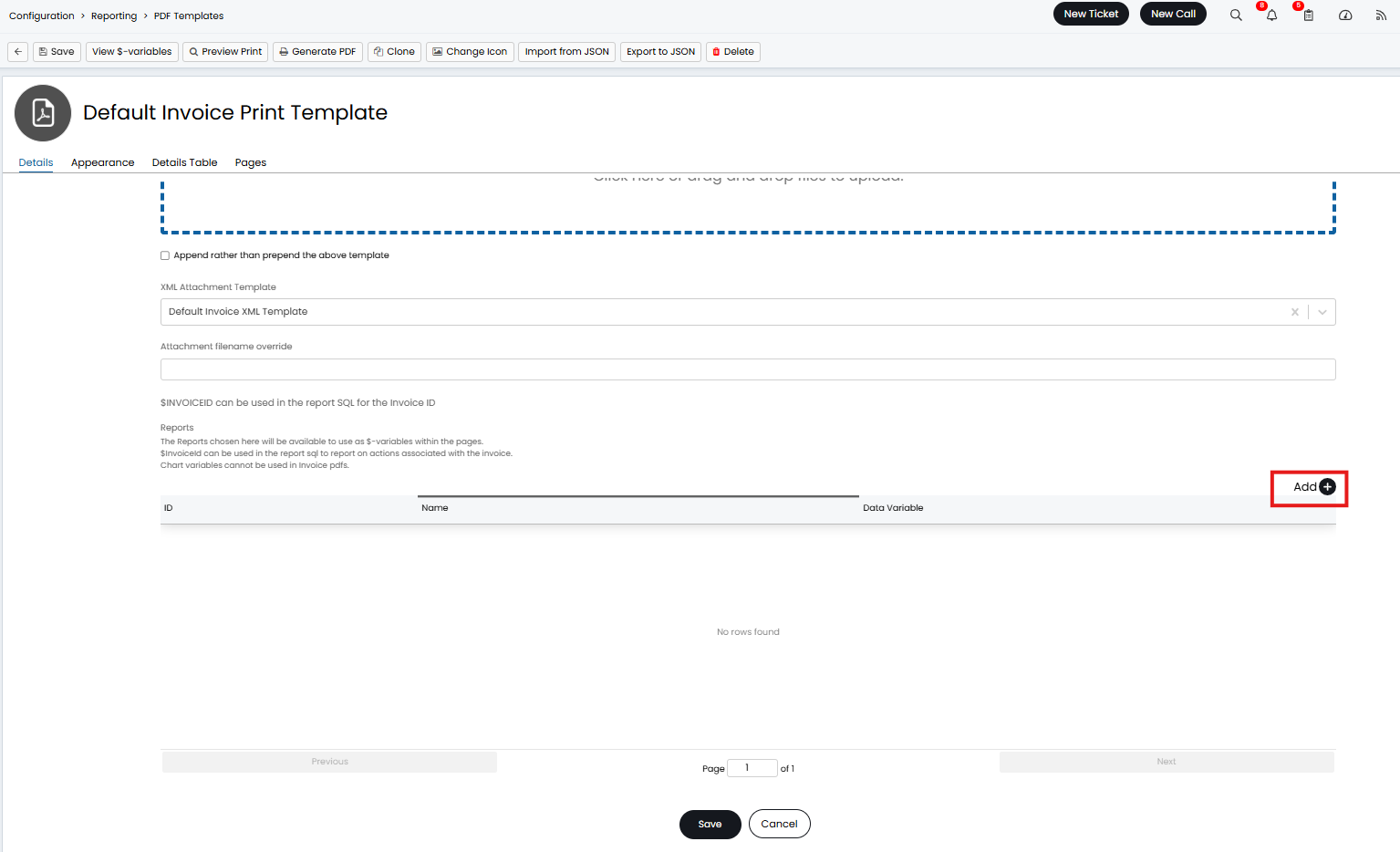
Fig 2. Report selection Table
Now you will be prompted to search and select the report you would like to add, you can search either by report name, or report ID. Once selected your chosen report will appear in the table, and the variable for the report will be given.
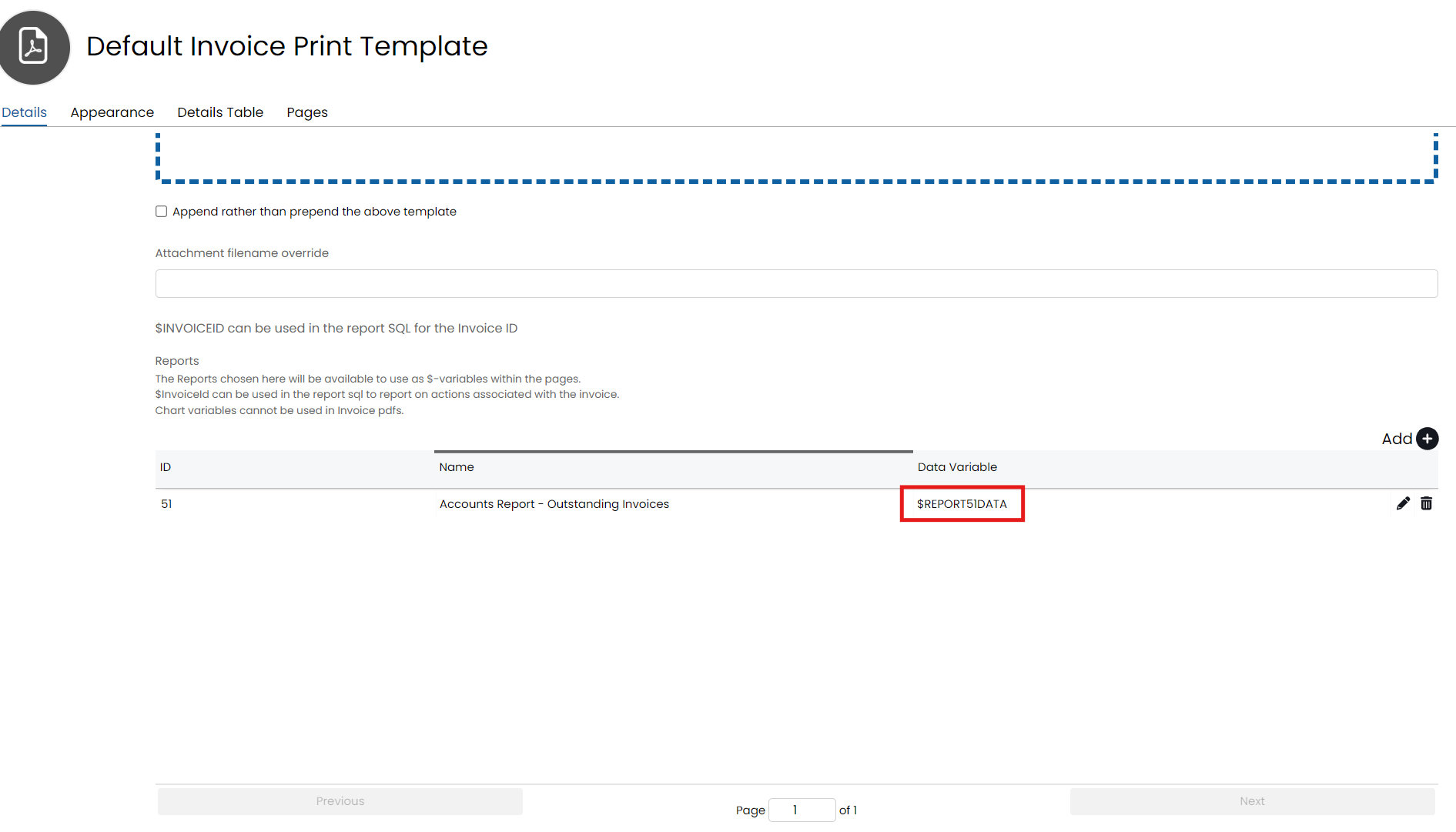
Fig 3. Report Variable
Now the report has been chosen and the variable is available, we need to edit the template pages to include this variable. Head to the 'Pages' tab and add a new page.
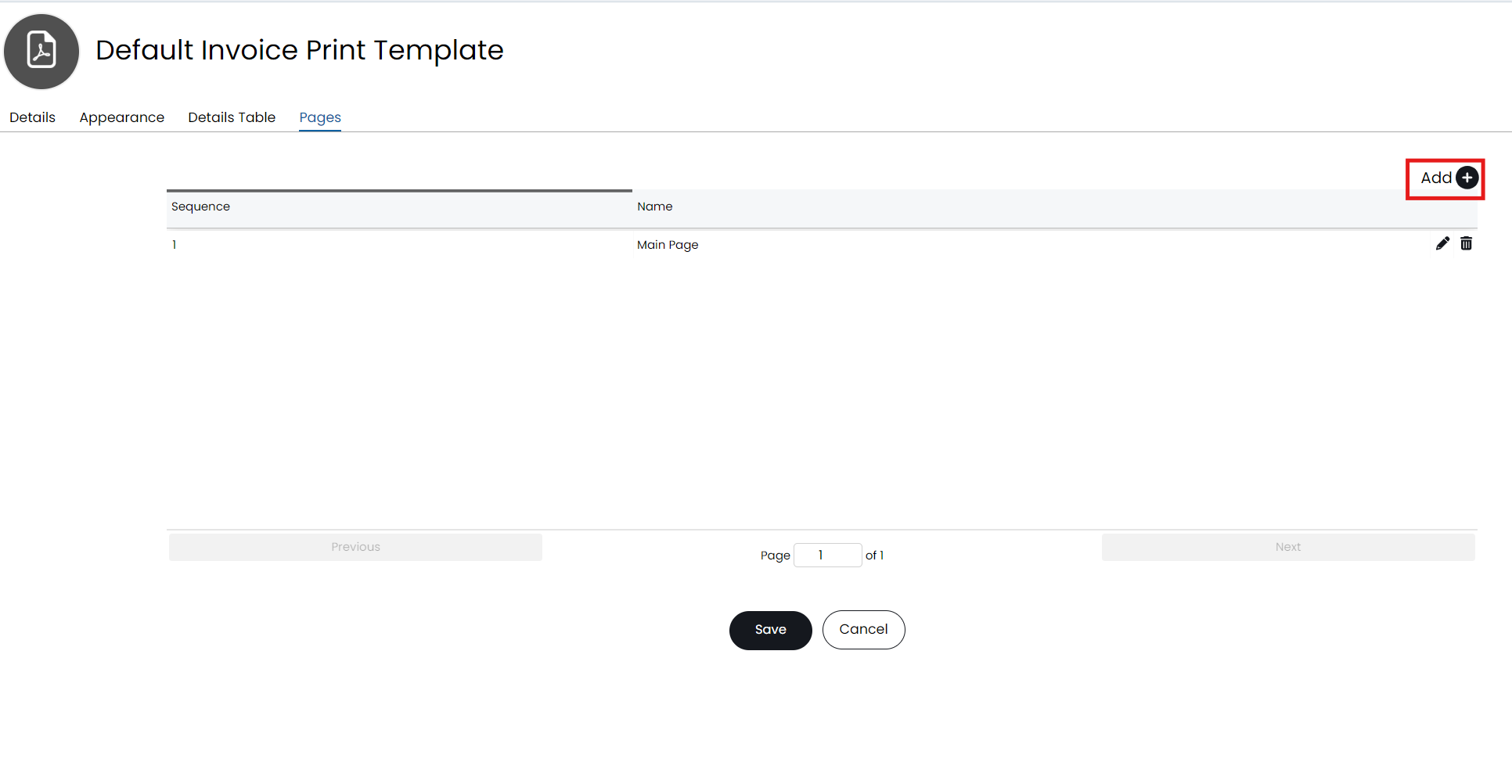
Fig 4. Adding a new page to the template
When adding, the page the editor screen will appear. By default the HTML from the 'Main Page' will be copied over into the new page, remove any information that you do not want to appear on the second 'report' page. To have report data pull through we need to format the data to be in table form, and give it a title.
Here is some basic formatting you can use to copy and paste into your template HTML:
<h1>REPORTNAMEHERE</h1>
<div>
</div>
<div style="margin-top:30px">
<table class="detail-table">
$REPORT123DATA
</table>
Fig. 5 Example HTML formatting for report table
If you are using the above, you will need to replace 'REPORTNAMEHERE' with the title of your report and replace '$REPORT123DATA' with the variable of the report you want to pull through.
Once set ensure you save the HTML on the page you are editing, then you can use the 'Generate PDF' function to generate a PDF using this template and see what the template will look like with the report data applied.
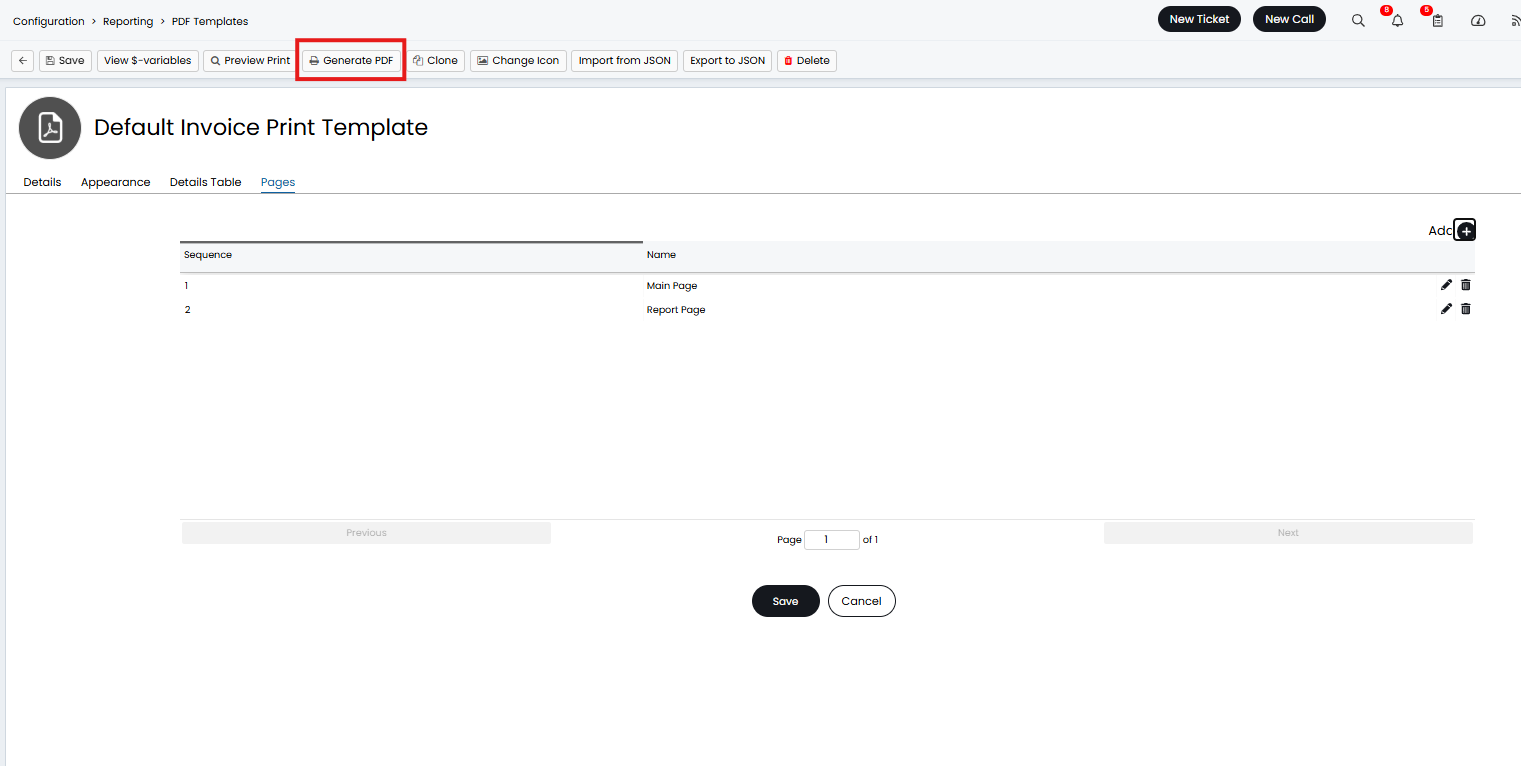
Fig 6. Preview Print function
Now when this template is applied to an entity, the report data will appear on the PDF. If any changes are made to the report, this will automatically update the report on the template, including if any filters are applied to the report.
Filtering Reports For a Specific entity
If most of your reports are data overviews, showing data for various customers/suppliers/assets etc. you may want the report that shows on the PDF to be filtered so it only shows the data for the invoice/purchase order/sales order/customer etc. it is on. This can be done by adding
To have report data only show data for the customer the invoice is for you will need to add a filter to the report using a $-variable. We will work through this with an example.
Example
I have a report that shows a breakdown of all billable labour time spent on all tickets, showing when the action took place, which ticket this relates to, how long the action took, etc. However, at the moment the report shows all ticket action details for all my customers. I would like it to only show the action details that I am invoicing for on a particular invoice.
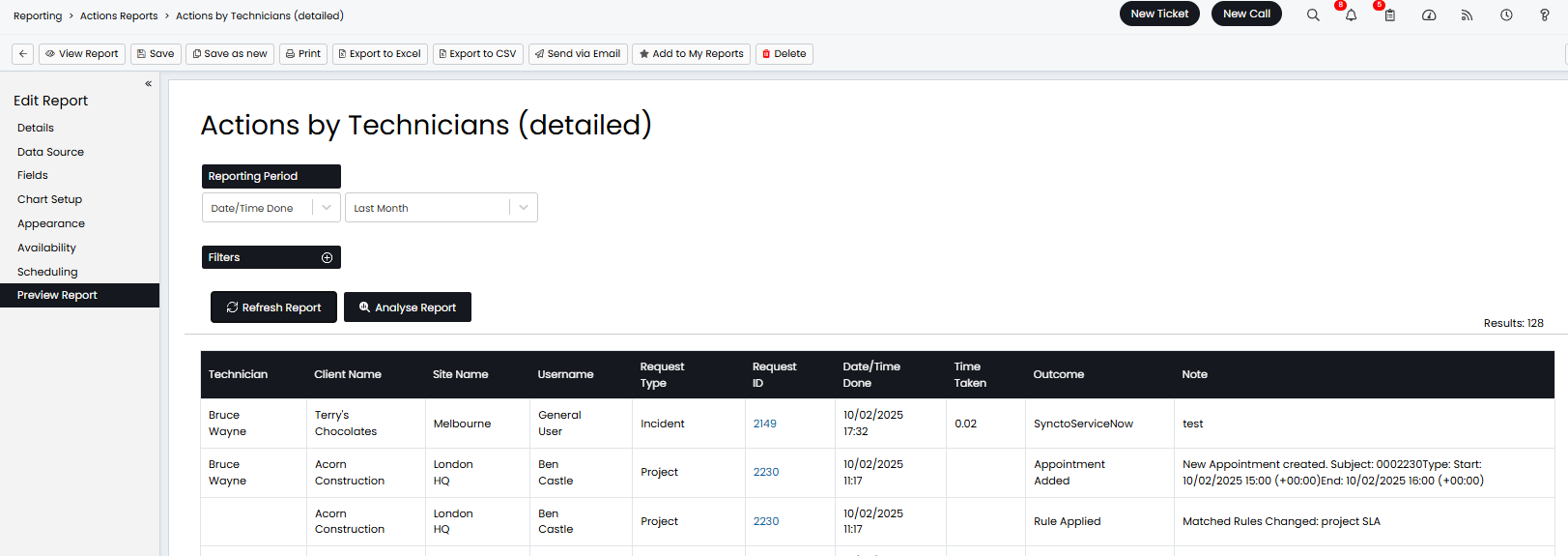
Fig 7. Example Report
To do this I will need to add the following line to my report data source:
This query filters the report to only show outstanding invoices for the customer linked to the invoice the report appears on.
When you add this query to your report in the reporting suite it will pull through no data, this is expected as the report is not linked to a specific invoice with a customer yet. After I add the report to a template, and preview this on an invoice in my Halo instance I can see the report is being filtered by customer. In Fig 8 you can see how the report looks on an invoice PDF after the filter is applied, it is only showing the actions in the report that invoice is for (the actions you are billing for). See Fig A1 in appendix for the whole report script used here.
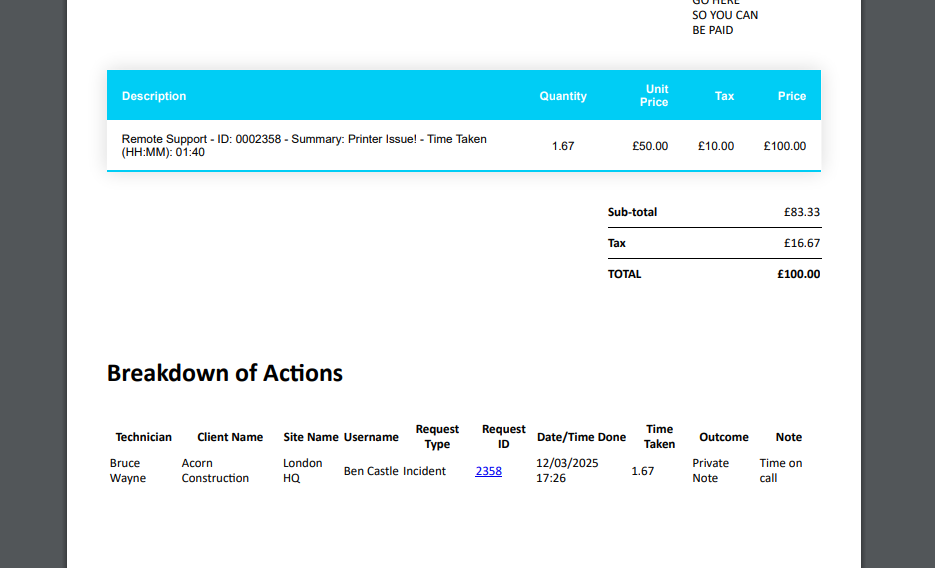
Fig 8. Invoice PDF with report being filtered by customer
Note: The example SQL queries in this guide can be used as a base for a report filter, but they will need to be amended based on your report and the entity.
For more information on adding report data to other PDF templates see our guide here: Pulling Report Data into a PDF template.
Appendix
Figure A1 - SQL Script used for report 'Accounts report-Outstanding invoices'
area.aareadesc as [Client Name],
sdesc as [Site Name], username as [Username],
rtdesc as [Request Type],faults.faultid as [Request ID],
whe_ as [Date/Time Done], round(timetaken,2) as [Time Taken],
Actoutcome as [Outcome],
note as [Note]
from actions
left join faults on actions.faultid=faults.faultid
left join site on ssitenum=sitenumber
left join area on aarea=sarea
left join uname on who=uname
left join requesttype on rtid=requesttypenew
left join invoiceheader on ActionInvoiceNumber = ihid
where ihid = $invoiceid