Use AI to Analyse Report Data
- Report
- ai
- AI report analysis
In this guide we will cover:
- Enabling AI Report Analysis
- Analysing a Report
- Reporting on Summaries
- Adding Summaries to Report PDFs
AI can be used to analyse data contained within Reports, and provide a summary that shows at the top of the Report. This summary can be reported on or added to Scheduled Report PDFs.
Enabling AI Report Analysis
If an AI connection has been setup, a short text analysis summary can be created on a report. For more information on AI, check out the "Leveraging AI in Halo" guide.
To enable this feature after setting up an AI connection, go to Configuration > AI > Reporting > "Enable AI Report Analysis". Upon enabling, the "Max Data Size (KB)" option will show. By default, it will be set to the maximum, 1000KB, but this can be lowered if you wish.
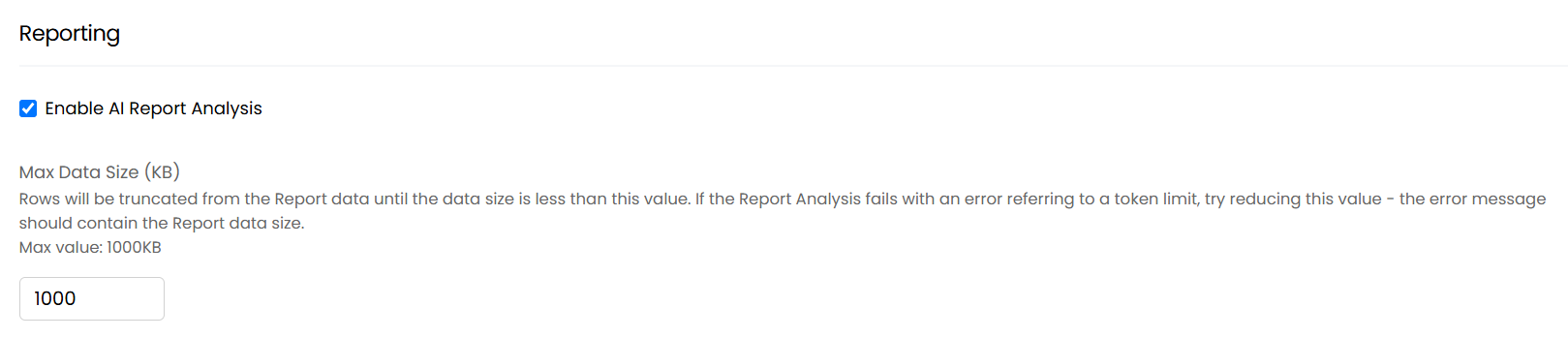
Fig 1. Enabling AI report analysis.
Analysing a Report
In the reporting suite, choose a report you wish to analyse. Clicking the "Analyse Report" button will create this text similar to the below, as well as the date and time this was done. This can be a useful method of summarising reports into quickly digestible information that can show trends over time for instance.
Once generated, clicking the "Hide Analysis" button can be used to toggle whether this information is shown or hidden.
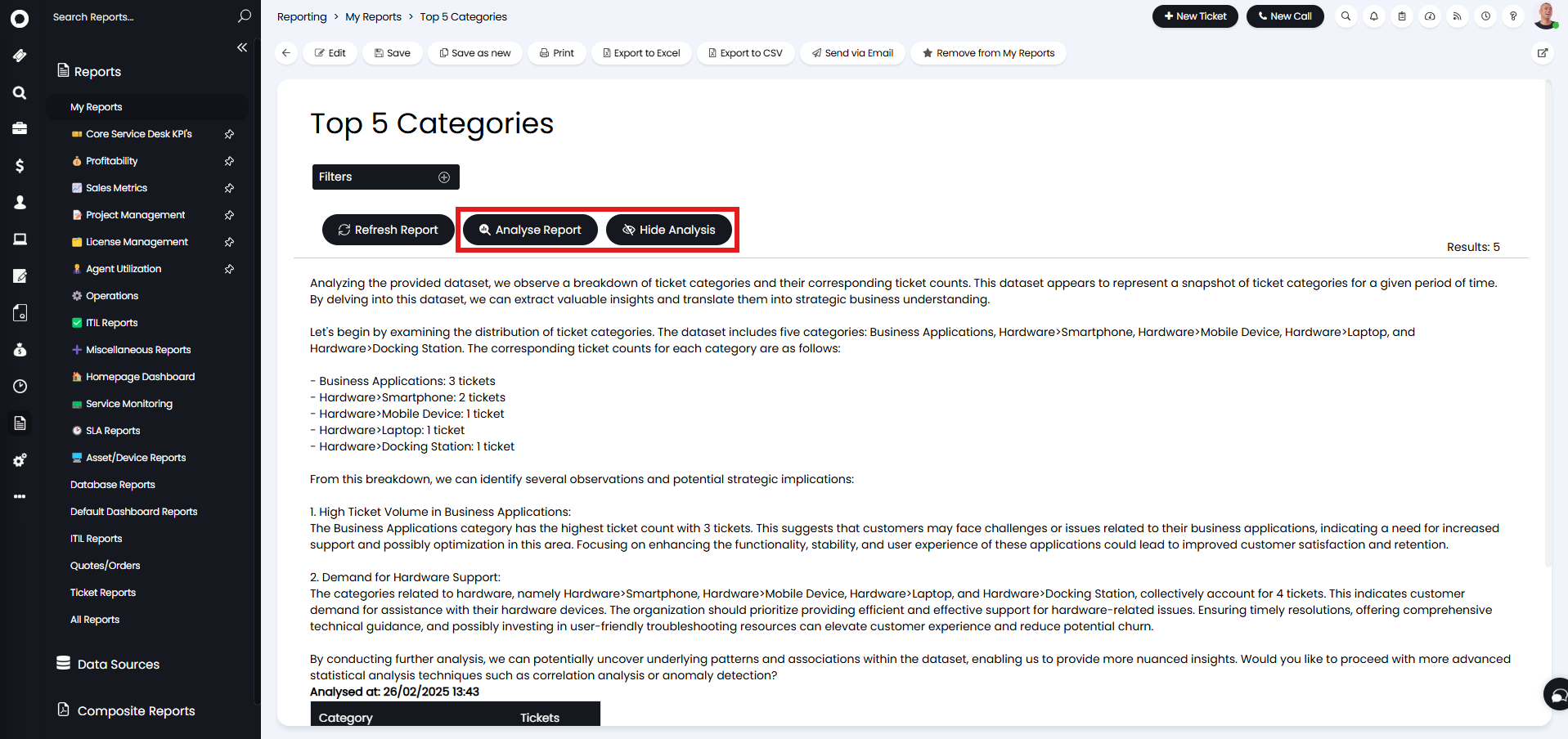
Fig 2. Analysed report.
Reporting on Summaries
The paragraph is then held in the analyzerprofile table under "apiaianalysis", so this can be reported on as well.
apaianalysis as [Analysis],
apaianalysisgenerationdatetime as [Date/Time Analysed]
from analyzerprofile
where apaianalysis is not null
The above report will show the example like this.
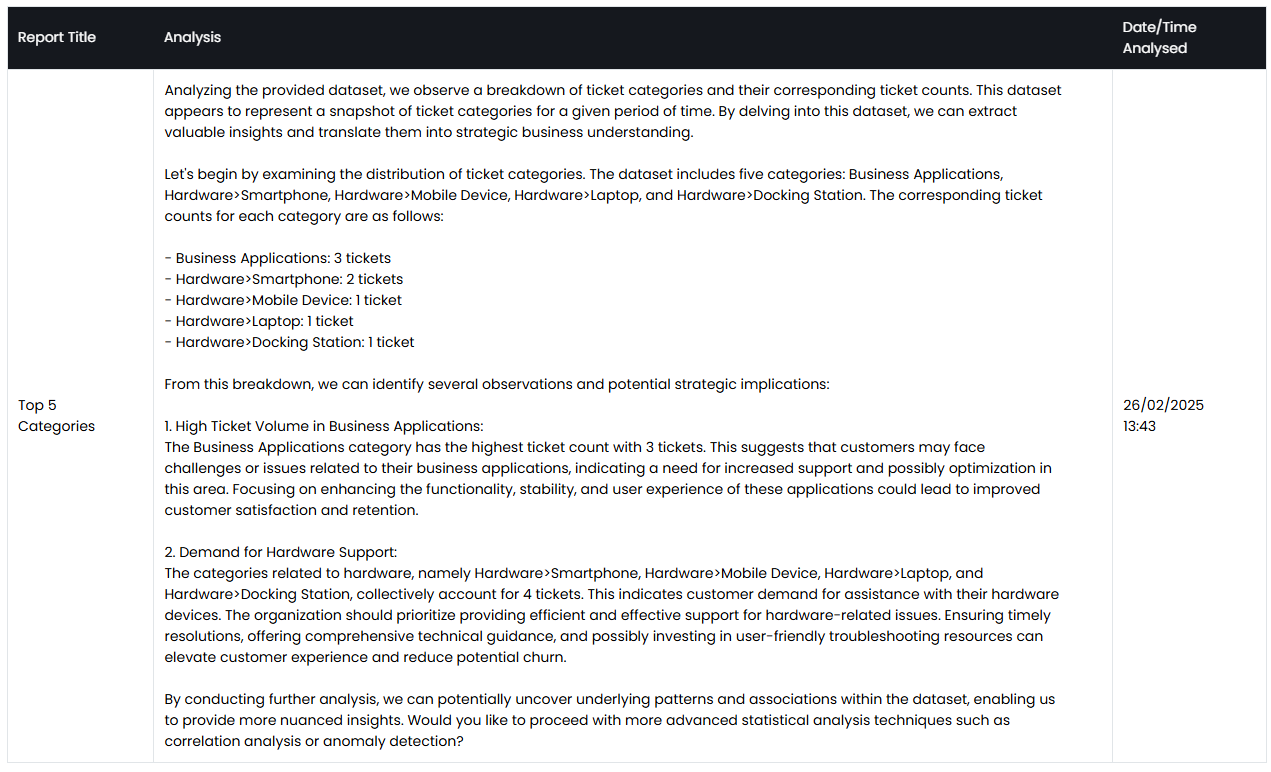
Fig 3. Analysis shown in a report.
Adding Summaries to Report PDFs
These summaries can be added to Report PDFs via variables. In Configuration > Reporting > General Settings, enable the below. This will give the option to use the variables "$-REPORTAIANALYSIS" and "$-REPORTAIANALYSISDATE".

Fig 4. Enabling AI analysis on Scheduled Reports.
Within each Report > Scheduling tab, you will then see the option to enable it for that Report.
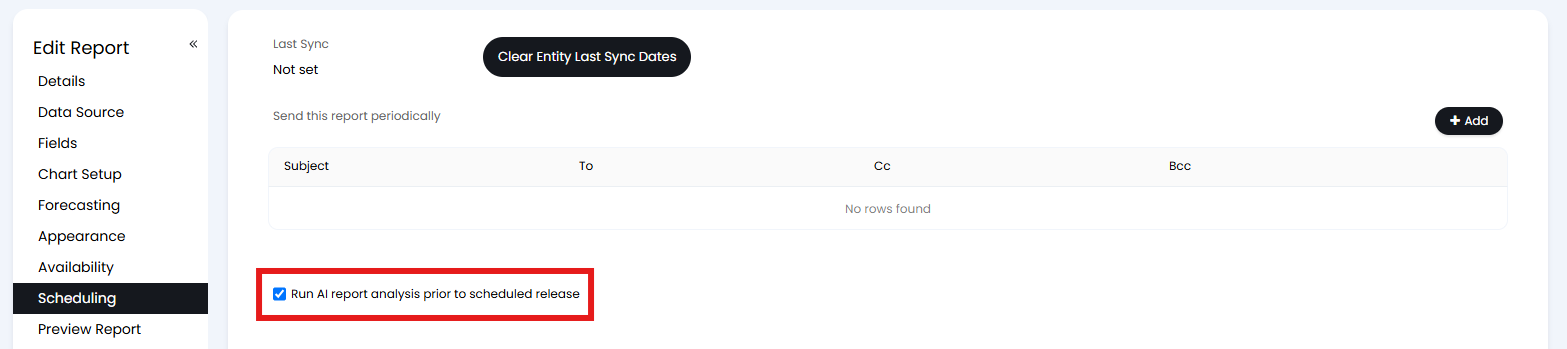
Fig 5. Enabling AI analysis per Report.
If these Reports are then added to a Scheduled Composite Reports, you can also use "$-REPORT{report ID}AIANALYSIS" within the HTML of the Composite Report.

Fig 6. Variable examples in a Composite Report.