SnelStart Integration
- accounts
- accounting
- snelstart
- snelstart integration
In this guide we will cover:
- What is the SnelStart Integration?
- Linking SnelStart to Halo
- Tax Rates
- Ledgers
- Customers
- Products
- Invoicing and Syncing
Configuration Settings Guides:
What is the SnelStart Integration?
SnelStart can be integrated with Halo to import tax rates, ledgers, customers and products; all of which can then be used to sync invoices between both platforms.
Linking SnelStart to Halo
First, the SnelStart module needs to be enabled in Halo. This can be done in Configuration > Integrations > Accounts and Payments section. Hover over it and ensure it is enabled by the area by clicking the plus icon. Once enabled, hovering over the module will show a cross icon instead.
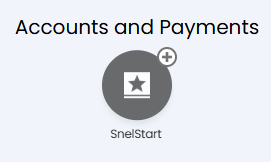
Fig 1. Enabling the SnelStart module
Click into the module, where you will find a "Connect to SnelStart" button. This will then prompt you to your SnelStart login page where you can log in with your SnelStart credentials and then select the SnelStart organisation that you wish to sync with Halo.
Note: The connection may take a few minutes to be formed. Do not exit off of the page.
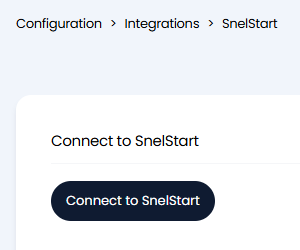
Fig 2. Connect to SnelStart button
Upon a successful connection, the button name will change and show that you are now connected.
You will now be able to see the configuration options for the module.
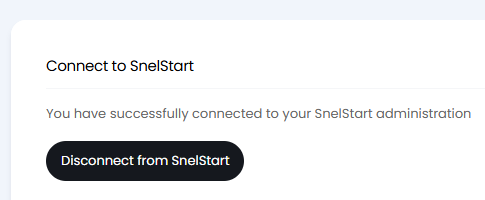
Fig 3. Successful SnelStart connection
Tax Rates
Any tax rates that are within your list will need to be manually assigned to a SnelStart tax type. Click the "Edit Tax Rates" button, then the "Tax Rates" button to bring up the list.
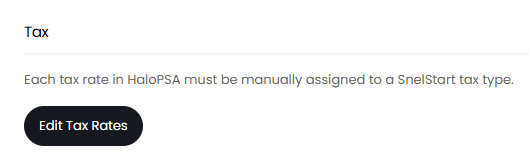
Fig 4. Edit Tax Rates button
Choose a tax rate to edit, then set the "Tax Type" dropdown accordingly.
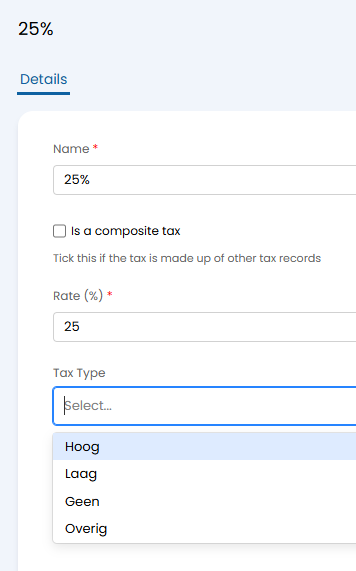
Fig 5. Tax Type selection
Ledgers
Ledgers can be imported, and then manually assigned to your products. Click the "Import Ledgers" button.

Fig 6. Import Ledgers and View Ledgers buttons
A popup will then show if this is successful, saying how many ledgers have been imported.
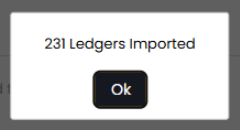
Fig 7. Ledgers import pop up
Clicking the "View Ledgers" button will then take you to the Accounts Codes area where they will be listed.
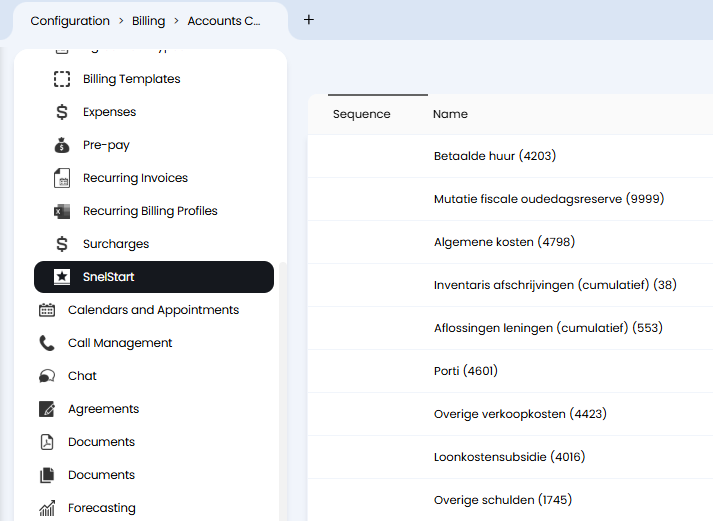
Fig 8. Ledgers as Accounts Codes
Customers
Customers can be imported, and will match to existing customers if there are any already in Halo with the same code or name. If pre-existing, the main site address will be updated to match. If no main site is set on that customer, it will create a new one.
If top levels are enabled in Configuration > Users > General Settings > "Show an additional level ("Top Level") for grouping Customers", you can choose a top level for the new customers to be created under.
Click the "Import Customers" button to run the import.

Fig 9. Import Customers button
An import screen will then appear for your customers. This may take a while to load depending on how many customers you have, so just leave it open and running. By default, all customers will be selected to import. If you want to select only a few, i.e. to test, disable the checkbox in the top left that selects every customer. You can then manually tick a few you wish to import.
Note: If the Halo Integrator is enabled later on, every customer in the list will be imported on the next sync.
To import customers, then press "Start". Once finished, "Sync Finished" will show to the left next to the "Start" button.
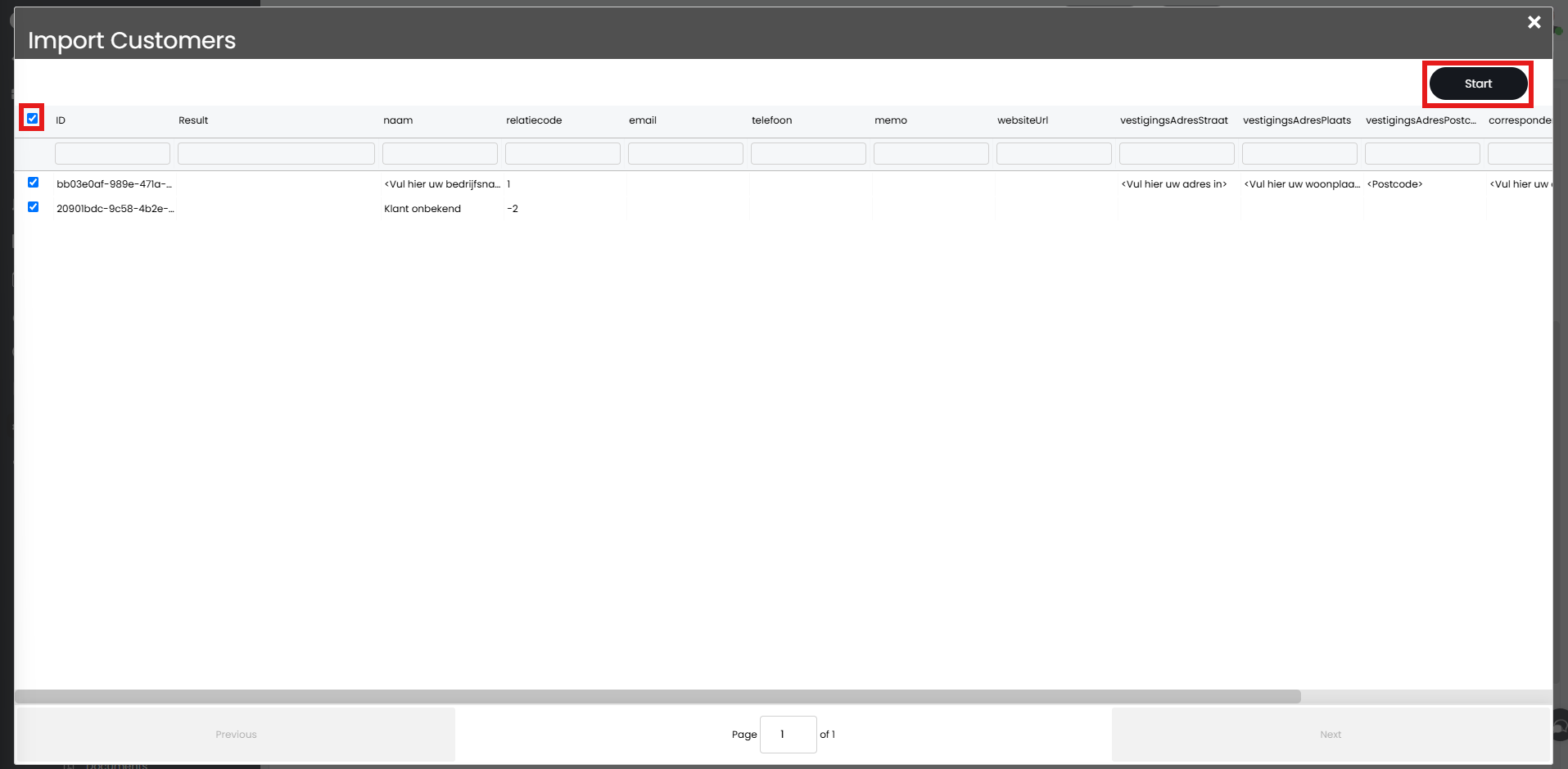
Fig 10. Import Customers screen
Products
Finally, products can also be imported. Select a product group for your newly imported products, and then click the "Import Products" button underneath.

Fig 11. Selecting a Product Group for Products and the Import Products button
The product import screen will then pop-up in the same way the customers one did.
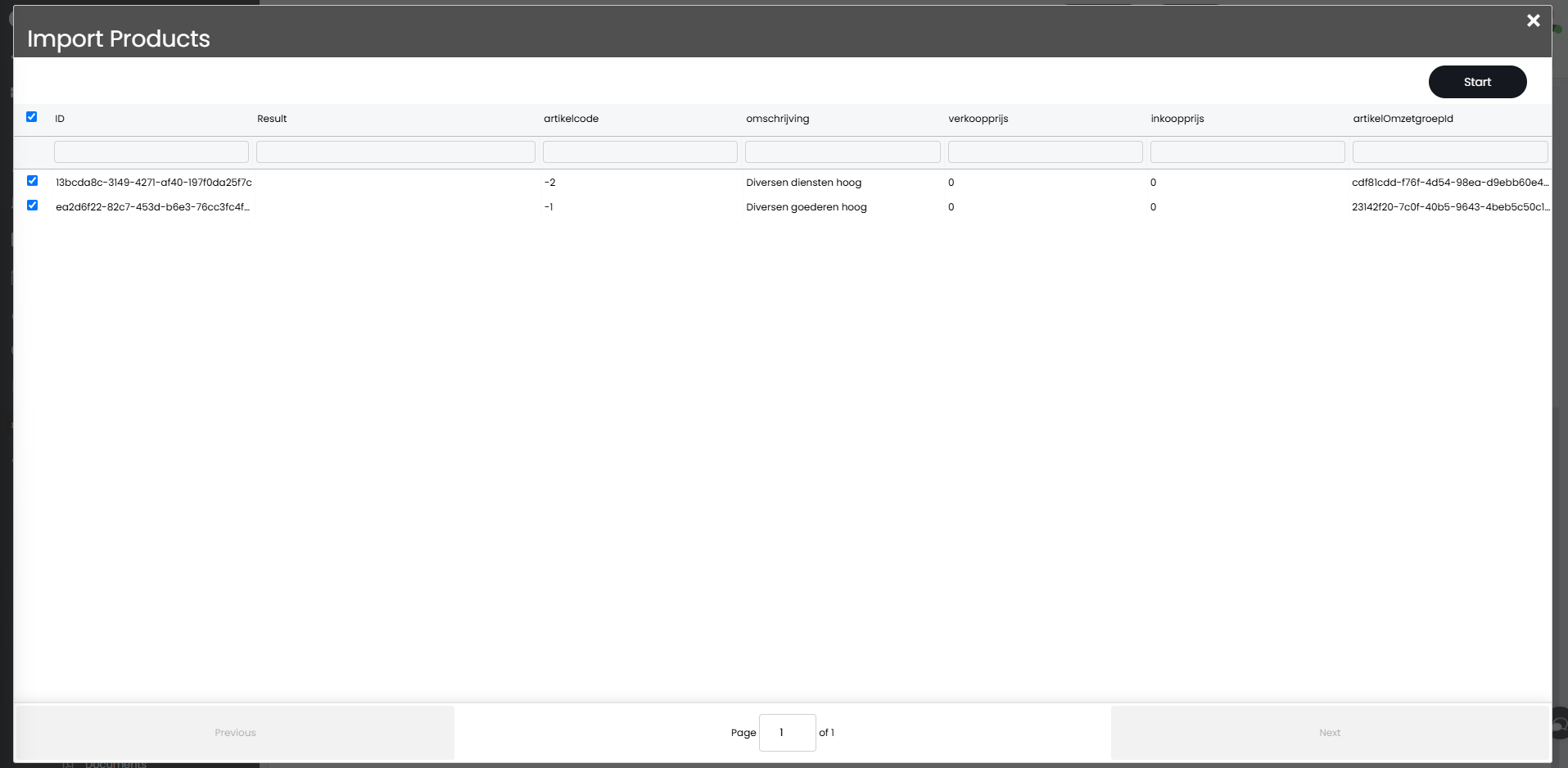
Fig 12. Import Products screen
Upon completion, the products show in the product list with the assigned product group that was set in the dropdown. Ensure that the "Income Account" and "Expense Account" fields have a ledger set in each.
Note: SnelStart limits to only allow numeric values for product codes for the "Item Code" field in Halo.
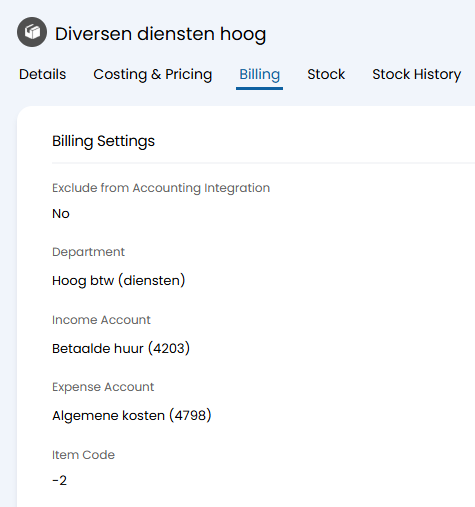 Fig 13. Product linked to SnelStart
Invoicing and Syncing
Once all of the above imports are complete, invoices can then be made in Halo to sync to SnelStart automatically. Upon clicking "Enable syncing to SnelStart", you can set the Default Item for Invoices and Default Invoice template, as well as an option to show a popup upon successful sync when creating your invoices.
This will also automatically sync your customers and products to SnelStart when created or updated in Halo. Any customers or products that are deactivated in Halo will become inactive in SnelStart, and deleting invoices will also delete them in SnelStart (providing they are in a state that SnelStart allows deletion for).
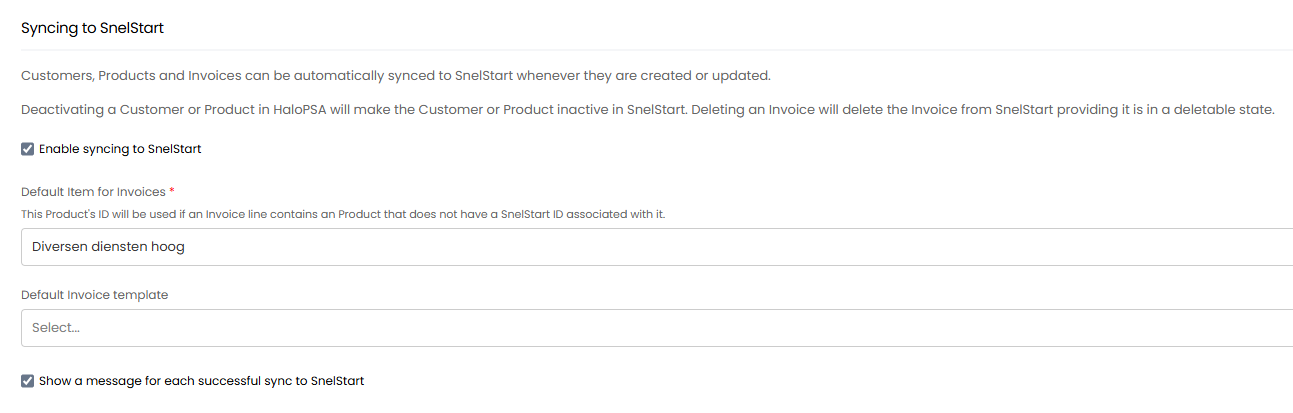
Fig 14. Allowing syncing
Below is an example invoice that has been made from the imported customer and product.
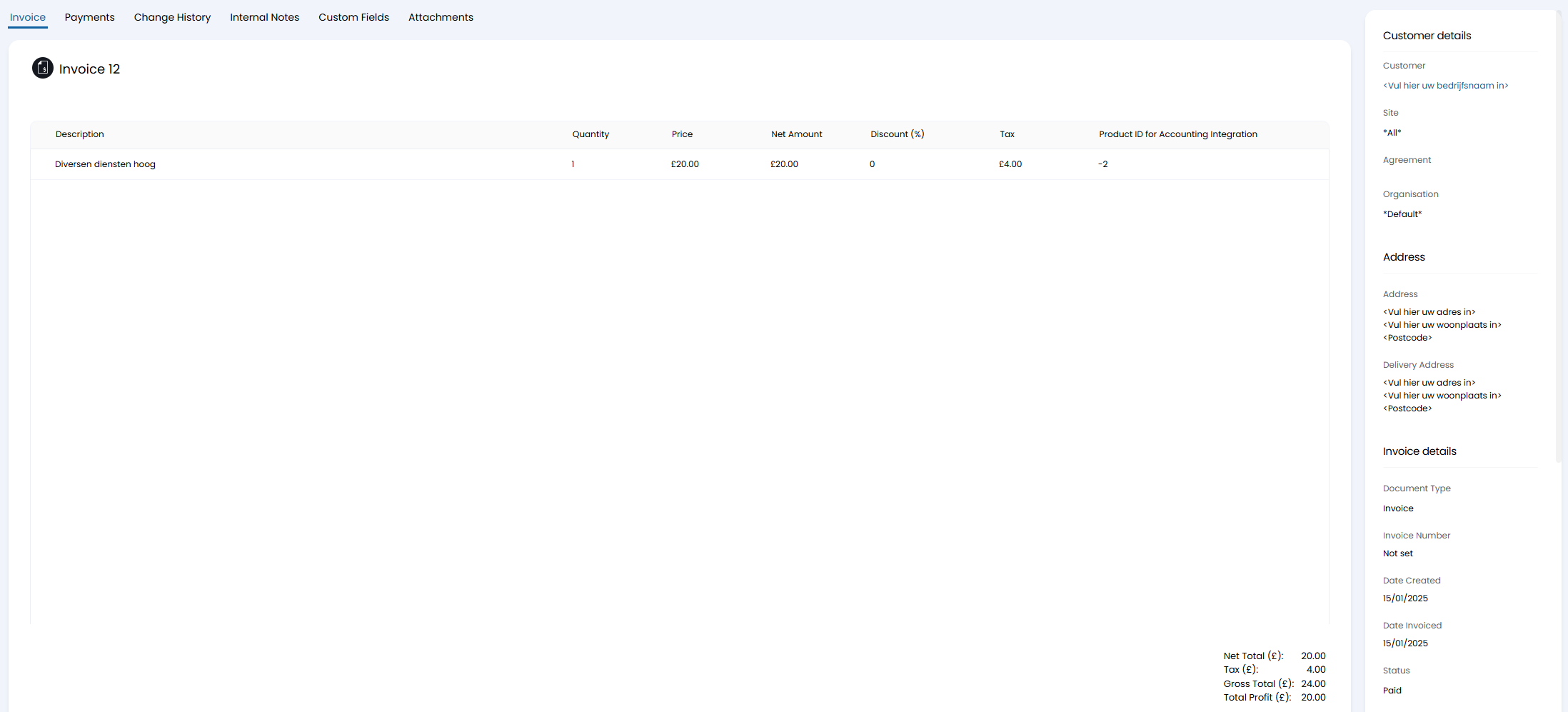
Fig 15. Example invoice