Link Excel to Halo Report
In this guide we will cover:
- Setting an Access Level on a Report
- Setting Up Excel
Setting an Access Level on a Report
We first need to gather the API link to access the report. This can then be concatenated onto your URL.
The API extension on your report can be found within the Availability tab, once you have published it.
There are two Access levels you can choose from.
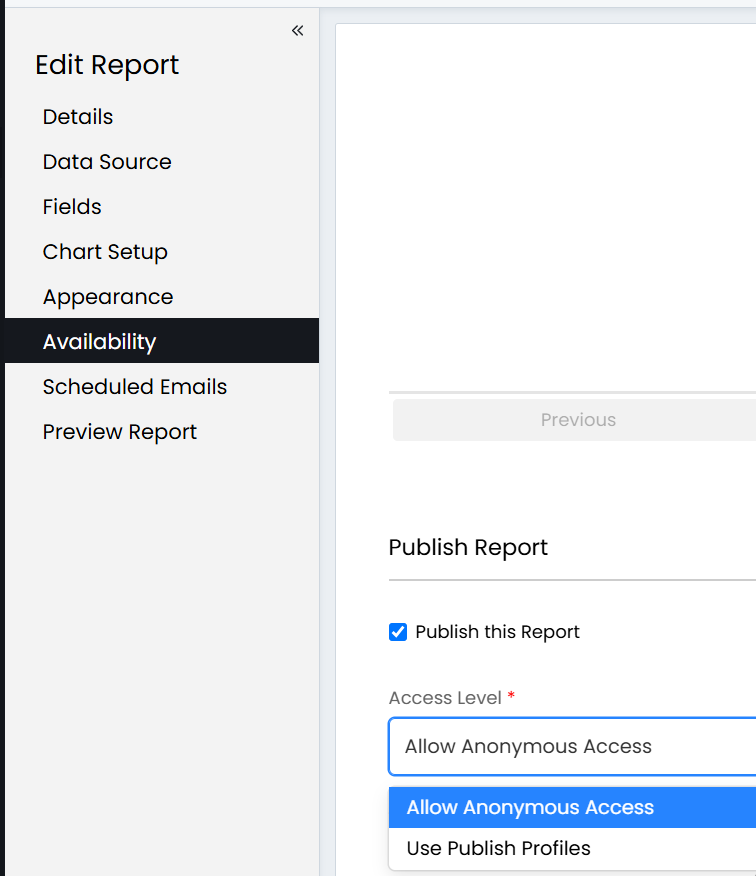
Fig 1. Setting Access Level on a report
Allow Anonymous Access - This will allow anyone who has this link to be able to access this report.
Use Publish Profiles - This will let you set a password when you are importing this into Excel.
When Using Allow Anonymous, you will receive an API link below:
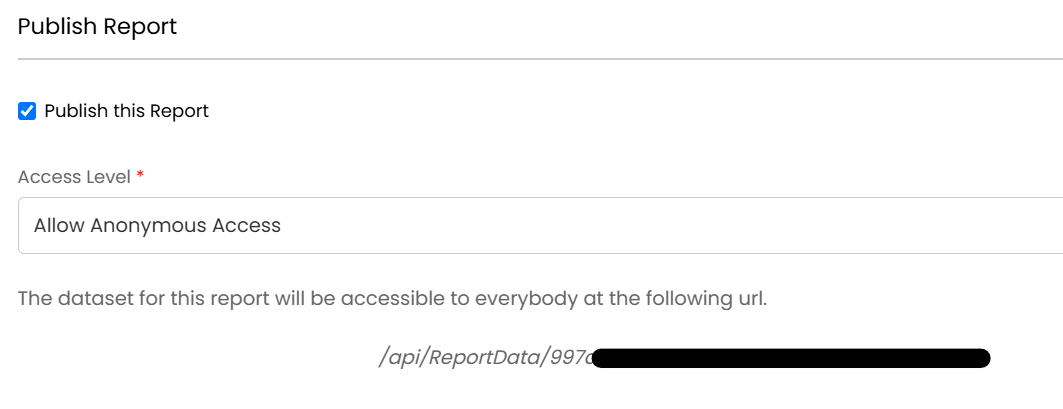
Fig 2. Report access URL after setting Allow Anonymous Access
You will add this onto the end of your Halo URL, e.g. https://halopsa.test/api/ReportData/997...This will be used later.
Setting Up Excel
When you have a new Excel page, use the "From Web" button.
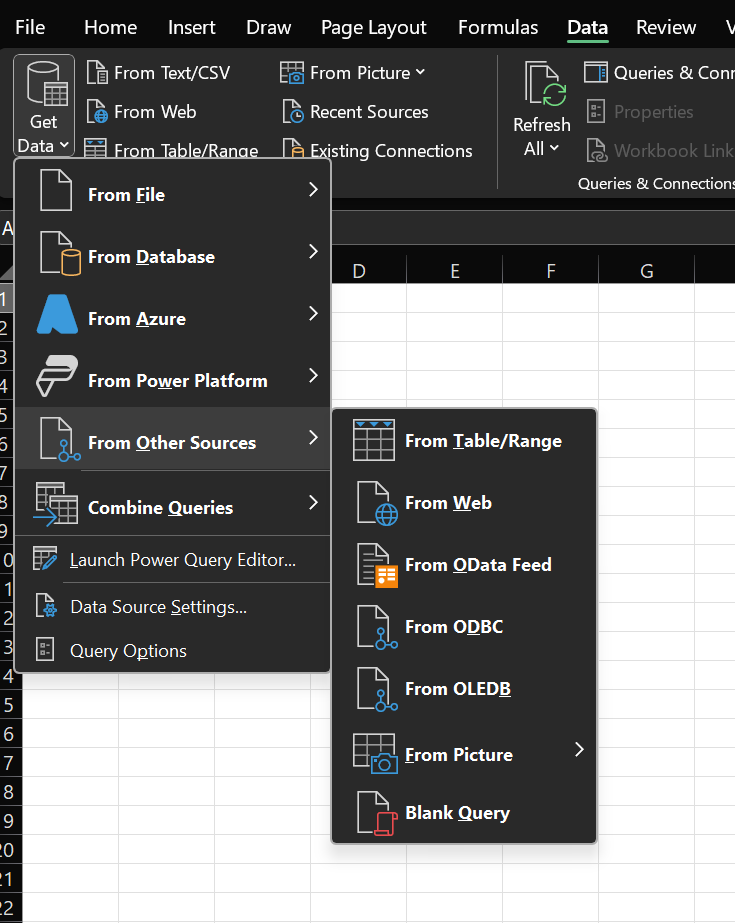
Fig 3. From Web button in Excel
Then copy your link you saved from before and click "OK":
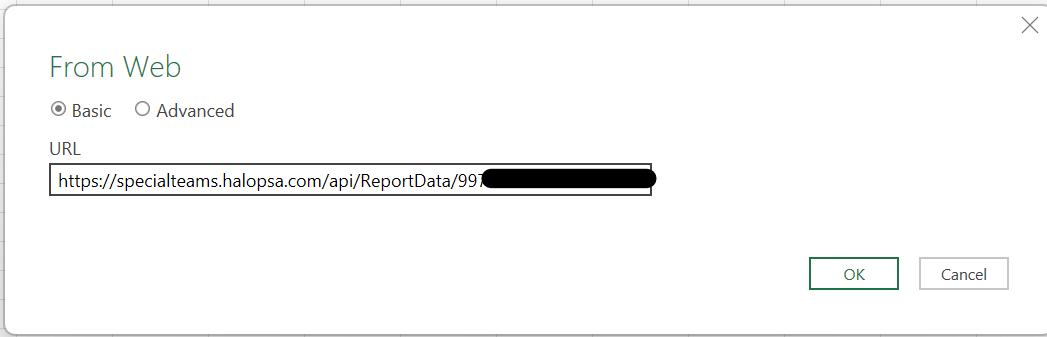
Fig 4. Adding the URL into the From Web area
When on this page click "Connect".
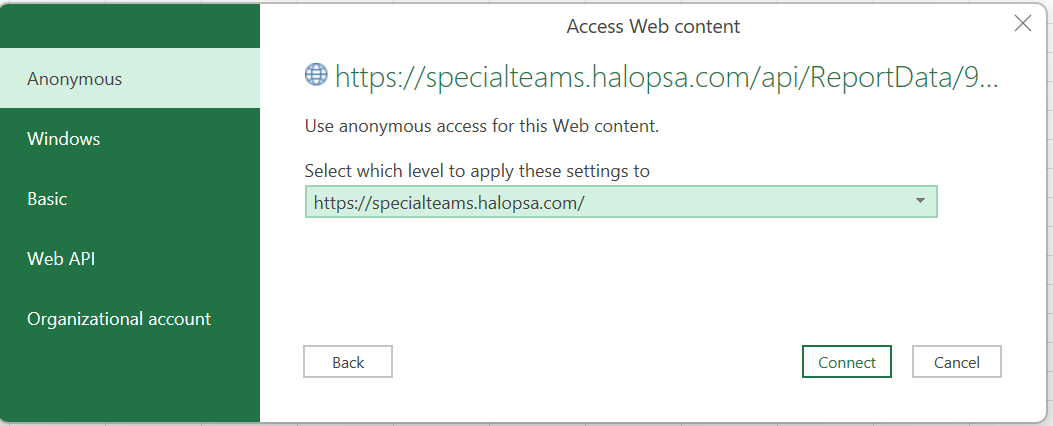
Fig 5. Connecting with the Anonymous tab in Excel
When the data has loaded, you will come to this page where you will right-click on the column header "List" and choose "To Table" or you can use the same button in the top left corner.
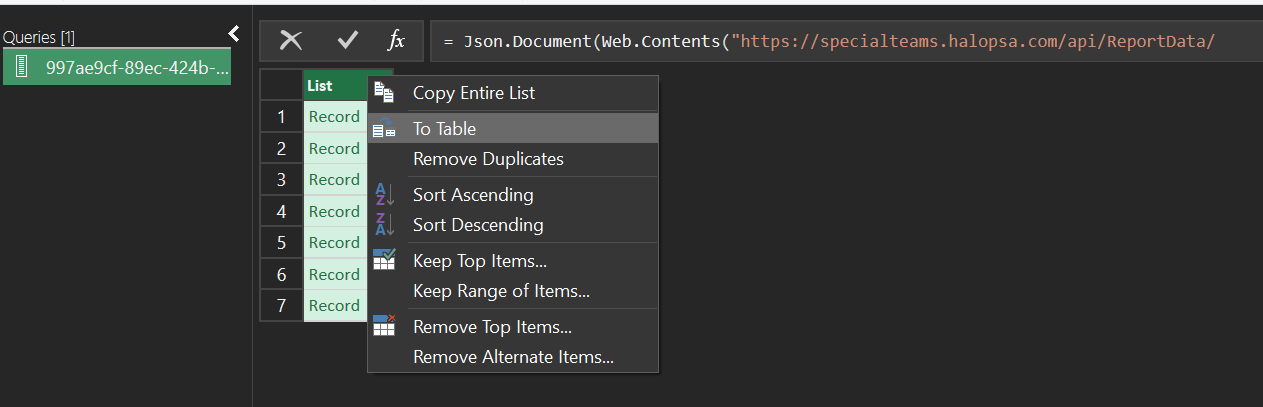
Fig 6. Selecting To Table in Excel
For this page, you will not need to change anything and click "OK".
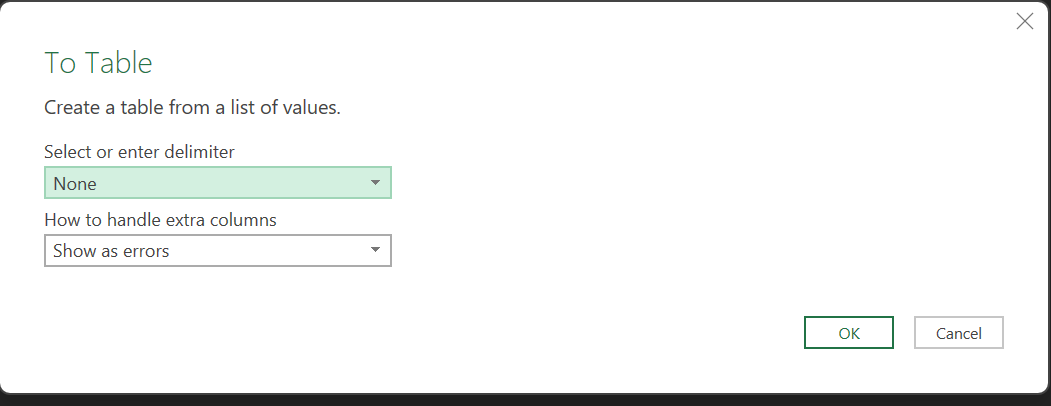
Fig 7. To Table settings in Excel
On this page you left click the box highlighted below and filter the columns you would like to display:
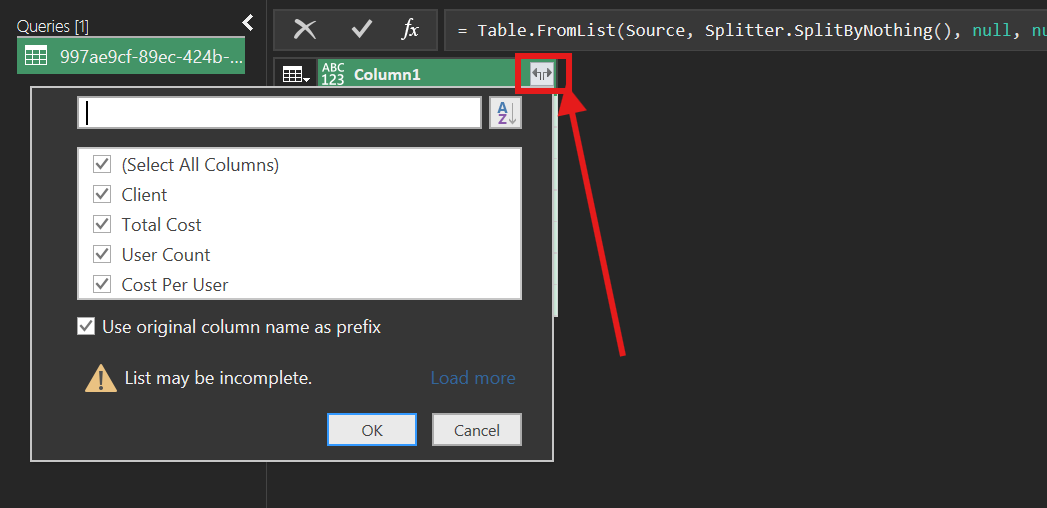
Fig 8. Filtering columns in Excel
From this page, you will want to rename your headers and set the data type for each of your columns accordingly. If you change them on the excel spreadsheet, when you refresh the data, the column headers will be over written. You can then "Close and Load" in the top left and your report from Halo will now be displayed in your Excel spreadsheet.
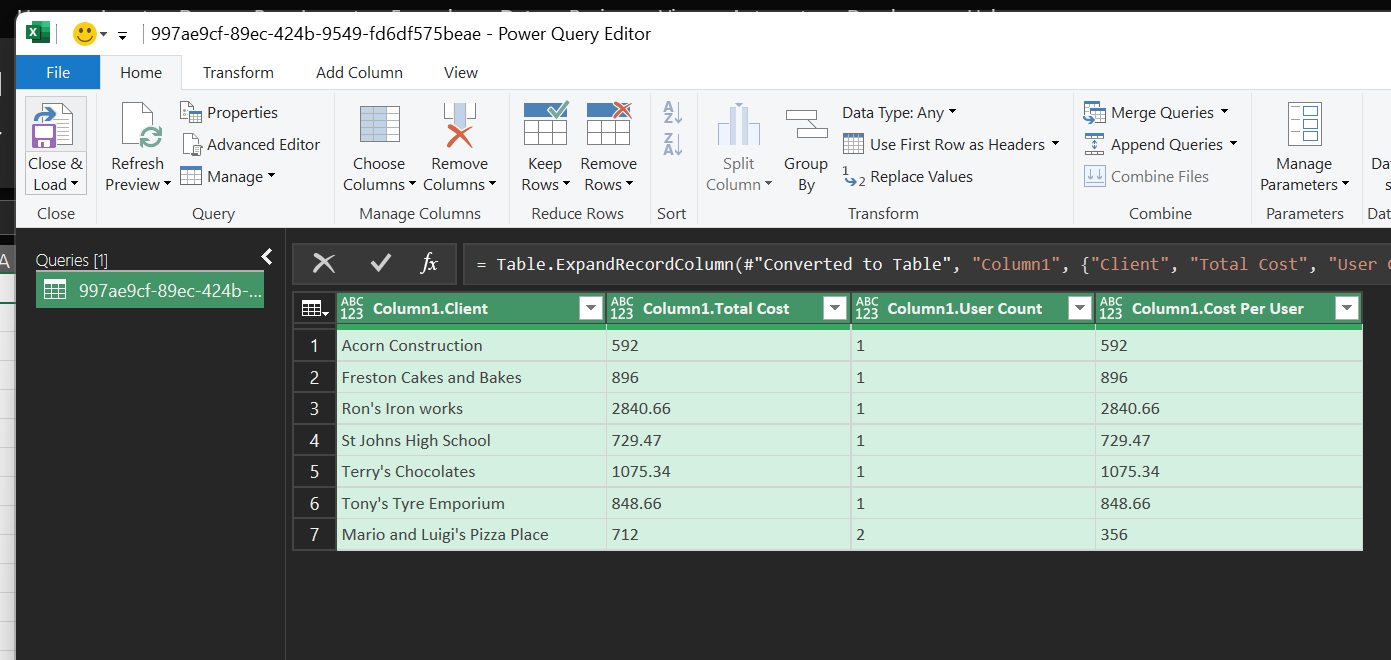
Fig 9. Changing the column names in Excel
If you ever need to edit the column Headers or data format, to get back to your queries please go to "Data" and "Queries and Connections", then the queries related to the different tables you have imported will be on the right side.
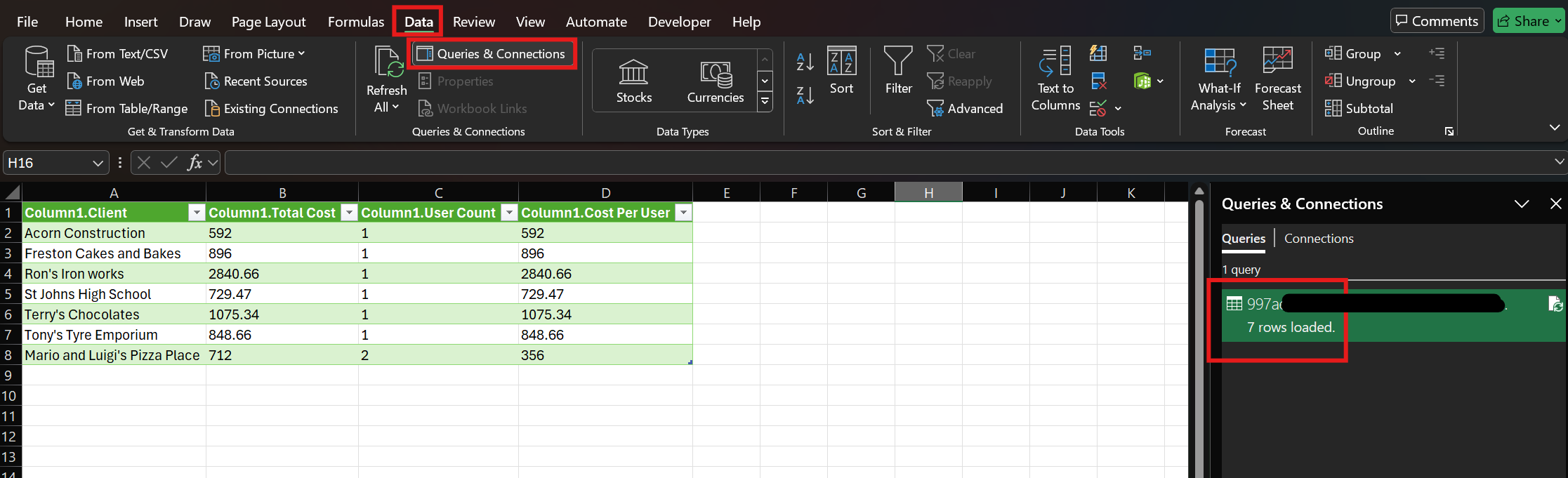
Fig 10. Editing the column headers or data format in Excel
If you would like to set up a more secure log in, you can set up the "Publish Profiles" On the Access Level.
You would need to start on a new excel spreadsheet. You can select the publish Profile that you would like to have access to this report:
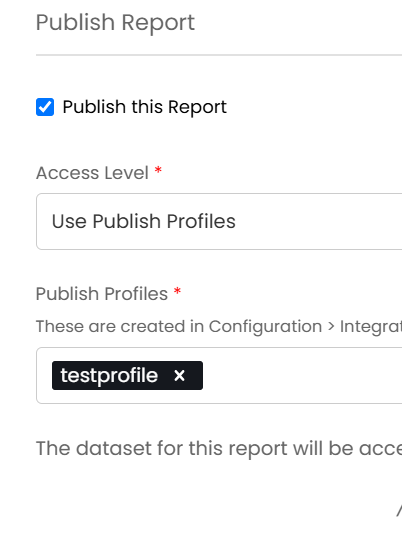
Fig 11. Publish Profiles option in Halo
Make sure the profile has access to the report on their profile in Configuration > Integrations > HaloPSA API > Publish Profiles.
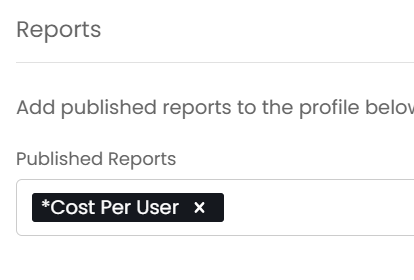
Fig 12. Setting report access in publish profiles configuration
When you have imported the URL from before you will then get the authentication page when your will select the Basic section and input your publish profiles details.
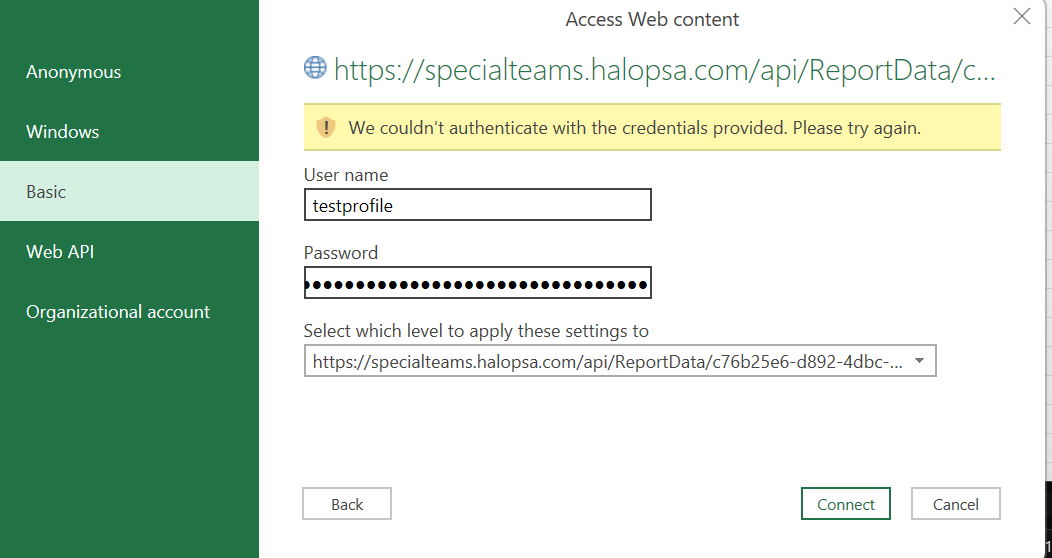
Fig 13. Basic tab in Excel for Publish profiles option
This will then allow you access to the reports we had before.