Product Price Overrides
- overriding cost and price
- item cost
- item price
In this guide we will cover:
- How to Set Price Overrides for a Product
- Examples
For each Product in Halo, the price and cost can be set to change dynamically based on who is purchasing the item and/or the supplier providing it. More specifically:
- The supplier the item is being purchased from
- The customer who is buying the item
- The currency the item is purchased in
- The top level of the customer buying the item
- The customer type of the customer buying the item
Setting an override allows the price of an item on a purchase order/quote/invoice to change dynamically.
Note: The terms 'item' and 'product' are used interchangeably in this guide.
How to Set Price Overrides for a Product
Head to Products > select a product > Costing & Pricing tab, here you will see the 'Overriding Cost and Price' table. Criteria is added here to determine the cost and price for an item.
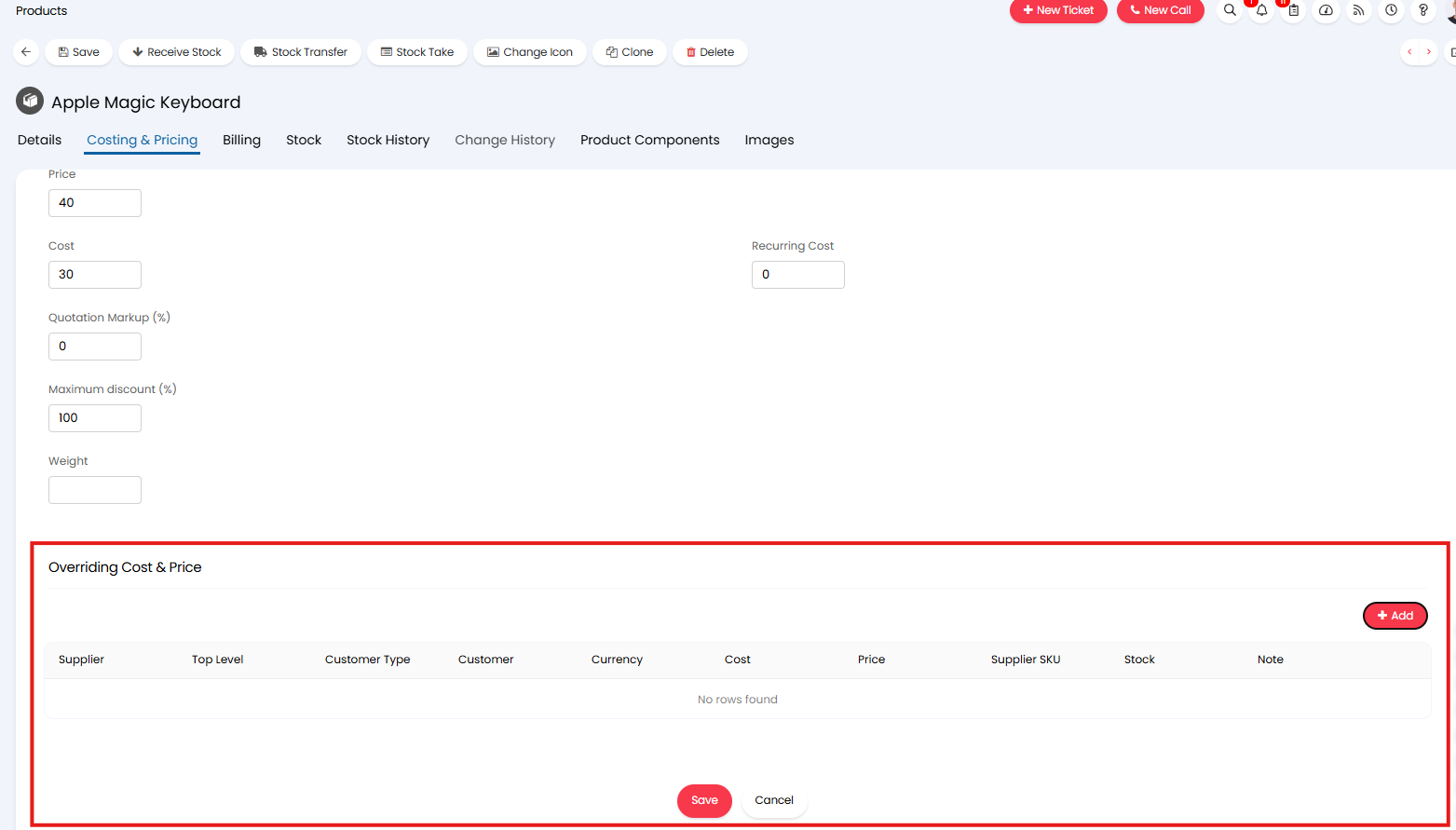
Fig 1. Overriding Cost and Price table
Add an entry to the table to add a new overriding price.
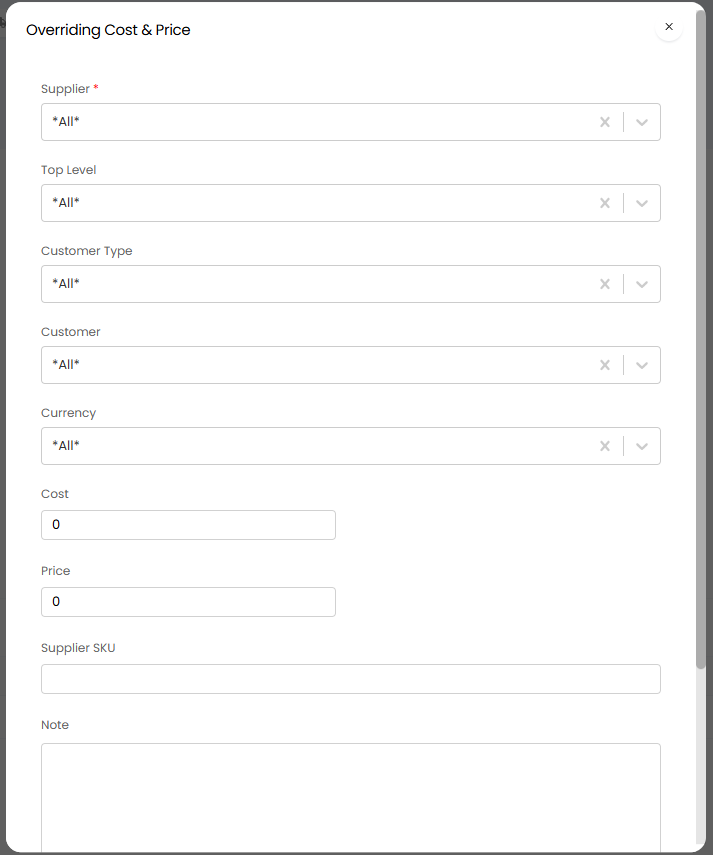
Fig 2. New overriding cost/price entry
Note: Options to add a price/cost override based on top level and customer type are also available.
Simply enter the cost and price you would like to apply then add who/when this cost/price should be used.
Let's take a look at some examples.
Examples
Price Override by Supplier
For example in Figure 2 I have set the cost and price of this item to be overridden when I am purchasing the item from Apple and Amazon. If the item is not being purchased from Apple or Amazon, the default price and cost will apply.
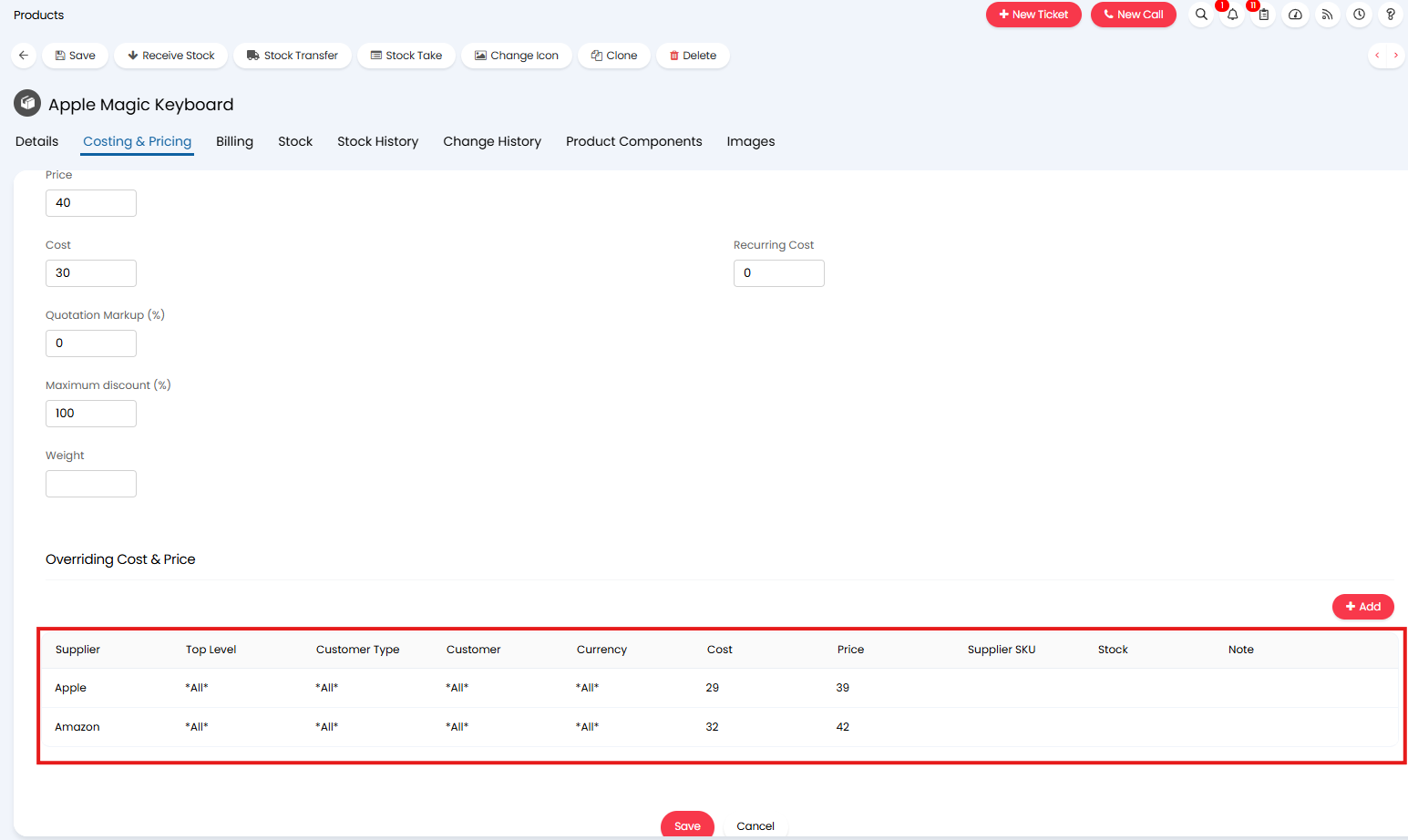
Fig 3. Overriding cost and price example
Now when I add this item to a purchase order with the supplier "Apple" the cost will automatically change to reflect the price override for Apple.
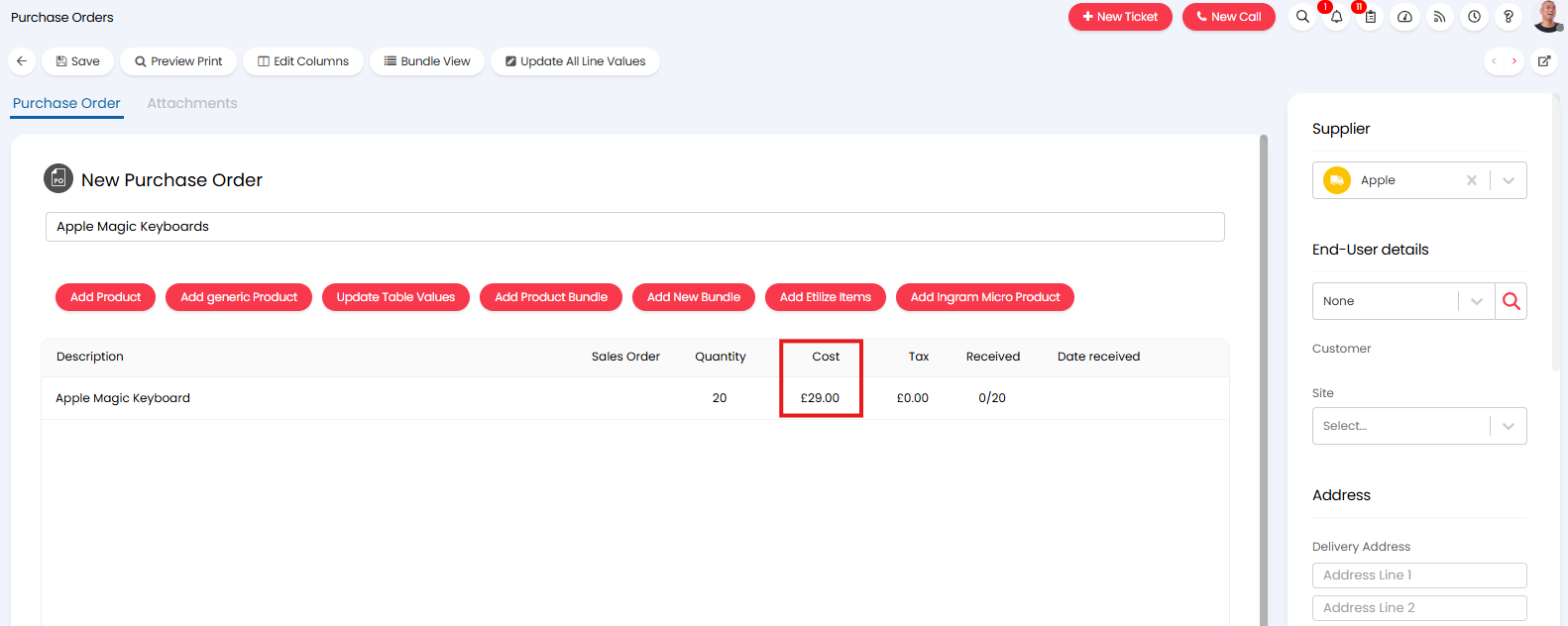
Fig 4. Cost override on Purchase order
Note: When adding the item to the PO, the default cost will show, once the item is selected the cost will update in line with the override.
When adding the item to an invoice or quote, you will have the option of two items to choose from, as shown in Figure x. You can choose an item based on the supplier it was purchased from.

Fig 5. Adding items to invoice/quote
The price/cost of the item on the invoice/quote will be determined by the item chosen.
Note: If you have only configured one supplier cost/price override for the item only one item will be available to be chosen from. It will be assumed all items are purchased from the specified supplier at the specified price.
Price Override by Currency
In the following example I have set the cost and price of this item to be overridden when the item is being purchased in Dollars. If the item is not being purchased in Dollars, the default price and cost will apply.
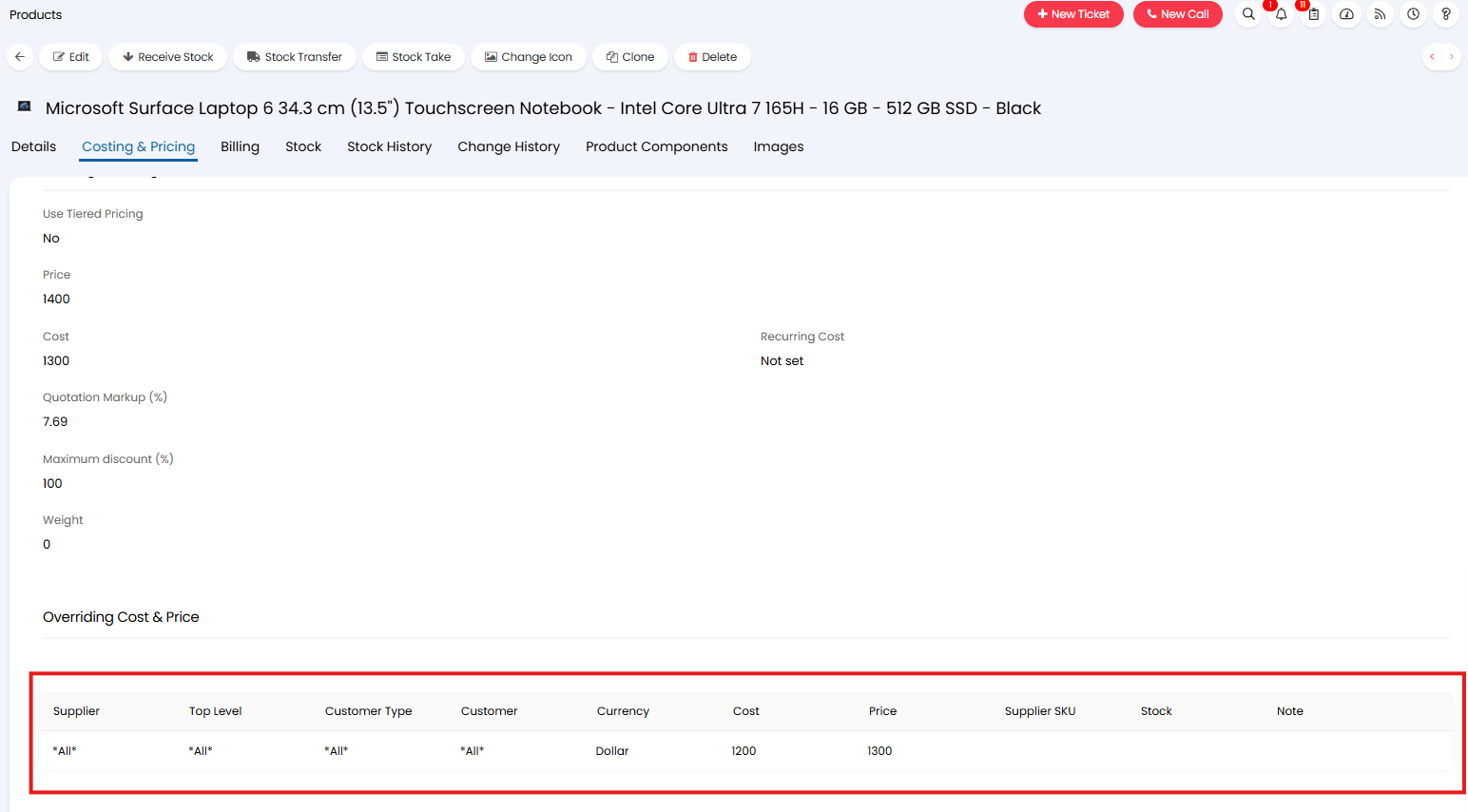
Fig 6. Overriding cost and Price based on Currency
When using currency overrides enter the overriding cost/price in the currency the override is for, not the default currency. In the above example, the item will be priced at $1300 when bought in dollars. My default currency is GBP (£).
Now when adding this item to a quote, ensure the currency the order is being quoted in is set first.
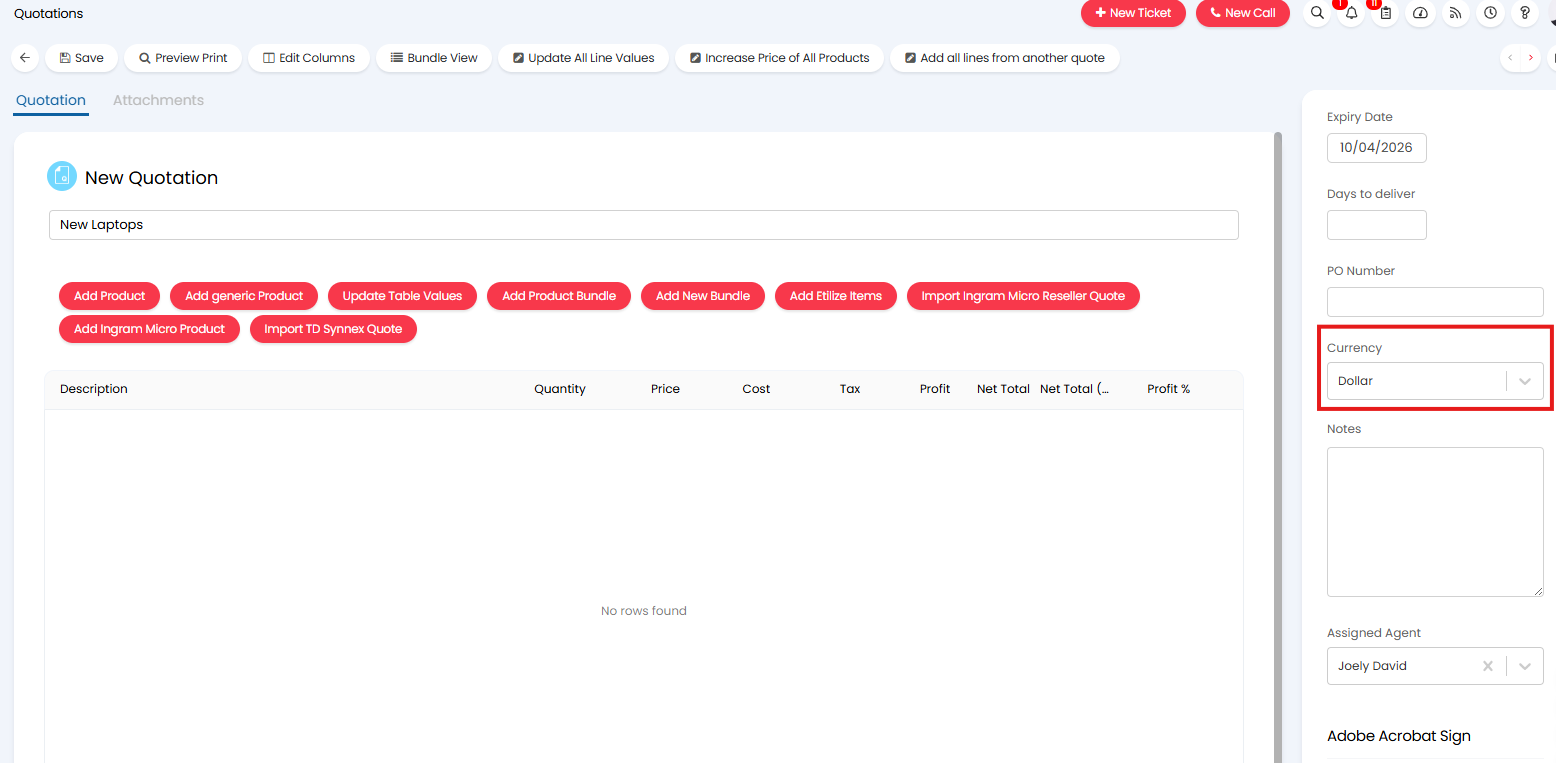
Fig 7. Set currency on quote
Then when adding the items to the quote, the overriding cost/price will be used.
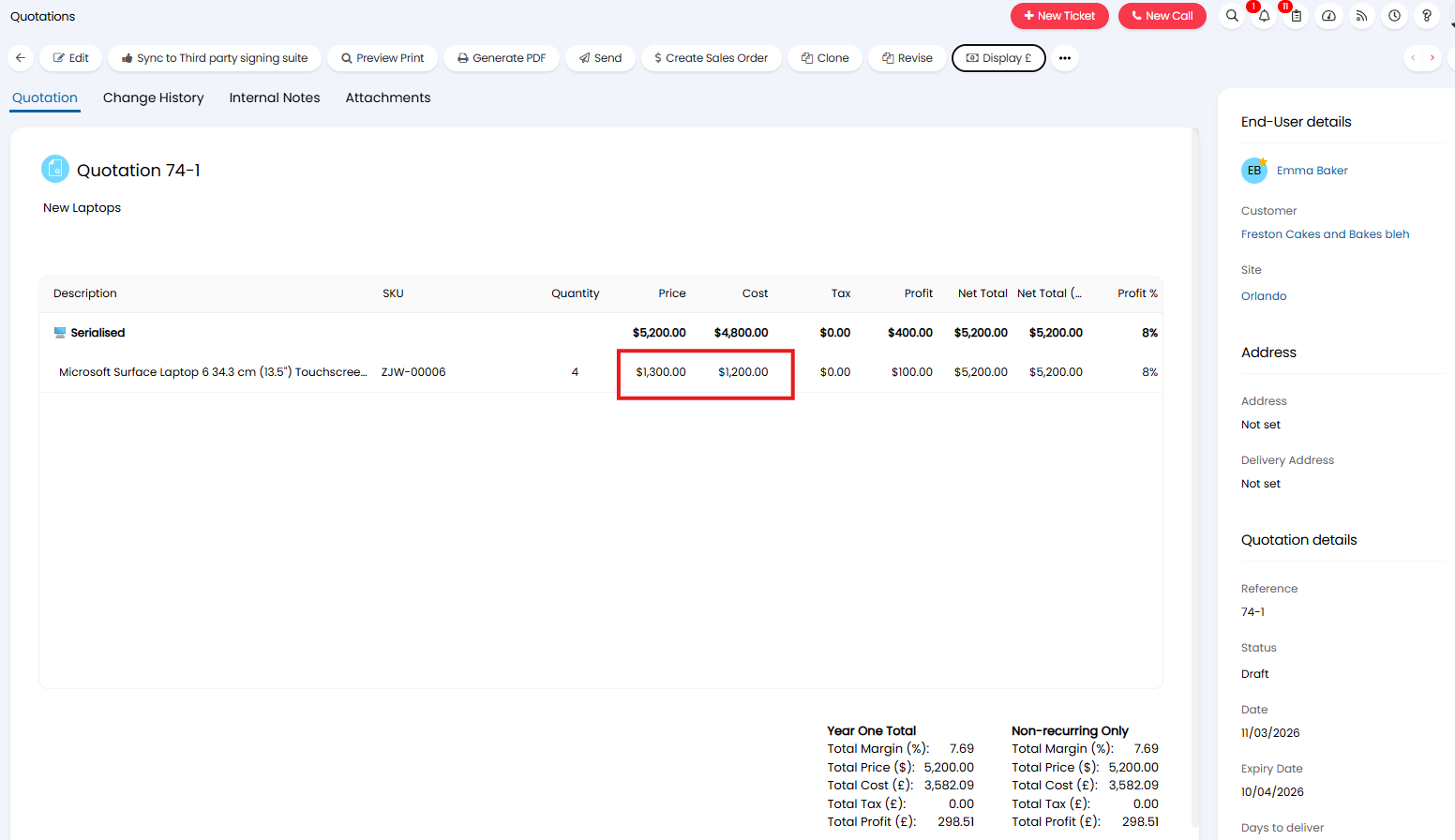
Fig 8. Currency Cost override on Quote