Contract/Agreement Rules
- Users
- Contract
- rules
- agreements
- contract rules
In this guide we will cover:
- Creating Contract Rules
Admin Guides:
Related Guides:
Note: In Halo the terms 'contract' and 'agreement' are used interchangeably.
Contract rules are used to automatically assign a new user to an existing contract based on set criteria. Making new user onboarding easier as you do not need to manually assign them to a contract.
Creating Contract Rules
To enable contract/agreement rules head to configuration > agreements, enable the setting highlighted in figure 1.
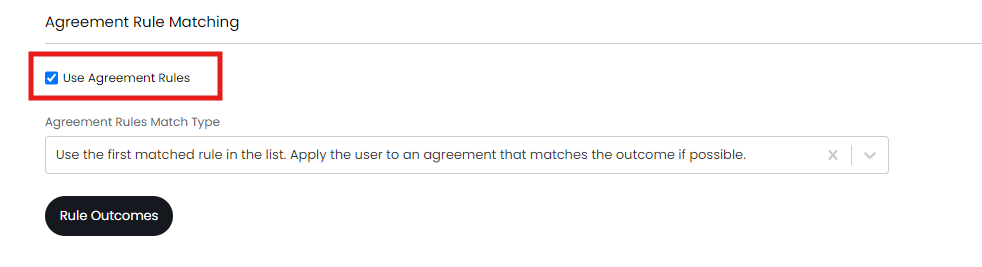
Fig 1. Use agreement rules setting.
Once enabled you will be able to set the match type, the options for this are as follows:
- Use the first matched rule in the list. Apply the user to an agreement that matches the outcome if possible - Only the first rule in the sequence will be checked, if a user meets the criteria for this rule the outcome will be applied, if the user does not meet the criteria for this rule no outcomes will be applied.
- Match all possible rules. Apply the user the first agreement that matches the outcome if possible - All rules in the list will be checked in order of sequence until the user matches criteria. If a user matches criteria of a rule the outcome of this rule will be applied and rules will stop being checked. If the user does not match any criteria of the rules in the list no outcomes will be applied.
The second match type 'Match all possible rules. Apply the user the first agreement that matches the outcome if possible' is used when you have created a set of rules to encompass all users/agreements and are importing users in minimal imports. The first match type is typically used when you would only like users to be automatically assigned to one agreement, any users who do not meet the criteria for this agreement will not be assigned to an agreement. You can toggle between the two match types for each user import you complete.
Now you can select 'Rule Outcomes', select 'new' to setup a new rule.
Here, give your rule a name and a sequence. If the setting 'User must be a member of the Customer of the Agreement' is enabled this will ensure users are only assigned to an agreement for the same customer i.e. a user under one customer cannot be assigned to an agreement under a different customer.
Now you will need to set rule criteria, this will determine if the user matches the rule. When adding criteria you will be able to set this based on various user fields and various field criteria, ie. equal to, not equal to, starts with etc.
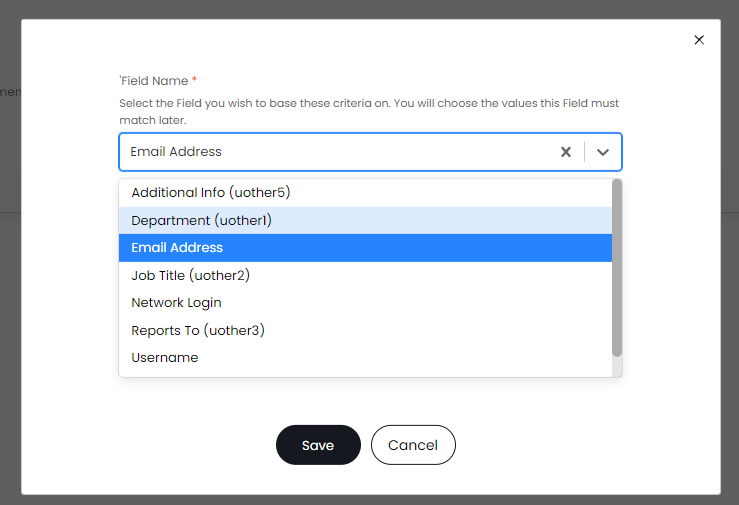
Fig 2. User fields to set criteria against.
Once you have set criteria you will need to choose the rule outcome, this is the contract type that any users who match this rule will be assigned to. You can set the 'contract type' and 'agreement subtype' that the users will be assigned to. The contract type and agreement subtype can be set against a specific contract under the details pane.
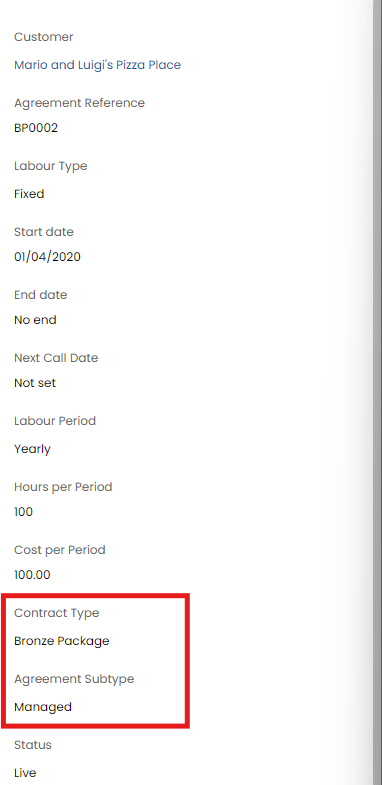
Fig 3. Contract type and agreement subtype set against a contract.
Once the outcome is set choose if the users will be covered by the contract or not, the value of this user, and how long the users are covered by this contract.
In the figure 4 example I have set up a rule that will assign any users who have the string 'Halo' in their email to a contract with a bronze package contract type and a managed agreement subtype. In my Halo the contract BP0002 has this type and subtype so new users will be assigned to this contract.
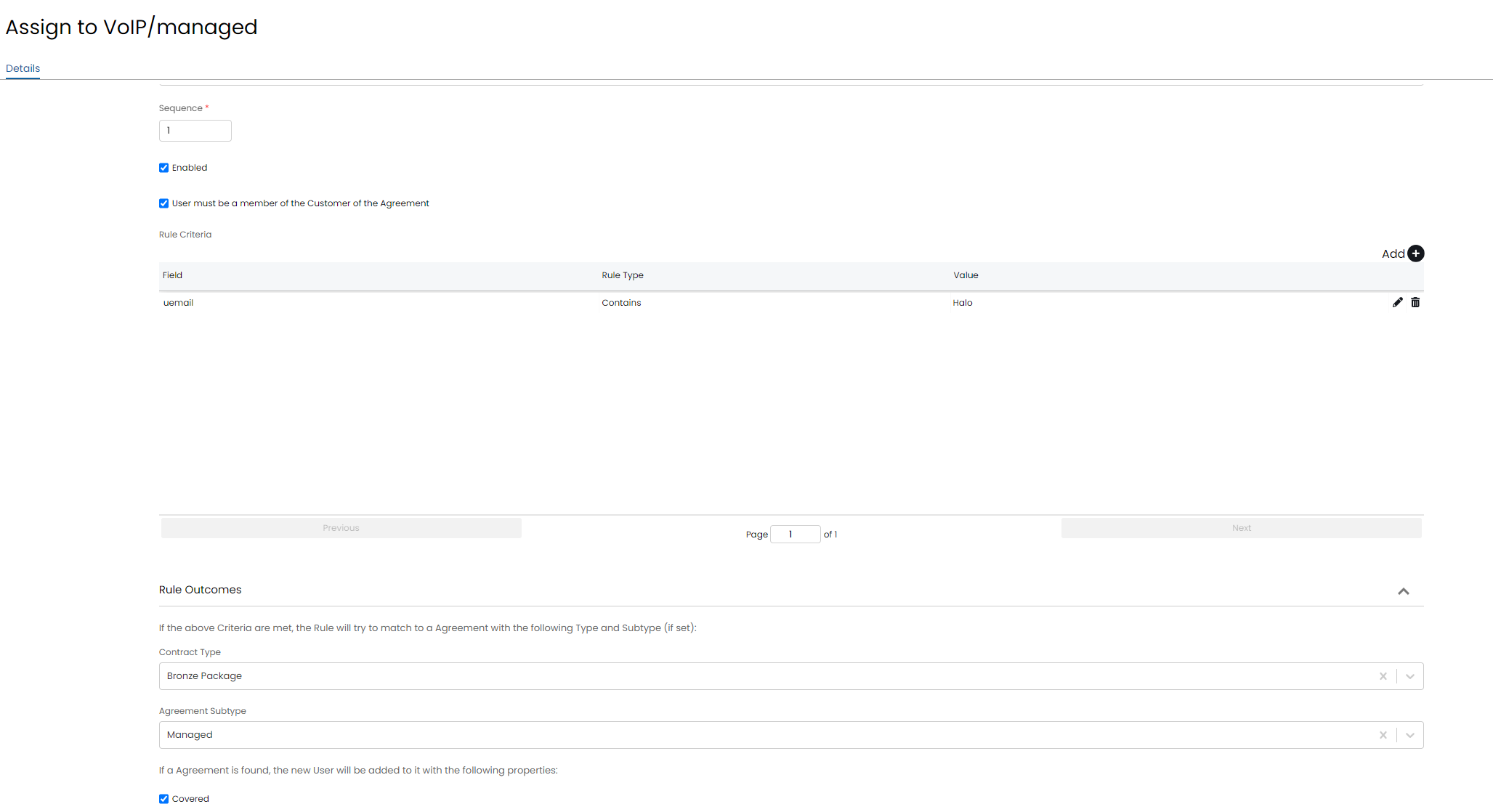
Fig 4. Example rule.
You will need to create a rule for each of the contracts that you would like users to be assigned to automatically. Once setup is complete each time you create a new user in your Halo they will be assigned to the correct contract automatically.