Sending Invoices
- invoice reminders
In this guide we will cover:
- How to determine which mailbox is used to send out invoices (set an mailbox override)
- Sending Invoice Reminders
- Choosing an Email Template
Mailbox Overrides
When sending invoices a mailbox override can be set on multiple levels so the mailbox it is sent out from changes depending on the contract, customer or top level. This is set in the following hierarchy (in which No.1 overrides all other settings):
1. Contract/Agreement level
2. Customer level
3. Top level
4. Global setting
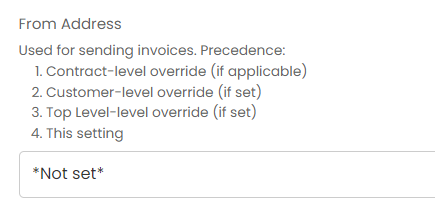
Fig 1. Mailbox override for sending out invoice (setting)
1. Contract/Agreement level:
Within a contract/ agreement, on the right hand pane, the overriding mailbox for invoice sending can be set for the specific contract. This ensures any invoices for this contract are sent out from the selected mailbox. This overrides all other mailbox settings.
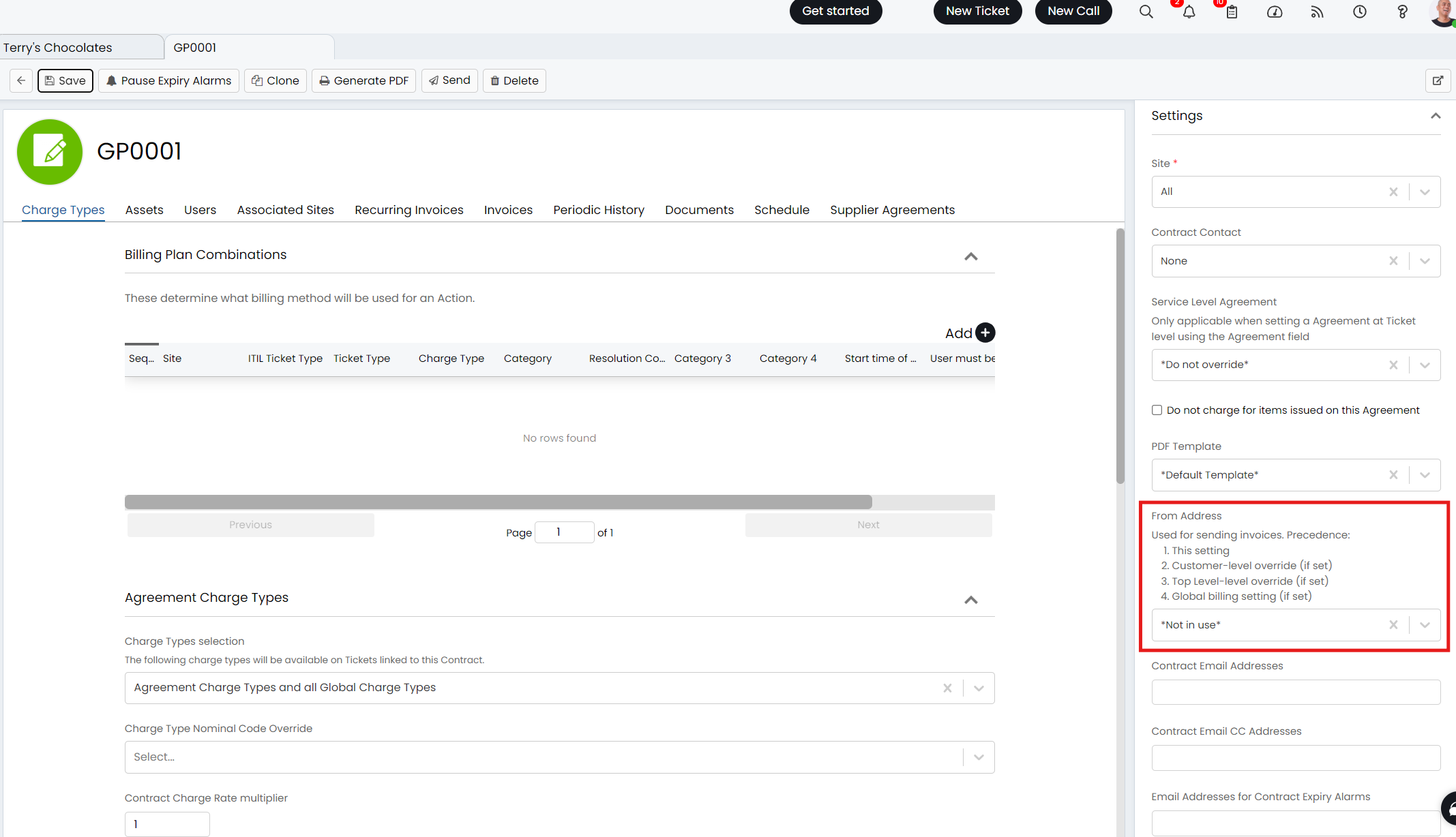
Fig 2. Invoice Mailbox override at contract level
2. Customer level:
Within a customer > settings tab > email defaults section. This ensures any invoices for this specific customer are sent out from the selected mailbox. This overrides the top level and global setting but is overridden by the contract setting.
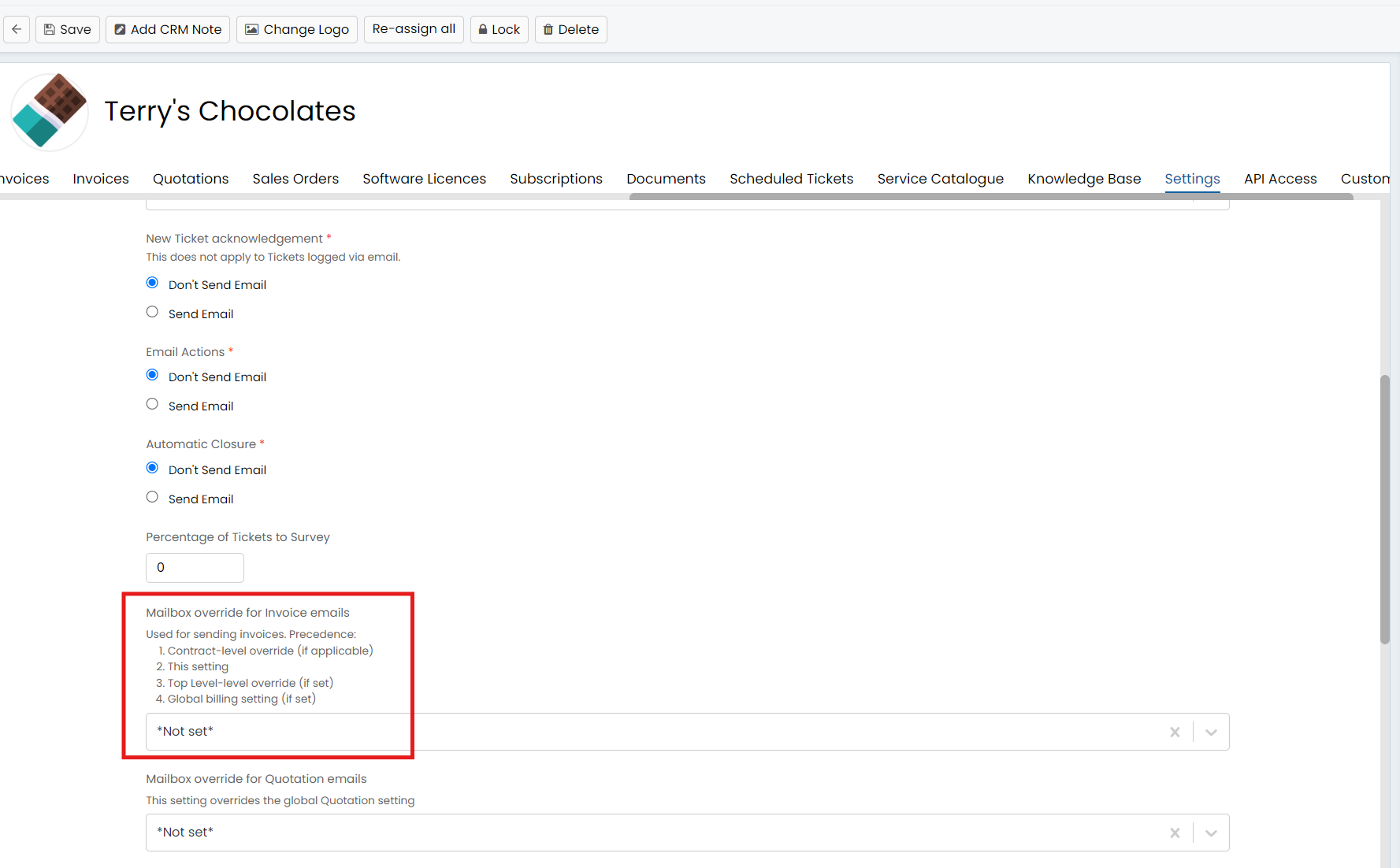
Fig 3. Invoice Mailbox override at customer level
3. Top level
Within a Top Level, under the details tab. This ensures any invoices for customers under this top level are sent out from the selected mailbox. Note this only applies if you have the 'top level' functionality enabled.
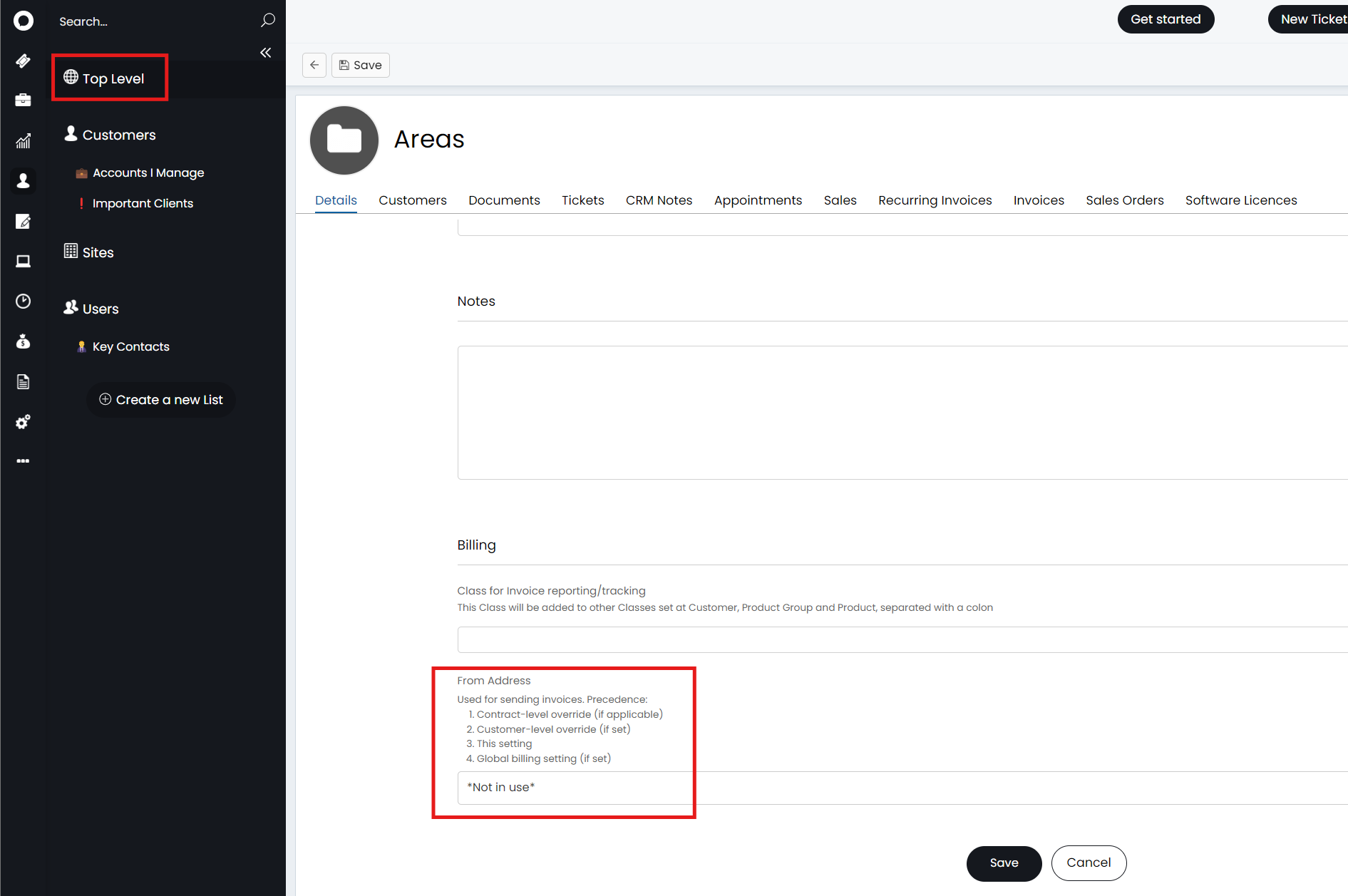
Fig 4. Invoice Mailbox override at Top level
4. Global setting
Within Configuration > Billing > General Settings. This sets the global default for all invoices, all invoices will be sent out from the selected mailbox here, unless an override is set at a higher level.
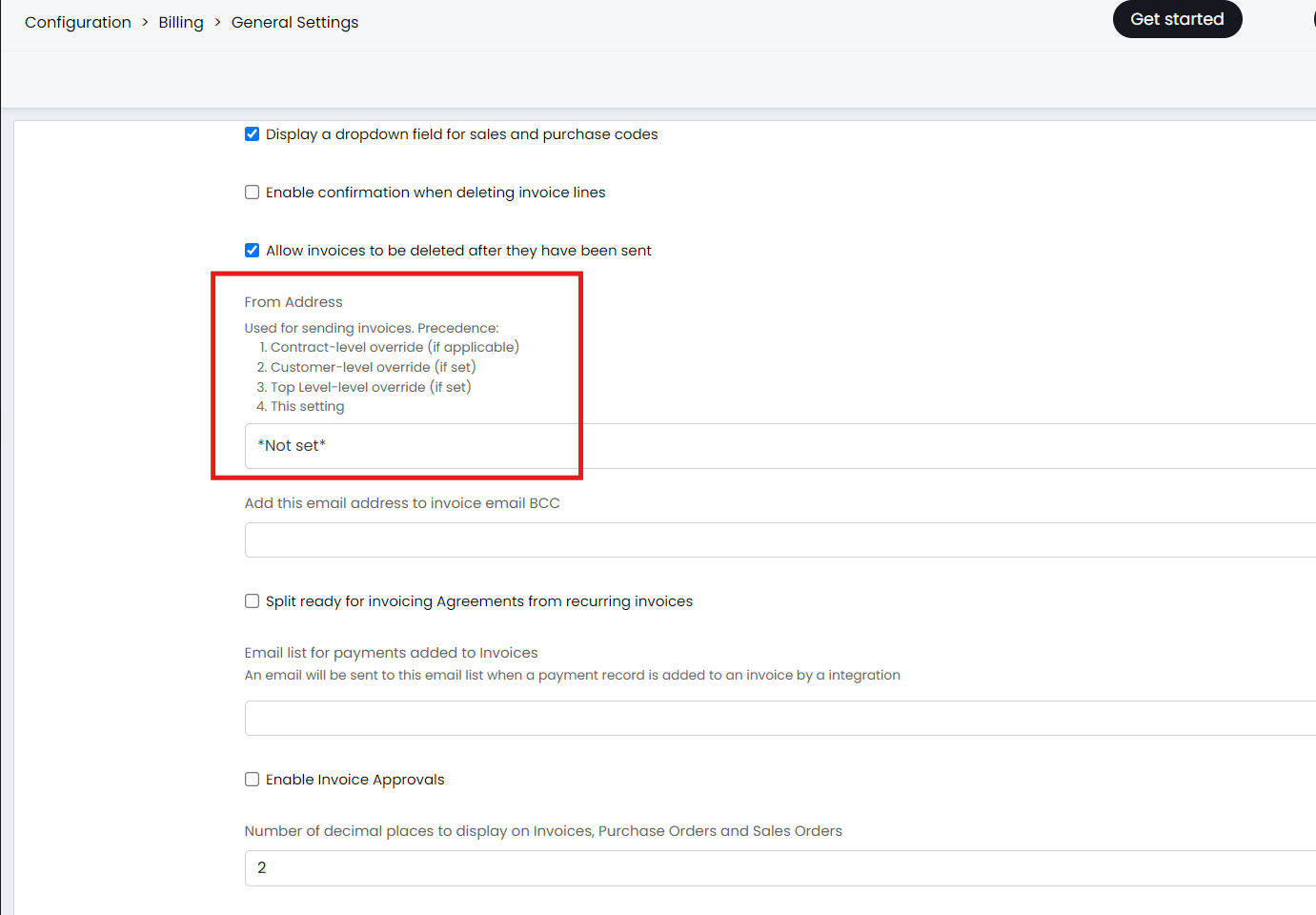
Fig 5. Invoice Mailbox override Global Setting
If all of the above are set to 'Not Set' then the outgoing email default for the organisation will be used to send out invoices.
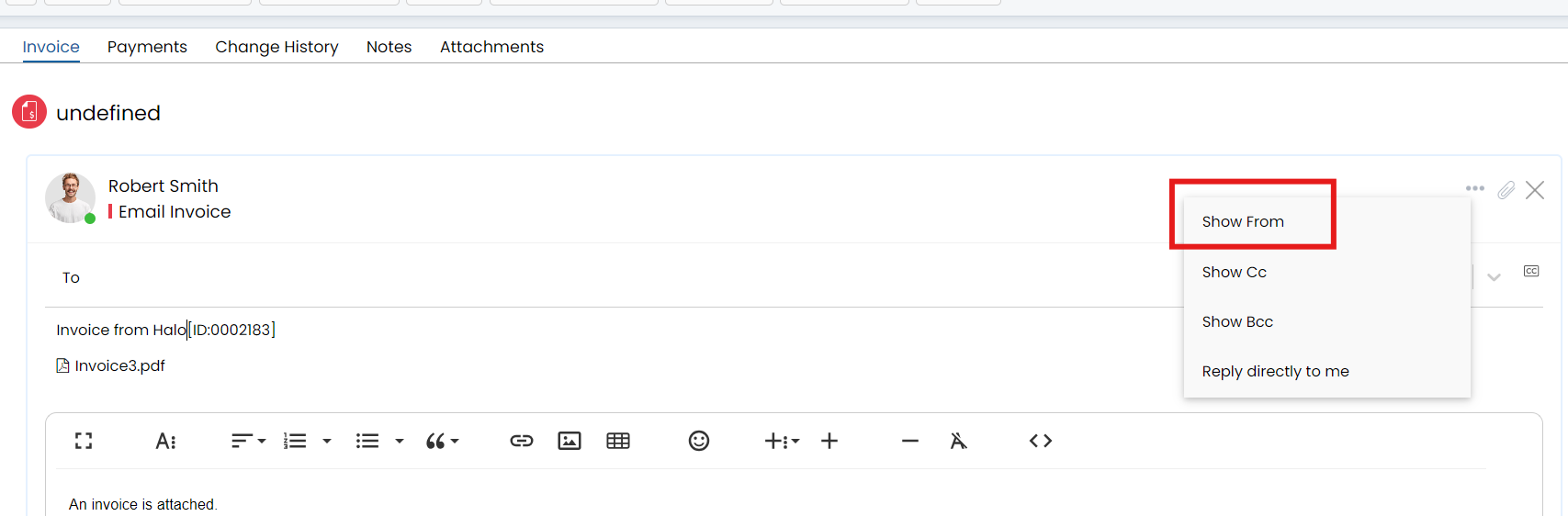
Fig 6. Show from address when sending out invoice
You can also override any mailbox default when sending the invoice itself, when sending the invoice, you can expand the preview to 'Show From Address' here you can change the from address manually to a mailbox of choice.
Sending Invoice Reminders
You can also send out invoice reminders with the "Send Reminder" button. This can be used in tandem with the new "Overdue" section of the invoicing screen to send payment reminders to customers who have not paid as of the due date, although this reminder can be sent before this date as well.
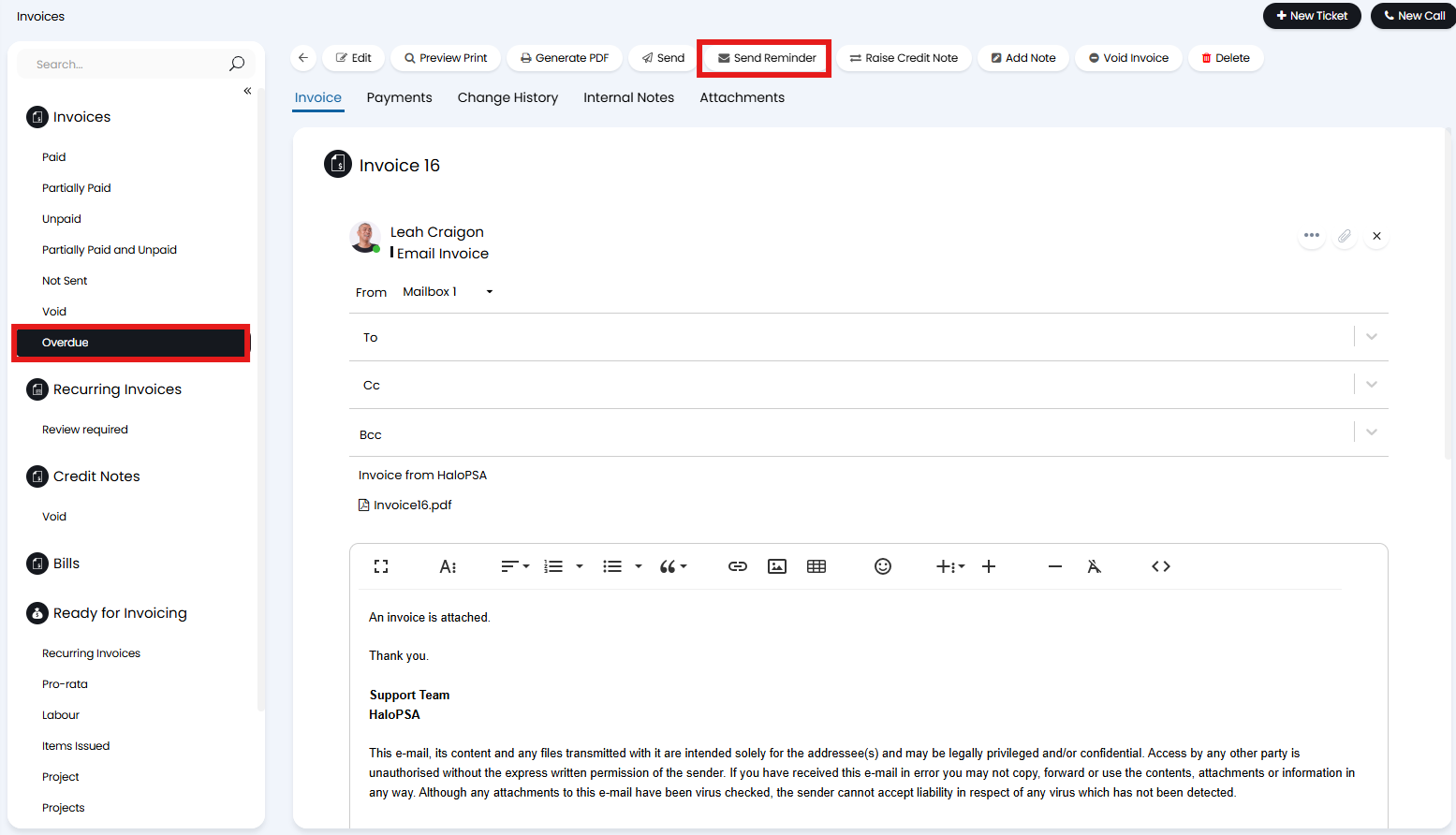
Fig 7. Sending an invoice reminder.
This will send out email template ID 345, which appears by default like below.
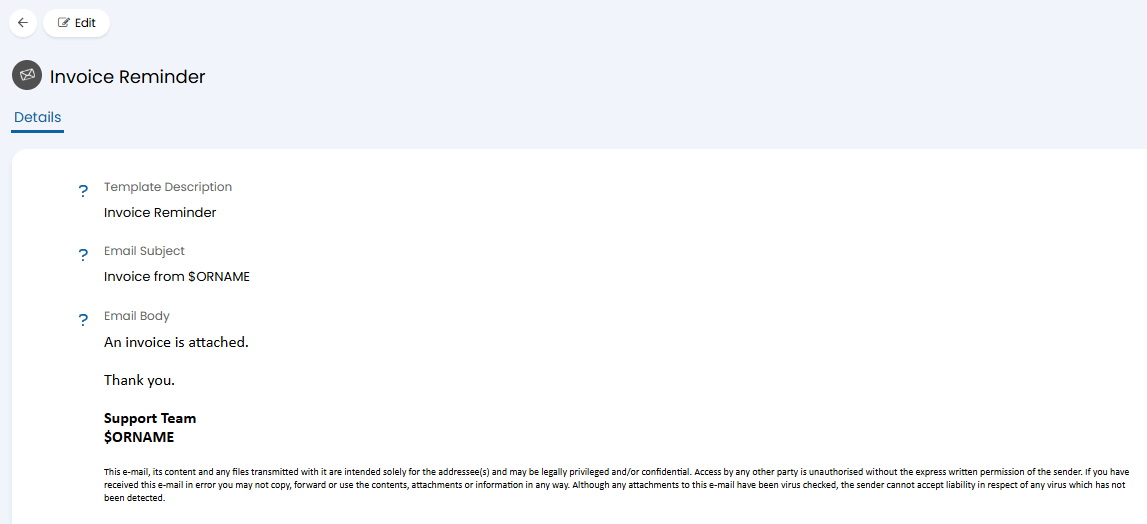
Fig 8. Invoice Reminder email template.
This process can be automated, sending out invoice reminders after a specified number of days. To set this head to Configuration > Billing > Invoice Creation. Under the Invoice Creation Settings section you will find the "Send automated invoice reminders after X number of days" option. Here set the number of days after sending the invoice for the reminder to send.
You can also opt to repeat these reminders every number of days specified until the Invoice is marked as "Paid".
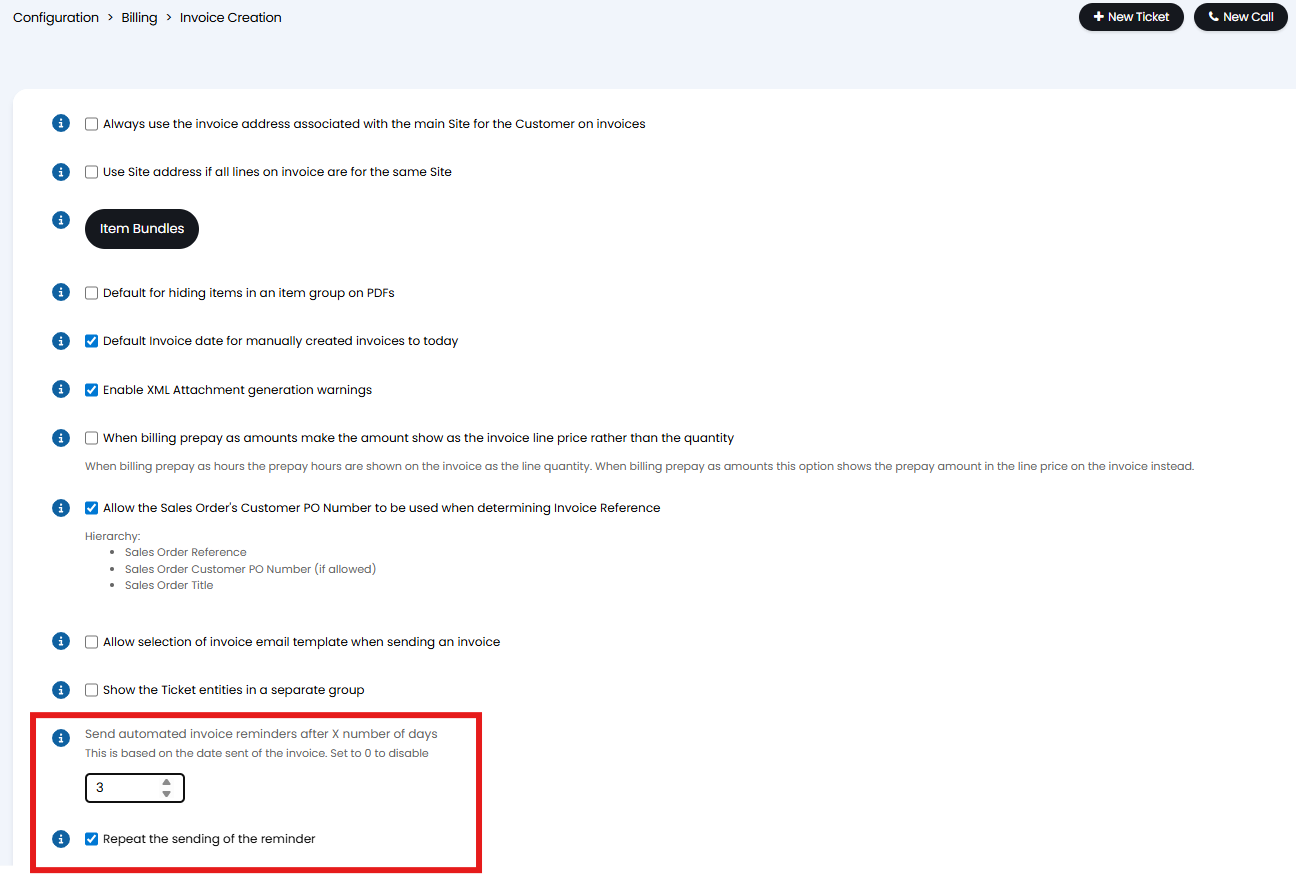
Fig 9. Automated Invoice Reminders.
Choosing an Email Template
In Configuration > Billing > Invoice Creation, enable the below to allow selection of templates. This will then show the "Invoice Email Templates" button.
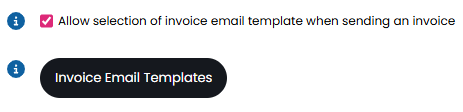
Fig 10. Enabling email template selection.
Clicking this will show any email template with the use of "Invoices". Here, you can edit the existing ones or create your own with that use set.
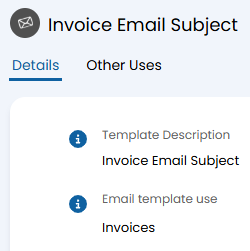
Fig 11. Email template with use "Invoices".
When emailing invoices, a popup will then show to select a template. This will show any of the email templates with the "Invoices" use as above.
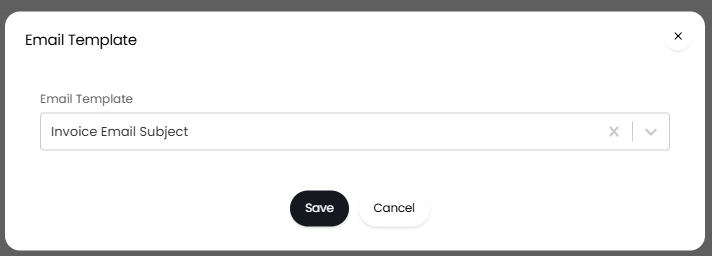
Fig 12. Email template selection.