Set which Agents can adjust the Billing Time and Recalculation of Billing on Tickets
- actions
- labour billing
- billable time
- editing actions
- permissions
In this guide we will cover:
- How to give agents the permission to edit billable time and recalculate billing on an action
Admin Guides:
There are two new permissions in Halo to dictate agents ticket and action level billing capabilities. The first option decides whether or not agents can recalculate billing on tickets and actions:
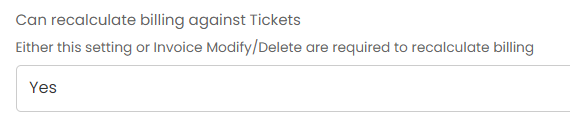
Fig 1. 'Recalculate billing against tickets' permission
The agent must have "Editing of Actions" set to "Can edit all actions" for the above setting and the below setting to be viable. Make sure to logout and log back in for the new permissions to be set, as the roles and permissions are loaded for your agent when logging into Halo.
The second option is to decide which agents can have billable time edited per action (This includes time against: ). The options are Managed Only, Managed and Their Managed, All, or No. Managed refers to the other agents in Halo that this agent manages (The agents manager can be set from within the details tab of the agent). Managed and Their Managed is all agents that the agent manages and all managers of agents further down i.e. 3rd line manager is the manager of the second line manager, therefore can edit all billing time on actions for the 2nd line manager and all agents in the 2nd line team, as that fits the category of Managed and Their managed.
For example Patricia's manager is Amir:
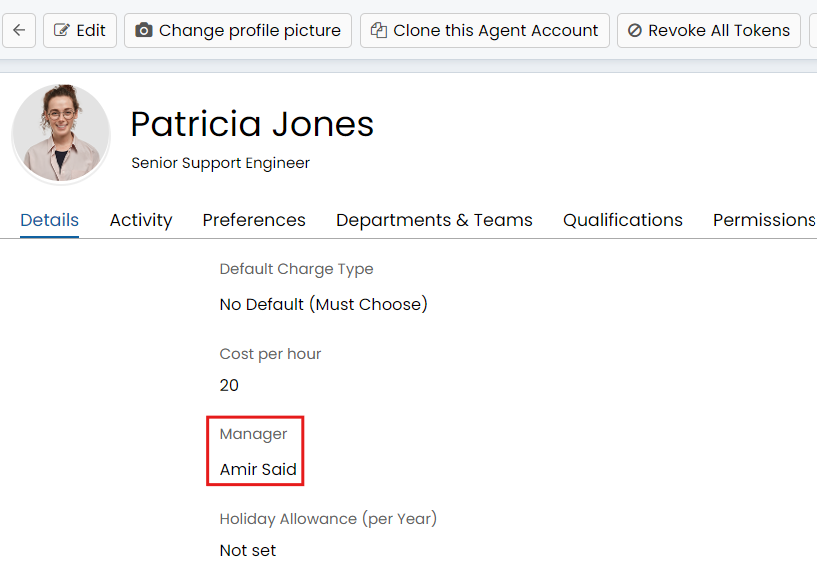
Fig 2. Agent manager example
Additionally Patricia is the manager of Kerry:
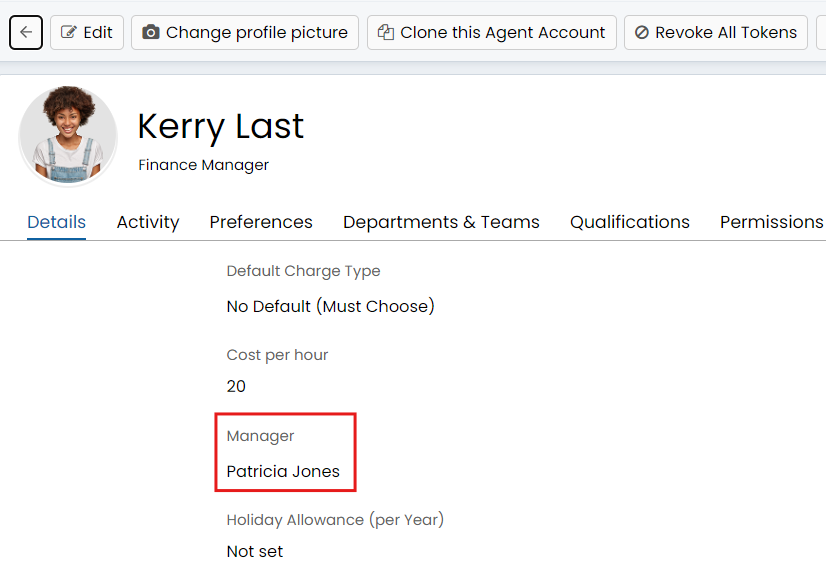
Fig 3. Agent manager example 2
This means that Amir can edit the billing time on actions from Patricia and Kerry. To edit billable time, right click on the action of a ticket and left click on the option "View/ Edit Action", make sure to right click in the area indicated by the red box below, clicking below this will not display the options shown: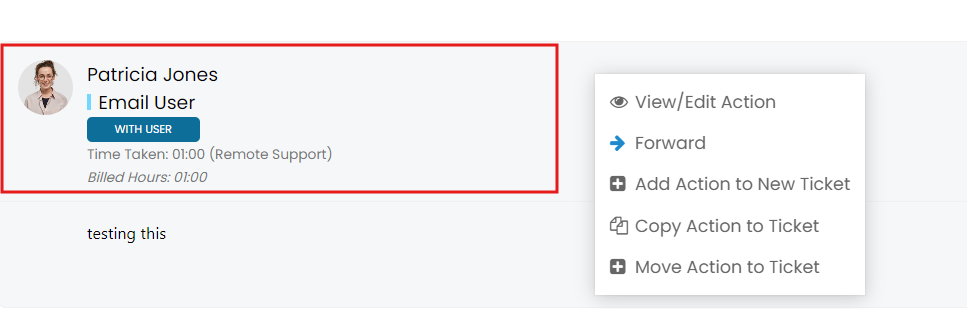
Fig 4. Options available when right clicking on action
Then you will notice that the contract time and billable time is editable:
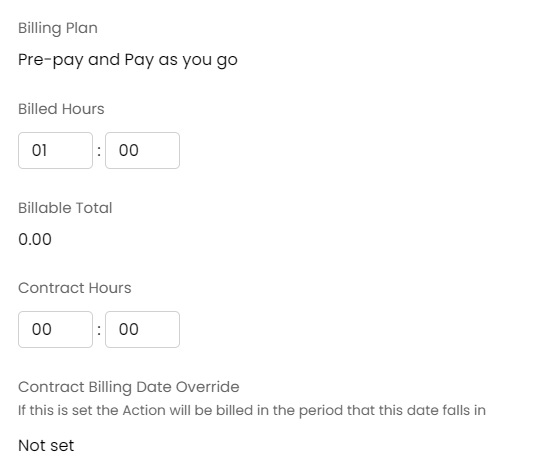
Fig 5. Contract and billable time against an action