Group Invoice Lines by Product Group
- group lines
- invoice lines
In this guide we will cover:
- How to have lines on an invoice grouped based on the product group they are in
- Checking the group a product is in
Within Halo, there is the option to categorise (group) lines on an invoice based on the product group set within Halo. To enable this option, first navigate to Configuration > Billing > General Settings and go to the "Advanced Settings" dropdown. There will be an option called:
This option will change the visualisation of invoice lines in Halo. Additionally when syncing to the 3rd party accounting software Xero (only for Xero currently), the grouping will be replicated. Prior to enabling this setting, invoices will display the following way:
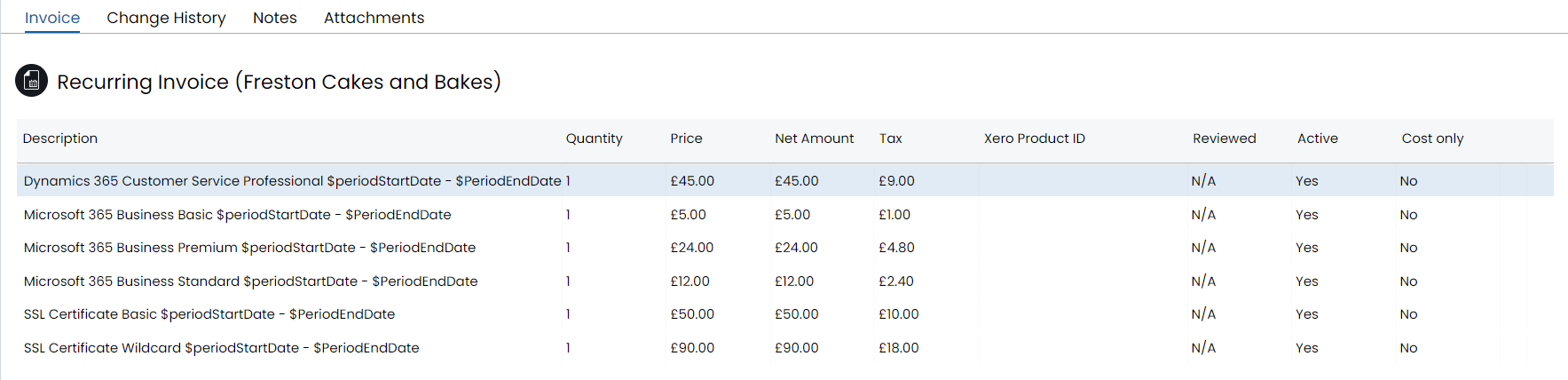
Fig 1. Invoice lines before item grouping enabled
After enabling the setting, the product groups will dictate the categorisation of the invoice lines:
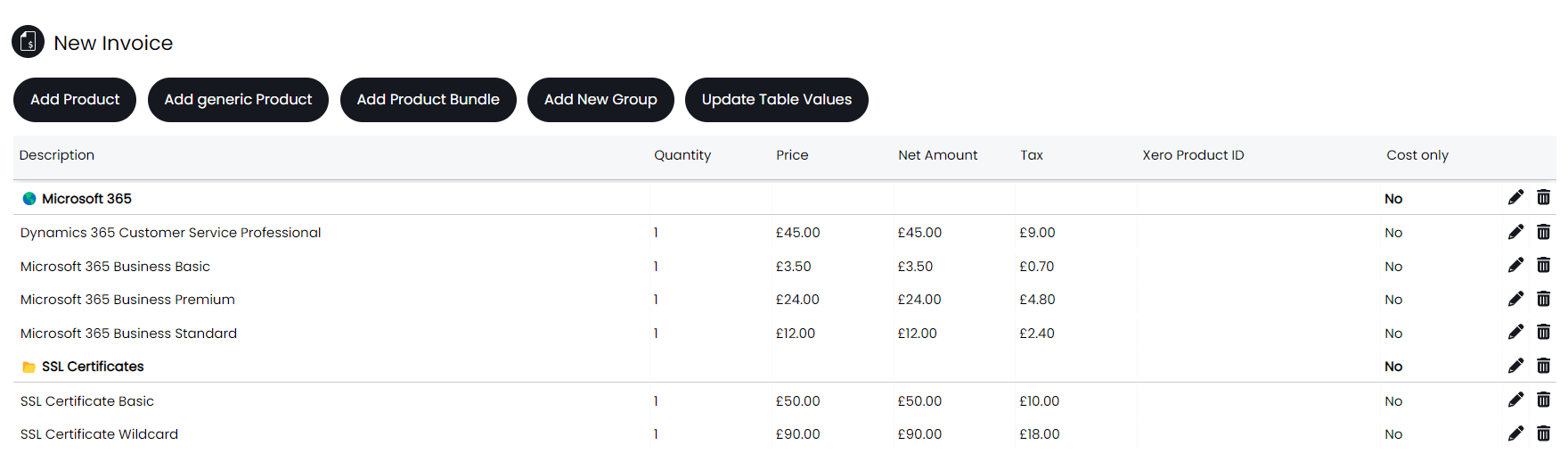
Fig 2. Invoice lines after item grouping enabled
Checking the Group a product is in
Product groups are configured in the products area of Halo, to create or edit groups, right click on the existing list of groups, as shown in the below image:
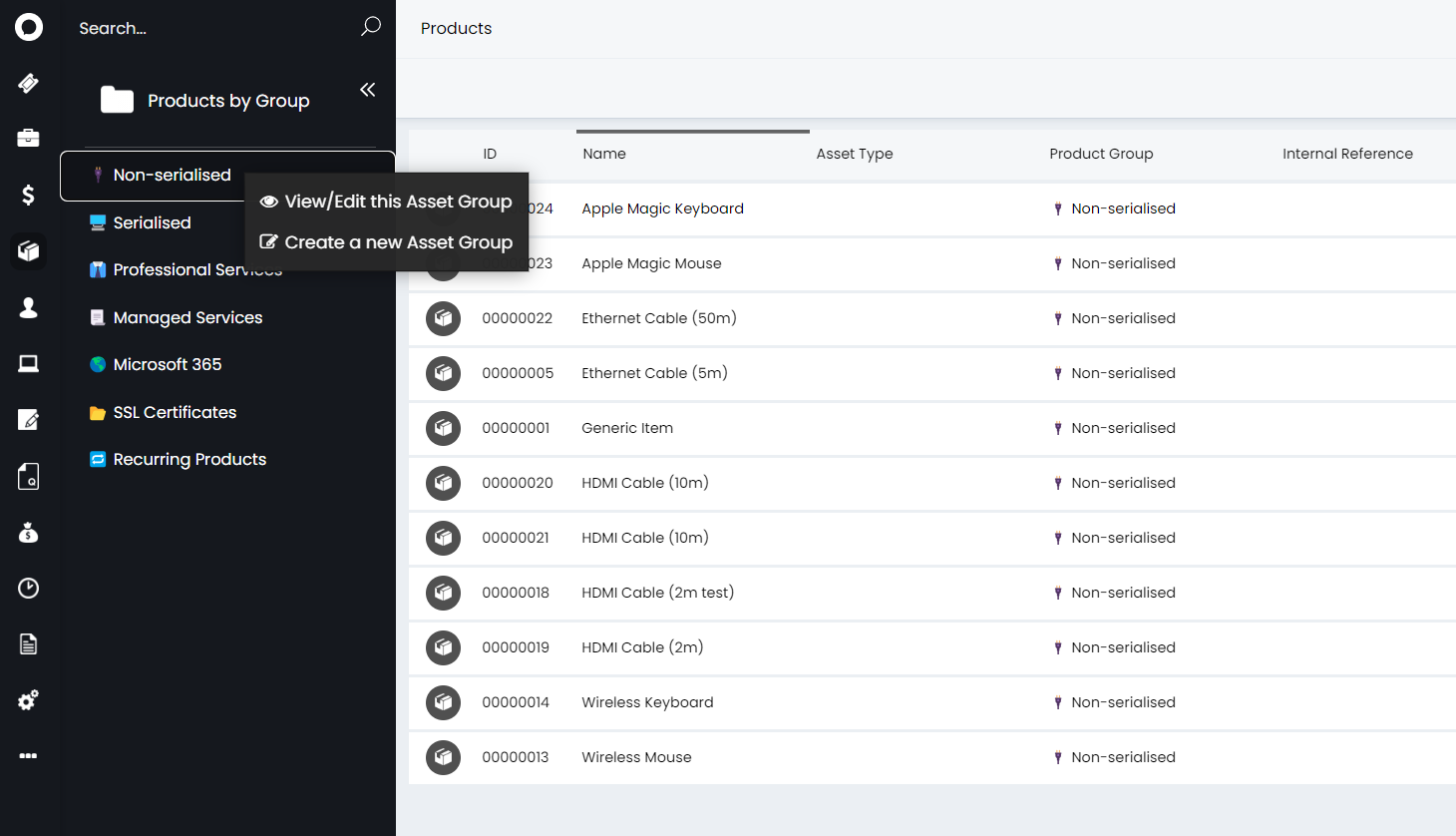
Fig 3. Edit/Create new product group
A group can be set per product by editing the product and changing the group dropdown.
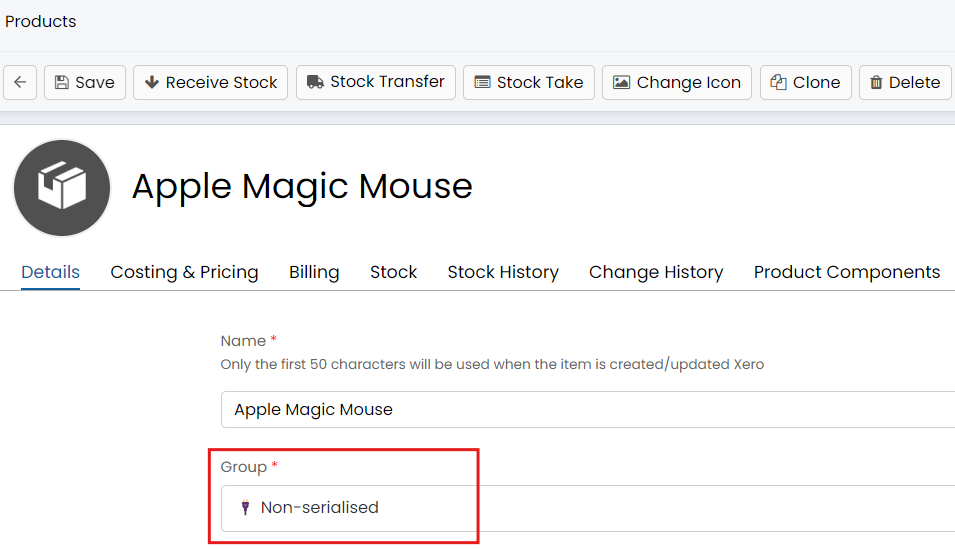
Fig 4. Product group set against product