The Ready For Purchasing Area
In this guide we will cover:
- Creating Purchase Orders from Ready For Purchasing
- Creating Purchase Orders When No Supplier Is Set
- Improvements to Ready For Purchasing (v2.238+)
Sales Order lines requiring a Purchase Order will now appear in a separate area of the Quotes & Orders menu. You will also be able to create a purchase order for multiple lines across different Sales Orders as long as the Ticket ID and Supplier is the same for those Sales Orders.
Creating Purchase Orders from Ready For Purchasing
When you click into the Ready For Purchasing area within the Quotes & Orders menu, you will be presented with the view illustrated in Figure 1 where you will be able to see any Sales Order lines that require a Purchase Order in order to fulfil the Sales Order.
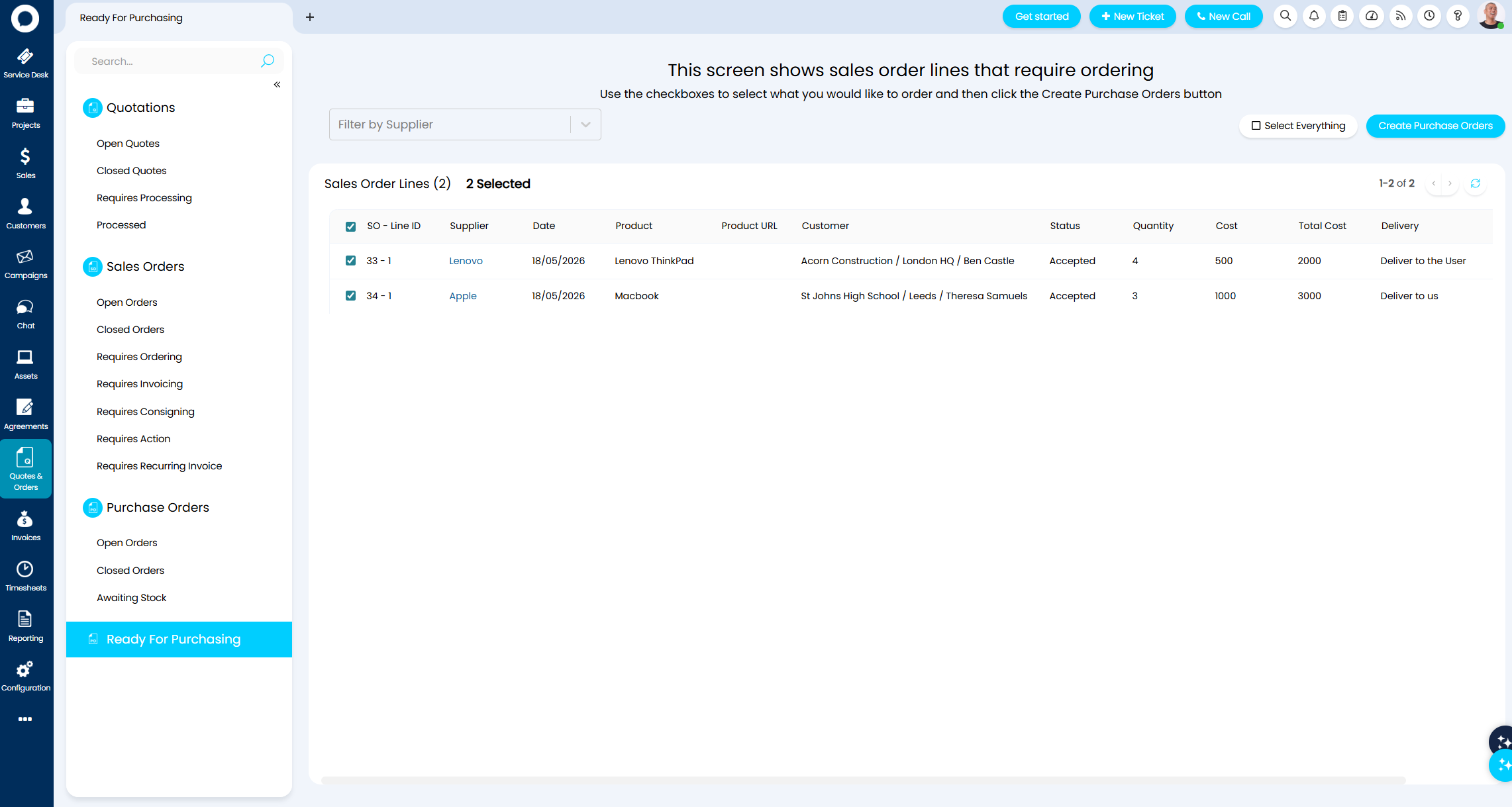
Fig 1. Ticket ID of the Sales Order Lines shown
From this screen you can raise one or multiple Purchase Orders by selecting the Sales Order lines and then selecting "Create Purchase Orders" in the top right. Once this button is selected, a modal screen will pop out where you can choose delivery and whether you would like the Purchase Orders to be grouped by Ticket ID.
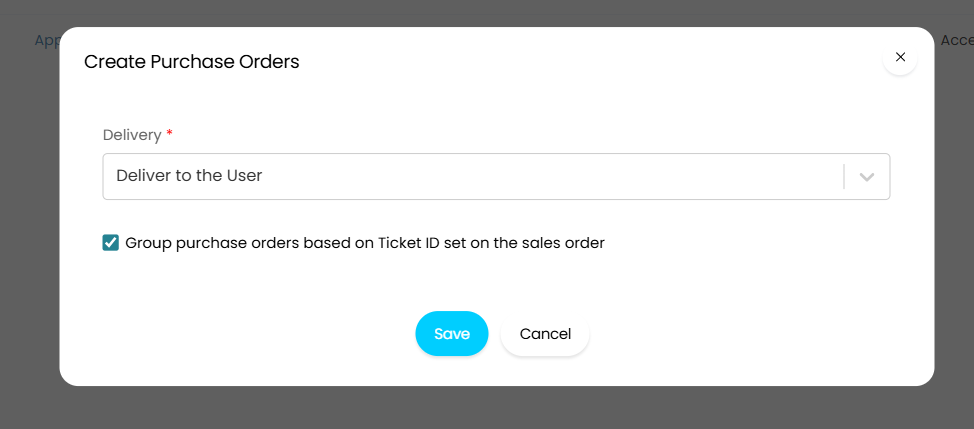
Fig 2. Available options once "Create Purchase Orders" is selected
Note: The setting to group Purchase Orders based on Ticket ID will be defaulted to Yes if the global default is enabled in Configuration > Purchase Orders, but it can be disabled at this point of the process by unchecking the setting.
Once you select the Save button, you will see the Purchase Orders generate one at a time, grouped where relevant by Ticket or Supplier.
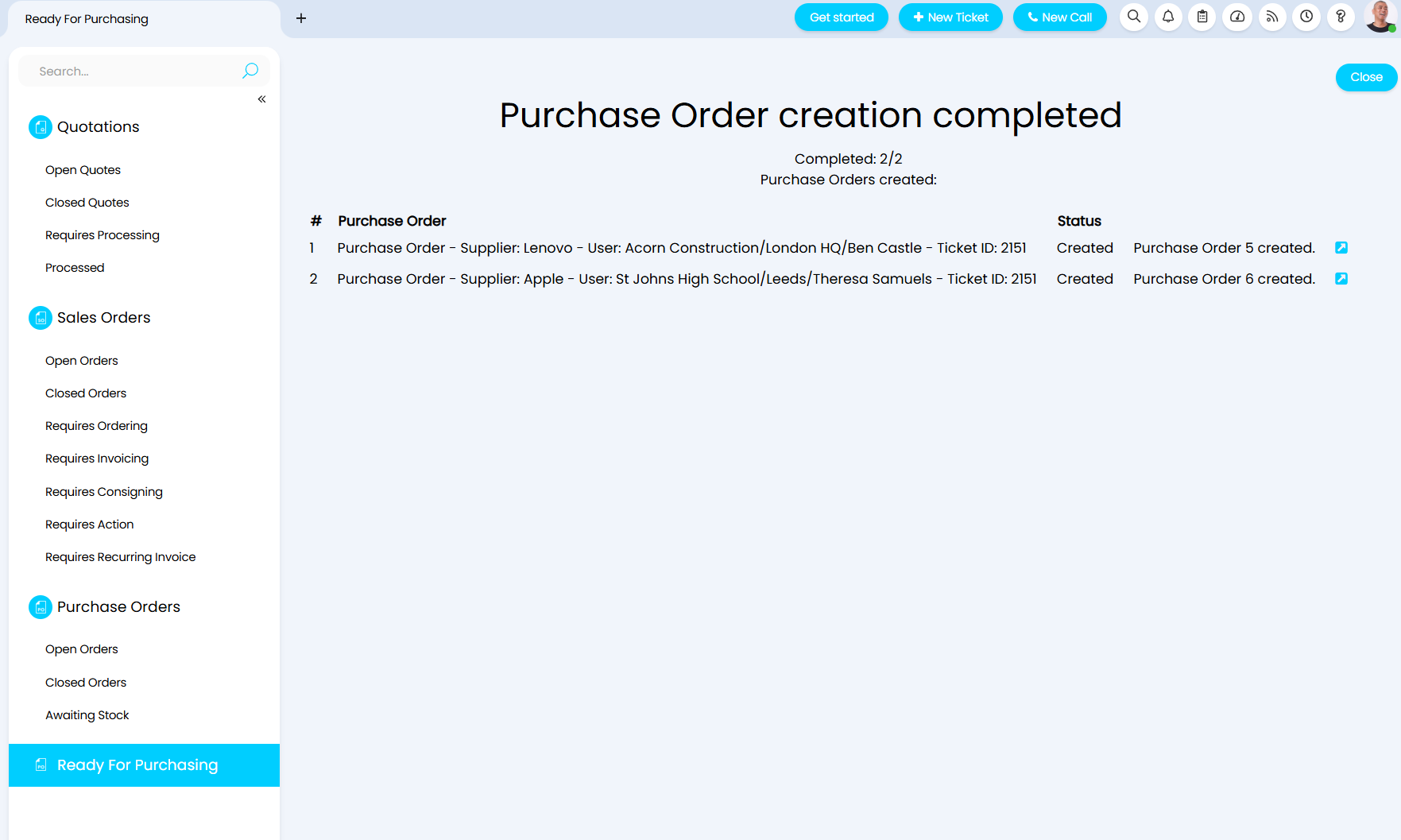
Fig 3. Purchase Order creation from within the Ready For Purchasing area
If creating a Purchase Order from multiple Sales Orders with the same Supplier, you will receive one Purchase Order with links to the different Sales Orders per Sales Order line.
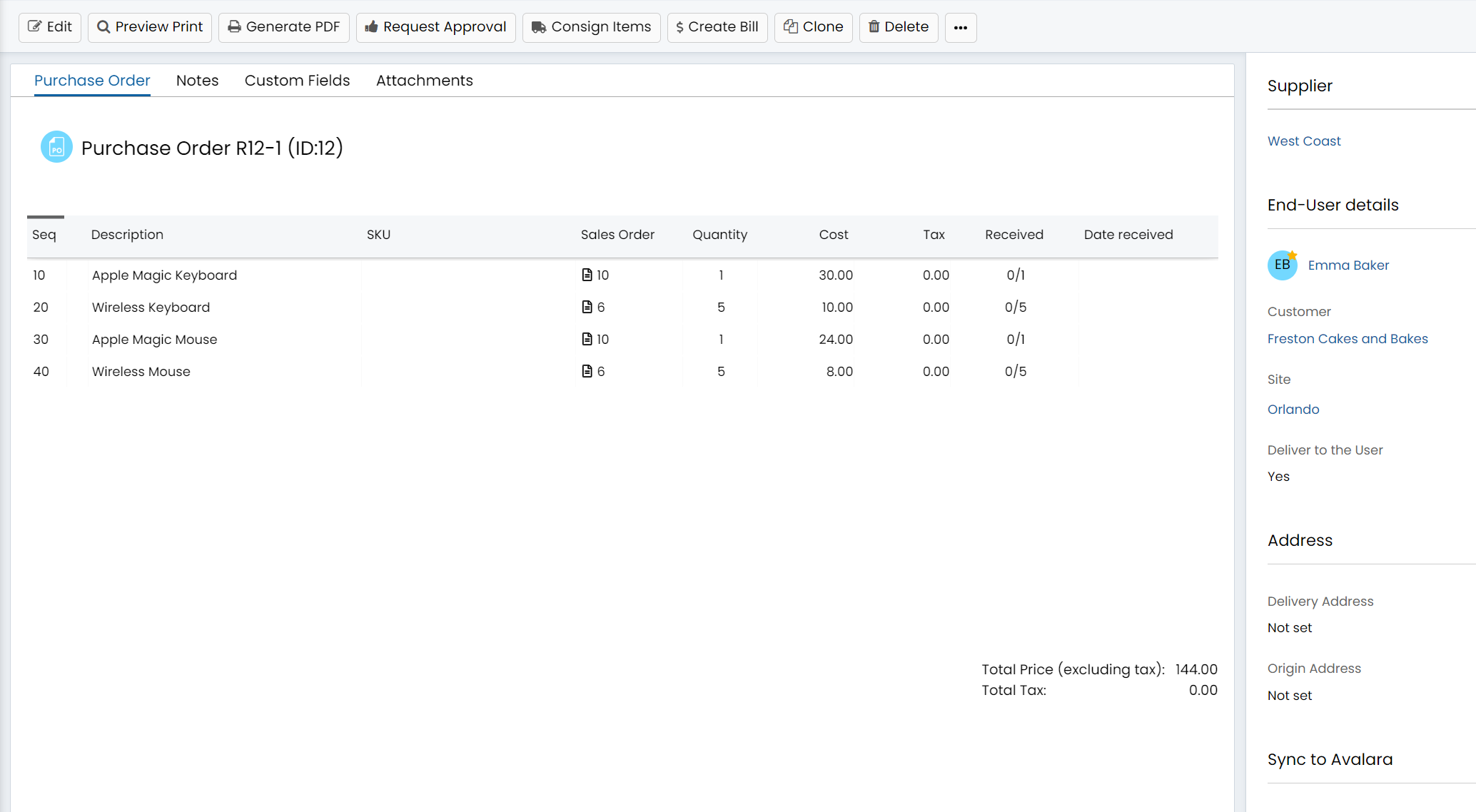
Fig 4. Links to multiple sales orders shown in the Sales Order column of a Purchase Order
Creating Purchase Orders When No Supplier Is Set
In Configuration > Purchase Orders, you can choose for Sales Order lines that do not have a Supplier set to still show in the Ready For Purchasing area.
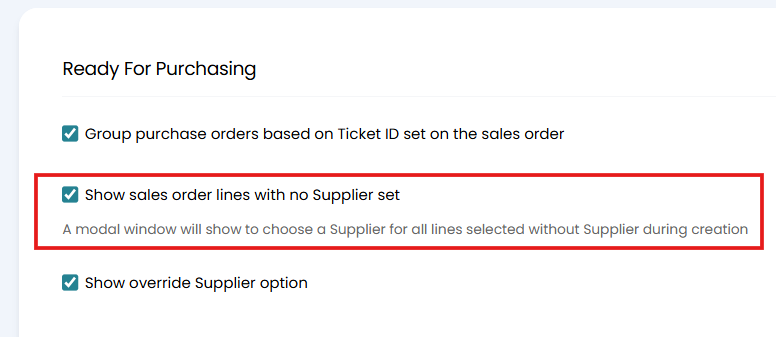
Fig 5. The setting in Configuration to show Sales Order lines with no Supplier set
With this setting enabled, Sales Order lines will be separated out into sections within the Ready For Purchasing area according to whether they have a Supplier set or not.
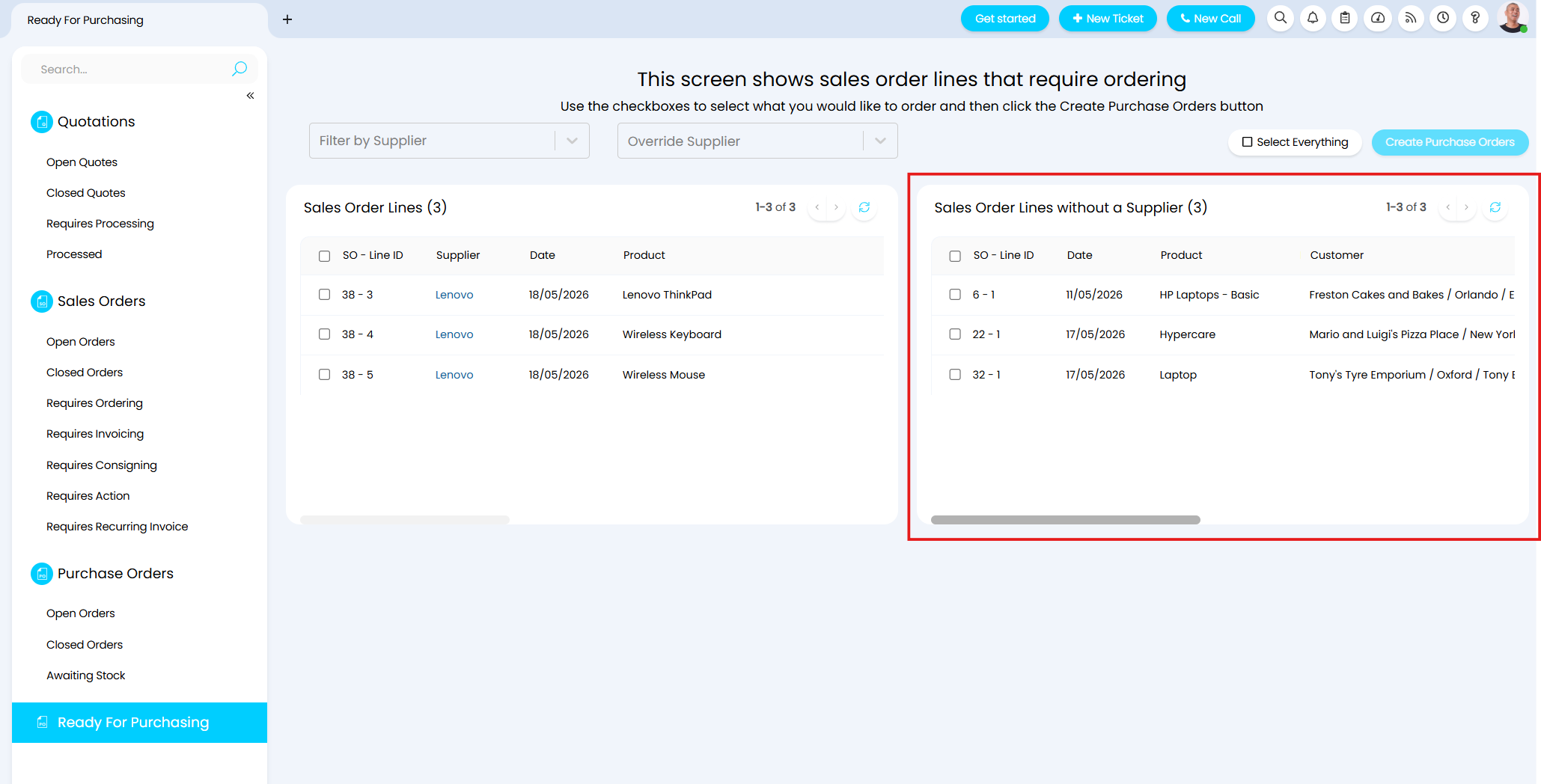
Fig 6. Separation of Sales Order lines without a Supplier
Once I select the lines I would like to order and select "Create Purchase Orders", in addition the delivery and grouping options shown in Figure 2, I am then also provided with the option to choose the Supplier for any lines that have not yet been given a Supplier.
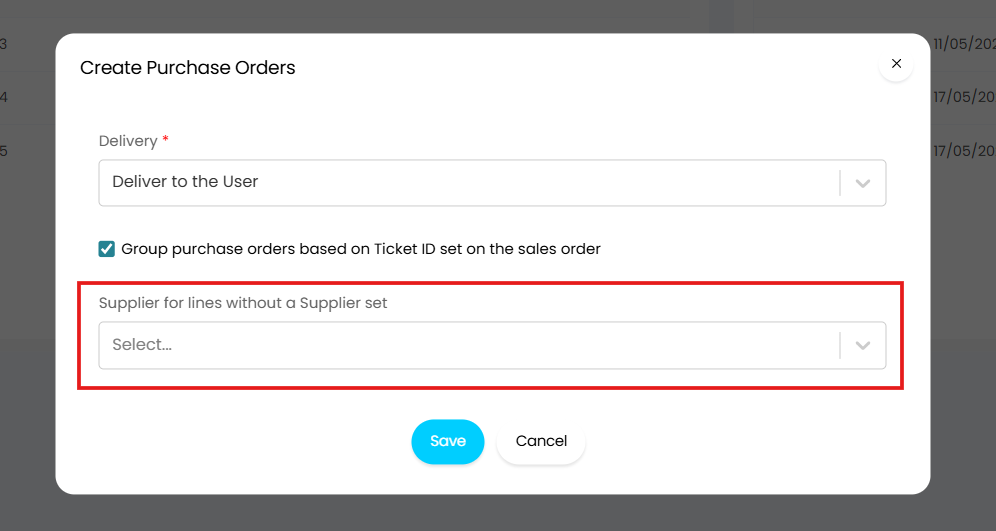
Fig 7. Creating Purchase Orders for lines without a Supplier
Improvements to Ready For Purchasing (v2.238+)
As of version 2.238, some improvements have been made to the Ready For Purchasing area.
The area has now been split out into individual lists according to whether lines have a Supplier set or not (Figure 8), improving visibility and organisation of the Sales Orders in this area.
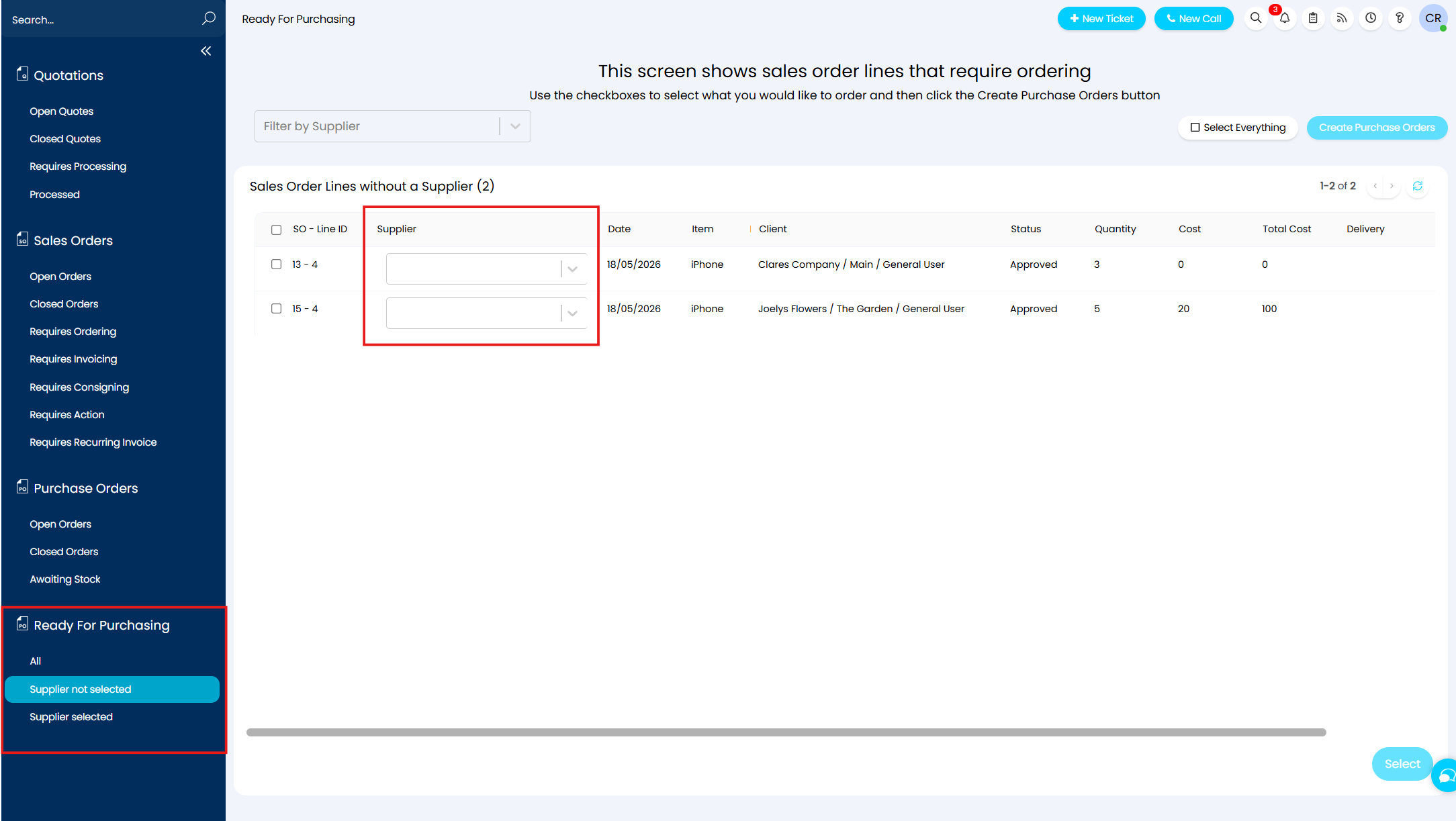
Fig 8. New lists within the Ready For Purchasing area
You will also notice when looking at Figure 8, that you can now edit the Supplier for the Sales Order lines from the Ready For Purchasing area using a drop-down selection, without having to click into that Sales Order and the Sales Order line.
When you select the drop-down to choose a Supplier for a Sales Order line, any overriding costs will display with the relevant Supplier, this is illustrated in Figure 9.
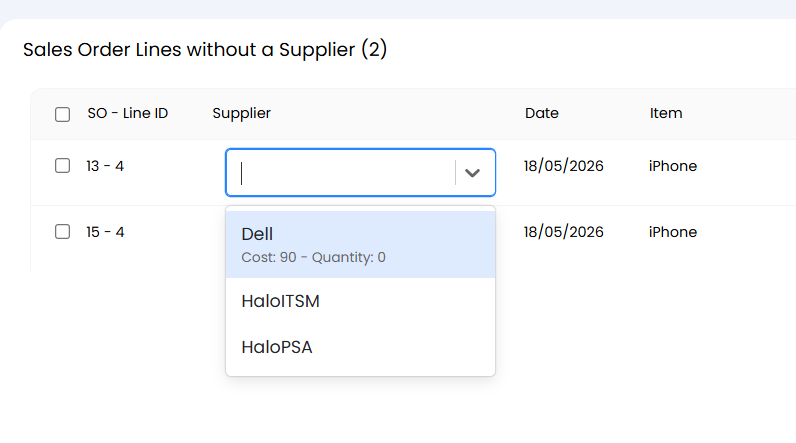
Fig 9. Overriding costs are now visible when choosing a Supplier for a SO line from Ready For Purchasing
When the Supplier is assigned, the Sales Order line will immediately move to the "Supplier Selected" section of Ready For Purchasing and the overriding cost will have been applied accordingly.

Fig 10. The Sales Order line now with the assigned Supplier and the overriding cost of that Supplier