Concurrent Licensing and Agent App Session Improvements
- Licence
- idle timeout
- request logout
- concurrent
In this guide we will cover:
- Force logout button
- Agent idle timeout Option
- Improved Licence usage information
- Concurrent licence usage limits per Team and Department
- Concurrent agent online count logging
Force logout button
An option has been added to the agent profile screen that allows administrators to kick another agent out of the agent app. This can take up to a minute to execute.
The agent will receive a message that their session has been terminated by the administrator and then their session will be logged out. These events are recorded in the Audit table (viewed using reporting suite).
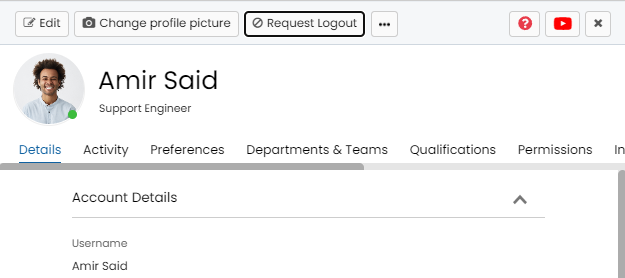
Fig 1. Request logout button against agent profile
Agent idle timeout Option
A new setting has been added to Advanced Settings - "Agent idle timeout (minutes)".
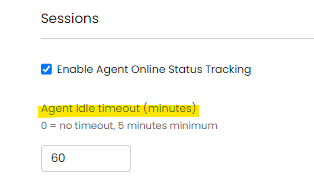
Fig 2. Agent idle timeout setting
If this is set, if an agent has no mouse movement or keyboard input across all of all sessions they have on the agent app, a logout request will be sent and they'll be logged out of the app, freeing up a licence. This setting also gives you the flexibility to apply idle timeouts to agents on both concurrent and/or named licences.
Idle Timeout Warning
You can set a warning message to show to agents after they are idle for a set amount of minutes, to warn them they may be logged out soon.
This is set under Configuration > Advanced settings > "Agent idle time warning (minutes)".
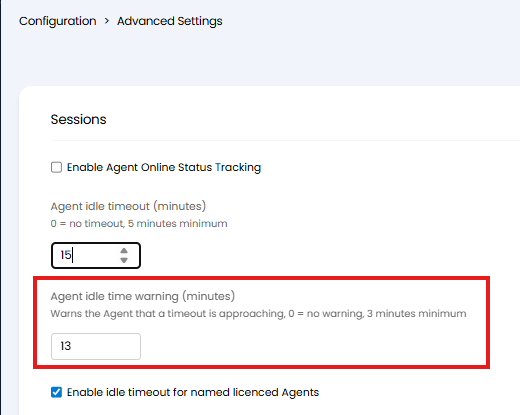
Fig 3. Agent idle time warning (minutes)
Once this is set agents will receive a warning pop up when they are idle for the set number of minutes. The minimum number of minutes agents can receive a warning in is 3.
Improved Licence usage information
More information will now be shown about licence usage in the Agent list in Configuration.

Fig 4. Licence information in agent list
Concurrent licence usage limits per Team and Department
Teams and Departments can now be given a maximum number concurrent licences that they can use at once. This allows you to distribute your concurrent licences to different teams and departments.
This can be set on the Team configuration screen and Department configuration screen - "Concurrent Licences" field.
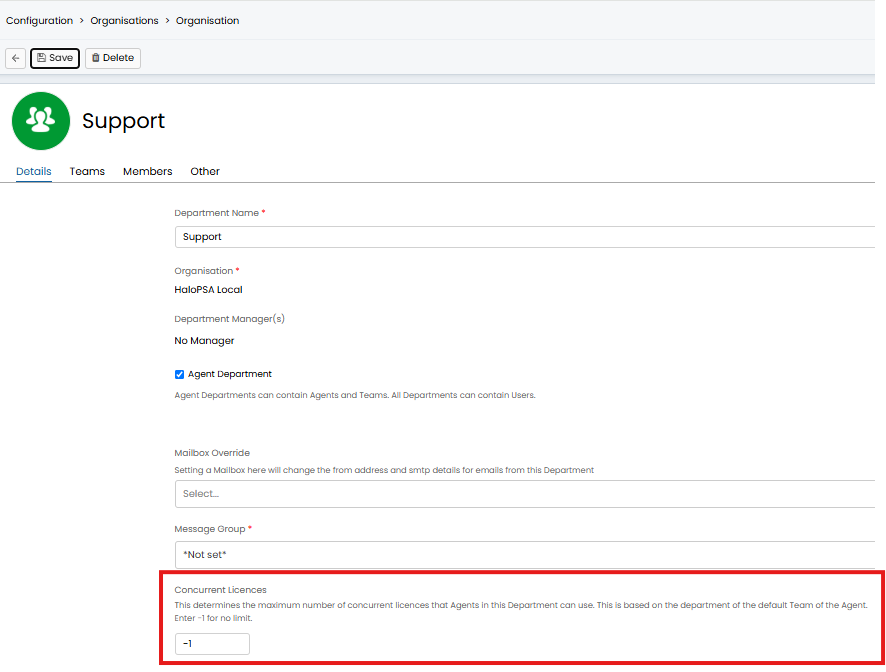
Fig 5. Concurrent Licences field against department
If set against a team, this is based on the Agents default team. e.g. if a "Support" team had 10 concurrent licences, only 10 agents with their default team as Support will be able to log in at once.
Login attempts for concurrent agents that are rejected due to exceeding concurrent licence counts are also now logged to the PortalLog table (reporting suite), along with which concurrent licence check failed (global, team or department).
Concurrent agent online count logging
The setting "Record concurrent licence usage data" in Advanced Settings will add a row to the OnlineStatusSnapshot table (reporting suite) once per hour.
This will show how many Agents were online at a specific point in time, and how many concurrent licence agents were online.

Fig 6. Record concurrent licence usage data setting