Runbook: Append a Recurring Invoice from Sales Order lines
DISCLAIMER: This is just an example of using runbooks, configuring an automation to work in this way is very difficult due to the different set up you may have on your sales orders and invoices. The idea of this guide is to give a good example of the different configuration options within runbooks.
After creating an API connection for your Halo instance (check the iterative runbook guide for detailed instructions on doing this). You can begin setting up the methods for the runbook.
Navigate to the runbooks area by going into Configuration>Integrations>Custom Integrations>Integration Runbooks:
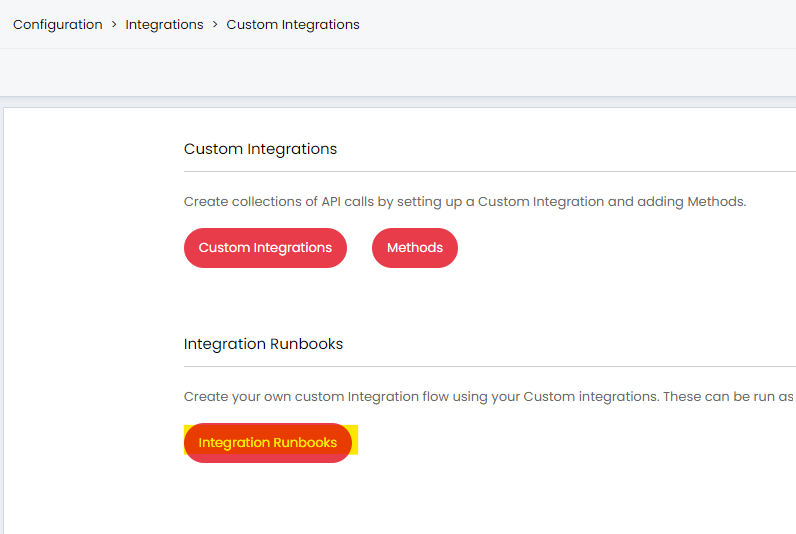
Fig 1. Runbooks Button
Runbook Step 1
Create a new runbook and configure the first step in the following way:
Runbook Step 2
We are going to create another integration method with the following details:
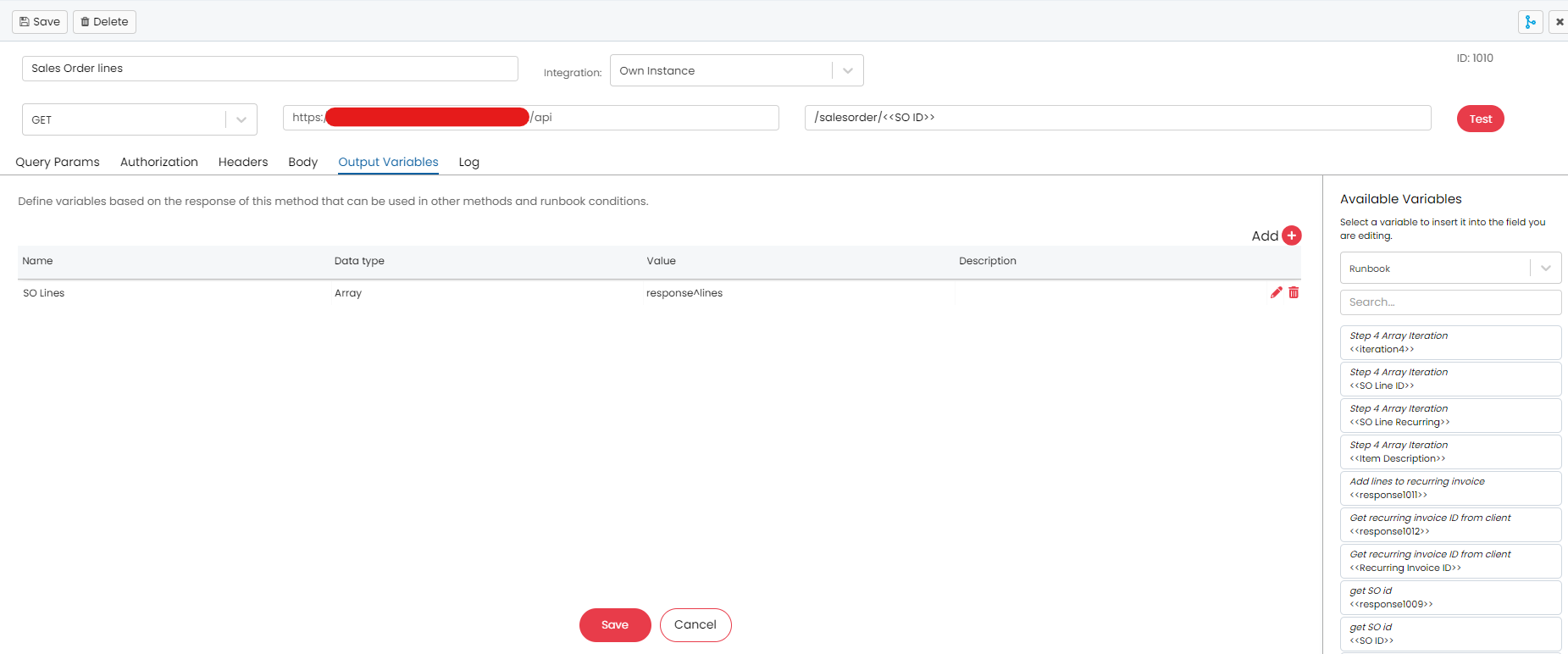 Fig 2. The Second Runbook Method
We then have to get the recurring invoice ID for the specific client we are appending the recurring invoice lines to:

Fig 3. Creating the GET Method for the Recurring Invoice ID
The endpoint appended to the base URL is:
/RecurringInvoice?pageinate=true&page_size=15&page_no=1&includeinactive=undefined&client_id=<<Customer ID>>&includeinvoices=true&includecredits=true&includepoinvoices=false&order=nextcreationdate
This was found from the URL of the recurring invoice for a client, instead of putting the actual ID for that client, the output variable from our first method is introduced to the endpoint:

Fig 4. Output Variables from the first Runbook Method
The URL has <<Customer ID>>, this is how we can generalise the endpoint of the method, so that it will work with any customer ID. The Next method is used to iterate through the Lines of the Sales Order, so we can check to see which lines are recurring:
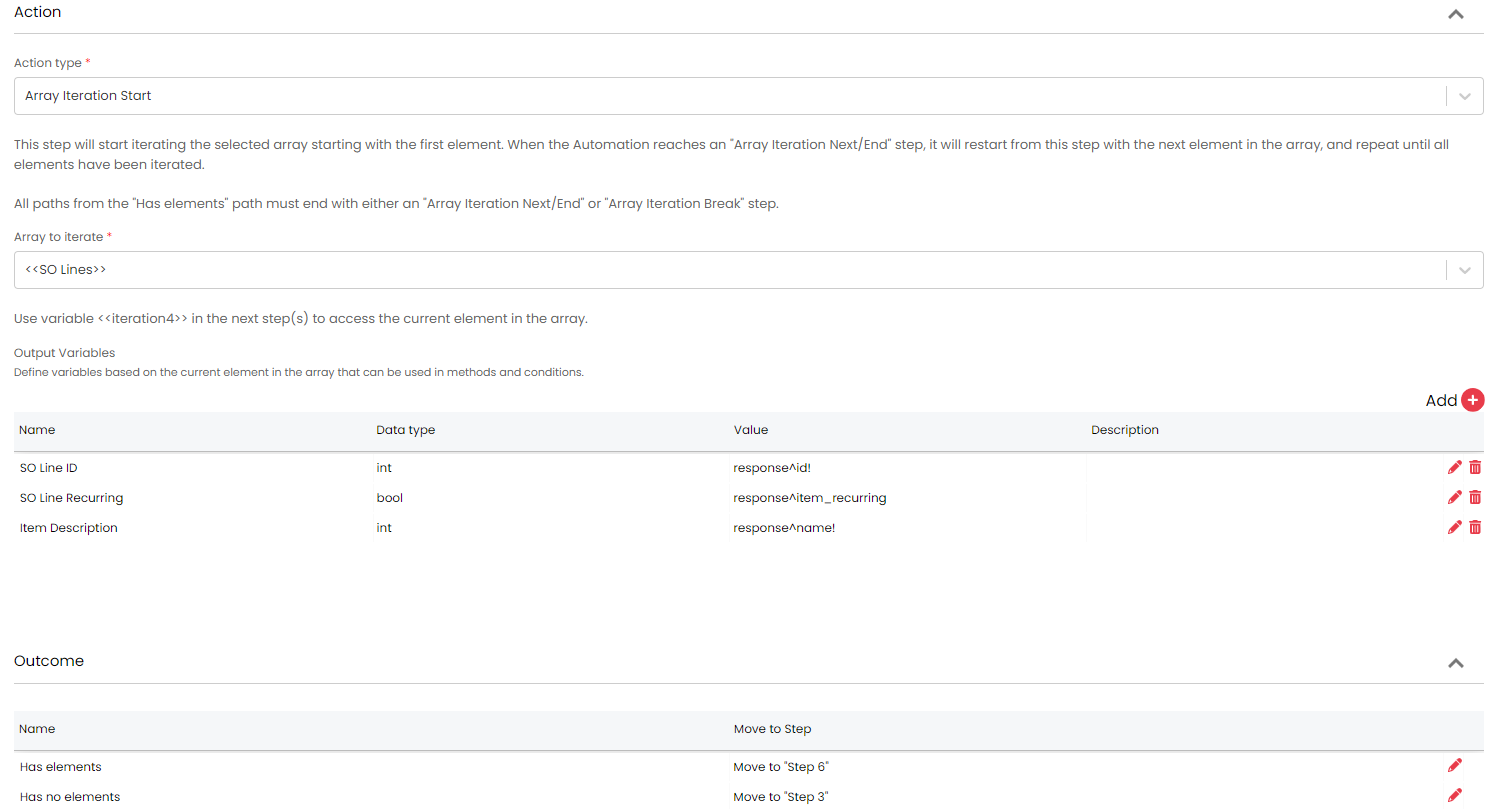
Fig 5. Array Iteration of the Sales Order Lines
We can now do a condition to check if the line is recurring or not:
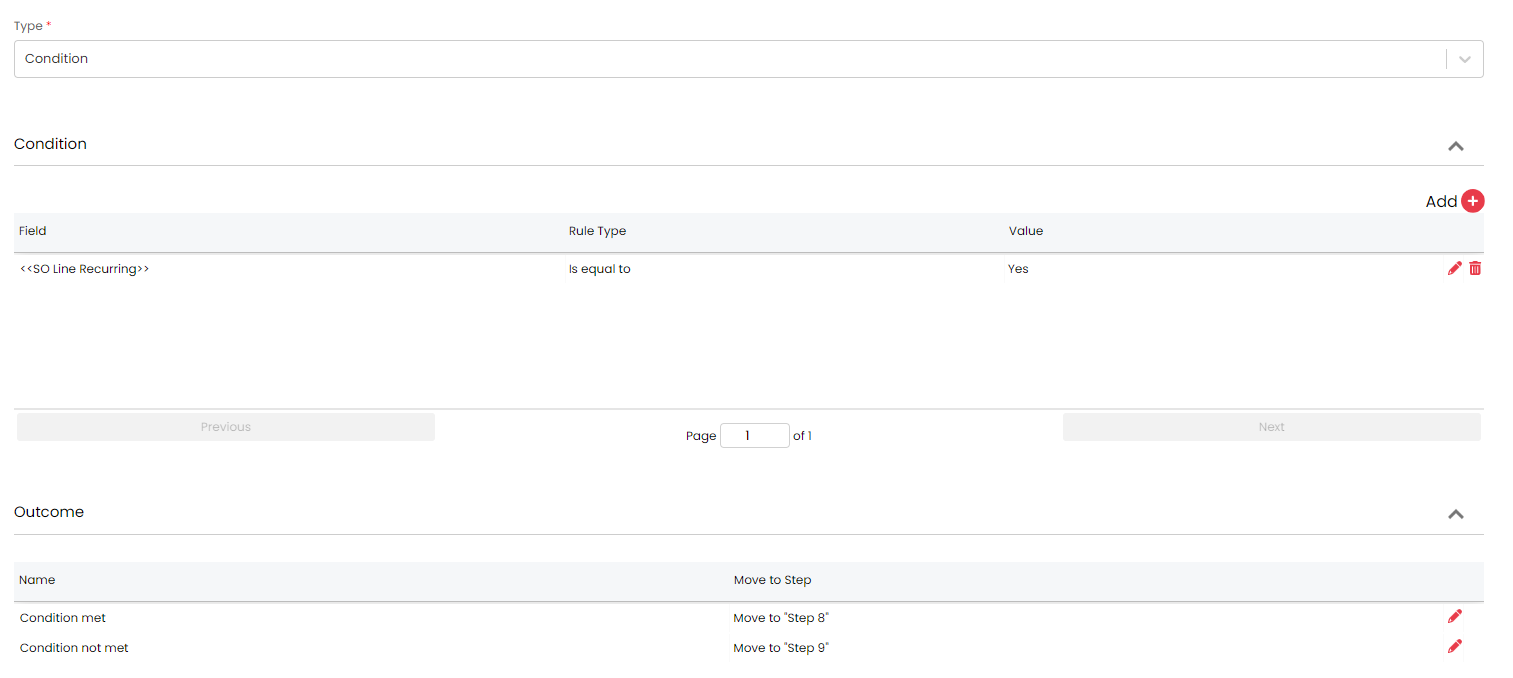 Fig 6. Condition to Check if the Line is Recurring
Now we will POST the Recurring Invoice lines (using the import recurring invoice lines option of Halo) to the Recurring Invoice lines endpoint, this is the second last method:
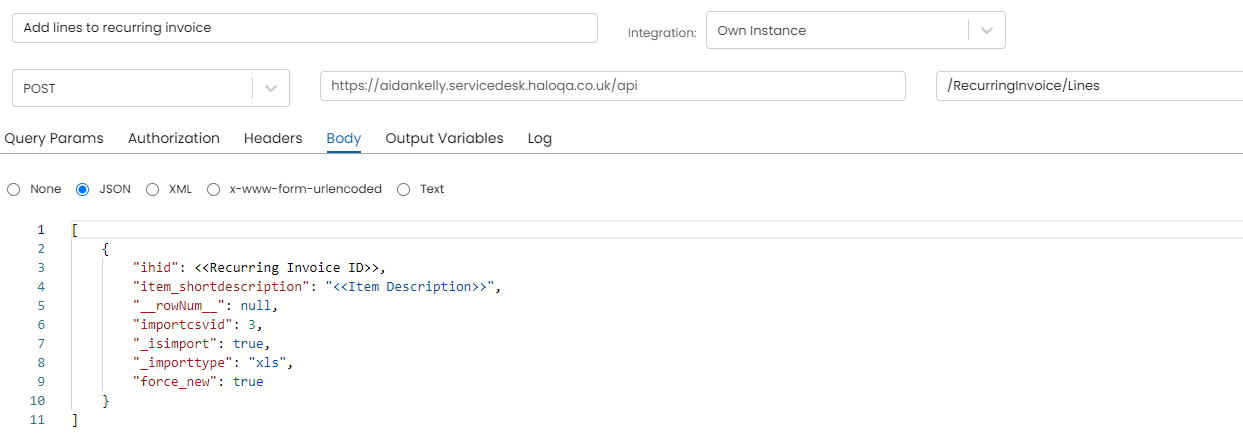
Fig 7. The JSON POST to the Recurring Invoice
As there may be multiple lines to add to the Recurring Invoice, we must do an iteration method:
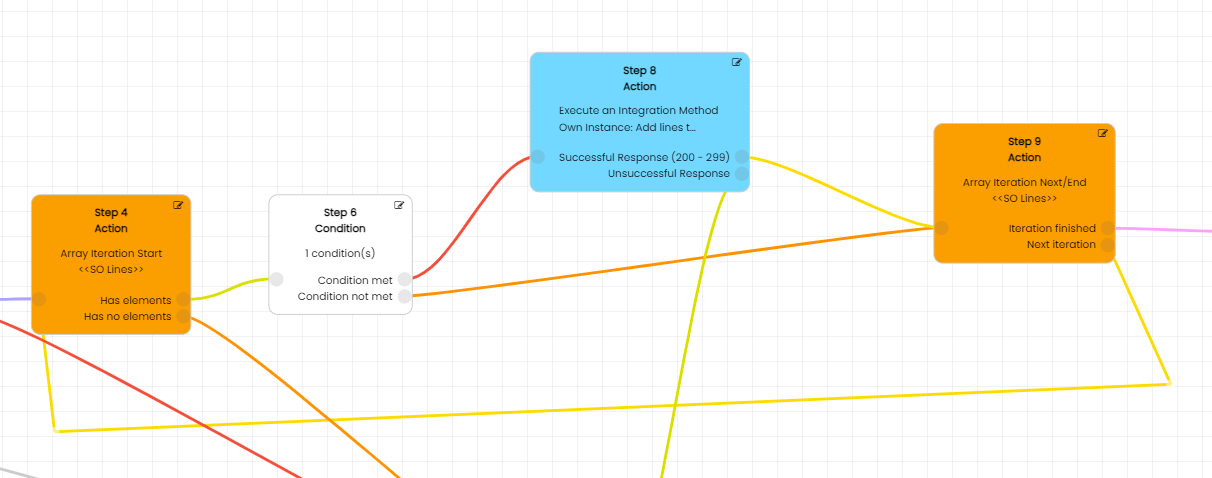
Fig 8. The Iteration Being Carried Out
This (Fig 9) is the final functional step of the runbook, after this we set the end step:
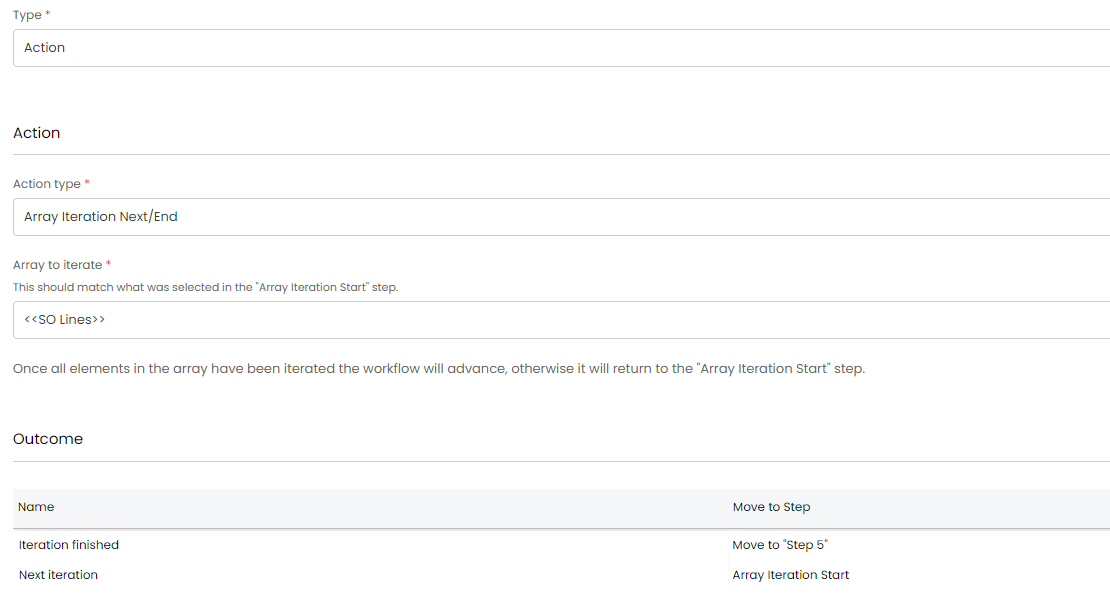
Fig 9. Iteration for Adding Recurring Lines
For best practice, you can have one end step(failed, retry from the start) that connects to all other steps, instead of having an end step per method.
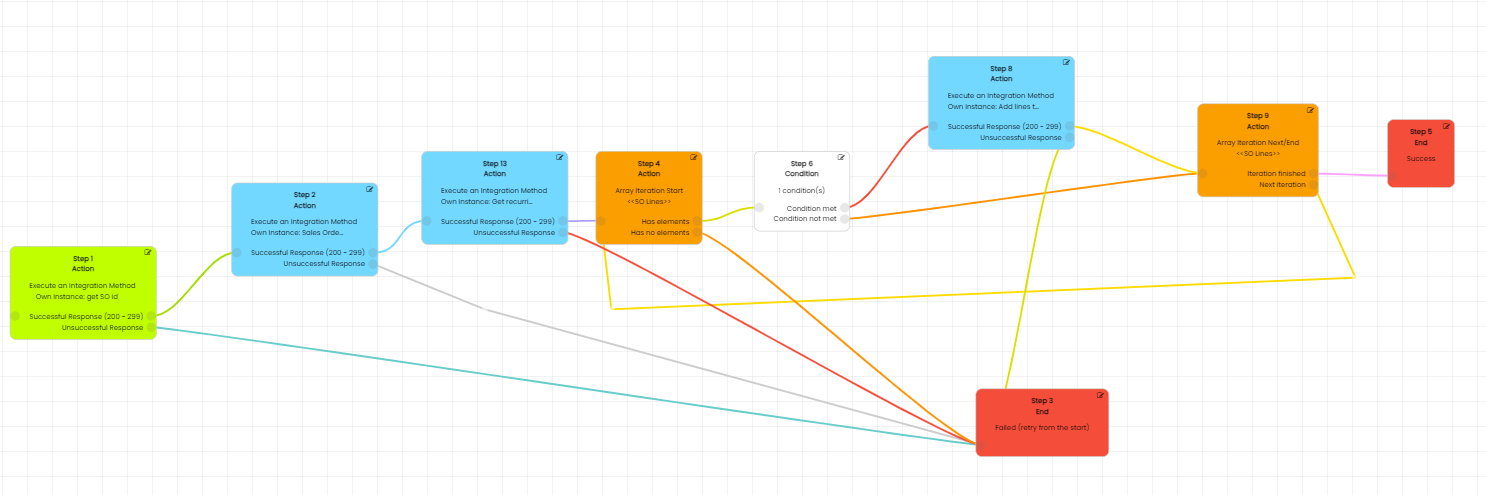 Fig 10. The Entire Runbook
Step 3 is configured in the following way:
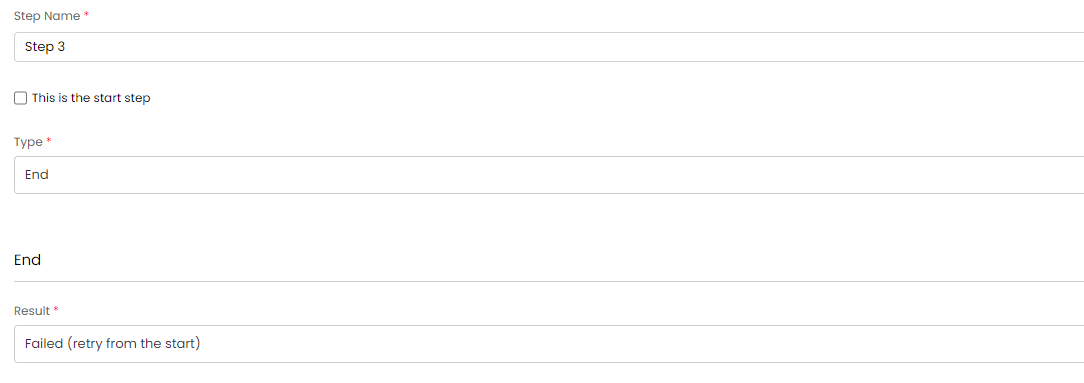 Fig 11. The Fail and Retry Step