Configuring Custom Appearances in Reports (using HTML)
- Reports
- html
- reporting
- Report
- custom appearance
In this guide we will cover:
- Using HTML to Customise Report Appearance
- Example Report/Basic HTML Blocks
- Advanced Edits
Using HTML to Customise Report Appearance
In the reporting suite, click into the desired report and the "Appearances" tab. Check the checkbox, "Customize Table HTML" to get started.
From here you will notice four boxes/blocks where HTML can be pasted into to apply custom appearances.
Report Table HTML
To configure the appearance of the table's column headers.
- Plain text should be used to name columns.
- Use $REPORTROWS to print the next HTML block (the report table rows).
Report Table Row HTML
To configure the appearance of the table's column's values.
- You are able to use variables to print the column values on each row. Spaces in the column name should replaced with underscores ("_") in these variables.
- e.g. A column with the name "Ticket ID" should be replaced with the text, "$Ticket_ID" to be used as a variable to generate the cell's value in this HTML block.
Report Table Group HTML
To configure the appearance of the grouping value(s) for the report. This HTML will only take effect if there are columns in the report which are set to be grouped by.
- Use $GROUPHEADER to print the grouped value.
- Use $GROUPCOUNT to print the count of entries in each group.
- If there are multiple groupings in your report, you can number the variables used like...
- $GROUP1HEADER, $GROUP2HEADER, etc.
- $GROUP1COUNT, $GROUP2COUNT, etc.
Report Table Total Row HTML
To configure the appearance of the totalling value(s) for the report. This HTML will only take effect if there are columns in the report which are set to be totaled.
- The variable for this HTML block works exactly the same as the Report Table Row HTML block.
- e.g. A column with the name "Hours Logged" should be replaced with the text, "$Hours_Logged" to be used as a variable to generate the cell's totalling value in this HTML block.
Example Report/Basic HTML Blocks
Let's take a basic report like shown below and go through all of the HTML blocks.
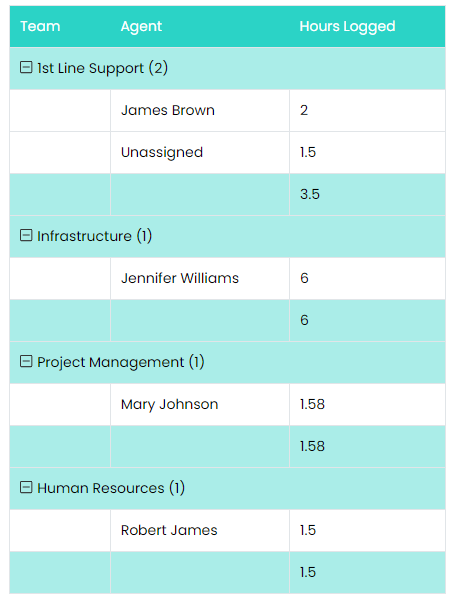
Fig 1. Report showing Hours Logged by Agents within Teams
Report Table HTML
<table>
<tr>
<td style="background-color: #2BD3C6; color: white;">Team</td>
<td style="background-color: #2BD3C6; color: white;">Agent</td>
<td style="background-color: #2BD3C6; color: white;">Hours Logged</td>
</tr>
$reportRows
</table>
Only adds column headers until the "Report Table Role HTML" is filled out.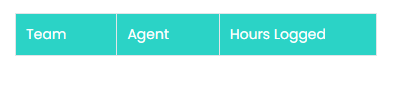
Fig 2. Report from Fig 1 after the above HTML.
Report Table Row HTML
<table>
<tr>
<td></td>
<td>$Agent</td>
<td>$Hours_Logged</td>
</tr>
</table>
Notice the blank row to give space for the grouping added later.
Adds column values.
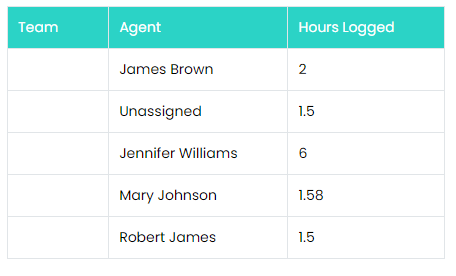
Fig 3. Report from Fig 1 after the above HTML.
Report Table Group HTML
<table>
<tr>
<td style="background-color: #AAEDE8; color: black;" colspan="100%">$GROUPHEADER ($GROUPCOUNT)</td>
</tr>
</table>
Adds the grouping labels. 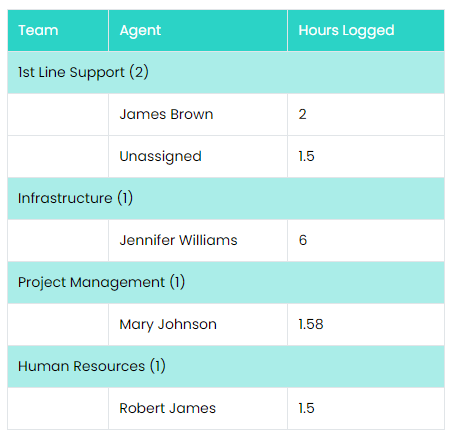
Fig 4. Report from Fig 1 after the above HTML
Report Table Total Row HTML
<table>
<tr>
<td style="background-color: #AAEDE8; color: black;"></td>
<td style="background-color: #AAEDE8; color: black;"></td>
<td style="background-color: #AAEDE8; color: black;">$Hours_Logged</td>
</tr>
</table>
Notice the two blank columns used in order to position the total under the correct column.
Adds the totals underneath each grouping.
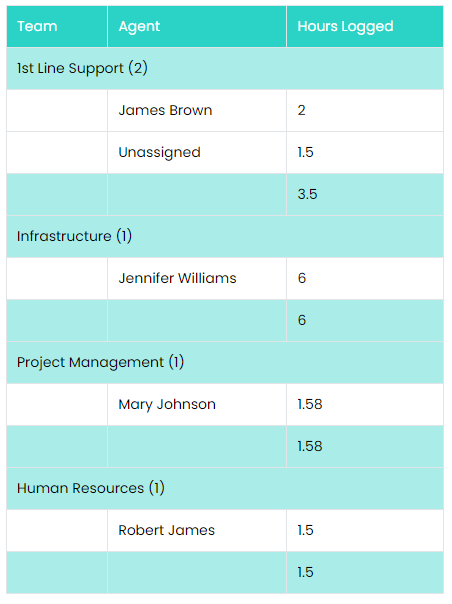
Fig 5. Report from Fig 1 after the above HTML.
Advanced Edits
Hyperlinking
The example shown above was quite basic in showing each of the HTML blocks. Let's go through an example of adding a link to the report as this is quite commonly requested for in custom reports. Let's say we want a link to the agent profile page of the agent shown in the report embedded into their name located in the Agent column.
Firstly, we need to be able to build the link to be dynamic to the agent we're clicking on. I know that the agent pages in configuration correlate with the ID of the agent we're viewing. Given this information, we must expose that information in the report as a column to then be used in the HTML to build the link.
Initial SQL query
SELECT
sectio_ AS [Team],
uname AS [Agent],
ROUND(SUM(timetaken), 2) AS [Hours Logged]
FROM faults
JOIN actions ON actions.faultid = faults.faultid
JOIN uname ON unum = assignedtoint
WHERE
timetaken > 0
GROUP BY
sectio_,
uname,
Adjusted SQL query
SELECT
sectio_ AS [Team],
uname AS [Agent],
ROUND(SUM(timetaken), 2) AS [Hours Logged],
unum AS [ID]
FROM faults
JOIN actions ON actions.faultid = faults.faultid
JOIN uname ON unum = assignedtoint
WHERE
timetaken > 0
GROUP BY
sectio_,
uname,
unum
Note that I don't have to actually show the column in the resulting report to be able to use the value in the HTML. However, please be sure to add the new field to the the list of fields exposed from the SQL query in the resulting report to the "Fields" tab. This allows the HTML variable for my new column ($ID) to be used.
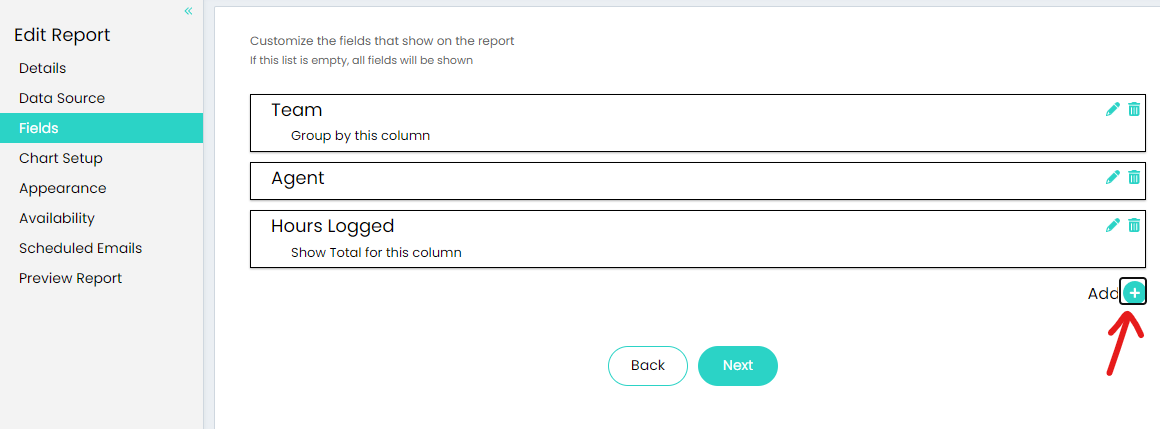
Fig 6. Adding the new field into the report Fields area
Now, all I have to do is use that new variable to code some new HTML for the agent name values.
<table>
<tr>
<td></td>
<td><a href="https://sfitsm0301.haloitsm.com/config/agents/agents?agentid=$ID" target="_blank">$Agent</a></td>
<td>$Hours_Logged</td>
</tr>
</table>
Notice how two variables are used here. $ID is used in the link embedded and $Agent in the label.
Adds links to the agent column values.
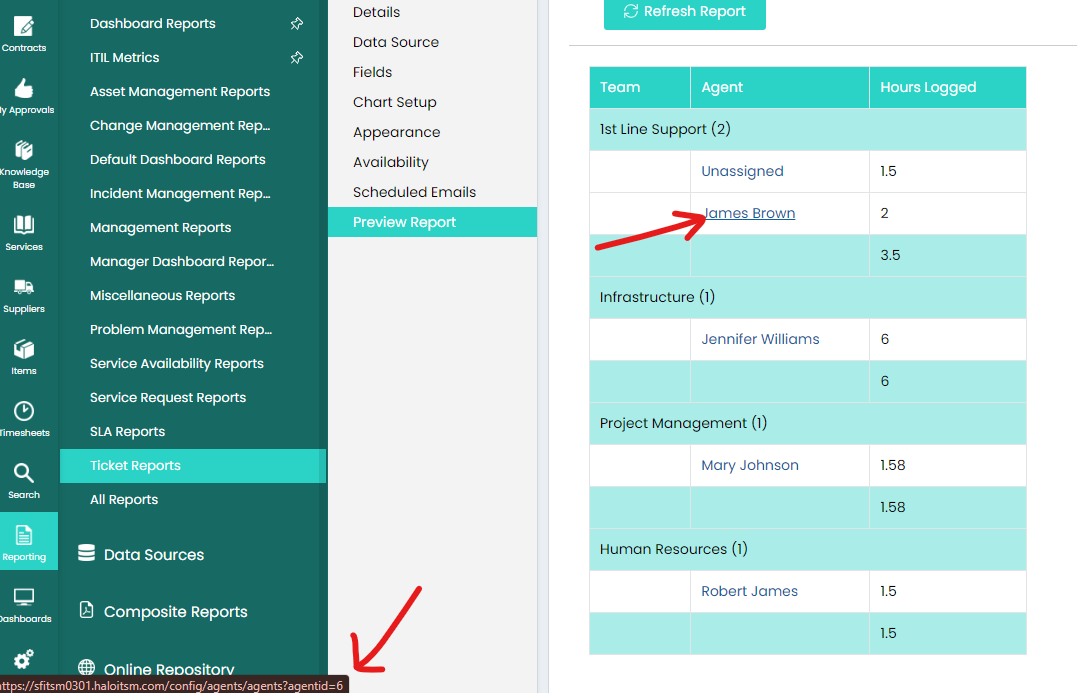
Fig 7. Links added to the report
Text Align
Another option is to centre text within the cells. For instance, using a report that shows ticket ID and date created, these variables can then be inserted into the below HTML. Use this in the "Report Table Row HTML" box.
<tr style="text-align: center;">
<td>$TICKET_ID</td>
<td>$DATE_CREATED</td>
</tr>
The report would then appear like this.
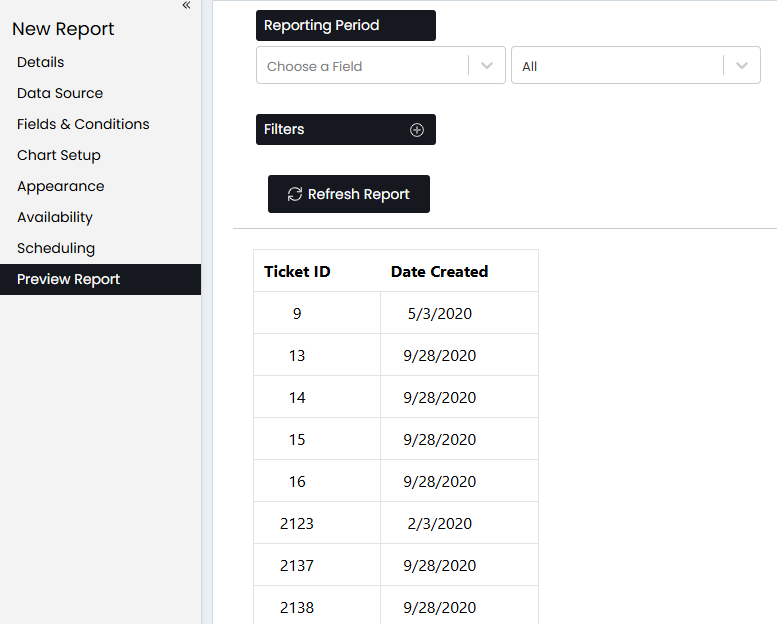
Fig 8. Centring text in report cells.
Changing Text Color
The following HTML can be inserted within a header tag to change the styling and color.
style="color: #00a1df; vertical-align: middle"
For instance, like this:
<h5 style="color: #00a1df; vertical-align: middle">$SYMPTOM</h5>