Linking Assets to Knowledge Base Articles
In this guide we will cover:
- Ways to link an article to an asset
- Create/link a knowledge base article from a ticket
Ways to link an Asset to an Article
The first way to link an asset to an article is from the article. Edit an article and scroll to the bottom, the following table will appear where you can add in the assets that link to that article.
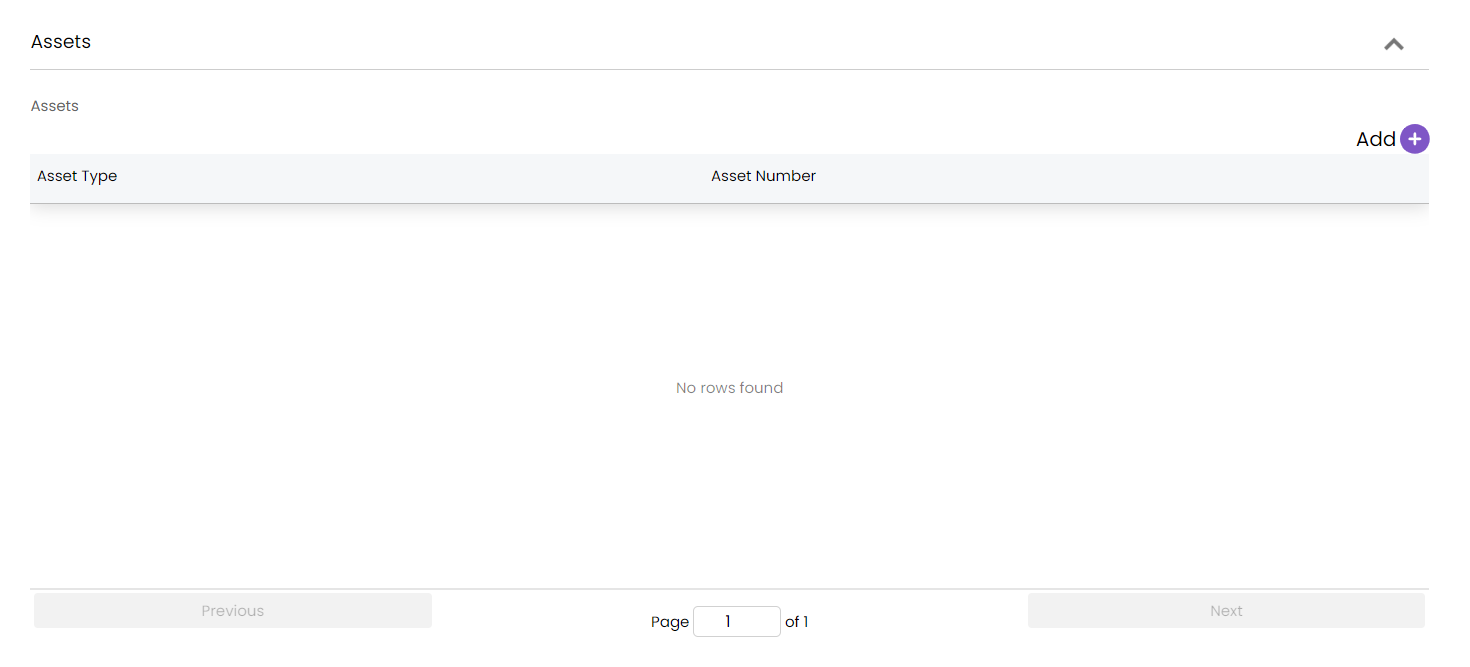
Fig 1. Linking An Asset To An Article From The Knowledge Base
Another way to link assets to articles is via the asset itself. Click into the relationships tab of the asset and then add the knowledge base article to the following table.
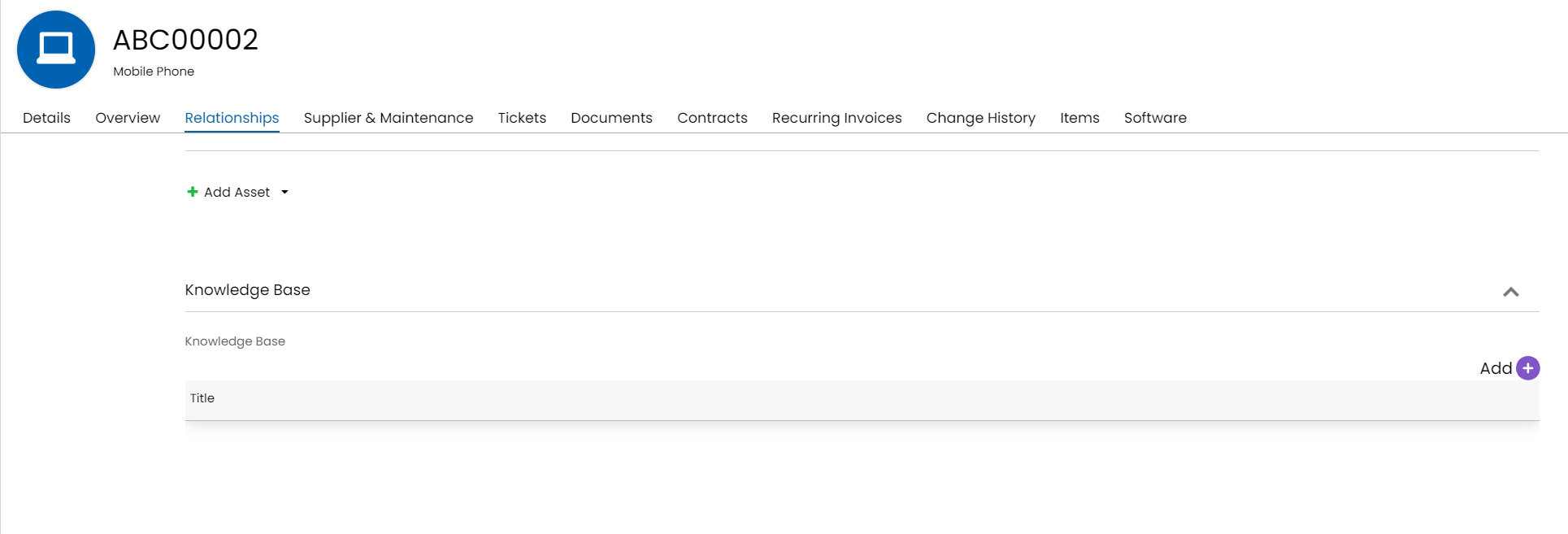
Fig 2. Linking An Asset To An Article From the Asset Page
Create/link a knowledge base article from a ticket
An action can be used to create a knowledge base article from a ticket, or link a knowledge base article to a ticket, the following system uses will need to be set on the action to achieve this.
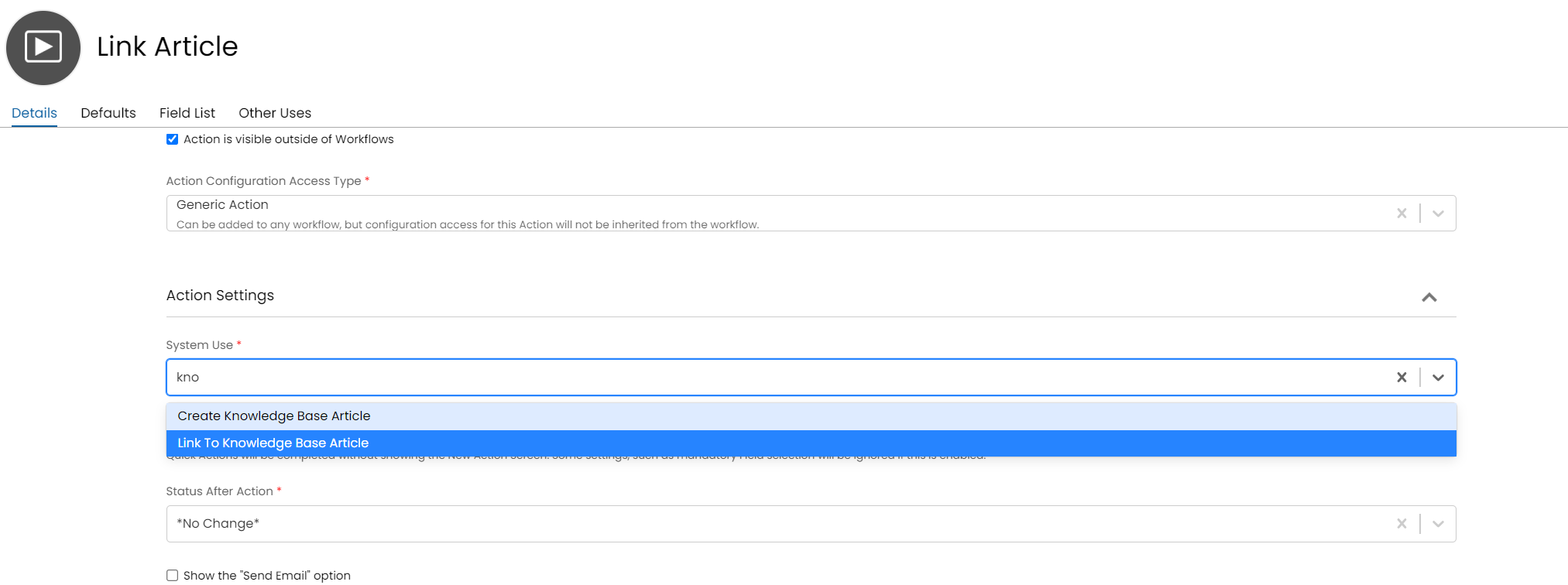
Fig 3. System Uses To Create Or Link Knowledge Base Articles
Using these actions is set up the same way for the field list configured in the Article Drafts guide. If an article is linked to it will appear in a new tab of the ticket.
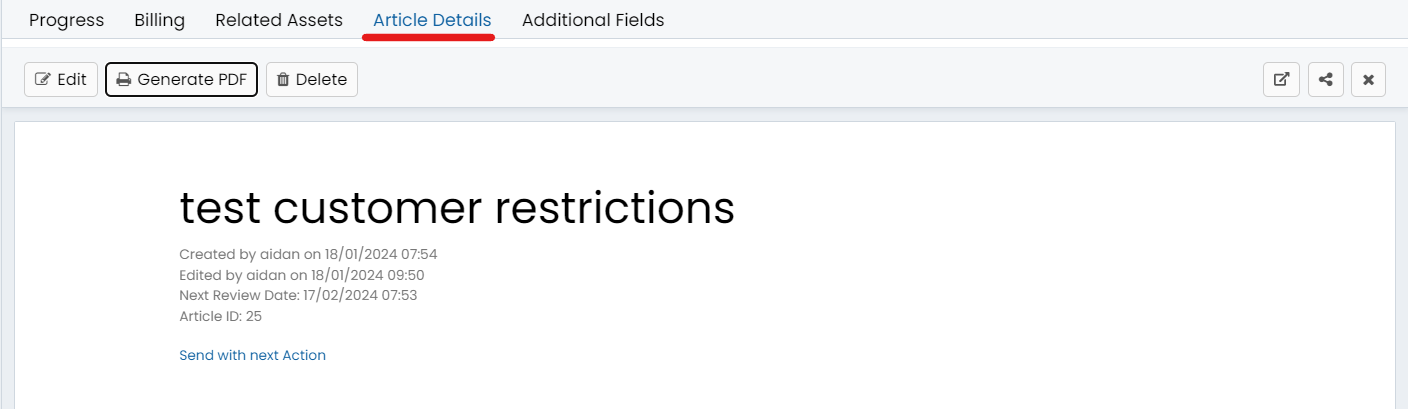
Fig 4. Article Details Tab Appearing After Linking An Article
Then after linking or creating, you can add the asset against that ticket to the article, by clicking on edit and then linking the asset.
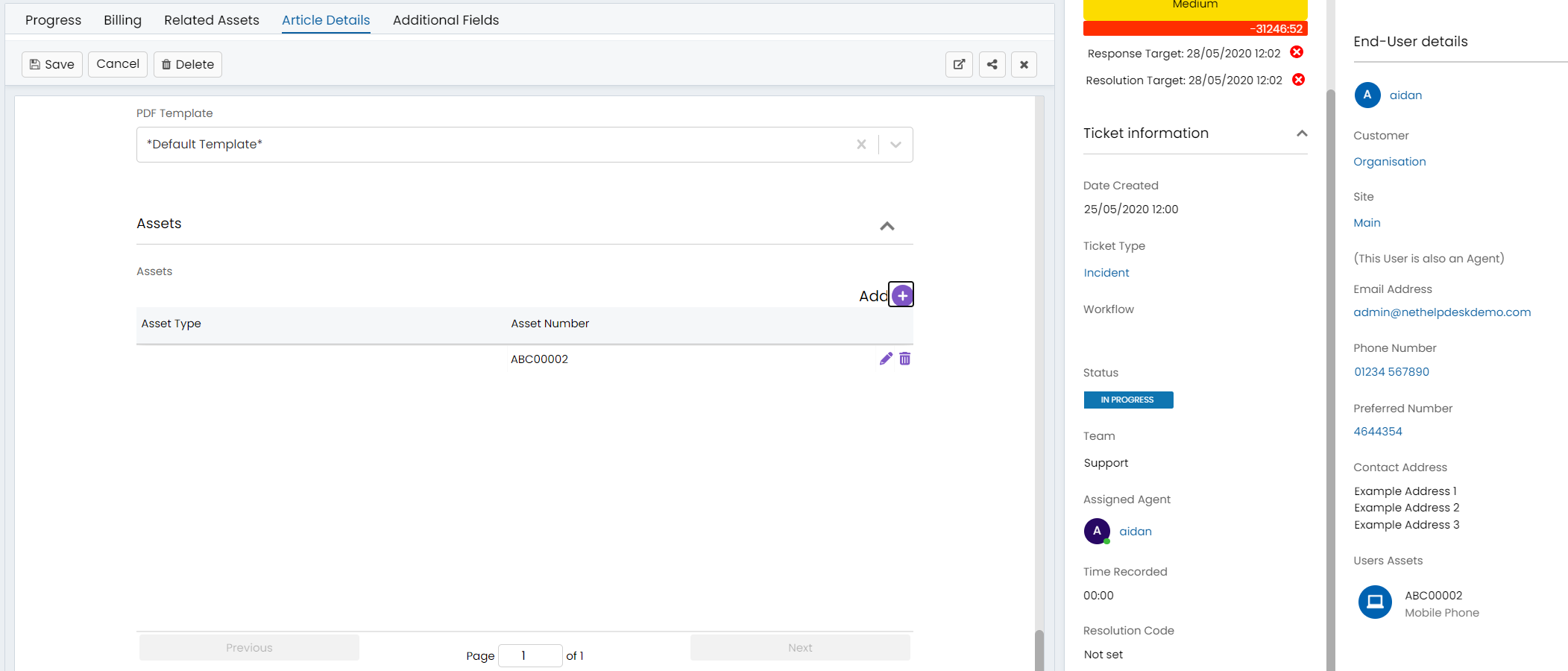
Fig 5. Linking An Asset To An Article From a Ticket