Budgets
In this guide we will cover:
- How to create budget types
- How to add budgets to Projects
- Linking Budget Types to Project tasks
- Budgets tab on Projects
- Templates
- Only use Billable Time in Budget Calculations
Admin Guides:
Budgets are used to internally track time/money spent across all Project Tasks under a Project. Multiple Budget types can be created and added to a Project, then Project Tasks can be attributed to a Budget type to allow for the time added, per Task, to chip away at the estimated value provided when creating a Project. Please note that Project Budgets are used for internal tracking and not for billing.
Creating Budget Types
To create your Budget types, go to Configuration > Project Management > Budgets. you'll find a list of out-of-the-box Budget types (Fig 2.):
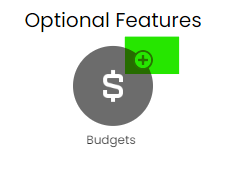
Fig 1. Enabling the Budgets Module
You can add to this list of available Budget types via clicking 'New' (top RHS of screen), or edit existing Budget types via clicking on them. Budget types can be given a name & a default hourly rate.
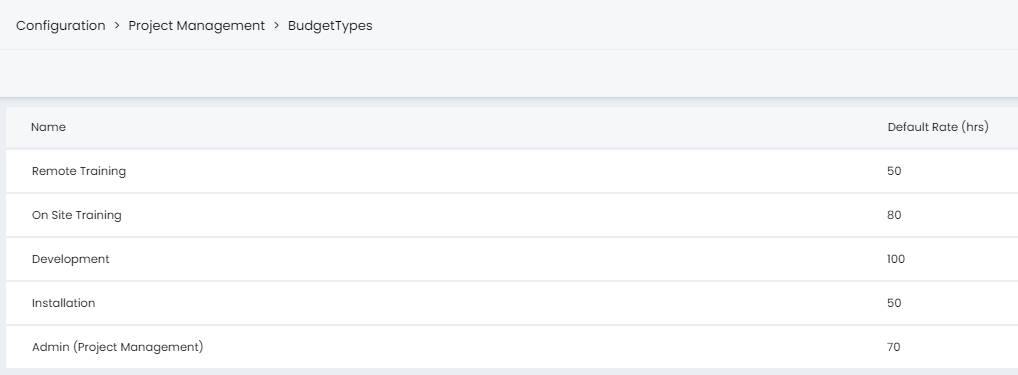
Fig 2. Budget Type Configuration
Adding Budgets to Projects
To allow for Budgets to be added to Projects, the 'Budgets' field must be included in the Field List for the Project Ticket type (Configuration > Tickets > Ticket Types).
For this field to appear, you must enable the budgets module in Configuration > Project Management (hover over the budgets module and click the 'Plus' sign).
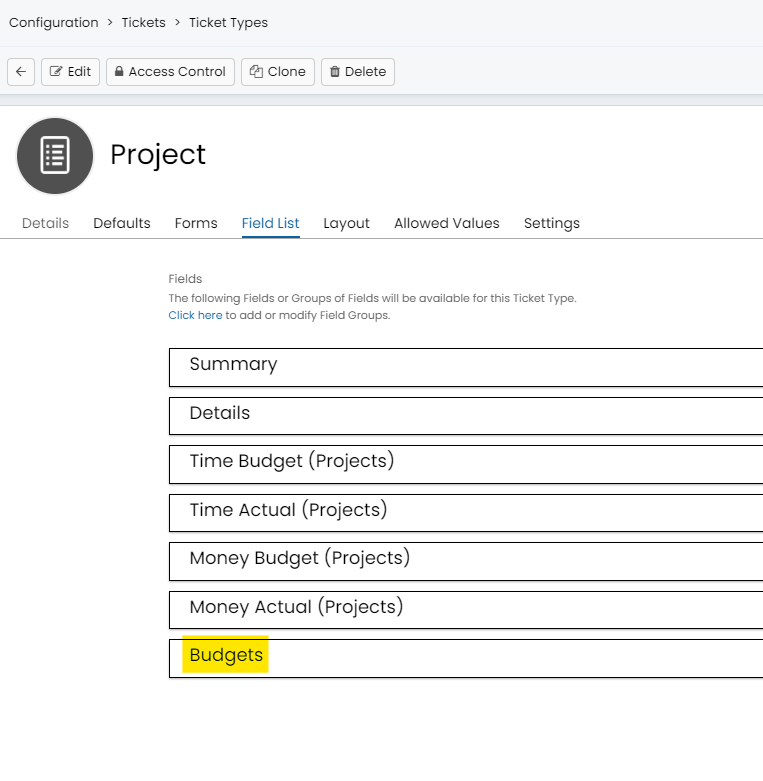
Fig 3. The Budgets Field on the Project Ticket Type
This will include the Budgets table on the new Project screen.
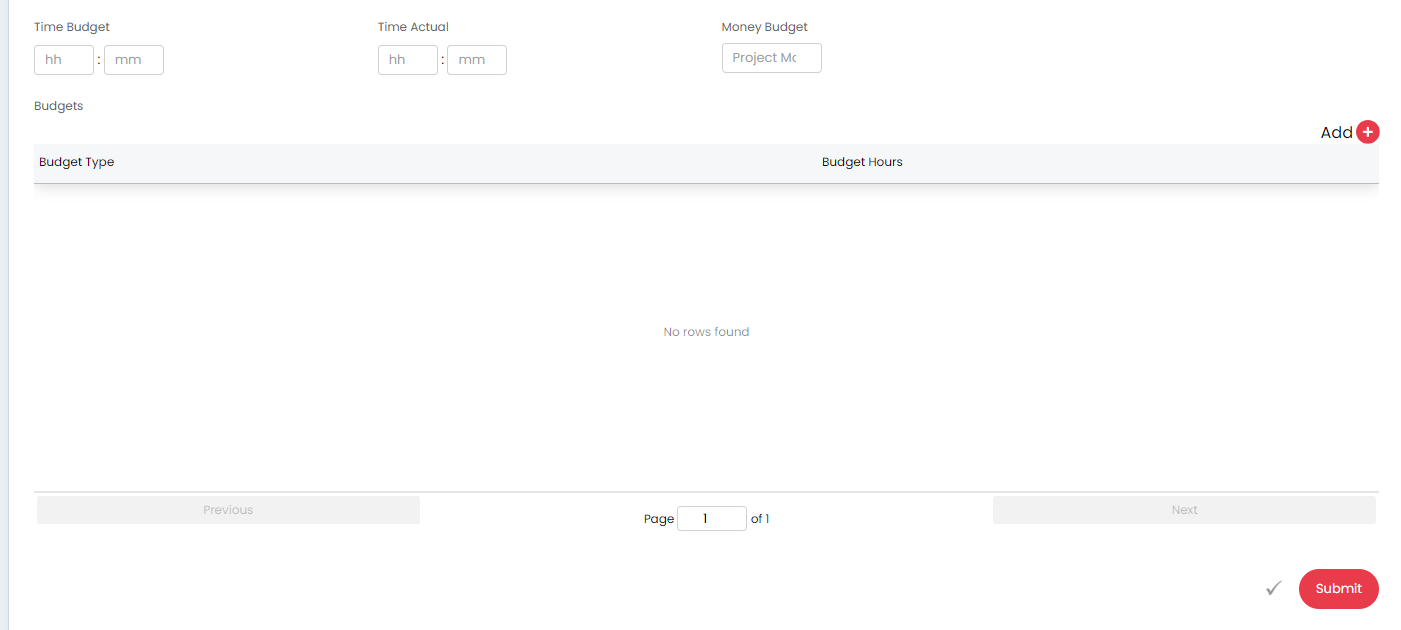
Fig 4. The Budgets table on the new Project screen
Clicking 'Add' (Fig 4) will present the option to select a Budget type & provide budget hours (and override the default hourly rate, if applicable).
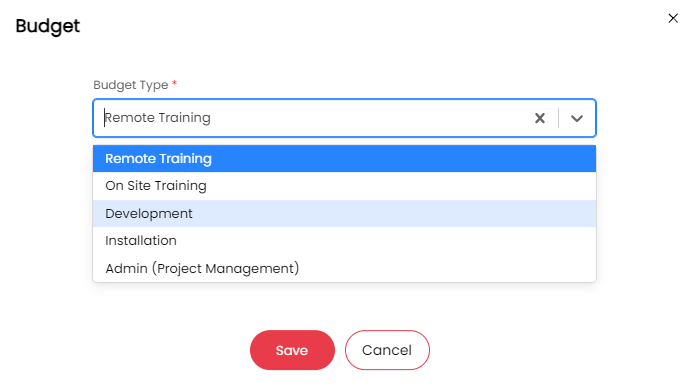
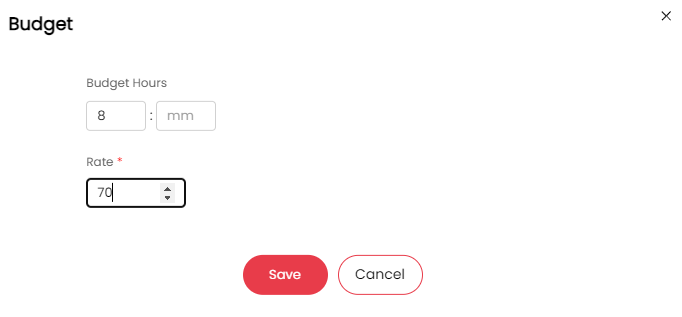
Fig 5. Selecting a Budget Type & Allocating Budget Hours
Linking Budget Types to Project Tasks
Once all relevant Budget types along with hours and rate, have been added to your Project, you will want your Project Tasks to be linked to respective Budget types for accurate time/money tracking.
To allow for Budget type selection when creating Project Tasks, first ensure that the 'Budget Type' field has been added to the field list for the Project Task Ticket type.
Following the above, you will find the option to link this Project Task to one of the Budget types that have been added to the parent Project.
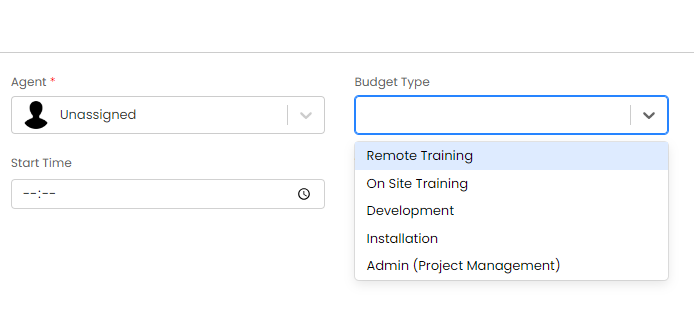
Fig 6. Selecting a Budget Type on The New Project Task Screen
Note: You may also want to ensure that the Start/Target Date/Time fields are included in the Field List for your Project Task Ticket type, as these fields determine the 'Scheduled Hours' value (see below) & are used for Gantt Chart/Calendar view.
You will find the "Title for Calendar Events" section when creating/editing a Column Profile. Dollar variables can be used here to display ticket information on the Calendar view.
Budgets Tab
Once you have added all of your Budgets to your Project and have raised your Project ticket, you will find a 'Budgets' tab available on the Project.

Fig 7. The Budgets Tab
Below outlines the columns in Fig 7.
- Budget Type, Budget Hours. Rate - The Budget type, Budget hours & Rate selected on the new Project screen.
- Total Sold - Budget Hours * Rate.
- Scheduled Hours - This is based on the difference between the Start Date/Time & End Date/Time input on open Project Tasks that have respective Budget types selected on them.
- Scheduled Value - Scheduled Hours * Rate.
- Completed Hours - The total time recorded on all Project Tasks that have respective Budget types selected. Note that adding time to a Project Task and hence increasing the Completed Hours by X will reduce the Scheduled Hours by X (only applicable if Scheduled Hours > 0).
- Completed Value - Completed Hours * Rate.
- Hours To Schedule - Budget Hours minus (Scheduled Hours + Completed Hours).
- Value To Schedule - Hours to Schedule * Rate.
- Hours Remaining - Budget Hours minus Completed Hours.
- Value Remaining - Hours Remaining * Rate.
- Non-billable Hours (v2.250+) - The total number of hours logged on actions that have a 'No charge' rate.
- Invoiced Hours (v2.250+) - The sum billable time logged on actions which have been added to an invoice.
- Scheduled appointment time (v2.250+) - The total duration of appointments. All day appointments will use 'Number of hours per day' set in Configuration > Project Management.
There is a 'Change Budget' Button for tickets/ projects (not opportunities). If you are on a specific project view, it will give you options from budgets added to that project. If you select a single project/ ticket it should get the possible budgets from its parent, or itself if it has none. If you just select multiple from a normal ticket list then it will give you any options. When used the budget type updates, and it recalculates on the parent based off of this change.
This will be the new option when bulk updating tickets/ projects after selecting tickets from their checkbox on a ticket list.
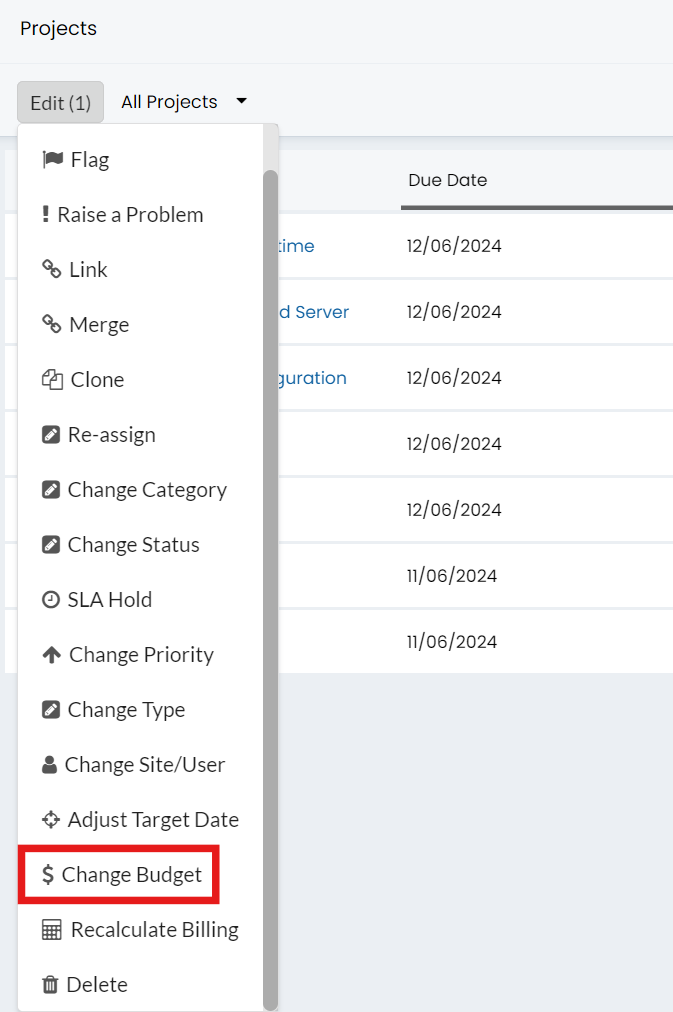
Fig 8. 'Change Budget' option on the bulk update tickets settings
Templates
When applying project templates, you can override the budgets table, this is essentially how you create budget tables for projects generated via templates. To configure this setting go to Configuration > Tickets > Templates. Create a new or edit an existing Project Template.
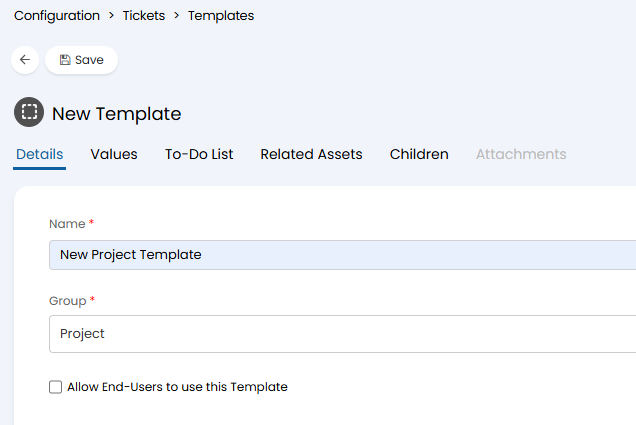
Fig 9. Creating a new Ticket Template
The 'Group' presented in Fig 9 is used as a means of grouping different Ticket templates - over time the list of templates will grow to be rather large and will compose of various types of work (Projects, Requests etc.) so it is advised that you group these templates accordingly.
Note: New template groups can be created via Configuration > Advanced Settings > Lookup Codes, then adding to the entity 'Auto Request Groups', all that is required is the name of the new group when adding to the list.
Now head to the Values Tab where you can select to "Override Budgets Table". This will then show an empty Budget table which you can add to. If this checkbox is deselected you can instead set a Time Budget and Money Budget.
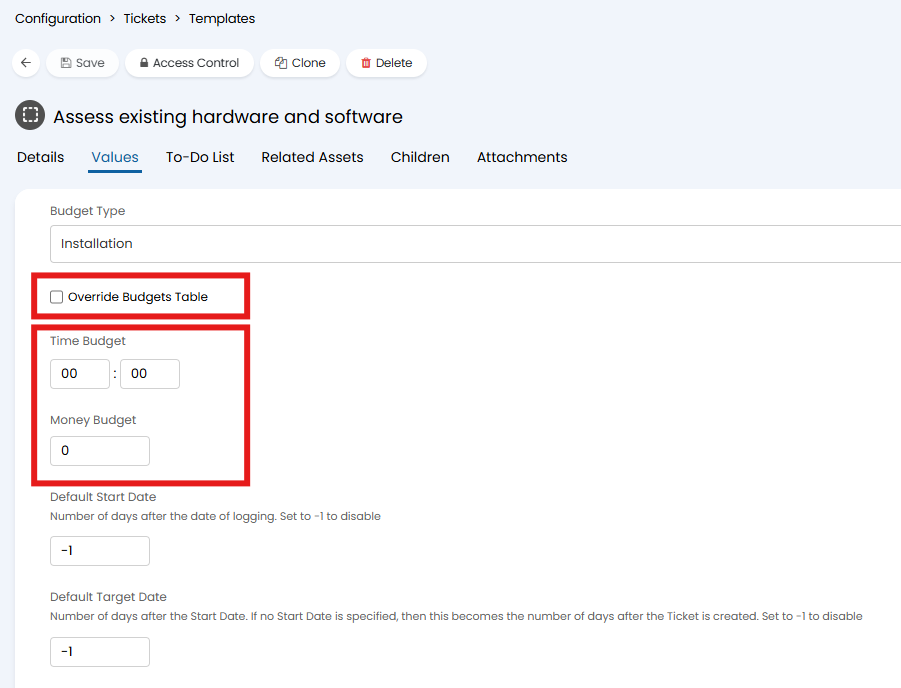
Fig 10. Project Template Budgets
Only use Billable Time in Budget Calculations
If you would like to use budgets to only track billable time you can use the single select option called "Budget Calculation Type" in Configuration > Project Management > General Settings. This drop-down allows you to choose whether Budget calculations will use the actual, billable or invoiceable time on the Ticket.
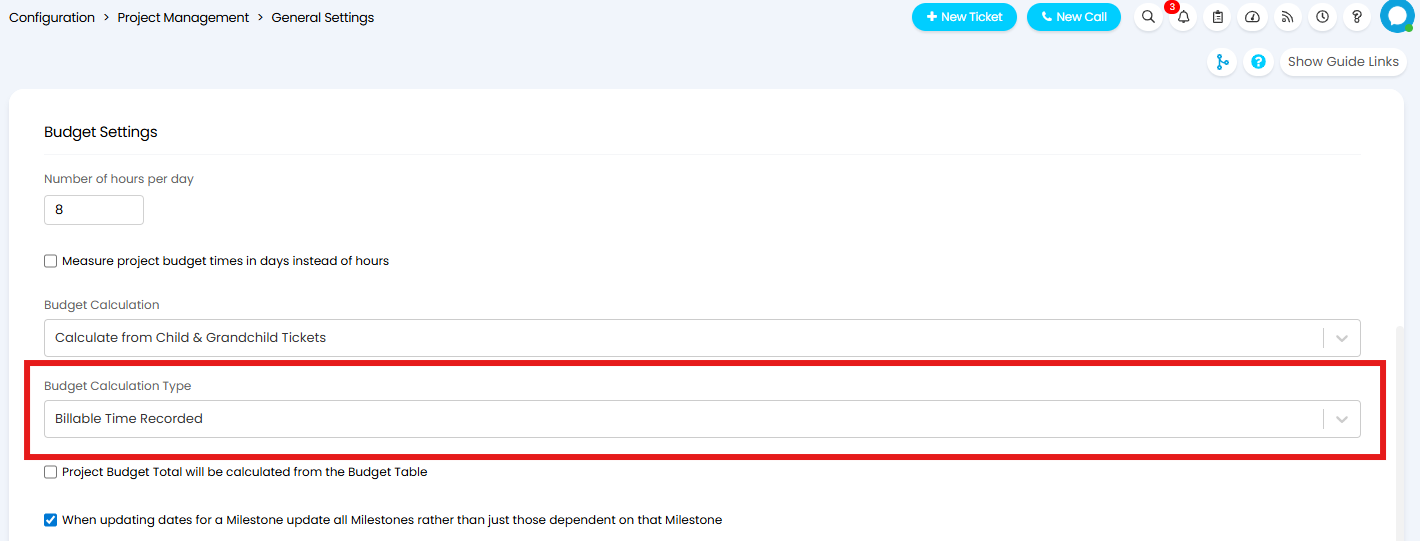
Fig 11. Budget Calculation Type
When this setting is set to "Billable Time Recorded" only billable time logged on tickets will be deducted from the budget hours and only the value of the billable time will be deducted from the budget value. This will impact budget calculations.