Viewing Tickets in the Portal
In this guide we will cover:
- Ticket Type Default
- Ticket List on The Self Service Portal
- Configuring Actions
- Edit Actions on a ticket
- Self-Service Portal Ticket Details Configuration
- Column Profiles on The Self Service Portal
- Change Agent Names in the Portal
In this example, we will take a look at the configuration around viewing tickets on the Self-Service portal. We will cover portal, ticket type & user configuration options to ensure that Service Requests can be viewed on the Self-Service portal.
For a comprehensive list of Self Service Portal Settings along with their Descriptions, checkout the Admin Guide:
Ticket Type Default
The first option to take a look at when thinking about providing visibility of tickets on the self-service portal can be found at ticket type level, under the 'Defaults' tab:
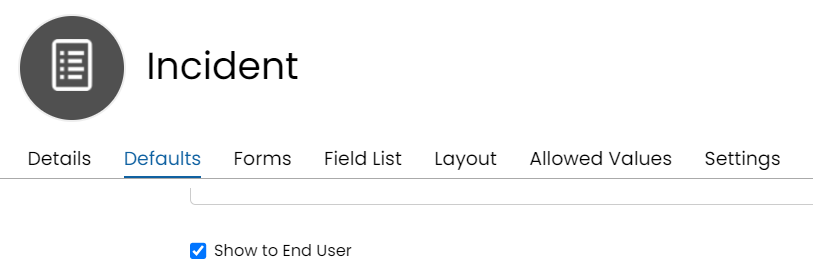
Fig 1. Ticket type defaults
Ticket List on The Self Service Portal
Once we have ensured this is enabled, we should find that any tickets of this type that have been logged will be displayed on the self-service portal:
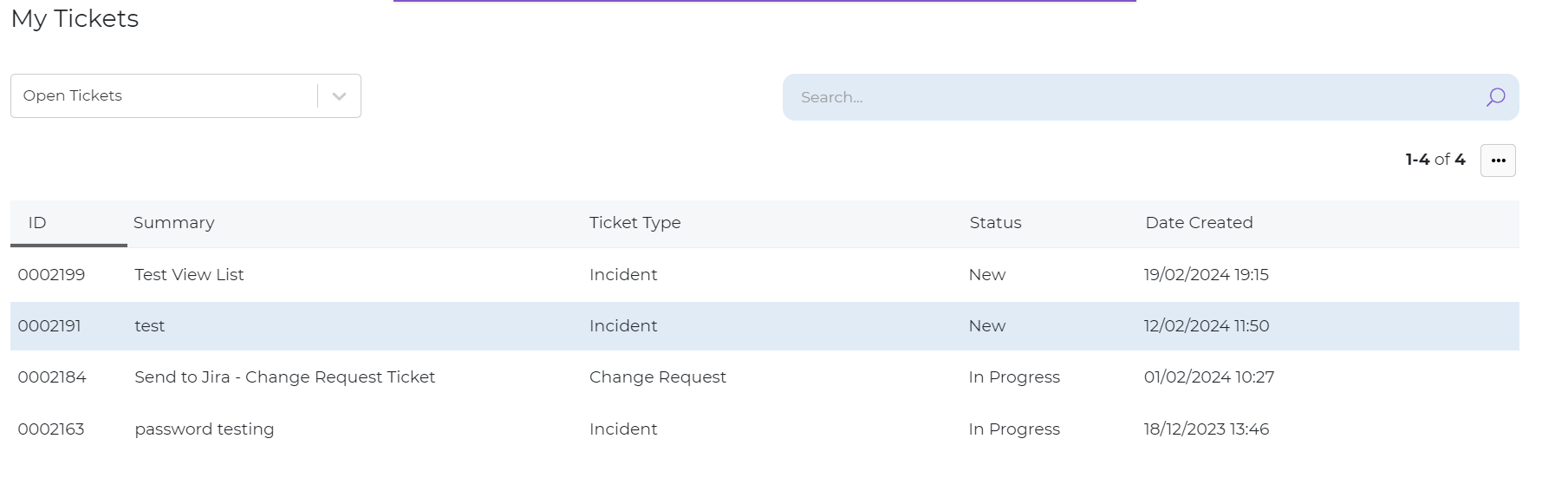
Fig 2. Self-Service portal 'My Tickets' list, including our recently raised Service Request
If I click on the entry displayed in Fig 3, I will see the ticket details, including a list of all publicly available actions:
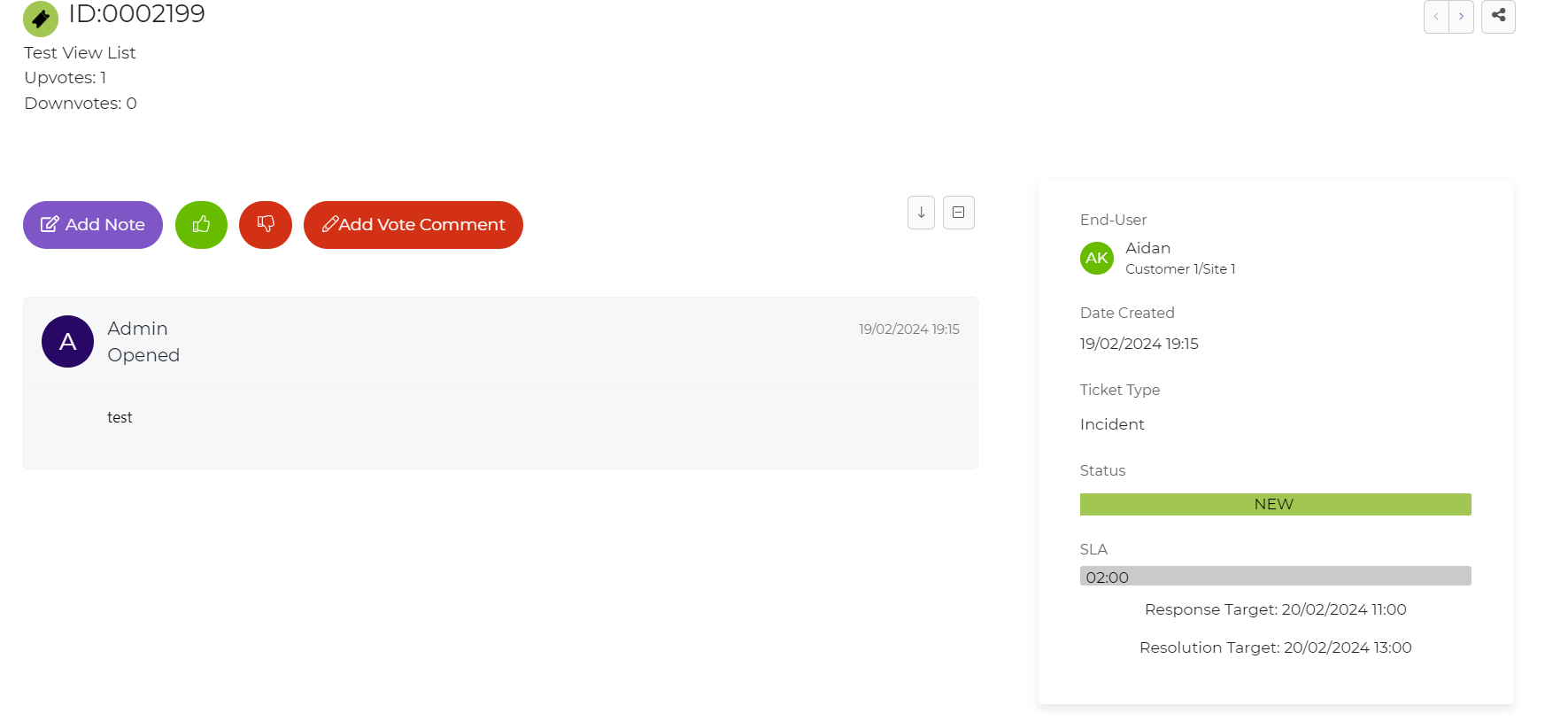
Fig 3. Ticket Details screen as seen on the Self-Service portal
Customising ticket view
By default tickets in the portal will display in a list (table view), as shown in figure 2, users will need to click into a ticket to expand it's details. To change how the tickets display here hover over the three dots in the top right, here you can choose the view you would like to use.
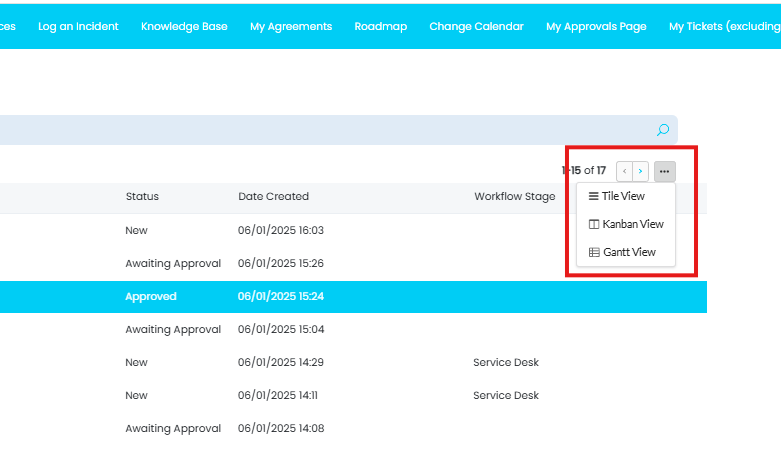 Fig 4. Ticket list views
You can also set the default view for users to save them having to change this. TO set the default head to configuration > self service portal > edit the 'My tickets' button, here you can set the 'Default View'.
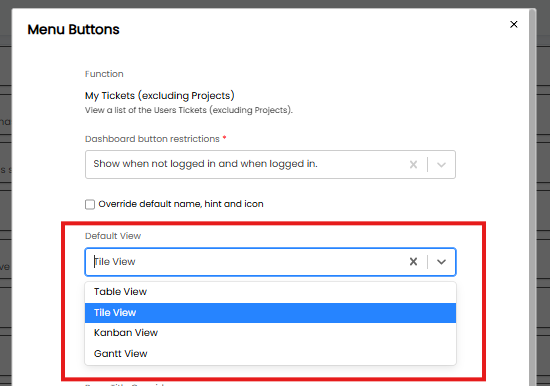
Fig 5. Default view for viewing tickets in portal
Configuring Actions
Note: Publicly available actions are those with the below default set to 'No':
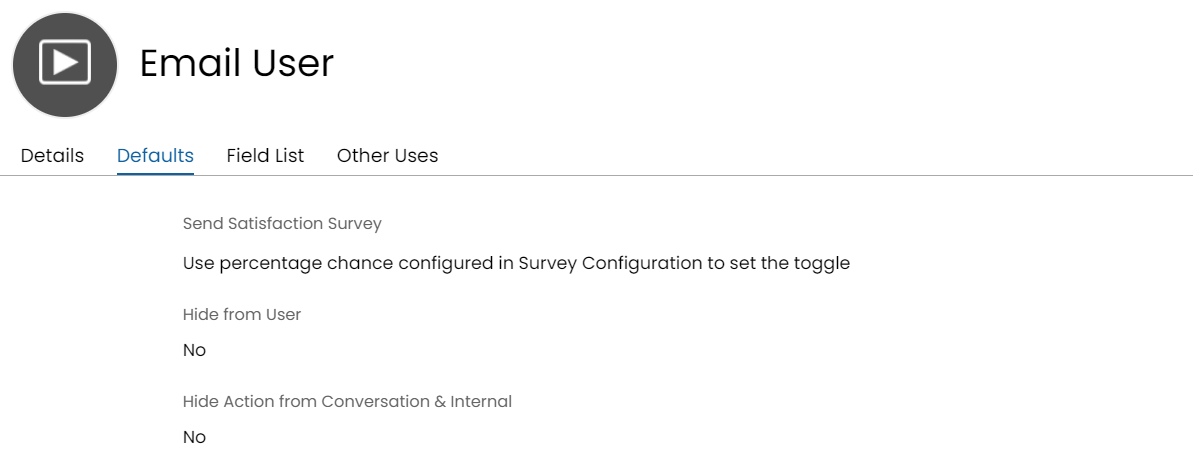
Fig 6. Configuration > Tickets > Actions > Email User
Edit Actions on a ticket
This is in the defaults tab for the associated Action Configuration. This can also be overridden on a per action basis by editing the action on the ticket in question, clicking into view/edit action:
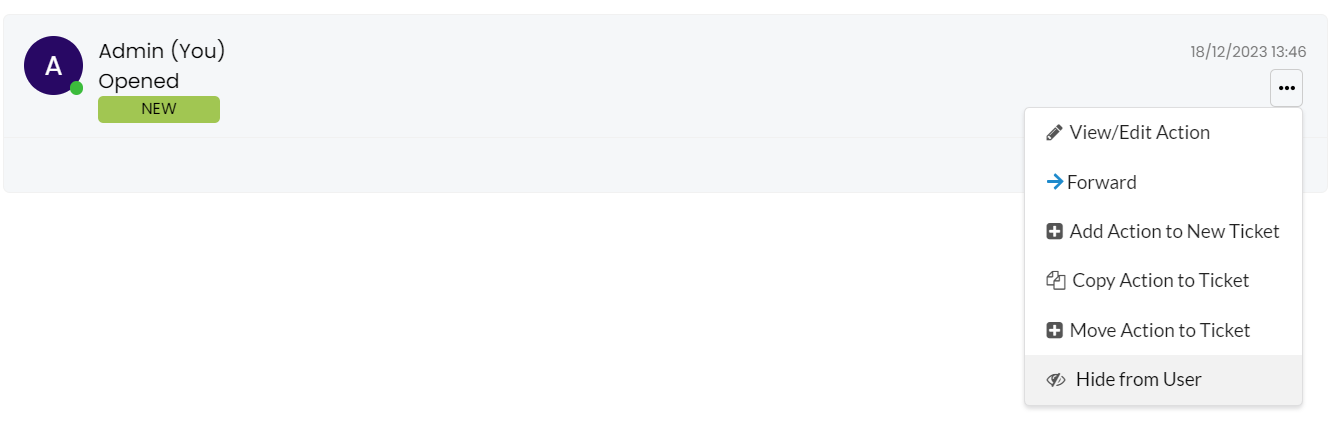
Fig 7. Edit action options from within a ticket
There will be the option to Hide from end user or make action important etc. You can also Hide from the end user by just hovering over the ellipse and clicking the appropriate button.
Self-Service Portal Ticket Details Configuration
You'll notice in Fig 3 that SLA information is being displayed for the end-user to view. As I don't want the end-user to see this information, I'm going to head to Configuration > Self Service Portal and disable the 'Show SLA Compliance' option:
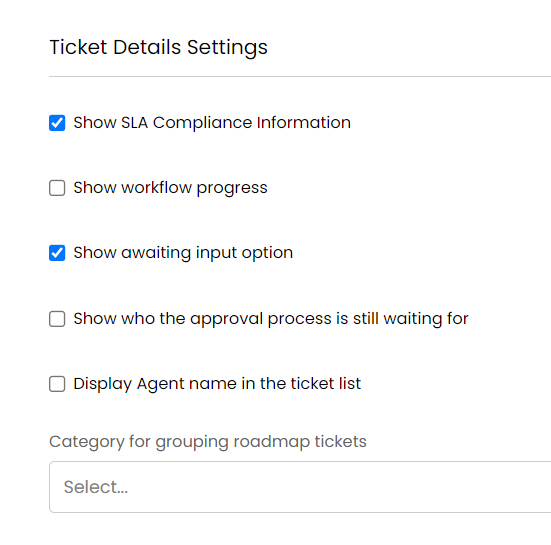
Fig 8. Self-Service Portal Ticket Details Configuration
Column Profiles on The Self Service Portal
You can set the column profiles for users "projects" or "tickets" in "Configuration > Self Service Portal". You can also set the Column Profiles for Supplier Contacts on the Self Service Portal.
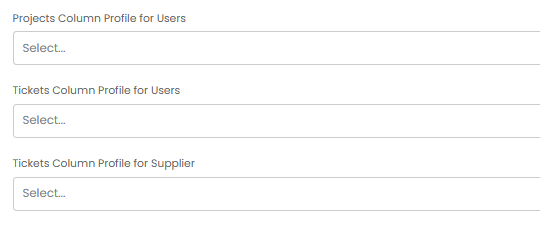 Fig 9. Column Profiles
Change Agent Names in the Portal
Agents can have an additional 'display name', this will be used as their name in the portal rather than their actual name. Useful if you would like to allow agents to choose a preferred nickname.
To do this you must first head to Configuration > Advanced settings > enable "Enable Agent Display Names".
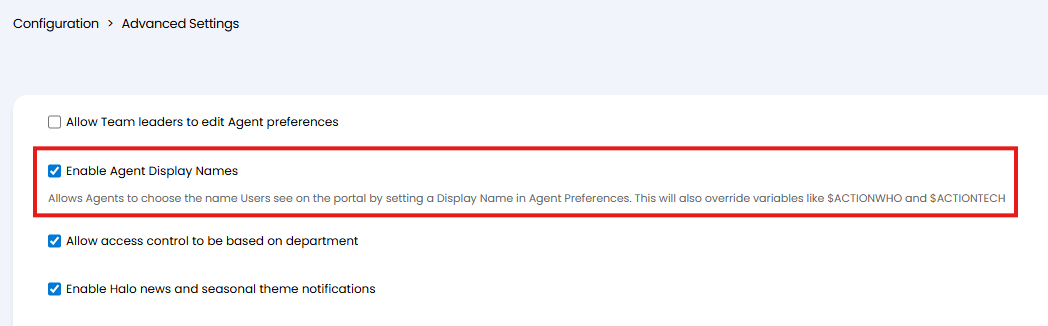
Fig 10. Enable Agent Display Names
Now, a "Display Name" field will be available in each agent's preferences.
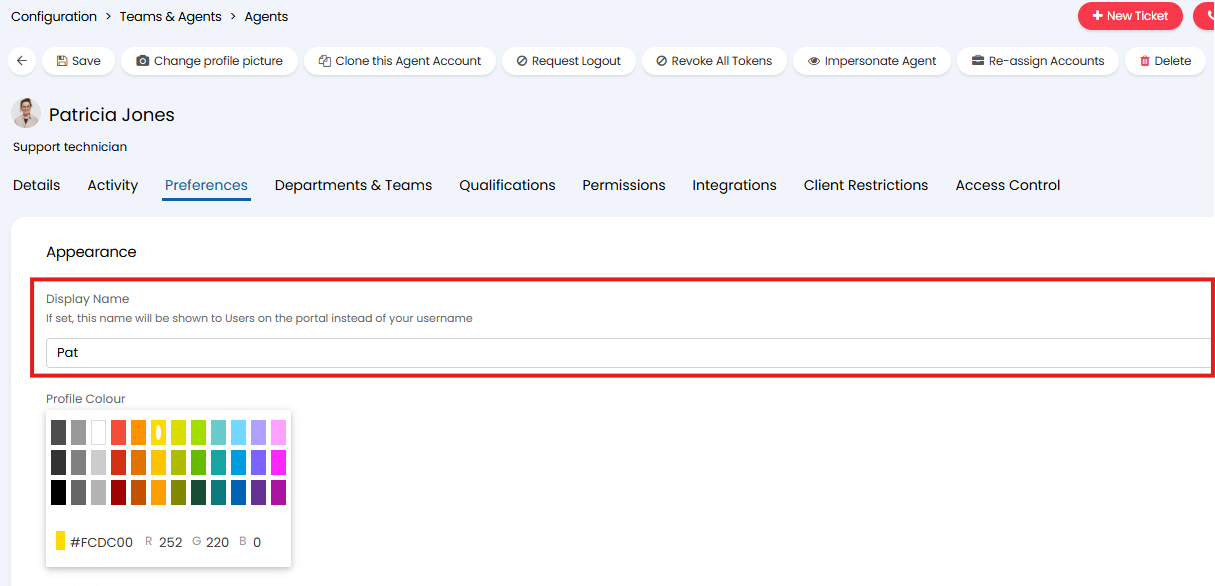
Fig 11. Display Name Field
Note: Agents will be able to edit this themselves should they have the permission "Editing of own Preferences - Can edit preferences".
This name will replace instances of the agent's name that appears in the portal, including:
- The name of the agent when completing an action
- Selected variables that pull through the agent who did an action
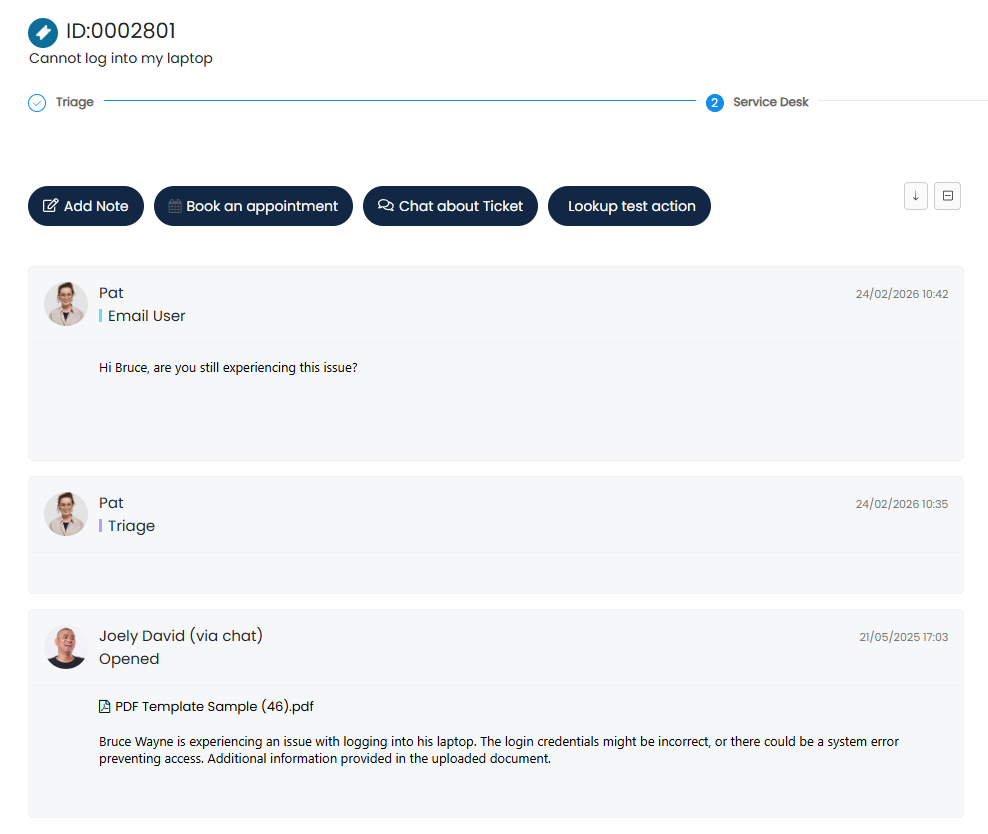
Fig 12. Agent's Display Name being used in the Portal