Raising a Service Request
In this guide we will cover:
- Creating the Ticket Type
- Priority Field
- Configure the Menu Button
- Menu Button List
- New Form Screen
Admin Guides:
Related Guides:
Creating the Ticket Type
When tickets are raised by agents in (or by end-users on the Self-Service Portal) you are going to want to ensure that all of the relevant information is included right from the beginning, as to avoid any unnecessary back and forth.
In this example, we will look at creating a new menu button on our Self Service Portal that will have the use of allowing end-users to raise a Service Request. We will cover core Portal and ticket type configuration to achieve this.
As the desired outcome is to allow end-users to log Service Requests, we must first ensure the configuration of our Service Request is appropriately set. We will first want to ensure end-users can in fact log service requests:
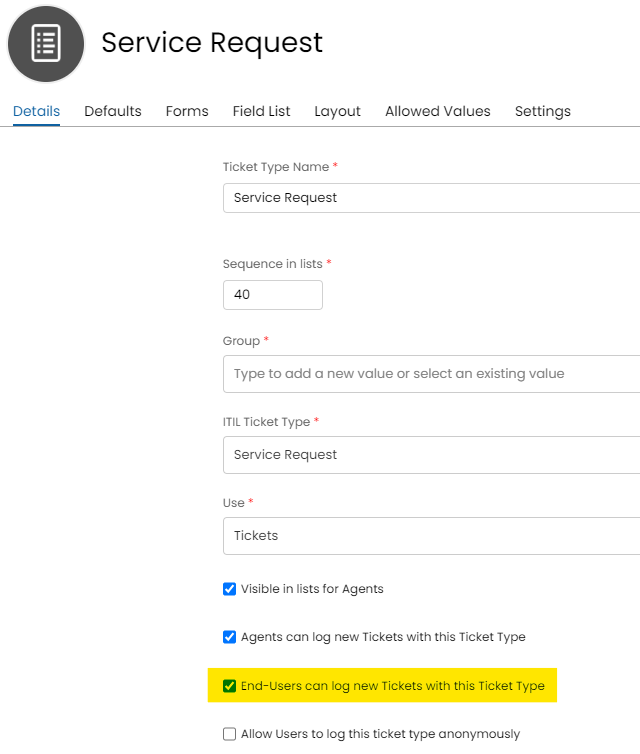
Fig 1. Configuration > Tickets > Ticket Types > Service Request
Priority Field
And then to ensure that our end-users only see the relevant fields when logging a service request.
I have included a 'Priority' field in my Service Request ticket type (Configuration > Tickets > Ticket Types > Service Request) field list tab that I do not want the end-user to be able to interact with, so I simply edit the field as to ensure the end-user cannot see this field when they are logging a Service Request:
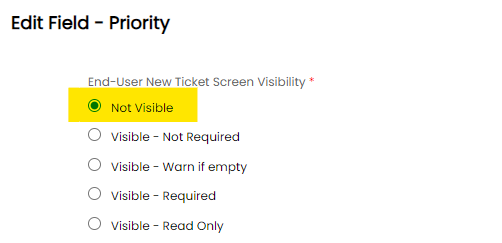
Fig 2. Field options for the 'Priority' field
Configure the Menu Button
Now we have verified our Service Request can be raised by end-users and returns a form listing only the fields we want the end-user to input data into, let's go ahead and create the associated menu button on the portal.
Heading to Configuration > Self-Service Portal and creating a new menu button of function 'Log a new Ticket of a present Type' and selecting Service Request:
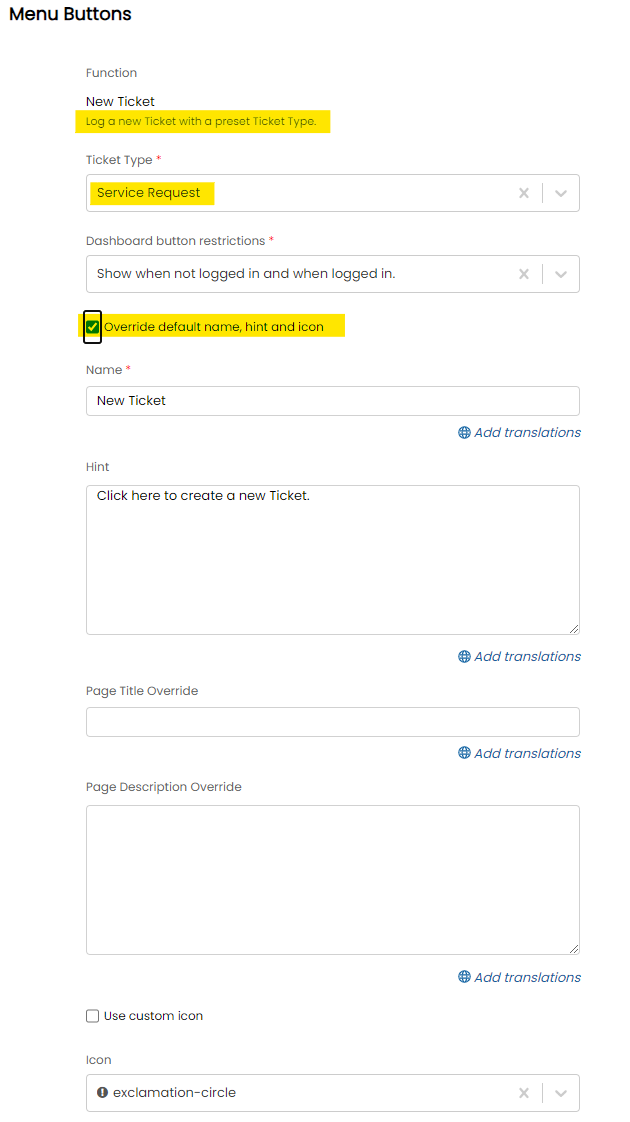
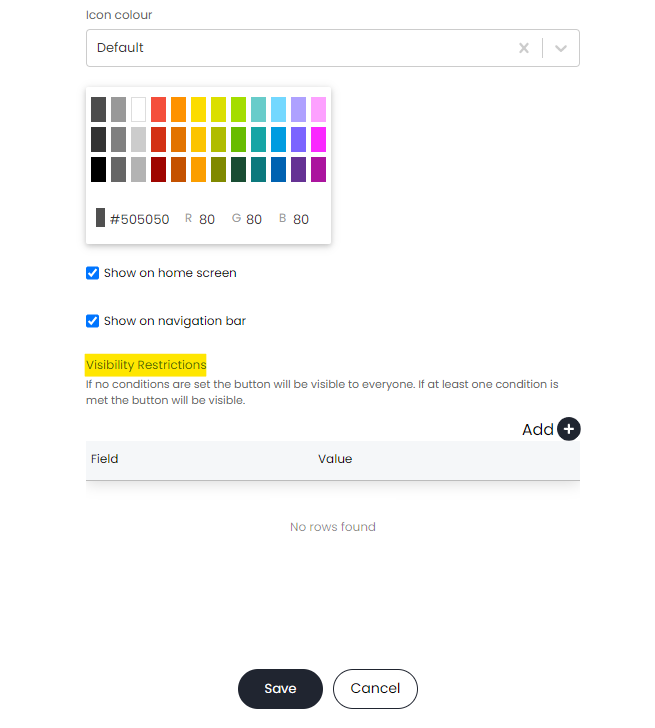
Fig 3. Menu button options for our new function
Menu Button List
This will allow end users to then raise a Service Request, I placed the menu button third on the list in Configuration > Self Service Portal > *Menu Buttons List* so that it would appear as second on the menu buttons, the home button is not present on the list, therefore my "New Ticket" button will appear 2nd on the list of buttons:
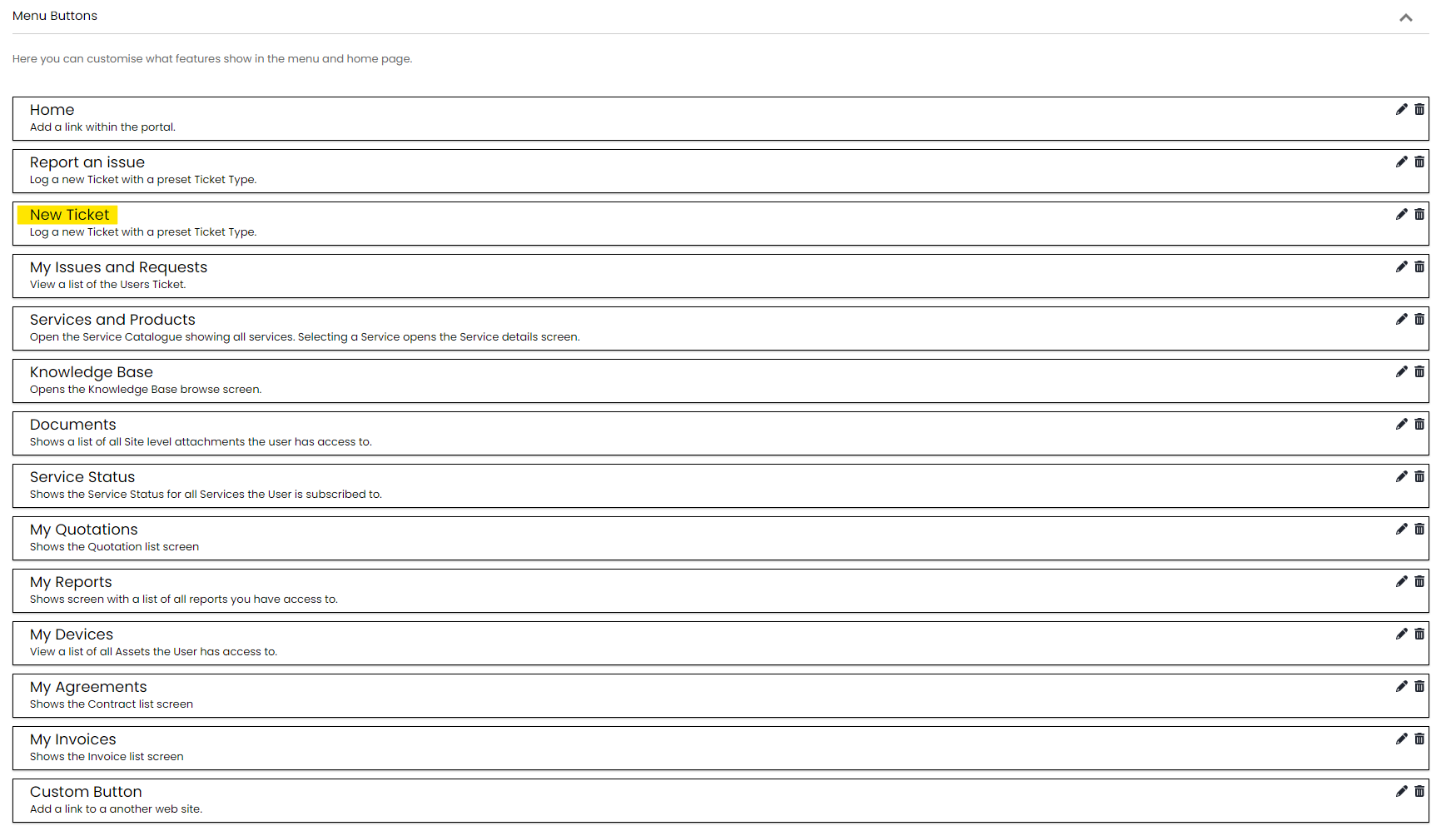
Fig 4. Menu Buttons in Configuration > Self Service Portal
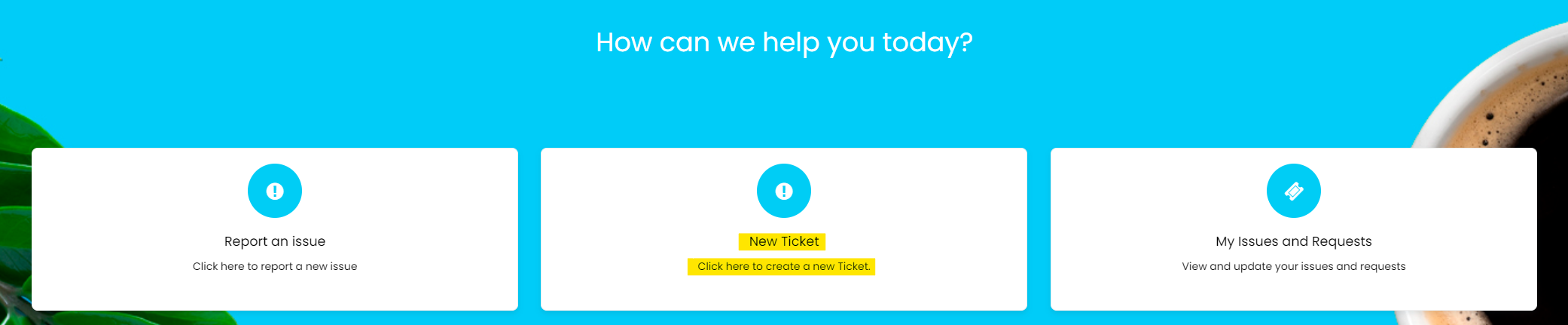
Fig 5. Newly created menu button
New Form Screen
The ticket form users are presented with is composed of all fields whereby 'End-user new ticket screen' visibility is provided (Fig 2).
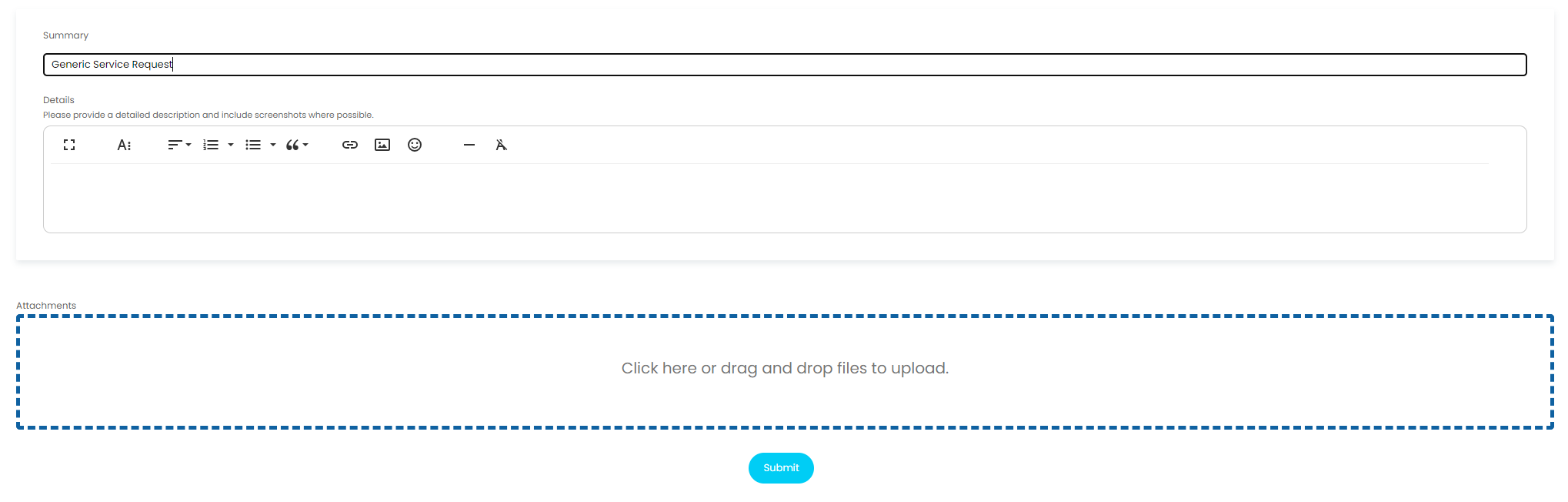
Fig 6. New Service Request Screen