Halo have removed this guide from their knowledge base. This is our last mirrored copy, kept so existing links keep working — it may now be out of date.
Providing Access to your Knowledge Base
- knowledge base portal
In this guide we will cover:
- Setting Article access in the portal
- Setting Article Owners
Admin Guides:
Setting Article Access in the Portal
To allow access to the portal to log tickets, service requests, view service statuses, view knowledge base articles and approve/reject requests without requiring authentication, then uncheck 'Require users to login to access the portal' (Configuration > Self Service Portal). When allowing anonymous usage of the Self-Service Portal, you will be prompted to select an anonymous User Site.

Fig 1. Turning Off The Setting "Require Users to login to access the portal".
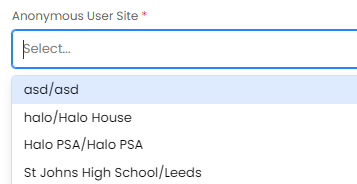
Fig 2. The User attributed to anonymous tickets.
This will be the site anonymous tickets are raised under. Allowing people that are not users to log tickets.
Note: Halo will recognise users' email addresses and assign tickets to existing users (provided the correct contact details have been entered). You can limit the access of your knowledge base based on the FAQ List or Teams that can access this Article when you are creating or editing the article. You can also limit by customer and limit the user access on the FAQ list as shown in Fig 4.
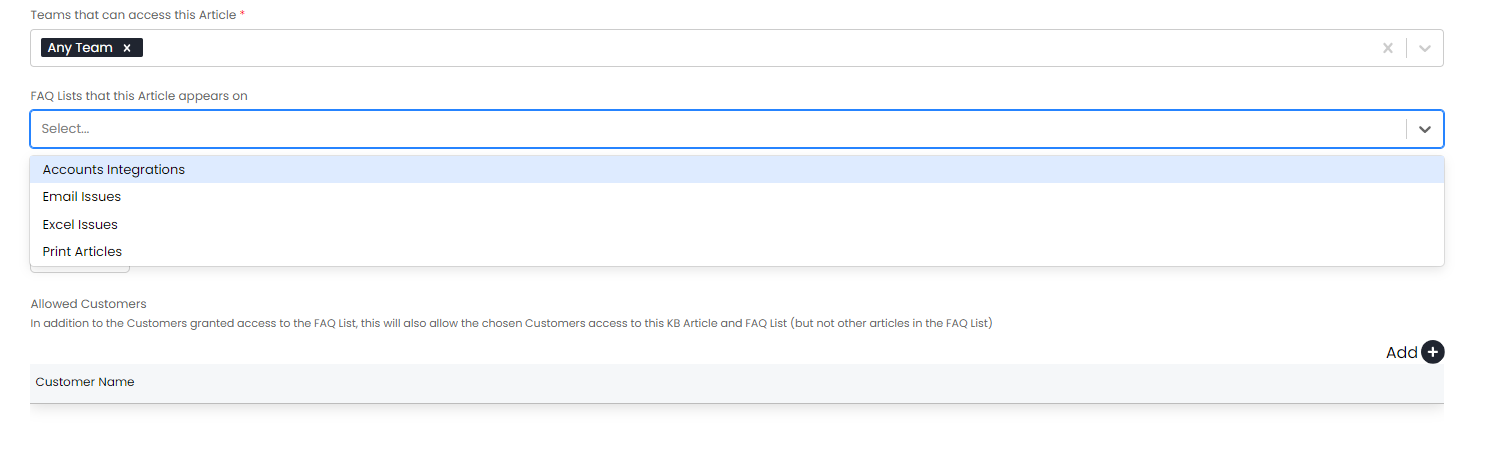
Fig 3. Restrictions On Articles.

Fig 4. Found within "Configuration > Knowledge Base > *Configure FAQ Lists Button* " Option to Add User Role Access For The FAQ List.
This is how the knowledge base looks like on the Self Service Portal.
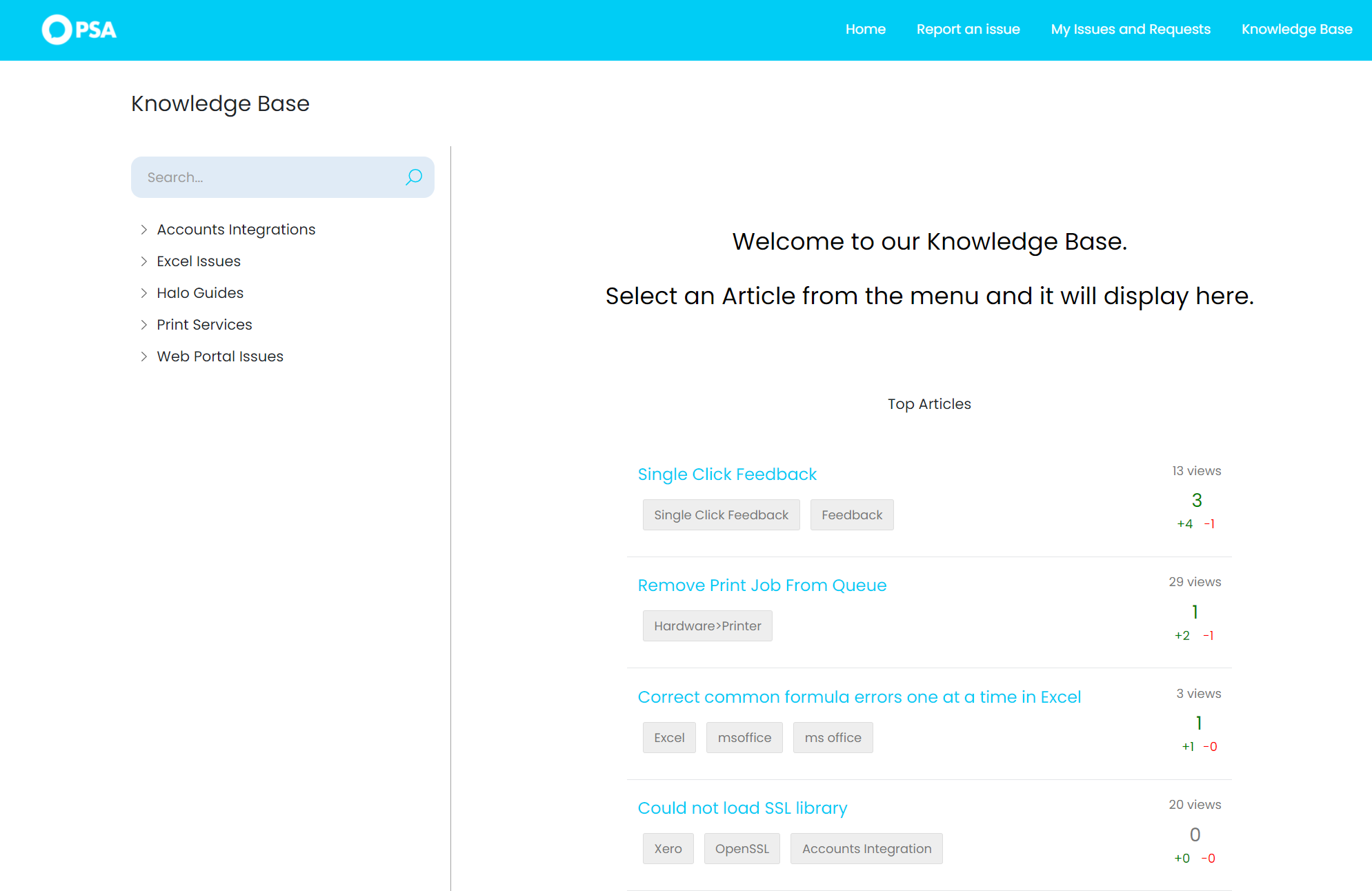
Fig 5. Self Service Portal Knowledge Base UI.
Both users and agents are able to vote on articles and the score will be reflected on each article. You can set an option for users to leave a comment when they log negative feedback on an article. There are also the following default options found in Configuration>Self Service Portal.
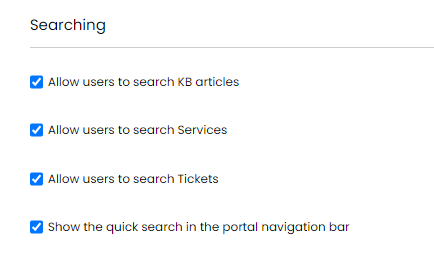
Fig 6. Global Searching Options For The Self Service Portal
Article Owners
There is a table of owners against articles. Multiple agents can be added to this table.
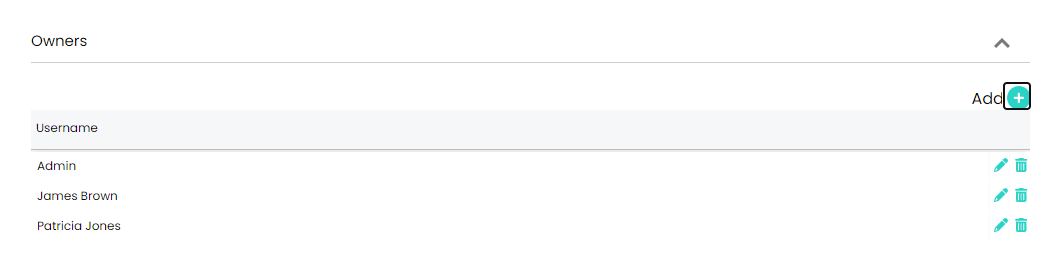
Fig 7. Article Owners Table
When creating new articles, if no owners are specified it will default to the agent creating the article.
Additionally, approval processes based on the owner of the linked article will use the owners of the article. If no owners have been specified, it will fall back to using the creator of the article as the approver.
Teams can be added as owners in addition to individual agents. When adding an owner, a selection can be made between team or agent, and then owners added.
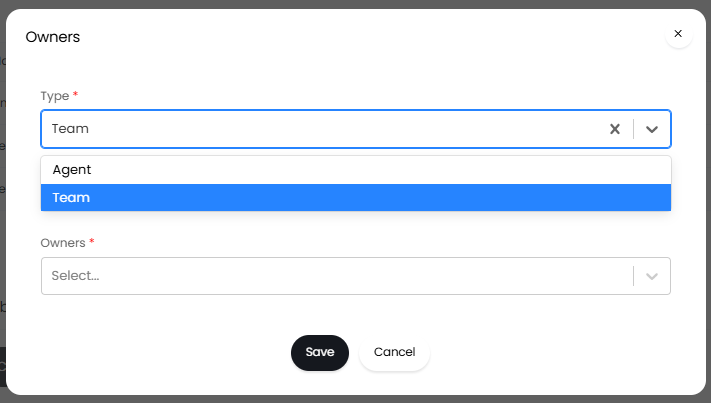
Fig 8. Adding owners.
The table will specify when it is a team like below.
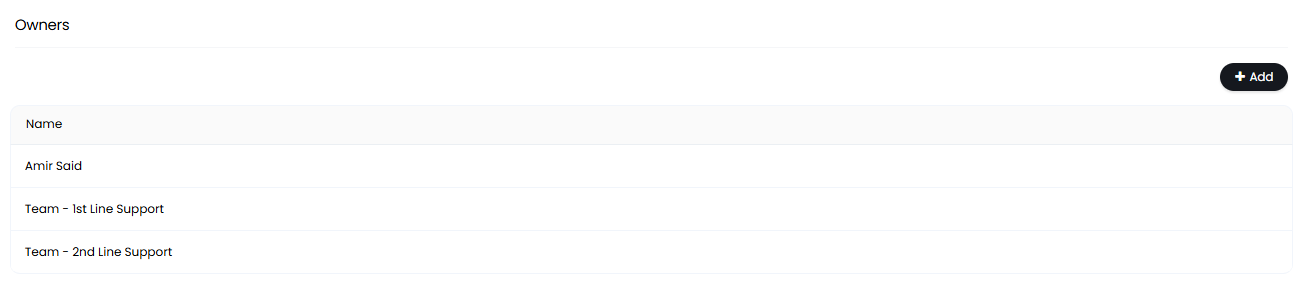
Fig 9. Teams and agent owners.