Halo have removed this guide from their knowledge base. This is our last mirrored copy, kept so existing links keep working — it may now be out of date.
Configuration for Raising Tickets on the Portal
In this guide we will cover:
- New Ticket Configuration For The Self Service Portal
- Ticket Type Selection on a Menu Button
- Logging a Ticket
- Web Access Level
- User Roles
Admin Guides:
Some of the configuration options may appear in different tabs, or may not exist for your Halo instance, this will be due to this guide being written for a newer version of Halo.
New Ticket Configuration
A core feature of the Self-Service Portal is allowing your end-users to raise their own tickets, as oppose to relying on emails and inbound calls. On the "Forms" Tab of the ticket type (Configuration > Tickets > Ticket Types > *Edit a Ticket Type* > *Forms Tab*), you can set the following settings.
For a more detailed list of settings descriptions for the ticket types, checkout the Admin Guide on Ticket Types.
There are also settings for the Self-Service Portal Ticket Details Form. This is just below the following settings on the Forms Tab of a Ticket Type.
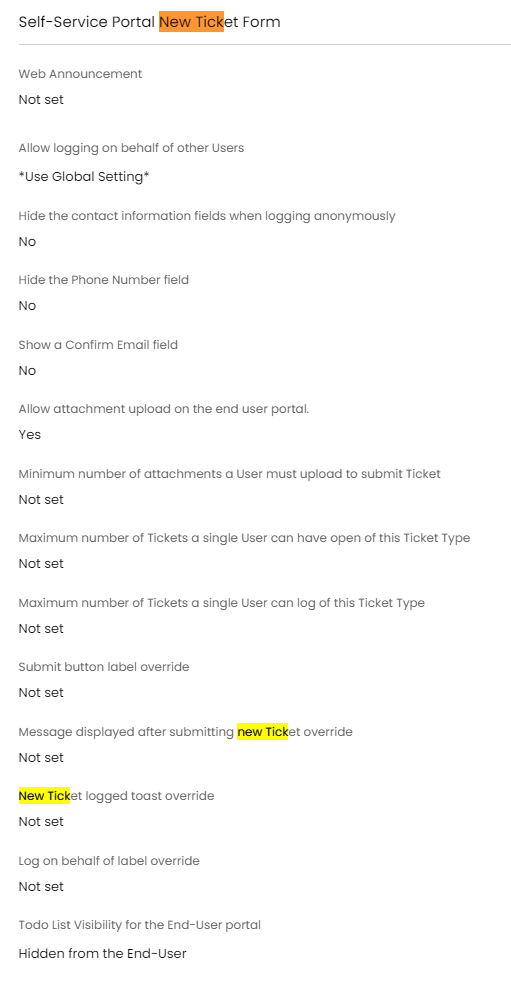
Fig 1. Self-Service Portal new ticket configuration
Ticket Type Selection on a Menu Button
Fig 1 shows the settings around logging tickets via the Self-Service portal. Configure the new ticket options by going to Configuration > Self Service Portal > *Edit The "New Ticket" Menu Button*.
Note: The ticket type chosen will inherit all of the configuration for that ticket type, i.e. field list and visibility restrictions.
- Default Ticket Type - The default ticket type applied when logging tickets with ticket type selection:
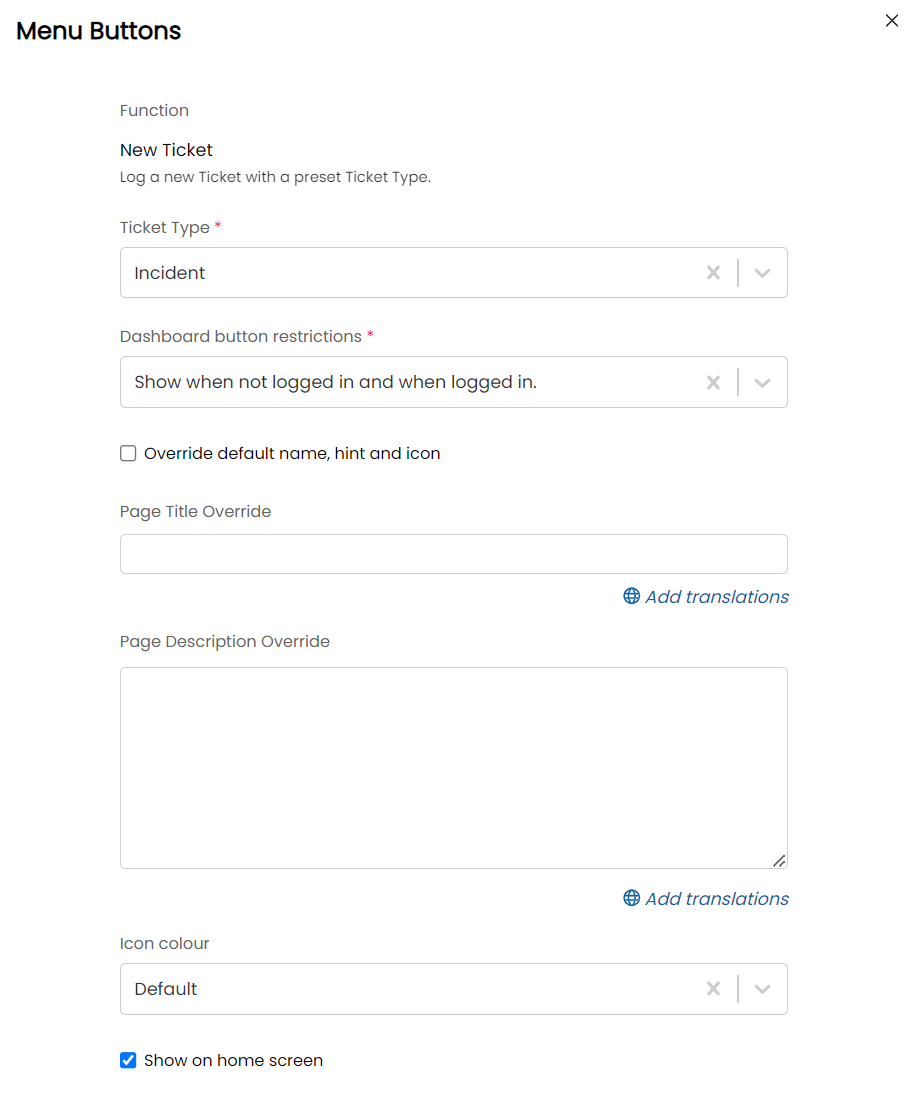 Fig 2. Menu button with ticket type selection functionality
- Send Acknowledgement Email - Toggle whether or not tickets raised via Self Service send automated ticket acknowledgement emails.
- Message Displayed - After logging a ticket via the Self-Service Portal, your end-users will be presented with the ticket they have just logged. By setting a message in the below field (Fig 3), each new ticket that is logged will display this message and replace the relevant $-Variable with ticket-specific data.
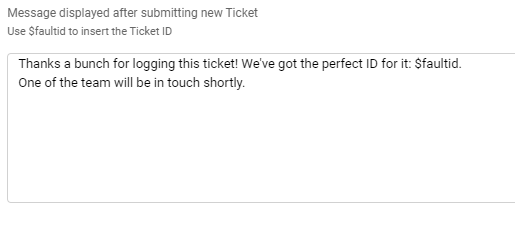 Fig 3. New Ticket Message box (On Forms Tab of a Ticket Type)
Logging a Ticket
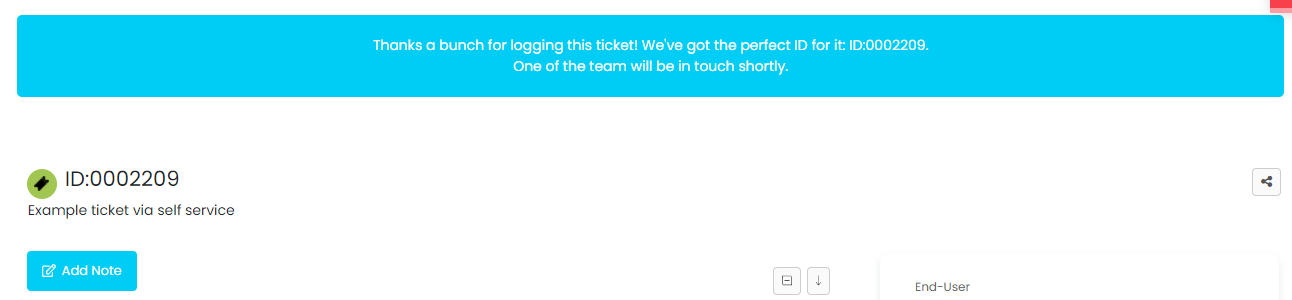
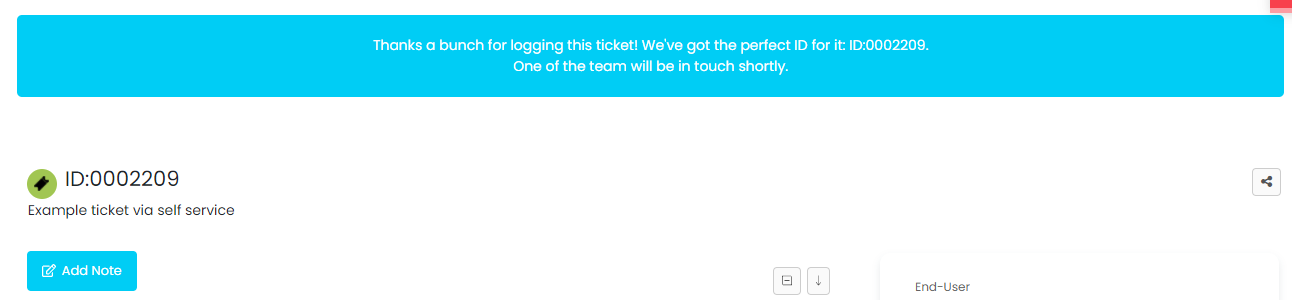
Fig 4. Message presented on Self-Service Portal after ticket has been logged
- Allow Logging on Behalf of Other Users - There are a series of options around allowing end-users to log tickets on behalf of other users (Fig 5). You'll see options here all the way from 'No' (logged in end-user will be the same end-user of the ticket) to Top Level. Ticket logging can also be set based on the end-users Web Access Level.
- Log on behalf of label override - Override the name given to the "Logging on Behalf Of" Input
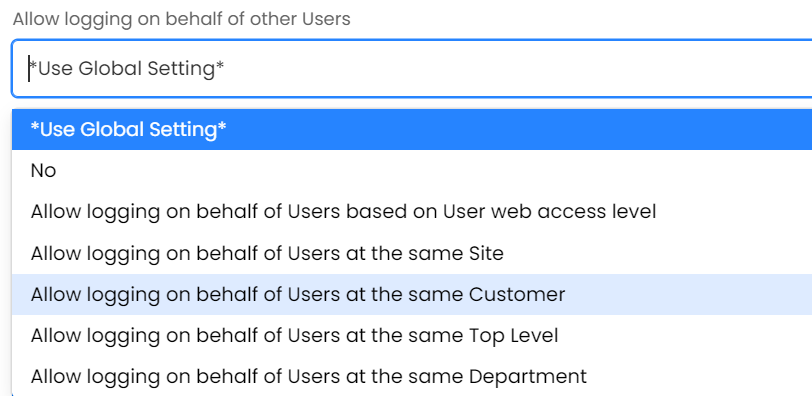
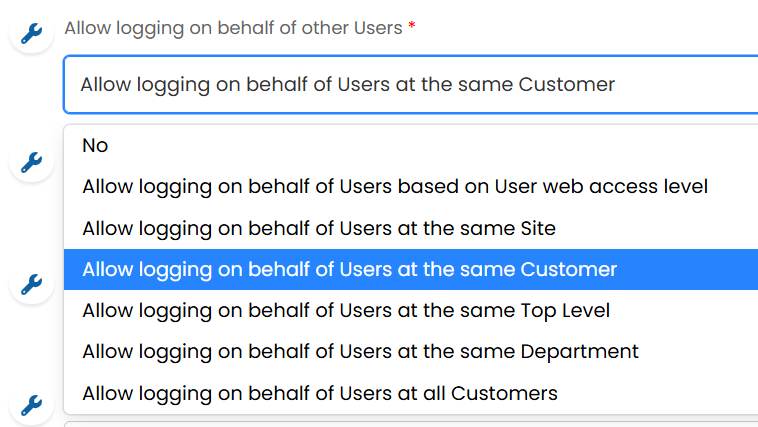
Fig 5. 'Log on behalf of' options
Web Access Level
The Web Access Level of an end-user determines what tickets they can view, and can also determine which end-users they can log tickets on behalf (Fig 5).
To modify the Web Access Level of a User, simply head to that user account and head to the settings tab:
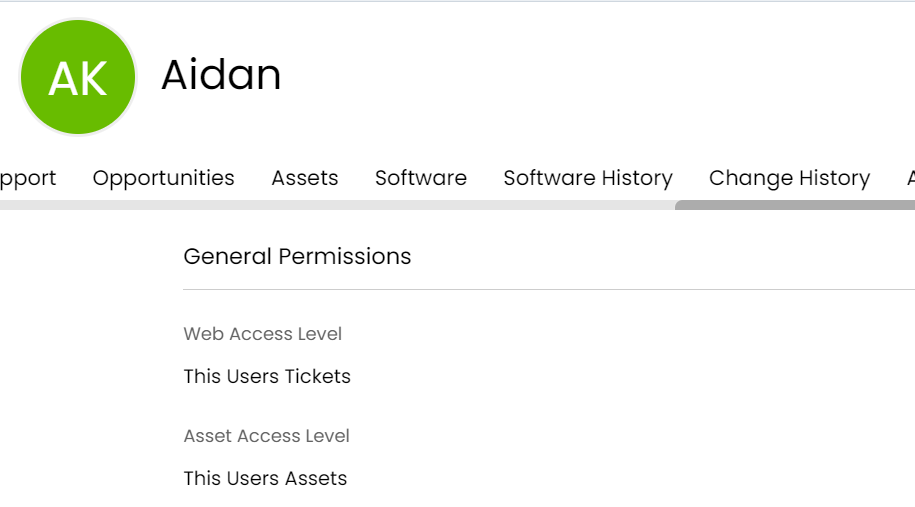
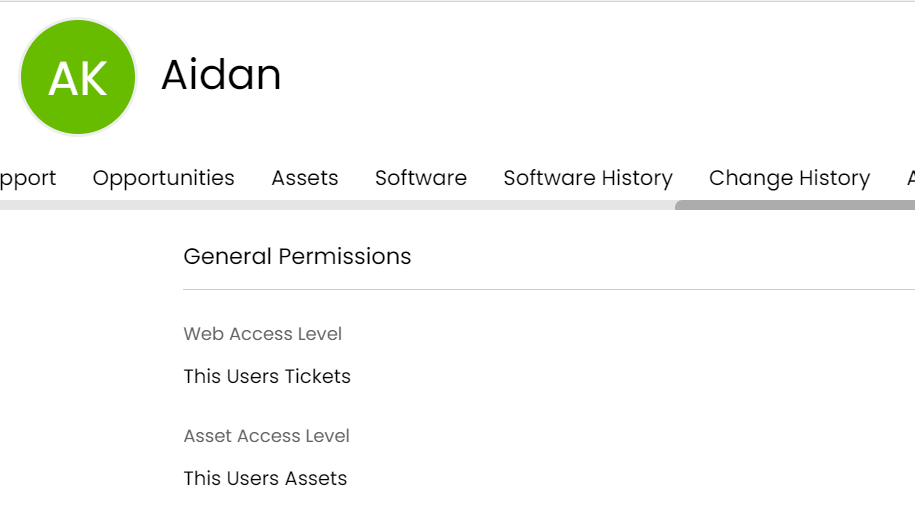
Fig 6. Modifying a user's Web Access Level
In here, under Self Service Portal and API Settings, you'll find the Web Access Level (Fig 6) - this can be modified to reflect the permissions a given end-user should have.
User Roles
You can also create a user role to set the web access level given to an end-user, this is done in Configuration > Users > User Roles:
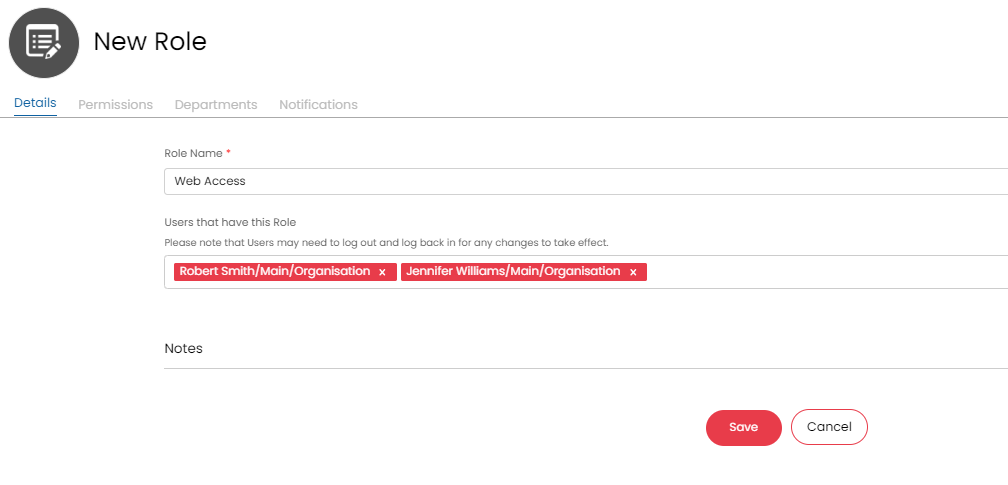
Fig 7. Manually Adding Users to a Role
Create the role with the users added manually, or you can navigate to the departments tab after saving the details screen and then have users inherit role permissions based on department:
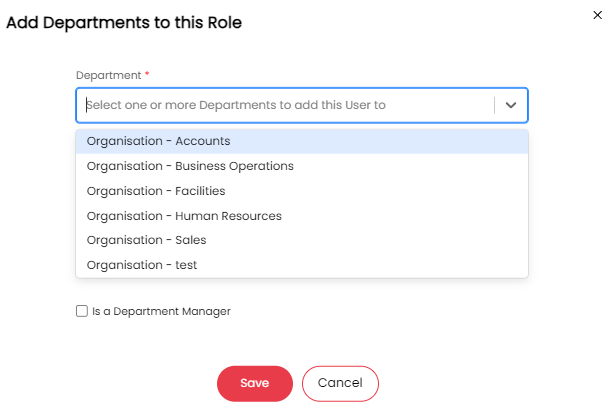
Fig 8. Adding Users via Department
You also have the option to set the department manager, which can be used to create approval processes, using the approver
"The Head of the Users default Department"
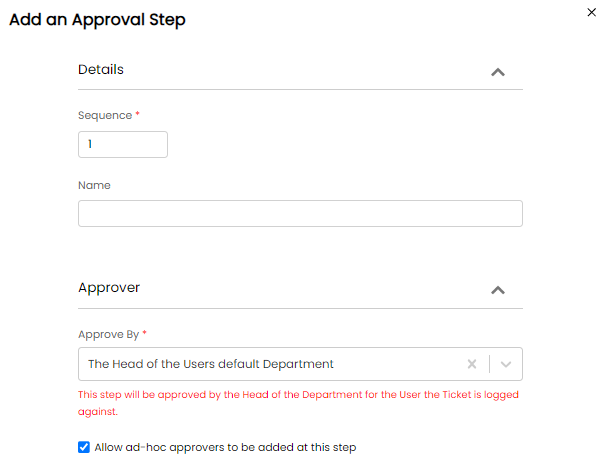
Fig 9. Approval Process where the approver is the department manager
We can also change the permissions to set the web access level of the user role:
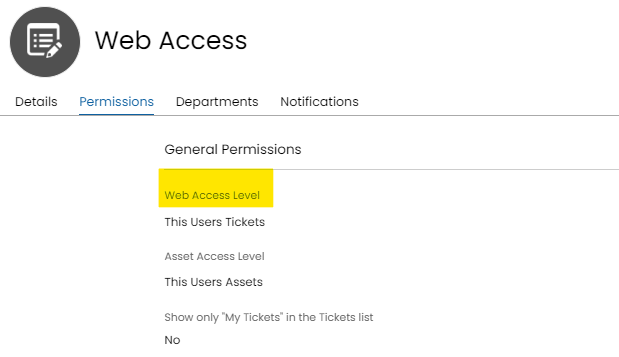
Fig 10. Setting the Permission for Web Access Level
If the web access level is set to i.e. "Customers Tickets" then the users of the role will be able to see all tickets associated with the sites of the customer they are under.
Note: The permission level set for the user whether it be from a user role or manually given, will always take the permission with the highest access level. Therefore if you set the user role and then you try to manually give the user a lower permission than the permission inherited from the role, the permission will default back to the roles permission, as it is a higher access level.