Stock Control
In this guide we will cover:
- Configuring Stock Control
- Making a stock location
- Stock control for Products
- Stock Levels and Consignment
Admin Guides:
Related Guides:
Configuring Stock Control
To enable stock tracking you will need to go to Configuration > Items and Stock Control > General Settings, then tick the "Track Stock Levels" checkbox. This will allow you to track the quantity of stock across different sites.
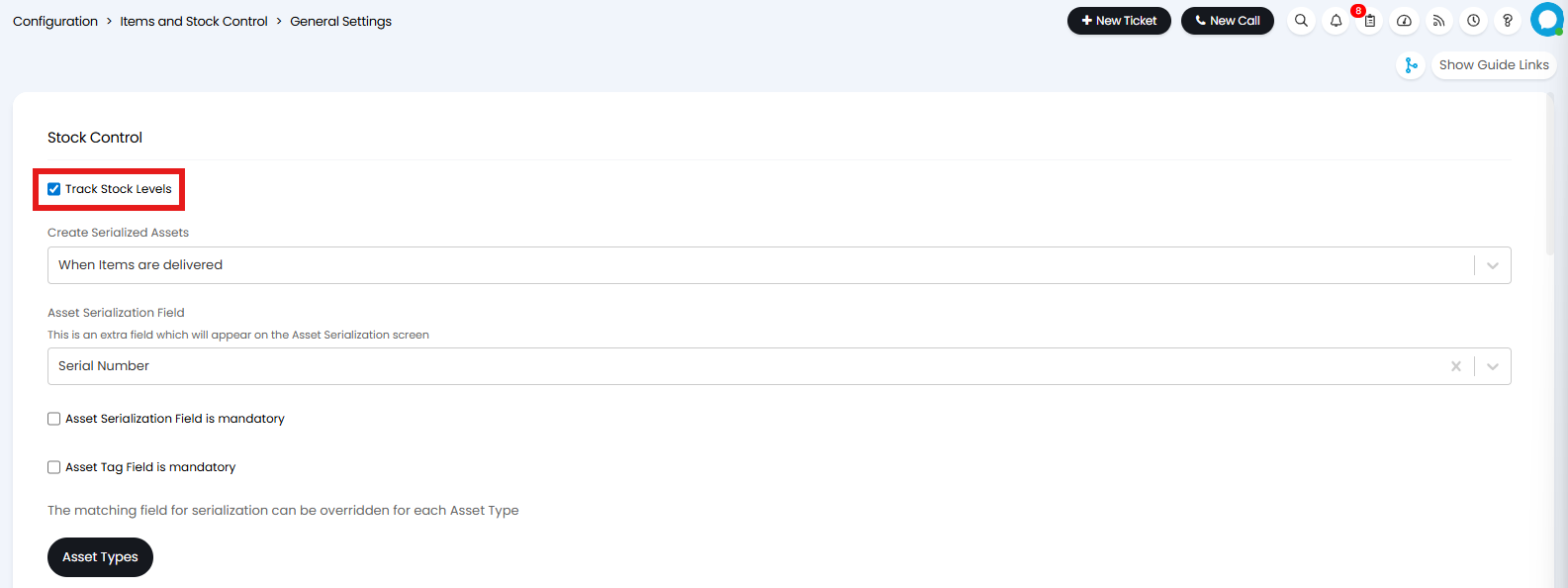
Fig 1. Items and Stock Control Configuration Options
On this page you will also find the following settings:
Create Serialised Assets - This determines when to Serialise Assets setting in Configuration > Items and Stock Control (Either "When the stock is added" OR "When items are consigned/delivered").
Asset Serialization Field - When serialising Assets you can choose to input data in an additional Asset field. Selecting Serial Number allows you to have a unique Asset Number/Tag and Serial Number at the point of serialising the Asset.
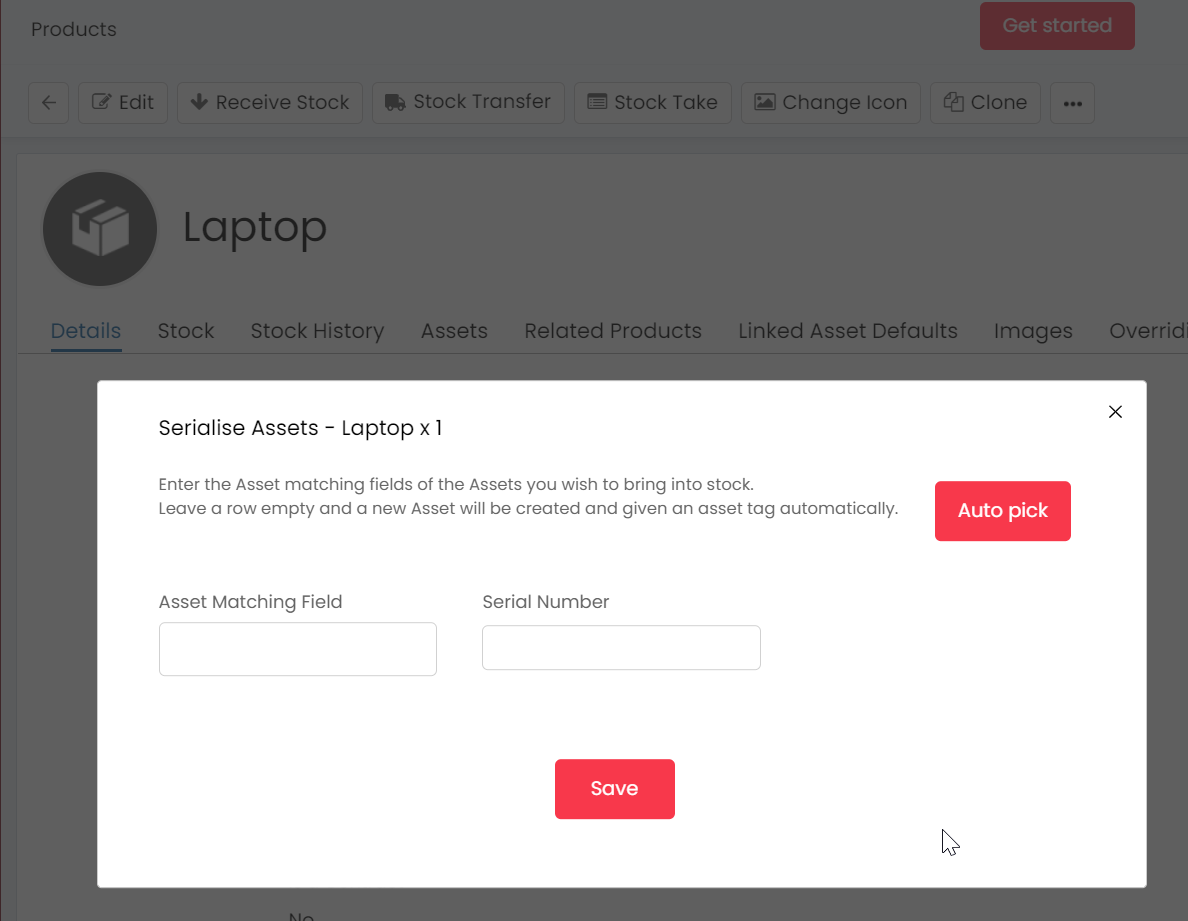
Fig 2. Extra field for Serialisation
Allow reserving of Items/Assets - If you enable this setting, you can reserve products which are in Stock for a certain Customer/Sales Order. This means they will be removed from stock for any future Sales Orders.
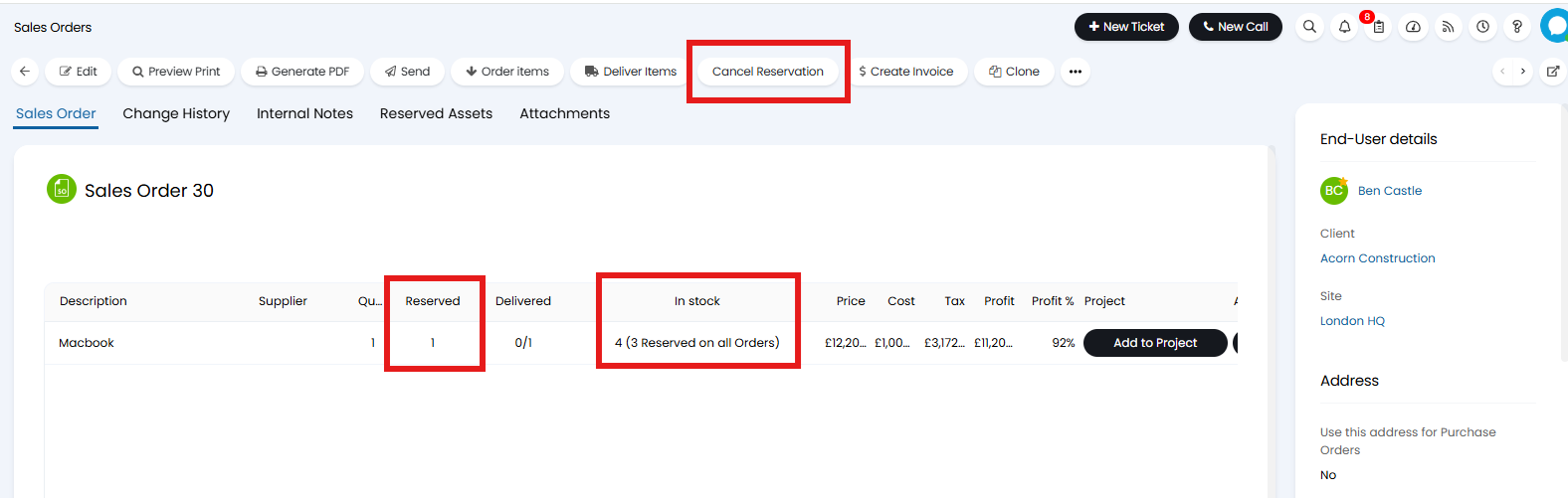
Fig 3. Reserving Stock in Halo
Automatically create and select serialised Assets - This setting will automatically assign the Asset Matching field in the same way the "Auto Pick" button automatically assigns an Asset Matching field.
Default Stock Location - If a stock location has not been set in any entity, it will use the default stock location which is set here.
Consignment site on quotes, sale orders, and purchase orders is mandatory - When adding Products to Quotes / Sales Orders and Purchase Order you have the option to select a Consignment Site. Checking this box makes the consignment site mandatory
Consignment site must be at the Customer of the order - When selecting this option you can only assign a consignment site which is a location for the customer.
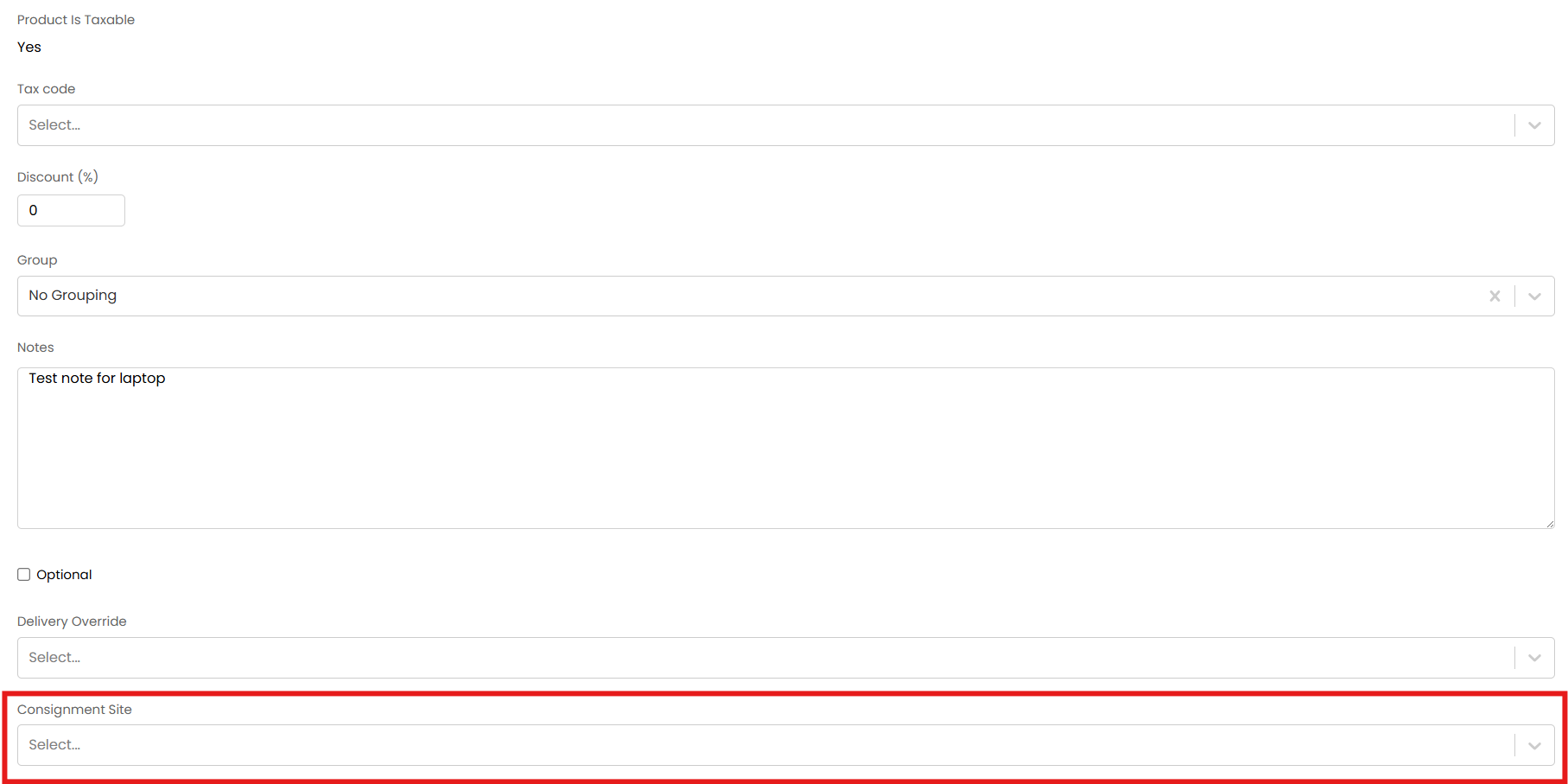
Fig 4. When adding a product to a quote or order you can select a consignment site
Making a Stock Location
In order to receive stock you will first need to set up locations that you can receive stock from. To set up a stock location you will need to go to a site and enable the option under the details tab to set this site as a stock location.
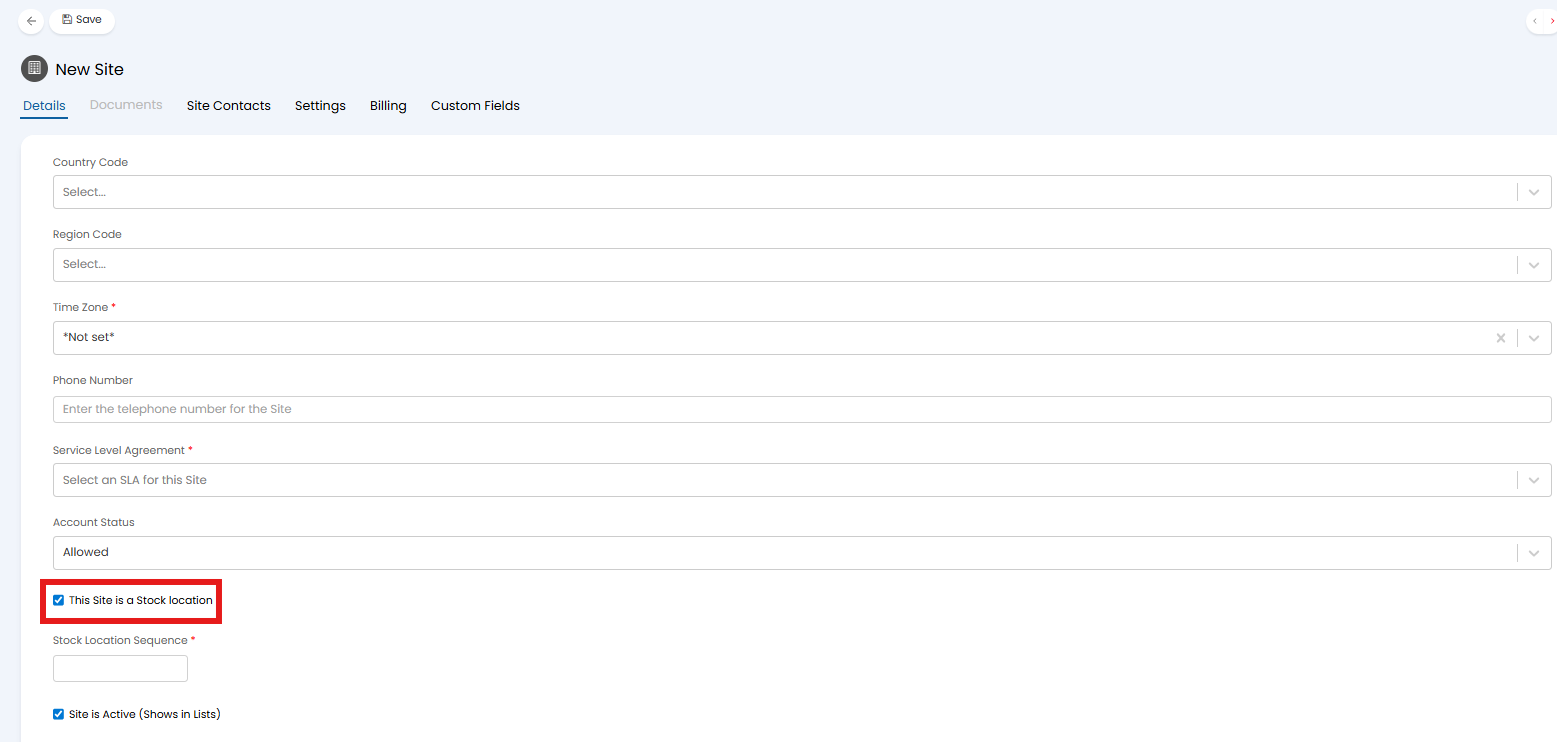
Fig 5. Making a Site a Stock Location
When making a site a stock location, you will have the option to choose a sequence for the stock location. This sequence determines where this location appears in lists when consigning/receiving stock.
Stock can be viewed and received in the Stock tab of your stock location. To receive stock this way click the three dots (...) and select "Receive Stock".
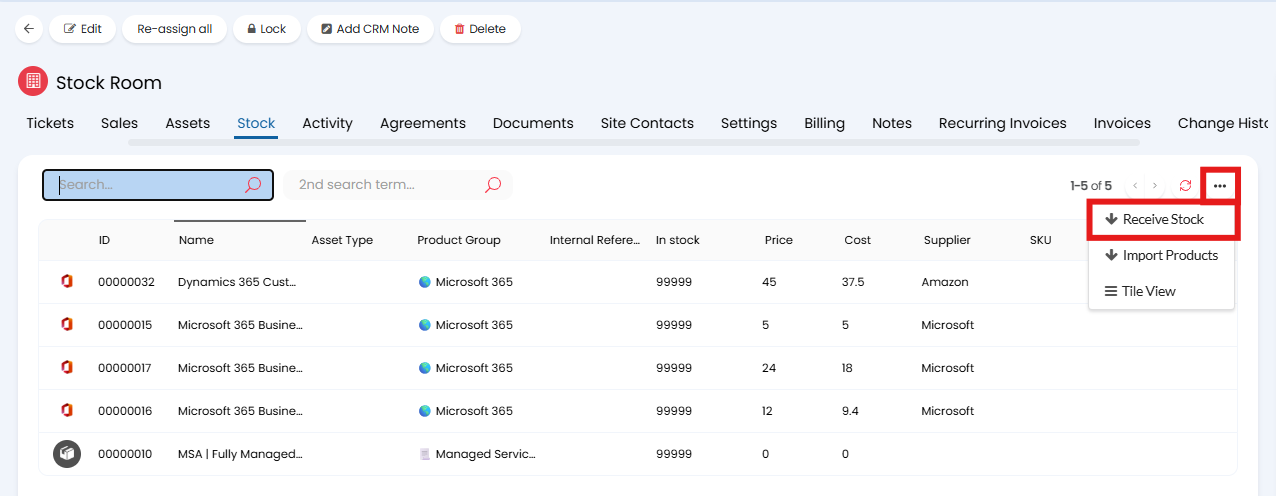
This will open the stock page, where you can specify the products and quantities to bring into this stock location.
Stock Control for Products
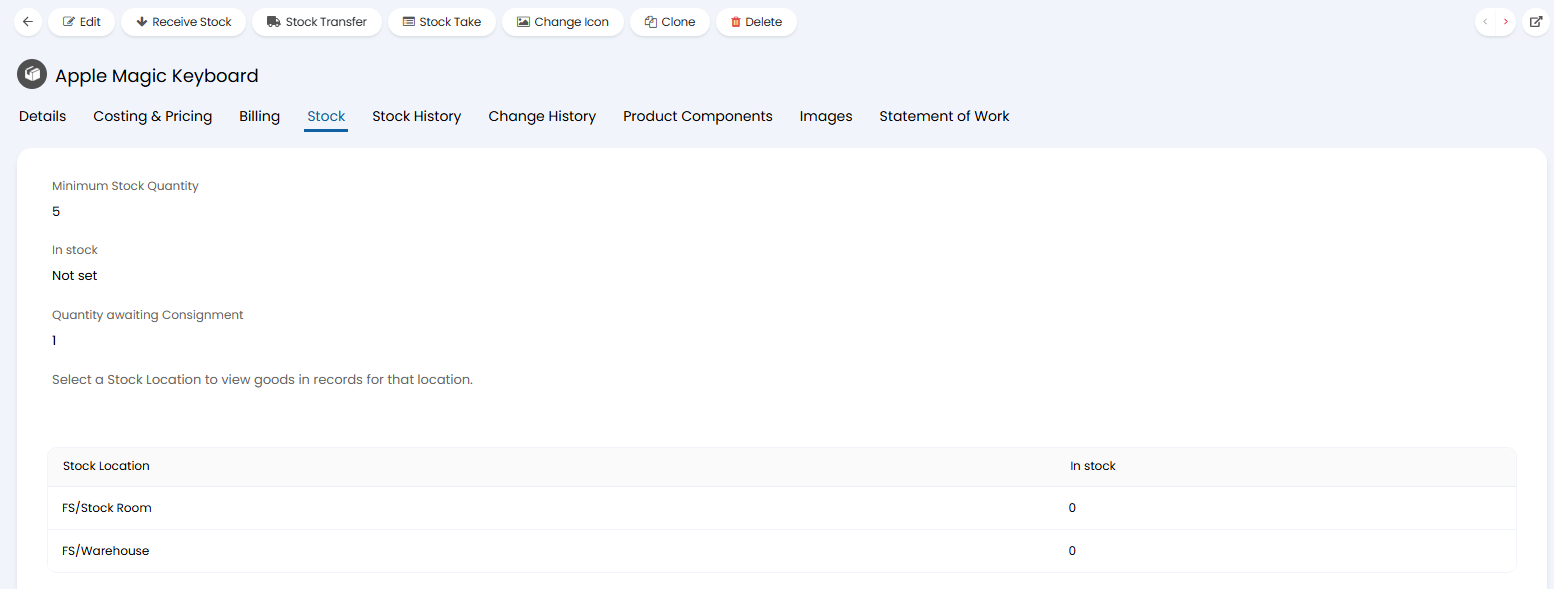
Fig 6. Stock Control in the Products area
Within a Product you will find the below options to managing stock:
Receive Stock Button - This allows you to increase the quantity in stock by receiving stock. If you have the below setting enabled you will need to serialize assets when receiving the stock. You will need to choose the location to receive the stock to.
Stock Transfer Button - This allows you to move the product from a stock location to another stock location. If you are serialising the assets when adding stock then you will need to enter the serial number of the Asset being moved.
Stock Take Button - This allows you to adjust the quantity of stock across all locations for a given product. If you increase the quantity of the product then you will need to serialise the extra stock you are adding.
Stock Tab - Found in the products area after stock control has been enabled in Configuration > Items and Stock Control, this gives you an overview of stock for the product and where the stock is located.
- In Stock -Quantity of the product in stock at all sites.
- Quantity Awaiting Consignment - Shows the Quantity on Sales Orders awaiting consignment.
Stock History Tab - This will show any changes to the stock level for a location. If related to a ticket it will show the ID for the ticket. It will also show the type of movement. Stock take, stock transfer or consignment.
Alternatively, stock can be received in this Area by clicking the three dots (...) at the top of the Products/Items Area.
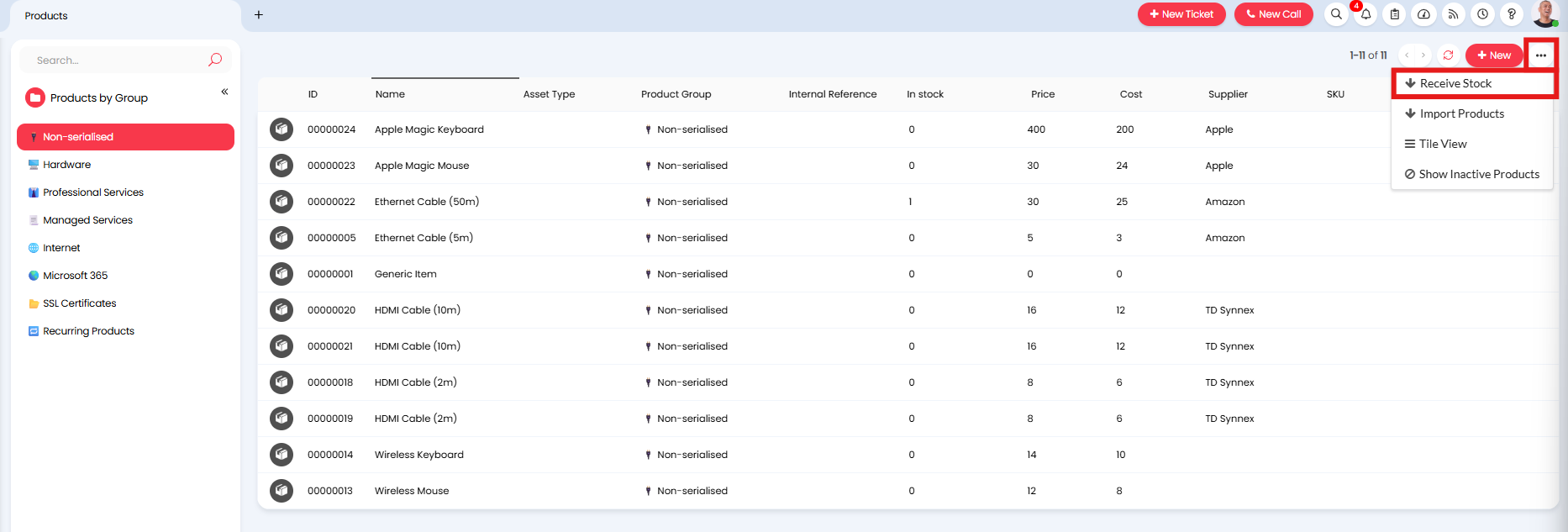
Fig 7. Receiving stock in the Products area
When selected you will be prompted to specify the stock location for the stock to be brought into, followed by the products you are receiving and the quantity.
When viewing you products in the Products Area you can switch the view to be based on the Stock Location.
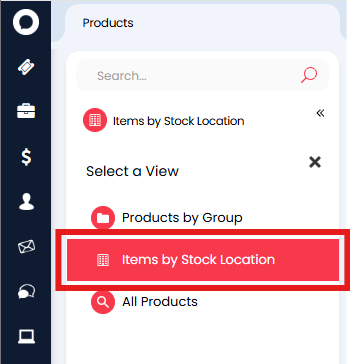
Fig 8. Items by stock location
Stock Levels and Consigning Stock
Stock is reduced when products are consigned from a Sales Order, or when a product is issued on a ticket. An option to consign items on a Sales Order shows on the Sales Order screen.
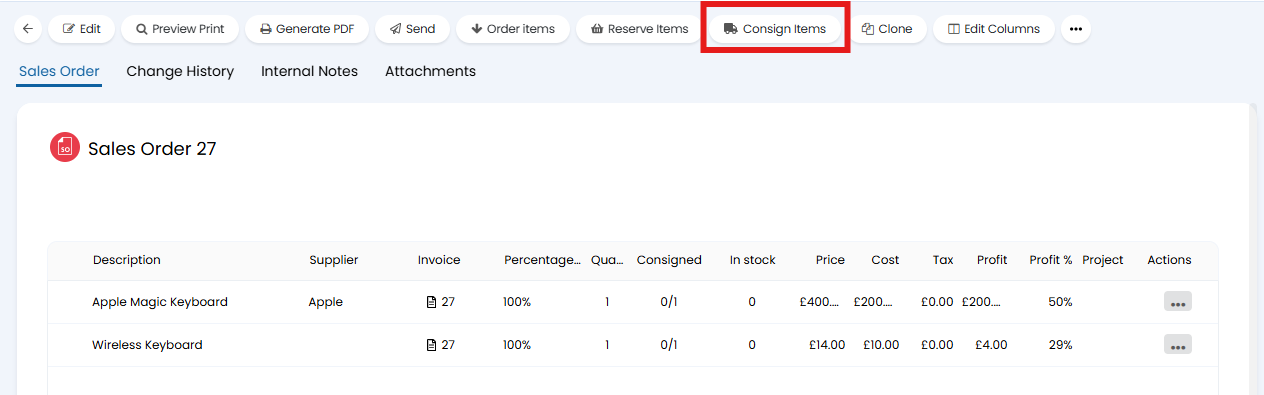
Fig 9. Consign Items button
Items can be marked as consignable in their corresponding Details tab. If disabled the product will behave as if it has already been consigned when it is added to an order.
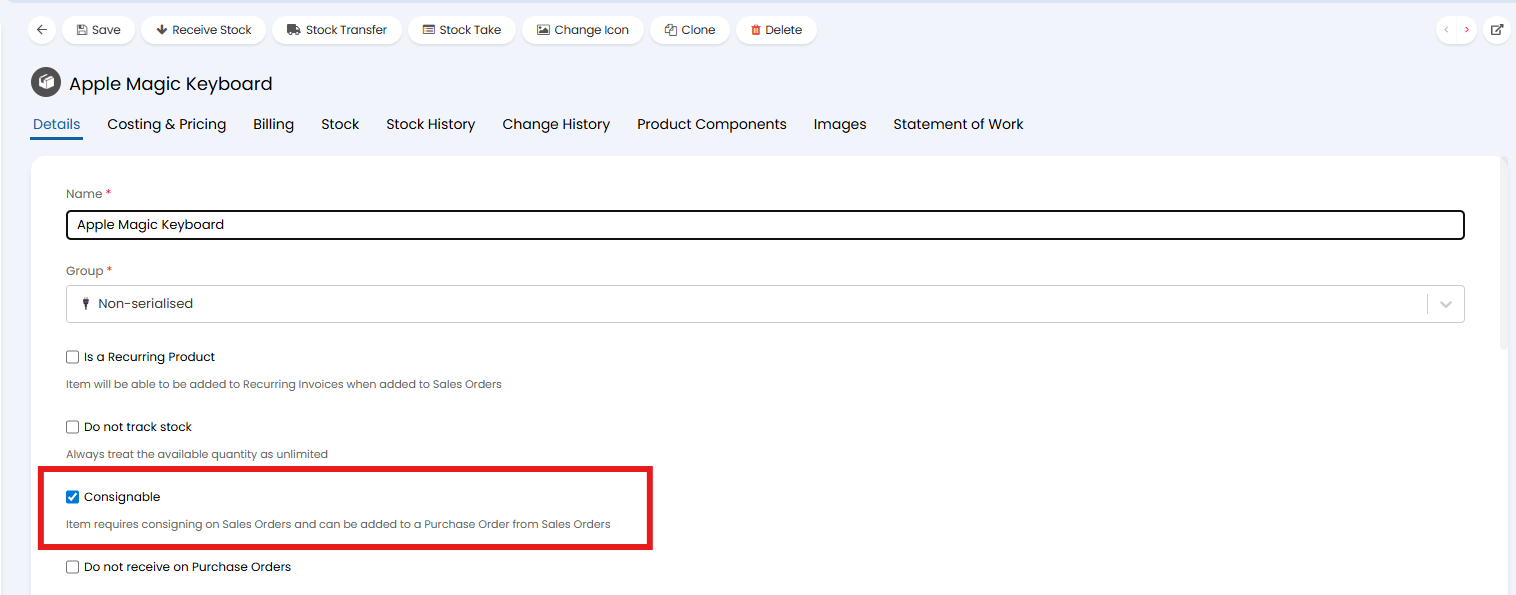
Fig 10. Marking an item/product as consignable
If the stock is issued on a ticket that has the same site, the stock levels for that site will not be reduced. If the stock is issued on a ticket that has another stock location as the site, the stock will be reduced at the previous location and added to the new location. If the stock is issued on a ticket with a non-stock location as the site, the stock will be decreased and the item consigned into an asset which has its site set to the new location.
Using the "Consign Items" button will consign all lines on the order which need to be consigned, and reduce the stock of the item. There must be enough of the product in stock to consign the order.
When consigned, a link to the consignment will show within the line item. Clicking the consignment will show information about the consignment such as the products, and any assets that were serialised.

Fig 11. Link to consignment
To prevent issued items and Orders being invoiced until they are fully consigned, head to Configuration > Sales Orders, and select "Orders and Items must be consigned to be invoiceable".
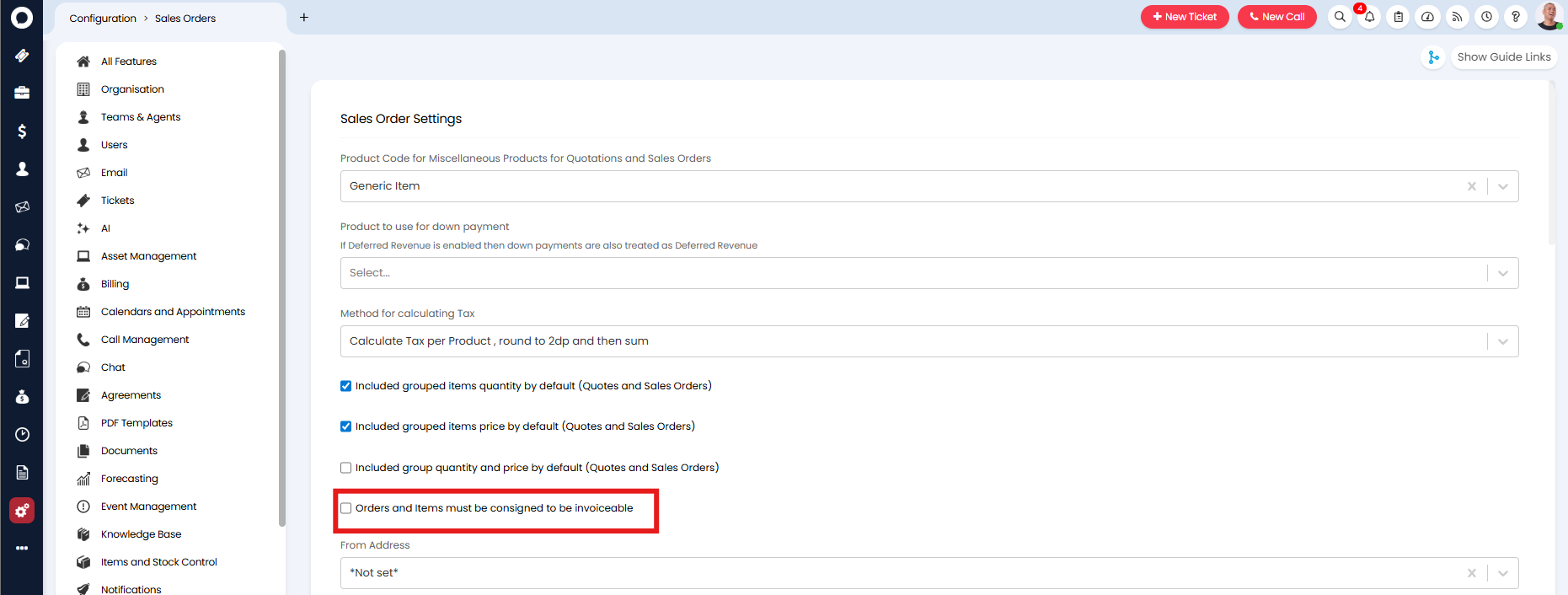
Fig 12. Orders and Items must be consigned to be invoiceable