Creation Periods in Recurring Invoices
- invoice schedule
- creation period
In this guide we will cover:
- What is a Recurring Invoice?
- Creation Periods in Recurring Invoices
- Example: Using Creation Period Variables on a Recurring Invoice
- Advanced Example: Invoicing Licences in Arrears but Support in Advance
Admin Guides:
Creation Periods allow you to create Recurring Invoices for different type of charges, i.e invoicing in advance versus invoicing in arrears. Before discussing creation periods, it is important to first understand what recurring invoices are.
What is a Recurring Invoice?
A Recurring Invoice can be considered as a template for invoice creation. There are two primary components to this:
- Invoicing Schedule
- Invoice Details
Invoicing Schedule
When creating a Recurring Invoice, you'll notice an option to 'Set Schedule'. If you do not add a schedule when creating the recurirng invoice, then you will be given a warning pop-up note when you click save:
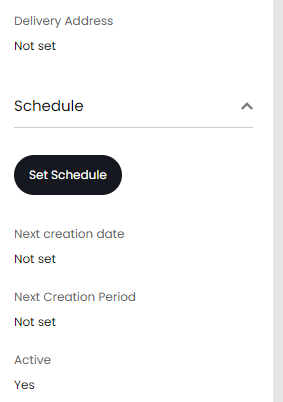
Fig 1. 'Set Schedule' option on a Recurring Invoice
This is where you determine the dates that invoices will be created. If you wanted to set up a Recurring Invoice schedule to create Invoices at the start of each month, you would use similar options to the below:
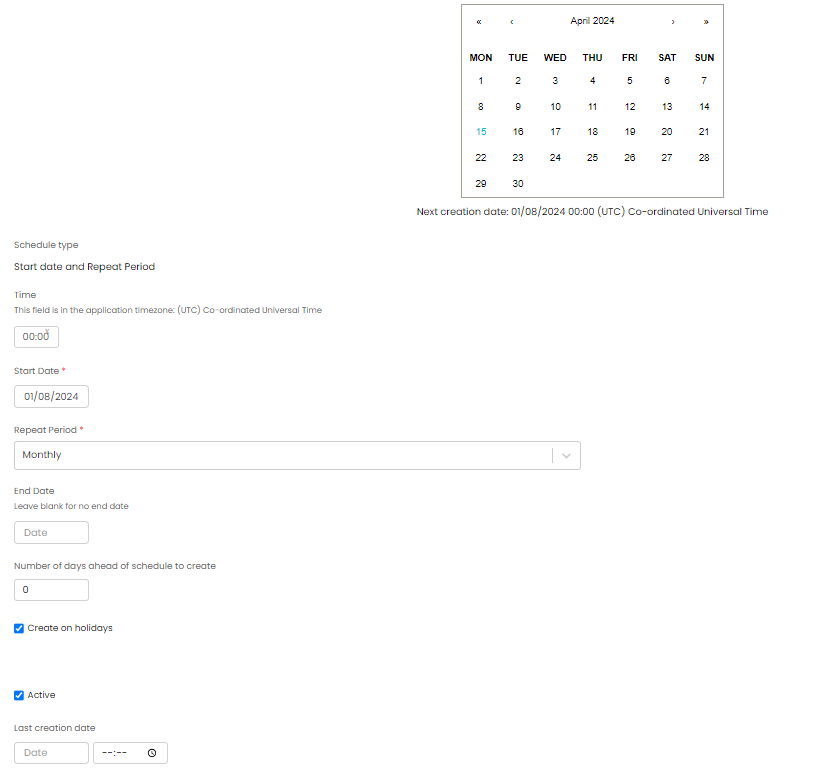
Fig 2. The Recurring Invoice Schedule Screen
Note: Note in Fig 2 that the calendar has the 1st of August filled in blue - this calendar will show you the dates that invoices will be ready to be created, so it is always handy to flick through this calendar to ensure that invoices will be ready to be created when you expect.
The schedule that you create will establish the Creation Dates for invoices. The last creation date does not need to be specified, if left blank, the recurring invoice will continue to create forever, based off of the configured schedule.
You can also choose a day of the month to have the invoice created on, against the schedule. Useful if you would like the invoice to be created on a different day to the date the schedule begins. Or if you would like invoices to always be created on the 29th, 30th or 31st of the month, as not all months have this number of days. If one of these dates are chosen the invoice will create on this day, unless the month does not have that number of days, in which case the last date of that month will be used.
Invoice Details
Once your schedule has been established, you'll want to add your recurring products onto your Recurring Invoice (you'll find some details on the types of recurring products you can add to recurring invoices in the worked example in this course). For the sake of this guide, we will focus on one specific aspect of adding recurring products to recurring invoices - $_variables. As mentioned, a Recurring Invoice is a template for invoice creation. As such, you are permitted to use $_variables in recurring invoice lines (similar to how you can use $_variables in email templates).
There are 2 primary variables to consider for the fundamentals of this guide:
- $_PeriodStartDate
- $_PeriodEndDate
To understand how to use these variables, we must first understand what a creation period is.
Creation Periods in Recurring Invoices
A creation period is simply the period of time between two invoices being created from a recurring invoice (based on the schedule that has been set). So if invoices are generated monthly, the creation period would be one month. Note that this does not include the date of next invoice creation. The specific dates that determine the creation period for a recurring invoice is based on the below option:
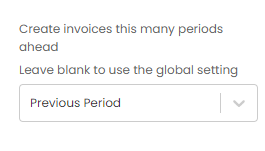
Fig 3. Setting the Creation Period on a Recurring Invoice
Previous Period- Will bill for the last period (now ended). For example, if I am billing on 01/12/2024 the invoice will be for the period 01/11/24-01/12/24
Current Period- Will bill for the period I am now in. For example, if I am billing on 01/12/2024 the invoice will be for the period 01/12/24-01/01/25
Next Period- Will bill in advance for the period that has not yet started. For example, if I am billing on 01/12/2024 the invoice will be for the period 01/01/25-01/01/25
Namely, if set to 'previous period', the creation period for an invoice will be from when the previous invoice was created up until (but not including) the date of next invoice creation. The 'Create invoices this many periods ahead' global setting is found in Configuration>Billing>Recurring Invoices you can set the period you would like to bill for by default, this can of course be changed per recurring invoice, as shown in Fig 3.
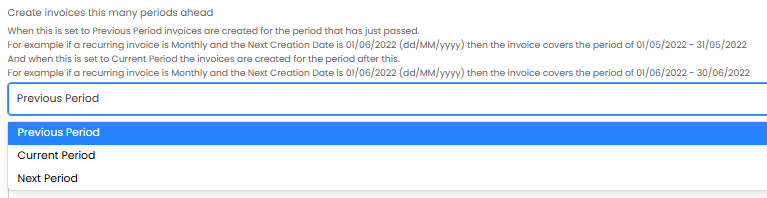
Fig 4. The Global Setting for Invoice Creation
Note: This will also work even if this is the first instance of an invoice being created.
So this is where these variables come into play - you can use these variables, along with the above mentioned configuration, to display the period for which certain products/services are covered.
Example: Using Creation Period Variables on a Recurring Invoice
In this example, we will create a monthly recurring invoice that is for licences billed in arrears. We will:
- Create a Recurring Invoice - with a schedule & recurring products.
- Set our 'Create Invoices this many periods ahead'.
- Apply our creation period variables.
Creating the Recurring Invoice
Head to the Invoices module, hover over new 'Top RHS' & Click 'New Recurring Invoice':
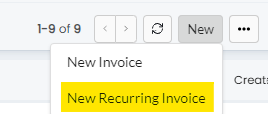
Fig 5. The 'New Recurring Invoice' Option
Upon clicking this, you will be presented with the new Recurring Invoice screen. Pick the client you'll be invoicing & set your schedule. For this example, I will use a similar schedule to that set above. Once I've set my schedule, I will add my recurring products to my recurring invoice:
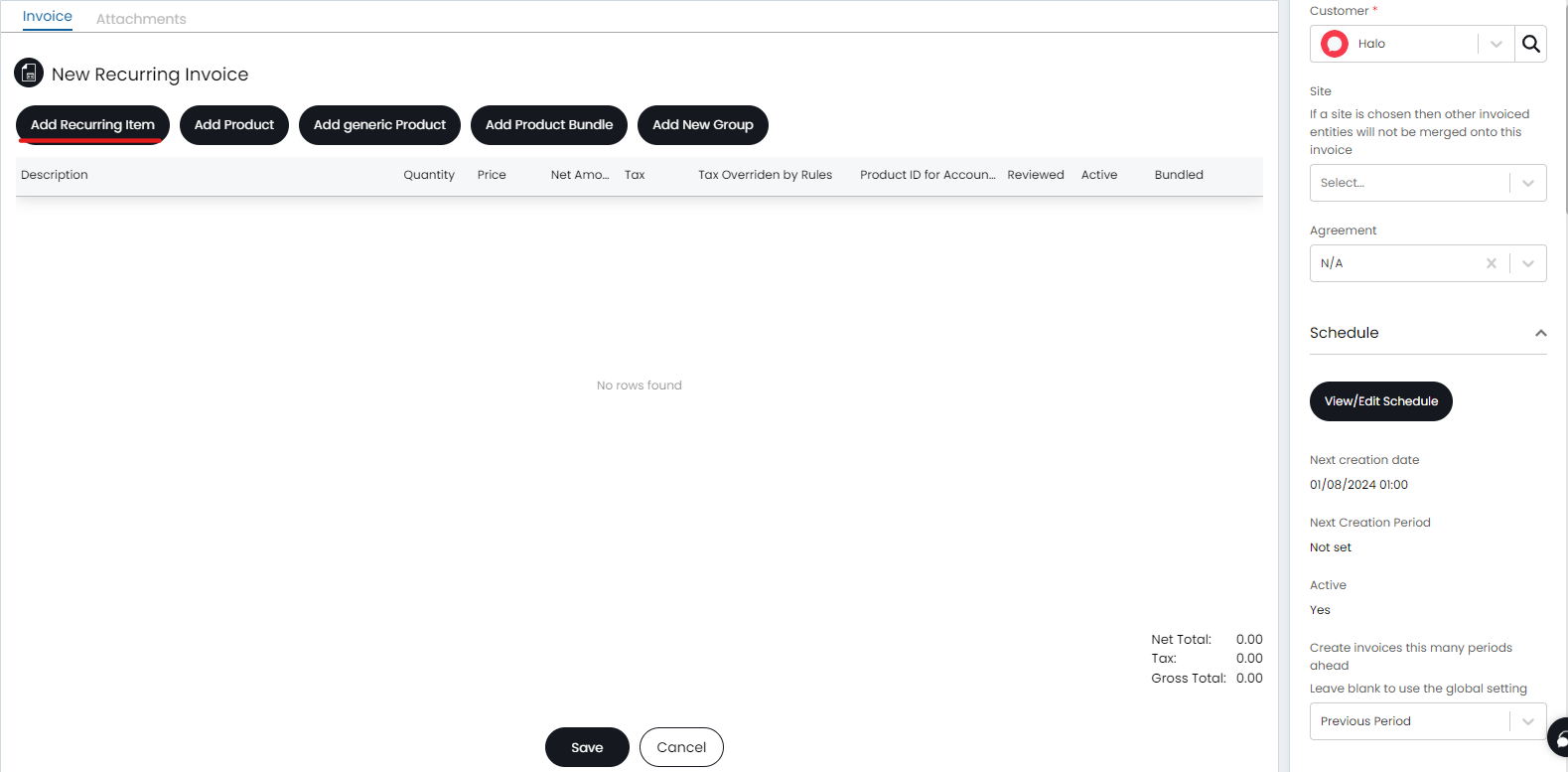
Fig 6. The new Recurring Invoice Screen, with 'New Recurring Item' option underlined
By setting relevant quantities, per product:
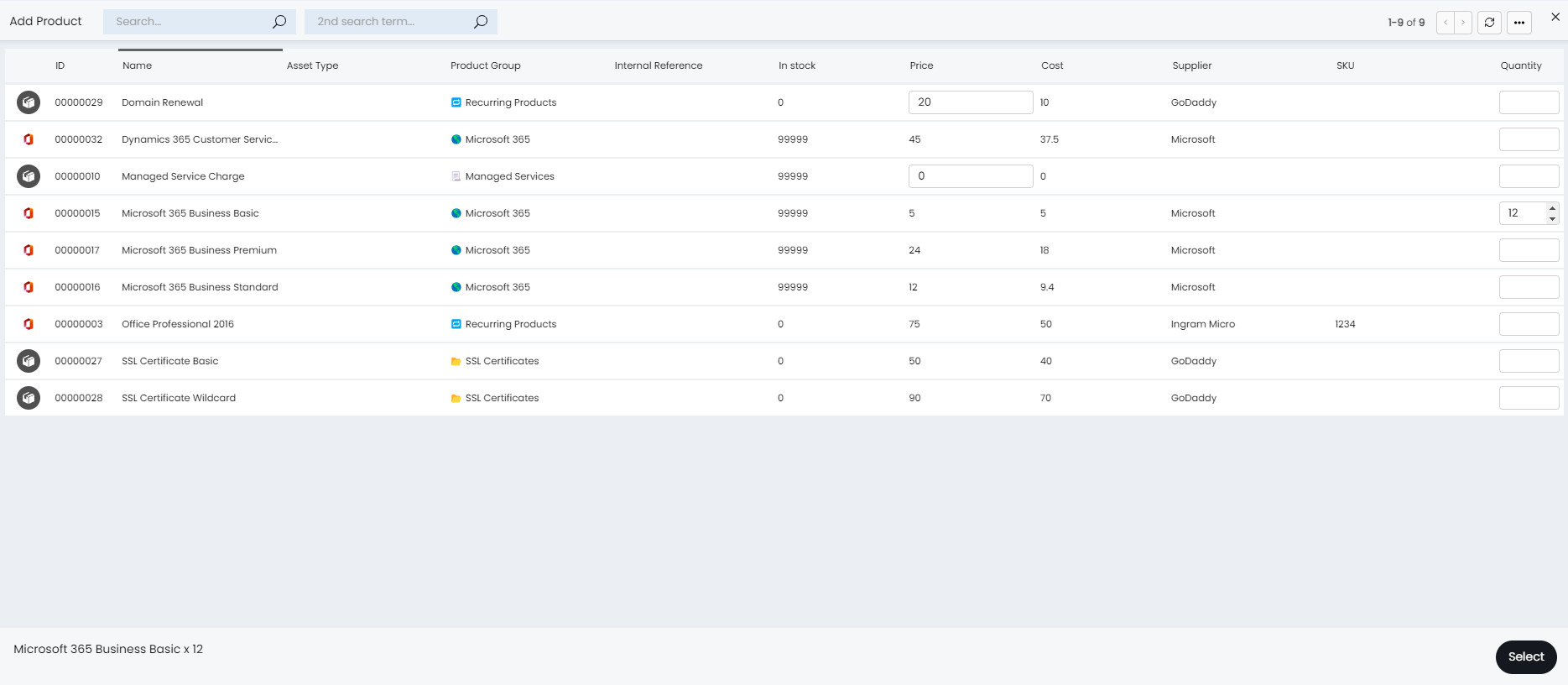
Fig 7. Recurring Product Selection
And clicking 'select'. Notice that I specified my creation period as 'Previous Period' (Bill in Arrears) & hence my creation period is for the previous month:
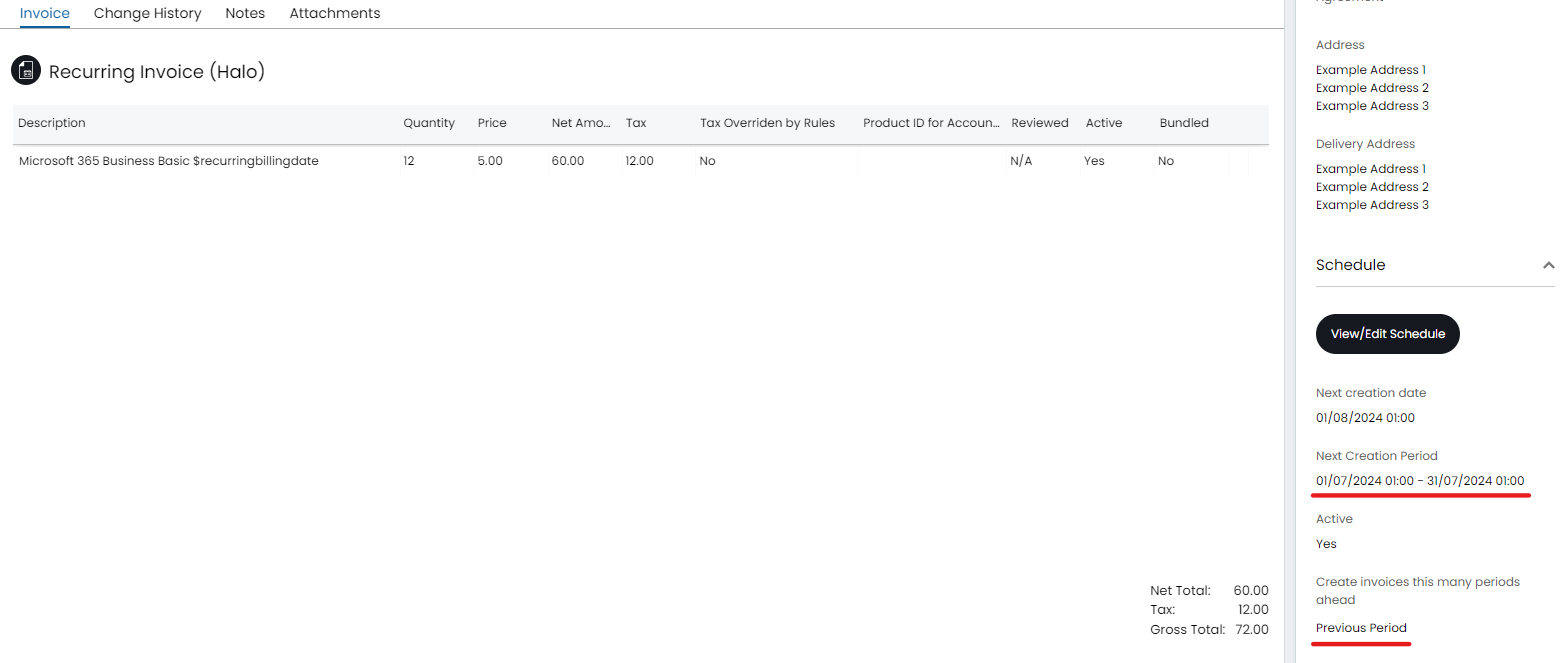
Fig 8. Recurring Invoice Schedule with (i) Previous Period(Bill in Arrears (0)) specified & (ii) creation period returned
Applying Creation Period Variables
To apply my creation period variables, all I have to do is edit my recurring invoice line (by clicking 'Edit' on my Recurring Invoice & then the Pencil to the right of the recurring invoice line) & include my variables:
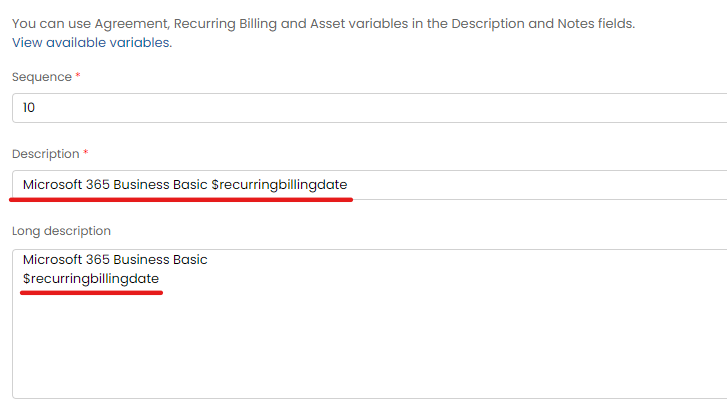
Fig 9. Editing Recurring Invoice line description to include creation period variables
Note: You can default this onto every recurring product when being added to a recurring invoice via heading to Configuration>Billing>Invoice Creation & changing 'Recurring Item Description' to the following:
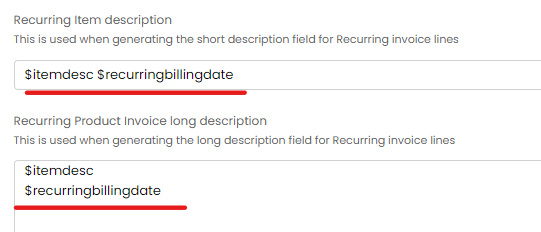
Fig 10. Global default for Recurring Invoice Line Description
The long descriptions can be used on PDF's for the entity - Invoices. Now, once our schedule has been met for our recurring invoices & invoices have been generated, these variables will be replaced with the creation period (in this case, the previous month):
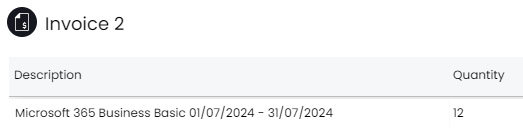
Fig 11. Creation Period Variables replaced with expected dates
Advanced Example: Invoicing Licences in Arrears but Support in Advance
Now we understand the basics of how to use creation periods on recurring invoices, lets take a look at some of the more advanced options around this feature. The above example allows us to return the period that products/services are covered. However, we may want to display different periods - per line - on a recurring invoice, based on the way products/services are billed. to facilitate this, we need to consider 4 additional $_variables:
- $_PreviousPeriodStartDate
- $_PreviousPeriodEndDate
- $_NextPeriodStartDate
- $_NextPeriodEndDate
A common scenario that comes up is "My client has an Agreement with us where we invoice them for licences in arrears, but contracted support in advance - how can I handle this?". The solution requires us to make use of these additional creation period variables.
Lets say I want to create invoices on the 1st of each month & detail on these invoices that licence fees are for the previous month, but the support charge is for the month we are in. For this, what we can do is:
- Create our Recurring Invoice, setting our schedule to have invoices created on the 1st of each month & setting our 'create invoices this many periods in advance' to 1 (billing in advance).
- Use distinct $_variables in our recurring invoice lines to return the previous creation period (last month) & creation period (this month).
You can use the schedule configuration in Fig 2 to specify invoices to be created on the 1st of each month & set 'create invoices this many periods ahead' to Current Period (billing in advance), so you should see something similar to:
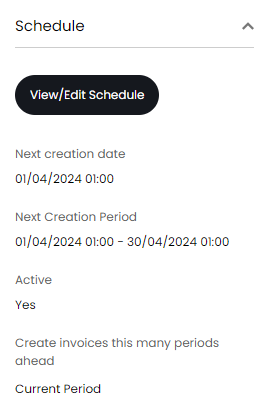
Fig 12. Recurring Invoice Schedule + Creation Period
For my licence line, I want to specify that these are licences covered from July to August. In this example, I can use the $_PreviousPeriodStartDate and $_PeriodStartDate to return what I want. Click the pencil against your recurring invoice line to open the edit screen, & amend your description as follows:
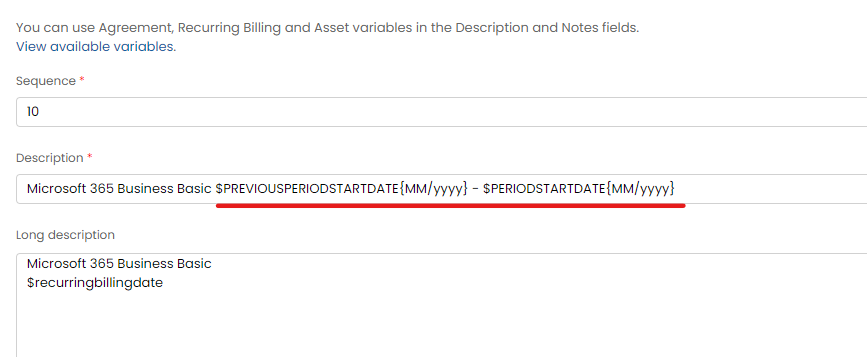
Fig 13. Editing Recurring Invoice Line Description
Note: Note the '{MM/yyyy}' at the end of these variables. You have the option to edit the formatting of datetime $_variables (I'm not concerned with showing the customer that licences are for the 1st of July to the 1st of August, only with showing them that these are licences for July until August).
Follow a similar procedure for your Contract Support line, but use slightly different variables:
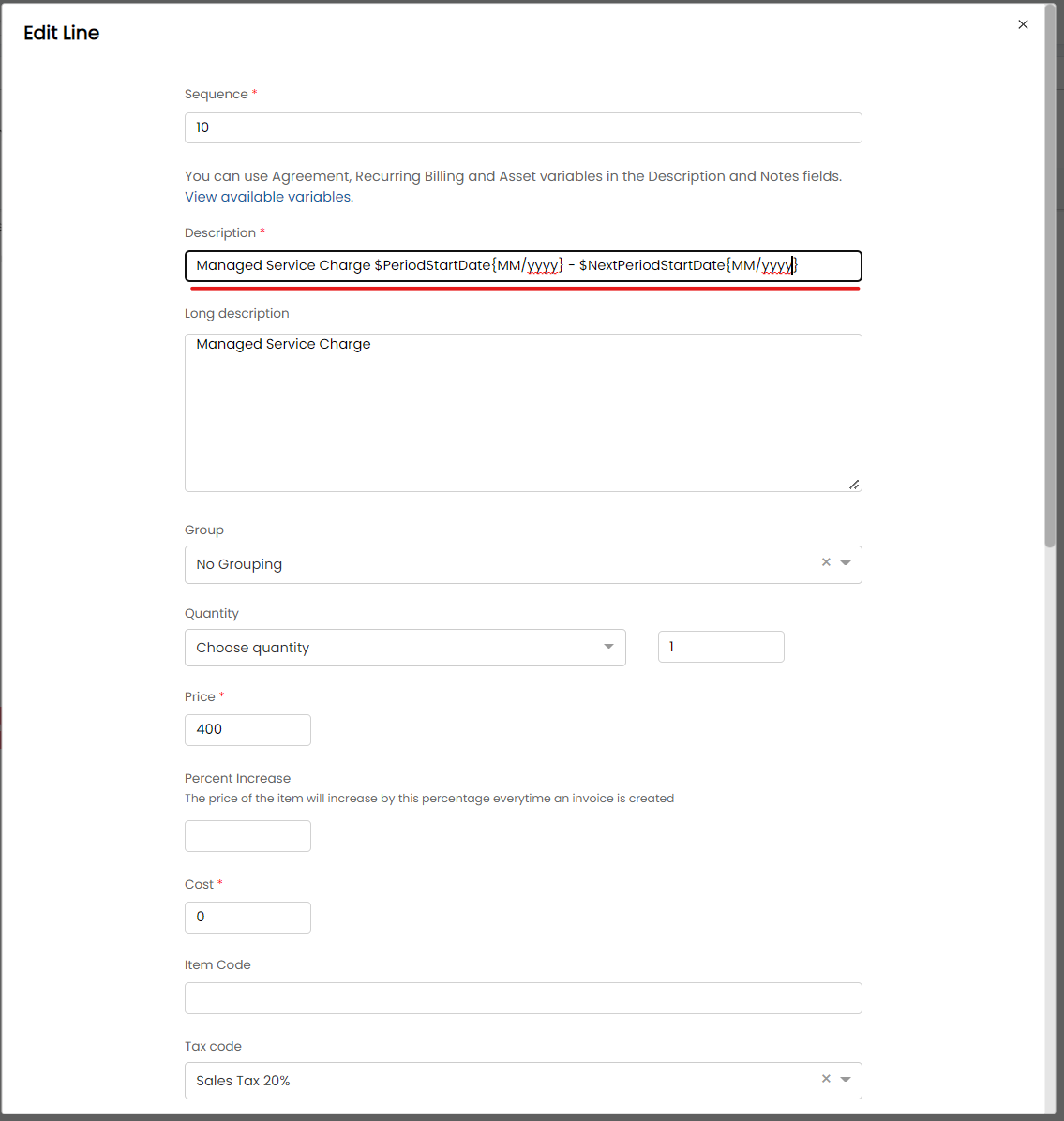
Fig 14. Editing Recurring Invoice Line Description
Notice how instead of going from Previous Period to Period, we are going from Period to Next Period. This will allow us to return on the invoice that support is covered from August until September. So, in total, we have something which looks like:
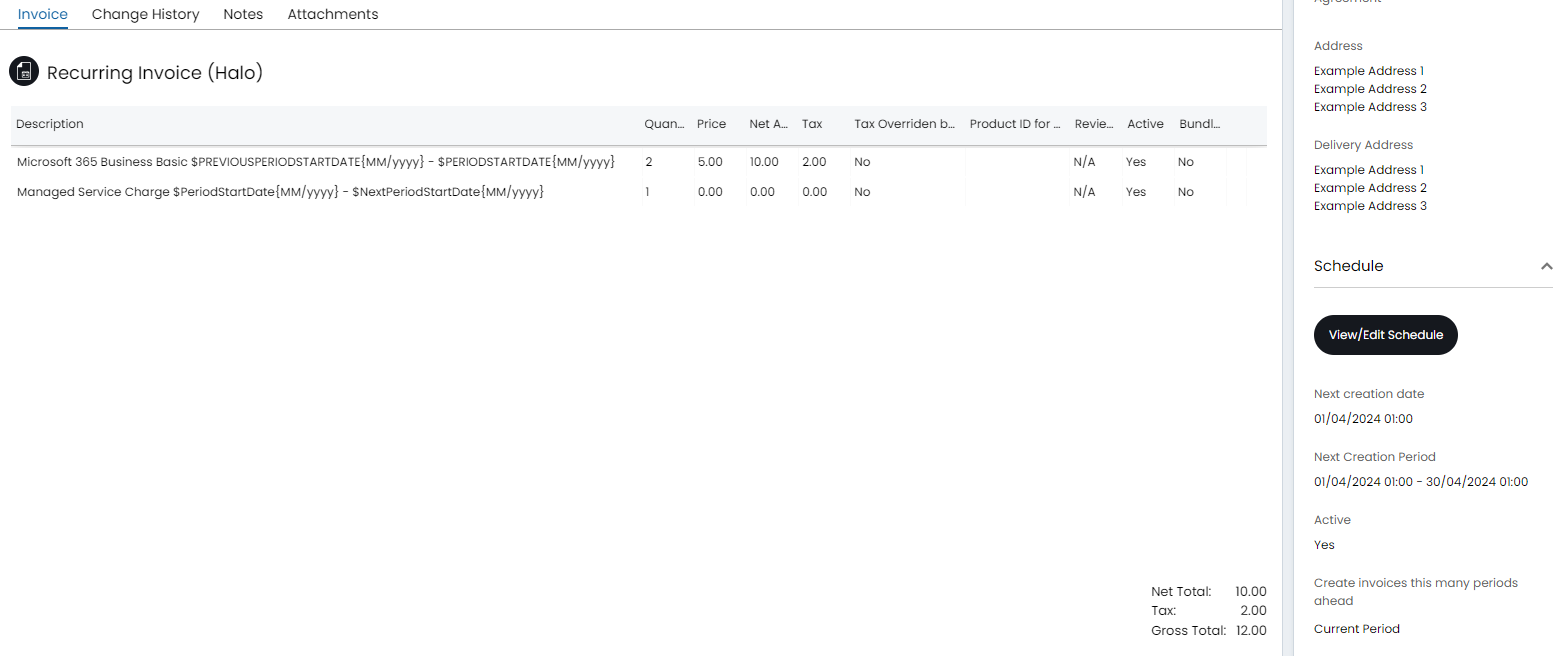
Fig 15. Example Recurring Invoice details
When our schedule is met & invoices are ready to be created from this Recurring Invoice, we will find that these variables are replaced with the dates we are looking for:
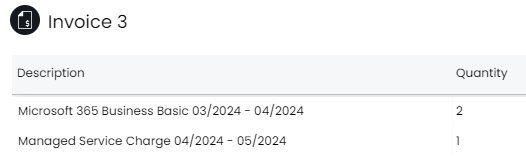
Fig 16. Invoice Created from Recurring Invoice, with Variables Replaced Accordingly
The 'date invoiced' field, which is found in the 'Invoice Details' section will correlate with the month and the year on the managed service charge line '$PeriodStartDate' as shown in Fig 14.
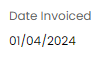
Fig 17. Date Invoice