Email to SMS
In this guide we will cover:
- Compatible Email to SMS Providers
- SMS Settings
- Setting up an Action to send SMS
- Sending SMS to Service Users
Admin Guides:
Compatible Email to SMS Providers
HaloPSA will work with most Email to SMS providers as they follow a similar method for converting an email sent from HaloPSA to the SMS providers into an SMS for the end user.
Popular choices
- US - https://www.clicksend.com/us/sms/email-to-sms/
- UK - https://www.voodoosms.com/email-to-sms
- AUS - https://www.directsms.com.au/email-to-sms
- Halo Also Integrates with Twilio
The basic concept of Email to SMS is that HaloPSA sends an email with the format {phonenumber}@{SMSProviderDomain} and the SMS provider then turns this into an SMS and sends it to the phone number specified.
For example 07772817814@sms.clicksend.com
The SMS Provider will often require you to specify which email addresses they should expect you to send from and create a whitelist for these.
SMS Settings
SMS Configuration is found in Configuration > Email > SMS Settings.
Enter your providers email address and any other details that the provider requires (most commonly it is only the Provider Address that must be filled out).
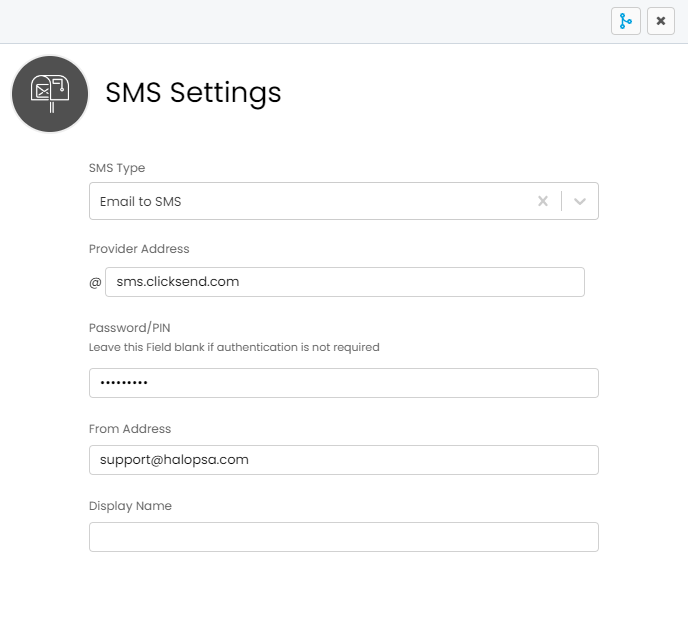 Fig 1. Example of Email to SMS Settings
Below the button found in Configuration > Email > General Settings, there is a checkbox for "Show 'Send SMS To End-User' checkbox on Actions" with this enabled, there will be an icon on the send SMS actions, which can be used to toggle on or off the SMS being sent:
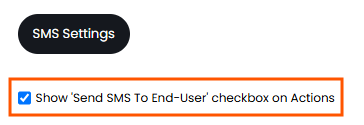
Fig 2. Default Setting which is required for actions to show a "Send SMS" icon
Setting up an Action to send SMS
When configuring an Action you can choose for an SMS to be sent by setting "Send and SMS" to "Yes" on the defaults tab. You can also make it an option to send SMS for an action by checking the box for "Show the Send SMS Option" on the Details tab of the Action configuration.
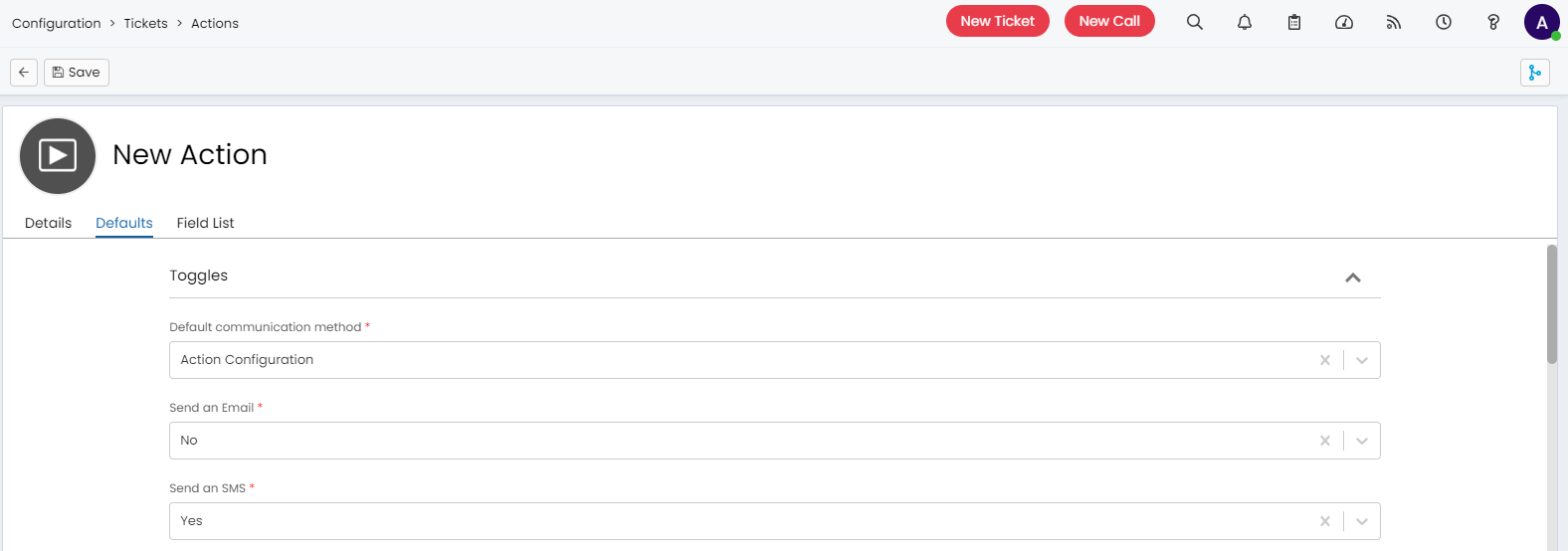
Fig 3. Action configuration for sending an SMS
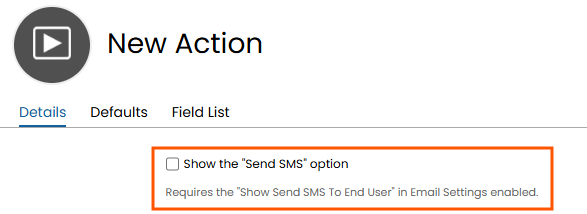 Fig 4. This is the action level setting to apply the icon per action (The global setting must be enabled for this to work)
When the Action is used on a Ticket you will then see an input for Phone Number that will prepopulate if the user of the ticket has a mobile number stored against them. This will then send an email to the SMS provider to be turned into an SMS for the phone number specified.
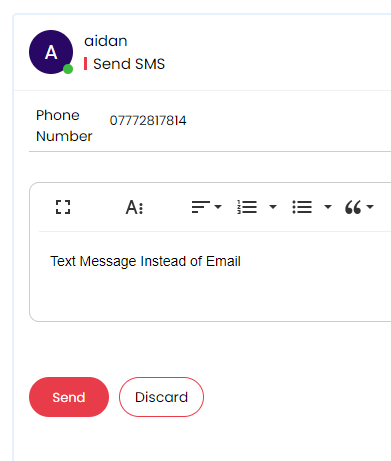
Fig 5. Example of sending an SMS from a ticket
When enabling the setting in Configuration > Email > General Settings > "Show 'Send SMS To End-User' checkbox on Actions" and then turning on the setting "Show the 'Send SMS' option" at action level, you will see this icon that can be toggled on the action (Top RHS of Figure 6):
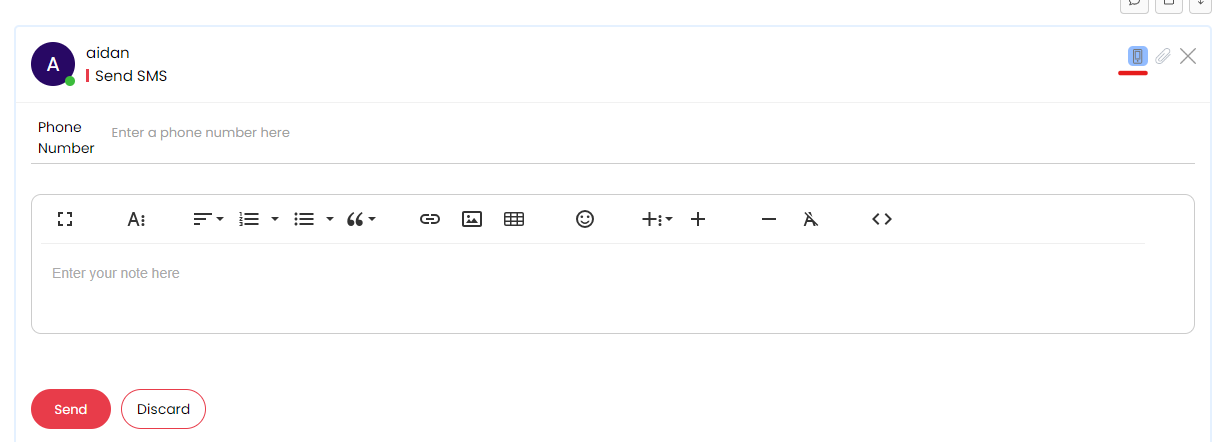 Fig 6. Send SMS Action having the SMS toggle on the new action screen
If you click this icon it will stop you from sending an SMS, it is on by default when you are doing the action.
You can use an email template for the SMS emails but remember to keep it short as the content needs to fit onto an SMS and some providers will have limits for this.
Dollar variables $actionnote or $note should be used here if templates are required.
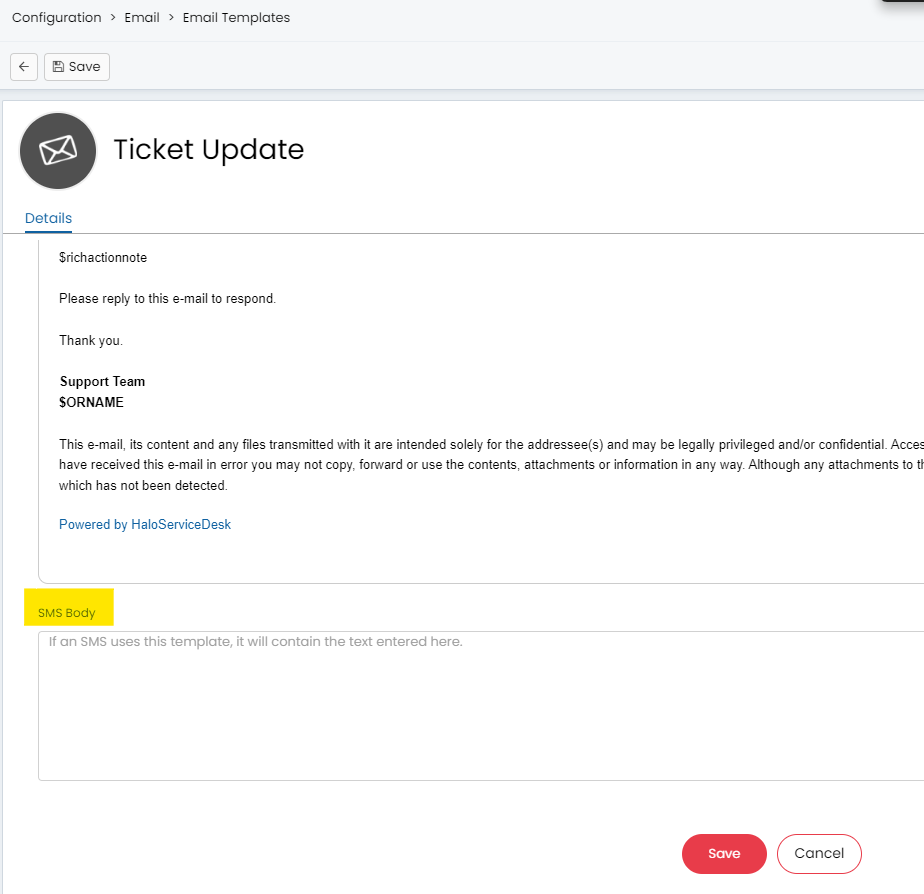
Fig 7. Email template setup for SMS Body
Sending SMS to Service Users
Once SMS configuration is complete you will see an option on services that contain subscribers that allows you to send an SMS (via Email to SMS) to all subscribers of that Service.
A pop out screen will be presented allowing you to enter a message to be sent to the users.
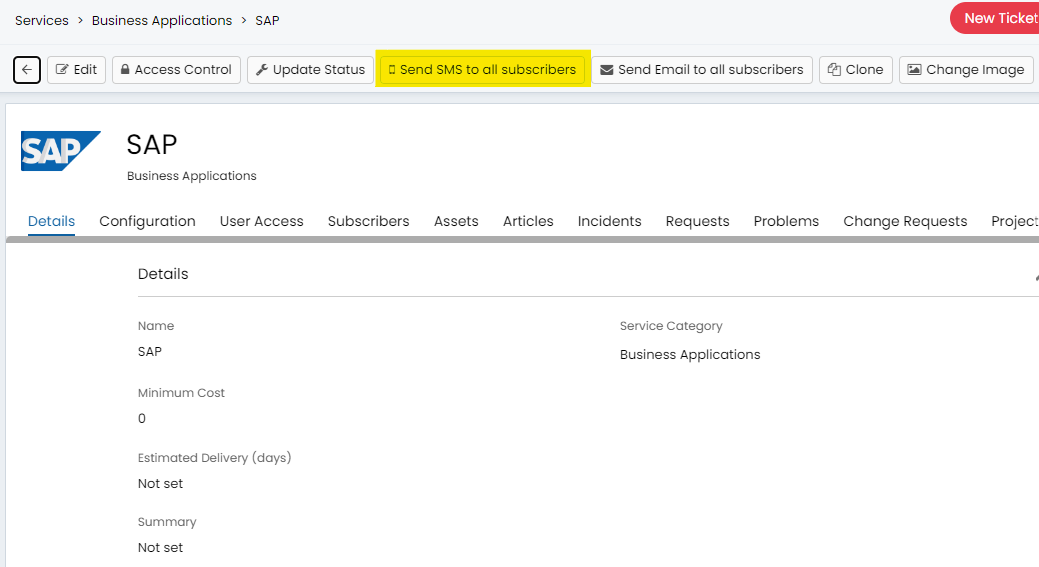
Fig 8. A Service that has the option to send an SMS to all subscribers