Holiday Management
- holiday management
- holiday approval
- holidays
In this guide we will cover:
- Setting Holiday Allowance
- Booking Holidays
- Holiday Types
- Approving Holidays
Admin Guides:
Setting Holiday Allowance
Your Agents' holidays can be managed, allowing you to establish a "holiday allowance" per Agent and incorporate approvals for holiday requests. Within Configuration > Teams & Agents, you will see a "Holiday Management" module.

Fig 1. Holiday Management module
Ensure this module is enabled to allow for Holidays to be booked (more on this process later in the guide). Within this module, you will see an option to set the Agent's status when they are on Holiday. You will also see an option to view a list of "Holiday Types". Each Holiday type allows you to set a name for the type in question and establish whether the holidays of this type require approval.
The holiday allowance (in days, per year) is set per Agent via their details.
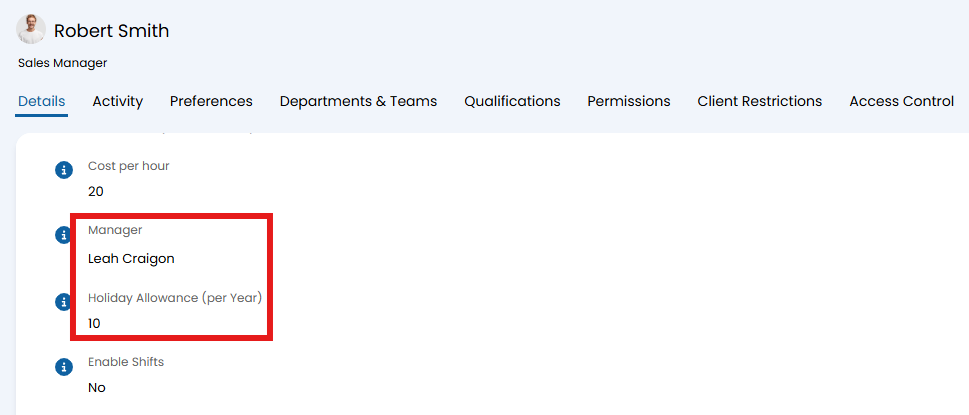
Fig 2. Setting Agent holiday allowance and holiday approver
You will see in in Figure 2 that 'Timesheet Manager' has also been underlined. This field is important for Holiday Management as the timesheet manager of an Agent will be the individual who approves holiday requests (for holiday types where approval is required).
Booking Holidays
The process of booking holidays is a case of adding an event of type "Holiday" into the calendar.
When adding an event to the Calendar (done by clicking and dragging vertically down the calendar screen), you will see an event type of "Holiday". Selecting this event type will provide you with some options regarding the type of Holiday and duration.
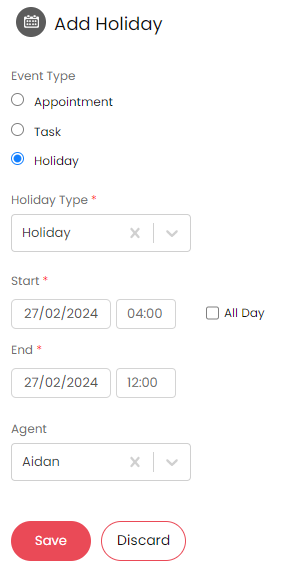
Fig 3. Adding a holiday to the calendar
Holiday Types
If a holiday requires approval, you will see some approval options against the Holiday once it has been saved, including the option to request approval for the holiday in question. To make a "Holiday Type" require approval, head to Configuration > Teams & Agents > Holiday Management > Holiday Types button, and select the "Holiday requires approval" option against the relevant Holiday Type.
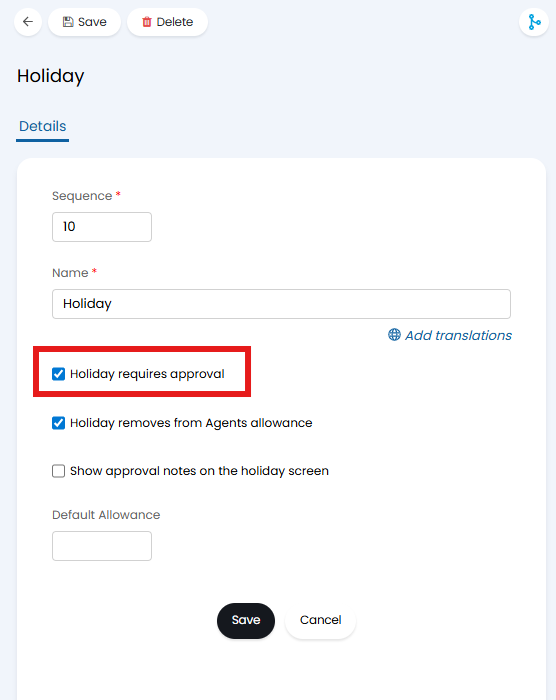
Fig 4. Holiday types configuration
We can set the holiday type to remove days from an agents holiday allowance, and set it so Holiday requires approval.
Holiday allowance can be set to different values per holiday type by selecting the "Allow different Holiday allowances per Holiday type" setting in Configuration > Teams & Agents > Holiday Management. A default allowance can then set on the holiday type, and the values can be viewed or adjusted on the Agent's profile.
Holiday types can be configured in the Lookup codes button within Configuration > Advanced Settings > Lookup Codes, then change the URL to https://myhaloexample.halopsa.com/config/advanced/lookupcodes?lookupid=31 where "myhaloexample.halopsa" is of course your halo domain name. From this page we can add or delete the holiday types.
Note: The approval can only be made by the agents timesheet manager.
The agent will be able to write a note to the Approver to provide details or justify their request. Once an Agent has created the holiday in the calendar they can request approval using the option shown in Figure 5.
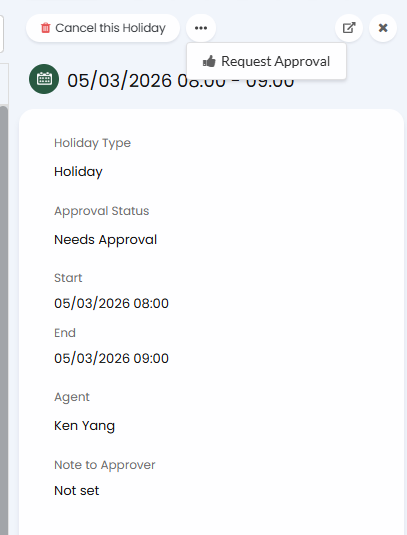
Fig 6. Holiday details once saved
It should be noted that, before a holiday (that requires approval) has been approved, it will not be counted against the Agent's allowance. Note that requesting approval for a holiday is done via the '...' at the top of the holiday in question (see Figure 6). The approval status will change to "Approval Requested" after the "Request Approval" button is clicked. Now the timesheet manager can accept or reject.
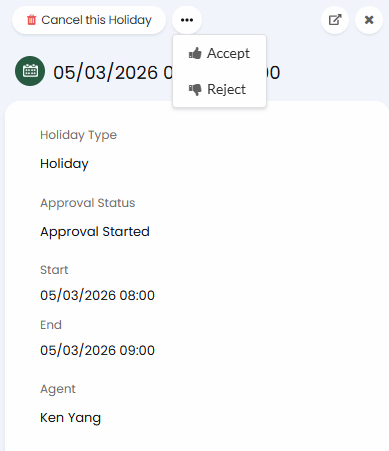
Fig 6. Holiday approval from timesheet manager
Setting Allowance Per Holiday Type
Different allowances can be set per holiday type by enabling the following setting in Configuration > Teams & Agents > Holiday Management.

Fig 7. Enabling allowance by type
When configuring a holiday type, you can set the default allowance.
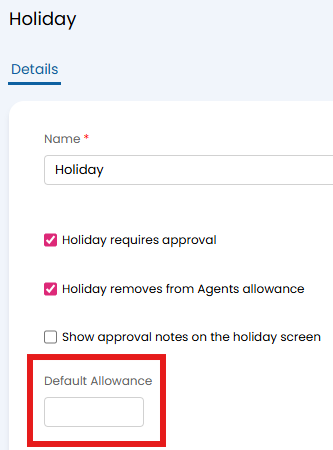
Fig 8. Default allowance per type
The "Holiday Allowance" field on the agent's profile will then show as a table instead of a single integer, where you can enter each allowance and view the remaining balance.

Fig 9. Setting allowances
Approving Holidays
Once a holiday has been requested for approval, the approver (timesheet manager) should see this holiday appear in their list of approvals (on Navigation Menu Sidebar - "My Approvals"). They will also be sent a notification to let them know.

Fig 10. Holiday present in the "My Approvals" module
On clicking accept/ reject on an approval, the timesheet manager will be prompted to give a note. After the approval the agent will be notified of whether it was accepted or rejected.
Target hours in the timesheet will be updated automatically to account for an agent being on holiday.
If you would also like to also see any holidays booked in the timesheet module (in addition to the calendar) ensure the setting in Figure 11 has been enabled (Configuration > Time Management).
 Fig 11. Including Holidays on Timesheets setting
Now going to the agents timesheet, you will see their target hours for the specified holiday days are set to 0, clicking into one of those days also shows the time log as marked with the holiday and the Target hours in the "Total" column for the week has been adjusted to include the holiday time taken.
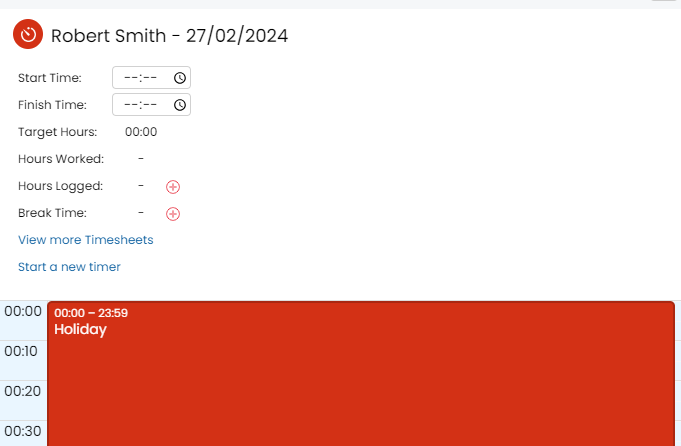
Fig 12. Holiday shown on time log
Before being approved, the holiday will show with a dotted border. Upon approval, the border will be solid as normal.
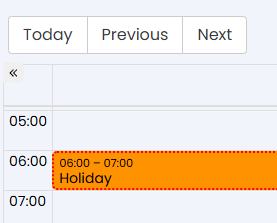
Fig 13. Unapproved holiday
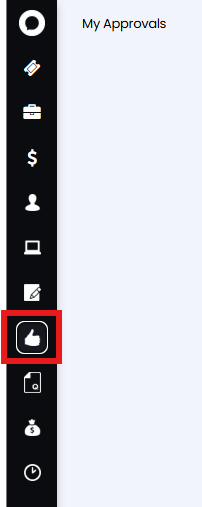
Fig 14. "My Approvals" area
Note: This module is made available via the "My Approvals Page Access" below, which is an Agent/Role Permission.
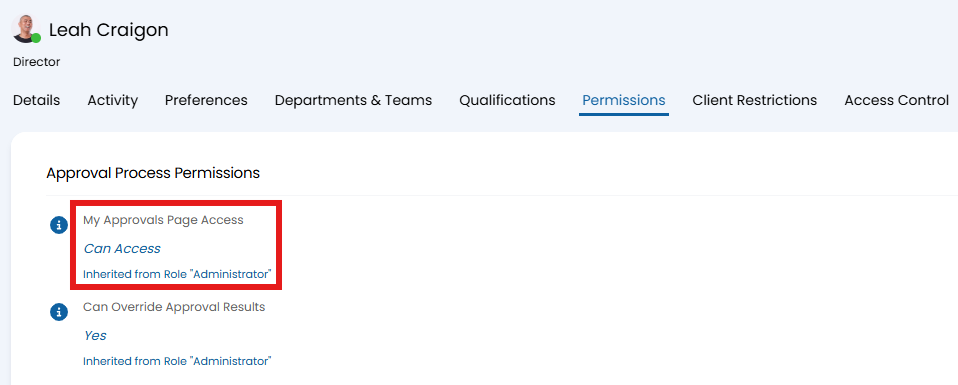
Fig 15. Granting permission to the "My Approvals" page
The "My Approvals" page will show the times of the approval here.

Fig 16. My Approvals screen
Approval For An Agent On a Different Team When The Timesheet Manager Doesn't Have Admin Access
If the agent giving approval is not an admin and they are also not part of the team the person requesting holiday is in, you will need to add them to the following permission and team from within the agent configuration settings.
For example, Jennifer is the Approver of Robert, but she is in a different team and currently she only has access to her appointments, so we need to change this. She should have the "My Approvals" set to "Can Access" as shown in Figure 16. She should also have the visibility of appointments to something above "Can View Own Appointments Only" (Configuration > Teams & Agents > Agents > Permissions tab > Calendars and Appointments dropdown.
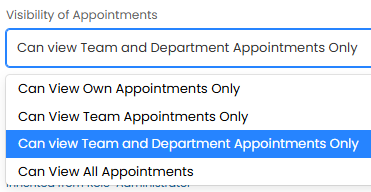
Fig 17. Appointment Visibility
You will also need to add in the Team-Agent Relationship from the department and teams tab of the agent. Robert is in the Facilities team, so she will also need to be part of this.
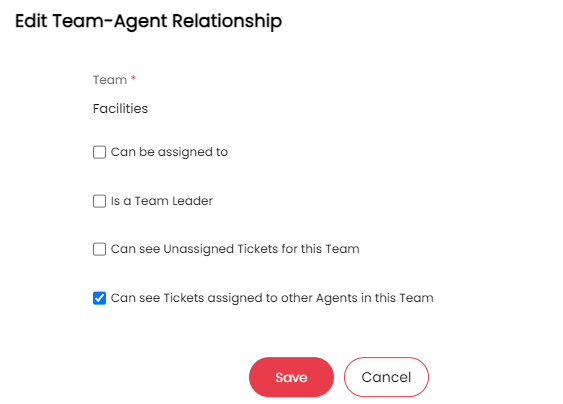
Fig 18. Setting the minimal permissions required to allow Jennifer to view Robert's holiday approval request
She has also been added to Robert's team by editing her "Department & Teams" Tab to include the bare minimum permissions to the team. Without being added to the team, her "my approvals" area would just show for allowing approval of an unknown agent.

Fig 19. Unknown Agent shown as Jennifer doesn't have any access to Robert's team
The agents remaining holiday allowance will display when they create holidays from the calendar. The remaining balance will show in "X Days X Hours".

Fig 20. Allowance remaining for the agent
It should be noted that an Agent cannot book holidays in excess of their allowance.

Fig 21. Message to the agent noting they cannot exceed their allowance