Avalara Integration
- tax
- accounting
- avalara
In this guide we will cover:
- Enabling the Avalara Module
- Connecting to Avalara
- Importing Customers
- Syncing Entities
- Voiding an Invoice
- Excluding Customers
What is the Avalara Integration?
The Avalara integration allows you to complete a two way sync of customers between your Halo and Avalara instance. You can also send invoices, quotes and sales orders to Avalara from Halo. When sending these entities they will be created in Avalara, using Avalara's tax functionalities to calculate the correct tax rates, this will then be synced back to Halo, updating the entity in Halo with the correct tax rates.
Enabling the Avalara Module
To connect to Avalara, navigate to the Integrations page and turn on the module by hovering over the module and clicking the plus icon.
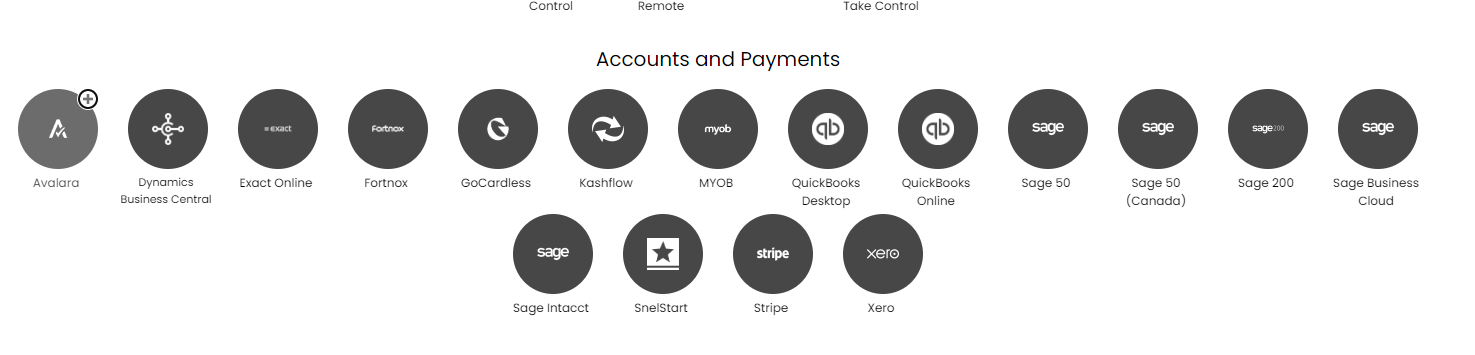
Fig 1. Enabling the Avalara module.
Connecting to Avalara
Once enabled, click onto 'Avalara tenants' and then click new tenant in the top right.
Then fill in in the information for your Avalara URL in the name field and your username and password.
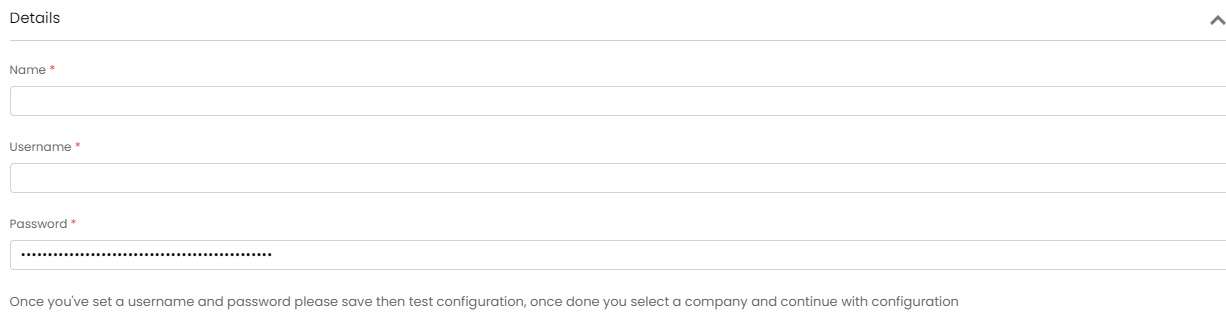
Fig 2. Connecting to Avalara.
Your details will likely be for a production environment not a developer instance. Your username and password should be your Avalara login details (Company ID will automatically populate once you connect and choose a company).
Make sure to save your details before adding the company and clicking on "Test Configuration". If you want to see if it has connected, you can click Fn + F12 to open the web browser developer console and see the status: 200 (Connection is OK).
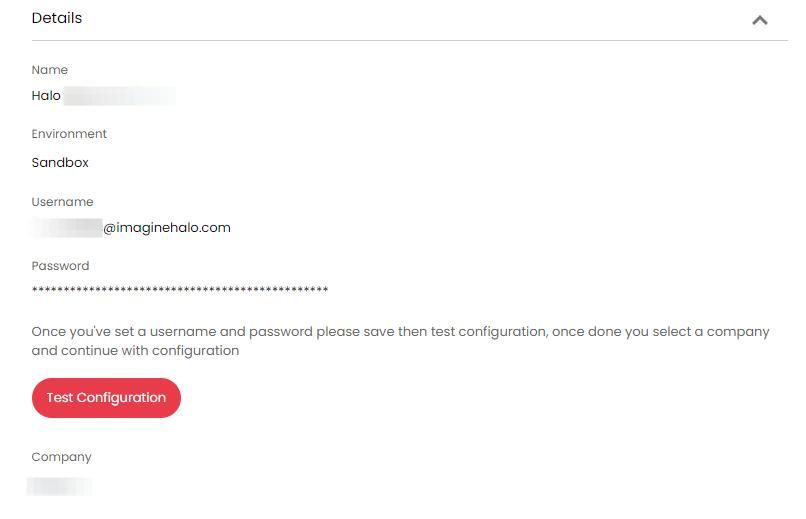
Fig 3. Test Configuration button.
Then, navigate back to the Avalara main screen so you can set the Default tenant. You will also have an option to set the "Customer property to use for Transaction Customer Code".
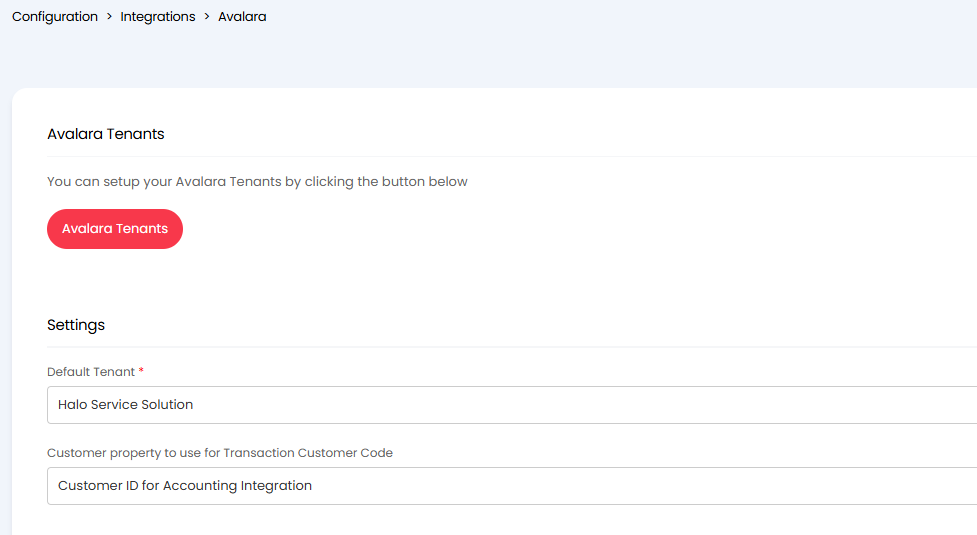
Fig 4. Setting the default tenant.
Customer property to use for Transaction Customer Code - The property chosen here will be used as the "Customer Code" for each transaction synced to Avalara. You can choose between syncing the customer name or the customer ID for your accounting integration. If syncing the name this will be cropped to 50 characters due to string limits in Avalara.
Importing Customers
So we can authenticate this connection in Avalara, navigate into the Avalara tenant you just created and click Create Certificate from within the customers tab.
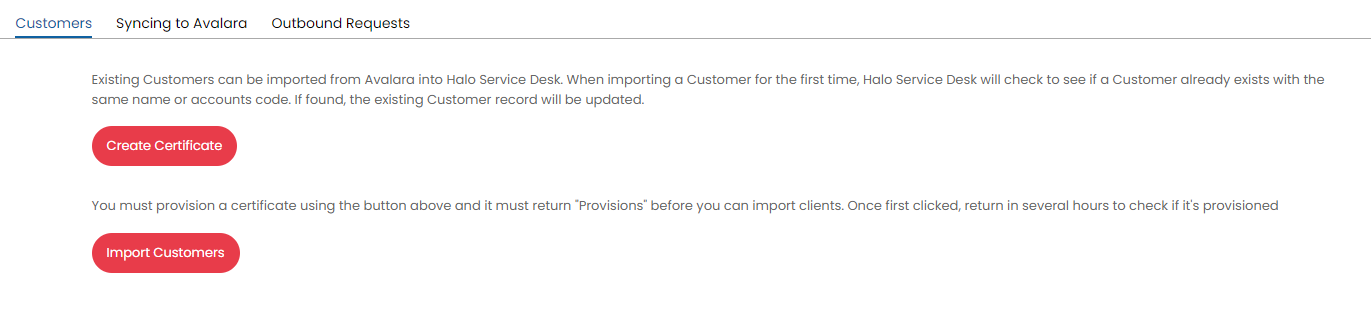
Fig 5. Customers tab.
When clicking on Create Certificate, you should see this screen popup.
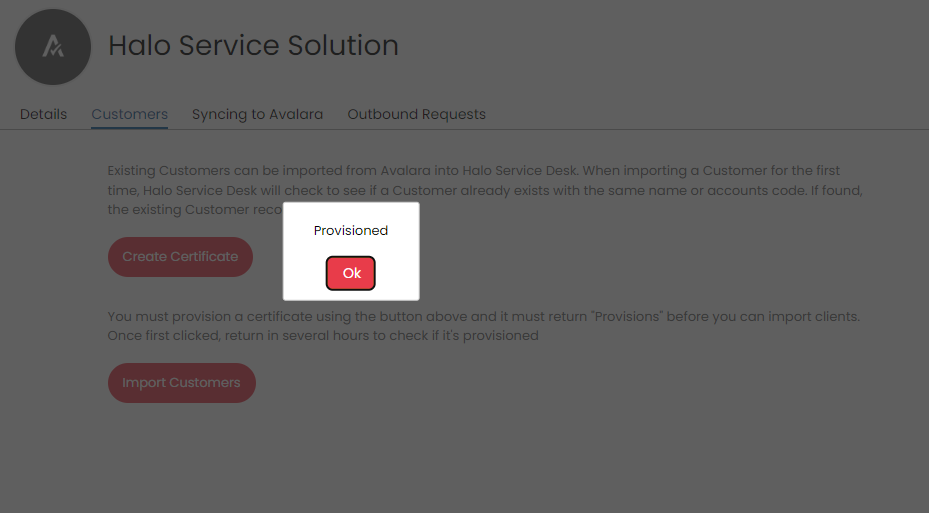
Fig 6. Provisioned popup.
Then you can import clients using the "Import Customers" button. These will match on name so you will need to ensure the customer names in Avalara and Halo are an exact match to prevent duplication.
Syncing Entities
Then, you can choose what entities you would like to sync to Avalara in the 'Syncing to Avalara' tab.
You can include or exclude Credit Notes and Bills as entities to sync. On older versions, Credit Notes and Bills cannot be excluded from the sync.
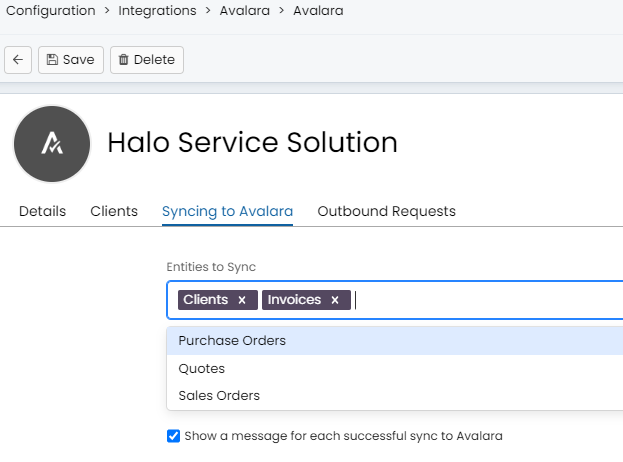
Fig 7. Selecting entities to sync.
The clients sync will pass information about the client back to Avalara. Invoices, Quotes, POs and SOs will sync across to Avalara when a button is pressed in the individual entity unless the 'Sync Taxes Automatically' checkbox is checked. Improvements have been made to the integration to reduce the number of API calls made when syncing entities. This will improve the cost effectiveness of the integration.
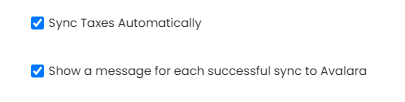
Fig 8. Syncing taxes.
Sync Entities as Committed - When checked all entities that sync to Avalara will be synced as 'committed'.
You can select which entities you would like to sync as committed.
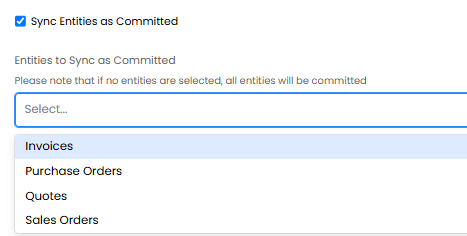
Fig 9. Choose entities to sync as committed.
Any entities not selected here will sync to Avalara as 'uncommitted'. If 'Entities to Sync as Committed' is left blank all entities will sync as committed.
Then, you will need to set a default tax code, default item and a default client. These defaults define what should sync to Avalara in the case of a client, item or tax code not being able to be returned from Avalara, however this should not be the case, but it is an Avalara requirement to be set.
The last part necessary is to set the Default Item at Item Group level to define the type of item that this group will be used for. This means that you will need to ensure that your items are grouped correctly (e.g. Software in a dedicated software group).
*The group level setting is not currently applying the Avalara default item to each item in the group, the Avalara default item must be set from within the "Billing" tab of the item, or imported (Check to make sure you can match to existing items using the name field as the unique identifier, and then you can have a second column header to update the Avalara default item called "iavalaraitemcode" which is where you set the field for the Avalara item.*
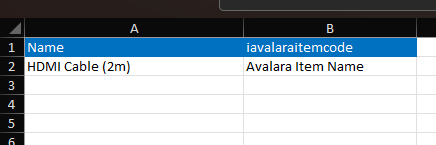
Fig 10. Import example.
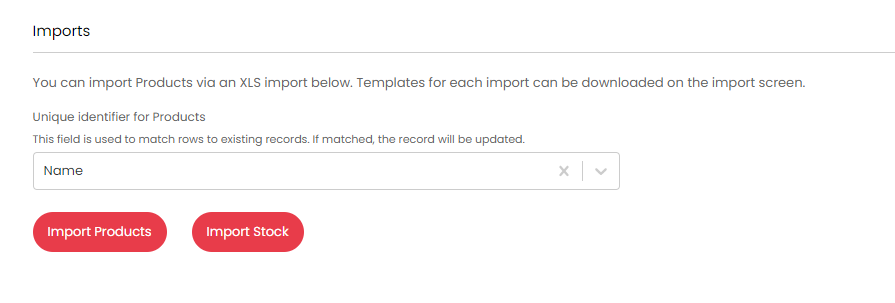
Fig 11. Import options.
The import screen should include the name of the Product and the Default Avalara product.
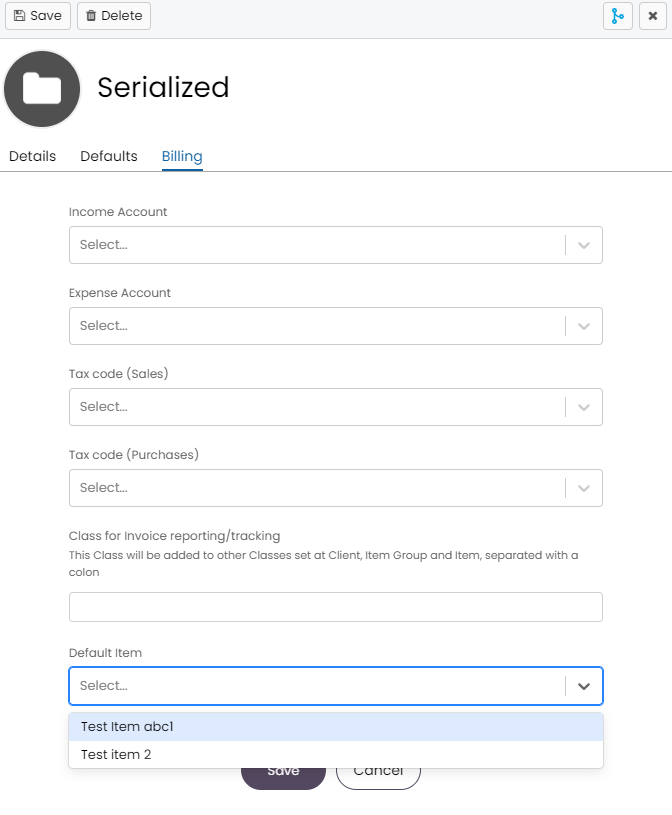
Fig 12. Default item.
Then your taxes will be calculated by Avalara. The lines of the address used by Avalara are address line 1 and the ZIP code so these will need to be set correctly in your clients/sites.
If you are looking to sync taxes manually instead of automatically, then you will need to click this button in each entity i.e. an invoice. With the setting in the integration "Sync Taxes Automatically" turned off, you will need to manually use this button to sync i.e. invoices to Avalara.
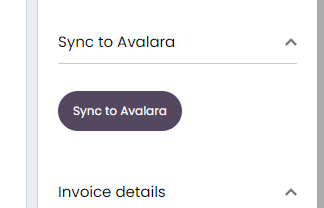
Fig 13. Sync to Avalara button.
Only Sync Entities when they are in a certain status
If you would like to prevent invoices/sales orders/ purchase orders from being able to sync to Avalara until they have selected status(es) enable "Only sync invoices/sales orders/purchase orders to 3rd party integrations on certain statuses". These settings are each found under the respective configuration area for that entity (e.g. Configuration > Billing > General Settings).
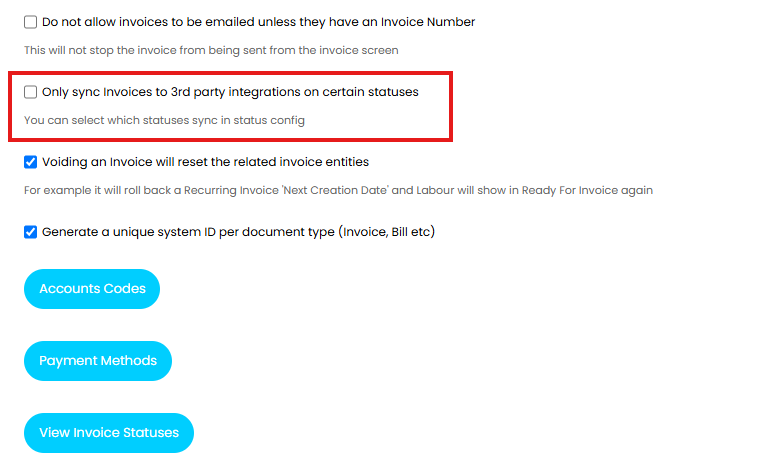
Fig 14. Only sync Invoices to 3rd party integrations on certain statuses
Keep in mind, enabling this will also prevent the entity from syncing to your accounting tool.
From v2.253+ you can prevent invoices/sales orders/ purchase orders from being able to sync to Avalara until they have selected status(es) using the setting "Only sync selected entities to 3rd party tax integrations on certain statuses". Found under Configuration > Billing > General Settings.
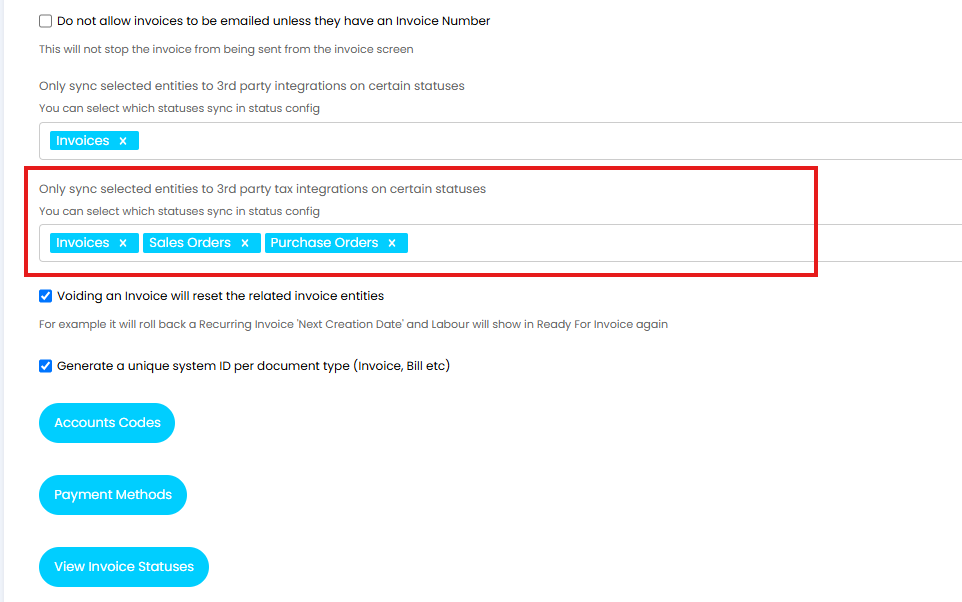
Fig 15. Only sync selected entities to 3rd party tax integrations on certain statuses
Then against each status you can choose whether it allows the invoice/sales order/purchase order to sync to a third party tool (Avalara).
This setting will not prevent the entity from syncing to your accounting tool.
Identifying Transactions
When transactions are synced to Avalara the name of the customer will be used as the customer code for the transaction, making it easier to identify which transactions relate to which customers.
Voiding an Invoice
Within Configuration > Billing > General Settings, you can enable the following setting.

Fig 16. Void an invoice option.
When enabled and voiding invoices in Halo, this settings means that the transactions will also void in Avalara. Voiding an Invoice will reset the related invoice entities in Halo such as the Labour will go back into ready for invoicing and it will roll back a Recurring Invoice 'Next Creation Date'.
Excluding Customers
Within the "Billing" tab of a customer, you can set the Avalara tenant used, this can be set to exclude the customer from Avalara. This can be useful if needing to exclude certain customers from automatic tax.
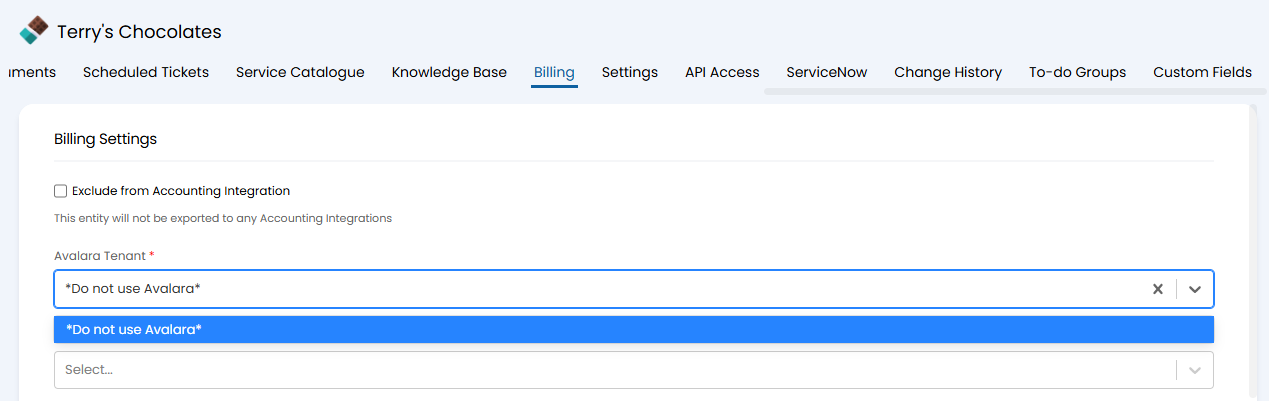
Fig 17. Exclude a customer from Avalara.
A button will show on the Billing tab of a Customer to clear the link to the Avalara tenant.
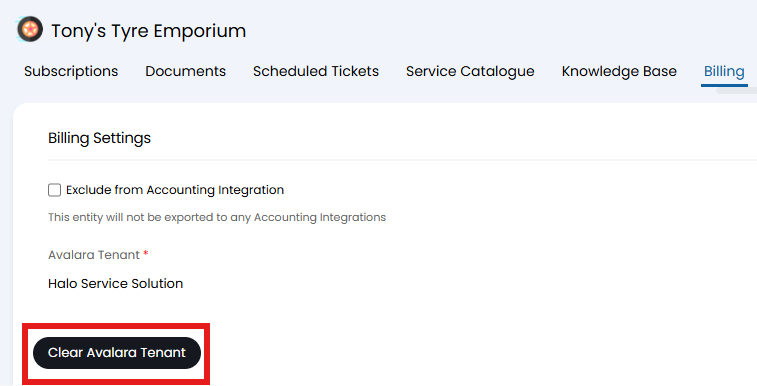
Fig 18. Clear Avalara Tenant button.