ScreenConnect Integration (Formerly ConnectWise Control)
- control
- screen
- connectwise
- screenconnect
- connect
- connectwise control
- connectwise screenconnect
- connectwise screen connect
- cw
- connectwise manage
- connectwise psa
In this guide we will cover:
- What is the ScreenConnect Integration?
- Connecting ScreenConnect
- Generating Client/Site Mappings
- Asset Type Mappings and Asset Field Matching
- Remote Support
- Syncing with the Halo Integrator
- Common Issues
What is the ScreenConnect Integration?
ScreenConnect is a remote support tool used to connect onto the workstations of users whether it be internal or external support.
Connecting ScreenConnect
The first stage is to open your ScreenConnect and add the "Halo Integration" extension onto your extensions.
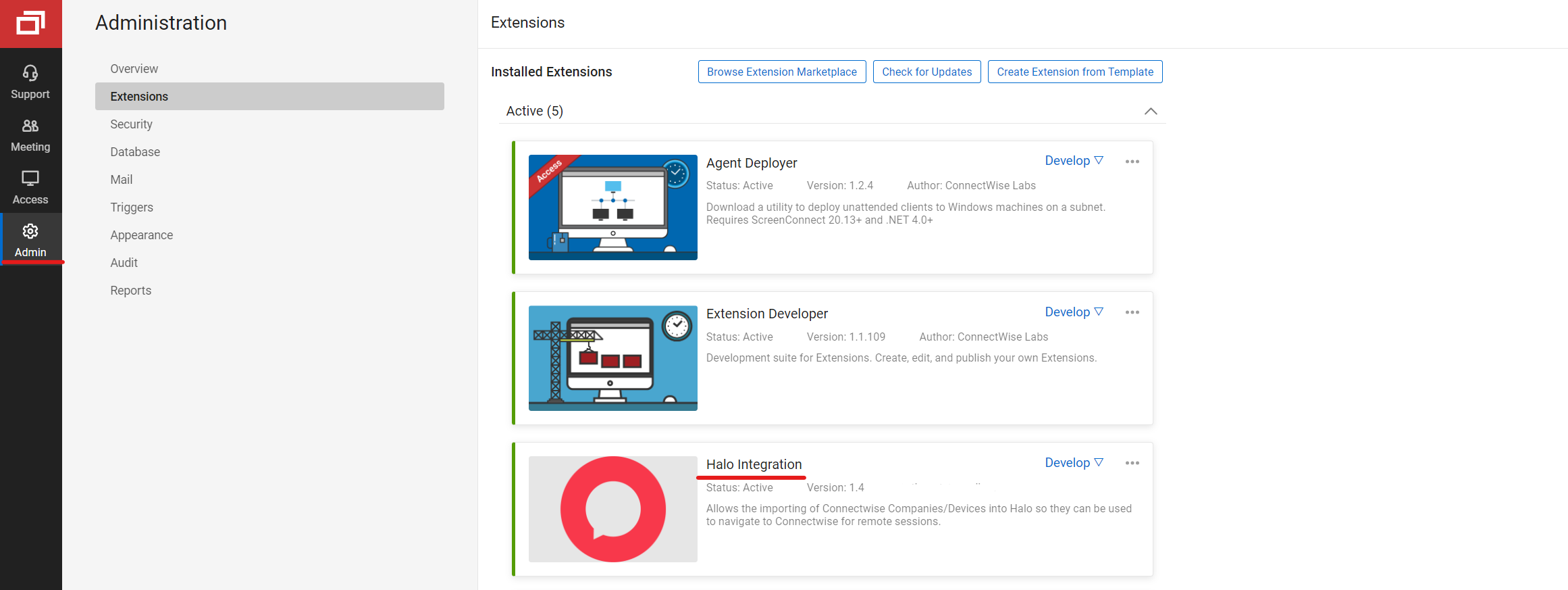
Fig 1. Halo Integration.
The Halo instance URL and API Key can be added to the Halo Integration extension on ScreenConnect by clicking on the ellipse on the extension and adding the following credentials:

Fig 2. Ellipse (...) on the integration.
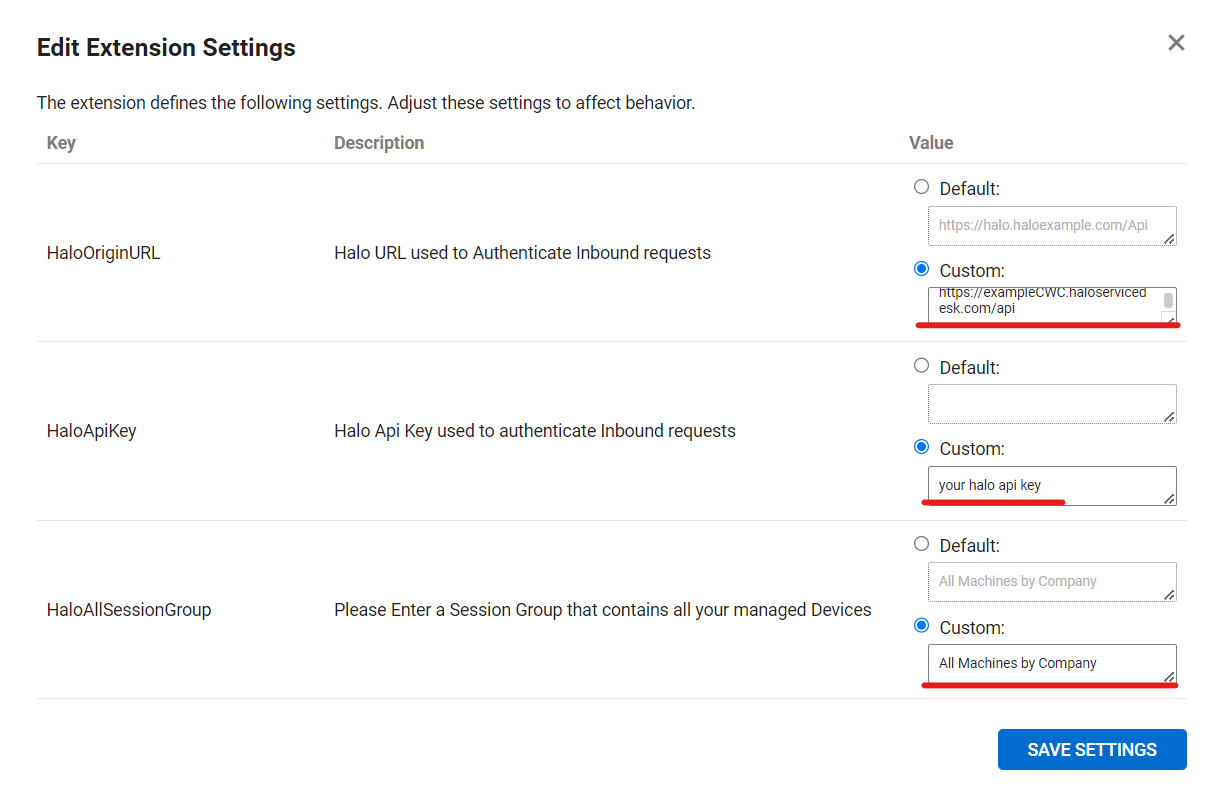
Fig 3. Extension settings.
The above mentioned credentials can be found on the ScreenConnect integration page on your Halo (Configuration > Integrations > ScreenConnect/ConnectWise Control).
The ScreenConnect URL would be: https://yourConnectwiseControldomain.screenconnect.com/App_Extensions/80f76e57-66d2-456a-9ed6-dff90e740009
Note: You must use /App_Extensions/80f76e57-66d2-456a-9ed6-dff90e740009 at the end of the URL not /extensions/
In order to connect the API Key use the generate and copy buttons to generate a new key and then copy it to clipboard and paste it into the respective box on ScreenConnect.
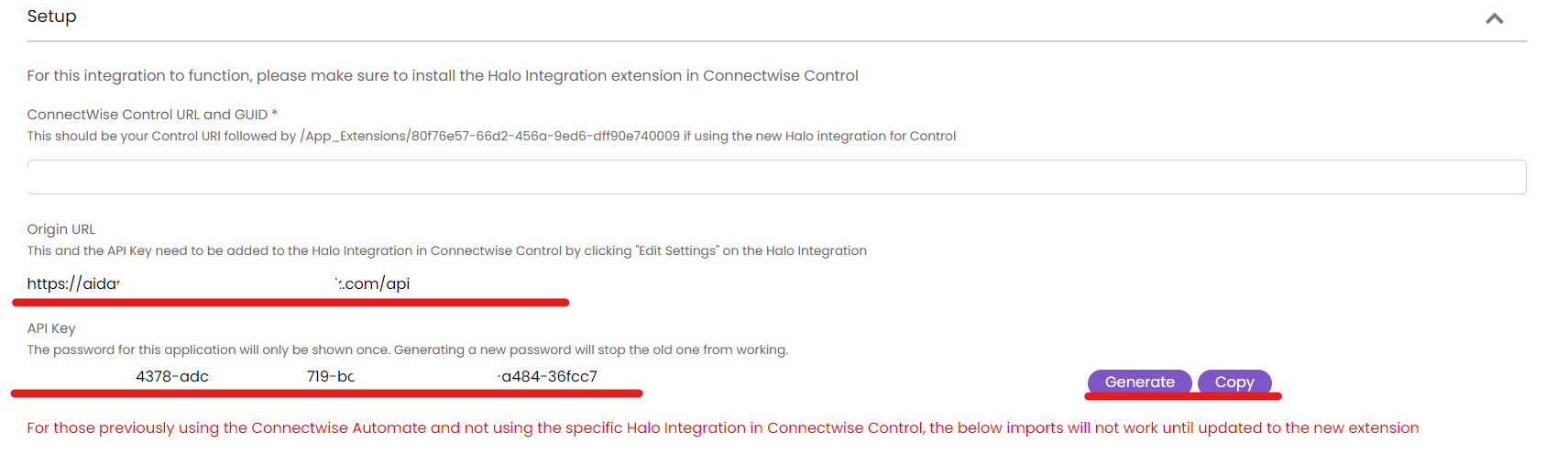
Fig 4. URL and API key.
Generating Client/Site Mappings
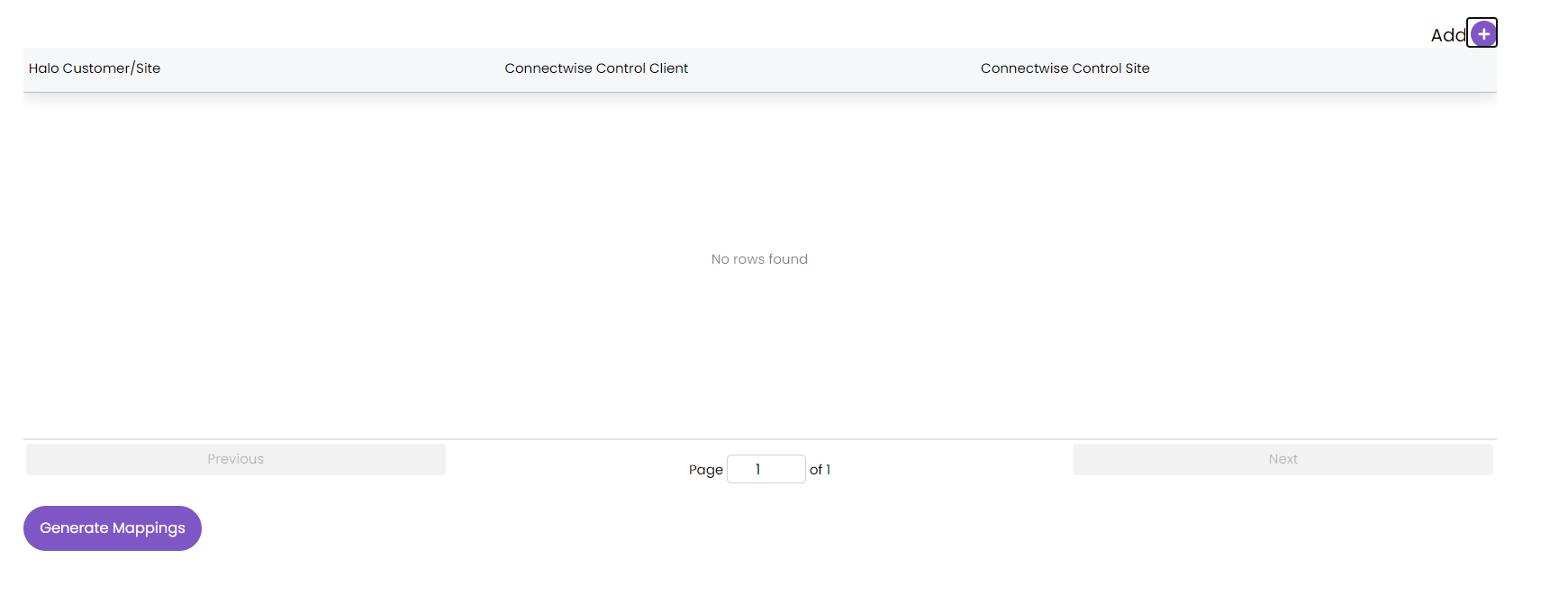 Fig 5. Client/Site mapping table.
Pick the site and customers by clicking on add and adding to the table.
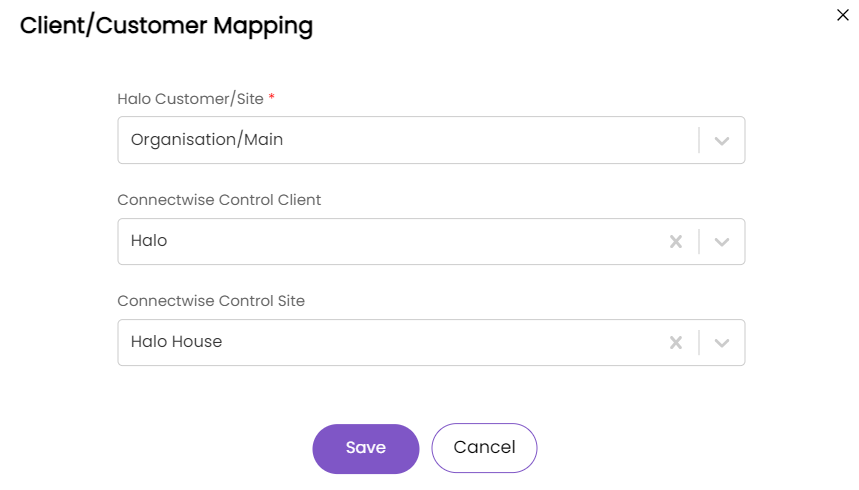
Fig 6. Mapping popup.
The mappings can then be generated once you are content with the mappings listed on the table. Custom Properties can be added and then mapped to by using the corresponding ScreenConnect ID, check out this video from ConnectWise on adding custom properties here.
Custom properties can be mapped to ScreenConnect here.
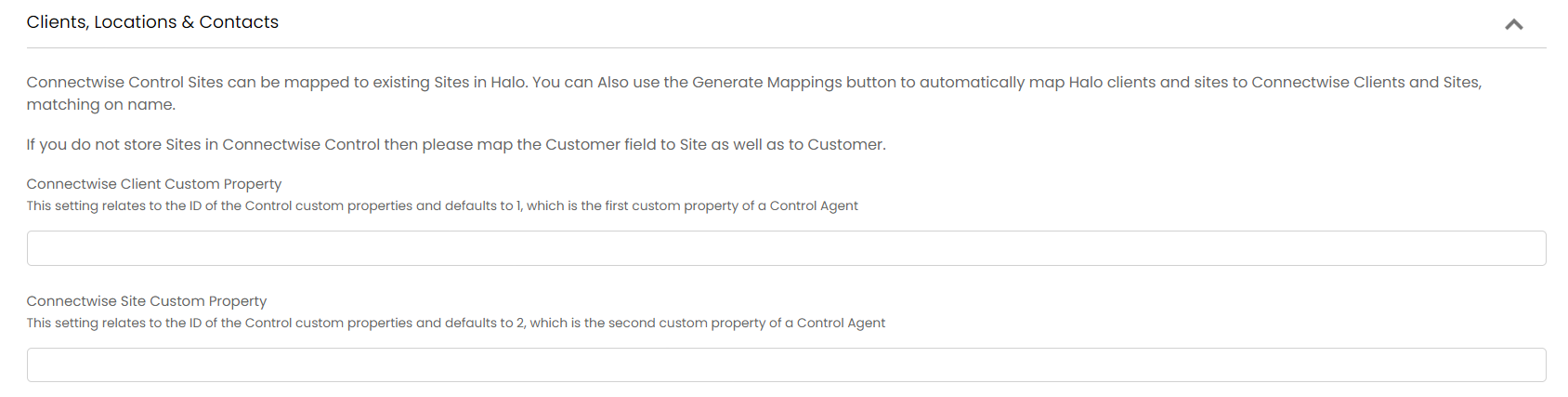
Fig 7. Custom property mappings.
Asset Type Mapping and Asset Field Matching
The next section to complete on the integration page is adding the mappings for the asset types, navigate to this table and add the mapping, the matching fields should be a unique identifier.
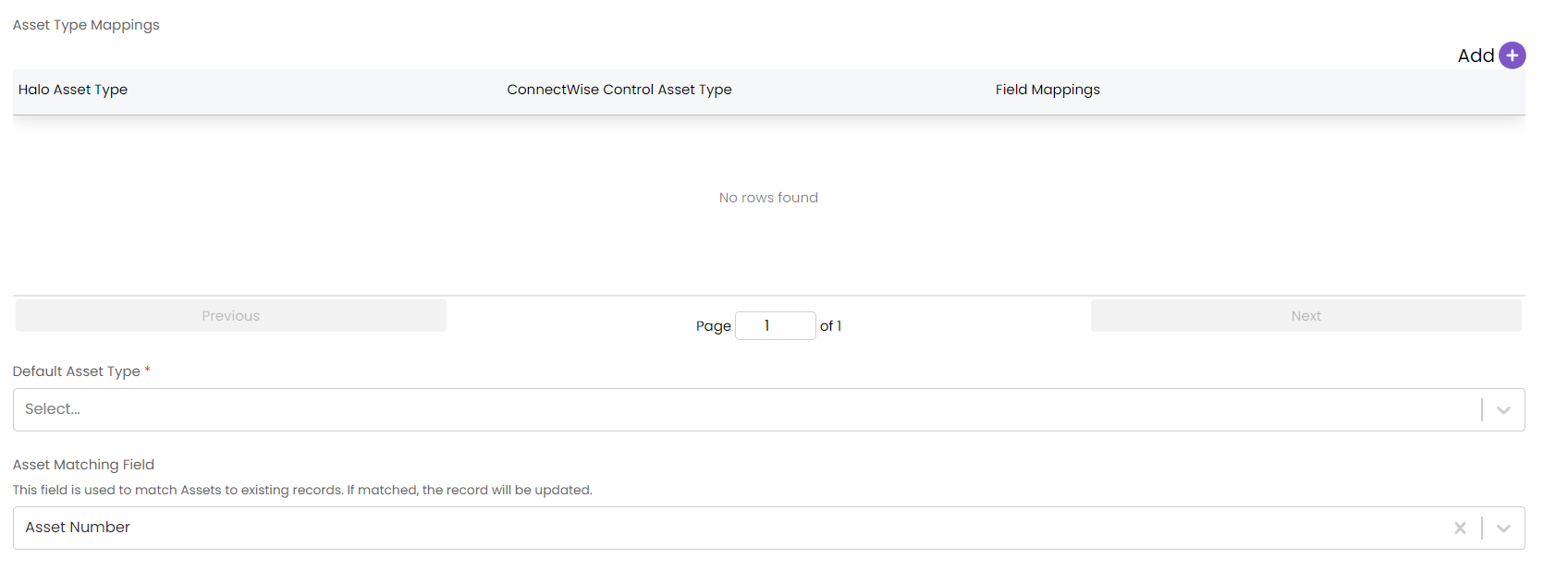
Fig 8. Asset type mappings and asset matching field.
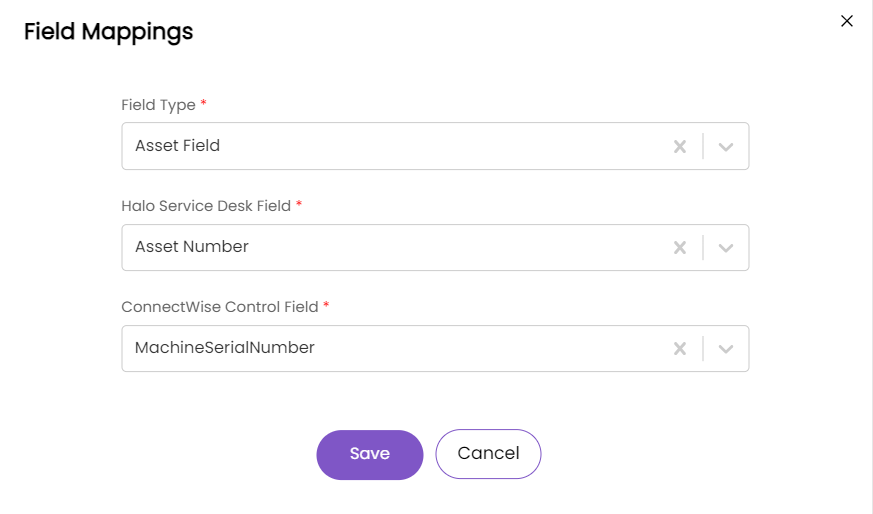
Fig 9. Field mappings.
Note: In addition to mapping asset types, there is also an option to import all existing Halo assets from ScreenConnect.
Remote Support
You can use Remote Support functionality to send support session invite links to users on tickets. Note: This requires version 1.8 of the Halo Extension in ScreenConnect.
After importing an asset, add it as a related asset on a ticket. This can be done when the "Asset" field is added to the field list of the ticket type. This will show a button to connect to the asset's associated ScreenConnect page, and clicking this will redirect you there to the join screen.
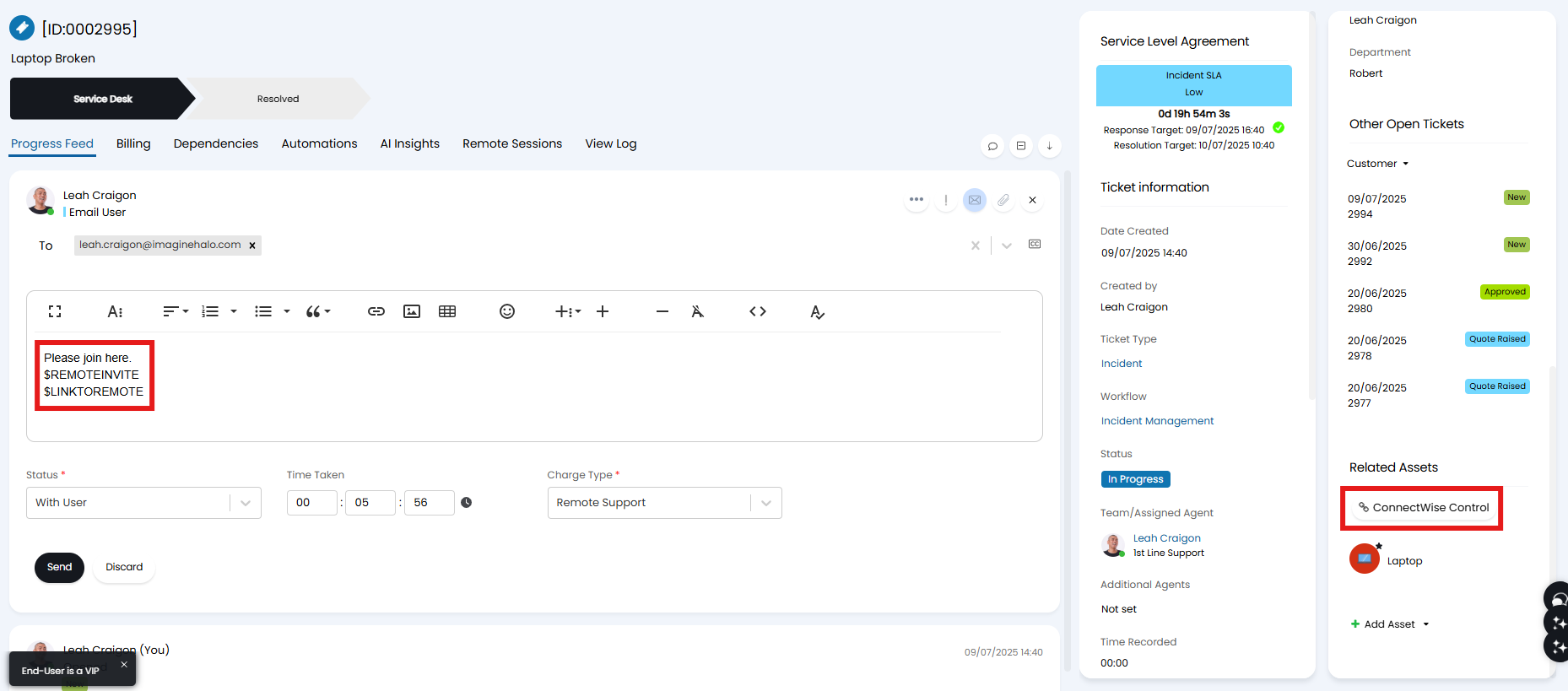
Fig 10. Remote support from a ticket.
Variables with invite links can be emailed from the ticket, or added to the remote support variable configuration as below. This can be done using the $-REMOTEINVITE or $-LINKTOREMOTE variables, which will populate with the link once the email is sent. If using the remote support template, you can configure an action with the system use "Remote Support Invitation" to automatically send this.
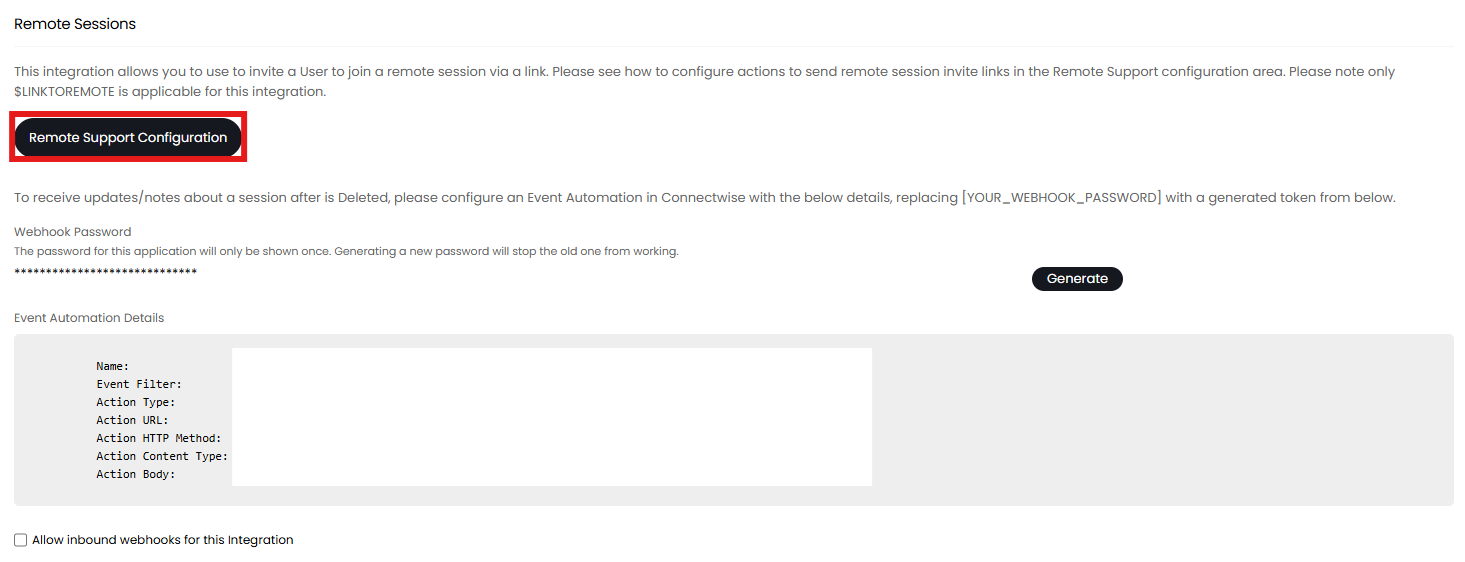
Fig 11. Configuration for remote support links and webhooks.
You can also receive notes and time spent on a Remote session via a webhook from ScreenConnect, as seen above. Create an Event Automation in ScreenConnect, generate the webhook password above, and replace it within [YOUR_WEBHOOK_PASSWORD]. Be sure to "Allow inbound webhooks for this Integration" to receive these.
Syncing with the Halo Integrator
The Halo Integrator can be enabled for the syncing of assets from Halo to ScreenConnect. The integrator will sync changes from Halo over to ScreenConnect, which allows for example assets to be continuously updated when changes are made. Additionally, assets can be deactivated in Halo when deleted on ScreenConnect by enabling the checkbox under the miscellaneous dropdown.
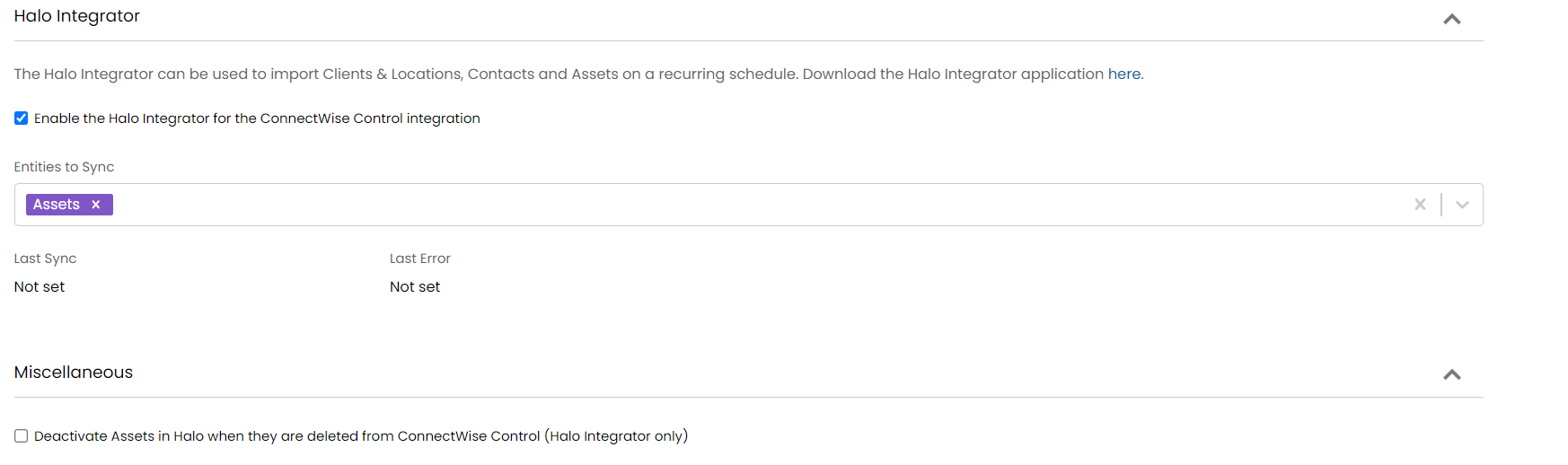
Fig 12. Integrator enabled.
Common Issues
If the import is failing then ensure that the Session Filter (as below) is empty.
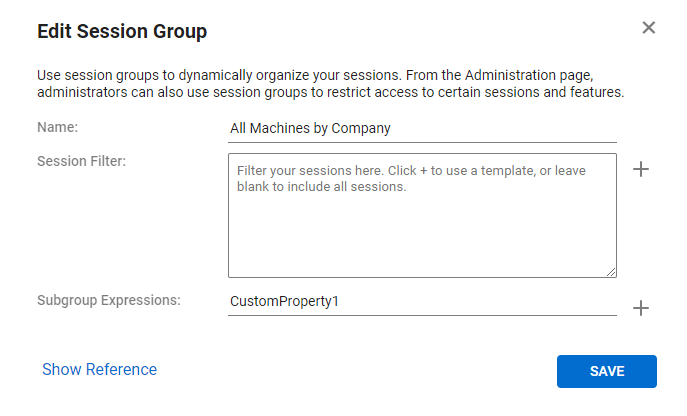 Fig 13. Session group.