Azure Sentinel Webhooks
- integration
- webhook
- webhooks
- azure
- automation
- Azure Sentinel
This guide only covers the setup of the webhooks required. You will need to configure Azure Sentinel before you can use your webhooks. For comprehensive setup of the integration (including webhooks) checkout: Azure Sentinel Integration.
In this guide we will cover:
- Creating a Logic App in Microsoft Azure
- Sentinel Automation Rules
- Troubleshooting your Webhook
This guide explains how to set up webhooks in Azure Sentinel to create tickets in your Halo instance. You will need to be able to create Logic apps and Sentinel Automations.
Creating a Logic App in Microsoft Azure
Select the Multi-tenant Consumption hosting option.
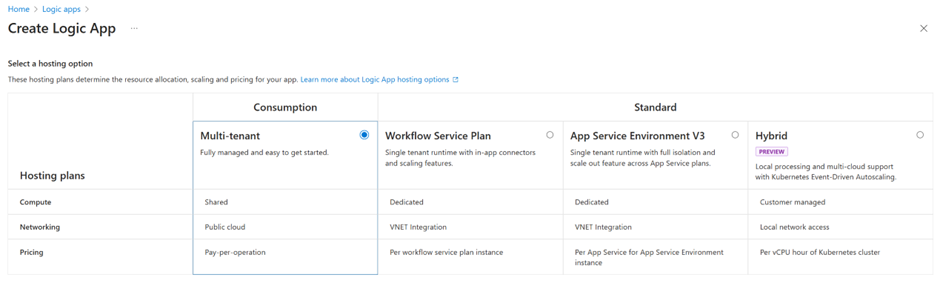
Fig 1. Creating a new logic app.
Fill out the Project and Instance details.
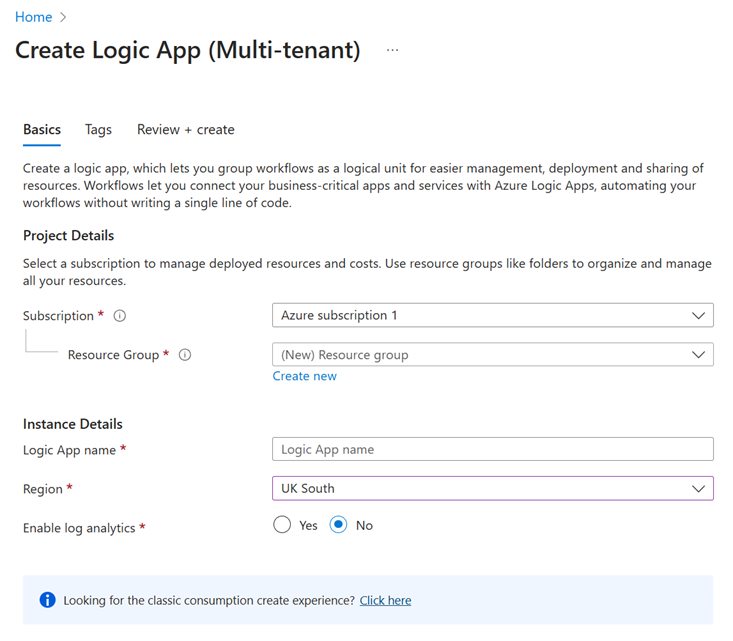
Fig 2. Filling out details.
Once your Logic app has been deployed, go to the Logic app designer section under the Development Tools tab.
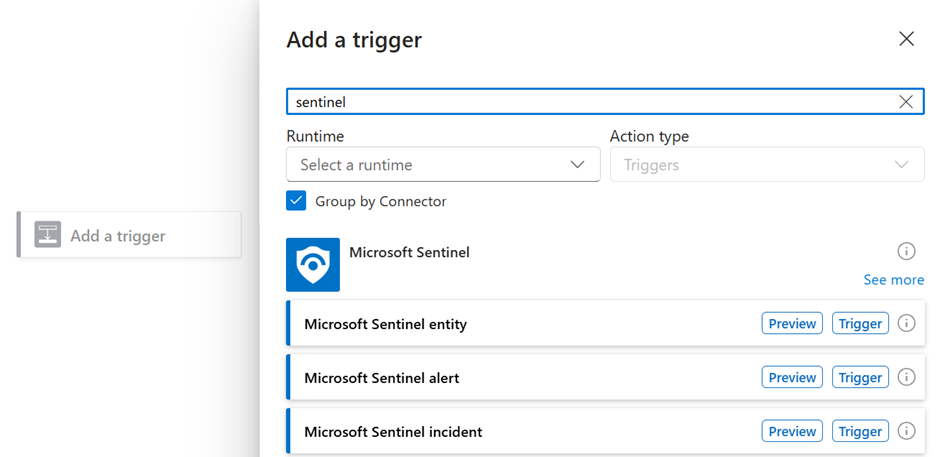
Add a trigger and select the “Microsoft Sentinel incident” option.
Add a new step after the Sentinel trigger and search for “HTTP”:
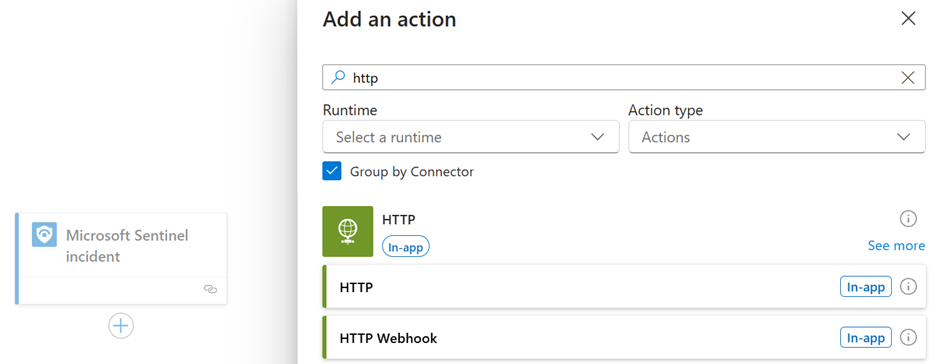
Fig 3. Adding a trigger.
Fill out the HTTP action as follows:
URI: {Your Halo URL}/api/Notify/AzureSentinel
Method: POST
Headers: Key = Authorization, Value = {“username:password” bas64 encoded}”.
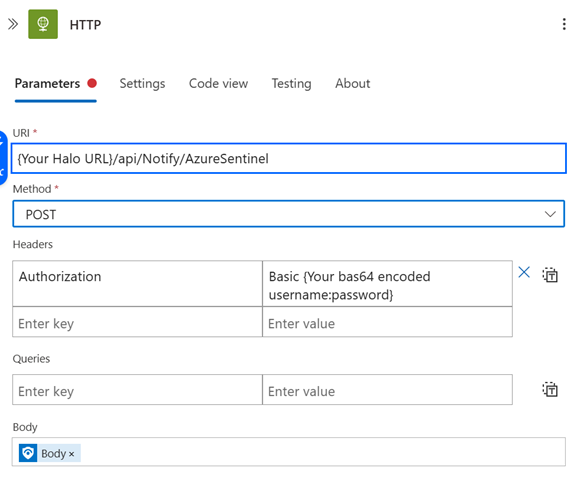
Fig 4. Parameters.
For the body, press the lightning icon to add objects from the previous step, choosing the body of the Sentinel trigger:
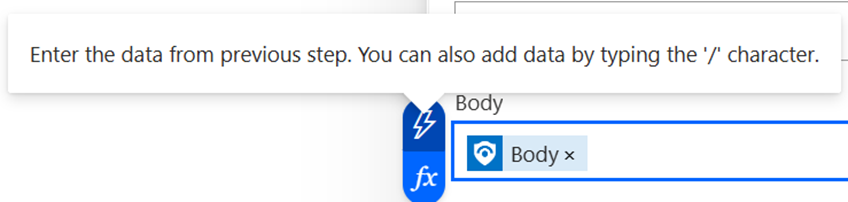
Fig 5. Body.
Save the Logic app.
Sentinel Automation Rules
Navigate to the Microsoft Sentinel resource and select the “Automations” section under the “Configuration” group.
Create a new Automation rule for each of the following triggers:
- When incident is created
- When incident is updated
Add an action to “Run playbook” and choose the playbook that was made previously.
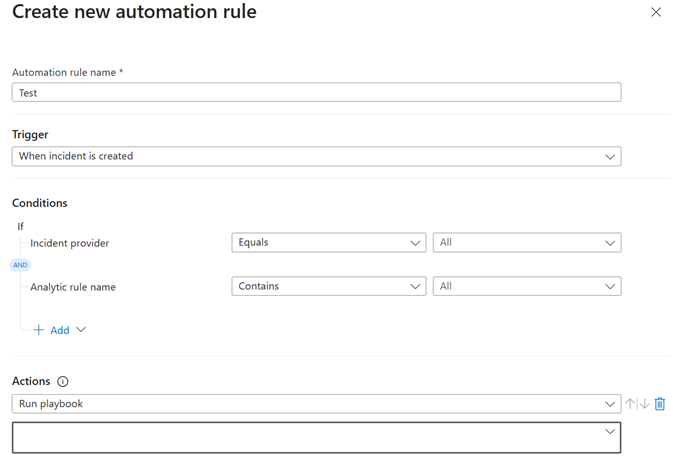
Fig 6. Creating an automation rule.
Save the automation rules.
Now whenever a Sentinel Incident is created or updated, the playbook will send a request to the Halo API and create/update a ticket in Halo.
Troubleshooting your Webhook
To identify errors with your Webhook you can try running the below report:
SELECT top 100 * FROM integrationrequest
WHERE IRMSiD = 275
ORDER BY irid DESC
This will show a record of your webhook. Since Microsoft requires a response to the API call faster than the authorisation can take place you will see the 200 "OK" response before the webhook arrives with the relevant details.