Azure Sentinel Integration
- integration
- azure
- Sentinel
- Azure Sentinel
In this guide we will cover:
- What is the Azure Sentinel Integration?
- Connecting Azure Sentinel to Halo
- Client Configuration
- Field Mappings
- Imports
- Sending Tickets and Updates to Sentinel
- Only Import Comments
What is the Azure Sentinel Integration?
The Azure Sentinel Integration allows a two way sync of incidents between Halo and Azure Sentinel. Tickets can be created in Halo automatically for each incident logged in Sentinel. Similarly, tickets in Halo can be sent to (created in) Sentinel as incidents. The integration also supports the syncing of comments and closures between Halo tickets and Sentinel incidents, when a comment is logged in one system, this can be synced over to the ticket/incident in the respective system. When a ticket/incident is closed in one system the respective ticket/incident will be closed in the other system.
Connecting Azure Sentinel to Halo
To enable the Azure Sentinel Integration head to Configuration > Integrations and enable the integration using the '+' icon.
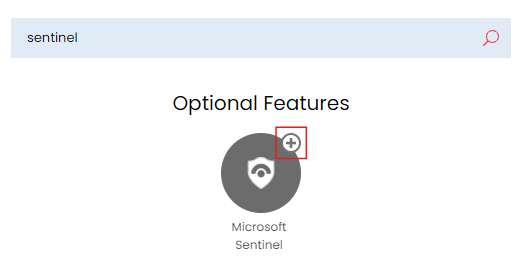
Fig 1. Enabling the module
Once enabled click into the module to begin configuration.
To begin, you will need to create a partner managed Azure Application to authorise the connection between Halo and Azure Sentinel.
Head to your https://portal.azure.com/#home and create a new app registration. This will need to be a multi-tenanted application. You will also need to add a web redirect URI.
On versions prior to v2.200 the following redirect URI will need to be used:
- https://YOURHALODOMAIN/azure/auth
On versions v2.200+ you the following redirect URI will need to be used:
But the exact redirect URI you need can be found on the setup page for the integration in Halo.
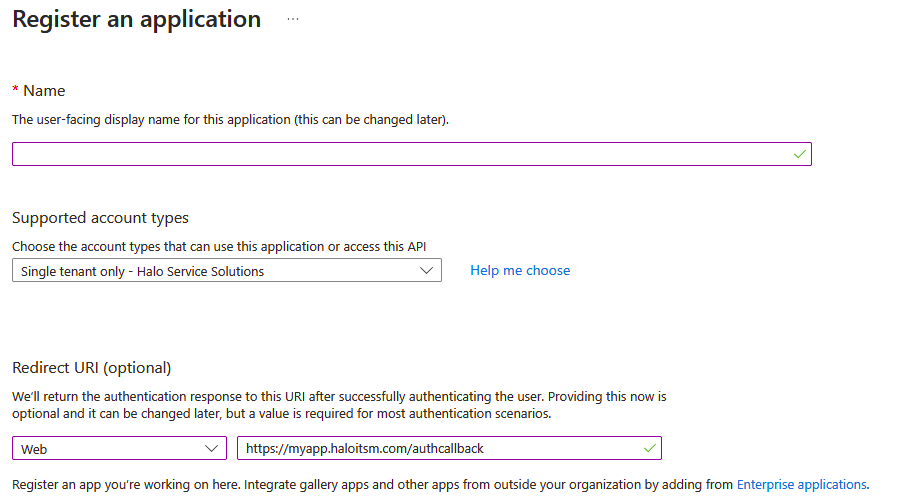
Fig 2. New Azure application
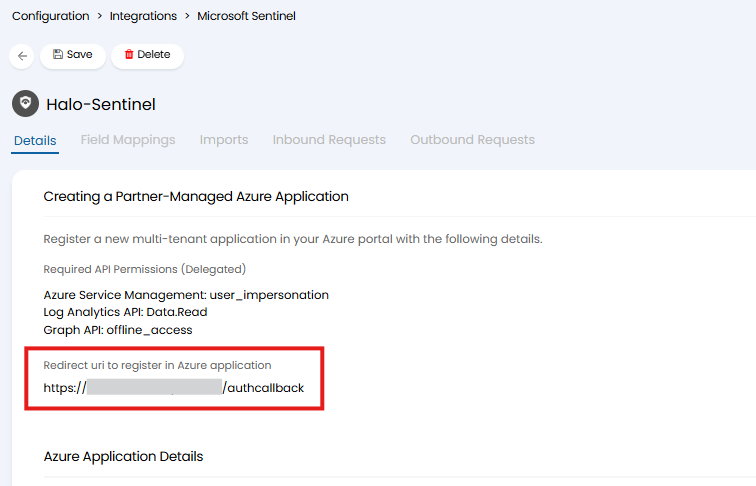
Fig 3. Redirect URI needed for Azure application
Once you have registered your application, you will need to give it the following permissions:
- Azure Service Management: user_impersonation (Delegated)
- Log Analytics API: Data.Read (Delegated)
- Graph API: offline_access (Delegated)
The exact permissions needed can also be found on your integration setup page, as shown in figure 3.
Once permissions are set generate a secret for the application (under the 'Certificates and Secrets' tab). Copy the secret value and paste this into the 'Azure Application Secret' field in the integration setup page in Halo.
You will also need to obtain your application (client) ID and tenant ID, paste these into the respective fields on the integration setup page in Halo.
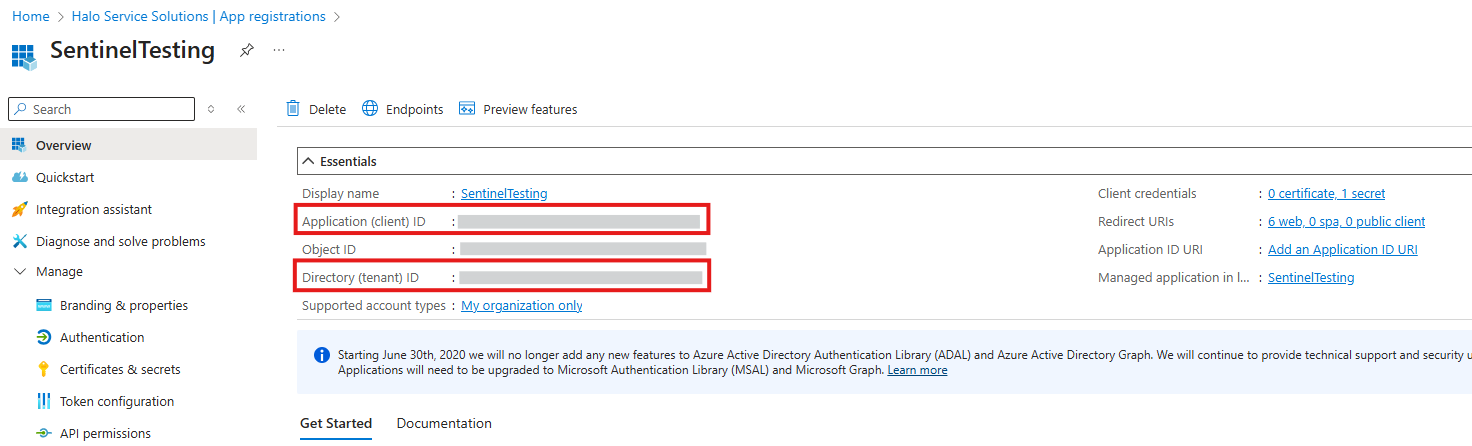
Fig 4. Application ID and tenant ID
Once these details are entered into Halo save the page and you will have an option to 'Sign in with Microsoft'. A Sentinel Contributor will need to sign in here to finalise authorising the connection.
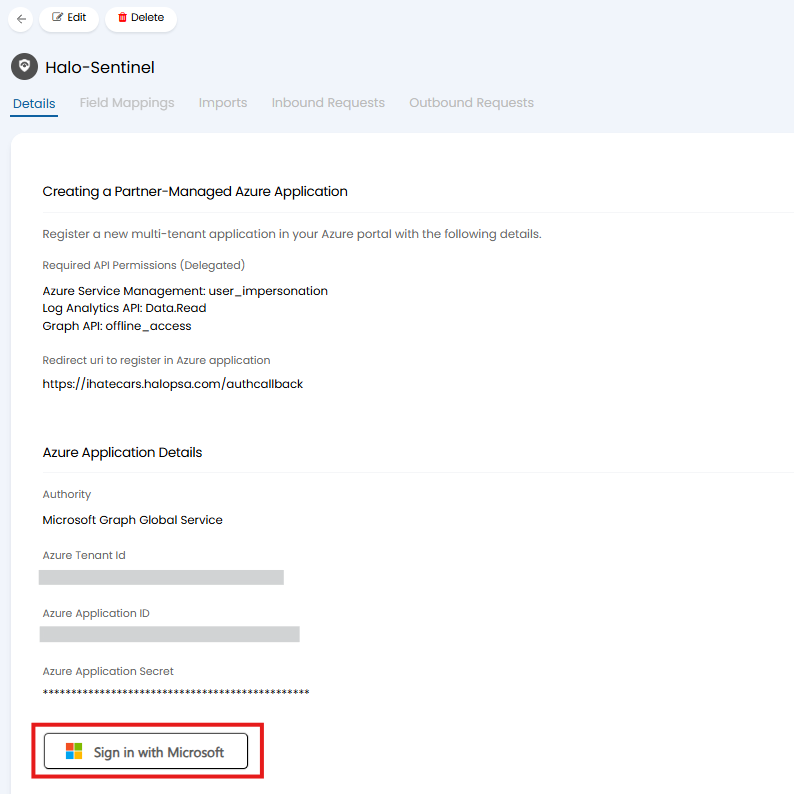
Fig 5. Sign in with Microsoft
Once you have authorised the 'Sign in with Microsoft' Button will be replaced with a 'Disconnect from application' button.
Client Configuration
After authorising you will need to set the Sentinel details against each client in Halo incidents will be created for. To do this, head to the settings tab of the relevant Client, and expand the 'Azure Sentinel' section.
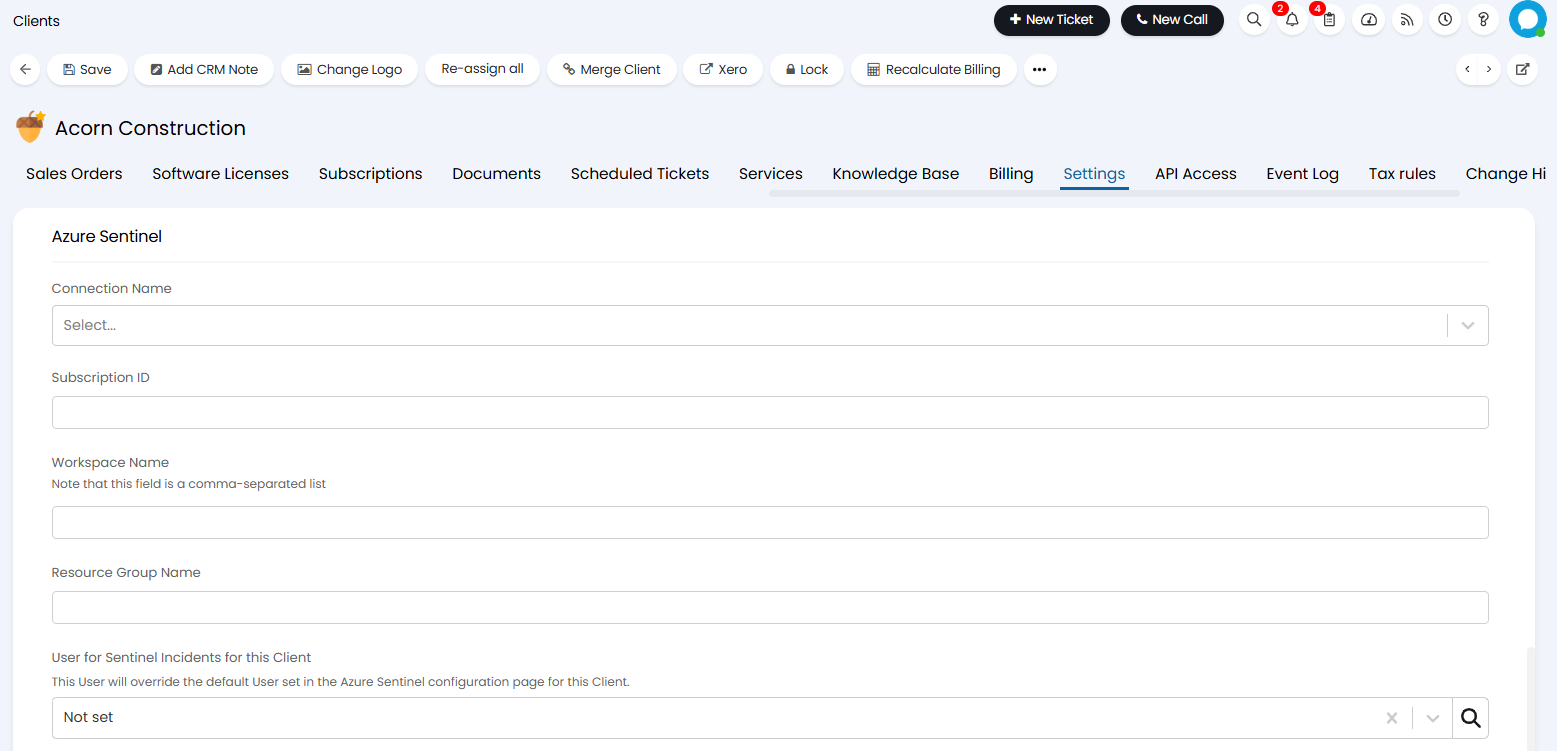
Fig 6. Sentinel configuration on a customer
The connection name refers to which Sentinel connection is used. The other fields can all be found in Azure and are needed to know where to pull incidents from in Sentinel. This will be the client tickets are logged against in Halo for all incidents imported from this Sentinel instance.
If you are connecting multiple Sentinel instances, you will need to complete this setup for each client the instance relates to.
Field Mappings
After authorizing head to the 'Field Mappings' tab. Here you can map Azure Sentinel fields to Halo fields to control what fields ticket/incident data is stored in when synced across.
Data in fields will be synced both when tickets/incidents are initially created and when they are updated with an action (provided the field is contained within the action). Action/comment syncing will be covered in more detail later on.
Ticket Field Mappings
The fields shown in figure 7 are mandatory fields in order to allow tickets/incidents to be imported/exported between Sentinel and Azure.
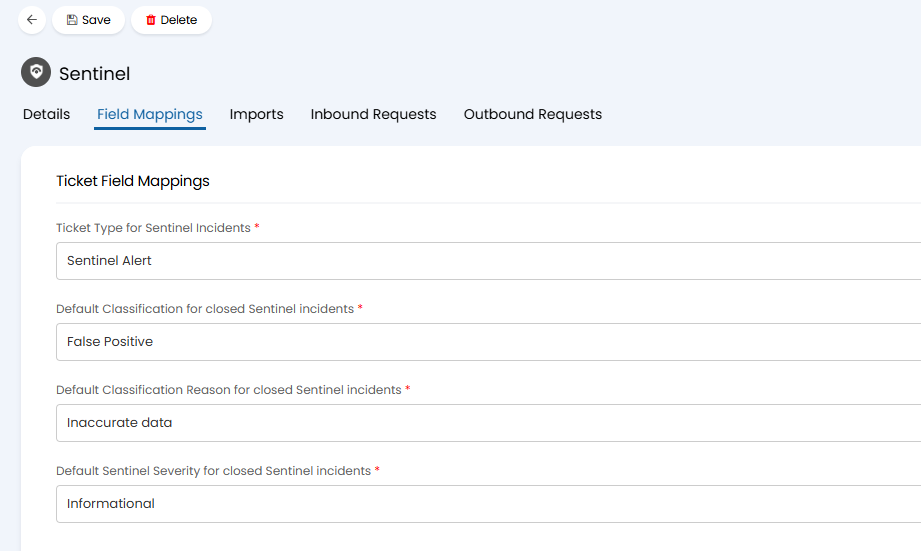
Fig 7. Ticket field mappings
Ticket Type for Sentinel Incidents - Choose the ticket type you would like Sentinel incidents to be logged using in Halo. You may wish to create a new ticket type dedicated to Sentinel Alerts.
Default Classification for closed Sentinel incidents - Choose the default Classification you would like Sentinel incidents to be given when the incident is closed from Halo. This provides a default but you can set this each time you close the ticket if you have mapped the 'Classification' field to a Halo custom field.
Default Classification Reason for closed Sentinel incidents - Choose the default Classification Reason you would like Sentinel incidents to be given when the incident is closed from Halo. This provides a default but you can set this each time you close the ticket if you have mapped the 'Classification Reason' field to a Halo custom field.
Default Sentinel Severity for closed Sentinel incidents - Choose the default Severity you would like Sentinel incidents to be given when the incident is closed from Halo. This provides a default but you can set this each time you close the ticket if you have mapped the 'Severity' field to a Halo custom field.
Priority Mappings
Sentinel priorities can be mapped to Halo priorities to ensure the ticket in Halo is logged with the correct priority based on the Sentinel incident it was created from. This also applies when creating incidents in Sentinel from Halo and when syncing actions.
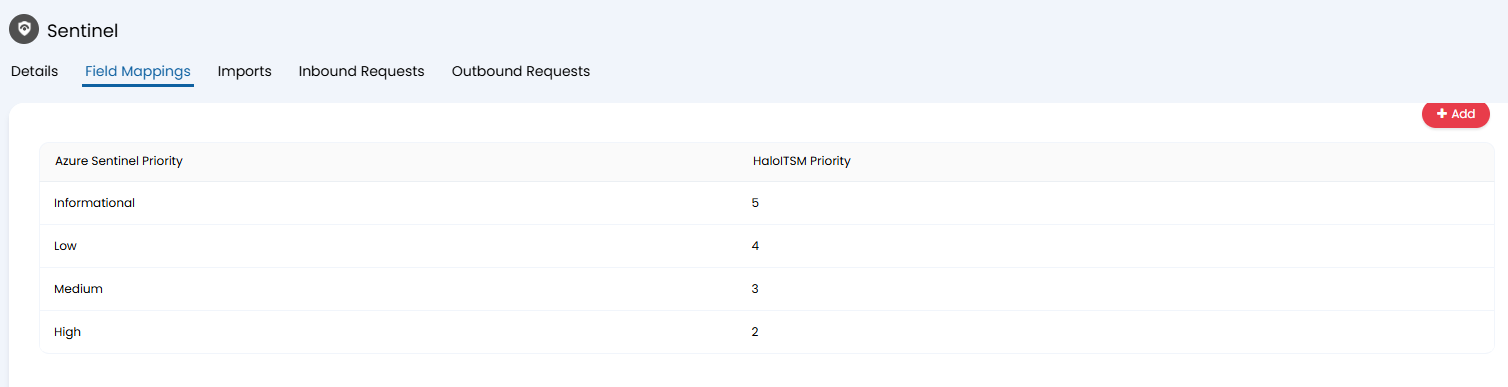
Fig 8. Priority Mappings
When setting up mappings, simply add to the table, choose the Sentinel priority you would like to map and enter the Halo priority number this corresponds to.
Status Mappings (v2.240+)
From v2.240+ ticket statuses in Halo can be mapped to incident statuses in Sentinel. This allows a two way sync of statuses between Sentinel and Halo incidents.
Simply map any statuses together that you would like to be synced.
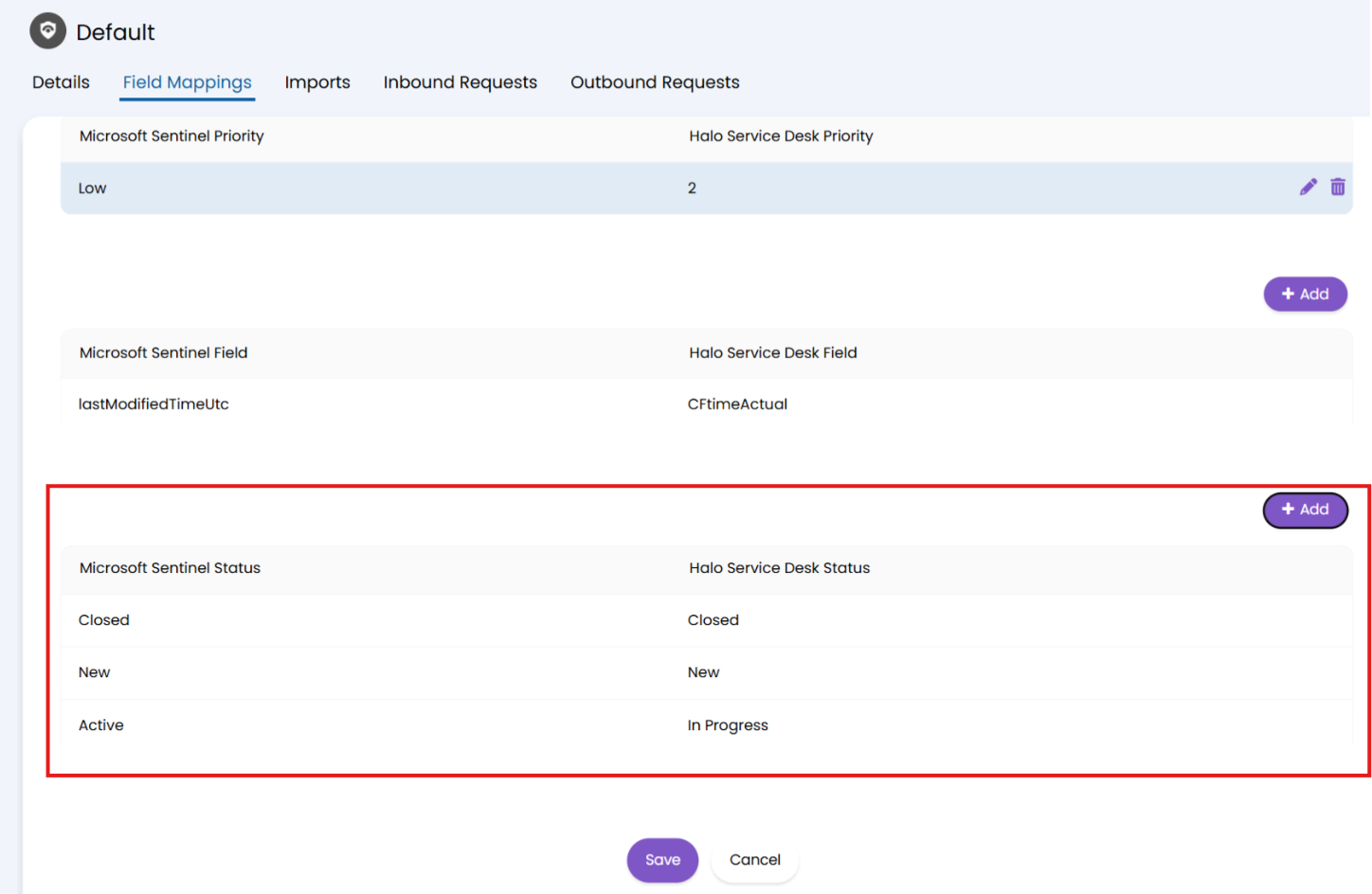
Fig 9. Status Mappings
Other Field Mappings
Various Sentinel fields can be mapped to custom fields in Halo. Allowing you control which fields data is stored in when an incident/ticket is synced from one tool to the other.
To add a field mapping simply add to the mappings table, select the Sentinel field you would like to map and the Halo field this corresponds to.
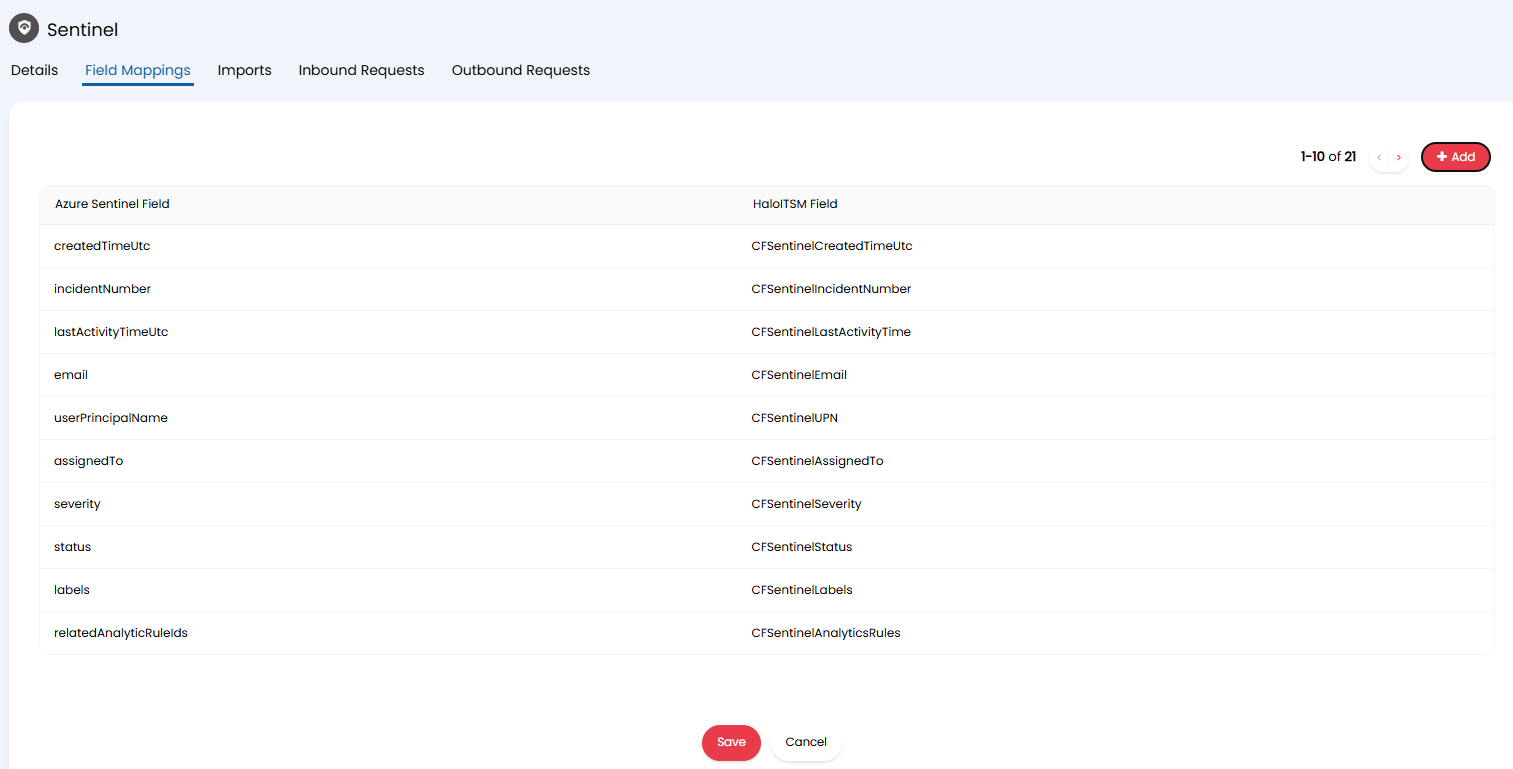
Fig 10. Field mappings
Sentinel fields can only be mapped to Halo custom fields, therefore you may wish to create some new custom fields dedicated for storing Sentinel data.
Make sure any fields you have mapped are present in the field list for the ticket type that is being used to log Sentinel Incidents.
Imports
Once field mappings are complete head to the 'Imports' tab to begin configuring how data is imported.
The 'Import type' field allows you to determine how data is imported.
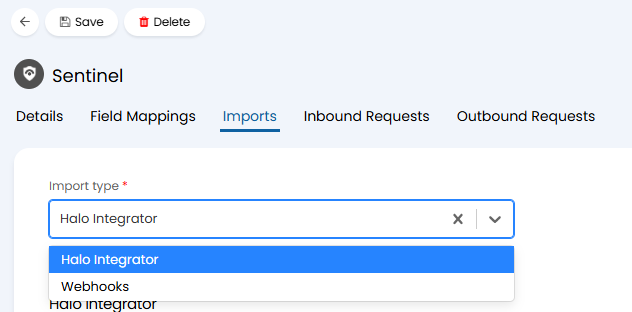
Fig 11. Import Type options
Halo Integrator - When chosen, incidents from Sentinel will be imported using the Halo integrator, which will run an import on a set schedule. Incidents will be imported every 15 minutes. When an import is run this will import new incidents in Sentinel and create these as tickets. Any comment updates on these incidents will also be imported each time the sync runs.
Webhooks - When chosen, incidents from Sentinel will be imported and updated using webhooks. This will create a ticket in Halo as soon as an incident is raised in Sentinel. Any updates to incidents will also be synced to Halo almost instantly. Using this Import type requires setting up webhooks in Sentinel.
Halo Integrator
When this is chosen as the import type you will need to check 'Enable the Halo Integrator for the Azure Sentinel integration'.
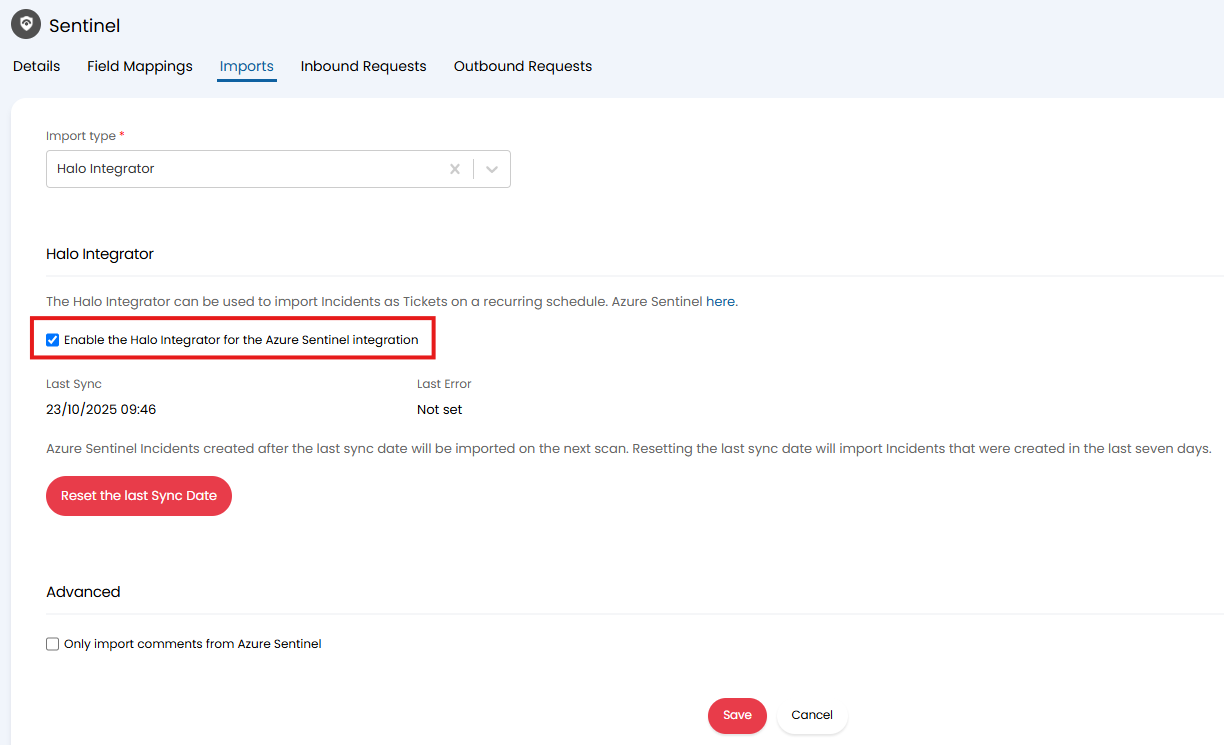
Fig 12. Enable the Halo Integrator for the Azure Sentinel integration
Once enabled for the first time this will import the last 7 days of Sentinel Incidents. If it's previously run, it'll import all incidents modified between now and the previous update time.
Now, any incidents created in Sentinel will be created in Halo automatically each time the sync runs (every 15 minutes). This import will also pull any new comments added in Sentinel but not in Halo yet.
When importing incidents from Sentinel the ticket created will attempt to match priority, status and assigned agent in Halo by names. The SLA assigned to the default ticket type will be used for priority matching. All other fields will match in line with field mappings.
Webhooks
When this this chosen you will need to configure webhooks in Azure Sentinel to create and update tickets in your Halo instance. You will need to be able to create Logic apps and Sentinel Automations to do this.
Creating a Logic App in Microsoft Azure
Before you begin creating a Logic App you will first need to obtain the authentication credentials for the webhook. This will be authorised using basic auth. Under the 'Imports' tab on the integration setup page in Halo enter a username and generate a password.
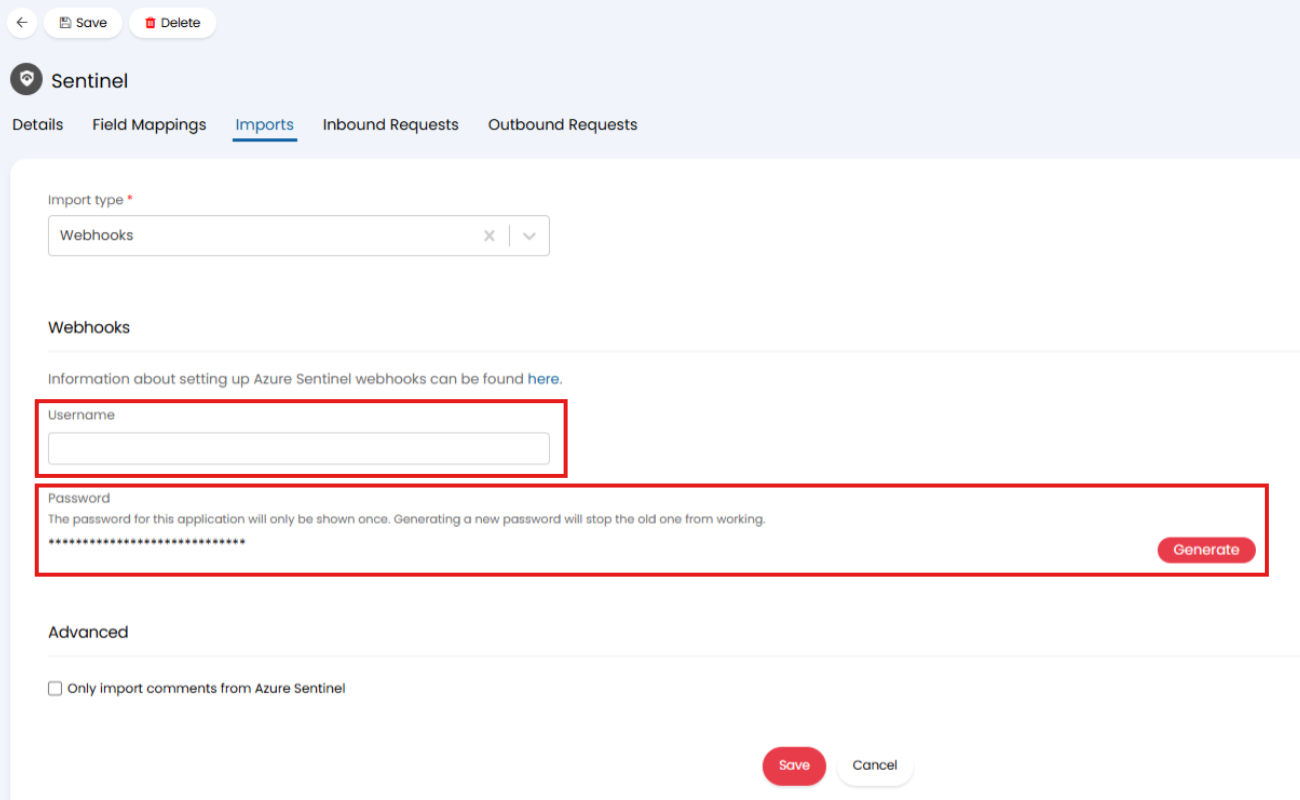
Fig 13. Authentication credentials for webhook
Once you have a username and password these will need to be base 64 encoded. Once encoded keep a note of this as they will be used later.
Create a new logic app in Microsoft Azure and select the Multi-tenant Consumption hosting option.
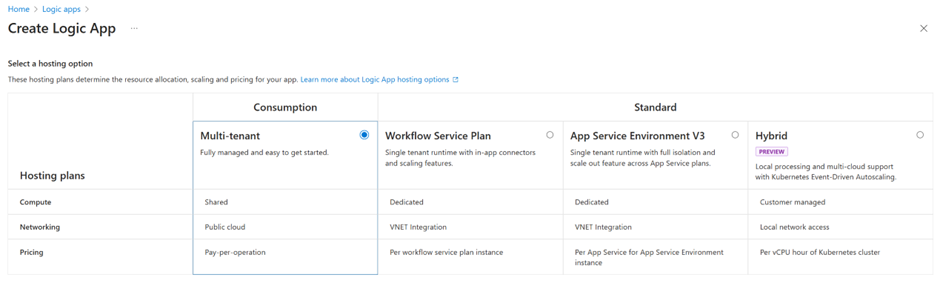
Fig 14. Creating a new logic app
Fill out the Project and Instance details.
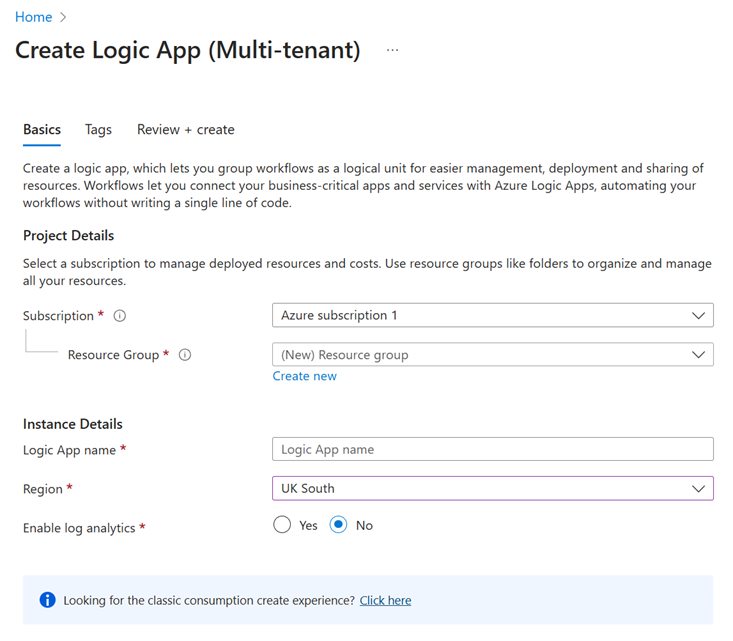
Fig 15. Logic app details
Once your Logic app has been deployed, go to the Logic app designer section under the 'Development Tools' tab.
Add a trigger and select the “Microsoft Sentinel incident” option.
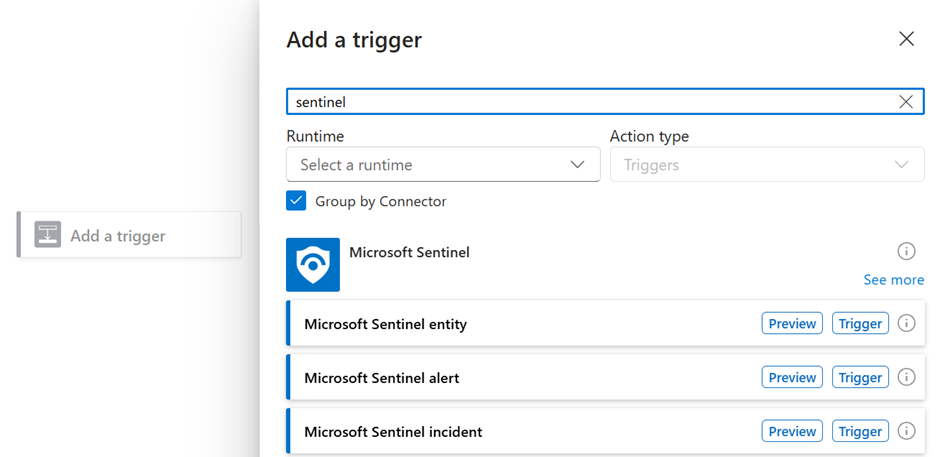
Fig 16. Add a Trigger
Add a new step after the Sentinel trigger and search for “HTTP”:
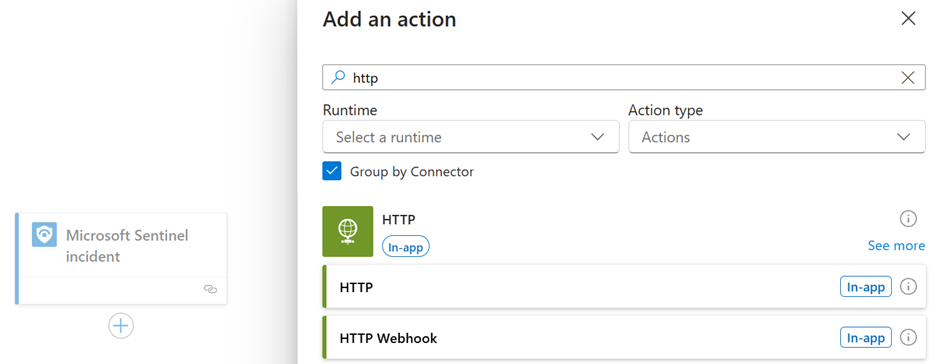
Fig 17. Adding a step to a trigger
Fill out the HTTP action as follows:
URI: https://YOURHALOURL/api/Notify/AzureSentinel
Method: POST
Headers:
- Key = Authorization
- Value = “username:password”
- This must be bas64 encoded (use the username and password entered in Halo/generated from Halo earlier)
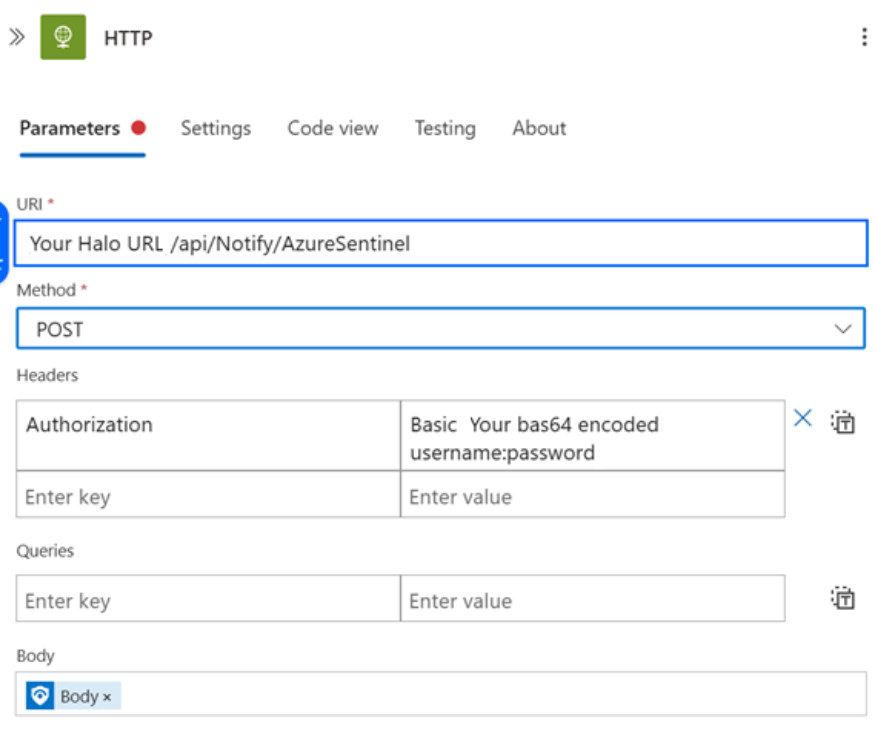
Fig 18. Parameters
For the body, press the lightning icon to add objects from the previous step, choosing the body of the Sentinel trigger.
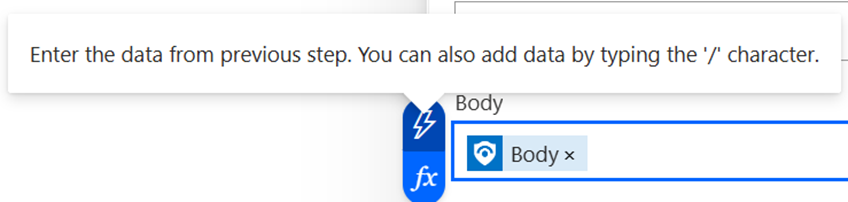
Fig 19. Body
Save the Logic app.
Sentinel Automation Rules
Navigate to the Microsoft Sentinel resource and select the “Automations” section under the “Configuration” group.
Create a new Automation rule for each of the following triggers:
- When incident is created
- When incident is updated
Add an action to “Run playbook” and choose the playbook (Logic app) that was made previously.
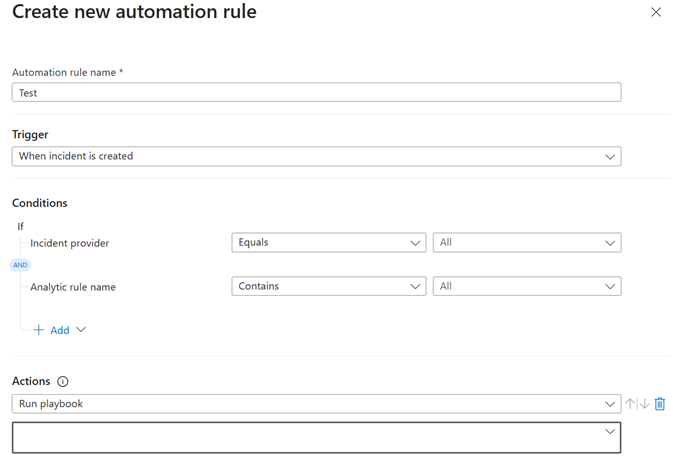
Fig 20. Creating an automation rule
Save the automation rules.
Now whenever a Sentinel Incident is created or updated, the playbook will send a request to the Halo API and create/update a ticket in Halo.
When created, incidents from Sentinel will attempt to match priority, status and assigned agent in Halo by names. The SLA assigned to the default ticket type will be used for priority matching. All other fields will match in line with field mappings.
See if a Ticket is made from Sentinel
When a ticket in Halo has been created by Sentinel the Sentinel ticket ID will be visible against the ticket in Halo, with a link to open the incident in Sentinel.
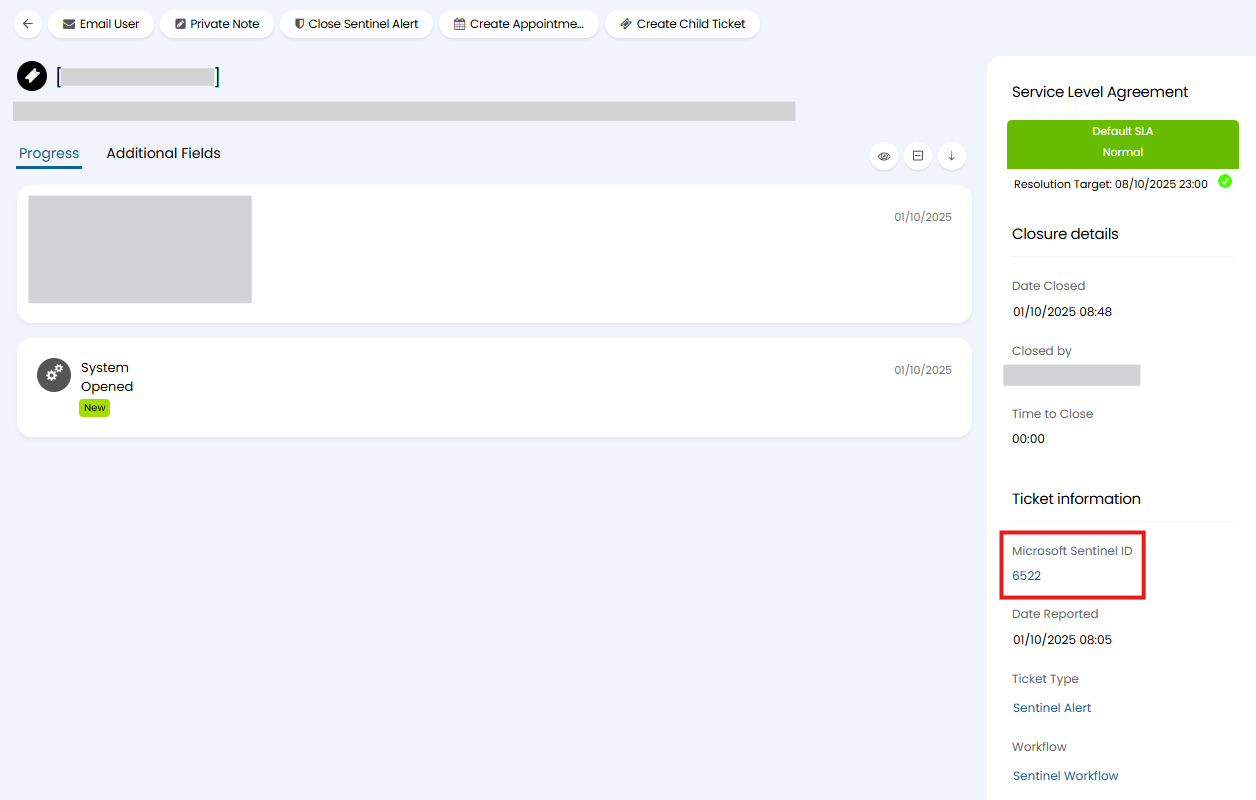
Fig 21. Sentinel incident ID against ticket in Halo
If you have created an incident in Sentinel from the ticket in Halo, the Sentinel ID will also show once the Sentinel incident is created.
Sending Tickets and Updates to Sentinel
Tickets in Halo can be sent to and created in Sentinel. Actions and updates to tickets in Halo can also be sent to Sentinel, this includes notes (which will be added to a Sentinel incident as a comment) and closures.
Syncing Comments
Notes on tickets in Halo that are added using actions can be synced to the linked Sentinel incident as comments. To do this you will need to configure an action that is set to sync to Sentinel. The action will need:
- System use - No system Use
- Field - Sync to Azure Sentinel
To configure an action sync to Sentinel head to Configuration > Tickets > Actions > select the action you would like to sync. The action will need the field 'Sync to Azure Sentinel' in it's field list. This will allow agents to toggle whether the action syncs to Sentinel or not.
The 'Sync to Azure Sentinel' field will also need to be added to the field list of the ticket type. This field can be defaulted to on or off using the setting 'Sync to Azure Sentinel', found under the defaults tab of the ticket type.
Ensure the action also contains any other fields you would like to be synced, including any mapped custom fields.
If you would like to sync a comment ensure the 'Note' field is also on the action. Only text in the 'Note' field will be added to a Sentinel incident as a comment.
The action shown in figure 21 will sync a comment to Sentinel.
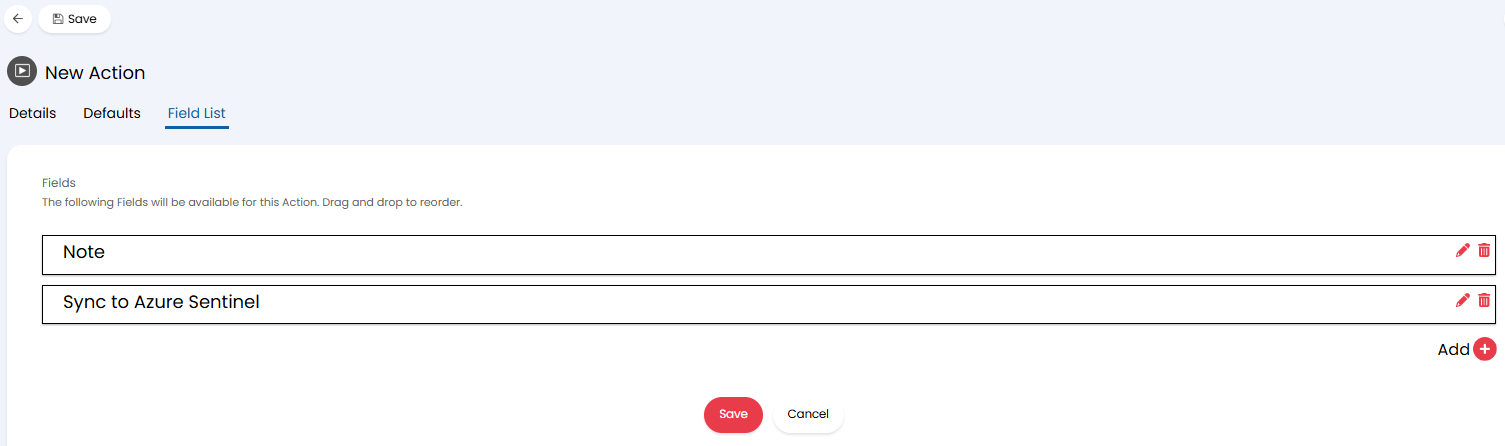
Fig 22. Action to sync comment to Sentinel
The agent that adds the action in Halo will not translate over to Sentinel. Instead when the comment is added in Sentinel it will appear to be added by the agent who authorised the connection between Halo and Sentinel for that tenant. If you have multiple Sentinel tenants set up the agent who authorised the applicable tenant will appear as the agent who added the comment.
Syncing Closures
Actions in Halo can also sync to incidents in Sentinel as closure actions. For an action to sync as a closure action rather than a comment the action must change the status of the ticket to closed.
You will also be able to add the fields 'Azure Sentinel Classification' and 'Azure Sentinel Classification', which will allow you to set the classification and classification reason the incident in Sentinel will be updated with when closing. These fields must work as a matching pair in Sentinel. E.g. Classification Undetermined should only be used with Reason N/A.
From v2.240+ you will only need to use the "Azure Sentinel Classification" field. The Classification reason will still be synced to Sentinel, but this will be determined automatically based on the Classification the agent has chosen.
The action configured in figure 22, is configured to close a ticket off in Halo and have this closure sync to Sentinel. When the 'status' field is set to contain the closed status this will close the incident in Sentinel.
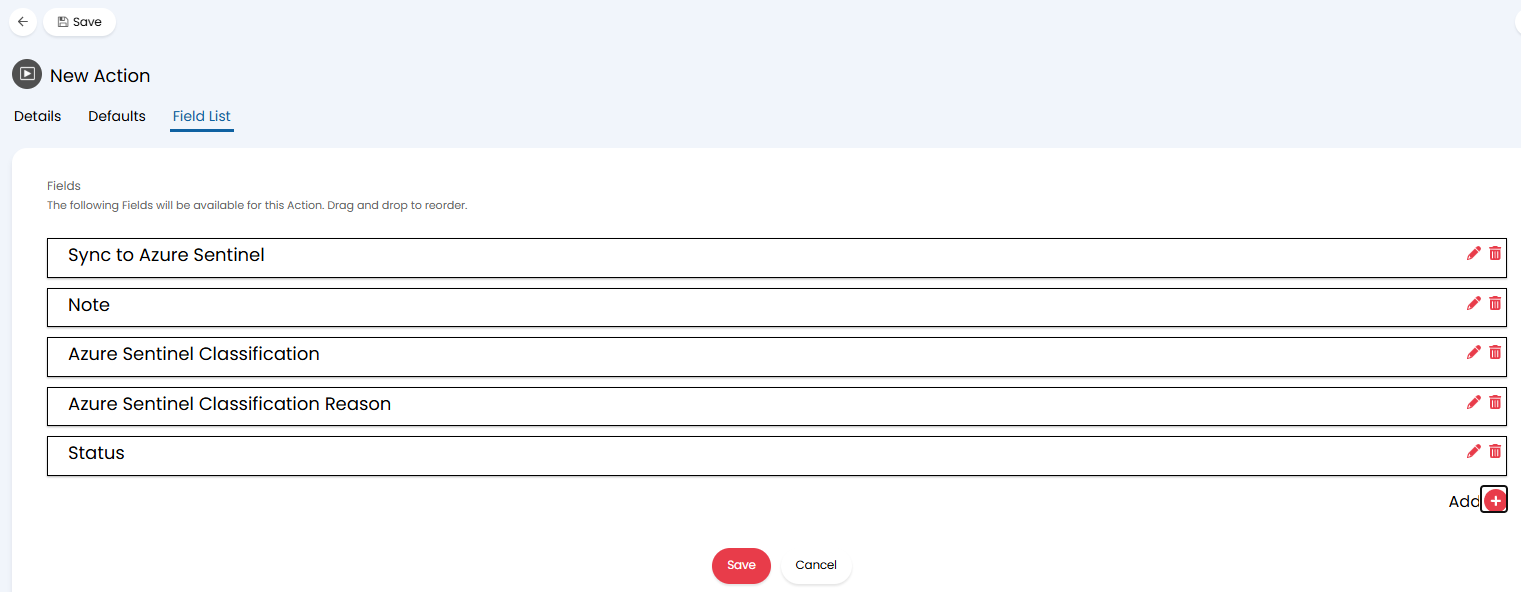
Fig 23. Example closure action field list
Note: You do not need to close tickets in Halo using an action for this to sync to Sentinel. As soon as the ticket's status is changed to closed this will update the incident in Sentinel.
On versions prior to v2.240, it is important to ensure the Azure Sentinel Classification and Azure Sentinel Classification Reason match the allowed values by Microsoft. These combinations are outlined by Microsoft here, and below:
- True Positive - suspicious activity
- Benign Positive - suspicious but expected
- False Positive - incorrect alert logic
- False Positive - incorrect data
- Undetermined
Create an incident in Sentinel from Halo
To have a ticket in Halo create an incident in Sentinel, you will need to complete an action on the ticket that contains the field 'Sync to Azure Sentinel' and this field is checked. You could create a new action just to sync the ticket across or you could use an action that syncs comments too.
As soon as the action is used in Halo, the incident will be created in Sentinel.
Only Import Comments
If you would only like comments to sync between Halo and Sentinel and prevent new tickets/incidents tickets being created you can enable the option to 'Only import comments from Azure Sentinel'.
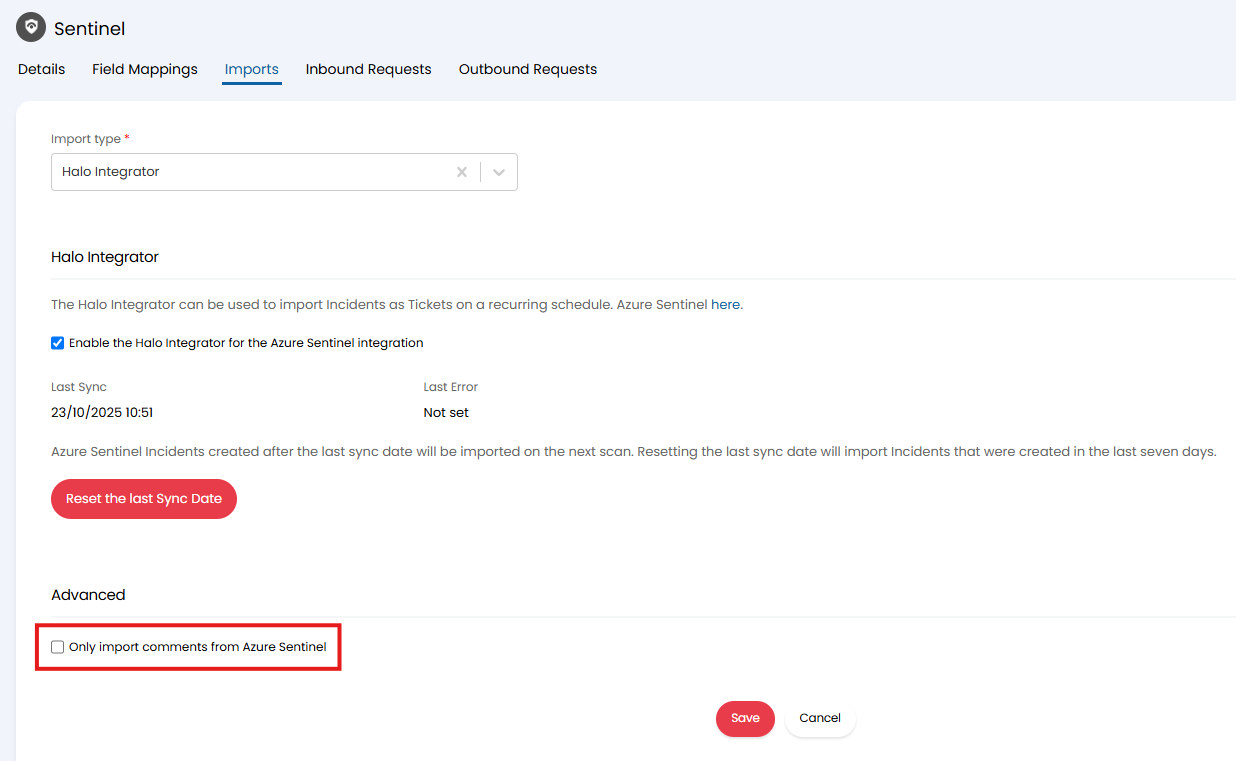
Fig 24. Only import comments
When enabled new tickets will not be made in Halo from Sentinel, only comments will be pulled in. Used when you would always like to raise incidents in Halo (and send these to Sentinel manually) but comments will be added in Sentinel so you would like these to be imported.