Adding Agent Signatures
- email signature
- agent signature
- agent email signature
- agent preferences
- preferences
In this guide we will cover:
- Creating an Agent signature- Applying your signature to Emails
Creating an Agent signature
If you'd like to have your own personal agent signature applied to emails, you can do this automatically by following the steps in this guide.
To add an Agent Signature to your account, click on your profile picture in the top right-hand corner on your instance, then go to 'My account'. Alternatively, head to Configuration > Teams and Agents > Agents, and choose an Agent profile to add a signature against.
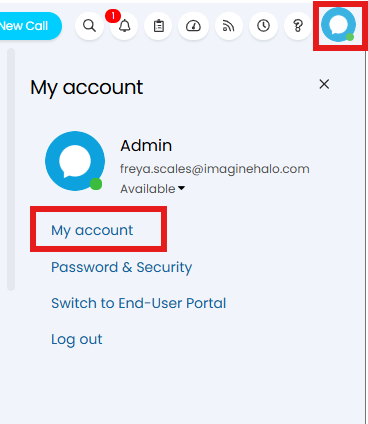
Fig 1. My Account
Head to the 'Preferences' tab. Here, you will find an 'Email Signature' section. Press 'edit' and then create or copy over your email signature.
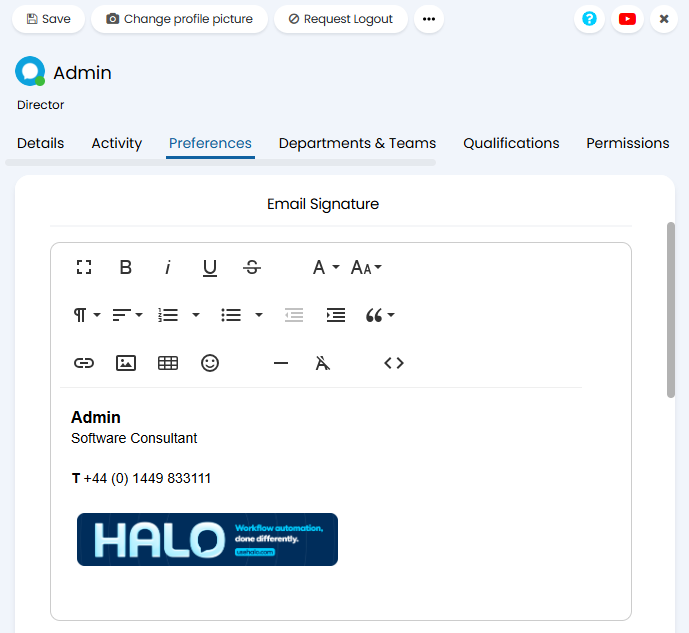
Fig 2. Creating an Email signature
Applying your signature to Emails
Next, the dollar variable $-signature, which populates Agent signatures based on the Agent completing the action, will need to be added to all applicable email templates.
To modify Email Templates, go to Configuration > Email > Email Templates (Or Configuration > Channels > Email > Email Templates).
Here, you will need to select the template you'd like to modify, then press 'edit' in the top left-hand corner.
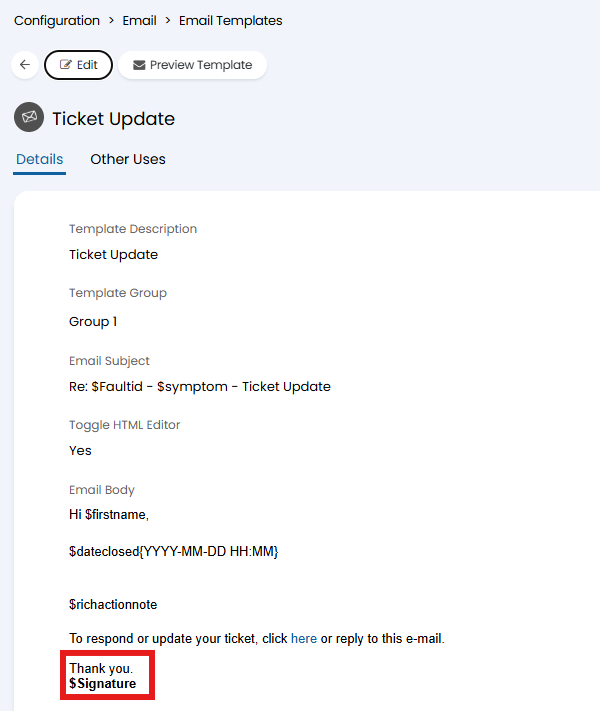
Fig 3. $-Signature in an Email Template
As you can see above, the $-signature variable has been added to the template, so now when an agent sends an email using this template, their signature will be applied to the bottom of the email.