Report Colour Palette Based on Brand Colour
- Reports
- reporting
- Report
In this guide we will cover:
- Changing Report Colour Palette from Application Colour
Changing Report Colour Palette from Application Colour
You can change the Report Chart Default Colour Palette in Configuration > Reporting > General Settings:
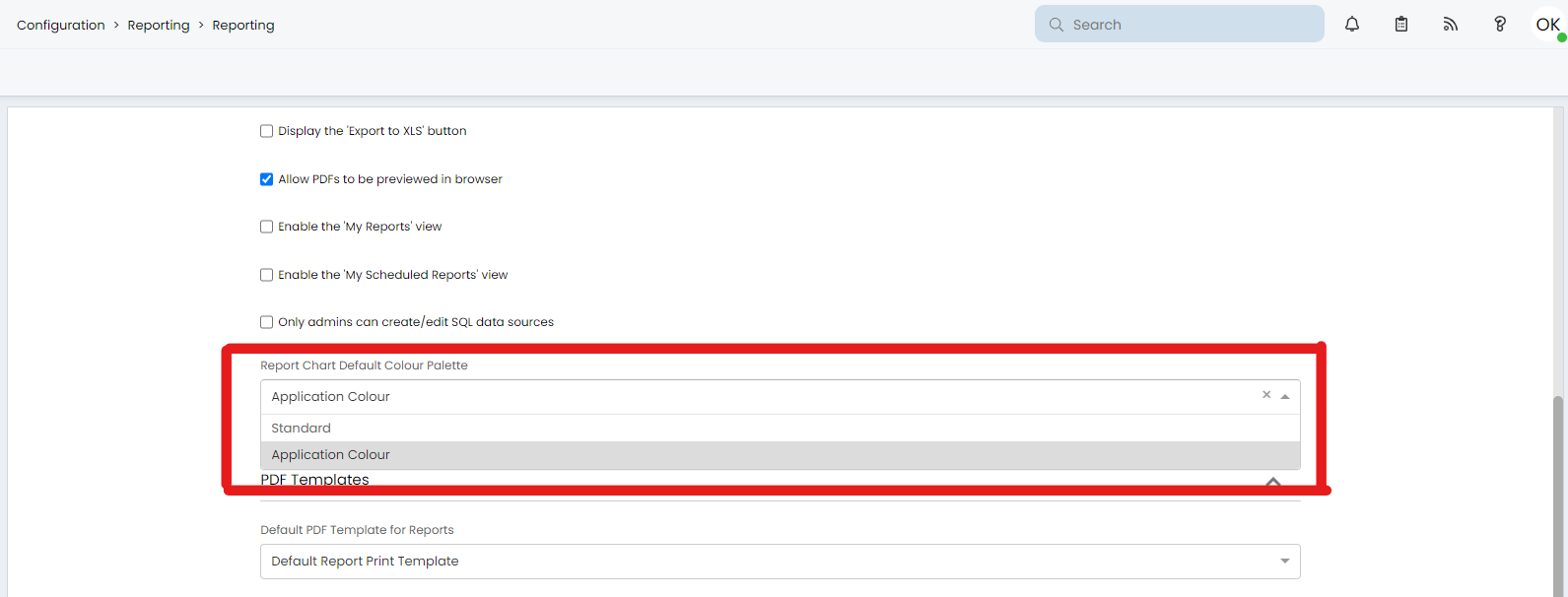
Fig 1. Report Chart Default Colour Palette in Configuration > Reporting > General Settings
By default, this setting will be set to 'Standard' which will contain the original standard report chart colours. The other new option is 'Application Colour', these report chart colours will be a mixture of different shades based on the application colour. This will be different depending on which app you are viewing the report in. An example of 'Application Colour' can be seen below:
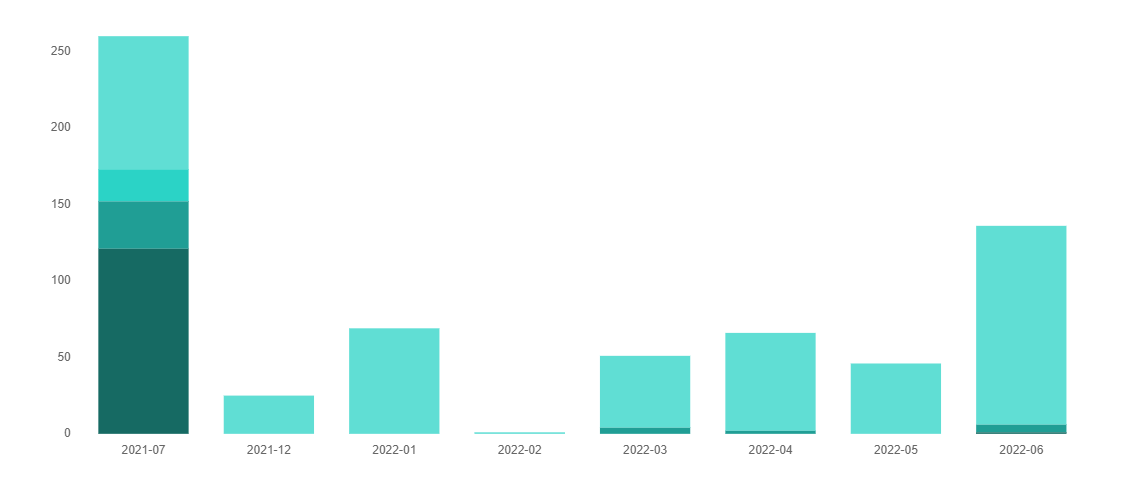
Fig 2. Example Bar Chart based on Application Colour