Halo Live Chat - Embedded on Other Sites
- live chat
- external
- Website
- halo live chat
- chat profile
- embedded chat
- chat override
- embed live chat
- chat custom fields
In this guide we will cover:
- Embedding Live Chat on Other Sites
- Populate custom fields with data from a chat session started by the Events API of the chat Embeddable Widget
Embedding Live Chat on Other Sites
Within the Chat Profile configuration, set "Access" to "Self-Service Portal & External Websites". This will allow the chat profile to be used without being logged into Halo as a user.
If used on the Self Service Portal, chat will now show without being logged in.
The chat client can be embedded onto other websites by following the instructions within the "Embed on External Website" section of the chat profile config page. This involves adding some JavaScript to the body of the site.
<div id="halo-chat"></div>
<script>
var haloChatConfig = {
chatServiceUrl: "your chat API url",
configId: "chat profile id",
configKey: "your chat profile key",
}
</script>
<script src="https://yourhalourl.haloitsm.com/chat/index.js"></script>
Override chat behaviour when embedded into other sites
When the Halo chatbot is embedded into other sites you can override certain properties of the chat profile based on criteria on your webpage, including, the chat profile used, the step the chat starts at and appearance of the chat profile. This is done using the JavaScript in the body of your site
In order to do this you will need to use the "haloChat_inboundEvent_initialize" event of the Chat Widget Events API in your JavaScript, here you can specify overriding properties. For example:
window.dispatchEvent(new CustomEvent("haloChat_inboundEvent_initialize", { detail: { configId: "123456", configKey: "abcdefg", colour: "red" } }));
This will initialise the Halo Chat Widget with chat profile ID "123456" and override the colour of the widget to red.
Note: If an existing chat is open and a different Chat flow is initialised the previous chat will be removed.
Override the Start step of the chat profile
To do this you must first head into the configuration for the chat profile you are embedding into your website > bot flow > edit the step you would like the profile to be able to start at. Here, you will need to enable 'Chat can start from this step'.
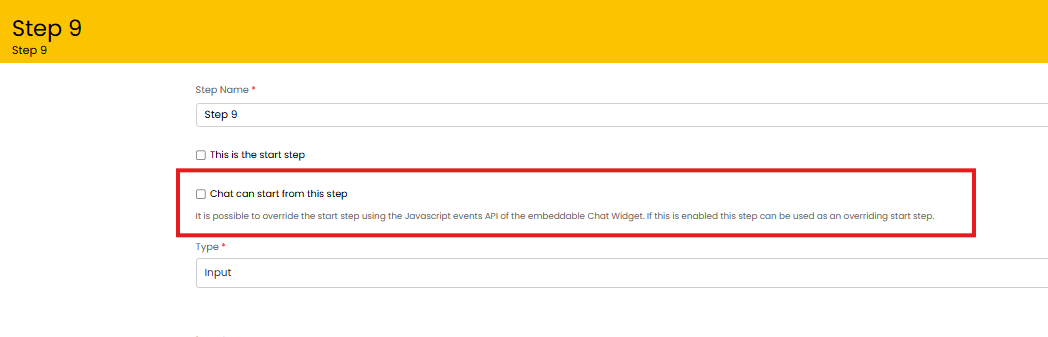
Fig 1. Allow chat to start from this step setting
In order for the start step of a chat to be overridden using JavaScript this setting must be enabled against the step you would like to override with. Enabling this will not cause the chat to start at this step when being used in the Halo portal/agent app.
Once this is set you can specify the start step override in your event arguments, for example:
window.dispatchEvent(new CustomEvent("haloChat_inboundEvent_openChatWindow", { detail: { id_token: idToken, retainPreviousChat: true, startStepOverride: 9 } }));
In the above example the chat will start at step 9.
For more information on this and a list of overrides that can be made to the embedded chatbot, along with the required arguments, check out our article here.
Populate custom fields with data from a chat session started by the Events API of the chat Embeddable Widget
You can have chat data automatically stored in custom fields when the chat is started, these custom fields can be used for various purposes. This is only applicable to chats started from an embedded chat widget.
Create a chat custom field by heading to configuration > custom objects > custom fields > change entity to chat > new.
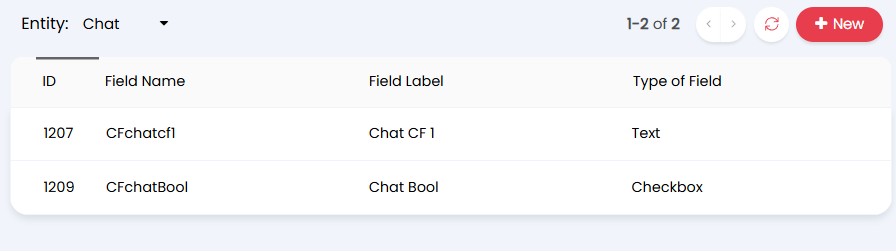
Fig 2. Chat custom fields
When a JWT identity token is created to log the user into chat, include the values of the custom fields as claims in the JWT, with the claim type as either the database name of the custom field (CFfieldName), or the label of the custom field. When that JWT is sent to the Chat endpoint and the chat is created, the custom field values will be extracted from token and written to the database.
Chat custom fields can be used:
- As conditions in chat flows to determine the journey of the conversation.
- In synchronous runbooks started from the chat by a chat flow step or virtual agent.
- To sync values to ticket custom fields with the same label when creating a ticket from chat.
Note: Unlike Custom Fields on other entities, these don't show anywhere in the UI. They are used to store data relating to a Chat session, and can only be set when using the Events API of the chat Embeddable Widget.
It is possible to avoid sending User information to the client via the JWT when launching a chat. This method requires you to POST the user fields that would normally be mapped in the JWT as claims, to a new endpoint in the Halo API ("https://<HALOURL>/api/ChatMatchingData"). This endpoint requires authentication and permission to "Read & Modify Users".
An example request body would contain:
[
{
"json_content" :
{
"firstname": "John",
"lastname": "Doe",
"username": "John Doe",
"email": "example.email@halo.com"
}
}
]
You can add any number of JSON properties to the "json_content" property. They will use the field mappings specified in the Chat Profile Identity Token mappings.
A successful POST to the /ChatMatchingData endpoint will be indicted by a "201 Created" response and a Response object containing a GUID and a Key. These will be valid for 24 hours unless specified as single use. The GUID and Key can then be added to your JWT which is sent to the client and used to launch the User's chat with the following Claim names:
"chatmatchingdataguid"
"chatmatchingdatakey"
You no longer need to include PII in the JWT with this method as it will be matched and handled within the Halo API.
Progress the chat based on a chat custom field
The chat flow can be configured to run an evaluation against a chat custom field, and have the chat progress based on the value in this field.
To do this add a 'condition' step to the chat profile flow, then in the criteria table, choose your chat custom field as the field to base criteria on.
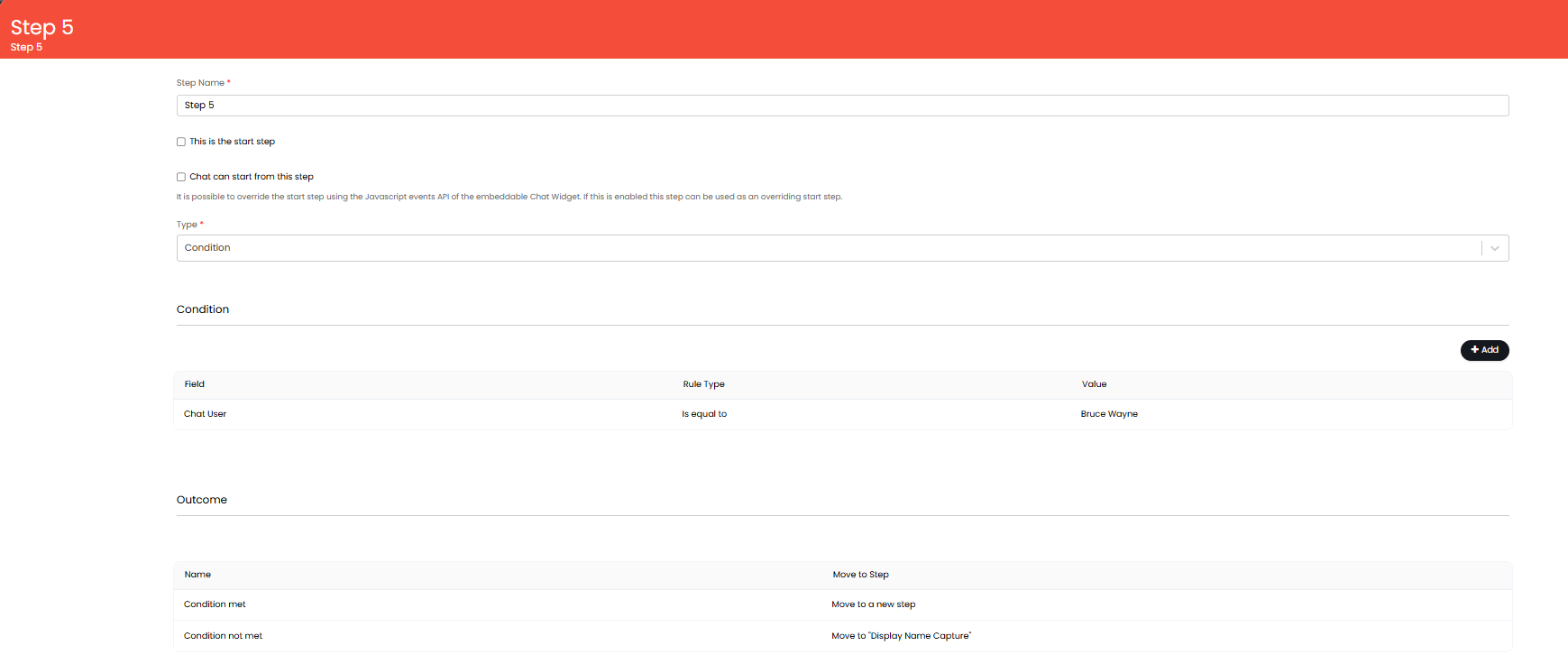
Fig 3. Chat flow condition based on chat custom field
Sync values to ticket custom fields with the same label when creating a ticket from chat
To have chat custom field values sync into a chat custom field you will need to head to configuration > custom objects > change entity to chat > new, here create the custom field.
Then create a ticket custom field with the exact same name and ensure this field is assigned to the ticket type that is logged from the chat. Now when this ticket type is logged from a chat embedded in another site, the ticket custom field will be populated with the same data contained within the chat custom field. The value that the chat custom field is populated with will be determined by the claims in the JWT for the embedded chat widget.