Syncing Exchange Calendars using the Microsoft Graph API
- graph api
- exchange calendar
- syncing exchange calendars
- syncing calendars
In this guide we will cover:
- What is the Exchange Integration?
- How to connect to the Exchange Calendars integration
- Immutable IDs and Webhooks
- Importing Existing Calendar Entries
- Inbound and Outbound Requests Tab
- Using Exchange Calendar
- Common errors
What is the Exchange Integration?
Halo can sync appointments with your Exchange/Office365 calendars, and this can be restricted in different ways.
This guide covers how to connect to the Exchange Calendars integration using the Microsoft Graph API connection method. If you are connecting using either Exchange Web Services via App Impersonation (API/Halo Integrator) or Exchange Web Services via Delegate Access (API/Halo Integrator) you will need to follow our article here.
How to connect to the Exchange Calendars Integration
Start by heading to Configuration > integrations and enable the integration module. Once enabled click into the module to begin configuration.
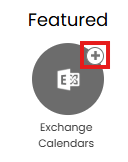
Fig 1. Enable integration module
Choose 'Microsoft Graph API' as the connection method.
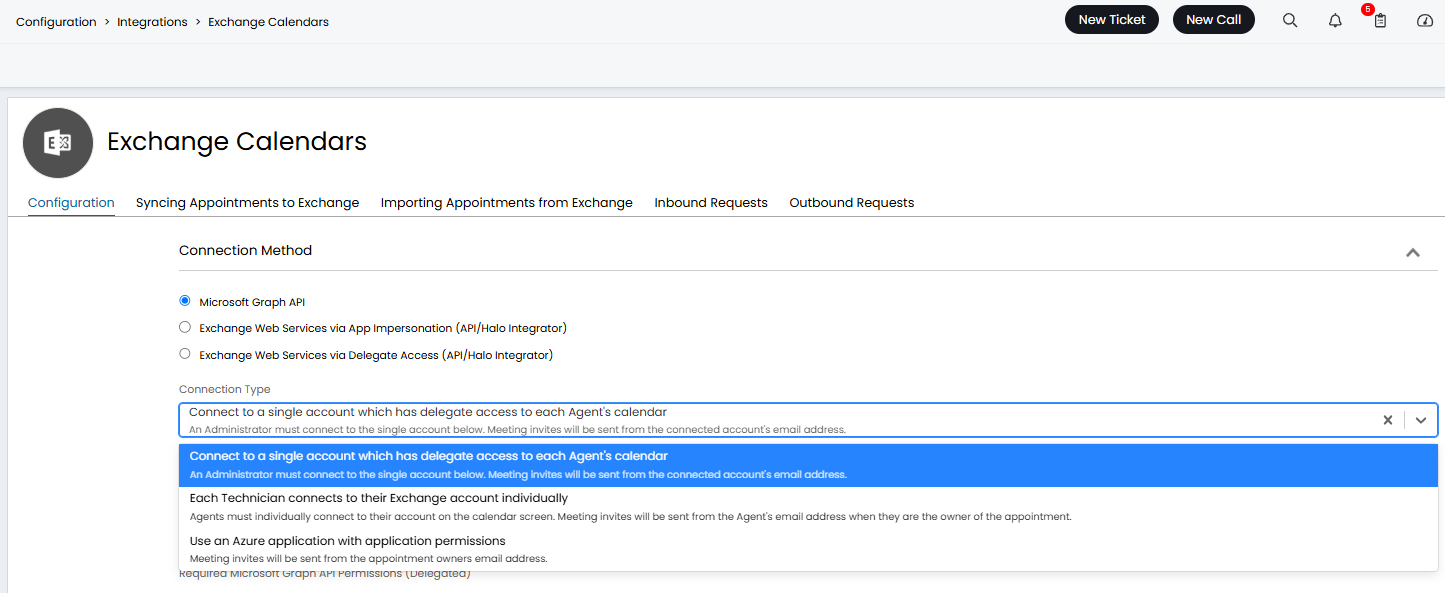
Fig 2. Exchange Calendars configuration
When using this connection method there are three connection types you can use:
- Option 1: Use an Azure application with application permissions
- Option 2: Connect to a single account which has delegate access to each agent's calendar
- Option 3: Each technician connects to their Exchange account individually
You will need to connect using one of these three connection types, we will cover how to do this in the guide. For connection, you will only need to follow the section relevant to the connection method you are using. Once you have connected there is some additional information around exchange calendars relevant to all connection methods.
Option 1: Use an Azure application with application permissions
This option is recommended as it gives permissions to the application, which stops the need to have delegate access to every user. An Azure application with permissions will need to be configured for this.
Note: If you are looking for tighter security measures the next connection option (each technician connects to their account individually) may be more suitable as this limits the risk of credential compromise.
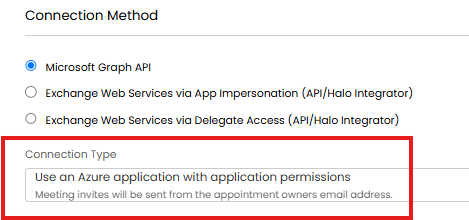
Fig 3. Connection type using an Azure application with application permissions
Azure App Registration
Firstly, you will need to set up an App Registration in Microsoft Azure. This can be done by navigating to the App Registrations tab of Azure and selecting new registration. The only thing you will need to set up here is the access type (single tenant) and name. Once this registration is complete you should keep this window open as you will need to refer back to the App registration when setting up your calendar integration.
To create a new app registration, head to https://portal.azure.com then click into the Microsoft Entra area.
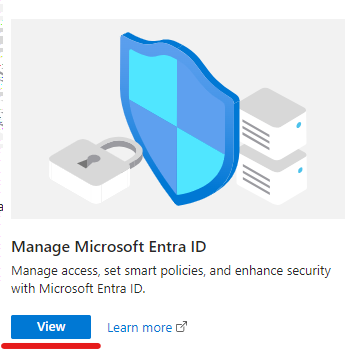
Fig 4. Microsoft Entra area
Then create a new registration.
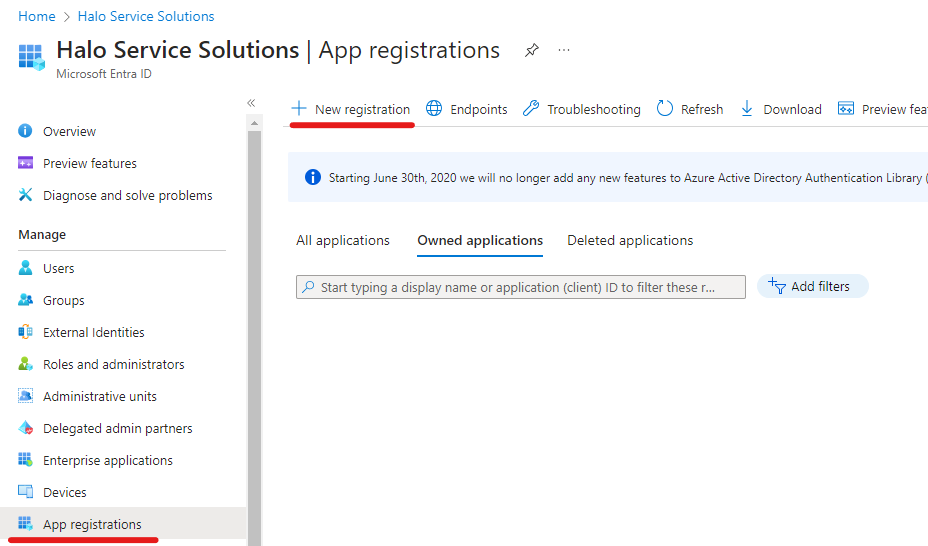
Fig 5. Create a new app registration
Give the app a name and set the support account type to be 'Accounts in this organizational directory only (Single tenant).
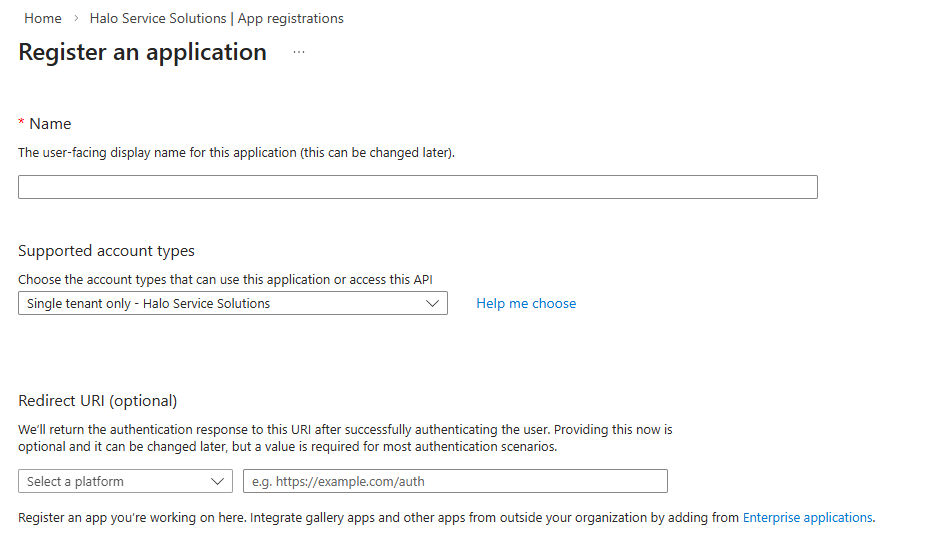
Fig 6. New app registration
Register the application.
Now that an application has been registered, you must give it the relevant permissions required by the integration. In your new application, go to the API Permissions tab to get started. You should see your list of current permissions will be listed, along with options to manage these. Select the option to add a new permission, and choose Microsoft Graph from the available APIs.
API Permissions needed:
Remove user.read
Add Calendars.ReadWrite (Application)
Once all permissions have been chosen, click the "Add Permissions" button to incorporate them into your application.
Once the permissions are added you will need to grant admin consent to the permission.
Now you will need to generate a secret for the application. Navigate to the "Certificates & Secrets" tab of your App Registration in Azure. Add a new secret, providing a desired name and setting the expiration date. Save the changes. Take note of the secret value, as this will be used in Halo to access your App Registration. Store the secret value securely, as Azure only provides it once
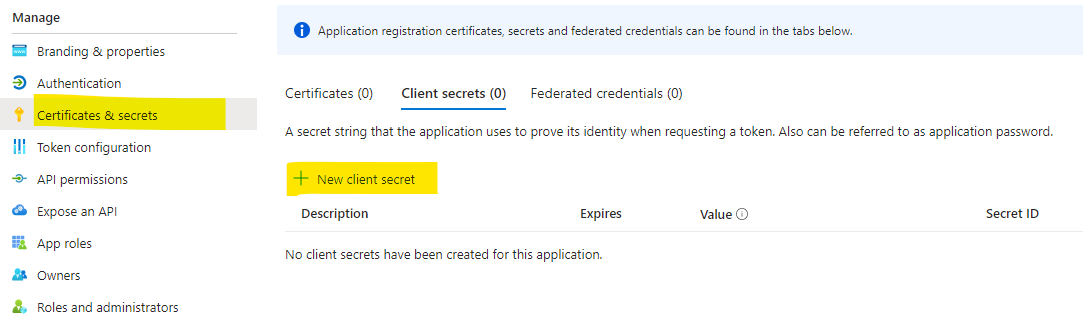
Fig 7. Generate new secret

Fig 8. New secret
Now copy the Application (Client) ID, Tenant ID too.
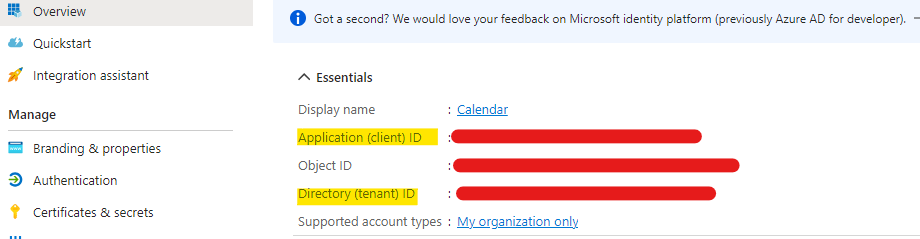
Fig 9. Application and tenant ID
Head back to Halo and paste these values into the corresponding fields on the Exchange calendars integration page.
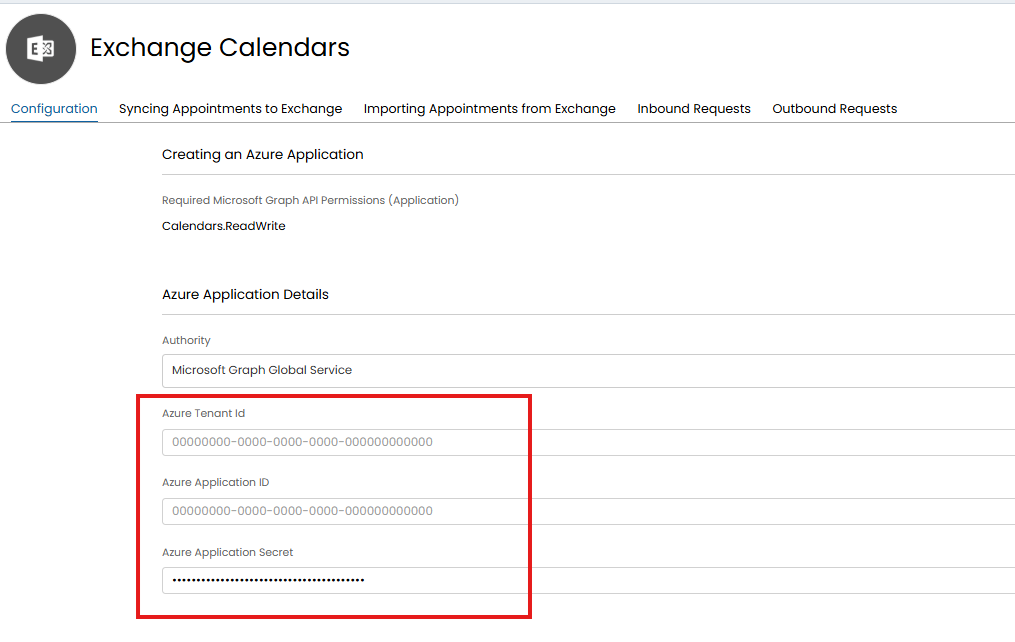
Fig 10. Application details in Halo
Be sure to set the Microsoft authority you are using too.
You will now be connected.
Enable appointment Syncing
Now you have connected head to the 'Syncing Appointments to Exchange' tab and use the button 'Enable for all Agents' to enable the option of calendar syncing for everyone.
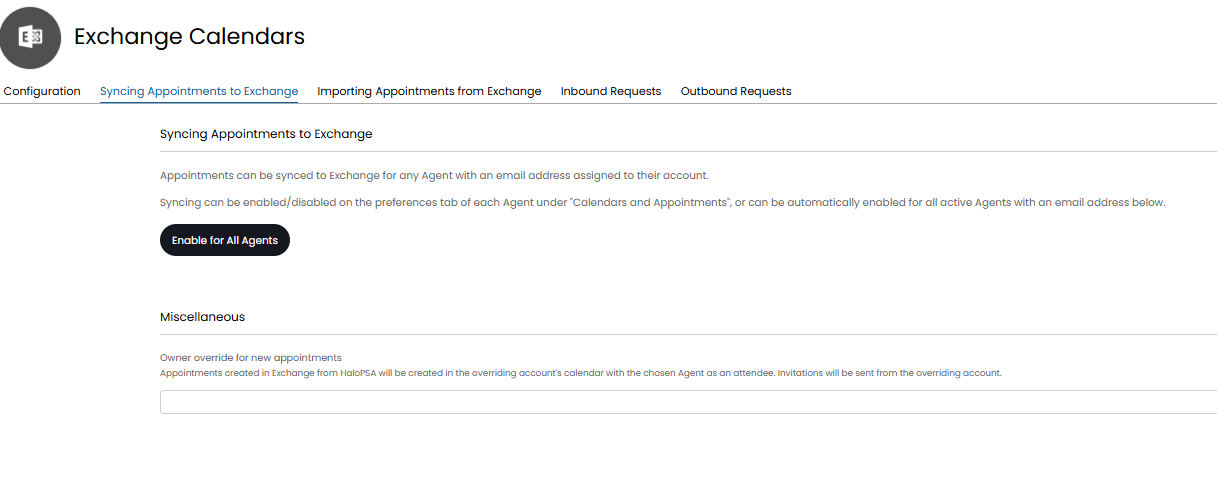
Fig 11. Enable appointment syncing
Owner override for new appointments: An email address can be entered here to have all appointments created in Exchange from Halo appear on this agent's calendar with the agent who created the appointment as an attendee. Meeting invites will be sent from the overriding account. This means that you can enter a shared calendar email address for appointments to be synced to a shared Exchange calendar.
Update scheduler Appointment when linked Appointment is updated: This applies if using a central "scheduler" calendar. When enabled, changes made by the person who did not schedule the appointment can be reflected in the scheduler's appointment (i.e. if person B is an attendee to scheduler A's appointment, B making a change to the appointment will update it for scheduler A.
Use Halo creation method for recurring appointments: When enabled recurring appointments will be created and managed in Halo, rather than sending the recurring master to Exchange to create the series. The individual appointments in the series will then sync to Exchange separately. This means all the individual appointments will show in both Halo and Exchange.
Option 2: Connect to a single account which has delegate access to each Agent's calendar
The following video contains a walkthrough on how to connect to Exchange calendars using this connection type. Written steps to connect are also provided below.
Important: An Administrator must connect to the single account below. Meeting invites will be sent from the connected account's email address. The azure account used when authorising the application from inside Halo needs to have delegate or "Full Access Permission" to each of the accounts (Mailbox Folder Permission) that you are connecting to for editing/adding appointments.
Azure App Registration
Firstly, you will need to set up an App Registration in Microsoft Azure. This can be done by navigating to the App Registrations tab of Azure and selecting new registration. The only thing you will need to set up here is the access type (single tenant) and name, redirect URI is necessary. Once this registration is complete you should keep this window open as you will need to refer back to the App registration when setting up your Calendar Integration.
To create a new app registration, head to https://portal.azure.com then click into the Microsoft Entra area.
Fig 12. Microsoft Entra area
Then create a new registration.
Fig 13. Create a new app registration
Give the app a name and set the support account type to be 'Accounts in this organizational directory only (Single tenant).
The redirect URI should have the platform set to be 'Web', but the URI used will differ depending on the version of Halo you are using.
On versions prior to v2.200 the following redirect URI will need to be used:
https://YOURHALODOMAIN/azure/auth
On versions v2.200+ you the following redirect URI will need to be used:
https://YOURHALODOMAIN/authcallback
But the exact redirect URI you need can be found on the setup page for the integration in Halo.
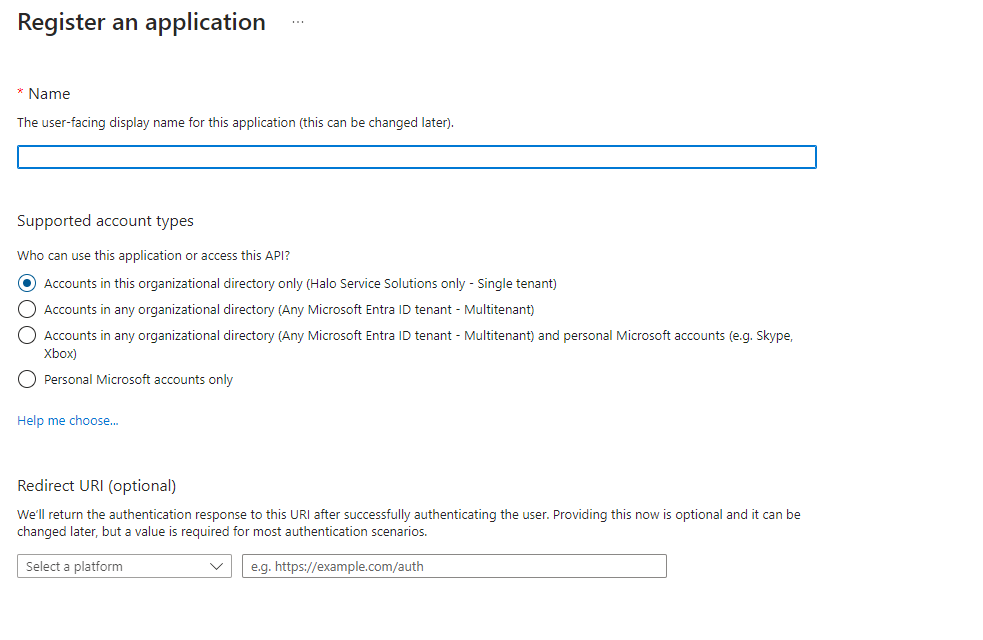
Fig 14. New app registration
Note: If you have disconnected to the integration and are reconnecting, if your Halo instance is on v2.200+ you will need to use the new redirect URI (https://YOURHALODOMAIN/authcallback).
Register the application.
Now that an application has been registered, you must give it the relevant permissions required by the integration. In your new application, go to the API Permissions tab to get started. You should see your list of current permissions will be listed, along with options to manage these. Select the option to add a new permission, and choose Microsoft Graph from the available APIs.
API Permissions needed:
Remove user.read
Add User.Read.All
Add Calendars.ReadWrite
Add Calendars.ReadWrite.Shared
Add offline_access
Once all permissions have been chosen, click the "Add Permissions" button to incorporate them into your application.
Once the permissions are added you will need to grant admin consent to all the permissions.
Now you will need to generate a secret for the application. Navigate to the "Certificates & Secrets" tab of your App Registration in Azure. Add a new secret, providing a desired name and setting the expiration date. Save the changes. Take note of the secret value, as this will be used in Halo to access your App Registration. Store the secret value securely, as Azure only provides it once
Fig 15. Generate new secret
Fig 16. New secret
Now copy the Application (Client) ID, Tenant ID too.
Fig 17. Application and tenant ID
Head back to Halo and paste these values into the corresponding fields on the Exchange calendars integration page.
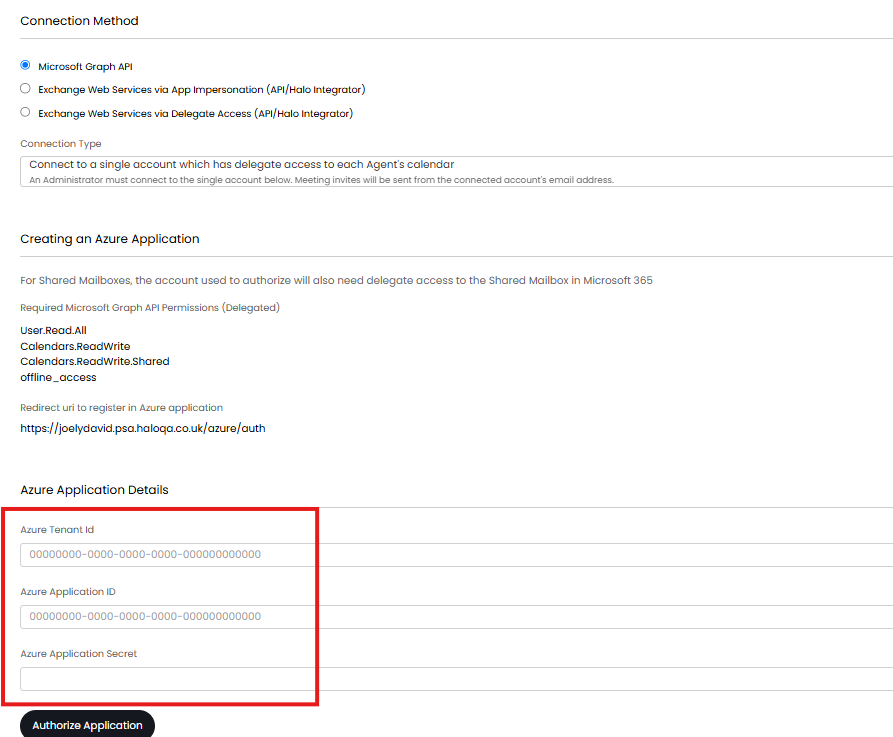
Fig 18. Azure application details in Halo
Then click *Authorise Application*. Note: This will only show if using the "Connect to a single account" connection type.
Note: If you receive redirect URI errors, make sure the redirect is set up correctly i.e. choose "Web" from the platform dropdown and use the following convention for the uri: https://*yourhaloinstance.com*/azure/auth
Grant Access
Head to the 'Syncing Appointments to Exchange' tab in the integration configuration page in Halo. If the access is to be for all agents calendars, click on the "Enable for All Agents" button.
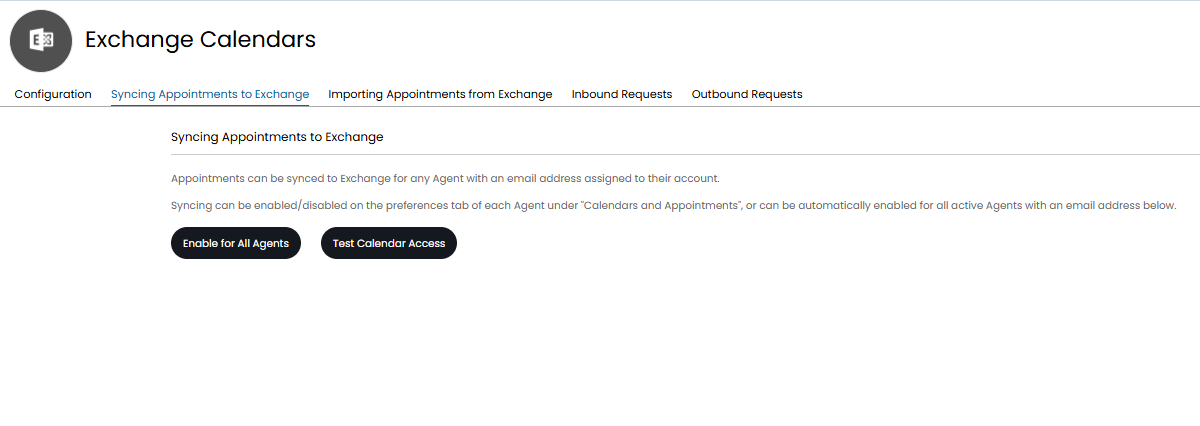
Fig 19. Enable calendar syncing for agents
Give mailbox permissions to another Microsoft 365 user:
If using this connection type you may need to grant the account you are connecting with delegated permissions to access each agent's mailbox (depending on your company requirements). This will grant the account full access to your calendar. A guide on how to do this can be found at the following link:
Option 3: Each Technician Connects to Their Exchange Account Individually
Azure App Registration
Firstly, you will need to set up an App Registration in Microsoft Azure. This can be done by navigating to the App Registrations tab of Azure and selecting new registration. The only thing you will need to set up here is the access type (single tenant) and name, redirect URI is necessary. Once this registration is complete you should keep this window open as you will need to refer back to the App registration when setting up your Calendar Integration.
To create a new app registration, head to https://portal.azure.com then click into the Microsoft Entra area.
Fig 20. Microsoft Entra area
Then create a new registration.
Fig 21. Create a new app registration
Give the app a name and set the support account type to be 'Accounts in this organizational directory only (Single tenant).
The redirect URI should have the platform set to "Web". The redirect URI used will differ depending on the version of Halo you are using.
On versions prior to v2.200 the following redirect URI will need to be used:
https://YOURHALODOMAIN/azure/auth
On versions v2.200+ you the following redirect URI will need to be used:
https://YOURHALODOMAIN/authcallback
But the exact redirect URI you need can be found on the setup page for the integration in Halo.
Fig 22. New app registration
Note: If you have disconnected to the integration and are reconnecting, if your Halo instance is on v2.200+ you will need to use the new redirect URI (https://YOURHALODOMAIN/authcallback).
Register the application.
Now that an application has been registered, you must give it the relevant permissions required by the integration. In your new application, go to the API Permissions tab to get started. You should see your list of current permissions will be listed, along with options to manage these. Select the option to add a new permission, and choose Microsoft Graph from the available APIs.
API Permissions needed:
Remove user.read
Add Calendars.ReadWrite
Add User.Read.All
Add Calendars.ReadWrite.Shared
Add offline_access
Once all permissions have been chosen, click the "Add Permissions" button to incorporate them into your application.
Once the permissions are added you will need to grant admin consent to all the permissions.
Now you will need to generate a secret for the application. Navigate to the "Certificates & Secrets" tab of your App Registration in Azure. Add a new secret, providing a desired name and setting the expiration date. Save the changes. Take note of the secret value, as this will be used in Halo to access your App Registration. Store the secret value securely, as Azure only provides it once
Fig 23. Generate new secret
Fig 24. New secret
Now copy the Application (Client) ID, Tenant ID too.
Fig 25. Application and tenant ID
Head back to Halo and paste these values into the corresponding fields on the Exchange calendars integration page.
Fig 26. Azure application details in Halo
Then click *Authorise Application*
Note: If you receive redirect URI errors, make sure the redirect is set up correctly i.e. choose "Web" from the platform dropdown and use the following convention for the uri: https://*yourhaloinstance.com*/azure/auth
Once you have provided the application details, you will find the option to change the "Calendar sync type". This allows you to decide if the calendar sync will be based on Agent preferences or Roles. If you choose to sync Agent calendars based on Roles, a "Manage Roles" button will show where the Roles to sync Agent calendars for can be set.
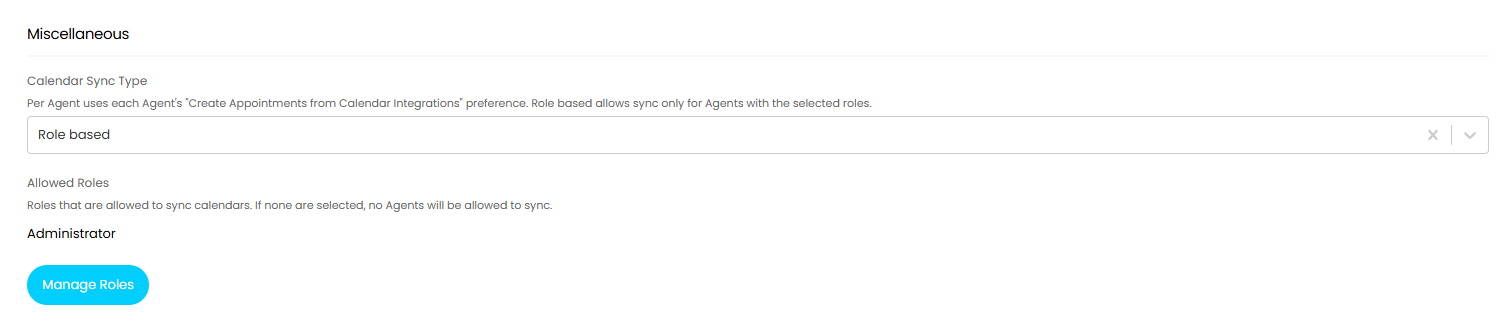
Fig 27. Calendar sync type
Enable appointment syncing
Now you have connected head to the 'Syncing Appointments to Exchange' tab and use the button 'Enable for all Agents' to enable the option of calendar syncing for everyone.
Connect Agent accounts
When using this method, you will now need to ask your agents to navigate to the Calendar module and scroll down to find the "Exchange Calendar" section where you can connect or disconnect your account. If this does not show up immediately, you will need to clear your cache and log out and back in.
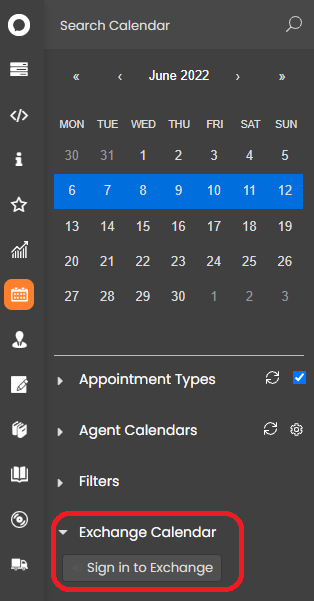
Fig 28. Sign in to exchange accounts
Each agent will need to sign in to their Exchange account to connect.
Immutable IDs and Webhooks
Prerequisites:
- Connection Method 'Use Azure application with application permissions'
When using the connection type 'Use Azure application with application permissions' you will have the option to use Immutable IDs. This prevents issues caused by the ID of an Exchange appointment changing when certain properties on the appointment are changed.
Additional permissions must be granted to your Azure application to use this functionality. The following permission is needed:
- User.Read.All permission (type: application)
Immutable IDs can be enabled by selecting the 'Use Immutable IDs' button at the bottom of the Exchange Calendars integration page. Note: Enabling this is irreversible and you will not be able change your connection method/type following this.
Whilst enabling is irreversible, it does bring some benefits.
- Stability: Applications and integrations have a reliable way to identify and track objects without being disrupted by changes to object properties.
- Consistency: Systems that sync or interact with Exchange data can ensure they're referencing the same object, even if other aspects of the object are updated.
- Reduced Errors: Prevents issues caused by ID mismatches in integrations, such as calendar sync tools, that need a consistent reference point.
- Efficiency: When you enable Immutable IDs, you can then enable webhooks for this integration. This will make the sync between Halo and Exchange instant, rather than taking up to 60 minutes for appointment creations/updates/deletions from Exchange to come into Halo.
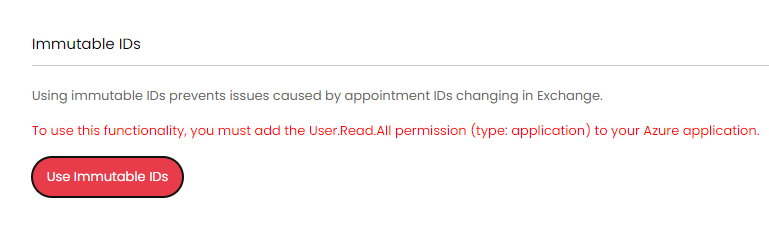
Fig 29. Enable Immutable IDs
Webhooks
Webhooks can be configured to receive instant updates for Created, Updated, and Deleted events from Exchange. Webhooks will also sync any appointment changes from Halo to Exchange.
Immutable IDs must be enabled to use the webhook functionality. Once enabled a 'webhooks' section will be available under the exchange calendar configuration page.
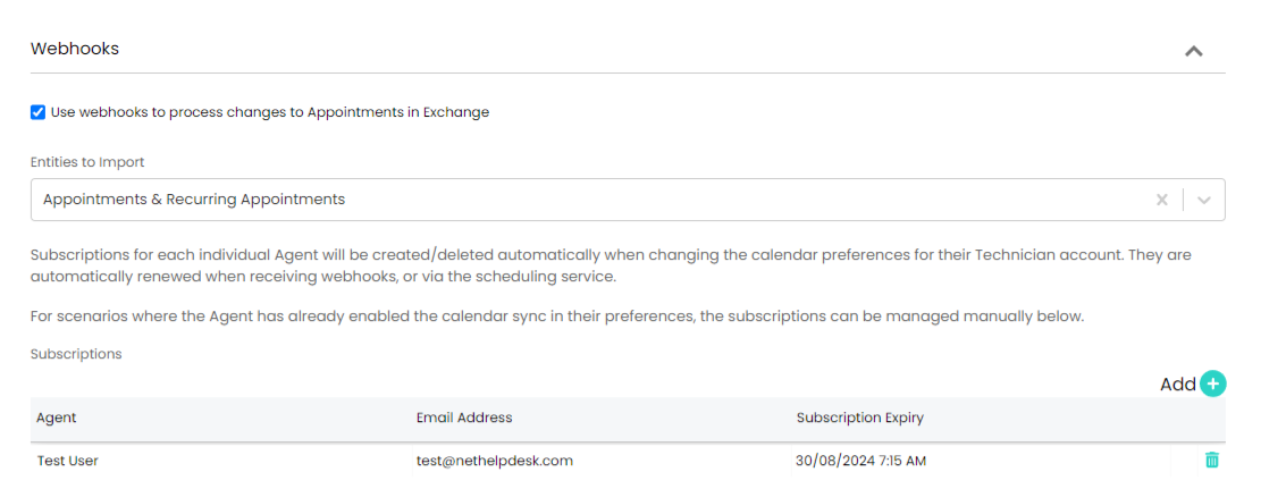
Fig 30. Webhook functionality
As shown on the setup screen in figure 29, subscriptions for an agent will be created/deleted automatically when toggling the integration on/off in their preferences. Any active subscriptions will be renewed either when a webhook is received for an event for that agent, or daily via the task scheduler.
You can manually manage the subscription for each agent in the table provided. The add button also contains an "All" option to create a subscription for all outstanding agents.
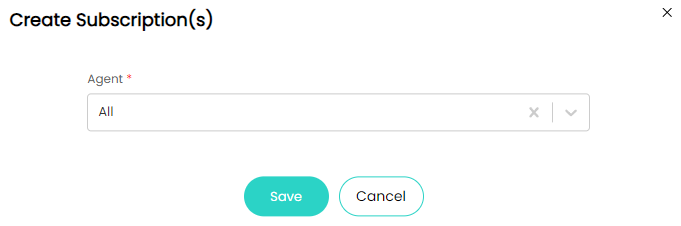
Fig 31. Create subscription
From v2.220+ the way in which webhooks from Exchange are processed will change to provide better performance and greater reliability when handling higher-volume periods. There are no additional configuration changes required for this work. From v2.220+ incoming webhooks from Exchange will be saved initially and then be processed by the incoming webhook service The incoming webhook service is run by the task scheduler, and is enabled during the upgrade. Therefore webhooks will be processed sequentially each time the task scheduler runs.
Importing Appointments from Exchange
Now you have connected to Exchange you can import your existing appointments from Exchange into Halo.
Head to the 'Importing appointments from Exchange' tab and use the button 'Import appointments' to bring up the import preview screen. Hit 'Start' to begin the import.
To import recurring appointments follow the same process using the 'Import recurring appointments' button.
From v2.238+, you can specify a default Appointment Type for imported appointments using the "Default Appointment Type" dropdown.
Appointments imported from exchange will show as the same type for all the additional Agents. Prior to this the appointment type is imported as a standard appointment.
Set appointments to import automatically
Now you have your existing appointments imported you will need to ensure your appointments are imported into Halo automatically when created in Exchange.
If you are using the connection method 'Use an Azure application with application permissions' you can either use the Halo integrator or webhooks to import appointments when created in exchange. When using webhooks appointments will be imported almost instantly after being created in Exchange (see the section immutable IDs and webhooks for information on this). We recommend enabling both webhooks and the integrator as the webhooks will import appointments right away but the integrator will run as a failsafe.
If you are using the connection methods 'Connect to a single account which has delegate access to each Agent's calendar' or 'Each technician connects to their account individually' you will need to use the Halo integrator to import appointments.
To enable the Halo integrator for Exchange calendars check the box highlighted in figure x. You will also need to set which appointments you would like to be imported.
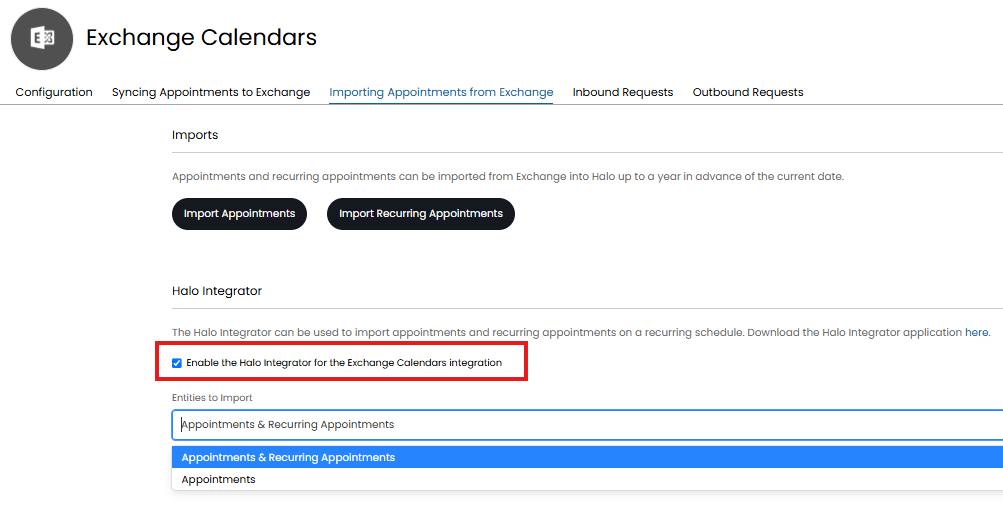
Fig 32. Enable the Halo integrator
When using the Halo integrator appointments will be imported on a hourly schedule (the integrator will run and import appointments every 60 minutes), this is the most frequently we can run the Halo integrator for this application. If you would like appointments to be synced more frequently you could run your own integrator in addition to the hosted one. See the section 'Hosting your own Halo integrator' in our guide here for more information on this.
Inbound and Outbound Requests Tab
Under these tabs you can see the inbound an outbound requests for webhooks used to update appointments. Any requests that have been received from Exchange will appear in the inbound requests tab. Any requests sent from Halo to exchange will appear in the Outbound requests tab.
Note: You will only see logs in here if you are using the webhooks functionality.
This is useful to monitor/identify any issues with syncing.
Using Exchange Calendars
Meeting Invites
Once connected you can send Teams Meeting invites from Halo by checking the setting shown in Figure 33 on any Appointment Types that this applies to.
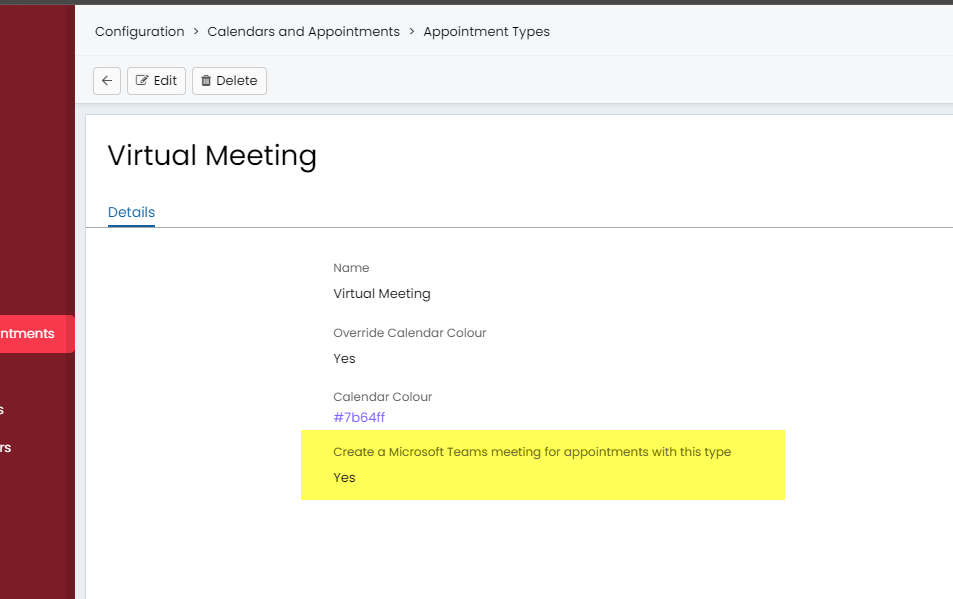
Fig 33. Set an appointment type to create a MS teams meeting
Setting Appointments to be Private
When syncing appointments to Halo, you can set appointments to be private from within Configuration > Calendars and Appointments > General Settings.

Fig 34. Setting to make every appointment imported to be private
This is used when you would like agents in Halo to be able to see each other's calendar availability but do not want them to be able to see the details/summary of their appointments.
If a private appointment is imported from Exchange the subject and body of the appointment will not be imported, only the start and end date/times. When changes are made to this appointment only start/end dates/times will be updated.
Syncing Appointment Locations
To have the appointment location sync over to the appointment in exchange, first ensure you have the appointment location field enabled. This can be enabled under configuration > Calendars and Appointments > General settings.
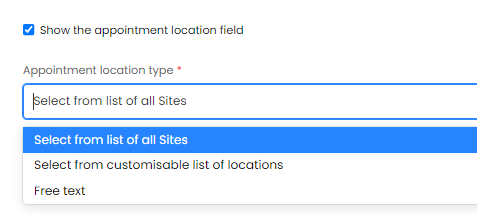
Fig 35. Enable appointment location field
Once enabled, when raising an appointment in Halo you will be prompted to choose/enter a location for the appointment. This location will also be visible against the appointment in exchange.
Hide the Attendee List (v2.258+)
From v2.258+ appointments created in Halo can be set to have the attendee list hidden, this property of the appointment will sync to Exchange. Allowing you to create appointments from Halo in which attendees cannot see the other attendees when being invited to the appointment, useful for public events such as webinars.
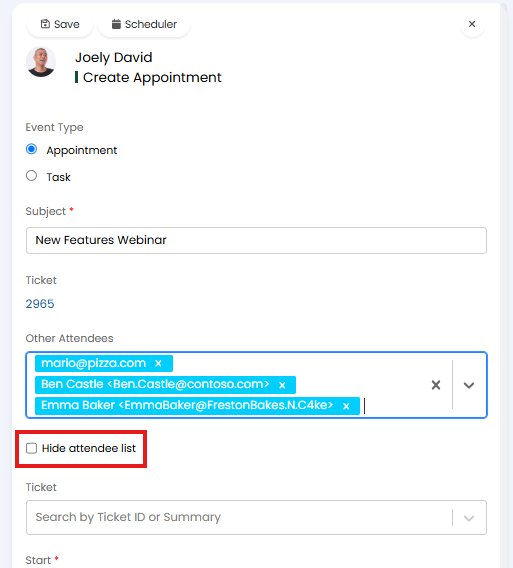
Fig 36. Hide attendee list on Halo appointment
Exchange Calendars and Multi-Tenancy
The Exchange calendars integration is single tenanted at present so it does not have the functionality to sync appointments from multiple azure tenants.
Adding Additional Agents to an Appointment
When the Exchange integration is enabled, additional agents assigned to a ticket will have their email auto-populated in the "Other Attendees" field alongside the main assigned agent when creating an appointment from that ticket.
For instance here, Leah is the assigned agent, and Amir is the additional agent, and both have populated here.
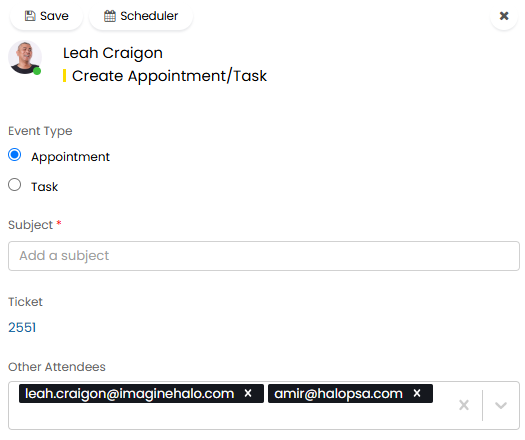
Fig 37. Additional agent invite
Common Errors
Description | Cause | Resolution |
When testing which calendars the connected account has access too, an error is given saying "The specified object was not found in the store" | Either the connected account does not have the required level of access to the user’s calendar, or they have only just been granted the correct level of access. Sometimes granting delegate permissions can take up to an hour to take effect. | Ensure the connected account has delegate access to read/edit the user’s calendar. There are multiple ways of doing this, but here is a short guide we've used before. |