Contract Schedules
- Contracts
- Contract Schedule
- agreements
- agreement schedule
- schedule plan
In this guide we will cover:
- Pre-requisites
- Schedule Overview
- Schedule Hours
- Email Settings
- Schedule Plan
Contract schedules allow you to schedule recurring meetings/work that is covered by, or occur as part of, a contract. The number of hours allocated to this work/meetings can be set, then meetings can be scheduled that deduct from these allocated hours. Allowing you to see how many hours a client has remaining for this work under the contract.
This is useful for recurring appointments or work that occurs as part of a contract, for example quarterly check ins. You can set the schedule for these meetings, and see how many hours the client has remaining for these meetings, useful if they request additional follow ups.
Pre-requisites
If you do not see the "Schedule" tab on your contracts, you may need to enable it in advanced settings. First navigate to Configuration > Advanced Settings and scroll down to the screen layout profiles button.
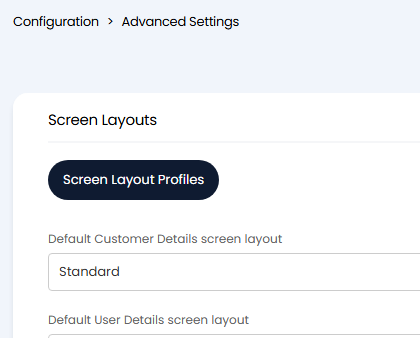
Fig 1. Screen layout profiles button
Click into this button and change the entity to be "Agreement".
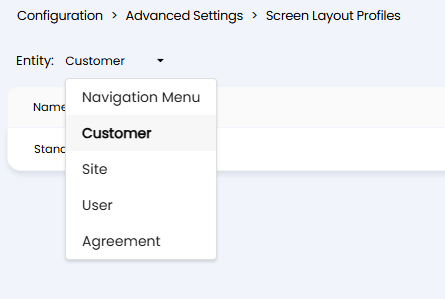
Fig 2. Screen layout profiles "Agreement" entity
Then in the tab layout of the Agreement profile, make sure to show the schedule tab by using the pencil icon on the side to change the visibility of the tab.
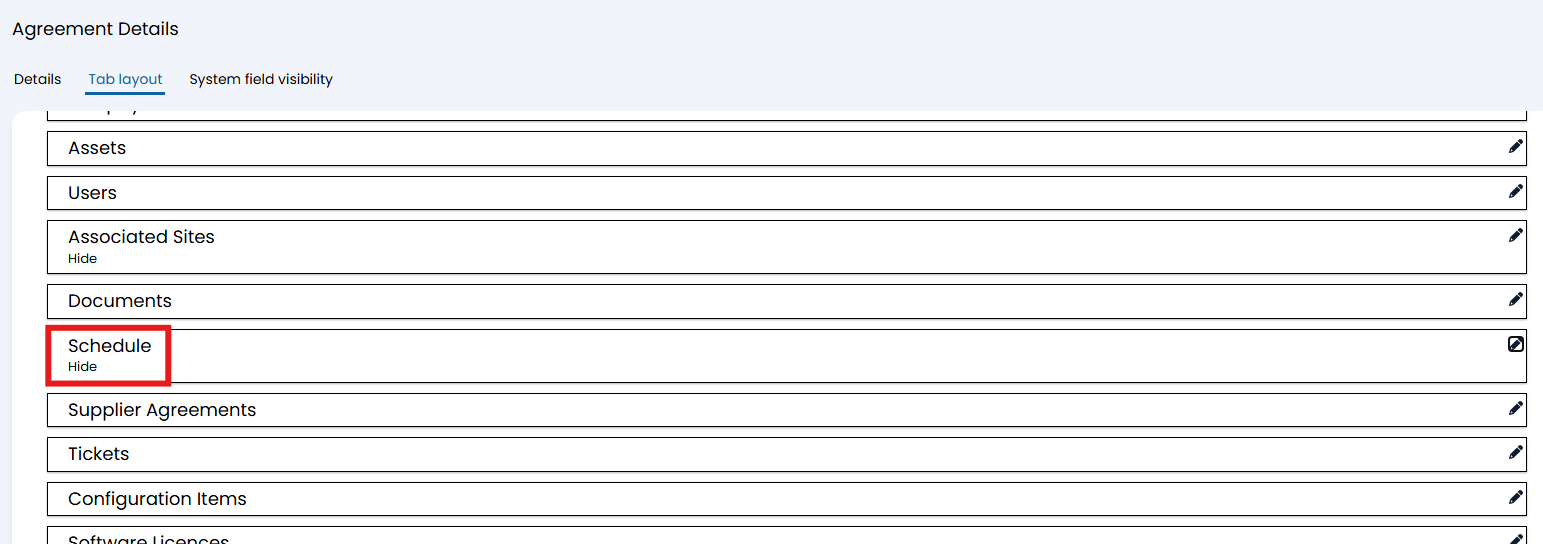
Fig 3. Changing the visibility of the "schedule" tab
There is also the option to set a default agreement layout profile.
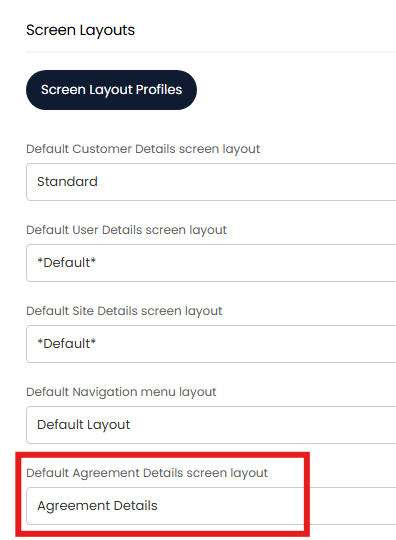
Fig 4. Default screen layout profile options
Schedule Overview
In the "Agreements" module (also may be called "Contracts"), choose an agreement and go to the "Schedule" tab towards the end of the row.
At the top of this tab, a schedule overview will show. It will lay out the hours remaining, allocated, used and the total.
Hours Remaining: This will be the total hours minus those already allocated.
Hours Allocated: This will be how many hours have been allocated to appointments.
Hours Used: This will be how many hours have been used by past appointments.
Hours Used (actual): This is how many hours have been used on the ticket assigned to the appointment.
Total Hours: This is the sum of all schedule hours on the contract/agreement.

Fig 5. Hours Remaining, Hours Allocated, Hours Used, Hours Used (actual), Total Hours on an overview.
These numbers can go into the negative, as shown by the figure below, and will show red as a result. In this example, the "Hours Remaining" have gone into the negative due to the "Hours Allocated" being higher than the "Total Hours" assigned to the agreement.

Fig 6. Negative hourly balance on an agreement.
Schedule Hours
The next section is the "Schedule Hours" table. Upon editing, an "Add" button will show to add hours to the contract. This is the section that makes up the "Total Hours" in the overview above.

Fig 7. Schedule Hours table on an agreement.
Clicking "Add" will bring up this "Schedule Hours" popup, where you can enter the number of hours you want to add to the agreement, as well as an associated note if you wish.
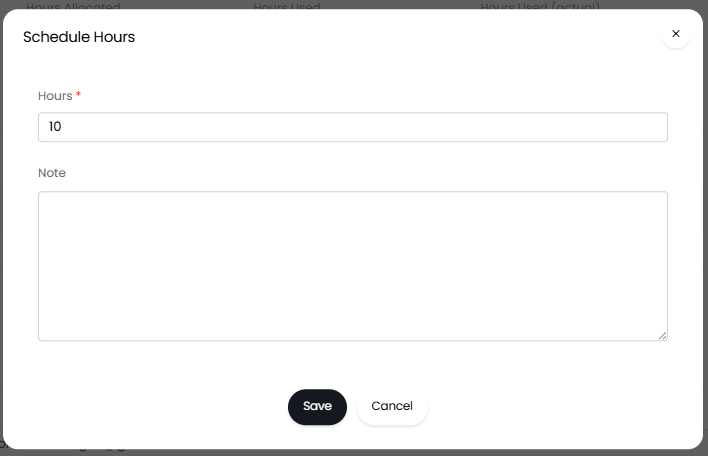
Fig 8. Adding hours to the agreement.
Email Settings
The next section is "Email Settings". Here is where you set the emails you wish to see the appointment emails and invites to. Multiple emails can be added to this "Scheduled Email List" box by separating them with a comma.
i.e. support@haloitsm.com, support@halopsa.com, support@halocrm.io
You can also choose to enable "Include Account Manager in Emails". If enabled, the same emails will go to the account manager of the customer the agreement is associated with by CC. This can be found in the customer > "Details" tab > "Assigning and Account Manager" section > "Account Manager".

Fig 9. Email Settings on an agreement.
Schedule Plan
The final section is the "Schedule Plan". Here, you can create scheduled tickets and appointments associated with this contract/agreement. This is useful when planning scheduled maintenance that is included as part of this contract.
The first button that shows in this area is "Create Scheduled Dates".
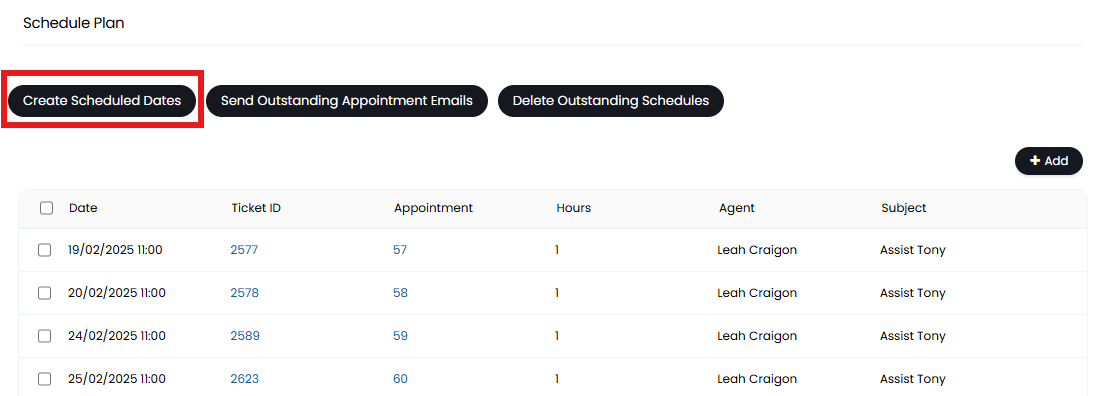
Fig 10. Create Scheduled Dates button on an agreement.
Upon clicking this, the "Create Schedule" popup will display. Here is where you can bulk create appointments associated with the agreement. The "Hours remaining" and "Hours on this schedule" will adjust as you set the hours so you know exactly how long your customer has left on the agreement.
You can set the subject, the ticket type to be created, how many hours the schedule is, and start and end dates/times. A site can also be chosen to log against.
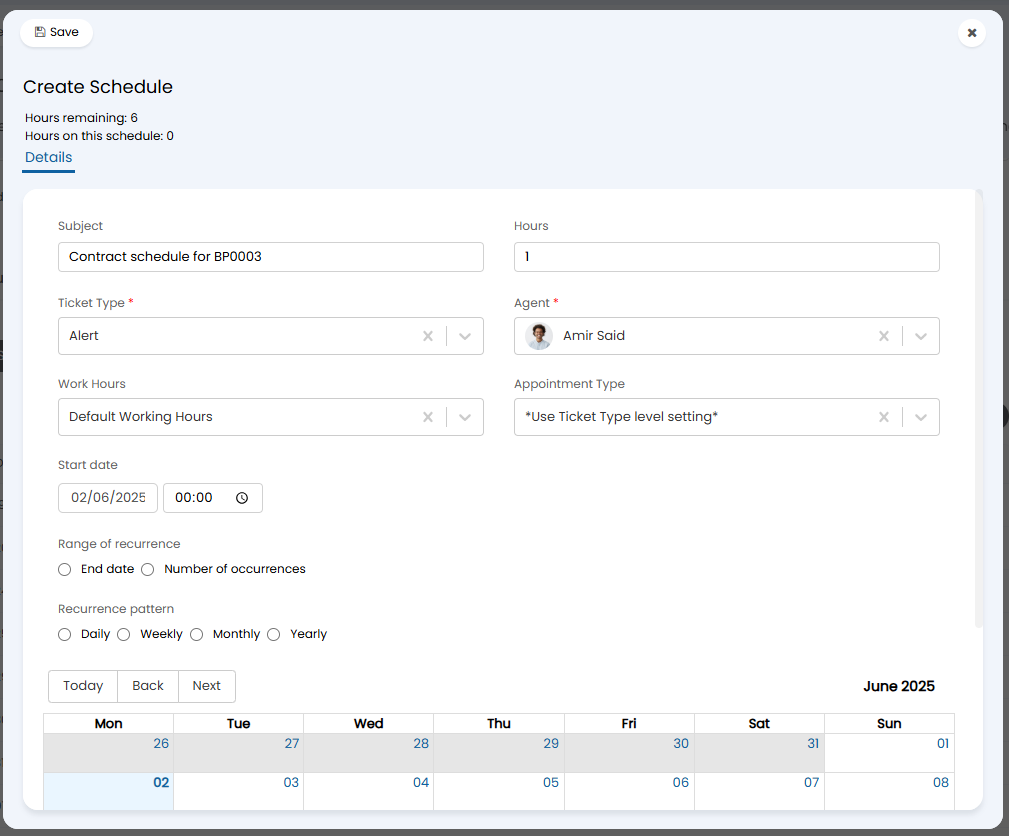
Fig 11. Creating a schedule.
Subject: This will determine the subject of the ticket and appointment that is created
Hours: This will determine the number of hours the appointment will be logged for. Each appointment generated will have this duration.
Ticket Type: Choose the type of the ticket that will be generated for this appointment. A ticket will be logged of this type a day before the scheduled appointment. The task scheduler creates these tickets so they will only be created when the tasks scheduler runs.
Work Hours: Choose the work hours the schedule should operate within. If the schedule falls outside of those work hours, the appointment will not generate, for example, if there is a holiday.
You can also set the appointment type that is created for this scheduled appointment. If you have selected *Use Ticket Type level setting* the appointment type for the appointment created will be determined by the 'Default Appointment Type' set against the selected ticket type.
In the example below, a holiday was set on the "Default Working Hours" for the 21st, so the schedule is skipped on that day.
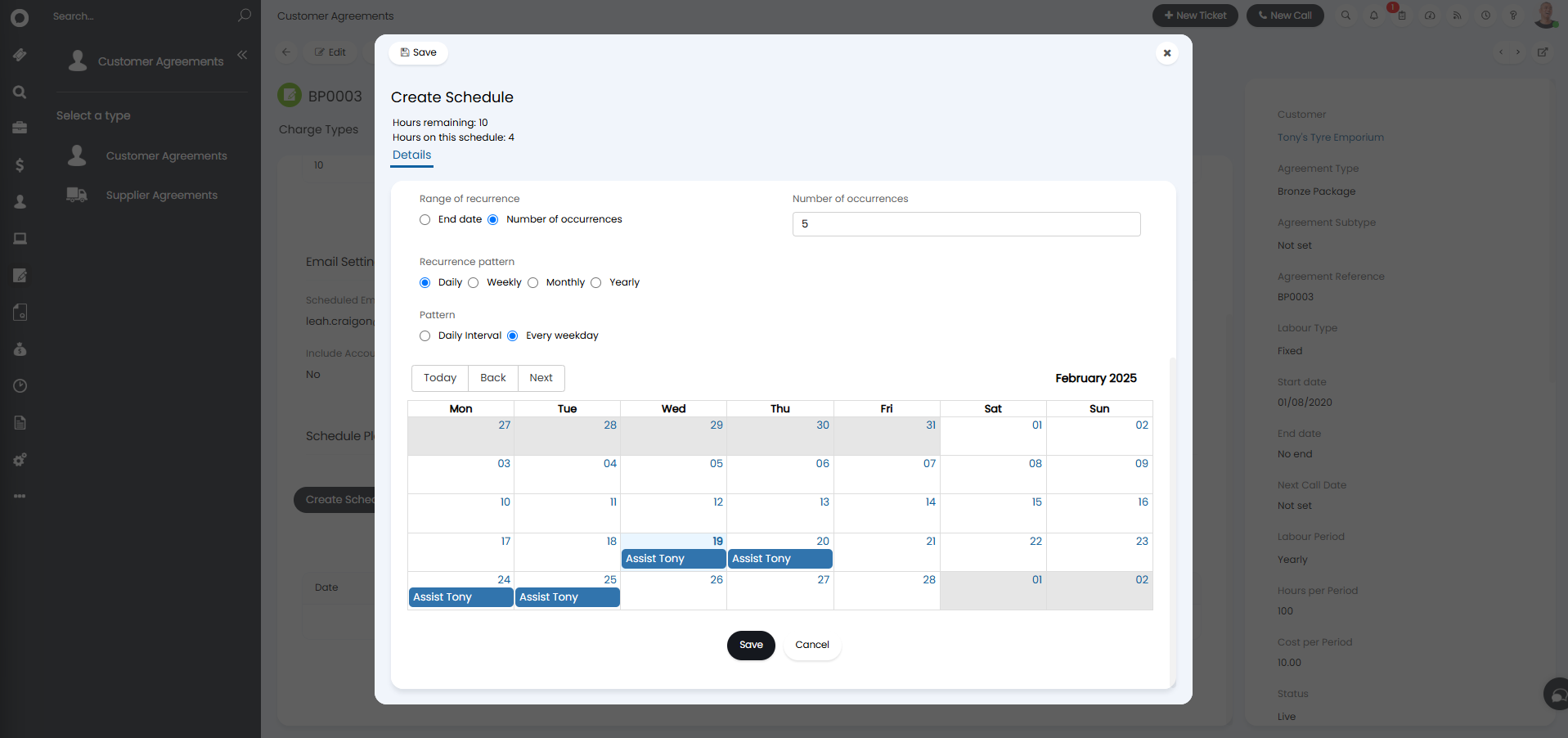
Fig 12. Holiday schedule skipped.
You can also add a one-off appointment as part of the scheduled hours using the 'Add' button.
The second button is to "Send Outstanding Appointment Emails". Upon clicking, the green "Email Created" popup will show in the top right.
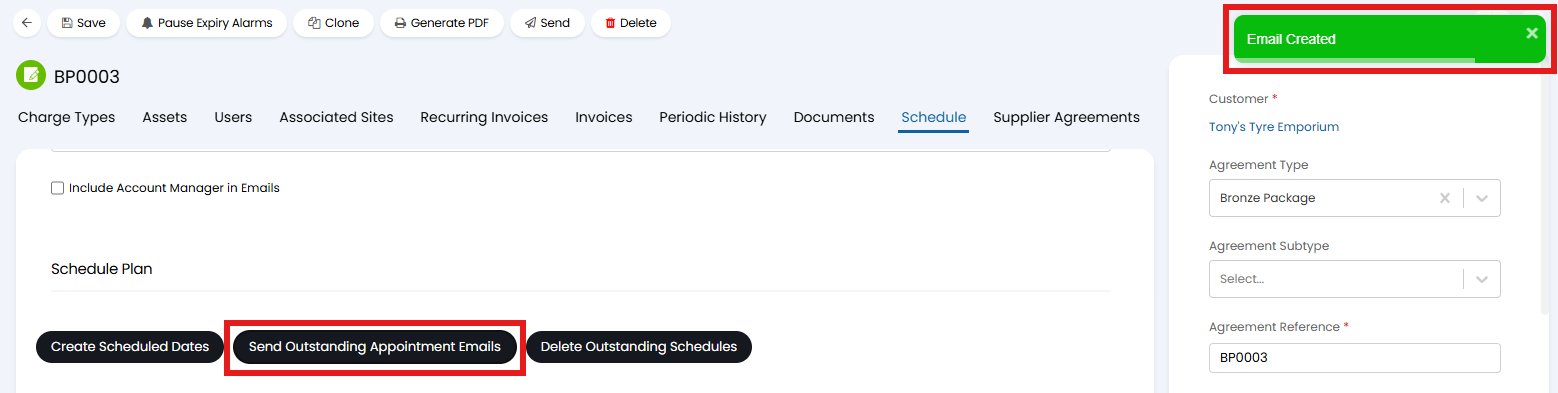
Fig 13. Send Outstanding Appointment Emails button.
Halo will then send a table of remaining appointments to the emails within the "Scheduled Email List" box in the "Email Settings" section.
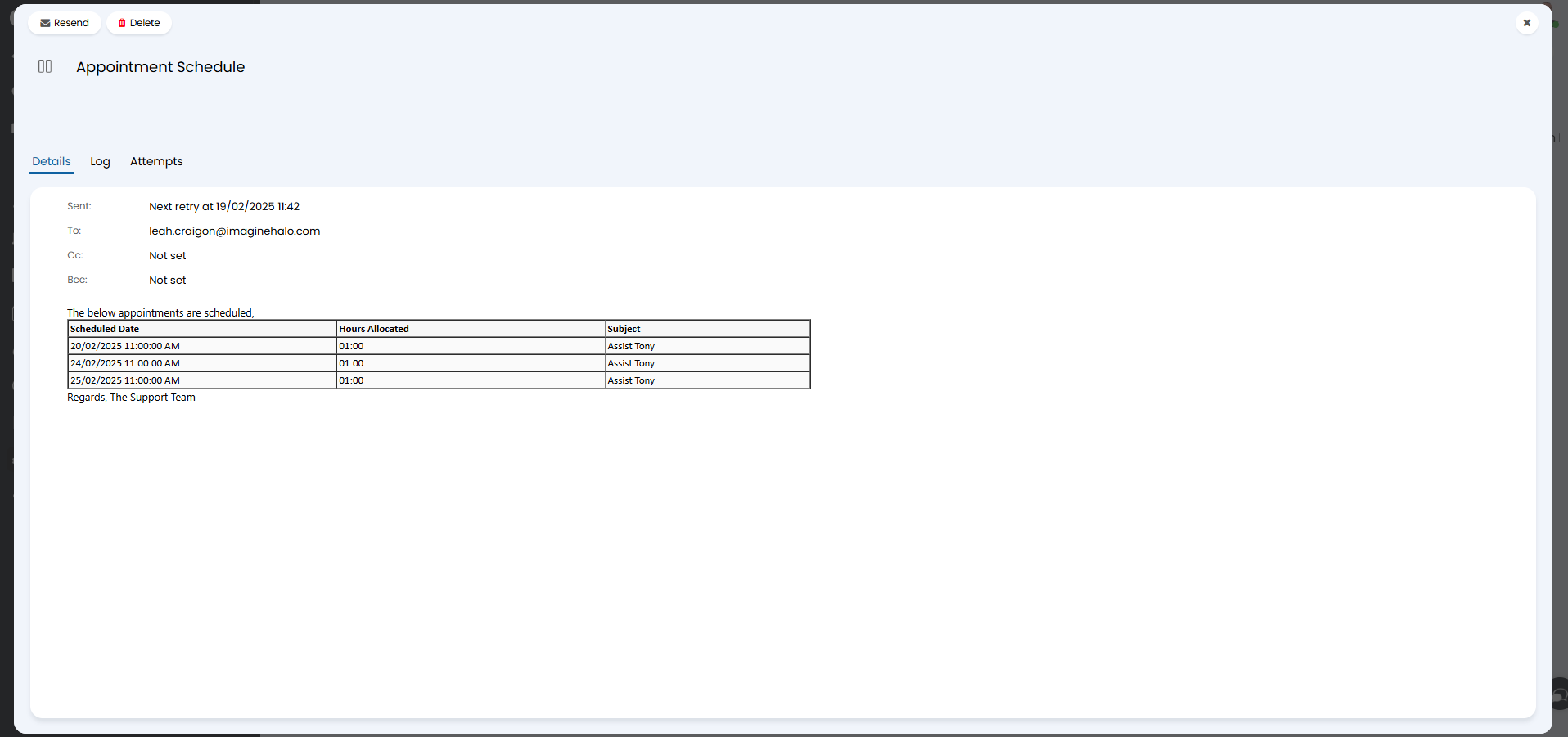
Fig 14. Outstanding appointment email.
Once tickets are created for the appointment, the ticket ID will appear hyperlinked in the schedule plan against the contract.
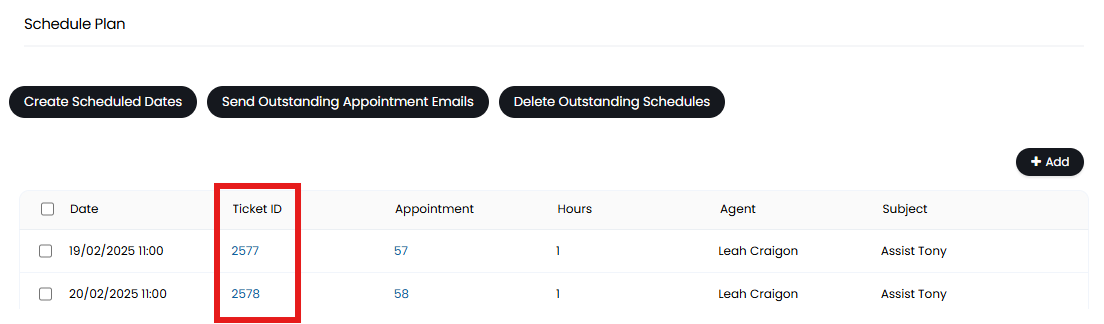 Fig 15. Tickets being created.
The tickets will be created 1 day in advance of the appointment by default, they are created when the task scheduler runs daily tasks. However, you can choose how many days in advance of the appointment these tickets are created. This is set using the setting 'Number of days ahead of schedule to create Tickets' found under Configuration > Agreements. This setting will apply globally to all contract schedule plans.
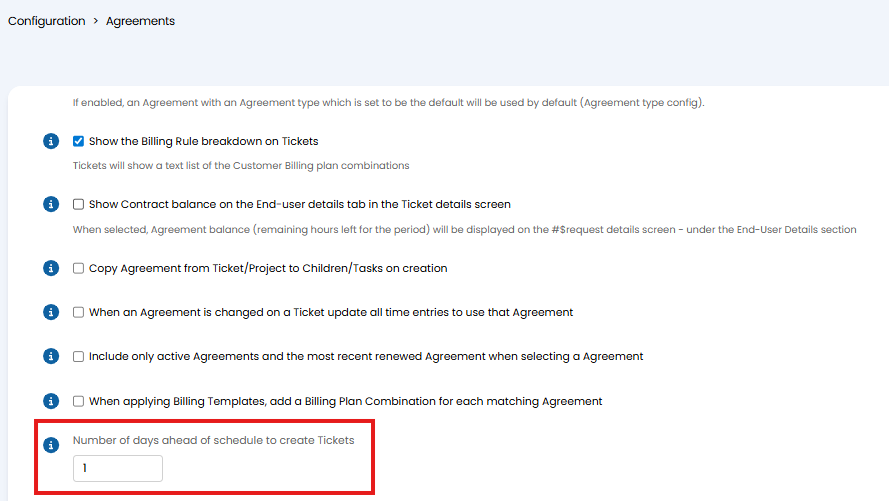
Fig 16. Choose number of days ahead of schedule to create Tickets.
This will create a ticket of the type you selected when creating the schedule under the customer's "General User", with the appointment shown on the "Next Appointment" section on the right hand side.
Note: "Show "General User" in Lists" needs to be enabled in Configuration > Users > General Settings.
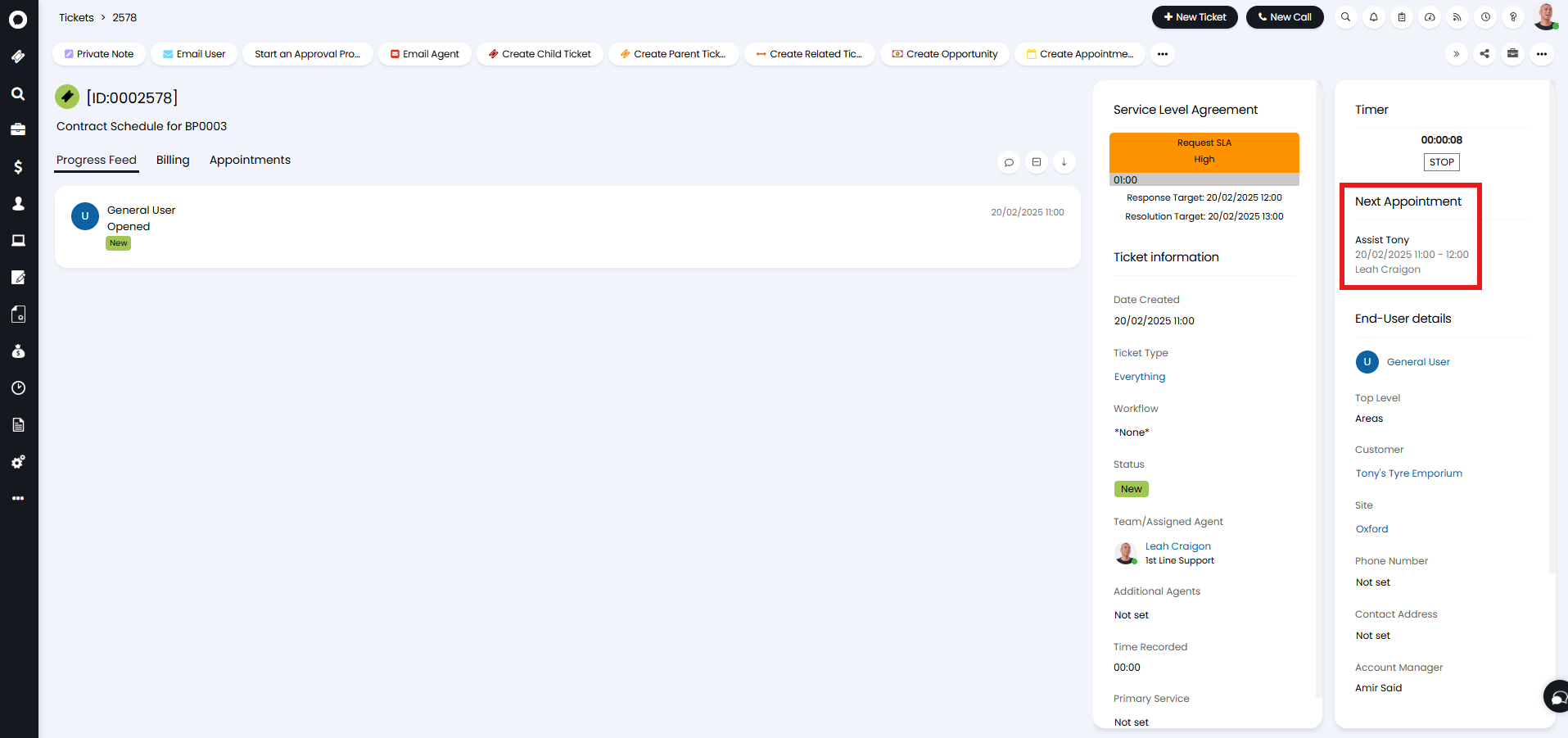
Fig 17. Ticket created for the appointment.
The final button is to "Delete Outstanding Schedules". Upon clicking, a popup will show to confirm you wish to delete these appointments.
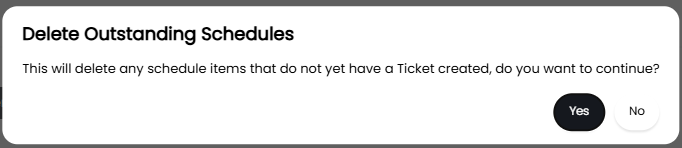
Fig 18. Delete Outstanding Schedules popup.