Salesforce Integration
In this guide we will cover:
- What is the Salesforce Integration?
- Creating a Managed Application
- Adding CORS Exceptions
- Enabling Salesforce in Halo
- Access Tokens
- Account Imports
- Contact Imports
- Opportunity Imports
- Case Imports
- Halo Integrator
- Syncing to Salesforce
Note: This integration only functions with production instances of Salesforce. Trials and sandbox environments cannot be connected.
What is the Salesforce Integration?
Salesforce can be integrated with Halo to import and sync accounts, contacts, opportunities, cases, and case comments from Salesforce.
Creating a Managed Application
Before making any configuration changes in Halo, there are some required configuration steps that must be completed in Salesforce.
The first requirement is to create a managed application. To do this, you need to access the setup screen in Salesforce, shown in Figure 1.

Fig 1. Setup link
Once in the Setup view, in the tree view on the left-hand side, go to Platform Tools > Apps > App Manager, and choose “New External Client App” in the top right of the screen. Fill in the required fields under basic information, and any additional fields that you wish.
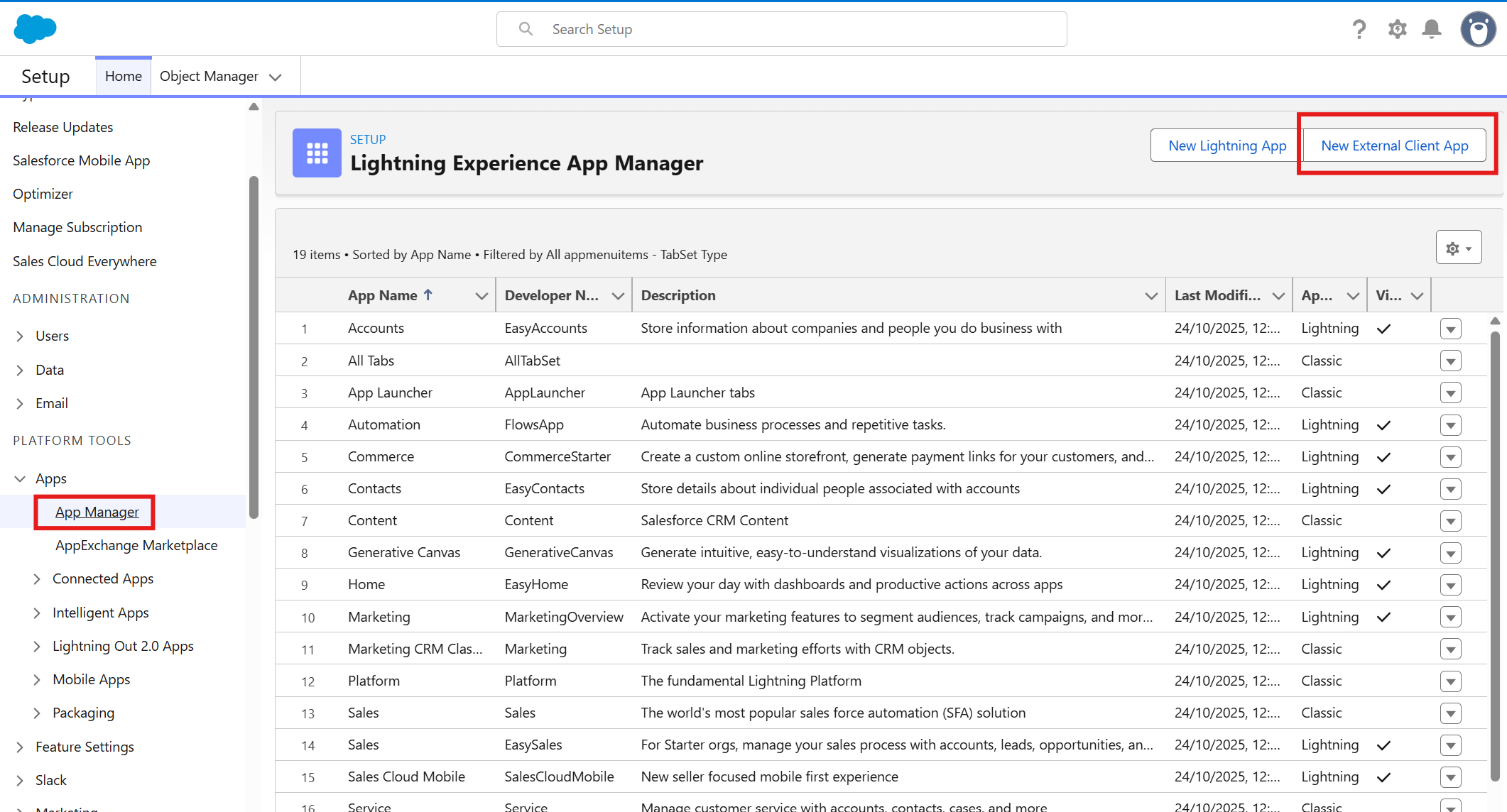
Fig 2. App Manager
Give the connected app an arbitrary name, the API Name will auto populate based on the connected apps name.
Under API (Enable OAuth Settings), check the box to enable OAuth settings, which should give you an extra set of options.
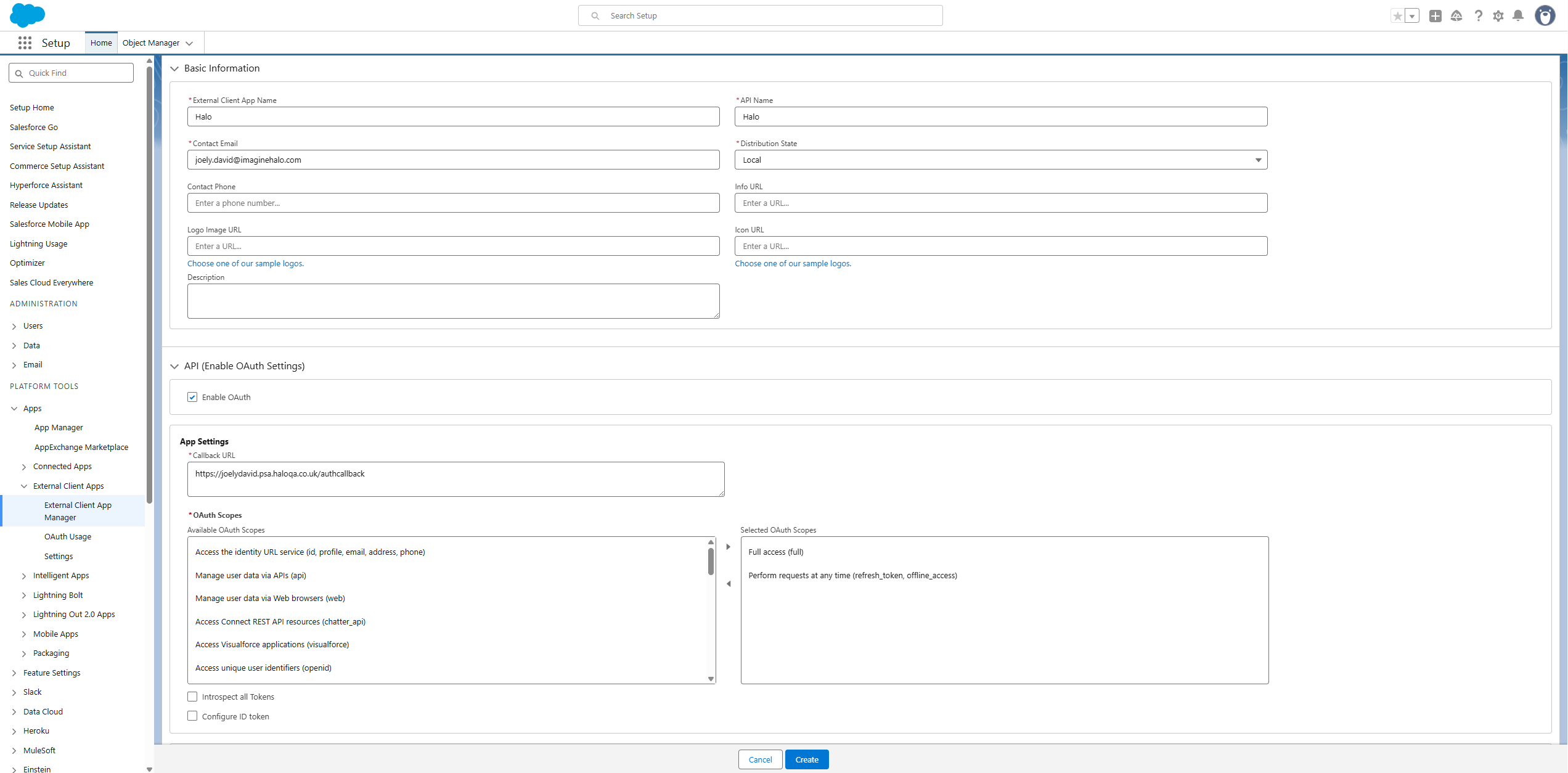
Fig 5. Enable auth settings
The callback URL used will differ depending on the version of Halo you are using.
On versions prior to v2.200 the following redirect URL will need to be used:
- HTTPS://YOURHALODOMAIN/oauth/callback
On versions v2.200+ you the following redirect URL will need to be used:
But the exact redirect URl you need can be found on the setup page for the integration in Halo.
Note: If you have disconnected to the integration and are reconnecting, if your Halo instance is on v2.200+ you will need to use the new redirect URI (https://YOURHALODOMAIN/authcallback).
The following scopes are required:
- Full access (full)
- Perform requests at any time (refresh_token, offline_access)
Also ensure the options shown in Figure 6 are enabled.
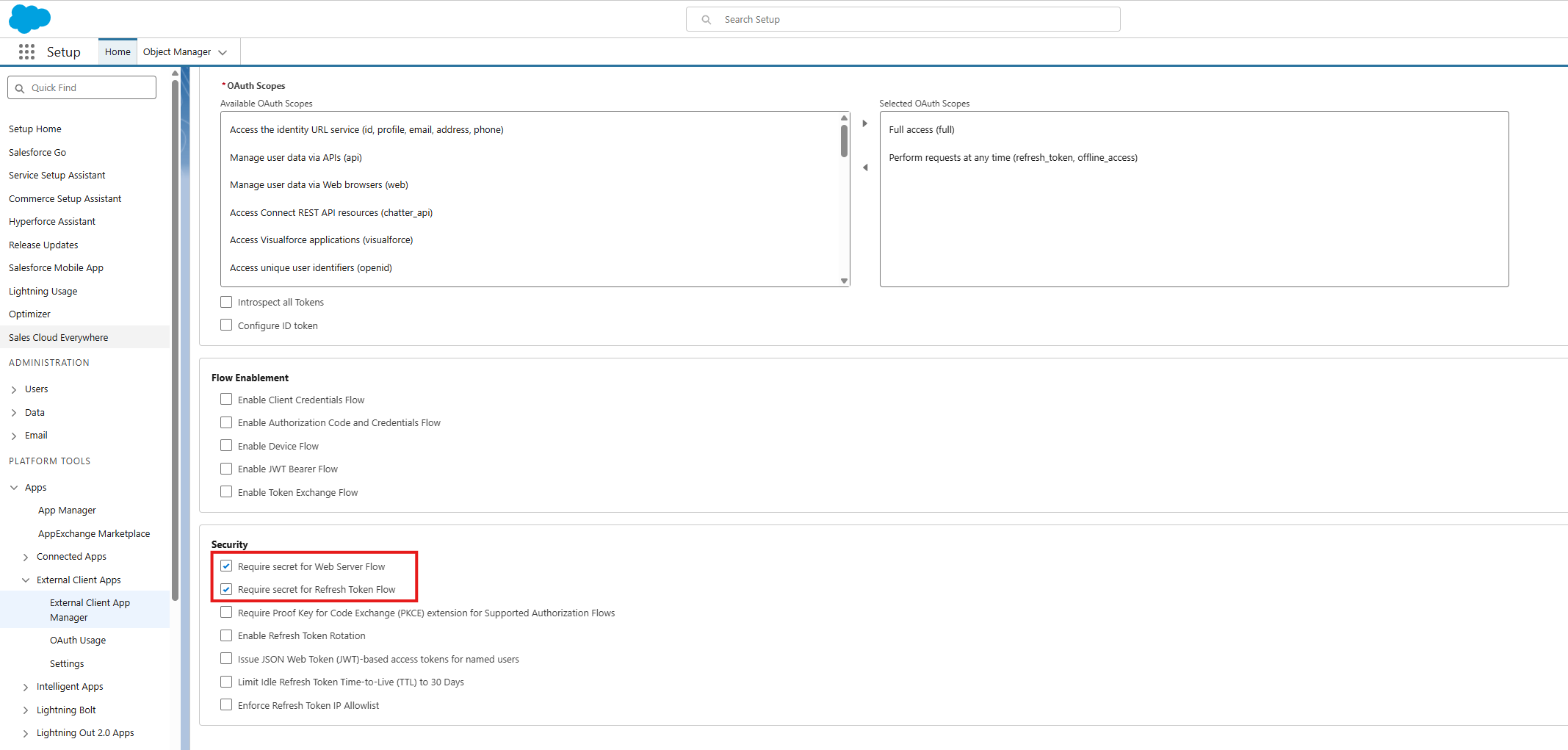
Fig. 6 Require secret settings
The option for 'Require Proof Key for Code Exchange (PKCE)', shown in Figure 7, can be enabled or disabled, depending on your authentication preference. Halo supports authentication both with and without PKCE.
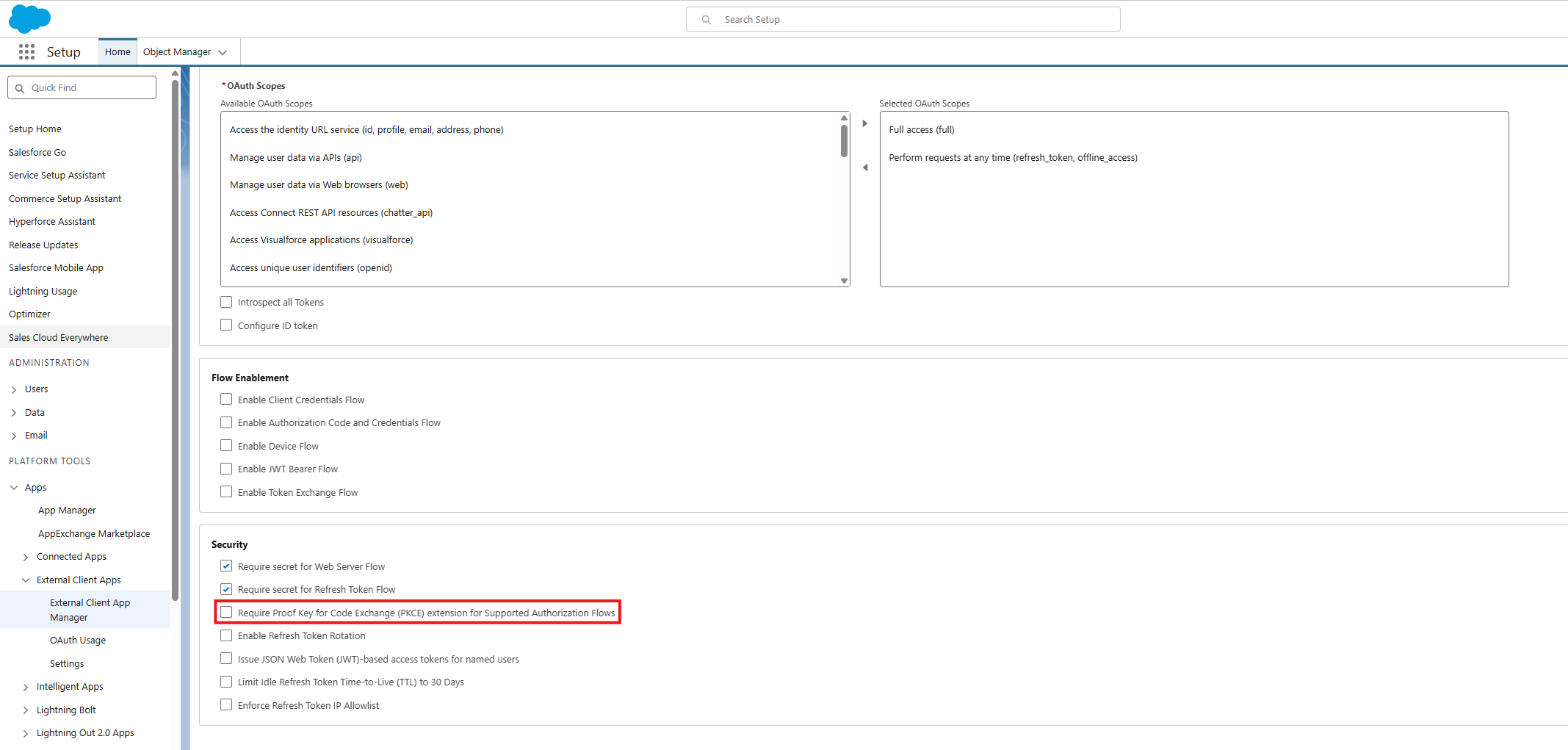
Fig 7. Disabling proof key requirement
Once completed, you can create the new managed application. Your changes can take anywhere between 2-10 minutes to be processed.
Once saved you can configure the OAuth Policies for the app. Set the policies as shown in Figure 8.
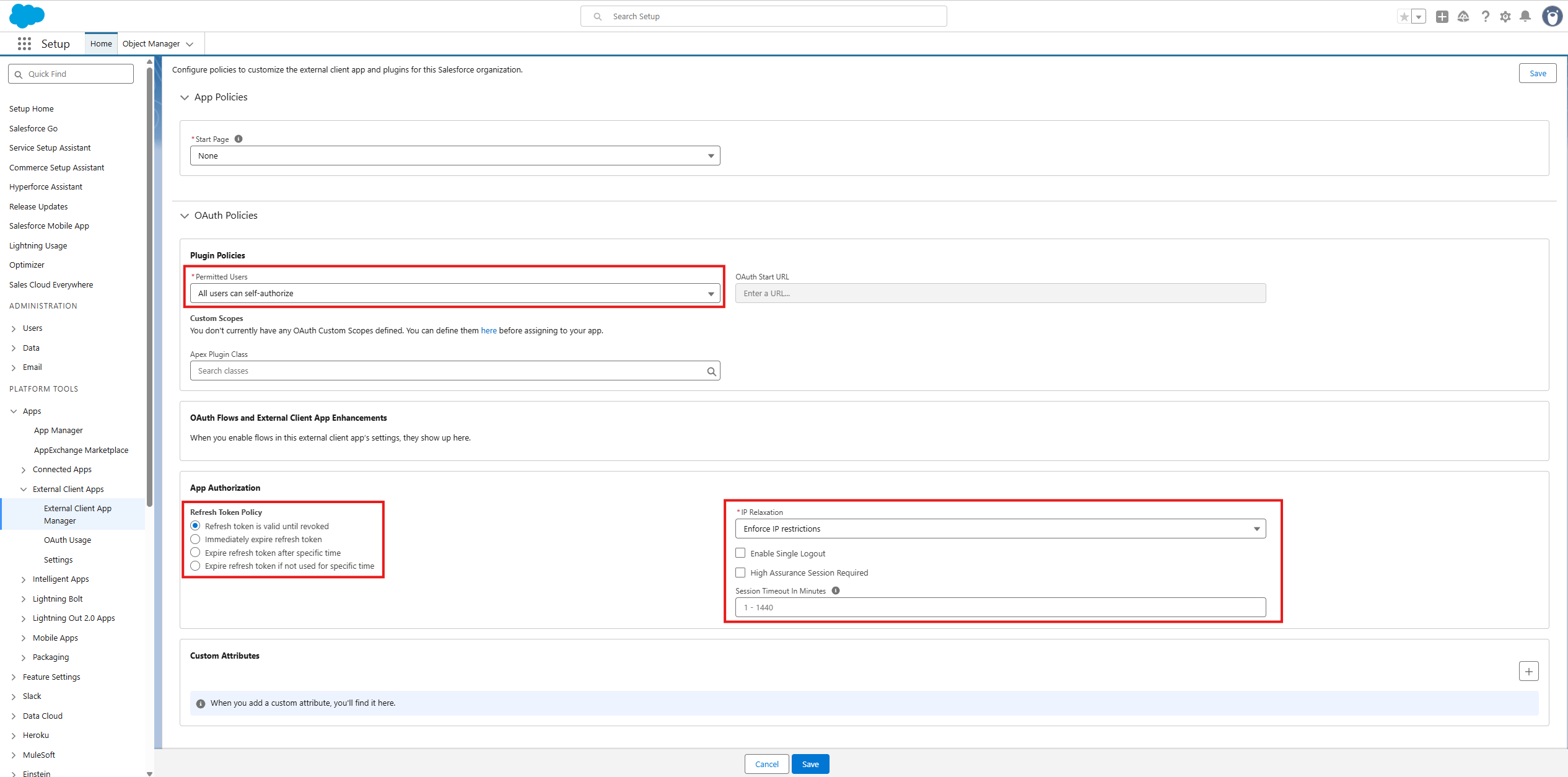
Fig 8. Options in the managed app
Then save.
Adding CORS Exceptions
The second requirement is to add any URL’s that require whitelisting for cross-origin resource sharing. Again, in the setup area of Salesforce, in the tree view on the left-hand side, go to Settings > Security > CORS. Add your Halo URL to the list of whitelisted origins.
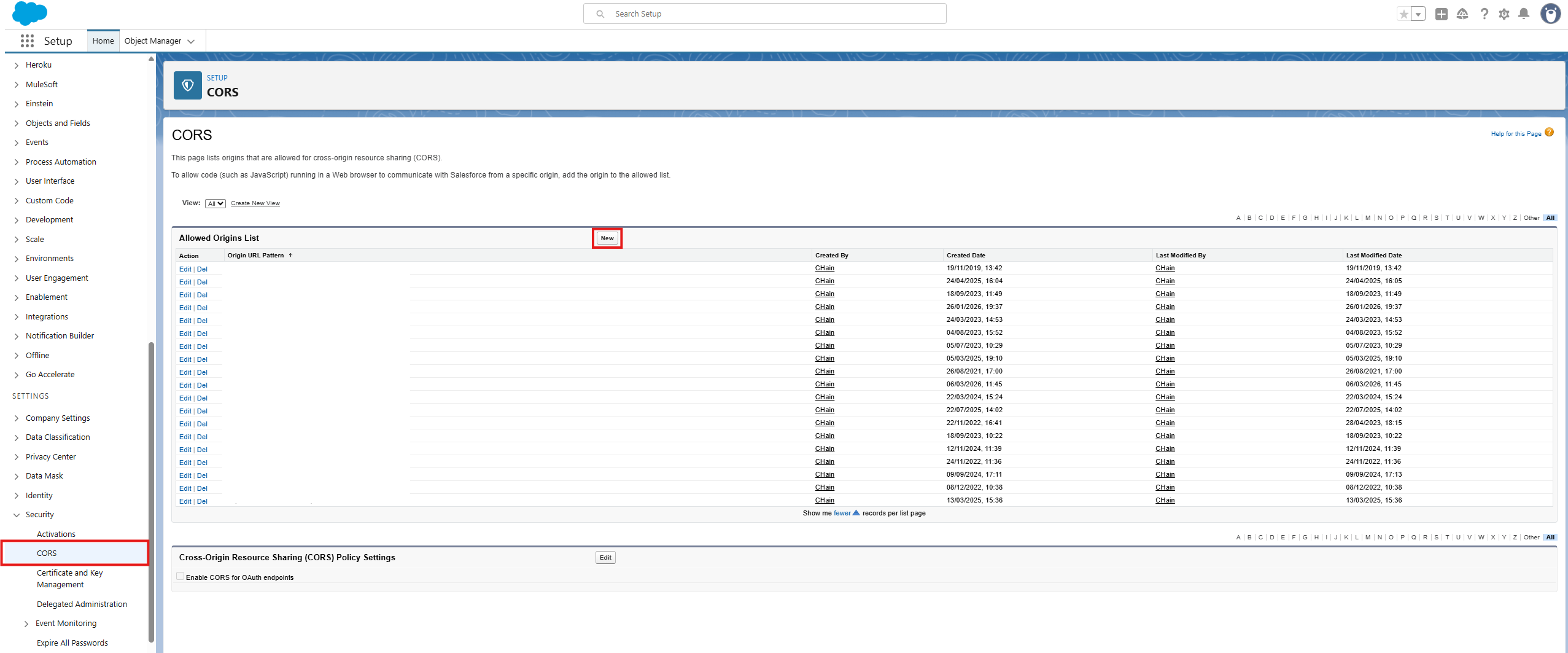
Fig 9. CORS area
Then in the "Allowed Origins List" add in the URL of your Halo instance.
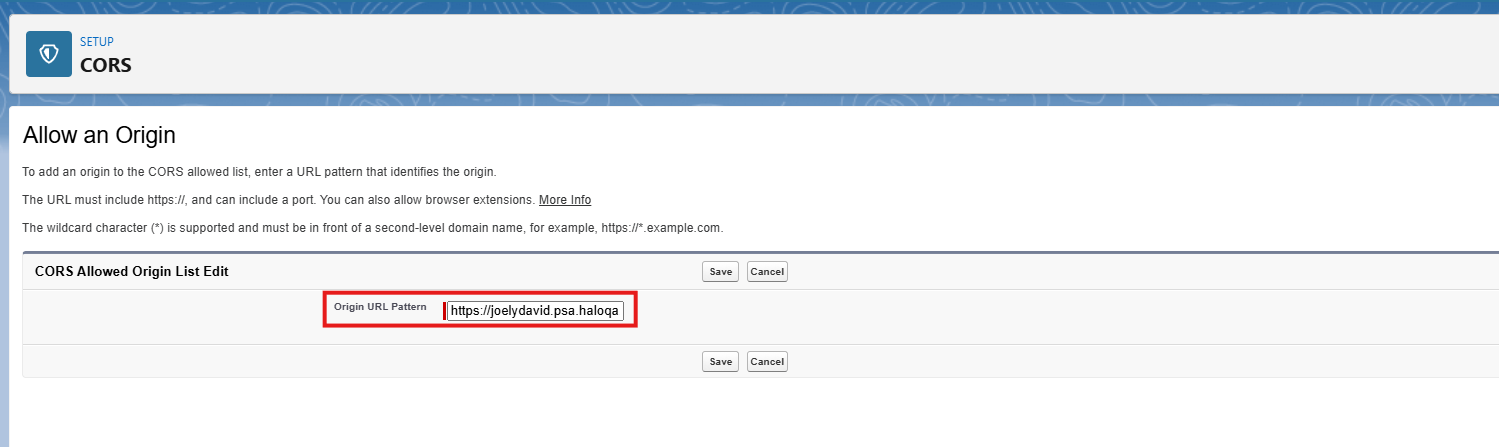 Fig 10. Allow an Origin
Once saved, you will see this in the allowed origins list.
Enabling Salesforce in Halo
Once the Salesforce configuration has been completed, you can start to configure the integration in Halo. Firstly, to enable the Salesforce integration, go to Configuration > Integrations > Salesforce, and enable the module by clicking the "+" sign.
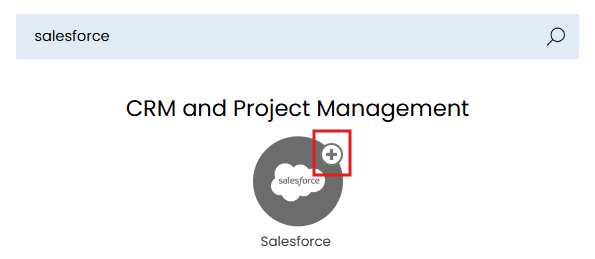
Fig 11. Enabling the Salesforce module
Once the module has been enabled, click into the module to access the configuration screen.
The first steps are to input your Salesforce URL and application consumer key. Whilst the Salesforce URL you should be familiar with, the Consumer Key will need to be copied from the Managed Application you created previously in Salesforce.
It can be obtained by going to the settings view - Apps > App Manager > *Click "view" from the dropdown on your connected app* > *Click the Manage Consumer Details Button*. The Consumer Key will be visible under the API settings header.
To help with these steps, here are images to explain this.
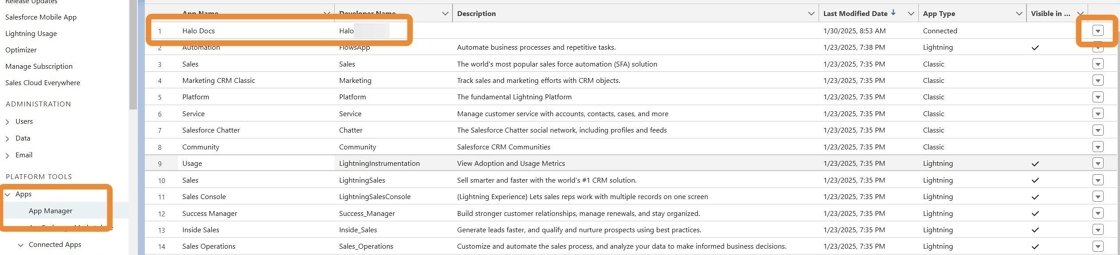
Fig 12. App Manager screen
Then click the dropdown to get the view option.

Fig 13. View in dropdown
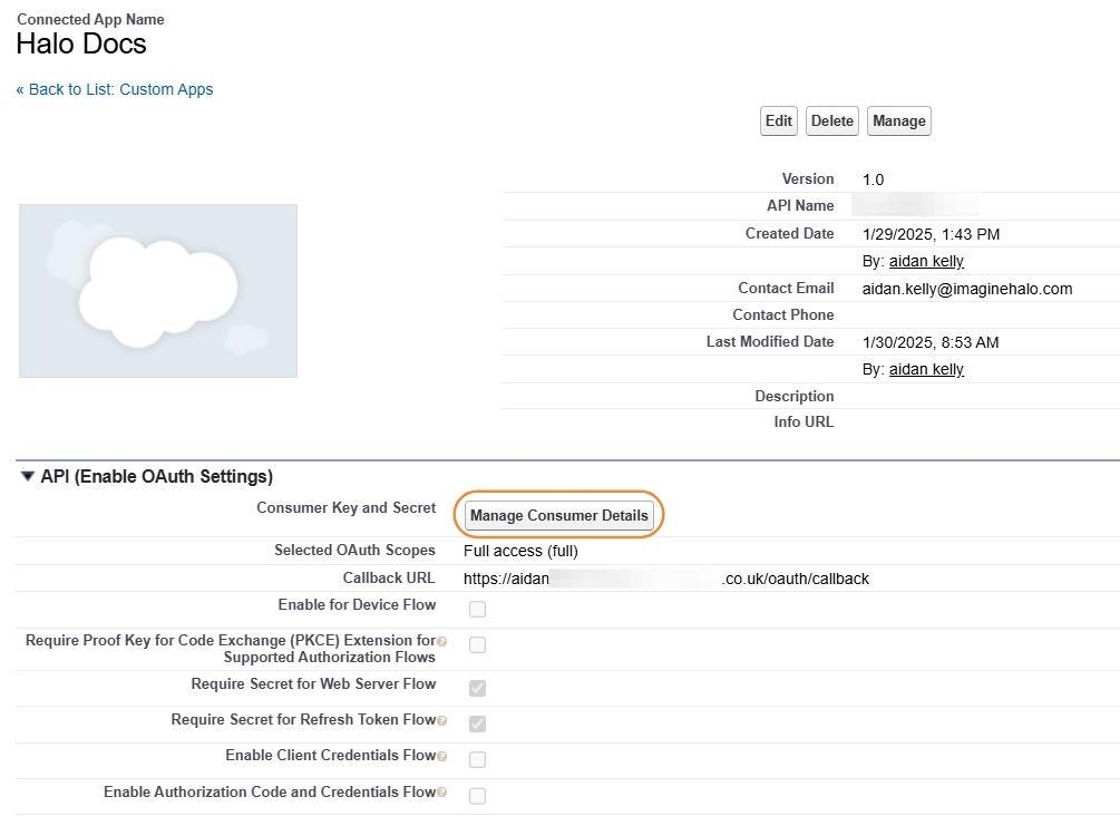
Fig 14. Manage Consumer Details button
You can now copy your consumer details to connect the App to Halo.
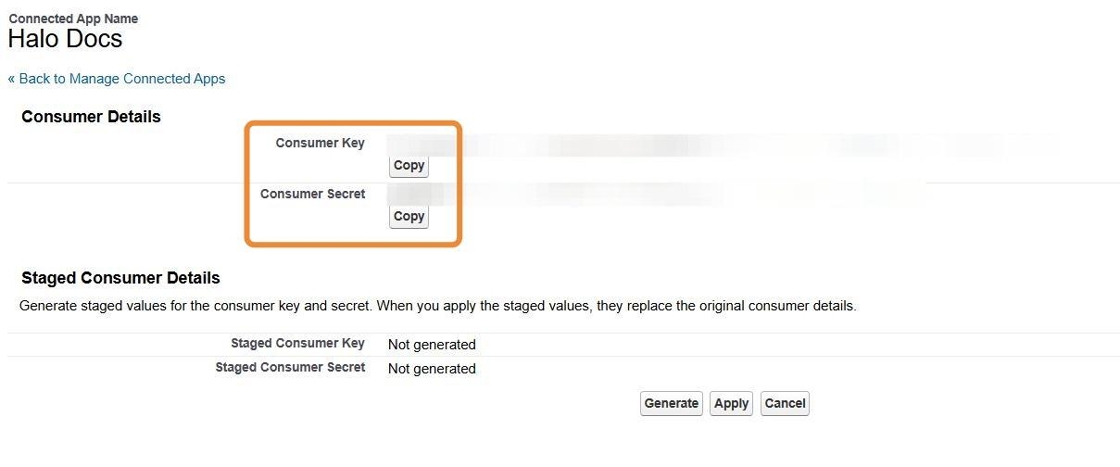
Fig 15. Consumer key and secret
Finally add the URL, Consumer Key and Consumer Secret in Halo.
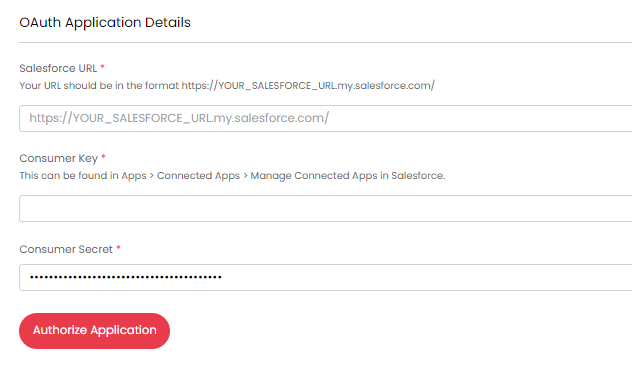
Fig 16. Adding the key and secret
Access Tokens
Once you have completed the first three configuration boxes, you can try to retrieve an access token. This will require you to authenticate with Salesforce.
If successful, the Access Token will be displayed as a hidden password field. Note that this value cannot be copied or obtained.
You will not be able to continue until this step has been completed. The access token will expire if you do not use the integration. In other words the Halo Integrator needs to be turned on to ensure the access token refreshes, otherwise you will need to login constantly again.
The user account used to authorize the integration and generate an access token will need appropriate permissions that allow them to:
- Read, edit the Accounts you are looking to import.
- Create Accounts.
- Read, edit the Contacts you are looking to import.
- Create Contacts.
- Read, edit the Opportunities you are looking to import.
- Create Opportunities.
- Read, edit the Cases you are looking to import.
- Create Cases.
- Add comments to Cases
- Read any fields associated with an object that you are importing. If importing Account A that contains field 1, the user will need read access to field 1.
- Edit any fields associated with an objects that you are updating. If updating Contact A (in Halo) that contains field 2, the user will need edit access to field 2 in Salesforce.
The user will also need Chatter Internal User permission.
Note: If you are only looking to import data from Salesforce and not push updates, the user will only require read only permission to these objects.
You may wish to create a dedicated integration user for this authentication, as this can ease the management of access.
In the Managed Connected App, a new "Initial Access Token" can be generated if any issues are experienced during connection.
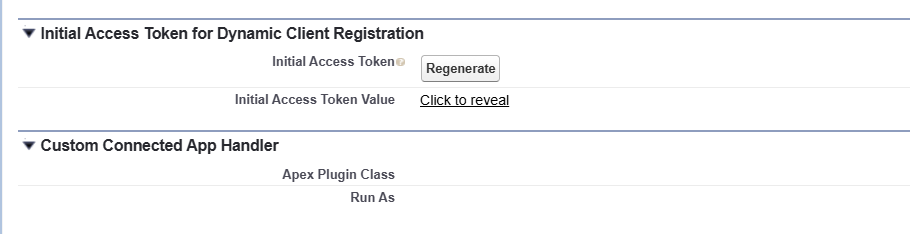
Fig 17. Initial Access token
Account Imports
Now that an access token has been obtained, you will be able to open the import section for Accounts (Customers).
Under this section you can manually add, or automatically generate mappings between Salesforce and Halo Customers. Once your mappings are created you can also map specific Salesforce fields to Halo Customer fields.
To add a new mapping, find the relevant table and press the add button. You can choose the name of the Halo field from the drop down. The Salesforce field is a case sensitive text entry. When mapping Custom Fields they must have a suffix of __c, which included in the field name, e.g. “TaskType__c”.
For a full list of available Customer system fields in Salesforce, please visit the following URL:
Note: If mapping the account manager field (Halo) the field you map this to in Salesforce must contain the account manager email address. This can then match on the user with that email in Halo and mark them as the account manager.
Next you can set the Top level for imported Customers using the drop-down. You can also use the "Sync Account name changes to HaloPSA", "Update the Customer's main Site address in Halo when an existing Customer is imported from Salesforce" and "Allow accounts in Salesforce with non-unique names to be imported into Halo as separate Customers" checkboxes to determine how the imported Customer will appear in Halo.
In this section you will also find the option to provide a "Custom Where Clause". The value you enter here will control what is returned by the import. For information on how to format this clause see the Salesforce Where Clause documentation.
There is an additional option to import SalesForce Child accounts as Sites in Halo. This setting is called "Import parent accounts as Halo customers and child accounts as Halo Site".
Once you are happy with the setup, click "Import Customers" to run the import.
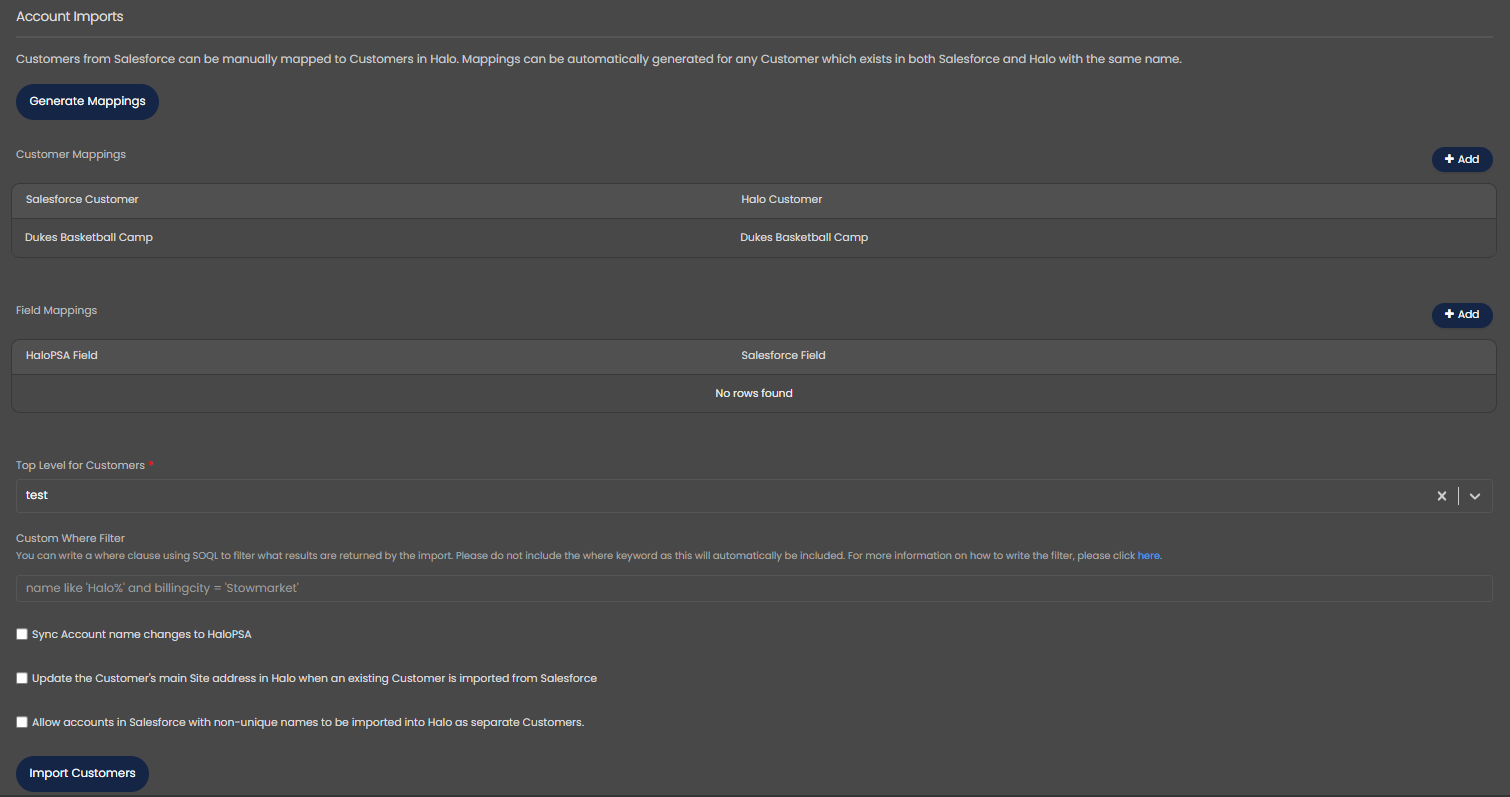
Fig 18. Account Import configuration
In order to sync attachments for Accounts, head to the Miscellaneous section and select "Accounts" in the "Entities to Sync Attachments" drop-down.
Contact Imports
Under this section use the "Default Site" drop-down to select the Site Users will be assigned to if their Site has not been imported. The next drop-down in this section is the "User Mapping Field for Sales", the field you select here will be used to match Users to Sales. It is recommended that you create a Ticket Custom Field that can hold the Opportunities associated User’s ID and select this field in the drop-down. As part of the mapping process, you will need to map the User ID into this field, which means during the import, users can be assigned to Opportunities if they exist in the system (See Opportunities section of this guide).
Next you can create field mappings between Salesforce and Halo User fields.
To add a new mapping, find the relevant table and press the add button. You can choose the name of the Halo field from the drop down. The Salesforce field is a case sensitive text entry. When mapping Custom Fields they must have a suffix of __c, which included in the field name, e.g. “TaskType__c.
For a full list of available User system fields in Salesforce, please visit the following URL:
In this section you will also find the option to provide a "Custom Where Clause". The value you enter here will control what is returned by the import. For information on how to format this clause see the Salesforce Where Clause documentation.
Once you are happy with the setup, click "Import Users" to run the import.
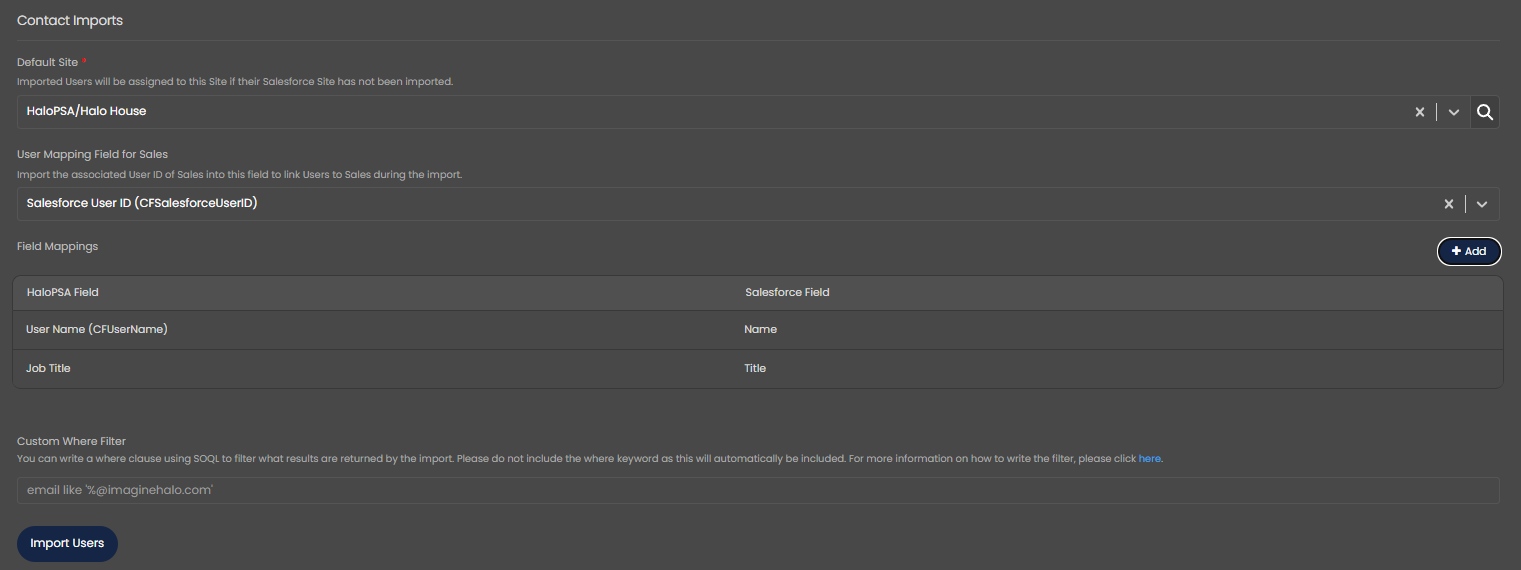
Fig 19. Contact Import configuration
In order to sync attachments for Contacts, head to the Miscellaneous section and select "Contacts" in the "Entities to Sync Attachments" drop-down.
Opportunity Imports
First, you need to choose which ticket type new opportunities should be created as. Once this is set, you can create field mappings between Salesforce and Halo Opportunity fields.
To add a new mapping, find the relevant table and press the add button. You can choose the name of the Halo field from the drop down. The Salesforce field is a case sensitive text entry. When mapping Custom Fields they must have a suffix of __c, which included in the field name, e.g. “TaskType__c. If you’d like to associate users with opportunities, you need to add a mapping to bring user ID’s into your designated custom field such as in Figure 20.
For a full list of available Opportunity system fields in Salesforce, please visit the following URL:
- Opportunities - https://developer.salesforce.com/docs/atlas.en-us.sfFieldRef.meta/sfFieldRef/salesforce_field_reference_Opportunity.htm
In this section you will also find the option to provide a "Custom Where Clause". The value you enter here will control what is returned by the import. This allows you to filter by criteria such as dates, allowing you to specify which Opportunities are returned in the import based on when they were created. For information on how to format this clause see the Salesforce Where Clause documentation.
Once you are happy with the setup, click "Import Sales" to run the import.
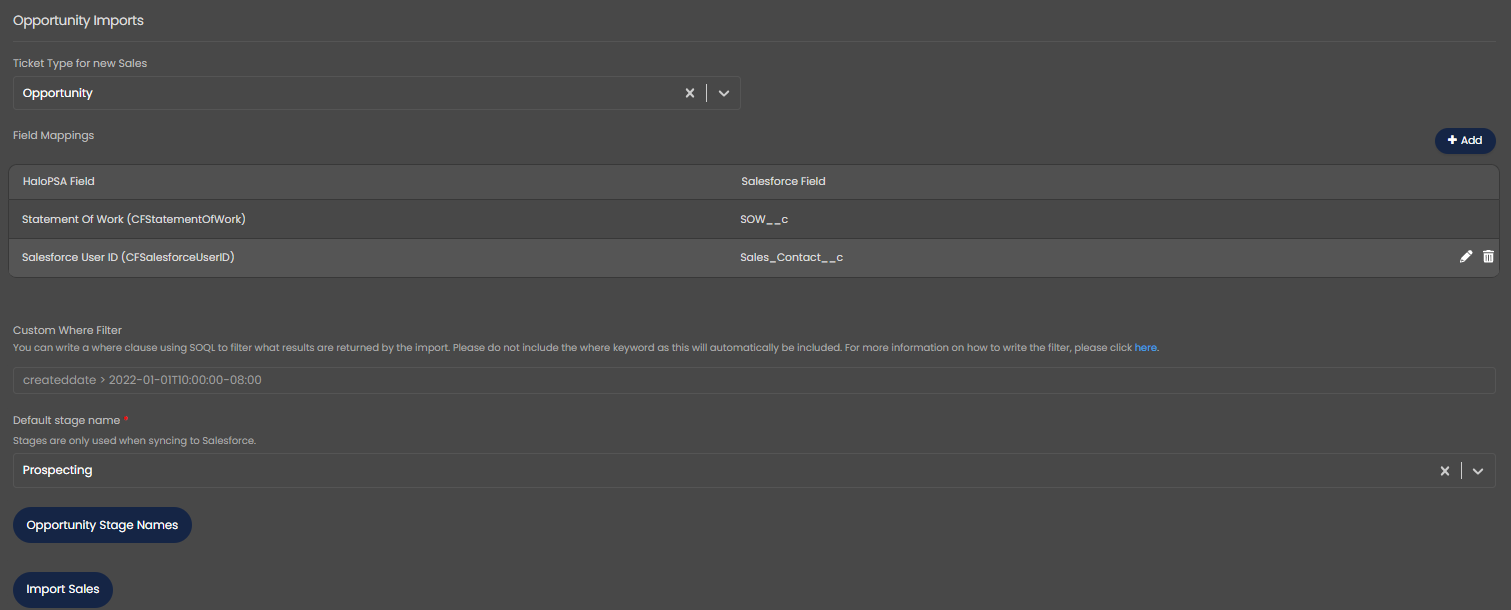
Fig 20. Opportunity Import configuration
In order to sync attachments for Opportunities, head to the Miscellaneous section and select "Opportunities" in the "Entities to Sync Attachments" drop-down.
Case Imports
First, you need to choose which Ticket Type Cases should be created as in Halo, and a default User for these. If you would like to import feed updates from Salesforce select the "Import Case Feed updates" checkbox.
Next you can create field mappings between Salesforce and Halo Ticket fields. To add a new mapping, find the relevant table and press the add button. You can choose the name of the Halo field from the drop down. The Salesforce field is a case sensitive text entry. When mapping Custom Fields they must have a suffix of __c, which included in the field name, e.g. “TaskType__c.
Case Imports also allow you to set priority mappings. These will set the Ticket's priority level in Halo based on the mapped Salesforce priority.
In this section you will also find the option to provide a "Custom Where Clause". The value you enter here will control what is returned by the import. This allows you to filter by criteria such as dates, allowing you to specify which Cases are returned in the import based on when they were created. For information on how to format this clause see the Salesforce Where Clause documentation.
Once you are happy with the setup, click "Import Sales" to run the import.
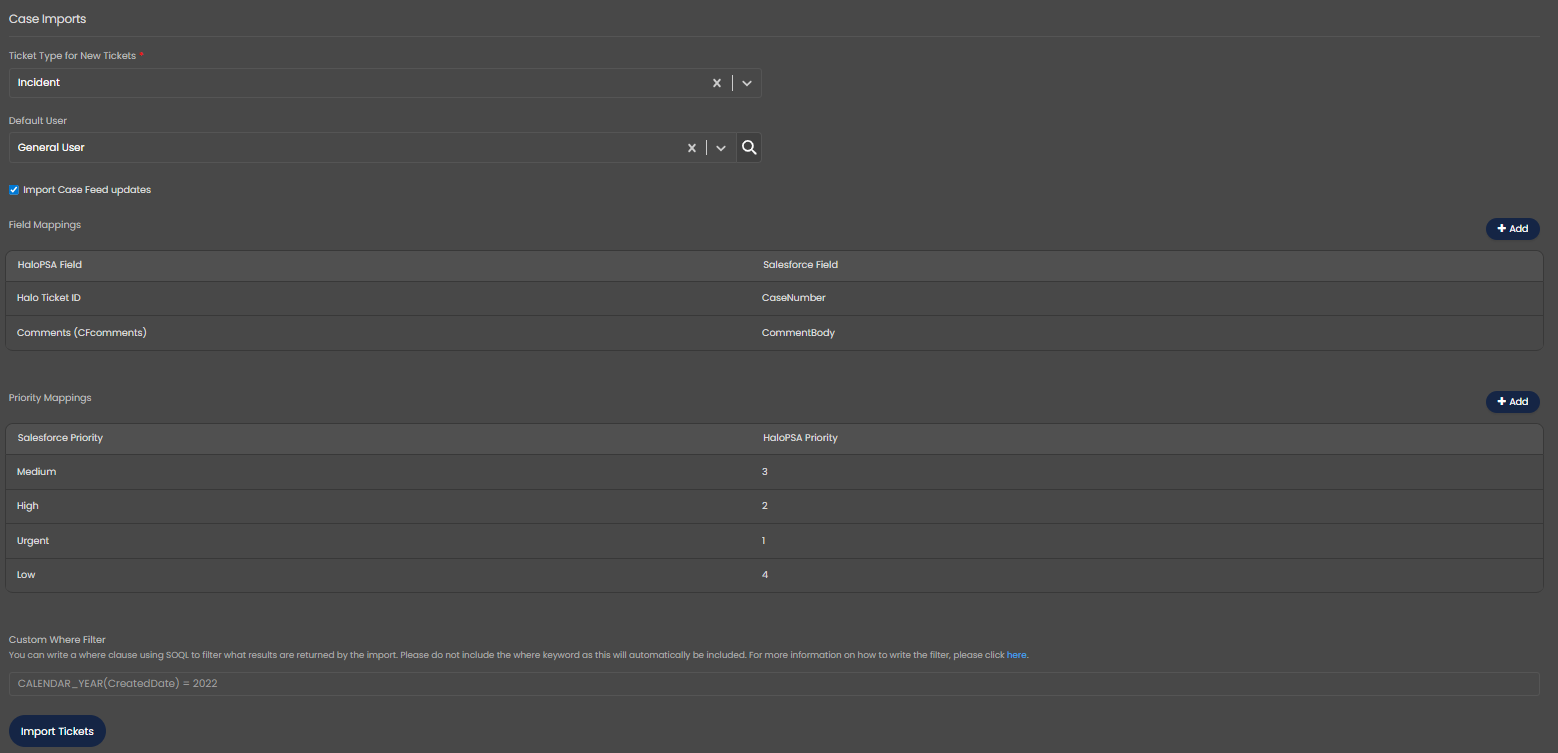
Fig 21. Case Import configuration
In order to sync attachments for Cases, head to the Miscellaneous section and select "Cases" in the "Entities to Sync Attachments" drop-down.
Halo Integrator
To enable the Halo Integrator select the checkbox shown in Figure 22. If enabled, Accounts, Contacts, Opportunities, and Cases can be imported on a recurring sync, keeping details up-to-date. You can choose which of these entities to sync using the drop down.

Fig 22. Enabling the Halo integrator.
Syncing to Salesforce
You can sync accounts, contacts, opportunities, cases, and case comments to Salesforce.
Any fields mapped in the import from Salesforce can be marked as "Include this field when syncing back to Salesforce" to sync them back to Salesforce. All fields that are synced from Salesforce by default are also included in the sync back.
Accounts
This can be enabled for creation, updates, or both. You can also enable the syncing of the main site address back to Salesforce. The setting 'Don't sync to Salesforce' allows you to disable the sync on a per customer basis.
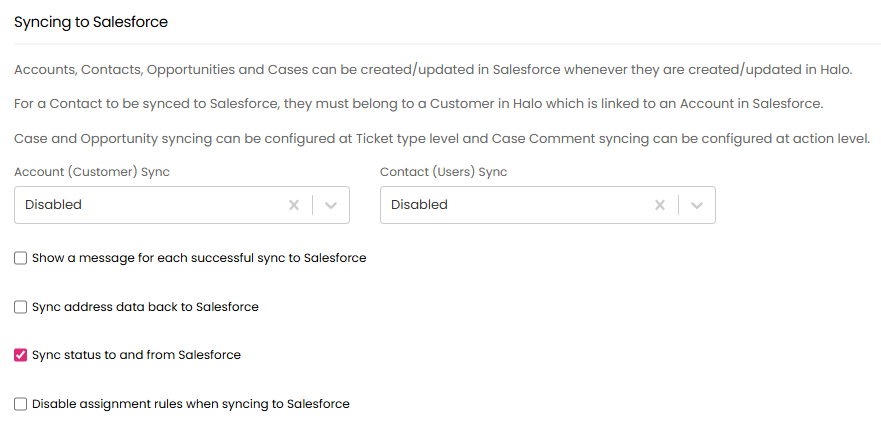
Fig 23. Sync options
"Disable assignment rules when syncing to Salesforce" can be set so when an update is made in Salesforce, active assignment rules will not be applied.
If "Import parent accounts as Halo customers and child accounts as Halo Site" is set, you will see the option to set the extent of the sync, and decide if you would like to "Sync the default 'Main' Site as a child account".
Contacts
This can be enabled for creation, updates, or both. The setting 'Don't sync to Salesforce' allows you to disable the sync on a per-user basis. The user must be at a customer who has already been synced to salesforce in order for this sync to occur.
Opportunities
To sync opportunities you must configure the 'Opportunity Stage Names' in the Opportunities section and specify a default stage. These names should match the stages in Salesforce. You can override this at ticket type level or at individual ticket level by adding the 'Salesforce Stage' field to the opportunity ticket type.
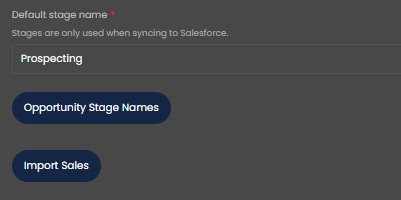
Fig 24. Stage names configuration
The syncing of opportunities is enabled at ticket type level with the 'Sync to Salesforce' setting in the ticket type defaults tab. This can be overridden by adding 'Sync to Salesforce' as a field to the ticket type. This field will default to the value set at ticket type level.
Cases
The syncing of cases is enabled at ticket type level with the 'Sync to Salesforce' setting in the ticket type defaults tab. This can be overridden by adding 'Sync to Salesforce' as a field to the ticket type. This field will default to the value set at ticket type level.
To sync the case comment can be configured at action level 'Sync to Salesforce' setting in the action defaults tab. This can be overridden by adding 'Sync to Salesforce' as a field to the action. This field will default to the value set at action level. This will sync the note on the action and also whether or not it is visible. Edits to actions will not be synced to Salesforce.
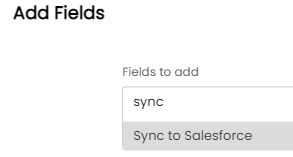
Fig 25. Adding the field
Below is a list of all default synchronized Salesforce fields for tickets and clients.
Client -> Account
Name
BillingStreet
BillingCity
BillingState
BillingPostalCode
User -> Contact
FirstName
LastName
Phone
MobilePhone
Ticket -> Case
Name/Subject
Description
AccountID
ContactID
Amount
Probability
CloseDate
StageName
Case Comment
Commentbody
IsPublished
Additional fields that can be synced to salesforce.
The 'Potential Value' fields can also be synced to Salesforce, this field has three types:
- Annual
- Monthly
- One-off