Using Passkeys For Authentication
- security
- 2fa
- Authentication
- authentication methods
- Passkeys
- Keys
In this guide we will cover:
From version 2.260+ it is possible to allow Passkeys to be used for the authentication method when signing in with Halo credentials.
What Are Passkeys?
Passkeys are an alternative method of authentication that tends to be preferred over passwords due to fewer vulnerabilities.
A passkey is a public/private key pair. When you register, your device generates the pair and sends only the public key to the server. The private key never leaves your device (or your synced credential store). To sign in, the server sends a random challenge, your device signs it after you unlock it with a biometric or PIN, and the server verifies the signature with the public key.
Note: Passkeys are only available for use in Halo if signing in with Halo credentials, not Single Sign-On.
Setting Up Passkeys in Halo
To allow Passkeys in Halo, navigate to Configuration > Advanced Settings and enable the setting "Allow Agents and Users to create Halo Passkeys to log in".
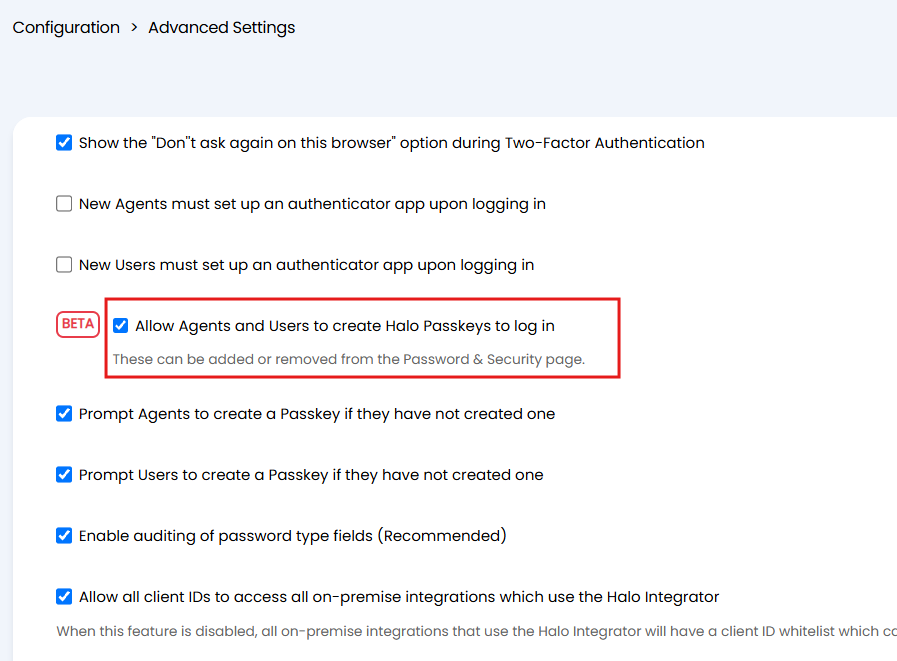
Fig 1. Enabling Passkeys in Halo
Once this setting is enabled, you will then have two additional settings beneath it that allow you to prompt Agents and Users to create Passkeys if they have not yet set it up. This prompt will appear as a banner at the top of the page in the Agent application, and at the top of the page in the Self Service Portal for Users.
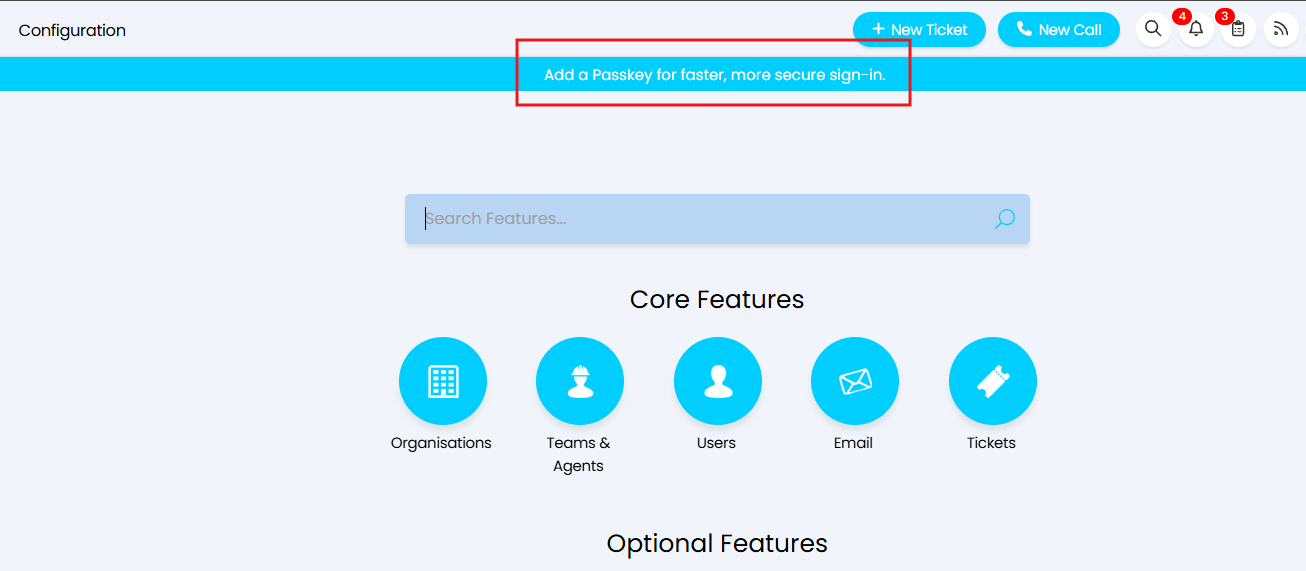
Fig 2. The banner prompting Agents to set up Passkeys in Halo, Users will have the same banner in the Portal
To set up your Passkey, you can either select the banner prompt, or you can select your icon in the top right to open the side menu and go to "Password & Security".
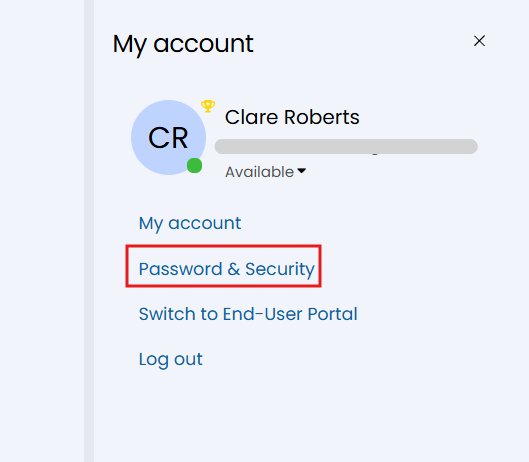
Fig 3. Navigating to your Password & Security area in Halo
Once in the Account Security area, locate the "Passkeys" section.
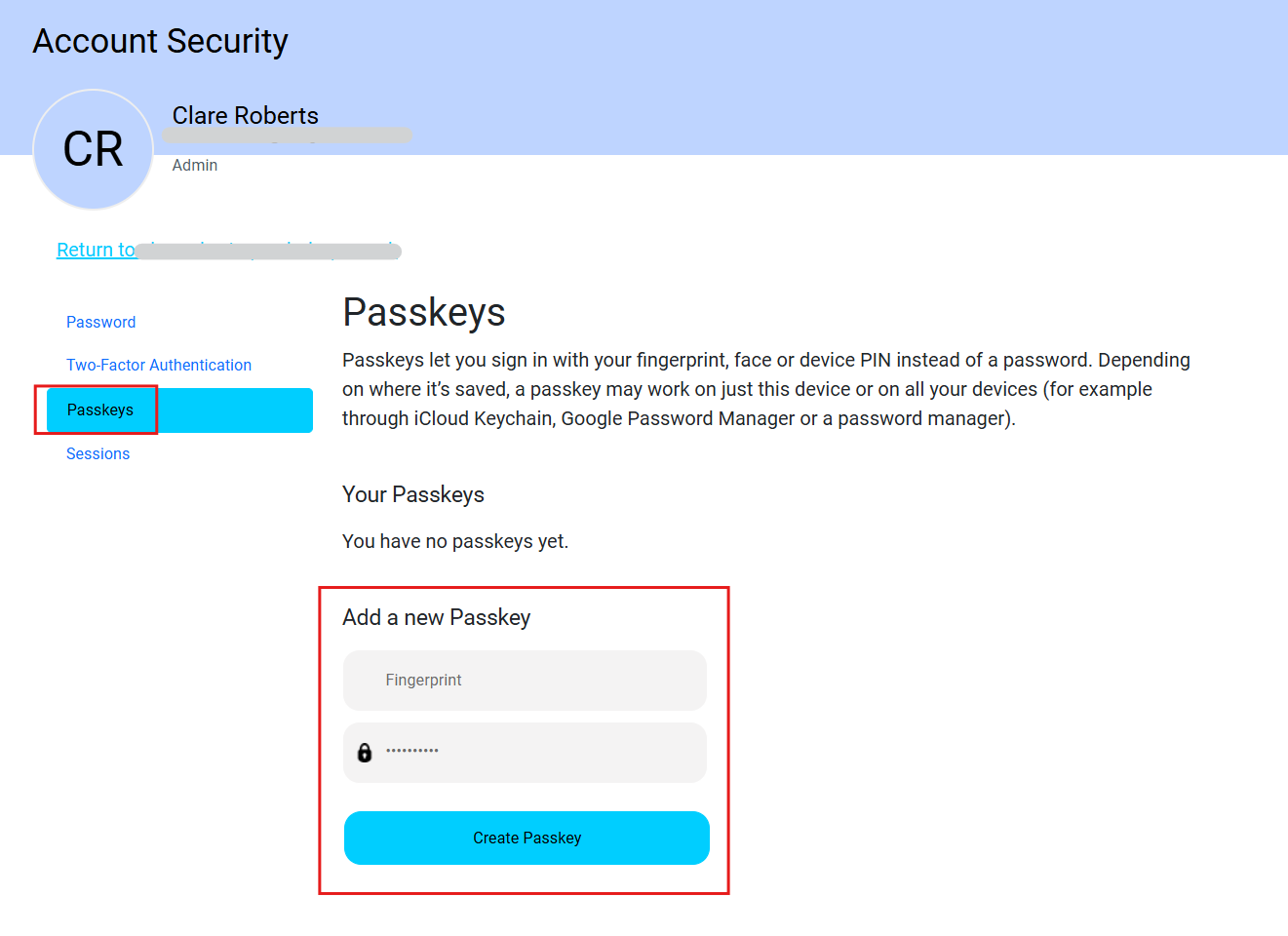
Fig 4. Passkeys configuration
Here you can create your Passkey.
Give your new Passkey a name and then confirm your Halo password before selecting "Create Passkey".
Halo will then prompt you to use the selected Passkey in order to confirm the configuration. Once successfully set up, it will appear in the "Your Passkeys" list.
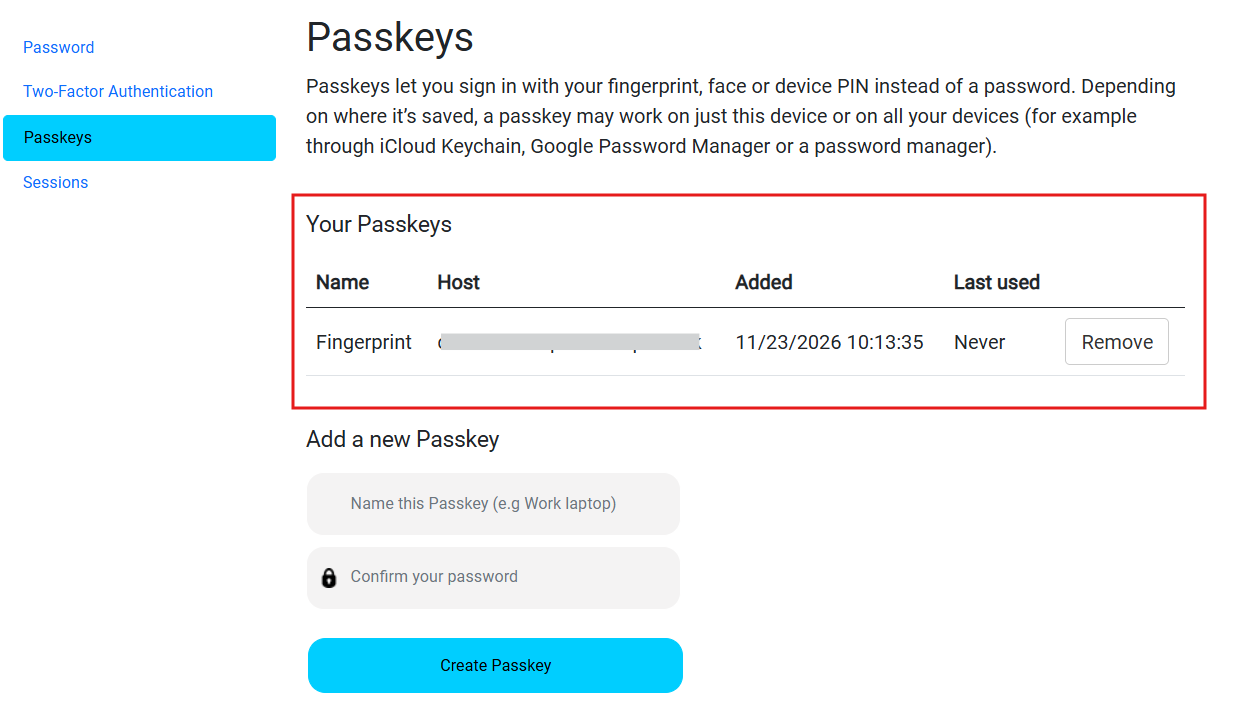
Fig 5. The Your Passkeys list of configured Passkeys for Halo
Note: It may take a few seconds for the Passkey to save and for the "Your Passkeys" list to populate.
Using Passkeys In Halo
Once a Passkey is set up, there are three ways in which it can be used:
Halo Login
At the Halo login screen, if the Halo username and password fields are shown, there will also be an additional button to "Sign in with a Passkey".
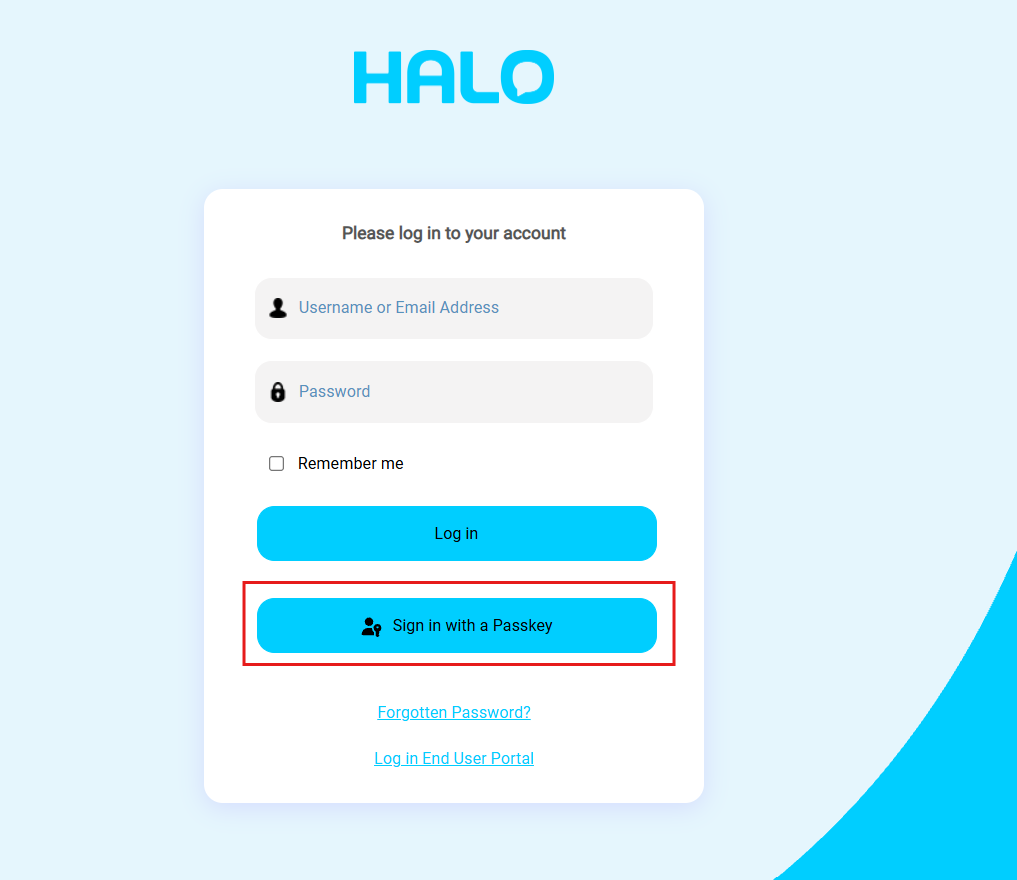
Fig 6. The button for using a Passkey for signing in to Halo
Selecting this button will immediately prompt you to execute your configured Passkey.
Note: If you click the username field, you will also notice an option appears to autocomplete the sign in with your Passkey.
Two Factor Authentication
If using a two factor authentication method when logging in with Halo credentials, there will be an option to complete the authentication using a Passkey.
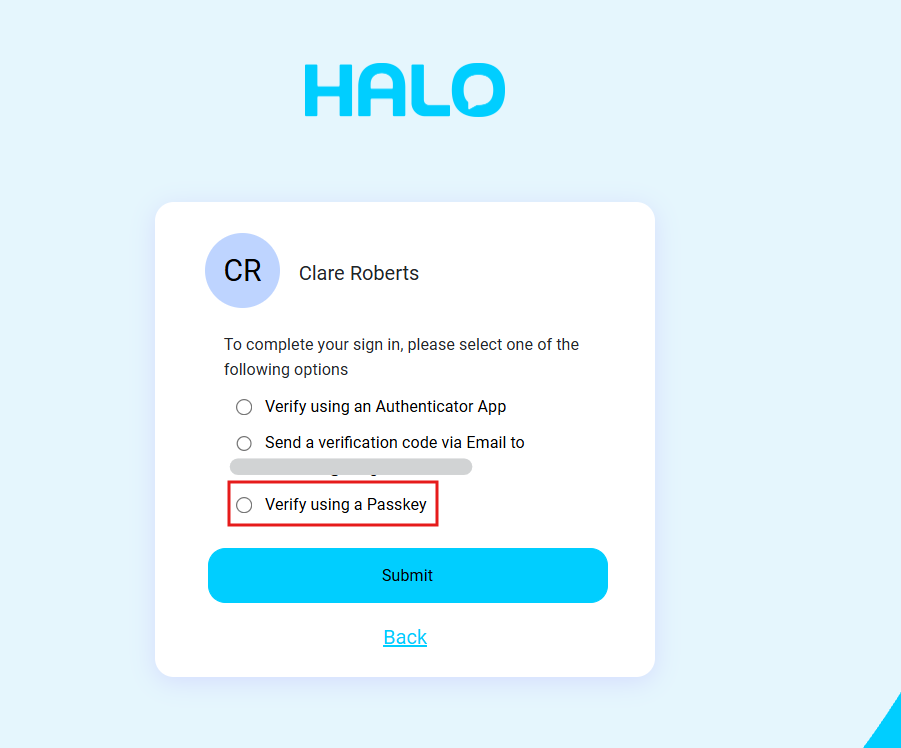
Fig 7. Completing 2FA using a Passkey
Permissions Elevation
Passkeys can also be used in Halo to authenticate an Admin mode session.
If admin mode is enabled, when verifying there will be an option to verify using your configured Passkey.
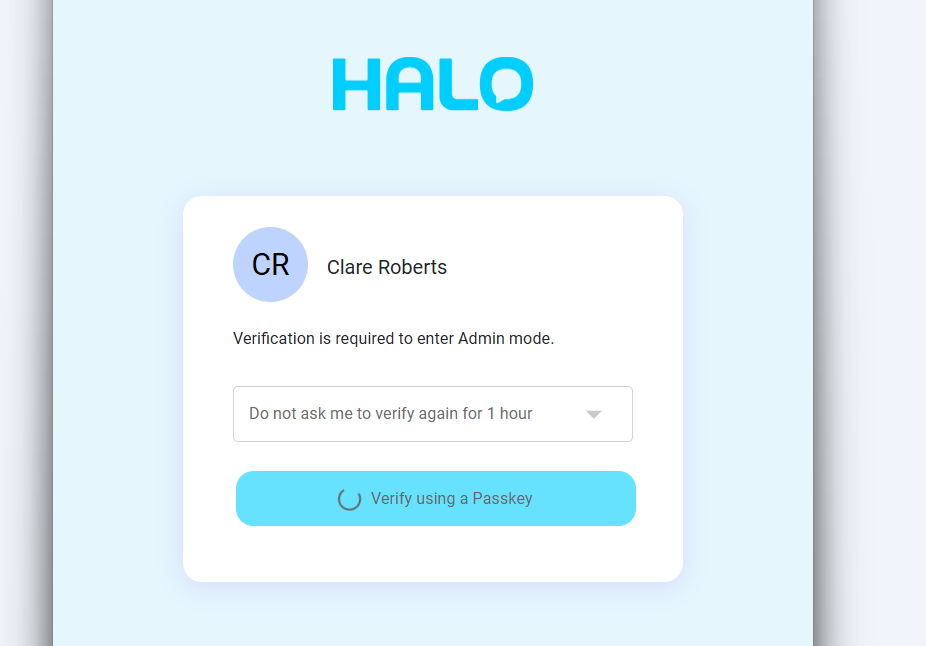
Fig 8. Verifying admin mode in Halo using a Passkey
For information on how to enable Admin Mode, see the dedicated guide: Admin Mode.