Creating CRM Notes
In this guide we will cover:
- Creating CRM Notes
Creating CRM Notes
Under each Customer/Site/User record you will find the tab "CRM Notes" or "Notes". Here you can log information against the specific record. To log information select the '+' icon in the top right.
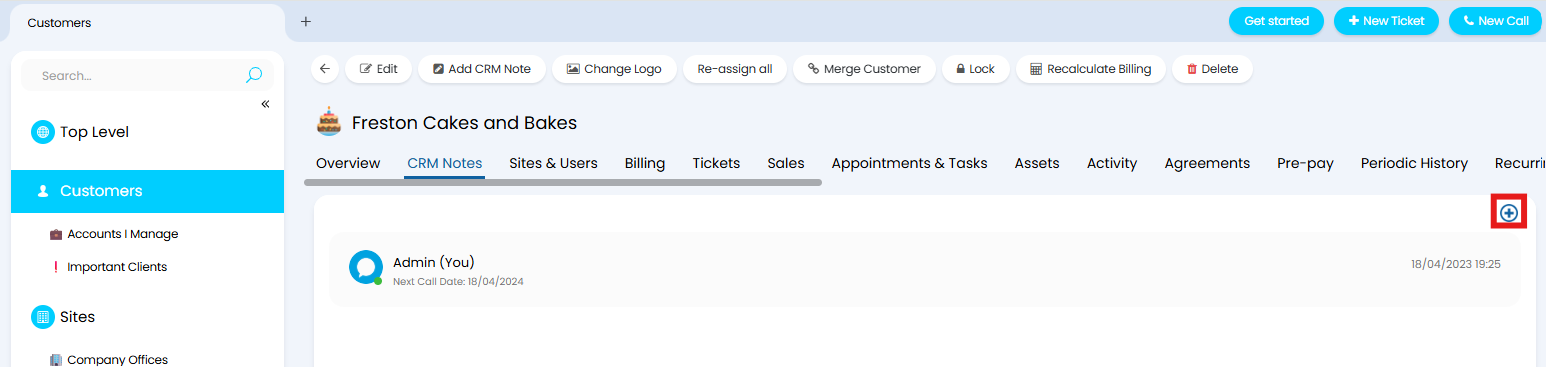 Fig 1. New CRM note against customer
Here you will see there various fields you can complete.
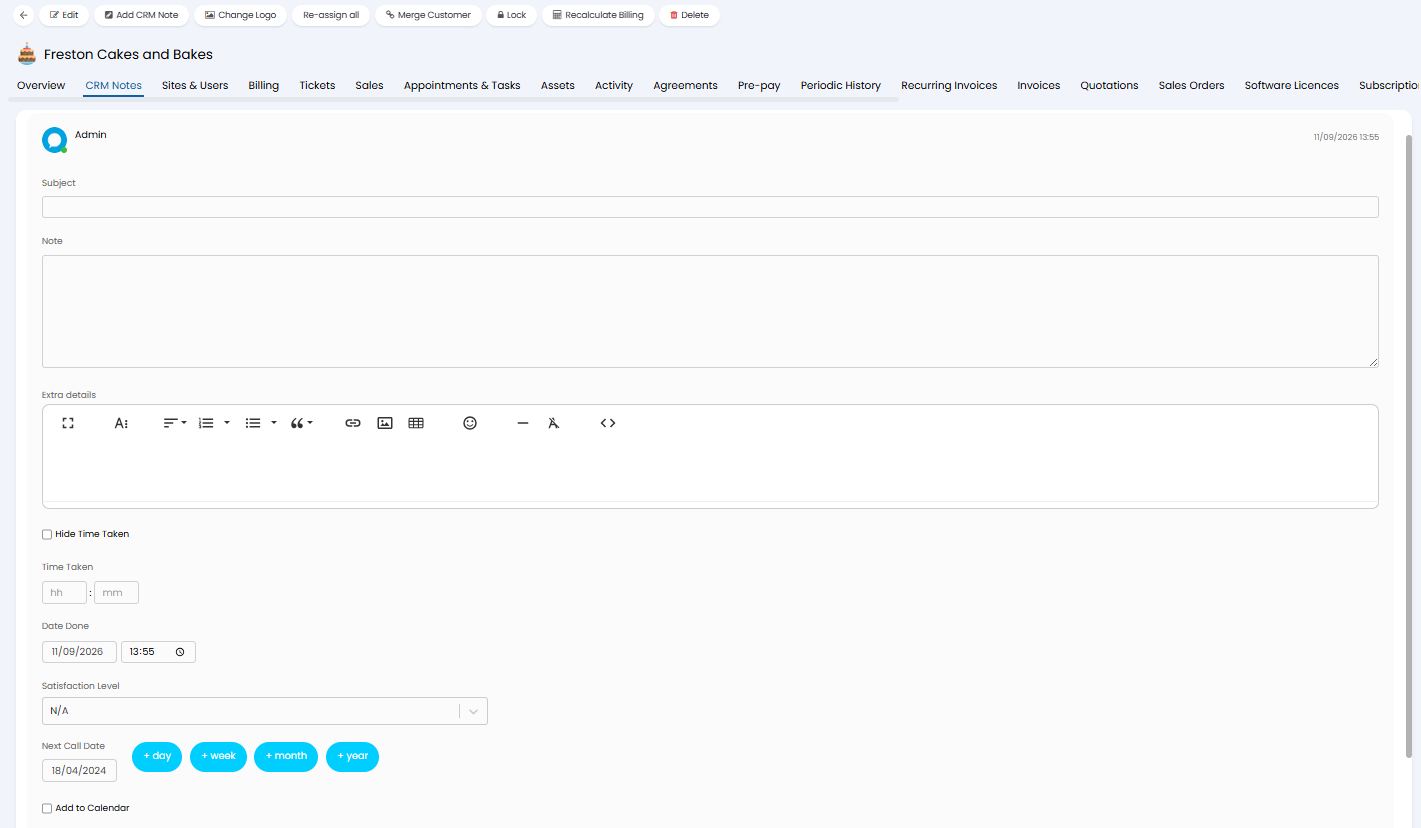
- Subject: The Subject or summary of the note.
- Note: A text box to enter notes against the record.
- Extra Details: A Rich Text field for any additional details. This field can contain mentions (if enabled), and additional formatting.
- Hide Time Taken: Hides the "Time Taken" field to prevent time tracking on the CRM Note.
- Time Taken: Allows you to log time against the record for billing and time tracking purposes. If populated a Ticket will be logged against this Customer so this time can be billed for, and a link to the ticket will appear against the CRM note.
- Date Done: Records the time the action was opened. You can edit this to back-date the action.
- Satisfaction Level: Allows you to record how satisfied the customer is using a numeric scale. This is useful for tracking customer satisfaction over time and spotting any trends.
- Next Call Date: Allows you to schedule a date to follow up on this action. By default this date is set to the last "Next Call Date" for the customer.
To have the next call date create an appointment in your calendar, check "Add to Calendar". This will create an appointment in your calendar for this date. When checked you will be able to set the subject, duration and user for the appointment.
The "Next Call Date" field allows you to schedule a date to follow up on this action. This can be used to create an automated ticket (covered later in the guide), or create a calendar appointment. By default this date is set to the last "Next Call Date" for the customer. To have the next call date create an appointment in your calendar, check "Add to Calendar". This will create an appointment in your calendar for this date. When checked you will be able to set the subject, duration and user for the appointment.
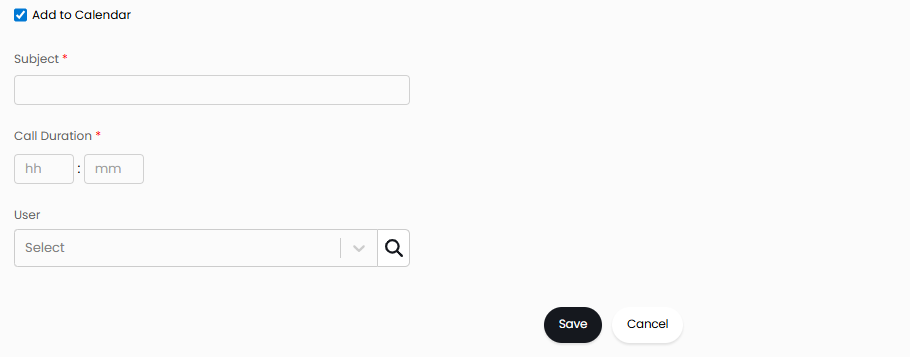
Fig 2. Creating appointment for the next call date
You can also attach files when creating a new CRM note.
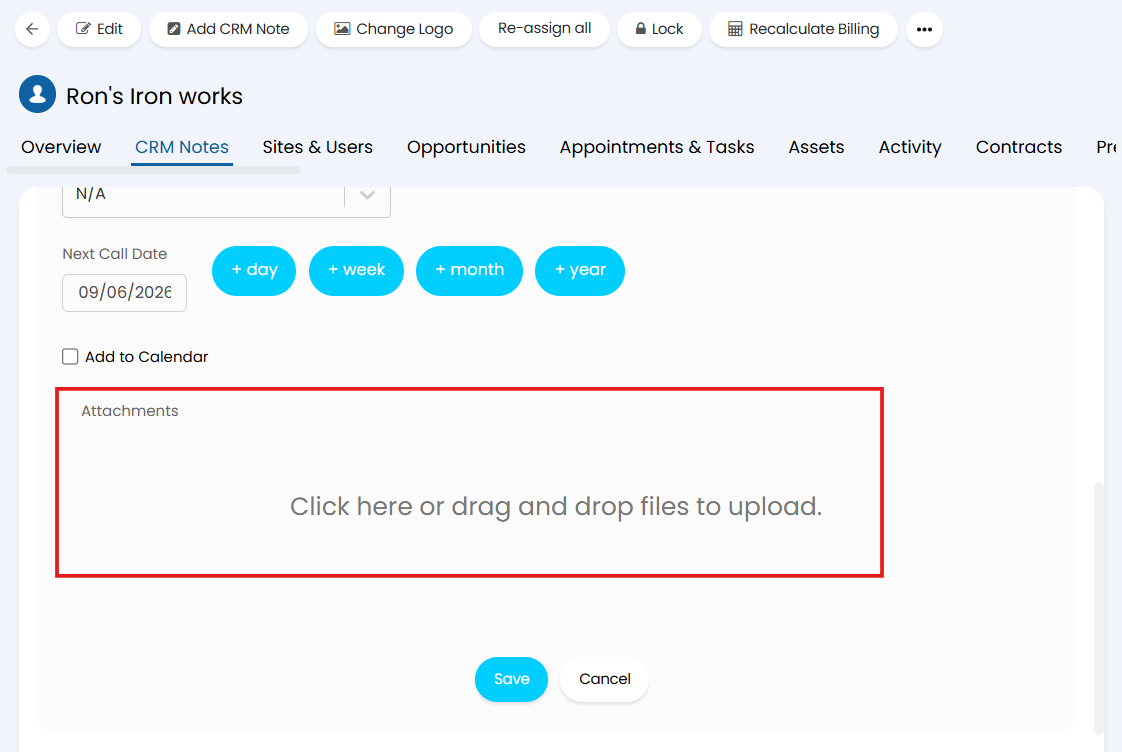
Fig 3. The to ability to add attachments to CRM notes
You may see a filter in the top left of your Customer CRM notes which allows you to change which entity's CRM notes you are viewing.
CRM notes also have a reply arrow which allows Agents to respond to the CRM note.
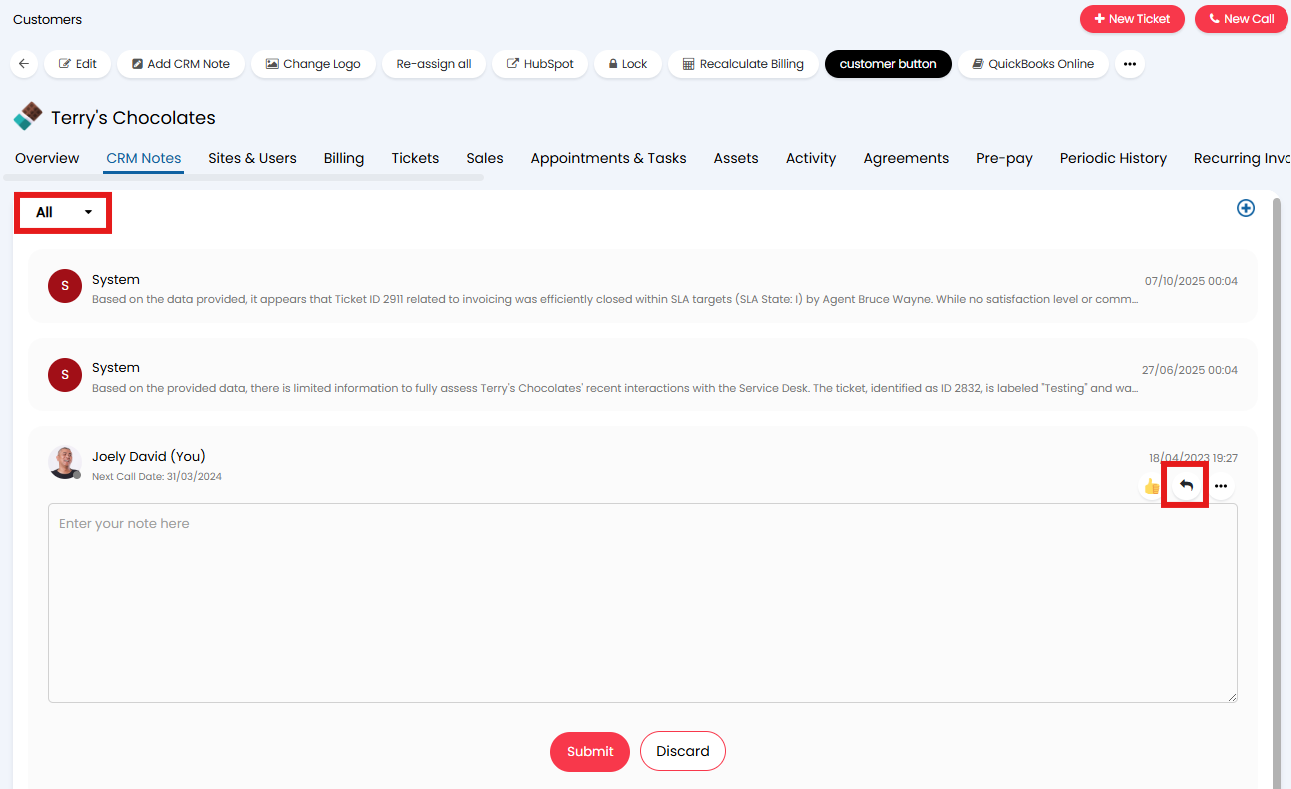
Fig 4. Changing the entity and replying to a CRM note
Important CRM Notes can be pinned to the top of the note list using the "Pin" option found under the three dots (...).
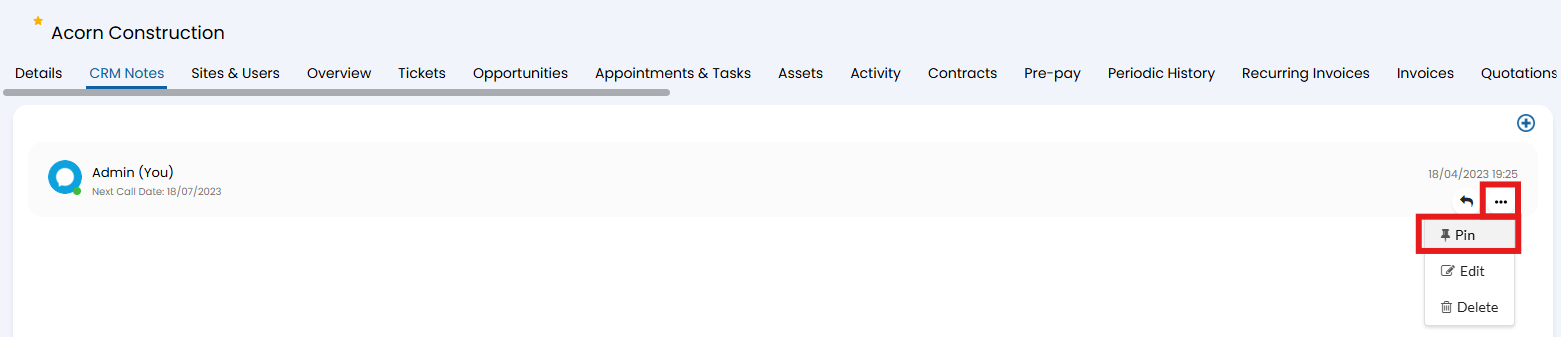
Fig 5. Pinning a CRM note
To mention someone type '@' followed by the agent/team name.
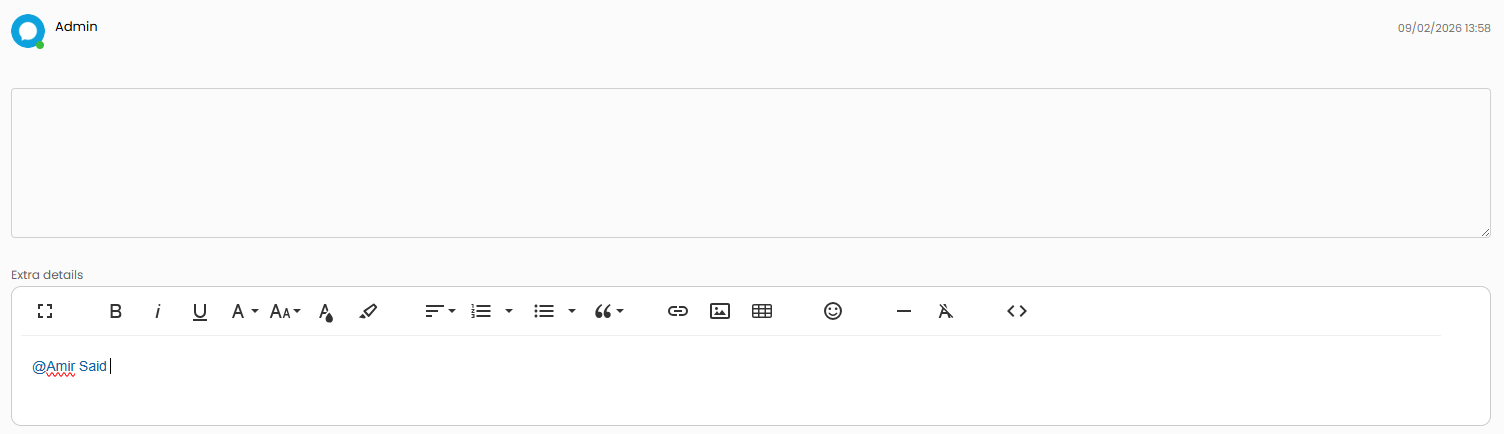
Fig 9. Mentioning an agent on a ticket
Note: Mentions can only be used in the additional details rich text box on the CRM note, not in the standard text box.