Viewing and Actioning Tickets
In this guide we will cover:
- Viewing Tickets
- Actioning Tickets
Viewing Tickets
When you click into a Ticket Area in Halo you will see a list of available Tickets. The exact display you see here will vary depending on your settings. To view a Ticket, click into the relevant record.
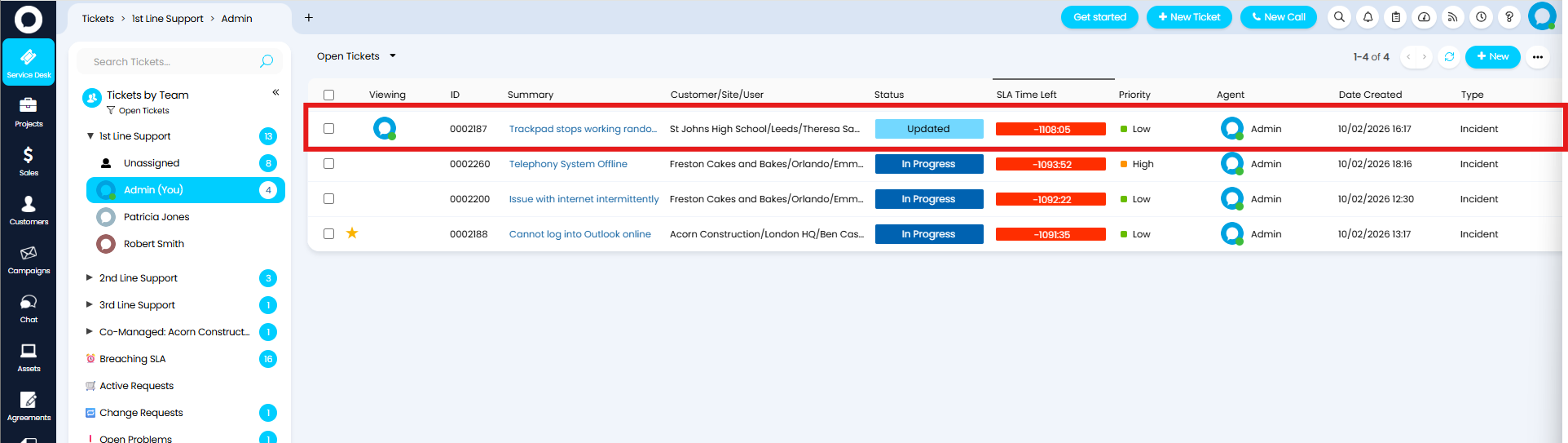
Fig 1. Tickets in a Ticket Area
On the Ticket you will see the Ticket progress, and a variety of Actions.
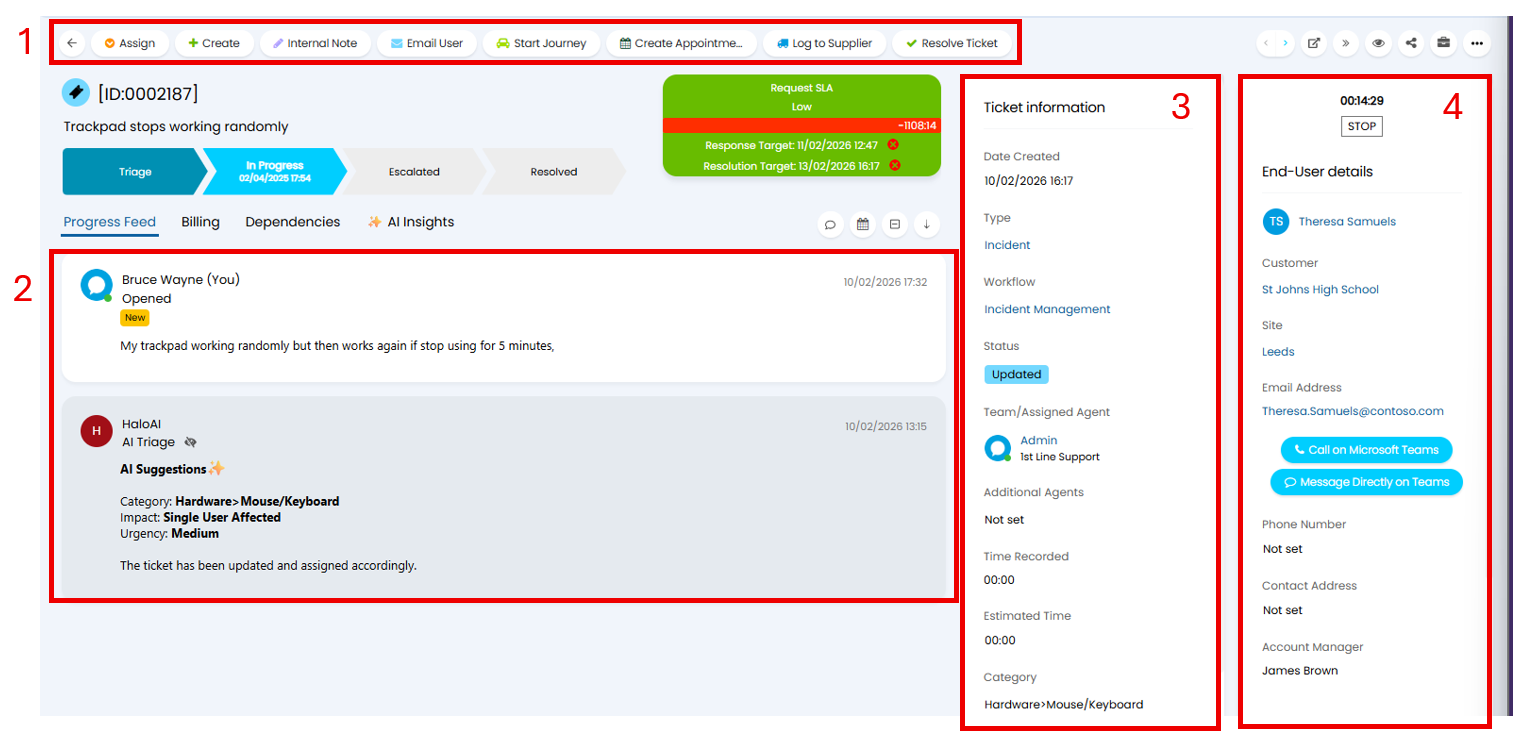
Fig 2. Ticket Layout
1. Actions - The Actions that are available here will depends on your Configuration. Each Action will have its own function, allowing you to record relevant information or direct the Ticket through the Workflow.
2. Progress Feed - The Progress Feed shows historical Actions on the Ticket. Some Actions may not show in this feed if they have been restricted.
3. Ticket Information - Details about the Ticket.
4. User Information - Details about the End-User.
Actioning Tickets
To perform an Action on a Ticket you will need to select the relevant Action from the buttons on the top bar. When an Action is selected, the new Action form will open at the top of the Progress Feed. Here you will need to fill in any details using the fields provided. Any fields with a red asterisk are mandatory and must be completed in order to submit the Action.
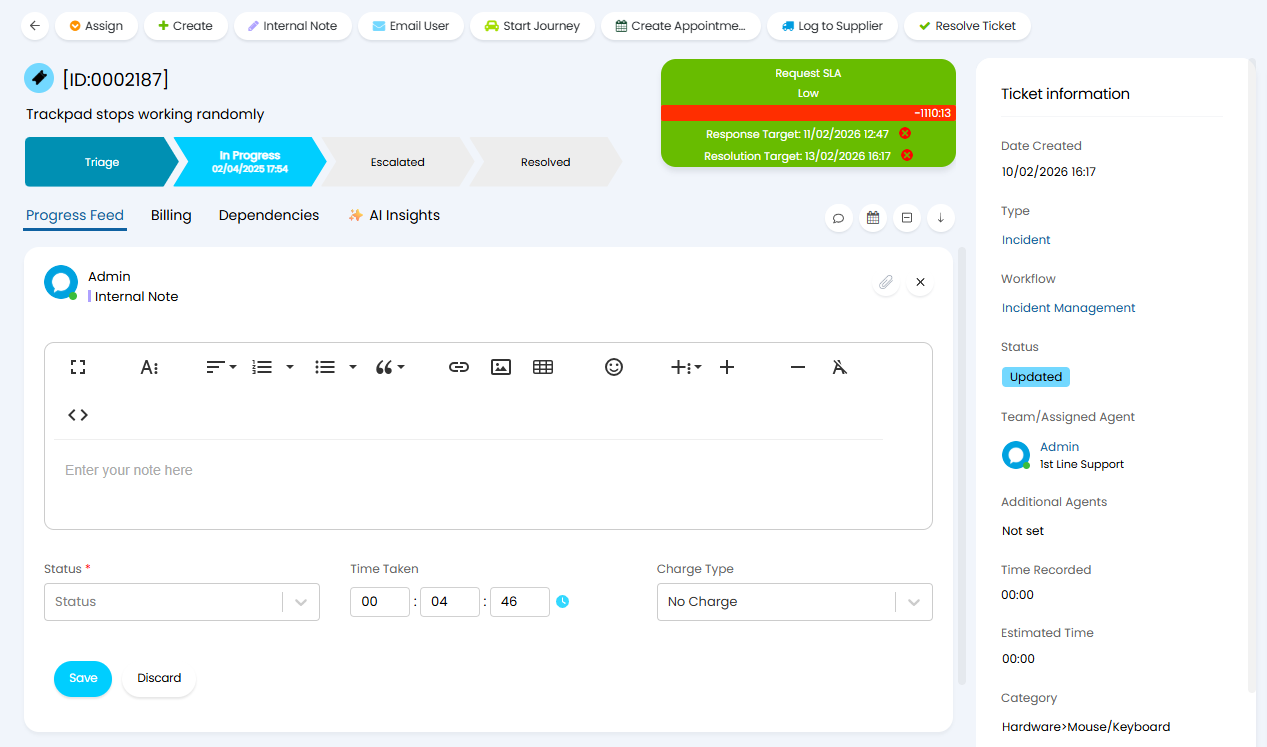 Fig 3. Action form
Once Saved, Action will typically show in the Progress Feed. The view of your Progress Feed can be altered using the toggles shown below.
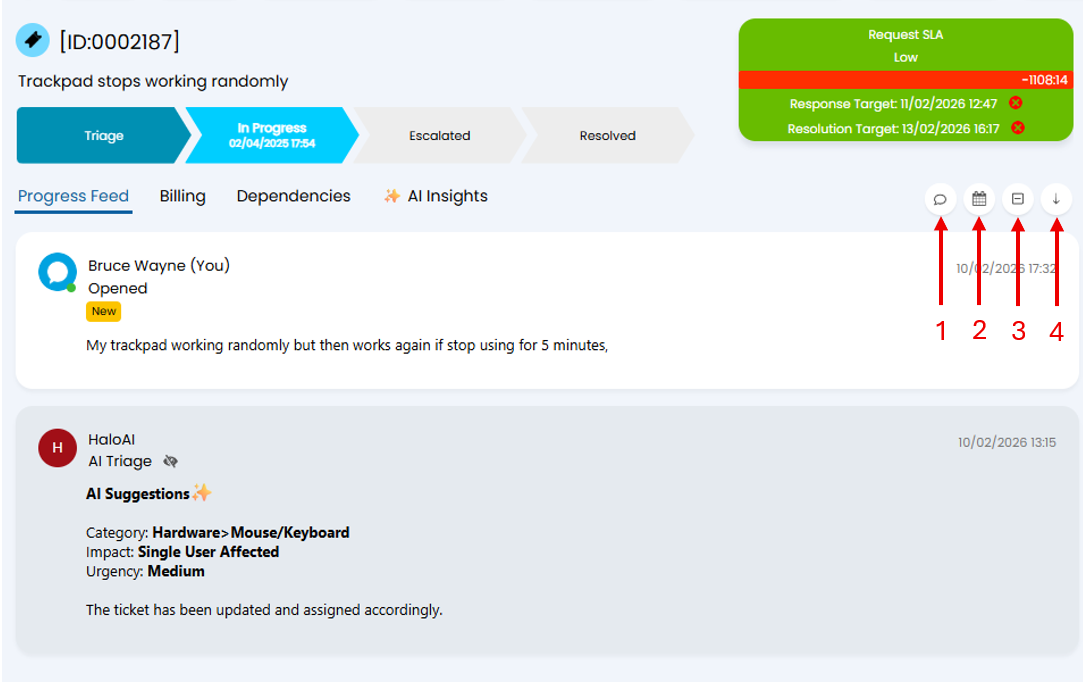
Fig 4. Changing the Progress Feed view
1. Progress Feed View - This controls which Actions can be seen in the Progress Feed.
2. Date Type - This controls weather the date displayed on an Action shows as the date done, or date created.
3. Collapse/Expand Actions - This will set all the Actions in the Progress Feed as expanded or collapsed, allowing you to either view the contents of all Actions or manually select an Action to expand. This is particularly useful in Tickets with a large number of Actions in the Progress Feed.
4. Jump to bottom - This will scroll down to the bottom of the page, showing the first Action.
When you hover over an Action in the Progress Feed you will be able to select the ellipsis menu (three dots) to edit the Action.
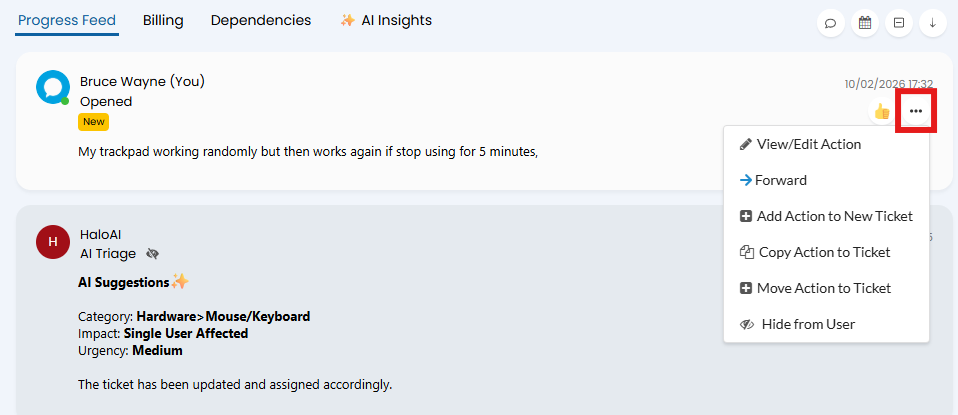
Fig 5. Editing Actions
View/Edit Action - This will open the Action in a large modal screen, allowing you to adjust details.
Forward - This will open a new Action which forwards the chosen Action to a specified Email Address.
Add Action to New Ticket - This will create a new Ticket with this Action on.
Copy Action to Ticket - This opens the Ticket search screen where you can choose a Ticket to copy this Action to.
Move Action to Ticket - This opens the Ticket search screen where you can choose a Ticket to move this Action to.
Hide from User - This prevents the User from being able to view this Action in the Portal.