Omnissa Workspace One (VM Workspace One) Integration
- vm workspace one
- omnissa workspace one
In this guide we will cover:
- What is the VM Workspace One Integration?
- Enabling the VM Workspace One Module
- Connecting to VM Workspace One
- Sites
- Assets
- Syncing (Halo Integrator)
What is the VM Workspace One Integration?
VM Workspace One can be integrated with Halo to import and manage Sites and Assets, and sync these on a recurring schedule to ensure details stay up-to-date.
Enabling the VM Workspace One Module
In Configuration > Integrations > Asset Management and Alerting, find the "VM Workspace One" module. Hover over it and click the "+" icon to enable the module.
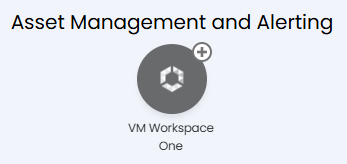
Fig 1. Enabling the VM Workspace One module
Connecting to VM Workspace One
Clicking into the module will show a list of any existing connections. Click the "New" button.

Fig 2. VM Workspace One connections
This will show the "Details" tab to create a new VM Workspace One connection. Give the connection a name, and enter your VM Workspace One Region and URL.
Connection is via a Client ID and Secret, which are generated in VM Workspace One.
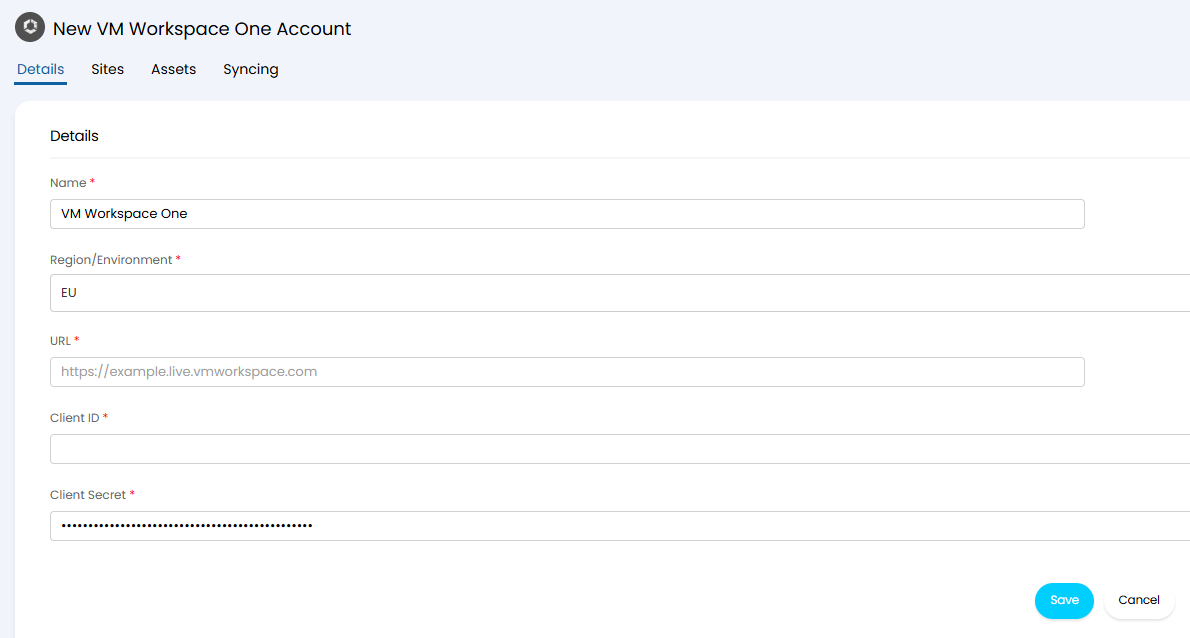
Fig 3. Connecting to VM Workspace One
In the Workspace ONE UEM (Omnissa) console:
- Go to Groups & Settings > Configurations.
- Search "OAuth" in the search box, select "OAuth Client Management".
- Click "Add", fill in Name, Description, Organisation Group, and Role permissions.
- Save, and copy the Client ID/Secret.
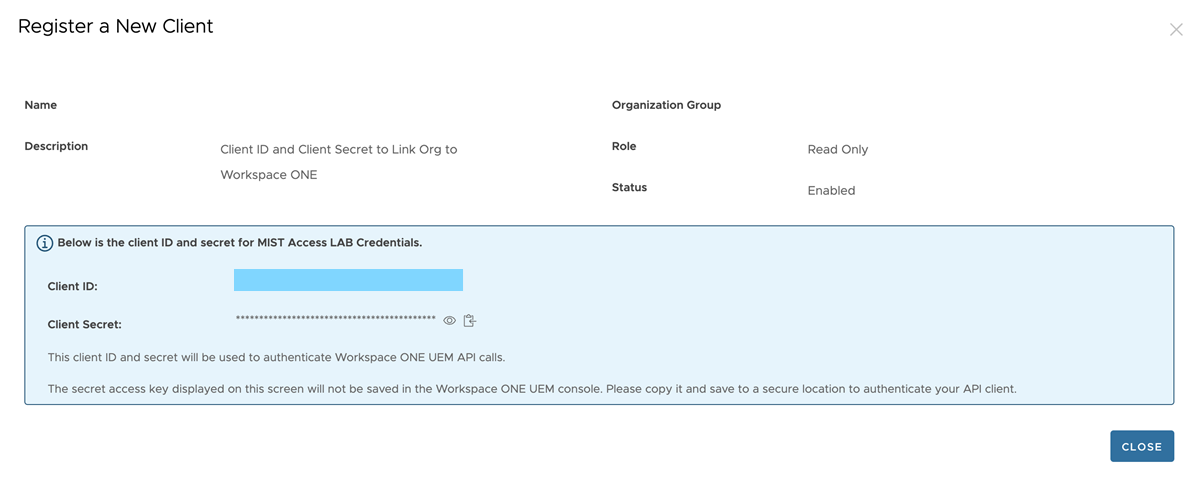
Fig 4. Enabling the VM Workspace One module
Upon saving, you can then click the "Test Configuration" button that will appear. A popup will then show to tell if the test was successful. If the credentials are invalid, an error message will show here to help troubleshoot.
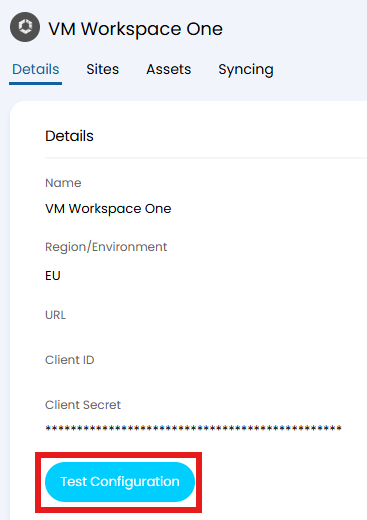
Fig 5. Test Configuration button
Sites
Since VM Workspace One does not have a concept of sites or clients, "Site Rules" can be set. These add criteria for which asset falls into a certain site.
A default site should be set for assets that do not match one of these rules.
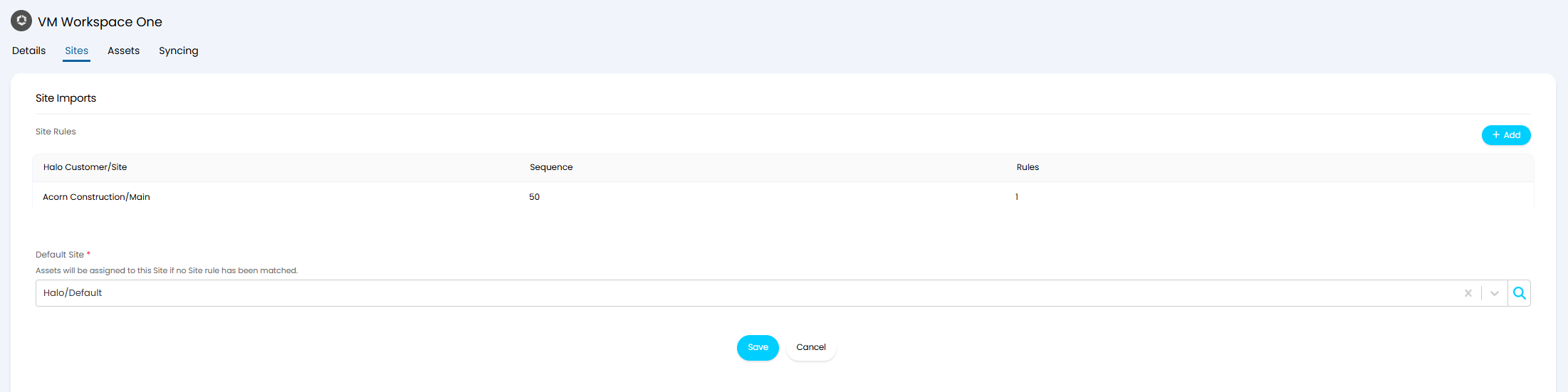
Fig 6. Site configuration
Clicking the "Add" button will show this popup to map a Halo Site based on criteria. You can choose a field, and whether data that includes or omits certain information falls into that criteria. In this example, any asset's name that begins with "ACO" will be imported under the "Acorn Construction" client's "Main" site.
Note: Criteria is based on Halo fields, so any fields set here will need to be mapped in the following "Assets" tab.
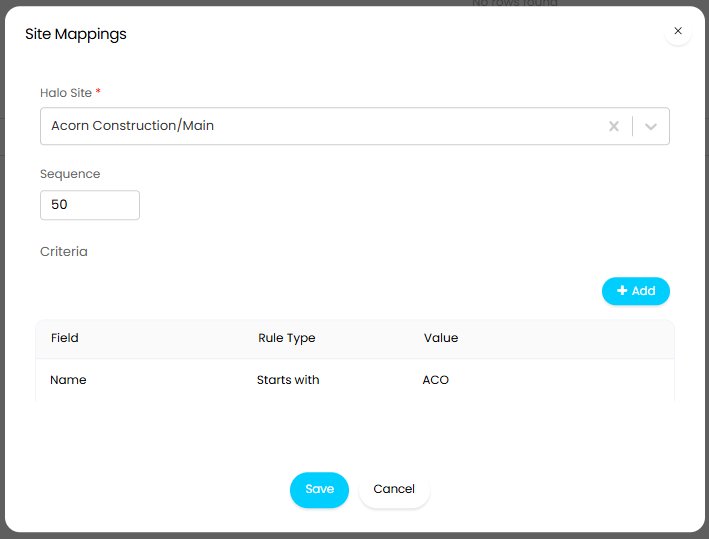
Fig 7. Setting site rules
Assets
Once sites have been matched, you can then import the assets.
The first field is the "Asset Matching Field", which will determine how assets are matched to existing records when updated. This should be an field that is unique per asset.
You can then set Field Mappings in the table below this. This determines which Halo fields information from VM Workspace One is pulled into.
Ensure every field that is used as site rule criteria is correctly mapped here to match that. For example, the site rules for "Acorn Construction/Main" were set to any asset where the "Name" field starts with "ACO". In this asset field mappings table, we have then mapped the "DeviceFriendlyName" field from VM Workspace One to that "Name" field in Halo, so any devices where the friendly name starts with "ACO" in VM Workspace One will be assigned to that "Acorn Construction/Main" site.
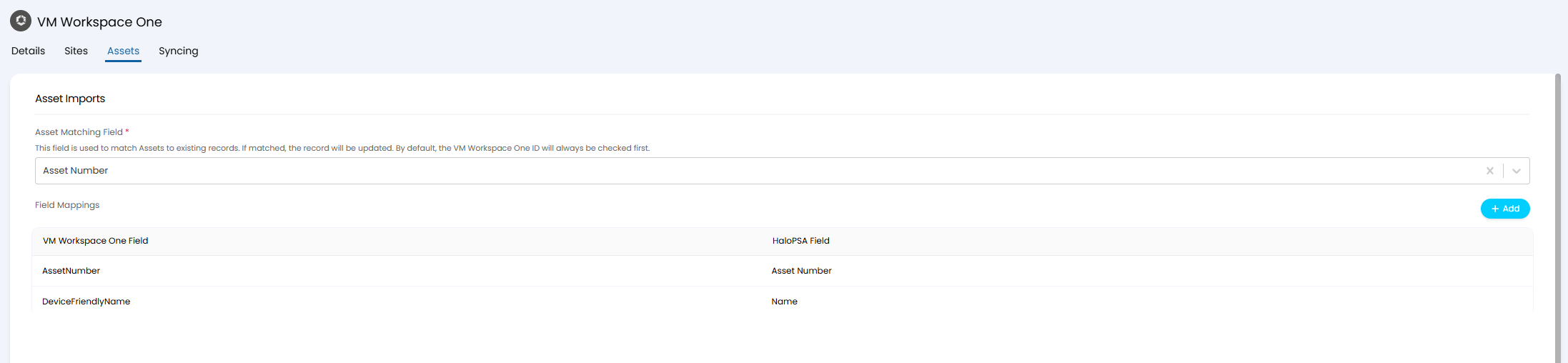
Fig 8. Enabling the VM Workspace One module
Clicking the "Add" button will bring up the below pop to map a VM Workspace One field to a Halo field. This can be with both system asset fields or custom fields.
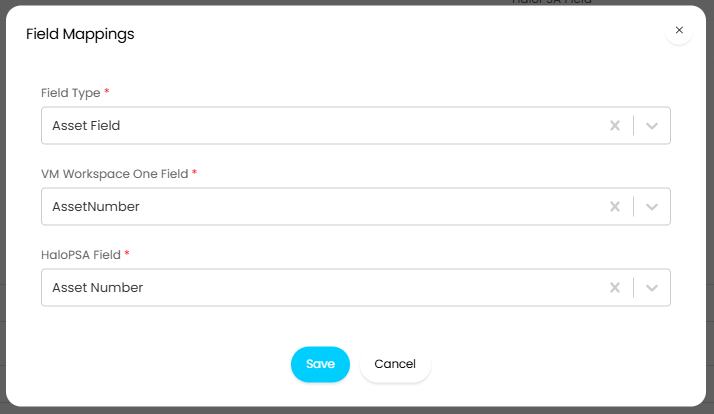
Fig 9. Asset field mappings
After completing the Field mappings, you can then set the the Asset Type configuration.
- Default Group for new Asset Types: Sets the asset group newly created asset types will be assigned to.
- Determining an Asset's type: Sets how the asset type is determined.
- Use the same type for all Assets: Assigns all assets to a set asset type.
- Use a field to determine each Asset's type: A set field will be used for determining an asset's type. If an asset cannot match via this field, it will be assigned to a set default asset type.
- Determine Asset Type using rules: Criteria can be mapped to asset types based on values in Halo fields. If an asset cannot match via this field, it will be assigned to a set default asset type.
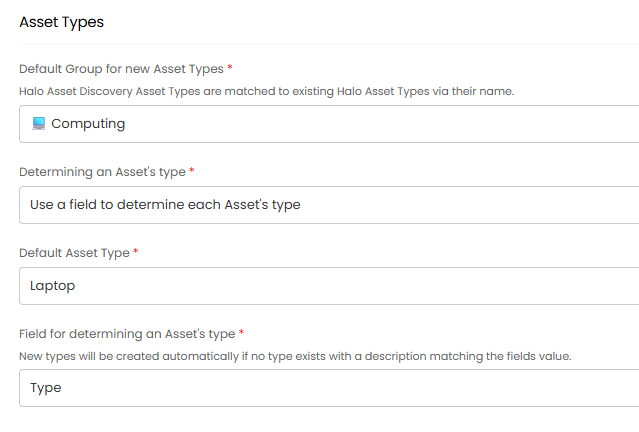
Fig 10. Asset type configuration
Finally, set the miscellaneous Asset configuration.
- Deactivate Assets in Halo when they are deleted from VMWorkspace One (Halo Integrator only): If assets are deleted in VM Workspace One, they will be made inactive in Halo (via the "Active" checkbox) when syncing via the Halo Integrator.
- Don't create new Assets: If enabled, assets will not be created, only updated.
- Don't update the Asset type for existing or matched Assets: If enabled, pre-existing assets will not have their asset type updated (if different in VM Workspace One).
- Don't update the asset site for existing or matched assets: If enabled, pre-existing assets will not have their site updated (if different based on the site rules).
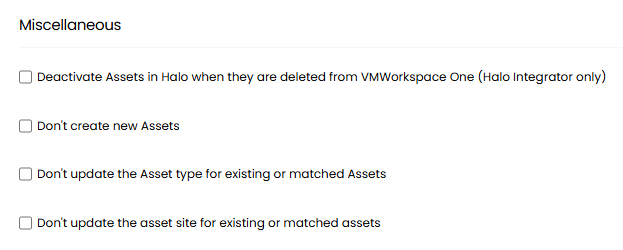
Fig 11. Miscellaneous settings
Save, and the assets can now be imported. Click the "Import devices" button at the bottom of the tab.
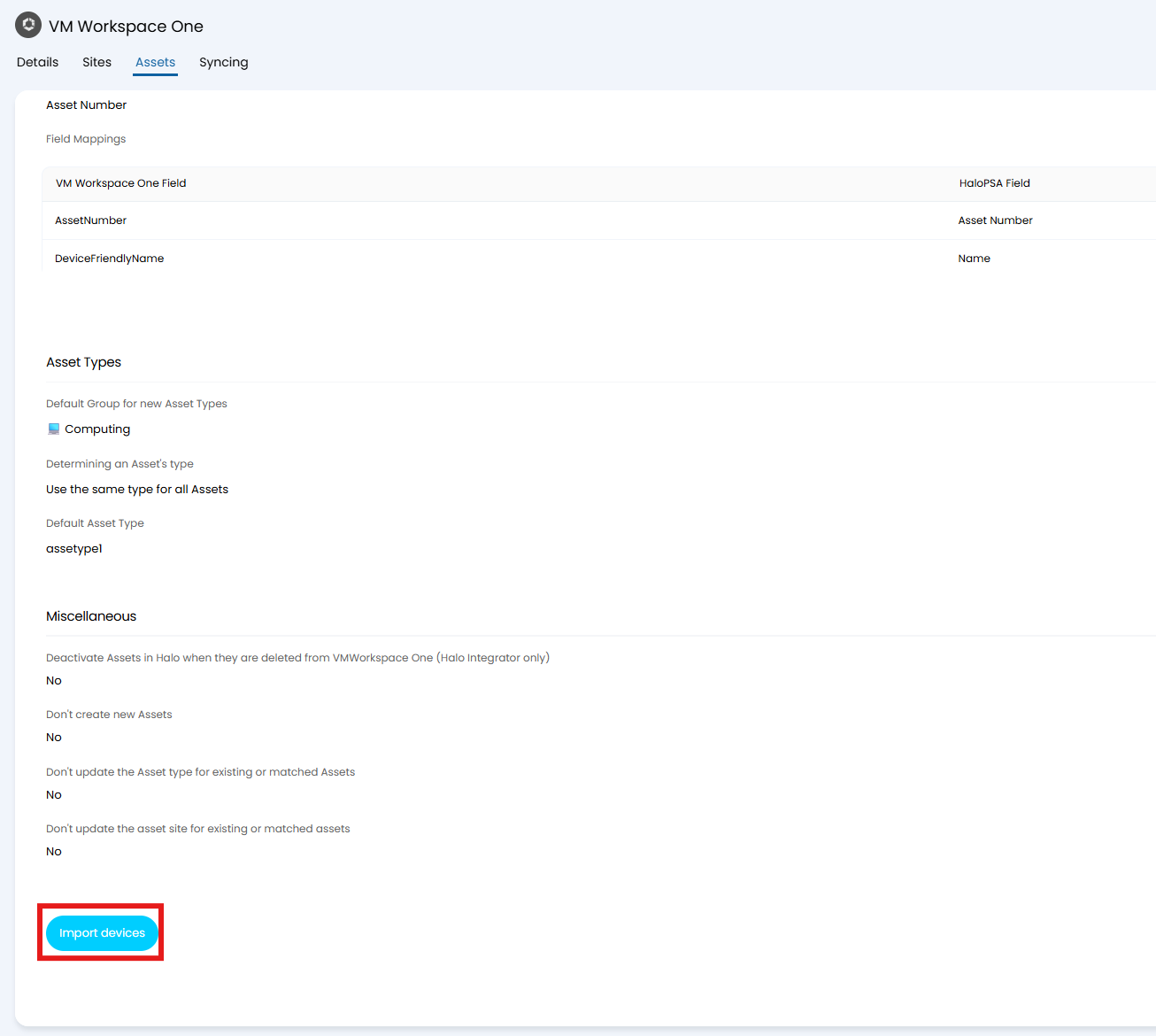
Fig 12. Import devices button
Syncing (Halo Integrator)
Once sites and assets are configured, you can enable the Halo Integrator to automatically sync assets.
Note: It is recommended to ensure you are happy with the configuration by manually importing before enabling automatic syncs via the Integrator.
Check "Enable the Halo Integrator for the VMWorkspace One integration", and set "Devices" in the box.
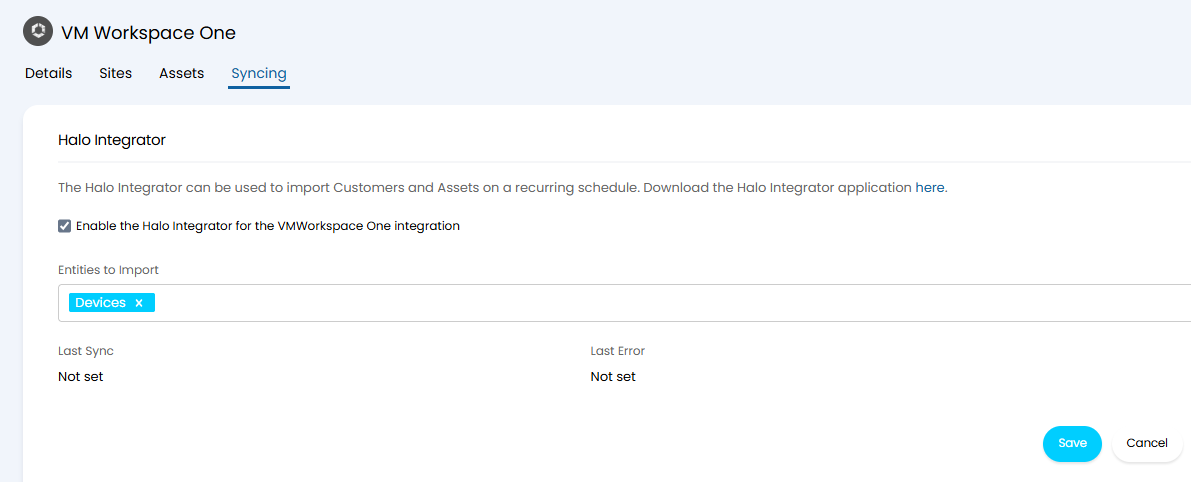
Fig 13. Enabling the Halo Integrator