Xensam Integration
In this guide we will cover:
- What is the Xensam Integration?
- Enabling the Xensam Module
- Connecting to Xensam
- Clients
- Assets and Data Centres
- Software Licences
- Halo Integrator
- Miscellaneous
What is the Xensam Integration?
The Xensam integration can import clients, their assets and data centres, and the associated software and licences. These can then be imported on a recurring schedule via the Halo Integrator.
Enabling the Xensam Module
In Configuration > Integrations, navigate to the Xensam module in the "Asset Management and Alerting" section. Hover over the module, and click the plus "+" icon to enable it.
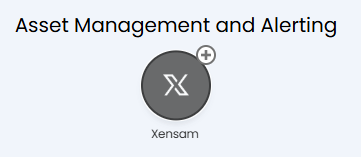
Fig 1. Enabling the Xensam integration
Connecting to Xensam
Clicking into the module, the connection details for Xensam can be entered at the top.
Credentials can be obtained from Xensam, and their documentation on this can be found here.
- If hosted by us, IPs for whitelisting can be found here.
- A list of endpoints used by this integration are also listed so this can be provided to Xensam support.
After entering the credentials received, click the "Test Configuration" button to confirm. If there are any issues, an error message will show to help troubleshoot this.
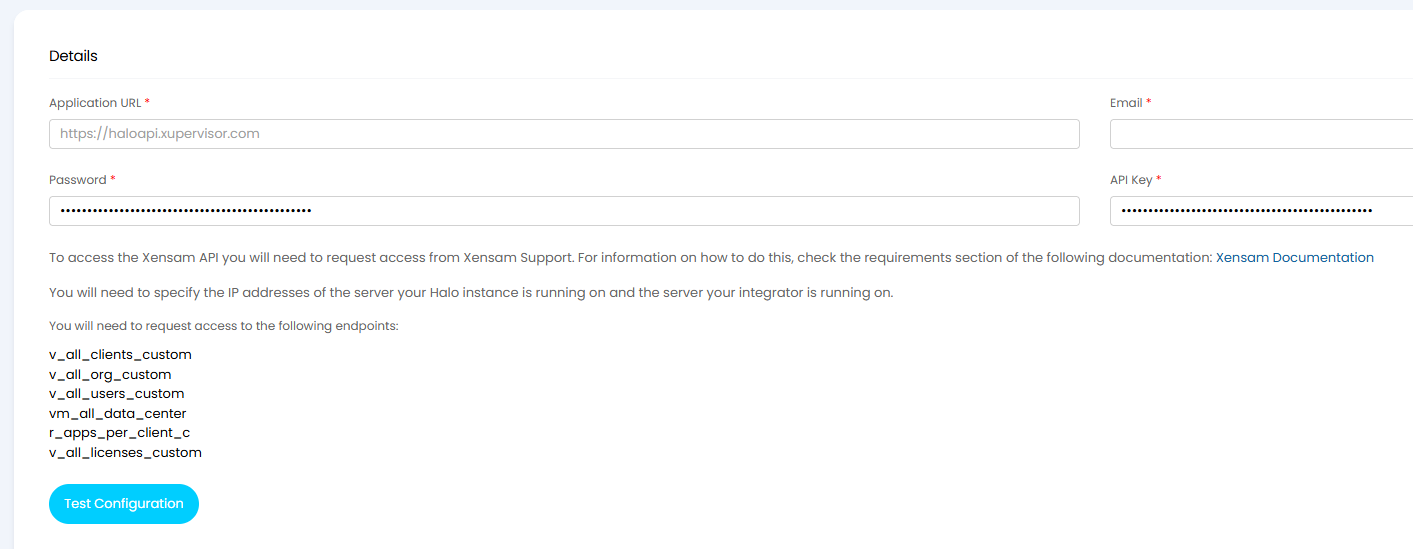
Fig 2. Entering Xensam credentials
Clients
Once connected, Xensam Organisations can be imported as clients in Halo. This needs to be done first to ensure the assets created after match to the correct client record.
Click the "Add" button.

Fig 3. Customer configuration
A popup will show to map the client records.
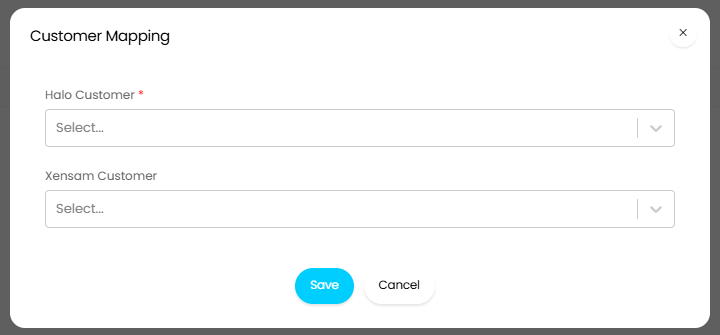
Fig 4. Mapping customer records
Once each client is mapped, click the "Import Clients" button under the table.
Assets and Data Centres
Both assets and data centres in Xensam will be imported as Halo assets. The behaviour of how these are imported is configured in the "Asset Import Settings" section.
- Default Site: Assets will be assigned to this Site if they are not linked to a User during the import.
- Default Group for new Asset Types: Sets the asset group newly created asset types will be assigned to. Xensam Asset Types are matched to existing Halo Asset Types via their name.
- Determining an Asset's type: Sets how the asset type is determined.
- Use the same type for all Assets: Assigns all assets to a set asset type.
- Use a field to determine each Asset's type: A set field will be used for determining an asset's type. New types will be created automatically if no type exists with a description matching the fields value. If the asset type creation fails, it will be assigned to a set default asset type.
- Determine Asset Type using rules: Criteria can be mapped to asset types based on values in Halo fields. If an asset cannot match via this field, it will be assigned to a set default asset type.
- Default Asset Type: Sets the asset type that will be used as the default, either if using the same type for all assets or as a catch all if attempting to match.
- Asset Matching Field: This field is used to match Assets to existing records. If matched, the record will be updated.
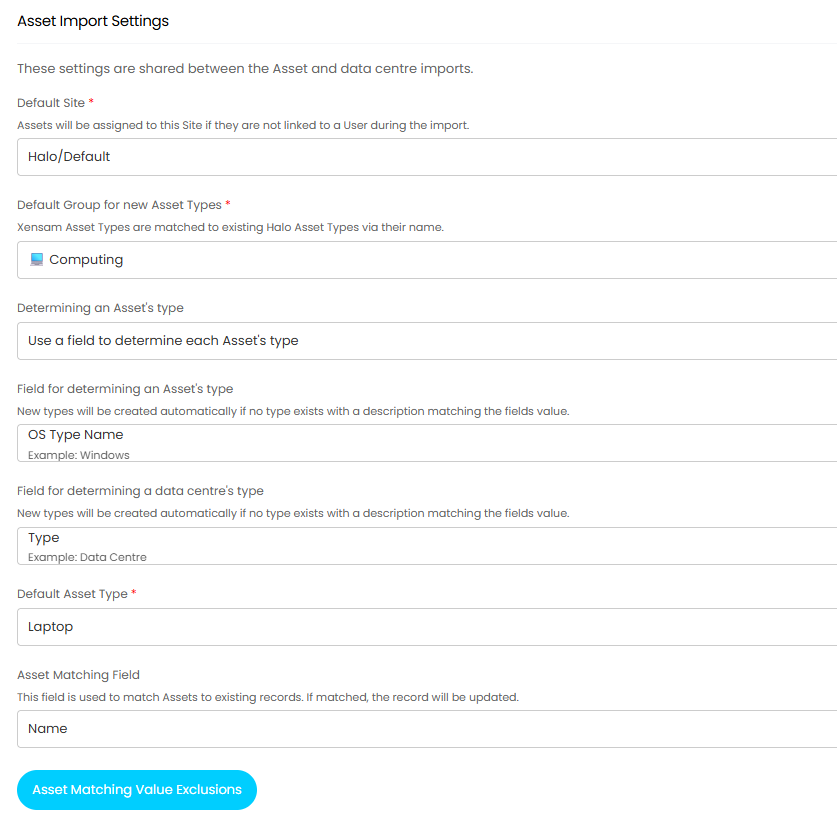
Fig 5. Asset configuration
Following setting those defaults, field mappings can be added for both assets and data centres separately.
The asset field mappings can be set first. Click the "Add" button.

Fig 6. Asset field mappings
A popup will show to map the asset fields. Both asset fields and custom fields of entity "Asset" can be mapped here.
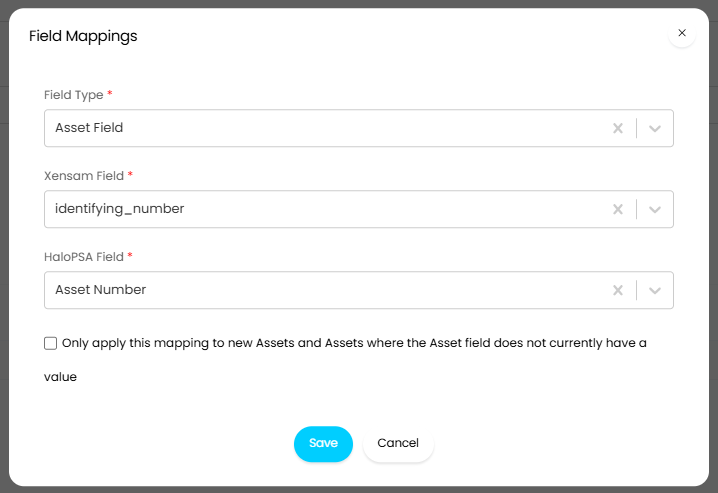
Fig 7. Mapping asset fields
Once each asset is mapped, click the "Import Assets" button under the field mappings table.
The same process can then be repeated with Data Centres. Click the "Add" button.

Fig 8. Data Centre field mappings
A popup will show to map the asset fields for data centres. Both asset fields and custom fields of entity "Asset" can be mapped here.
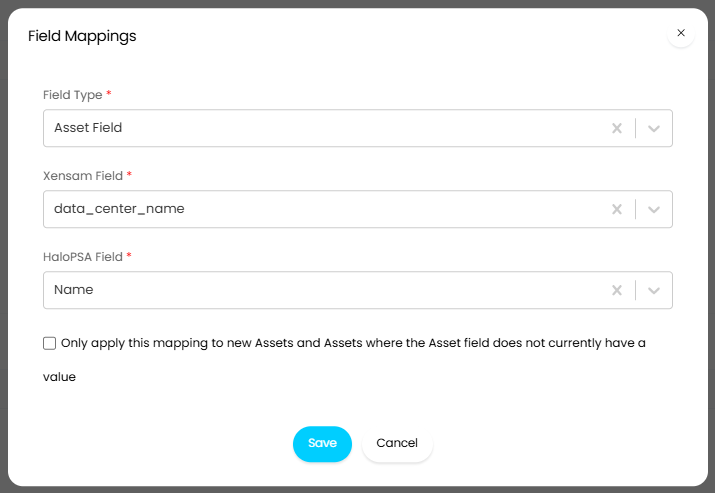
Fig 9. Mapping asset fields for data centres
Once each data centre is mapped, click the "Import Data Centre" button under the table.
Software Licences
Software licences can be imported. These will be assigned to the client record, and will not be associated to individual asset records.
Click the "Import Software Licences" button under the table. Ensure clients have been mapped and imported previous to this.
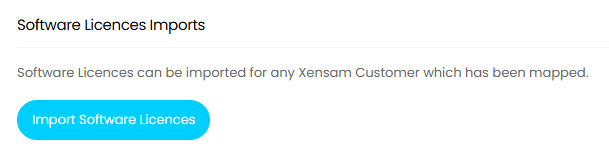
Fig 10. Importing software licences
Halo Integrator
To import each of these on a recurring basis, enable the Halo Integrator and choose which entities to sync.
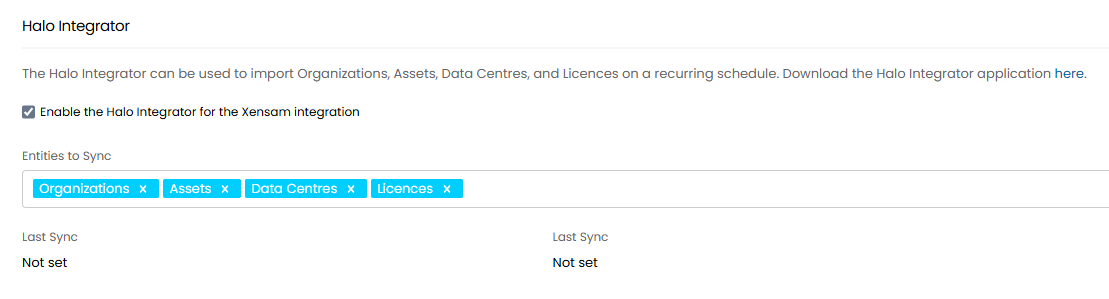
Fig 11. Enabling the Halo Integrator
Miscellaneous
Following enabling the integrator, some miscellaneous settings that also be enabled to change the behaviour of how assets are updated.
- Deactivate Assets in Halo when they are deleted from Xensam (Halo Integrator only): If assets are deleted in Xensam, they will be made inactive in Halo (via the "Active" checkbox) when syncing via the Halo Integrator.
- Do not update an Asset's type if the Asset already exists: If enabled, pre-existing assets will not have their asset type updated (if different in Xensam).
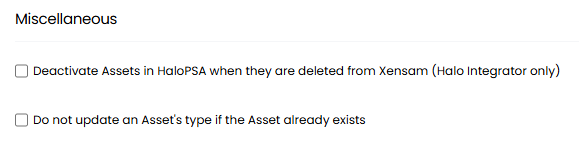
Fig 12. Miscellaneous configuration