Opsgenie Integration
In this guide we will cover:
- What is the Opsgenie Integration?
- Enabling the Opsgenie Integration
- Creating an API Key in Opsgenie
- Triggering the Runbook
What is the Opsgenie Integration?
The Opsgenie integration can create an alert in Opsgenie when a P1 ticket is raised in Halo.
Enabling the Opsgenie Integration
In Configuration > Integrations, find the Opsgenie module in the "Incident Management" section. Hover over the module, and click the plus "+" icon to enable it.
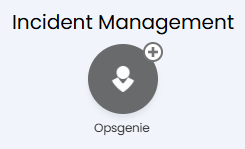
Fig 1. Enabling the module
Creating an API Key in Opsgenie
Clicking into the Opsgenie module, the credentials can be set here.
- Region: Region your Opsgenie instance uses.
- Instance URL: URL of your Opsgenie instance.
- API Key: The API key from the "Settings" page in Opsgenie.
API Keys are generated in Opsgenie, and if linked to a specific team in Opsgenie, will automatically set the responder for the alert.
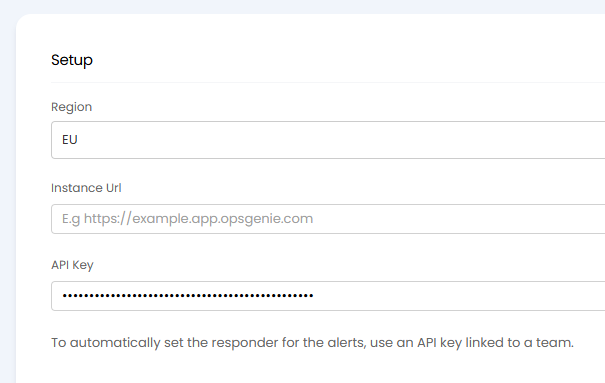
Fig 2. Connecting to Opsgenie
Triggering the Runbook
Once connected, click the "Opsgenie Runbook" button to view the runbook. This is downloaded when enabling the module, so ensure that has been done first.
This runbook can also be found by navigating to Configuration > Integrations > Custom Integrations > Integration Runbooks > "Opsgenie Alert".

Fig 3. Navigating to the runbook
The Opsgenie runbook is configured to create an alert in Opsgenie, then update the Halo ticket with the ID of the alert in Opsgenie. If any other behaviours are desired, such as closing the alert once resolved, the runbook can be edited accordingly. The contents of the alerts can also be customised the same way.
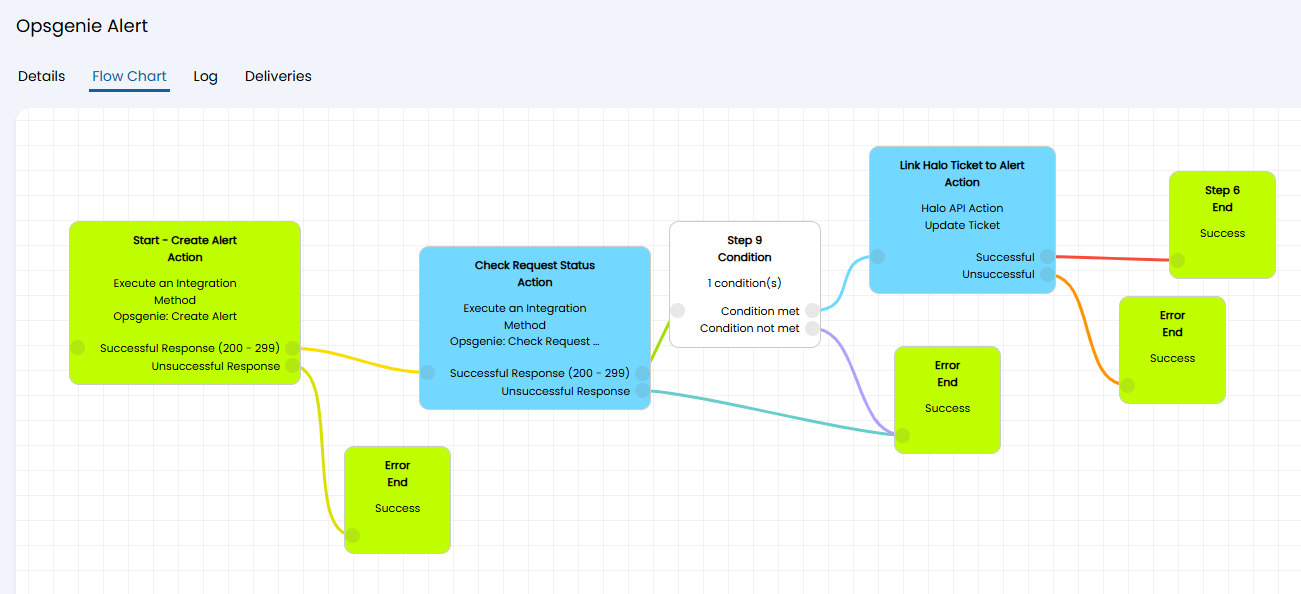
Fig 4. Opsgenie runbook
In the "Details" tab, use the "Events" table to configure when the runbook will trigger. For example, this one will run whenever a P1 ticket is logged in Halo. The body of the runbook step is configured to log a P1 alert in Opsgenie, so this will match the best.

Fig 5. Triggering the runbook
Tickets that have an Opsgenie alert logged from them will show the Opsgenie ID in the "Third Party ID" field, and this will link to the alert in Opsgenie.
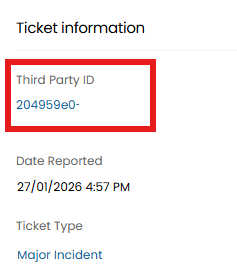
Fig 6. Opsgenie ID and link showing in the ticket details